

This post lists all the SCCM versions, build numbers, console version numbers, site and client version numbers. The latest SCCM (aka ConfigMgr) current branch build numbers and version numbers are updated with every new release.
Every Configuration Manager current branch release has a unique build number, version number, console version number, and full version number associated with it. In addition, every major SCCM version also updates the client agent version.
The hotfix updates, if they include client agent fixes, will also update the client agent version number. Look at the list of all the SCCM hotfixes and rollup updates released for every version of the current branch.
SCCM Current Branch Release Cycle
The SCCM CB release has been changed to one update per year. As per the SCCM new release cadence, Microsoft will release only one current branch update every year instead of two. This change will come into effect after the release of Configuration Manager version 2609.
By releasing a single SCCM current branch update per year, Microsoft believes that it will reduce ConfigMgr deployment management. SCCM administrators will have one less upgrade to do. This modification will enable Configuration Manager to continue releasing high-quality updates while having a longer development cycle to respond to important customer feature requests.
List of SCCM Versions and Build Numbers
The following table lists the following details about the latest ConfigMgr current branch release:
| SCCM Version | Full Version Number | Build Number | Client Version | Console Version | Baseline Version |
|---|---|---|---|---|---|
| KB38232642 Update for SCCM 2603 | 5.0.9146.1000 | 9146 | No Update | No Update | No |
| SCCM 2603 Hotfix KB37942646 | 5.0.9146.1000 | 9146 | No Update | No Update | No |
| SCCM 2603 Hotfix KB33247081 | 5.0.9146.1000 | 9146 | No Update | No Update | No |
| SCCM 2603 | 5.0.9146.1000 | 9146 | 5.00.9146.1009 | 5.2603.1035.1000 | No |
| KB37864969 for SCCM 2509 | 5.0.9141.1000 | 9141 | 5.0.9141.1032 | 5.2509.1036.1700 | No |
| Hotfix KB36949461 for SCCM 2509 | 5.0.9141.1000 | 9141 | 5.00.9141.1030 | 5.2509.9141.1030 | No |
| Update KB36419072 for SCCM 2509 | 5.0.9141.1000 | 9141 | 5.00.9141.1017 | No Update | No |
| KB33247081 Update for SCCM 2509 | 5.0.9141.1000 | 9141 | No Update | No Update | No |
| KB36495448 Update for SCCM 2509 | 5.0.9141.1000 | 9141 | 5.0.9141.1015 | No Update | No |
| SCCM 2509 | 5.0.9141.1000 | 9141 | 5.00.9141.1011 | 5.2509.1036.1200 | Yes |
| Hotfix Rollup KB32851084 for 2503 | 5.0.9135.1000 | 9135 | 5.0.9135.1013 | 5.2503.1083.1500 | No |
| KB34503790 Revised Security Update | 5.0.9135.1000 | 9135 | 5.0.9135.1006 | 5.2409.1183.1500 | No |
| KB33177653 Update for 2503 | 5.0.9135.1000 | 9135 | 5.0.9135.1006 | 5.2409.1183.1500 | No |
| KB32480179 hotfix for 2503 | 5.0.9135.1000 | 9135 | 5.00.9135.1001 | 5.2503.1083.1000 | No |
| SCCM 2503 | 5.0.9135.1000 | 9135 | 5.00.9135.1001 | 5.2503.1083.1000 | No |
| KB30385346 Hotfix Rollup for SCCM 2409 | 5.0.9132.1000 | 9132 | 5.00.9132.1023 | 5.2409.1183.1400 | No |
| SCCM 2409 Hotfix KB30833053 | 5.0.9132.1000 | 9132 | 5.00.9132.1013 | 5.2409.1183.1000 | No |
| SCCM 2409 | 5.0.9132.1000 | 9132 | 5.00.9132.1011 | 5.2409.1183.1000 | No |
| SCCM 2403 Rollup KB28204160 | 5.0.9128.1000 | 9128 | 5.00.9128.1030 | 5.2403.1171.2400 | No |
| SCCM 2403 Hotfix KB29166583 | 5.0.9128.1000 | 9128 | 5.00.9128.1014 | 5.2403.1171.1600 | No |
| SCCM 2403 Hotfix KB28458746 | 5.0.9128.1000 | 9128 | 5.00.9128.1014 | 5.2403.1171.1600 | No |
| SCCM 2403 Hotfix KB28290310 | 5.0.9128.1000 | 9128 | 5.00.9128.1005 | 5.2403.1171.1600 | No |
| SCCM 2403 | 5.0.9128.1000 | 9128 | 5.00.9128.1005 | 5.2403.1165.1000 | No |
| SCCM 2309 Hotfix Rollup KB25858444 | 5.0.9117.1000 | 9117 | 5.00.9122.1018 | 5.2309.1113.1900 | No |
| SCCM 2309 hotfix KB26129847 | 5.0.9117.1000 | 9117 | 5.00.9122.1007 | 5.2309.1109.1300 | No |
| SCCM 2309 | 5.0.9117.1000 | 9117 | 5.00.9117.1002 | 5.2309.1109.1300 | Yes |
| SCCM 2303 Hotfix KB24719670 | 5.0.9106.1000 | 9106 | 5.00.9106.1022 | 5.2303.1089.1300 | No |
| SCCM 2303 Hotfix KB24721208 | 5.0.9106.1000 | 9106 | 5.00.9106.1018 | 5.2303.1089.1300 | No |
| SCCM 2303 Hotfix KB21010486 | 5.0.9106.1000 | 9106 | 5.00.9106.1015 | 5.2303.1089.1300 | No |
| SCCM 2303 | 5.0.9106.1000 | 9106 | 5.00.9106.1000 | 5.2303.1089.1000 | Yes |
| SCCM 2211 Hotfix KB16643863 | 5.0.9096.1000 | 9096 | 5.00.9096.1024 | 5.2211.1061.1300 | No |
| SCCM 2211 | 5.0.9096.1000 | 9096 | 5.0.9096.1000 | 5.2211.1061.1000 | No |
| SCCM 2207 hotfix KB15152495 | 5.0.9088.1025 | 9088 | 5.0.9088.1025 | 5.2207.1048.2600 | No |
| ConfigMgr 2207 Hotfix KB15599094 | 5.0.9088.1013 | 9088 | 5.00.9088.1007 | 5.2207.1048.1700 | No |
| SCCM 2207 Hotfix KB15498768 | 5.0.9088.1012 | 9088 | 5.00.9088.1007 | 5.2207.1048.1700 | No |
| SCCM 2207 Hotfix KB14978429 | 5.0.9088.1000 | 9088 | 5.00.9088.1007 | 5.2207.1048.1700 | No |
| SCCM 2207 Hotfix KB14959905 | 5.0.9088.1010 | 9088 | 5.0.9088.1010 | 5.2207.1048.1700 | No |
| SCCM 2207 | 5.0.9088.1000 | 9088 | 5.00.9088.1007 | 5.2207.1048.1700 | No |
| SCCM 2203 Hotfix KB14244456 | 5.00.9078.1025 | 9078 | 5.00.9078.1025 | 5.2203.1063.2400 | No |
| SCCM 2203 Hotfix KB14480034 | 5.00.9078.1007 | 9078 | 5.00.9078.1006 | 5.2203.1063.1500 | No |
| SCCM 2203 Hotfix KB13953025 | 5.00.9078.1007 | 9078 | 5.00.9078.1006 | 5.2203.1063.1500 | No |
| SCCM 2203 | 5.00.9078.1000 | 9078 | 5.00.9078.1006 | 5.2203.1063.1400 | Yes |
| SCCM 2111 Hotfix KB12896009 | 5.00.9068.1000 | 9068 | 5.00.9068.1026 | 5.2111.1052.2500 | No |
| SCCM 2111 Hotfix KB12959506 | 5.00.9068.1000 | 9068 | 5.00.9068.1012 | 5.2111.1052.1700 | No |
| SCCM 2111 Hotfix KB12709700 | 5.00.9068.1000 | 9068 | 5.00.9068.1008 | 5.2111.1052.1700 | No |
| SCCM 2111 | 5.00.9068.1000 | 9068 | 5.00.9068.1005 | 5.2111.1052.1700 | No |
| SCCM 2107 | 5.00.9058.1000 | 9058 | 5.00.9058.1012 | 5.2107.1059.2000 | No |
| SCCM 2103 | 5.00.9049.1000 | 9049 | 5.00.9049.1008 | 5.2103.1059.1700 | Yes |
| SCCM 2010 | 5.00.9040.1000 | 9040 | 5.00.9040.1010 | 5.2010.1093.1800 | No |
| SCCM 2006 | 5.00.9012.1000 | 9012 | 5.00.9012.1015 | 5.2006.1026.1800 | No |
| SCCM 2002 | 5.00.8968.1000 | 8968 | 5.00.8968.1021 | 5.2002.1083.1700 | Yes |
| SCCM 1910 | 5.00.8913.1000 | 8913 | 5.00.8913.1000 | 5.1910.1067.2100 | No |
| SCCM 1906 | 5.00.8853.1000 | 8853 | 5.00.8853.1006 | 5.1906.1096.1500 | No |
| SCCM 1902 | 5.00.8790.1000 | 8790 | 5.00.8790.1005 | 5.1902.1085.1500 | Yes |
| SCCM 1810 | 5.00.8740.1000 | 8740 | 5.00.8740.1003 | 5.1810.1075.1300 | No |
| SCCM 1806 | 5.00.8692.1000 | 8692 | 5.00.8692.1003 | 5.1806.1074.1200 | No |
| SCCM 1802 | 5.00.8634.1000 | 8634 | Yes | ||
| SCCM 1710 | 5.00.8577.1000 | 8577 | No | ||
| SCCM 1706 | 5.00.8540.1000 | 8540 | No | ||
| SCCM 1702 | 5.00.8498.1000 | 8498 | Yes | ||
| SCCM 1610 | 5.00.8458.1000 | 8498 | No | ||
| SCCM 1606 | 5.00.8412.1000 | 8412 | Yes | ||
| SCCM 1602 | 5.00.8355.1000 | 8355 | No | ||
| SCCM 1511 | 5.00.8325.1000 | 8325 | Yes |
SCCM 2012 R2 and Older Build Numbers
The table below contains all the build numbers and version information for SCCM 2012 R2 and previous releases. Note that these versions have gone out of support.
| SCCM Version | Version | Build | KB Number |
|---|---|---|---|
| SCCM 2012 R2 SP1 CU4 | 5.00.8239.1501 | 8239 | KB3195483 |
| SCCM 2012 R2 SP1 CU3 | 5.0.8239.1403 | 8239 | KB3135680 |
| SCCM 2012 R2 SP1 CU2 | 5.00.8239.1301 | 8239 | KB3100144 |
| SCCM 2012 R2 SP1 CU1 | 5.00.8239.1203 | 8239 | KB3074857 |
| SCCM 2012 R2 SP1 | 5.00.8239.1000 | 8239 | |
| SCCM 2012 R2 CU5 | 5.00.7958.1604 | 7958 | KB3054451 |
| SCCM 2012 R2 CU4 | 5.00.7958.1501 | 7958 | KB3026739 |
| SCCM 2012 R2 CU3 | 5.00.7958.1401 | 7958 | KB2994331 |
| SCCM 2012 R2 CU2 | 5.00.7958.1303 | 7958 | KB2970177 |
| SCCM 2012 R2 CU1 | 5.00.7958.1203 | 7958 | KB2938441 |
| SCCM 2012 R2 Hotfix | 5.00.7958.1101 | 7958 | KB2905002 |
| SCCM 2012 R2 RTM | 5.00.7958.1000 | 7958 | |
| SCCM 2012 SP1 CU5 | 5.00.7804.1600 | 7804 | KB2978017 |
| SCCM 2012 SP1 CU4 | 5.00.7804.1500 | 7804 | |
| SCCM 2012 SP1 CU3 | 5.00.7804.1400 | 7804 | |
| SCCM 2012 SP1 CU2 | 5.00.7804.1300 | 7804 | |
| SCCM 2012 SP1 CU1 | 5.00.7804.1202 | 7804 | |
| SCCM 2012 SP1 | 5.00.7804.1000 | 7804 | |
| SCCM 2012 RTM | 5.00.7711.0000 | 7711 |
Find SCCM Version
The SCCM build number is unique for every release and gets updated with every major release. The build number won’t change after installing the hotfixes. There are multiple ways to check the installed version of SCCM, and they are described below.
Method 1: Configuration Manager Console
Use the following steps to find the SCCM version number of the current branch:
- Launch the ConfigMgr Console.
- Click About > Configuration Manager.
- In the About Microsoft Configuration Manager window, you see the Version Number.

Method 2: Windows Registry
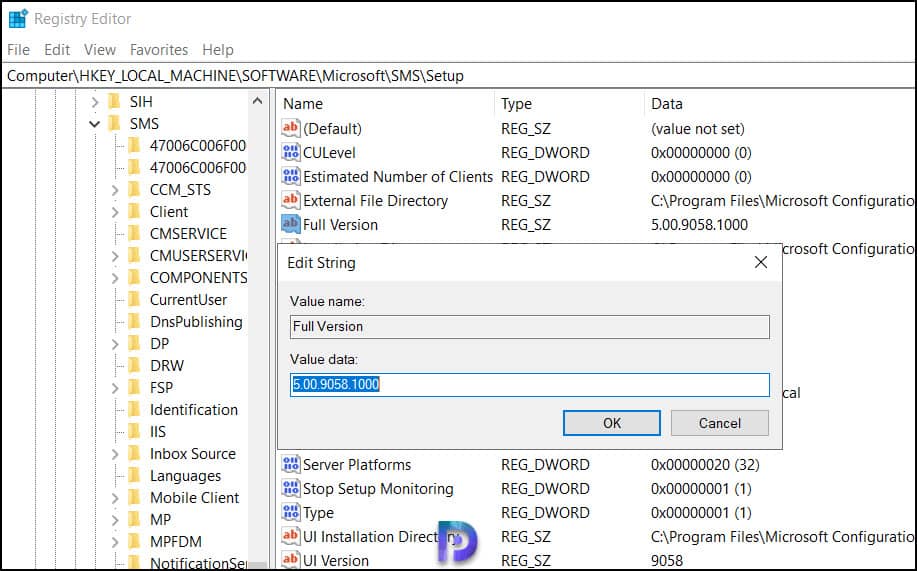
Along with SCCM build numbers, you can find SCCM full version details in the registry. On the SCCM server, open the Registry Editor and browse to the following path:
HKEY_LOCAL_MACHINE\SOFTWARE\Microsoft\SMS\SetupLook for the value name “Full Version,” and that shows the SCCM full version number. For example, in the below screenshot, the full version of SCCM 2107 is 5.00.9058.1000. Do not modify any of those registry values, as they may interfere with Configuration Manager’s operation.
Find SCCM Build Number
There are multiple methods to find the build number of SCCM. To get the current SCCM build number, you can either look at the registry or the properties of the site server. Out of the two methods, you can quickly get the build number of ConfigMgr by going to the site server’s properties. Let us go over both of these methods for determining the build number.
Method 1: Windows Registry
Use the following steps to find the build number of SCCM using Registry:
- On the SCCM server, launch the registry editor.
- Navigate to
HKEY_LOCAL_MACHINE\SOFTWARE\Microsoft\SMS\Setupand look for the UI Version. - The “UI Version” registry value represents the build number of the SCCM version.

Method 2: Site Server Properties
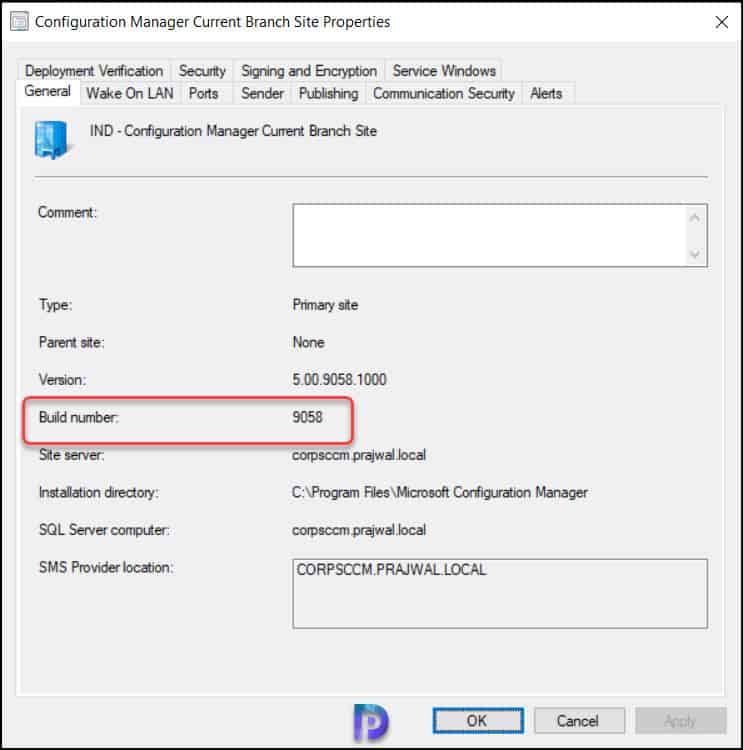
You can also find the SCCM build number in the site properties. In the Configuration Manager console, go to Administration > Overview > Site Configuration > Sites. Right-click the SCCM site and select Properties. On the General tab, you can find the build number of Configuration Manager.
Find SCCM Console Version Number
If you are tasked with finding the installed console version, there are multiple ways to do that.
Method 1: Configuration Manager Console
You can find the SCCM console version numbers by following the below steps:
- Launch the SCCM console.
- Click on the drop-down arrow near the home button.
- Select “About Configuration Manager“.
- The popup window shows the SCCM Console version along with the site version.

Method 2: Windows Registry
To retrieve the product code and version number of an installed console through the registry, open the Registry Editor and navigate to the specified registry path on the computer where the Configuration Manager console is installed. Here, the value of ‘AdminConsoleVersion‘ key shows the installed console version.
Computer\HKEY_LOCAL_MACHINE\SOFTWARE\Wow6432Node\Microsoft\ConfigMgr10\Setup
Find the SCCM client version number
The exact client version running on your system can be determined with multiple ways. Let me show you those methods.
Configuration Manager Properties
- On the computer, launch the Control Panel and select the Configuration Manager applet to launch it.
- Under Configuration Manager properties, select the General tab.
- In the General tab, you will find the full SCCM client version number.

PowerShell
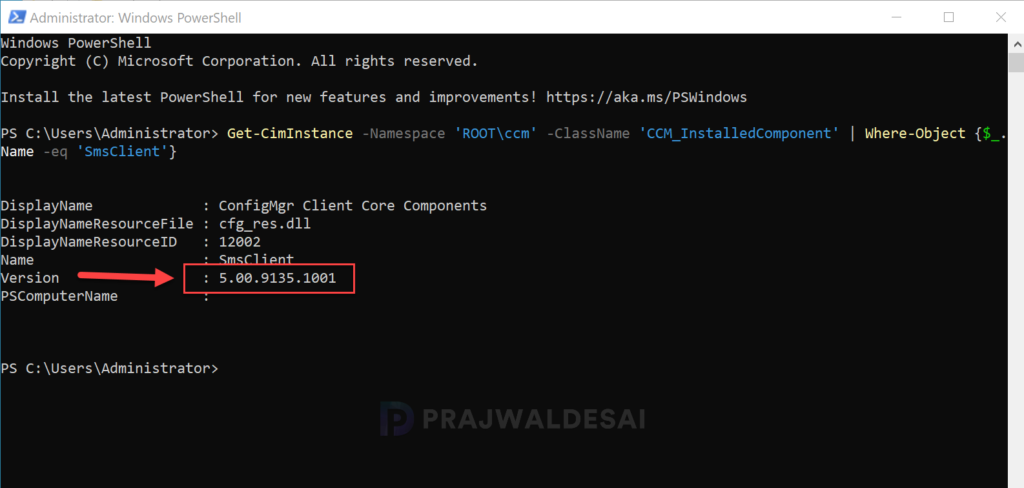
To quickly check the installed ConfigMgr client version, simply execute the following command in the PowerShell window.
Get-CimInstance -Namespace 'ROOT\ccm' -ClassName 'CCM_InstalledComponent' | Where-Object {$_.Name -eq 'SmsClient'}In the below image, the command output displays the installed client version.

Please add most recent versions. Thanks!
Yes, the post is updated.
Hello!
What release of SCCM does client version 5.00.8853.1020 belong to?
Somewhere between SCCM 1906 and 1910?
I’ve seen it being installed from an installation of SCCM 2303 (Hotfix Rollup) and that seems a bit odd.
Its version 1906.
Hi Prajwal,
How can I get SCCM version number from SQL Query. We have few SCCM back up DBs on SQL Server. Could you please let me know? Some dbs don’t have DBSchema table.
Thank you
Ram
I will check this lab and get it for you.
Hello,
The Version for CurrentBranch 2309 is 5.00.9120.1000 and is not a baseline.
best regards from Switzerland,
Philippe
Good Day Prajwal,
We have an environment that is running 1802, (yes, I know, ancient) and want to go to 2211. Based on my research, please correct me if I am wrong, this is the SCCM versions I need to upgrade to as part of the process to 2211: 1802 –> 1902 –> 2002 –> 2107 –> 2211.
The above is for the server components. How about the client/end-points? – Do I need to step-upgrade them in a similar order? Or can I actually go from 1802 to 2211 (sccm client)?
Thank you greatly for any help.
Cheers,
Tomas
You can use the upgrade path that you mentioned. Client upgrade can be done once you install the final version. You can either use automatic client upgrade or manually push the clients to device collections.
Hi Prajwal,
Is it correct that the SCCM 2207 has exactly the same build as the SCCM 2207 Hotfix KB14978429?
The patch between has a different build SCCM 2207 Hotfix KB14959905.
So the patch level goes up and then again down.
I can’t validate it but is seems wrong to me.
Best Regards,
Alex
Hi Prajwal, Which version of SCCM is compatible with Intune for a hybrid environment?
Thanks
Hi Prajwal, thank you so much for your guides.
The SCCM client 5.00.9088.1007 works with Windows 7?
Thank you
Please Share step by step upgrade Version from 2010 to Latest Version without any issue or Impacts current setup.
We must be about due a 2102 release. Anyone know when it’s due? Just thinking ahead to ensure support of 21H1 once that’s released.
The ConfigMgr 2103 is the next release and it will be released soon. I mean very soon.
Thanks Prajwal!
Hi Prajwal,
My organisation are currently using console version 1802 and we are planning to upgrade it to higher version (stable one) . What is the version we should upgrade to ?
Please give your expert advise.
It will be a two step upgrade. You can install SCCM 1906 update on sites that run version SCCM 1802, SCCM 1806, SCCM 1810, or SCCM 1902. You can begin upgrading to Configuration Manager 2010 on sites that run version SCCM 1906, SCCM 1910, SCCM 2002 or ConfigMgr 2006.
1. Upgrade your Configuration Manager version 1810 to version 1906 first – https://www.prajwaldesai.com/sccm-1906-step-by-step-upgrade-guide/
2. Upgrade SCCM 1906 to SCCM 2010 – https://www.prajwaldesai.com/sccm-2010-upgrade-guide/
For my organization that runs on 1902, would the process be the same?
Hi Prajwal, Thanks for all the work that you do!
What is the best way to know when a new Config Manager version is released? My boss is adamant that we have the latest version as soon as it is available. Is there any kind of email or notification service I can sign up for that you know of?
Thanks!!
Andy
Microsoft publishes the information about the new update as when it gets released. Over Twitter you get some news about upcoming update. Apart from that I try my best to publish the new update information on my blog. You should also get a console notification about the new update available.
Thank you, Sir!
Hey Prajwal,
Awesome content!
Hi there,
Please help me, I want to upgrade SCCM Current Branch 1902 to the latest.
How can I help you ?.
After a much heated discussion, I believe my organization is moving towards SCCM. My questions are as follows:
-SCCM 2012 is being taught yet the exam has been retired-what version should I train for?
-Microsoft has integrated SCCM into Endpoint Configuration manager-what version should we be looking at for installation on Windows server 2008 R2 or Server 2012 R2?..or are we purchasing MS Endpoint Configuration Manager 2019?
Thank you for your responses.
SCCM 2012 is an expired product and you won’t be getting any updates for it. You should go with Configuration Manager current branch (latest version) if you decide to implement it across the estate. I will find out more info about exam and will update the answer.
The windows server should be atleast Windows 2012 R2 and above. I always prefer to use the latest and stable version Of Windows server. You can also check the system OS requirements for specific version of Current Branch and go with that info.
Thanks for the info. I wonder is there any absolute dates for (production versions)
I mean, there is tech preview versions 1908, 1909,1910 etc. But is it clear for new production version will be (lets say) 1911.
Is there any standard ?
There are no absolute dates for production versions. Usually they are released for fast ring customers first and then made globally available.
I am having issues with updating to 1802. Its been about a month and my SCCM server is still downloading 1802. Plz help.
If you can explain the error or elaborate more on this, I can help you.
Don’t forget the 1802 Hotfix (KB4132447) version too?
5.00.8634.1011
Yes that is updated now.