

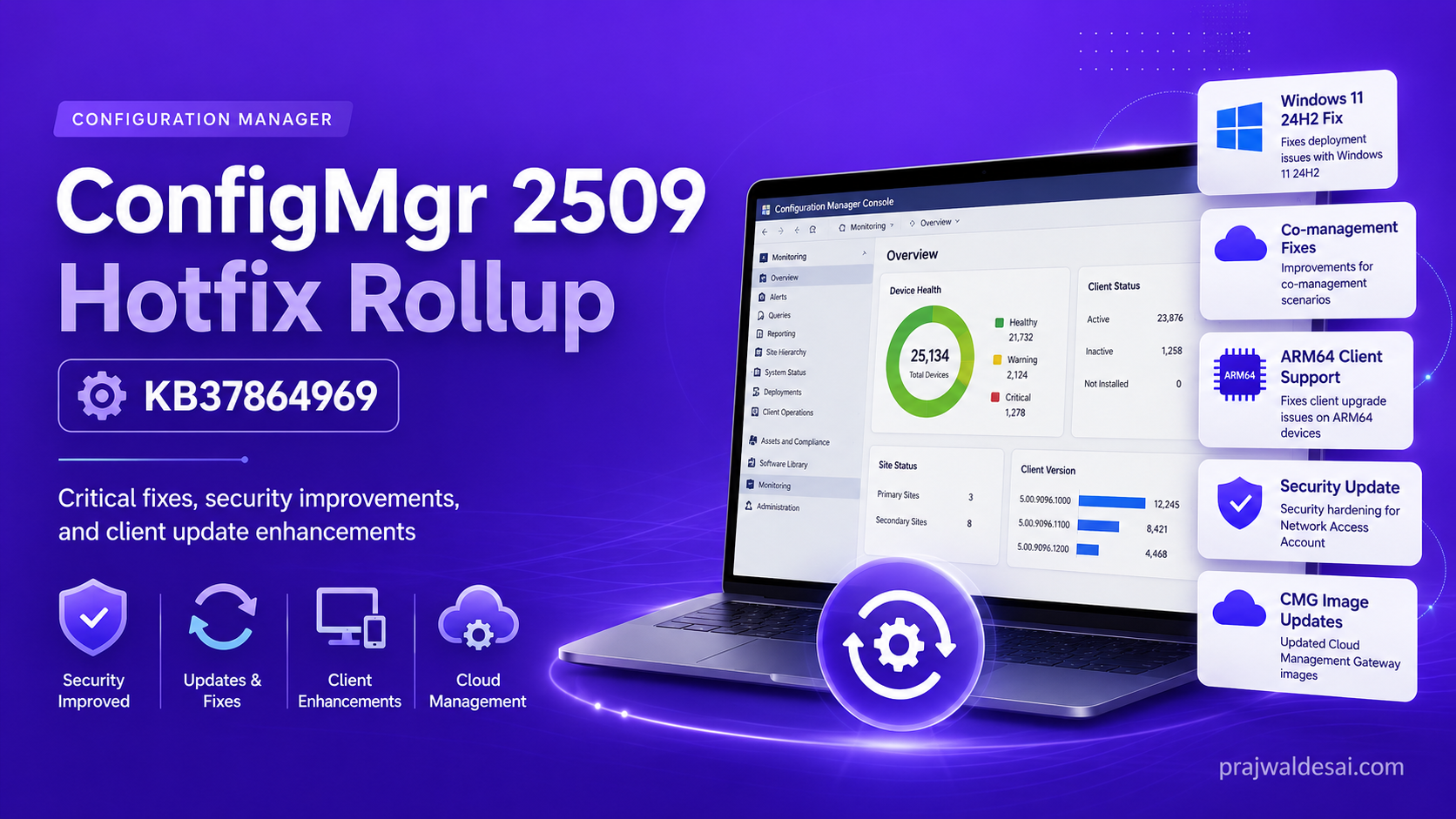
KB37864969 is the second hotfix rollup released for Configuration Manager 2509 that supersedes the previously released KB 36949461 update. This update enhances system stability and security by addressing various issues that affect deployment and compliance in Configuration Manager, ensuring smoother operations for IT administrators.
ConfigMgr administrators should be aware that this is the second update rollup for Microsoft Configuration Manager version 2509, with the first being KB36949461. I would recommend the installation of the second rollup update because it includes four previously released hotfixes.
Hotfix rollup KB37864969 is only applicable to Configuration Manager version 2509. Alternatively, you might consider upgrading to the newer 2603 CB branch version for ongoing updates and fixes.
Hotfixes included in KB37864969
- KB37172183: Software Center compliance check fails with GET_TOKEN_FROM_STS_ERROR in co-managed environments
- KB37447175: Security update to harden access to Network Access Account information
- KB36419072: Offline feedback update for Configuration Manager
- KB36495448: Co-management and third-party update scan source fix for Configuration Manager
Issues fixed in KB37864969 Rollup Update
- Build and Capture task sequence produces an incorrect restart error on Windows 11 24H2.
- Windows 10 IoT Enterprise LTSC 2021 was incorrectly reported as unsupported.
- Software Center compliance check fails in co-managed environments.
- Applications with OS requirements fail during OSD with HTTP 404 error after upgrading to 2509.
- Co-managed clients with 3rd-party update catalogs receive updates from incorrect source.
- ConfigMgr client upgrade fails on Windows 11 ARM64 devices.
- Subsequent ConfigMgr client upgrades fail on ARM64 after the initial upgrade failure.
- Microsoft Defender does not apply Intune policies after the Endpoint Protection workload is switched to Intune.
- Intune EDR policies fail to apply on tenant-attached clients.
- Offline feedback submission fails due to authentication library version mismatch.
- Cloud Management Gateway VMSS image updated to remove end-of-life .NET 6.
Install Configuration Manager Hotfix Rollup KB37864969
- Launch the Configuration Manager console on the server.
- Navigate to Administration\Overview\Updates and Servicing.
- Right-click Configuration Manager Hotfix Rollup (KB37864969) and select Install Update Pack.
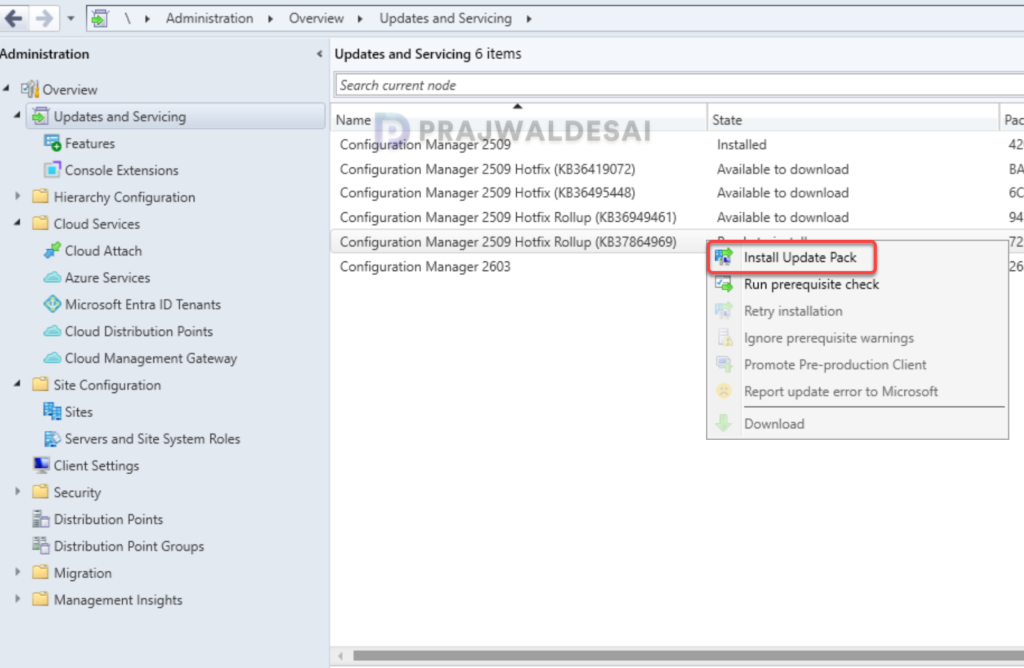
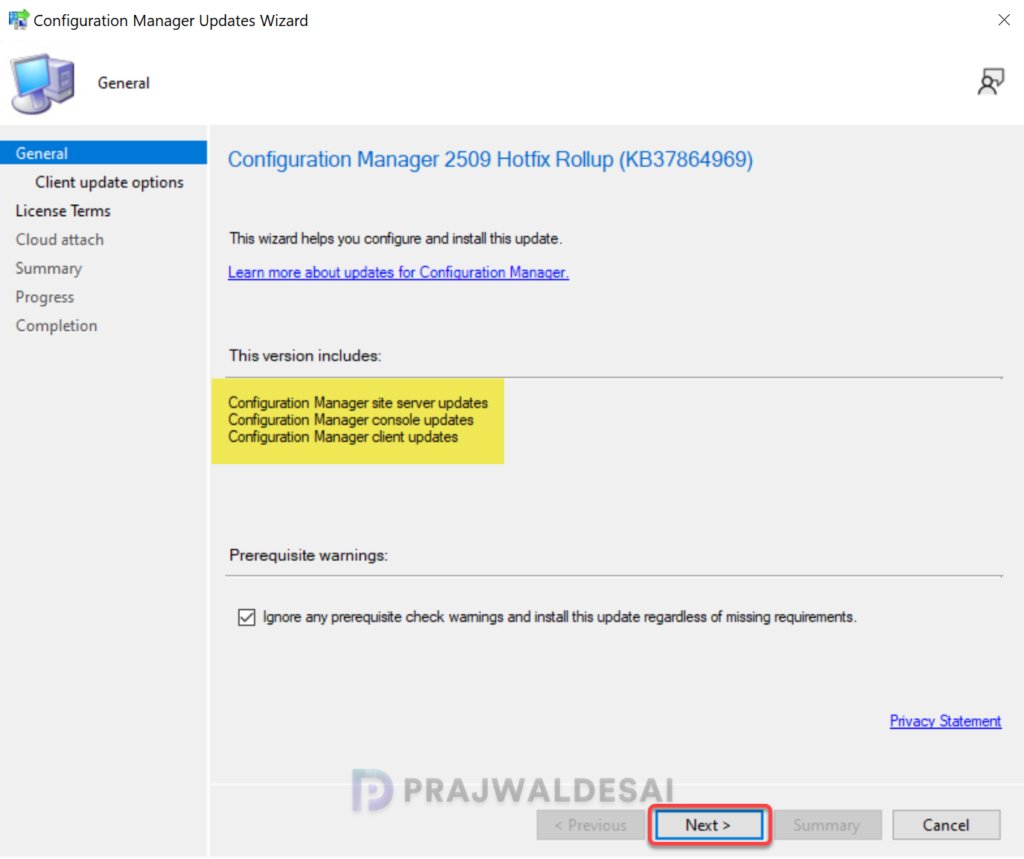
It is highly recommended that you run a prerequisite check for this update on your production server before installing it. For lab environments, you can enable the option “Ignore any prerequisite check warnings and install the update.” Click Next.
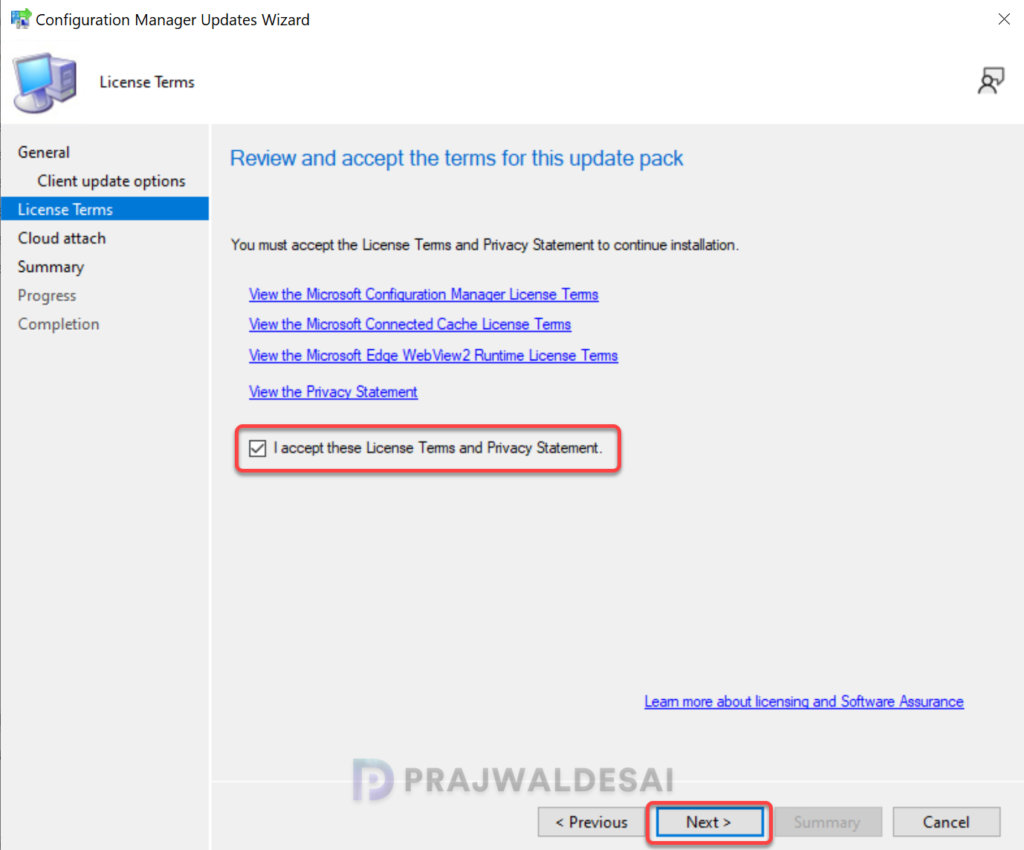
Accept the license terms required for installing the hotfix. Click Next.
Complete the steps included in the hotfix installation wizard and close the update installation wizard. Sit back and relax; the hotfix installation begins now.
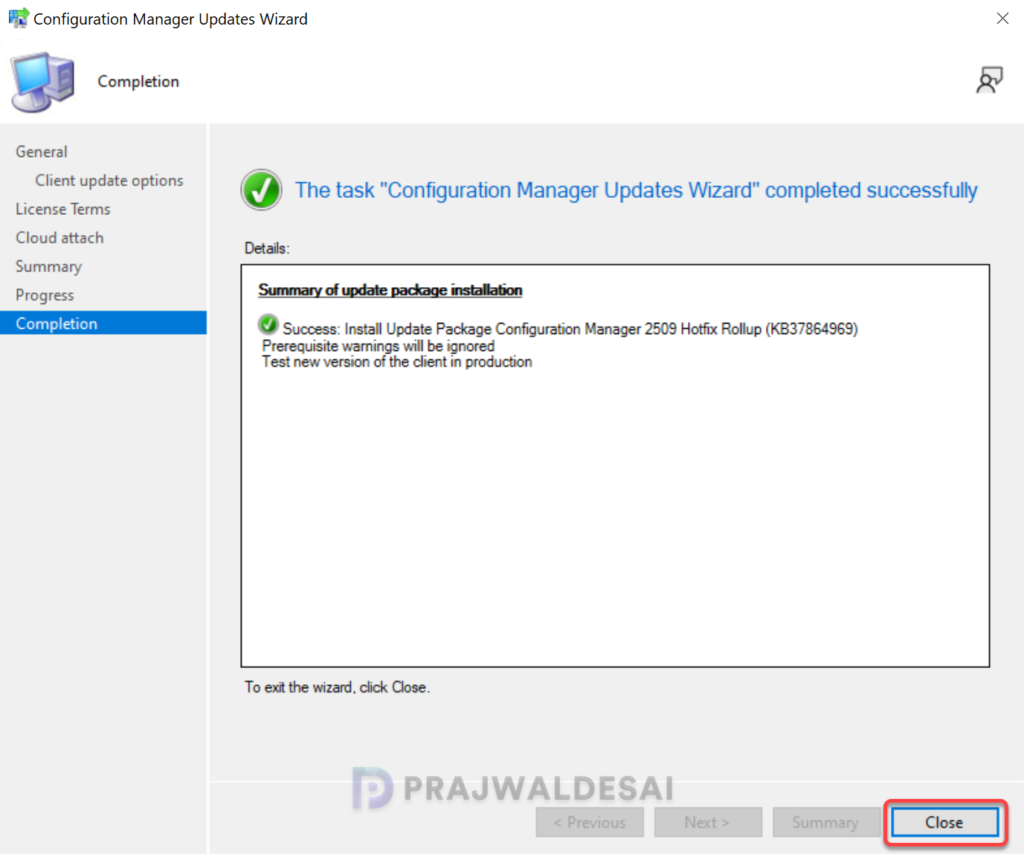
Track the installation of the hotfix
To track the progress of KB37864969 hotfix installation, navigate to Monitoring\Overview\Updates and Servicing Status. If the hotfix fails to install, this section will show you the exact step where the update failed. Another way to monitor the hotfix installation progress is by reviewing the cmupdate.log file.
Console Upgrade
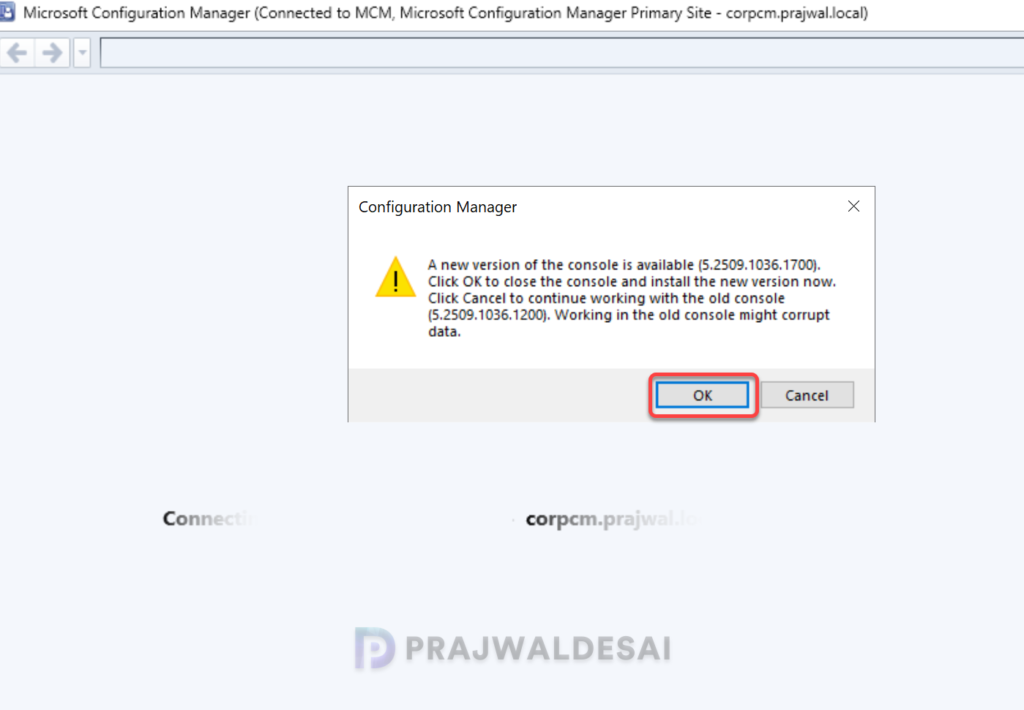
If you’re prompted for the console upgrade, complete it. The hotfix upgrades the Configuration Manager Console to version 5.2509.1036.1700. This update doesn’t require a computer restart but will initiate a site reset after installation.
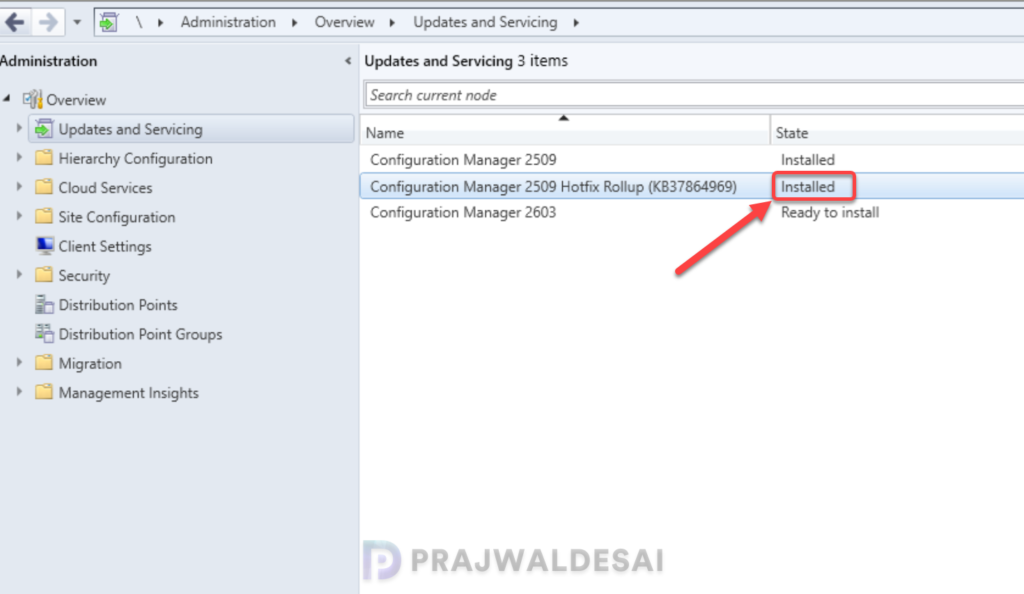
To verify if the KB37864969 hotfix is installed, open the console and go to Administration > Updates and Servicing. If the State column for the hotfix shows ‘Installed‘ it means the update installation is completed.
Upgrading Clients
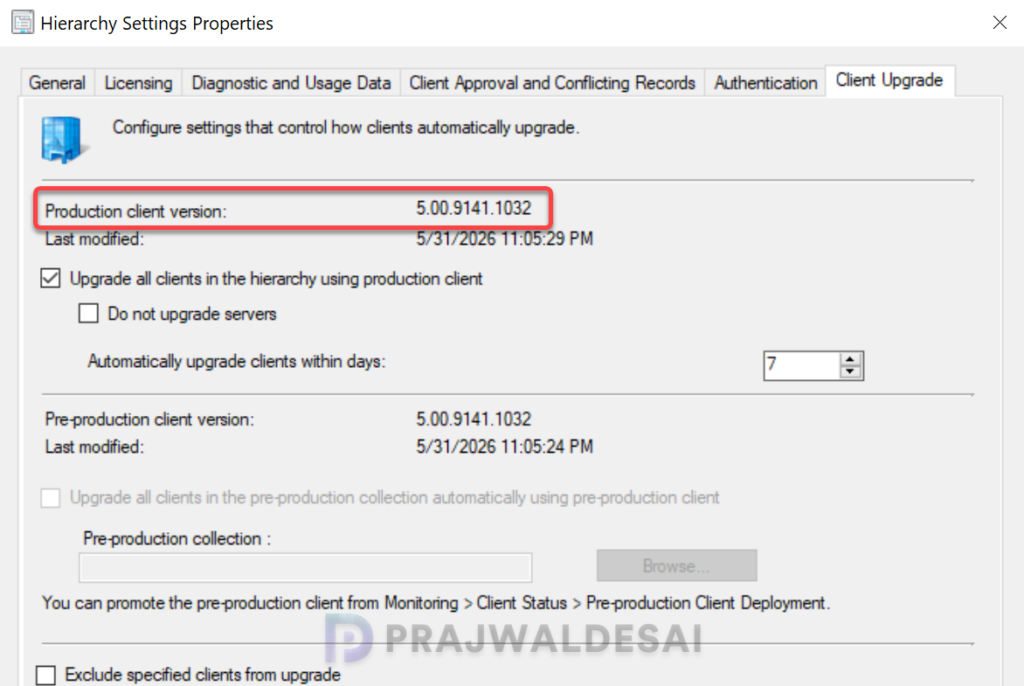
The hotfix rollup KB37864969 updates the client agent version to 5.00.9141.1032. Make sure you upgrade the clients to the latest version to get the fixes and new features. For more help on upgrading the clients, refer to the guide SCCM client upgrade options.
Secondary Sites
After installing the KB37864969 update on a primary site, pre-existing secondary sites must be manually updated. This must be done on all the secondary sites present in your setup.
Log in to the secondary site server, and open the Configuration Manager console. Go to Administration > Site Configuration > Sites > Recover Secondary Site, and then select the secondary site. Run the following SQL Server command on the site database to check whether the updated version of a secondary site matches that of its parent primary site:
select dbo.fnGetSecondarySiteCMUpdateStatus ('SiteCode_of_secondary_site')If the above command returns value 1, it means the site is up-to-date, with all the hotfixes applied on its parent primary site. If the value 0 is returned, the site has not installed all the fixes that are applied to the primary site. You should use the Recover Secondary Site option to update the secondary site.
Lastly, take a look at all the versions of Configuration Manager current branch and their build and console version numbers.

Do you know, if the CMG also gets inplace updated to the new VMSS SKU or if it is needed to build a new one, migrate all clients and then remove the old one?