


Microsoft has released a new hotfix KB36495448 to resolve an issue with software updates when third-party updates are used in a co-managed environment. The hotfix was released on February 23, 2026 and is applicable for SCCM versions 2503 and 2509.
In Configuration Manager versions 2503 (with Update Rollup KB32851084 applied) and 2509, enabling third-party updates on co-managed devices inadvertently alters Windows Update scan source policies. This can lead to the Configuration Manager client generating an incomplete or partial scan source policy configuration.
The partial scan causes devices that should receive Feature Updates or Quality Updates from Microsoft Intune or Windows Update for Business (WUfB) to instead obtain those updates from WSUS/Configuration Manager. The KB36495448 update resolves the issue by ensuring that Configuration Manager does not set or alter Windows Update scan source policies on co-managed devices.
Prerequisites
- To install the KB36495448 update, you must be using Configuration Manager, versions 2503 (with Update rollup KB32851084 installed) and 2509.
- This hotfix doesn’t replace any previously released hotfix.
- Ensure no other deployments are in progress when you install this update.
For more information, refer to the KB36495448 hotfix documentation by Microsoft.
Install KB36495448 Hotfix for SCCM
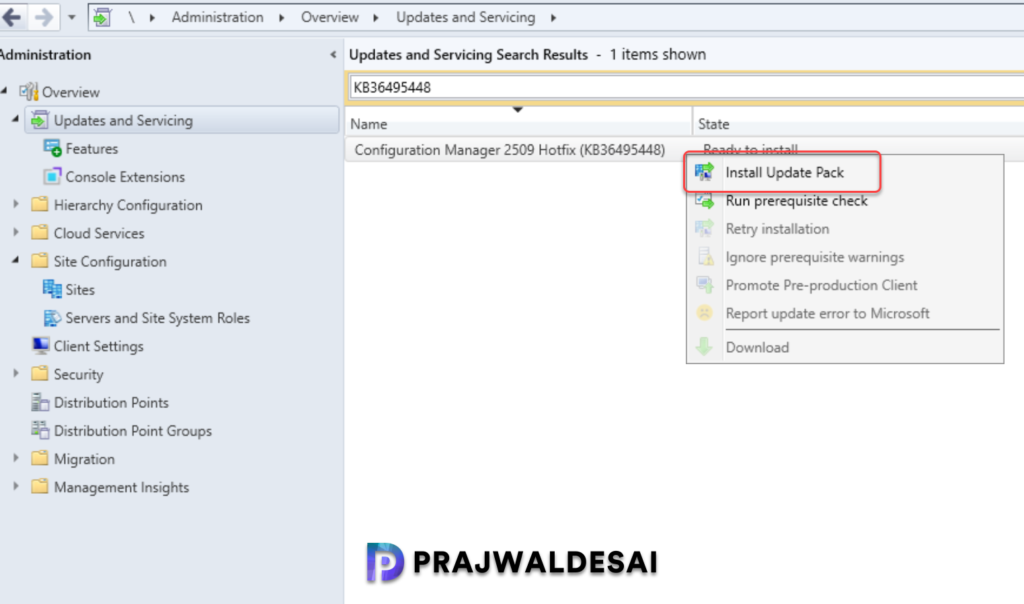
Launch the Configuration Manager console on the server. Navigate to Administration\Overview\Updates and Servicing. Right-click Configuration Manager Hotfix (KB36495448) update and select Install Update Pack.
Note: If the state of the update shows as Ready to Download, wait for some time while it downloads in the background. If not, right-click the hotfix and choose Download.
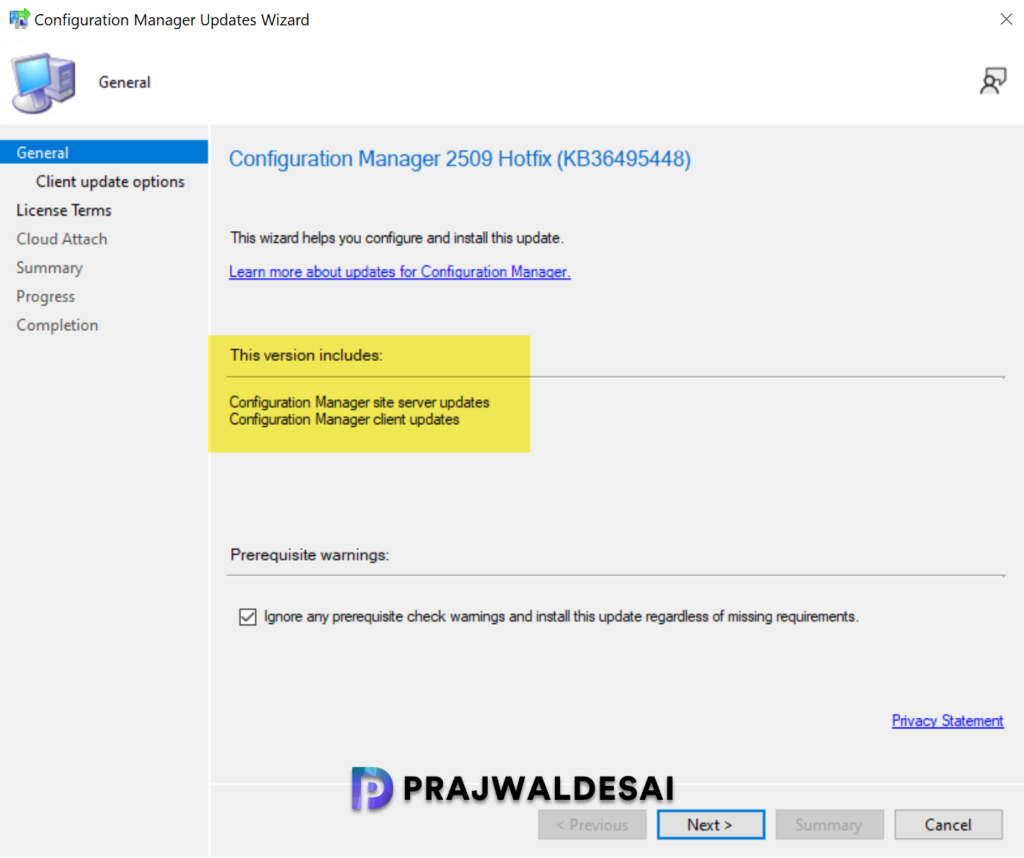
The hotfix includes updates to Configuration Manager site server and client. I highly recommend running a prerequisite check before installing this update. Click Next.
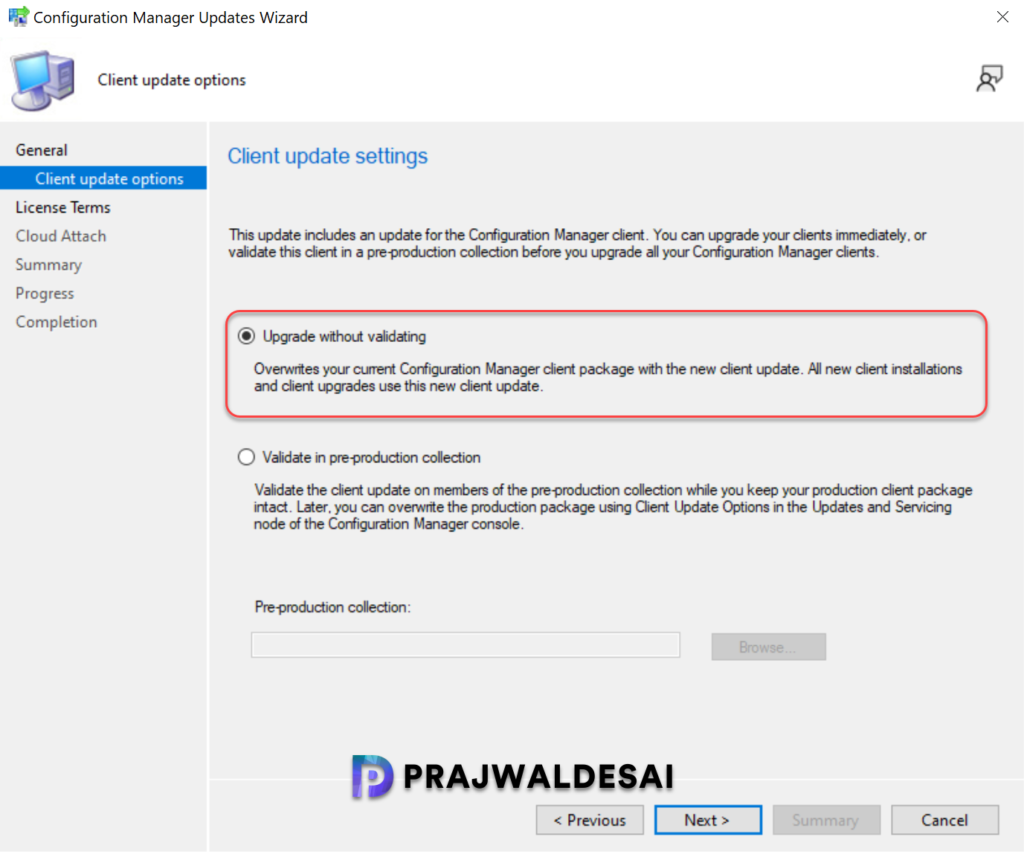
Choose the desired client update option and select Next.
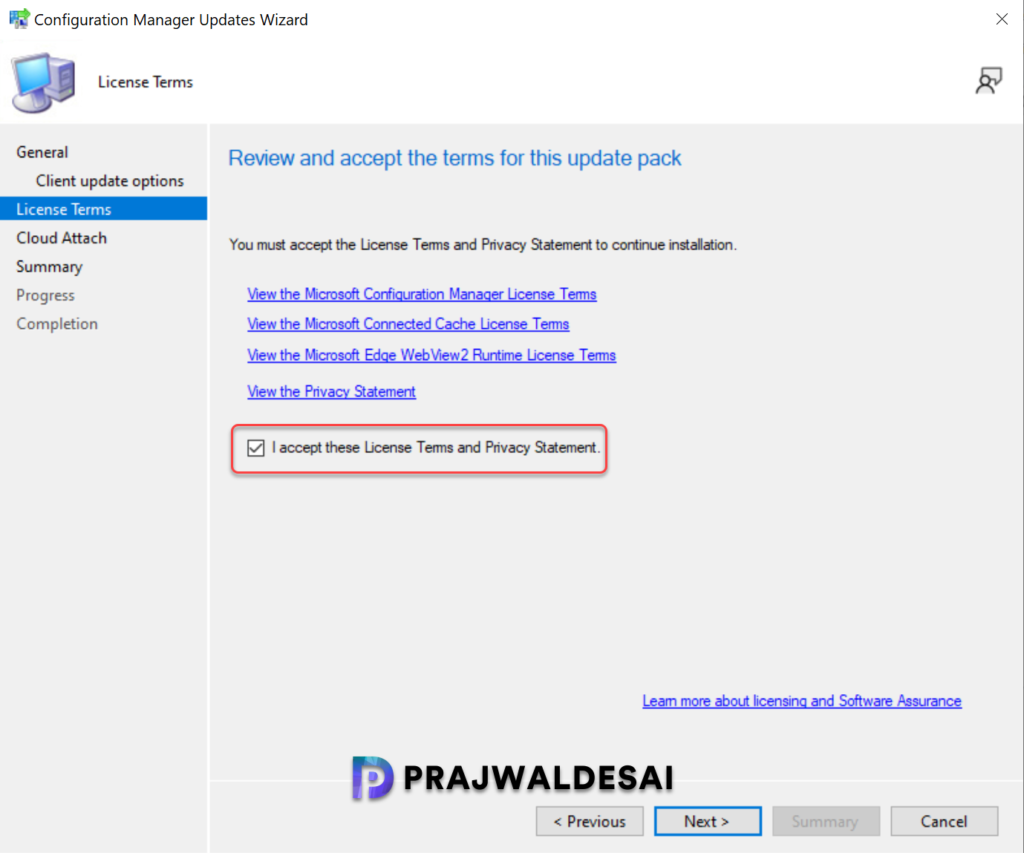
Accept the license terms for installing the update. Click Next.
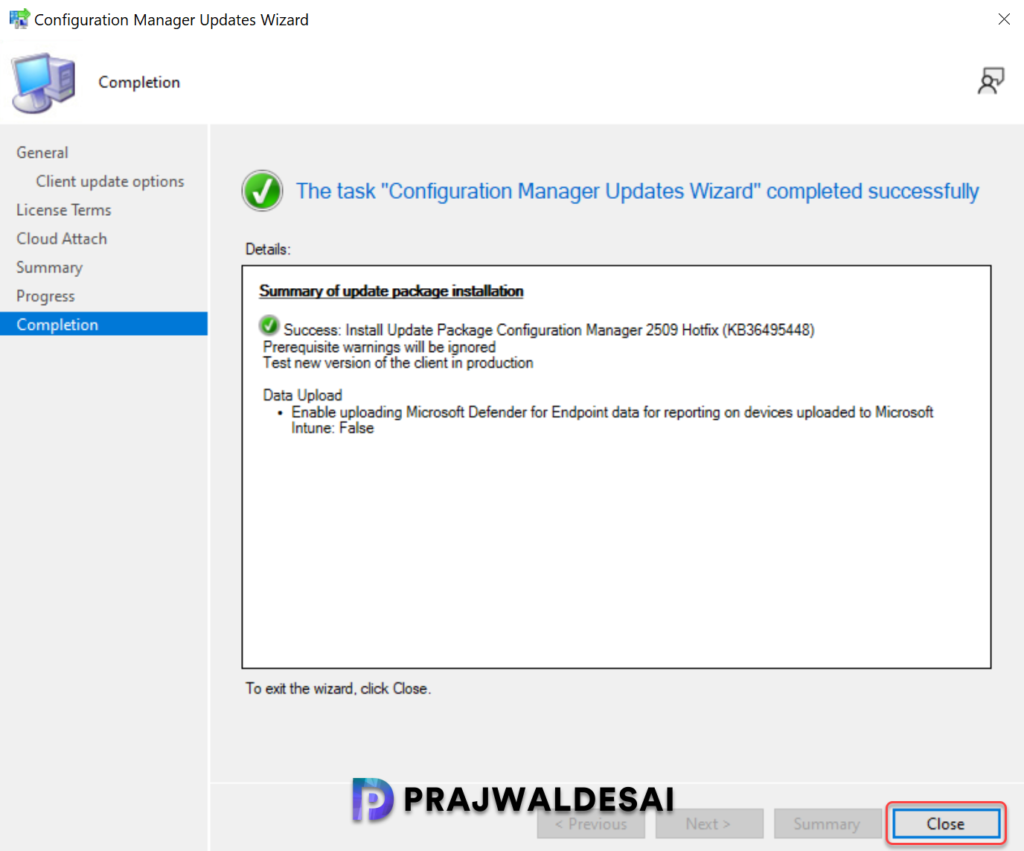
Complete the steps included in the Configuration Manager hotfix installation wizard and wait for the hotfix to install. Close the update installation wizard.
Note: This update doesn’t require a computer restart and there won’t be a site reset after installation.
Monitor and Verify Hotfix Installation
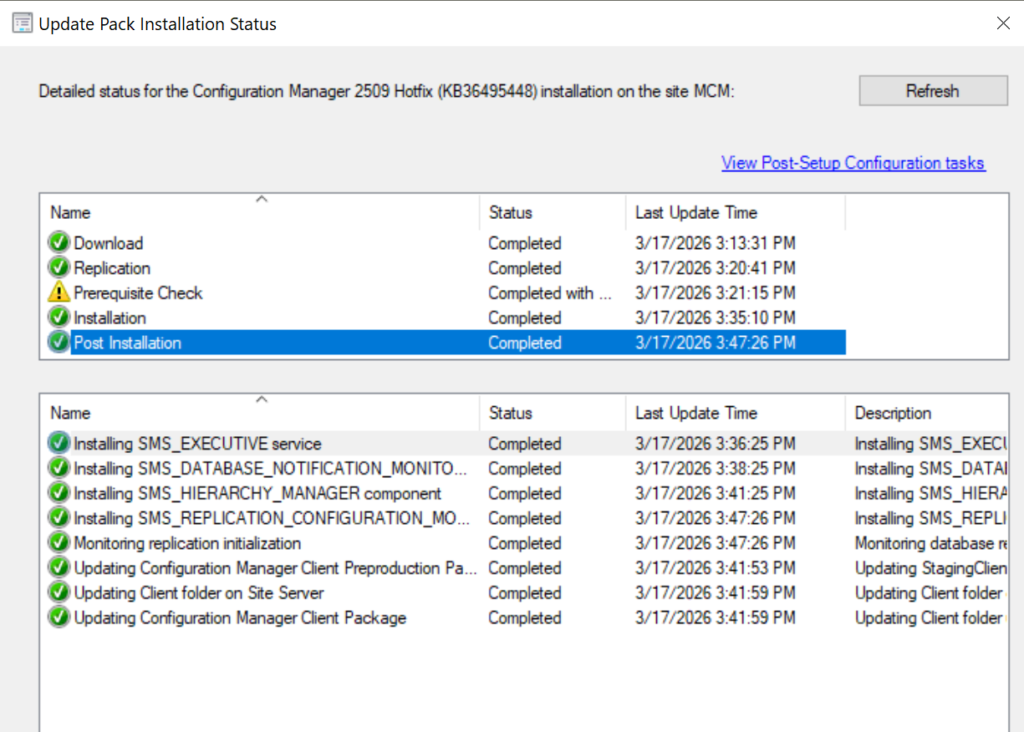
To track the progress of KB36495448 hotfix installation, navigate to Monitoring\Overview\Updates and Servicing Status. If the hotfix fails to install, this section will show you the exact step where the update failed. Another way to track the hotfix installation is by reviewing the cmupdate.log file.
To verify if the KB36495448 hotfix is installed, open the console and go to Administration > Updates and Servicing. If the State column for the hotfix shows ‘Installed‘, it means the update installation is completed.
Updating Secondary Sites
After installing the hotfix KB36495448 on a primary site, pre-existing secondary sites must be manually updated. This must be done on all the secondary sites present in your setup.
Login to the Secondary site server, open the Configuration Manager console. Go to Administration > Site Configuration > Sites > Recover Secondary Site, and then select the secondary site. Run the following SQL Server command on the site database to check whether the updated version of a secondary site matches that of its parent primary site:
select dbo.fnGetSecondarySiteCMUpdateStatus ('SiteCode_of_secondary_site')If the above command returns value 1, it means the site is up-to-date, with all the hotfixes applied on its parent primary site. If the value 0 is returned, the site has not installed all the fixes that are applied to the primary site. You should use the Recover Secondary Site option to update the secondary site.
Upgrading Clients
Installing the KB36495448 hotfix updates the SCCM 2509 client agent version to 5.0.9141.1015, while for SCCM 2503, the client agent version updates to 5.00.9135.1017. You must upgrade the client agents to the latest version. For more help on upgrading the clients, refer to the guide SCCM client upgrade options.
Post Hotfix Installation
After applying the hotfix KB36495448, Configuration Manager will no longer set any of the following values on co-managed devices after installing this update:
- UseUpdateClassPolicySource
- SetPolicyDrivenUpdateSourceFor* (Feature, Quality, Driver, Other)
Third-party updates deployed from WSUS/ConfigMgr aren’t affected by this change because they don’t rely on Windows Update scan source policies. Customers fully control scan source behavior; if organizations wish to control Windows Update scan source policies, they should do so explicitly using Group Policy or Intune policy configuration service provider for WUfB. Environments using only Configuration Manager (without co-management) or only Microsoft Intune/ WUfB aren’t affected.
