


Microsoft has released a new SCCM 2503 hotfix rollup KB32851084 for its customers. The hotfix addresses multiple issues, including incorrect configuration of Windows Update scan source policies, unexpected termination of the SMS Exec service, corrections to deployment status reporting and summarization and many more.
The KB32851084 update applies both to customers who opted in for early update ring deployment, and customers who installed the globally available release of Configuration Manager 2503.
Note that installing this update doesn’t require a computer restart but will initiate a site reset after installation. For detailed information on the KB 32851084 hotfix release, refer to Microsoft’s official documentation.
Issues that are fixed in KB32851084 Hotfix
- Microsoft Defender registry keys for the cloud protection level and cloud block timeout period and are incorrectly removed on co-managed devices.
- The Check compliance button returns an error after installing KB33177653. The error happens in environments where the Cloud Management Azure Service was previously deleted.
- The Microsoft Web Deploy program is updated on cloud management gateway virtual machines from version 3.6 to 4.0.
- Windows Server 2025 updates use the incorrect Maximum run time value in the properties for the software update component. The value can lead to update installations being incorrectly canceled.
- The Configuration Manager client is updated to ensure Windows Update scan source policies are set correctly.
- Microsoft Defender policies created in the Intune Portal are incorrectly removed from Windows Servers.
- The SMS Executive Service (smsexec.exe) can terminate unexpectedly when evaluating orchestration groups.
- The count of devices in the Requirements Not Met section of deployment status reporting can be incorrect.
- Deployment status reporting and summarization are updated to more accurately reflect the correct count of success or error conditions.
Hotfixes Included
The KB32851084 includes the following hotfixes.
- KB 33177653: Azure for US Government update for Configuration Manager 2403, 2409, 2503
- KB 34503790: Revised security update for Microsoft Configuration Manager
- KB 35360093: CMG security update for Microsoft Configuration Manager
Install SCCM 2503 Hotfix Rollup KB32851084
Open the SCCM console and go to Administration > Overview > Updates and Servicing. Select the Configuration Manager hotfix Rollup KB32851084 and in the top-ribbon select Install Update Pack.
Note: If the state of the update shows as Ready to Download, wait for some time while it downloads in the background. If not, right-click the hotfix and choose Download.

The KB32851084 hotfix includes updates for site server, console, and client. I highly recommend running a prerequisite check before installing this update. Click Next.
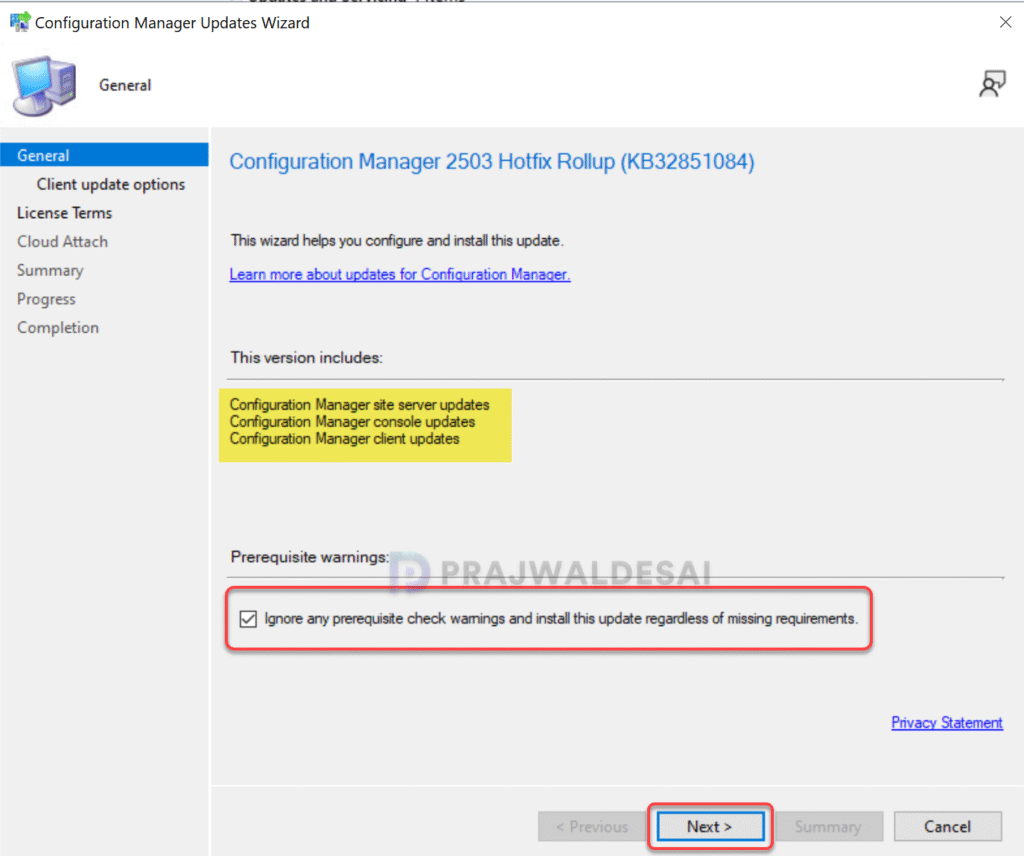
Select your desired client update option and select Next. Accept the license terms for installing the hotfix. Click Next.

Complete the remaining steps in the wizard and close the update installation wizard. The hotfix installation begins now.

Monitoring the Hotfix KB32851084 Installation
To track the progress of KB32851084 hotfix installation, navigate to Monitoring\Overview\Updates and Servicing Status. If the hotfix fails to install, this section will show you the exact step where the update failed. Another way to track the hotfix installation is by reviewing the cmupdate.log file.
The hotfix KB32851084 update required a total of 20 minutes to install on the server, and there were no errors encountered at any point in the installation process. You don’t have to restart your server after the installation of this update.
Upgrading the Console
The KB32851084 hotfix includes updates for the console, so you must complete the console upgrade after the installation. In the upgrade window, click “OK” to proceed with the console upgrade. In the below screenshot, the console version is upgraded to 5.2503.1083.1500.

Verify the KB32851084 Hotfix Rollup Installation
To verify if the KB32851084 hotfix is installed, open the console and go to Administration > Updates and Servicing. If the State column for the hotfix shows ‘Installed‘, it means the update installation is completed.
Upgrading the clients
The KB32851084 hotfix updates the client agent version to 5.0.9135.1013. After the console upgrade, the next step is to upgrade the clients to the latest version. I recommend using the automatic client upgrade method to update the client agents to the newest version. Also refer to the list of client agent versions for all SCCM versions.
Hotfix Installation on Secondary Sites
After installing the hotfix update KB32851084 on a primary site, pre-existing secondary sites must be manually updated. This must be done on all the secondary sites present in your setup.
On the Secondary site server, open the Configuration Manager console. Go to Administration > Site Configuration > Sites > Recover Secondary Site, and then select the secondary site. Run the following SQL Server command on the site database to check whether the updated version of a secondary site matches that of its parent primary site:
select dbo.fnGetSecondarySiteCMUpdateStatus ('SiteCode_of_secondary_site')If the above command returns value 1, it means the site is up-to-date, with all the hotfixes applied on its parent primary site. If the value 0 is returned, the site has not installed all the fixes that are applied to the primary site. You should use the Recover Secondary Site option to update the secondary site.

This update breaks the CMG maintenance after the upgrade.
Public IP can’t be re-created as it tries to change the Availability Zone to None and this is not supported!
Are you sure that it will start automatic “but will initiate a site reset after installation”
This update breaks Device Categories usage.