


Welcome to the ultimate guide for patching Windows Server 2025 using SCCM. In this walkthrough, I’ll guide you through deploying Server 2025 updates efficiently using Automatic Deployment Rules (ADR).
Most organizations today depend on Configuration Manager to efficiently deploy updates and patches to on-premise Windows client devices and server operating systems, ensuring systems remain secure, compliant, and up-to-date with the latest features and fixes. Intune currently cannot patch server 2025 due to its limitations.
According to Microsoft product lifecycle, server 2025 was released on November 1, 2024. The Mainstream end date is November 13, 2029, and the Extended End Date is November 14, 2034. If you are upgrading your existing Windows Server to version 2025, you can patch it with SCCM for several years.
When deploying Server 2025 updates, you can either automate updates deployment using Automatic Deployment Rules (ADRs) or manually select and apply them from the console. I recommend using ADRs, as they can automatically approve and deploy updates efficiently.
ConfigMgr Support for Server 2025
Starting with Configuration Manager version 2409 and later, support is added for Windows 11 24H2 and Windows Server 2025. To manage Server 2025 as a client, you need to be using SCCM version 2409 or later. Note that the release build number of WS 2025 is 26100.
Microsoft Server Operating System 24H2 = Windows Server 2025
Windows Server 2025 is the current LTSC release that aligns with Windows Server 24H2 (where 24H2 refers to the second half of 2024 release cycle). From what I know, Microsoft now names Windows Server versions based on their release year, and the 24H2 version is part of their Long-Term Servicing Channel (LTSC).
If you visit the Microsoft Update Catalog site and search for ‘Server 2025‘ product updates, you’ll see results for products named as “Microsoft Server Operating System-24H2“. There is no mention of Server 2025 anywhere in the catalog. What’s interesting is when you visit the product KB page of that update and download the file information, the CSV file shows that the update is applicable to “Windows Server 2025 x64-based” systems.

Steps for Patching Windows Server 2025 using SCCM
To ensure the Microsoft Server Operating System 24H2 updates appear in the console and can be seamlessly deployed to your server collection, you’ll need to configure several settings. I’ve broken this end to end patch management process into clear steps for easy implementation.
Step 1: Enable Server 2025 product in SCCM
First, let me show you how to enable Server 2025 product category in Software Update Point properties. There’s no need to modify anything in WSUS, as any changes made in the SCCM console will automatically sync with WSUS.
- In the ConfigMgr console, go to Administration\Overview\Site Configuration\Sites.
- Click Configure Site components on top ribbon and select Software Update Point.
- On the Software Update Point Component properties window, click the Products tab.
- Scroll down and select ‘Microsoft Server Operating System-24H2‘ product. Click Apply and OK.

Step 2: Synchronize Software Updates
To make server 2025 updates available in the console, you must synchronize the updates in the console. This action will force Configuration Manager to retrieve the metadata from Microsoft Update based on your selected products and classifications.
To initiate update sync, open the Configuration Manager console and navigate to Software Library > Software Update > All Software Updates. In the top-ribbon, select ‘Synchronize Software Updates‘. On the confirmation box, click Yes to start the sync.
To monitor the synchronization of updates, review the wsyncmgr.log and WCM.log on the server installed with SUP role.

Step 3: Verify Server 2025 Patches in SCCM
In this step, we’ll check if our SCCM server lists the Server 2025 updates under All Software Updates node. Once the synchronization of updates is complete, go to Software Library\Overview\Software Updates\All Software Updates. In the search box, use the Add criteria feature and choose product with name “Microsoft Server Operating System-24H2” and click Search.
Check if the list of Windows Server 2025 updates is displayed. If the updates are visible, proceed to the next step. If not, review the wsyncmgr.log and WCM.log to verify whether the synchronization was successful or identify any errors.

In my lab, the following patches for Server 2025 showed up in the SCCM console. Some of them are security updates, while some are cumulative updates for .NET Framework 3.5 and 4.8.1 for Microsoft server operating system version 24H2.
2025-01 Cumulative Update for .NET Framework 3.5 and 4.8.1 for Microsoft server operating system version 24H2 for arm64 (KB5049622)
2025-01 Cumulative Update for .NET Framework 3.5 and 4.8.1 for Microsoft server operating system version 24H2 for x64 (KB5049622)
2025-01 Cumulative Update for Microsoft server operating system 24H2 for x64-based Systems (KB5050009)
2025-02 Cumulative Update for Microsoft server operating system 24H2 for x64-based Systems (KB5051987)
2025-03 Cumulative Update for Microsoft server operating system version 24H2 for x64-based Systems (KB5053598)
2025-04 Cumulative Update for .NET Framework 3.5 and 4.8.1 for Microsoft server operating system version 24H2 for arm64 (KB5054979)
2025-04 Cumulative Update for .NET Framework 3.5 and 4.8.1 for Microsoft server operating system version 24H2 for x64 (KB5054979)
2025-04 Cumulative Update for Microsoft server operating system version 24H2 for x64-based Systems (KB5055523)
2025-05 Cumulative Update for Microsoft server operating system version 24H2 for x64-based Systems (KB5058411)
2025-06 Cumulative Update for Microsoft server operating system version 24H2 for x64-based Systems (KB5060842)
2025-07 Cumulative Update for .NET Framework 3.5 and 4.8.1 for Microsoft server operating system version 24H2 for arm64 (KB5056579)
2025-07 Cumulative Update for .NET Framework 3.5 and 4.8.1 for Microsoft server operating system version 24H2 for x64 (KB5056579)
2025-07 Cumulative Update for Microsoft server operating system version 24H2 for x64-based Systems (KB5062553)
Step 4: Create device collection for Server 2025
Before you deploy server 2025 updates, it’s advisable to create a pilot device collection and test the installation on a selected group of servers. Once the deployment is successful, proceed with applying the updates to servers in the production environment. Refer to my guide on creating server 2025 device collection.
Step 5: Create ADR to deploy Server 2025 Updates
In this step, I am going to show you how to create a new ADR for deploying updates to Server 2025. Open the console and navigate to Software Library > Overview > Software Updates > Automatic Deployment Rules. Right click on Automatic Deployment Rules and select Create Automatic Deployment Rule.

Specify the name for ADR and add a brief description. You may choose a pre-defined template for updates deployment, and it’s optional. Click Browse and select the target collection (server 2025).
Next, choose Create a new Software Update Group. Leave the box checked for Enable the deployment after this rule is run. Click Next.

On the Deployment Settings page, decide whether you want to make the server 2025 updates available in software center or deploy them as required. Next, choose the detail level as Only success and error messages. Enable Automatically deploy all software updates found by this rule and approve any license agreements. Click Next.

On Software Updates tab, select the correct property filters and search criteria to deploy server 2025 updates. My selections for the ADR includes the following property filters.
1) Date Released or Revised: Last 1 month.
2) Language: English
3) Product: Microsoft Server Operating System 24H2
4) Update Classification: Critical updates or Security Updates.
You may click on Preview button to see the updates that match your above criteria.
Click Next to proceed.

In the Evaluation Schedule window, you define the timing for ADR rule evaluations. This configuration is crucial, as the ADR rule operates according to the schedule set here, so it’s important to plan it thoughtfully. Click Next.

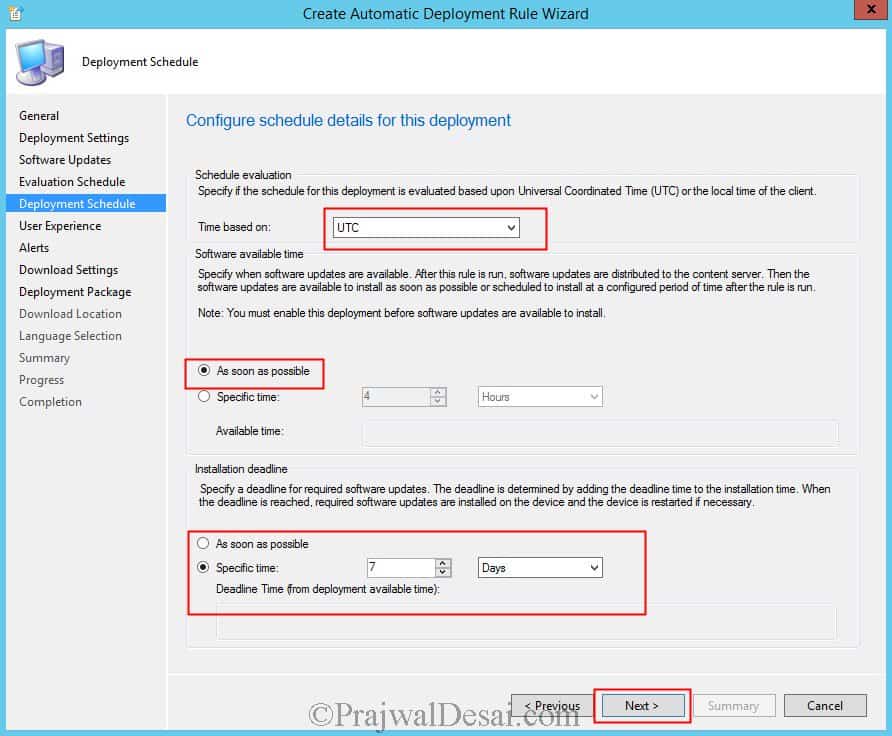
The deployment schedule determines when actually you want to deploy server 2025 updates. Select the parameter Time based on to UTC. Choose the Software available time to As soon as possible and Installation deadline to 7 days. Click Next.

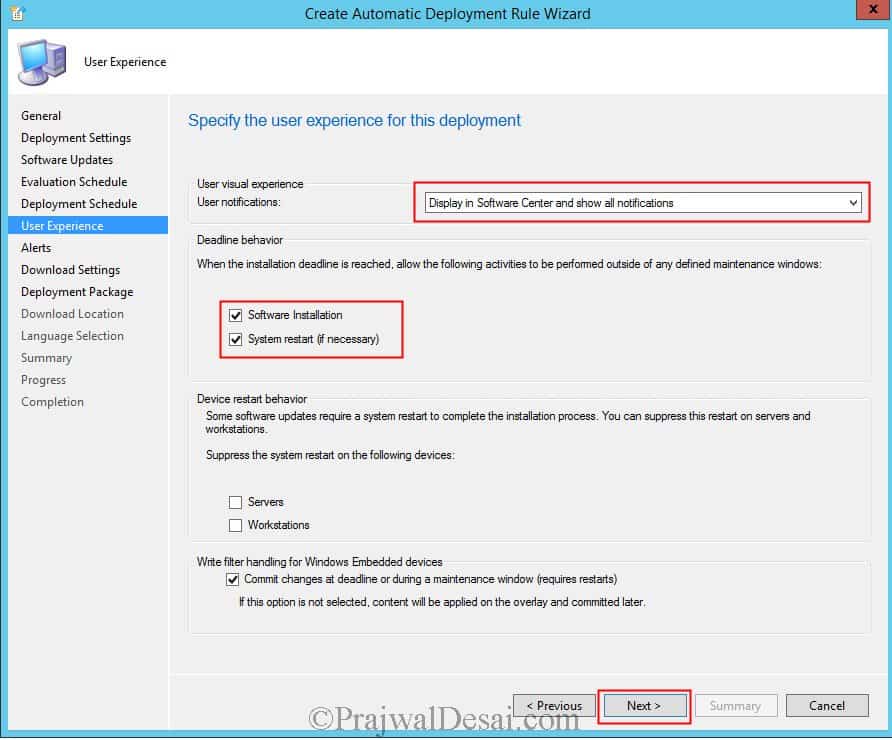
User Experience – Choose the settings as shown in the below screenshot and click Next.

A new deployment package will be created to include updates for Server 2025. When the ADR runs for the first time, it generates this deployment package and populates it with updates based on the selected product and criteria. Click Next.

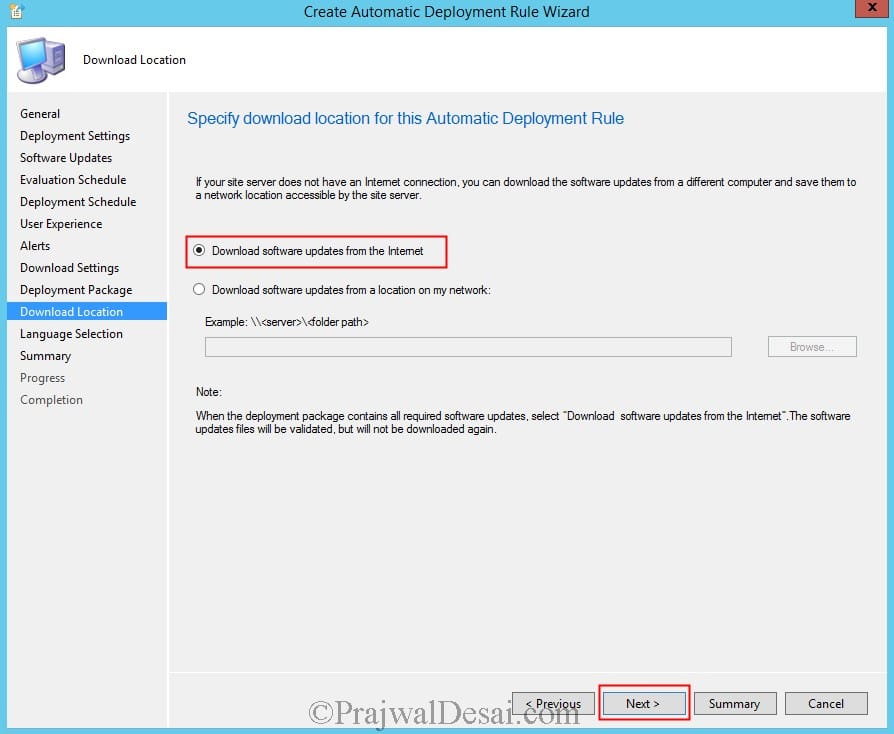
Select the option ‘Download software updates from Internet.’ Click Next.

On the Download Settings tab, specify the software updates download behavior for clients on slow site boundaries. Click Next.

Complete the remaining steps in the wizard. Click Close.

Step 6: Test the Updates Installation
The ADR will now execute according to the schedule you’ve set, ensuring the Server 2025 machines within the targeted device collection are patched using SCCM.
When the ADR is configured to make Server 2025 patches available in the Software Center, they will appear there but require manual installation by the user. Alternatively, if the ADR is set to deploy updates as required, the updates will install automatically according to the defined schedule, without any user intervention.
After successfully testing the update deployment with this ADR, you can apply this ADR to other device collections in your production environment.
Troubleshooting
Throughout my career, I have encountered numerous ADR errors. Resolving these issues requires troubleshooting based on error codes and thoroughly analyzing the log files. So here are some tips.
- Once you deploy the ADR, the status of that new deployment should be checked regularly by looking at Monitoring | Deployments.
- Review ruleengine.log for troubleshooting purpose.
- If the ADR fails to run, the error code appears in the console. Use this to troubleshoot the problem.
That completes the guide on patching Windows Server 2025 using SCCM. Considerable effort has been dedicated to bringing this all together. If you have any questions, feel free to share them in the comments.
Further Reading
Check out some useful guides related to ADR and updates in SCCM:

i’m using ConfigMgr 2603, i followed the steps to configure SUP, but after initial sync, it doesn’t bring windows server 24h2 or windows server 2022 !
it added some lines like windows 10 Features on Demand after multiple sync attempts but nothing regarding windows server, any ideas about the issue ?
Can you tell me what product categories you have enabled under SUP?