


On April 9, 2026, Microsoft released KB37447175 hotfix for Configuration Manager versions 2409 and 2503 to enhance security by improving access controls for the Network Access Account (NAA). In this article, I’ll list the prerequisites for this update and guide you through the installation process.
In environments utilizing a Network Access Account, Microsoft advises adhering to the principle of least privilege. Assign only the required permissions when necessary and promptly revoke them once they are no longer needed.
The KB 37447175 security update is included with the Configuration Manager current branch, version 2603, and in the hotfix rollup for version 2509. A separate out-of-band hotfix is not required for versions 2509 and 2603. For more information, take a look at the list of SCCM hotfixes for all versions.
Prerequisites
If you’re running ConfigMgr version 2409 or 2503, the update is available in the Updates and Servicing node of the Configuration Manager console for environments with the following update applied.
- KB30385346: Update rollup for Microsoft Configuration Manager version 2409
- KB32851084: Update rollup for Microsoft Configuration Manager version 2503
This update does not require restarting your computer, but you may expect a site reset after installation. For more information, refer to the KB37447175 hotfix documentation by Microsoft.
The hotfix only includes updates for Configuration Manager site server. No console or client upgrades are necessary after installing this update.
Install Configuration Manager Hotfix KB37447175
- Launch the Configuration Manager console on the server.
- Navigate to Administration\Overview\Updates and Servicing.
- Right-click Configuration Manager Hotfix (KB37447175) and select Install Update Pack.
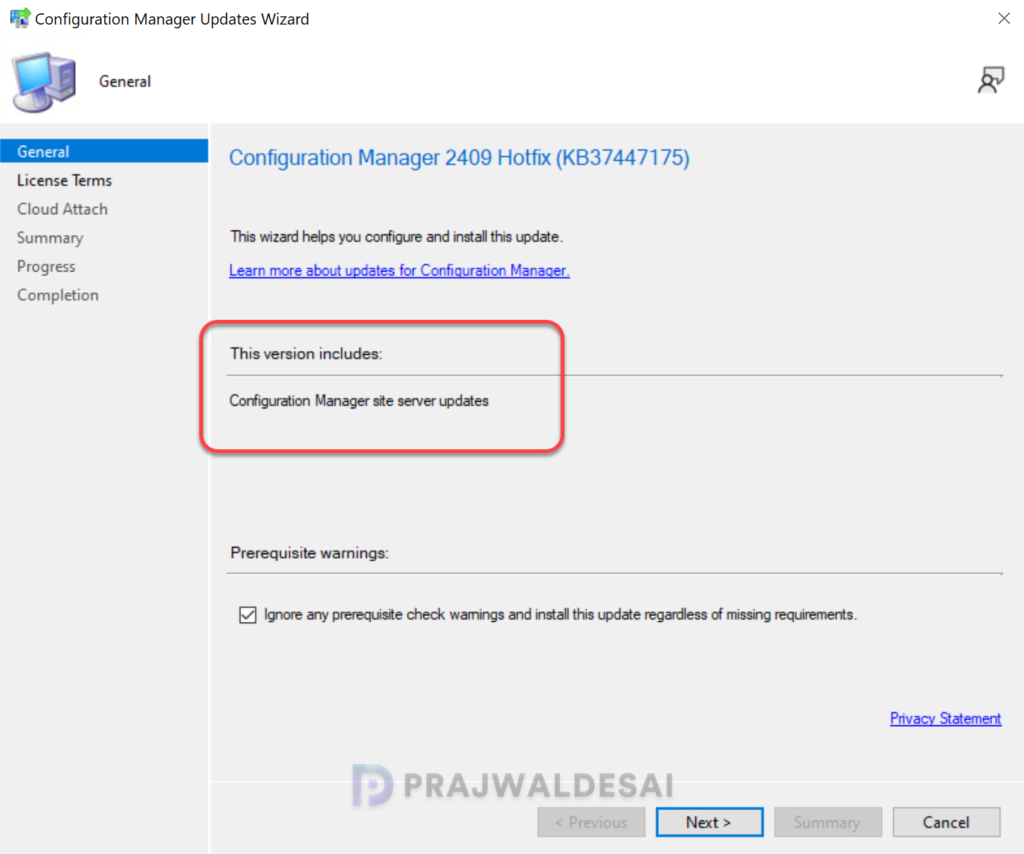
It is highly recommended that you run a prerequisite check for this update on your production server before installing it. For lab environments, you can enable the option “Ignore any prerequisite check warnings and install the update.” Click Next.
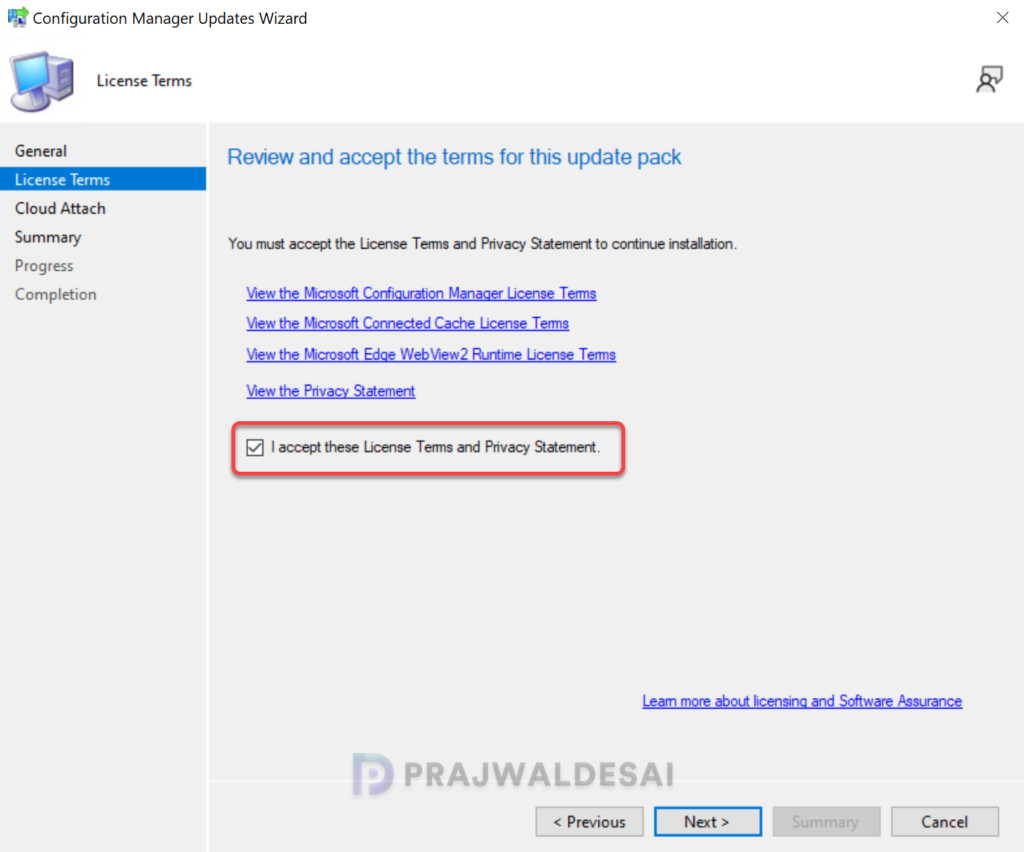
Accept the license terms required for installing the hotfix. Click Next.
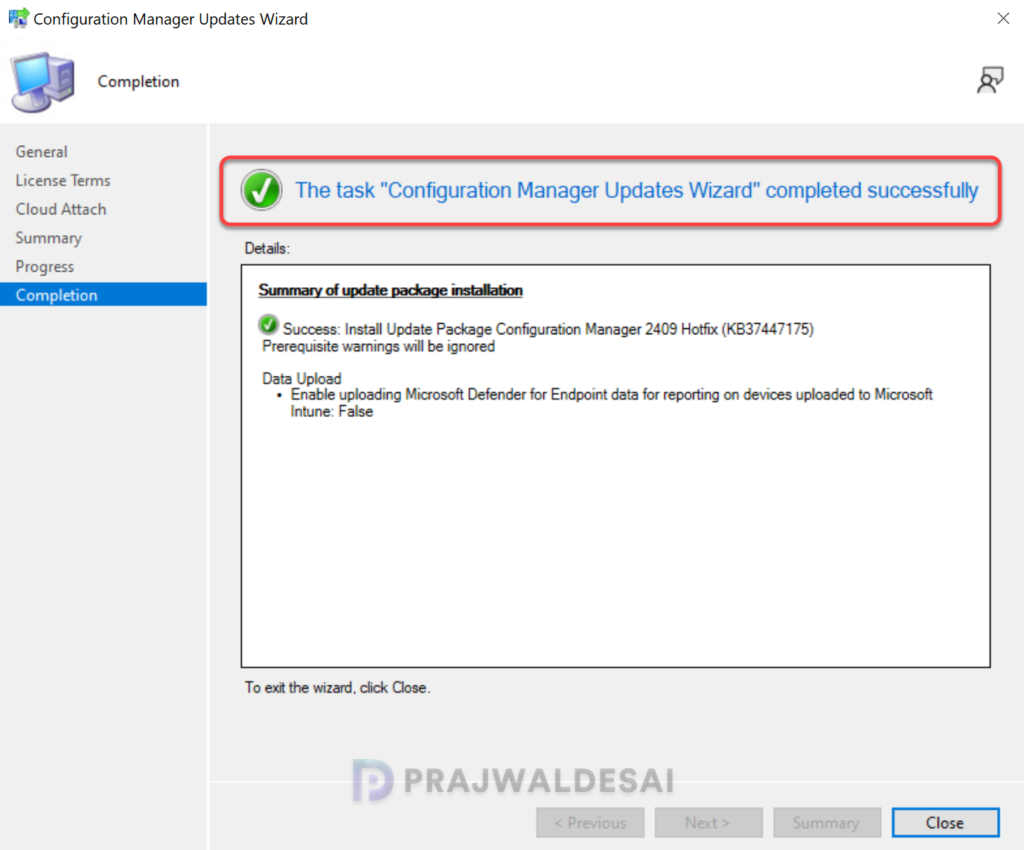
Complete the steps included in the hotfix installation wizard and close the update installation wizard. The hotfix installation begins now.
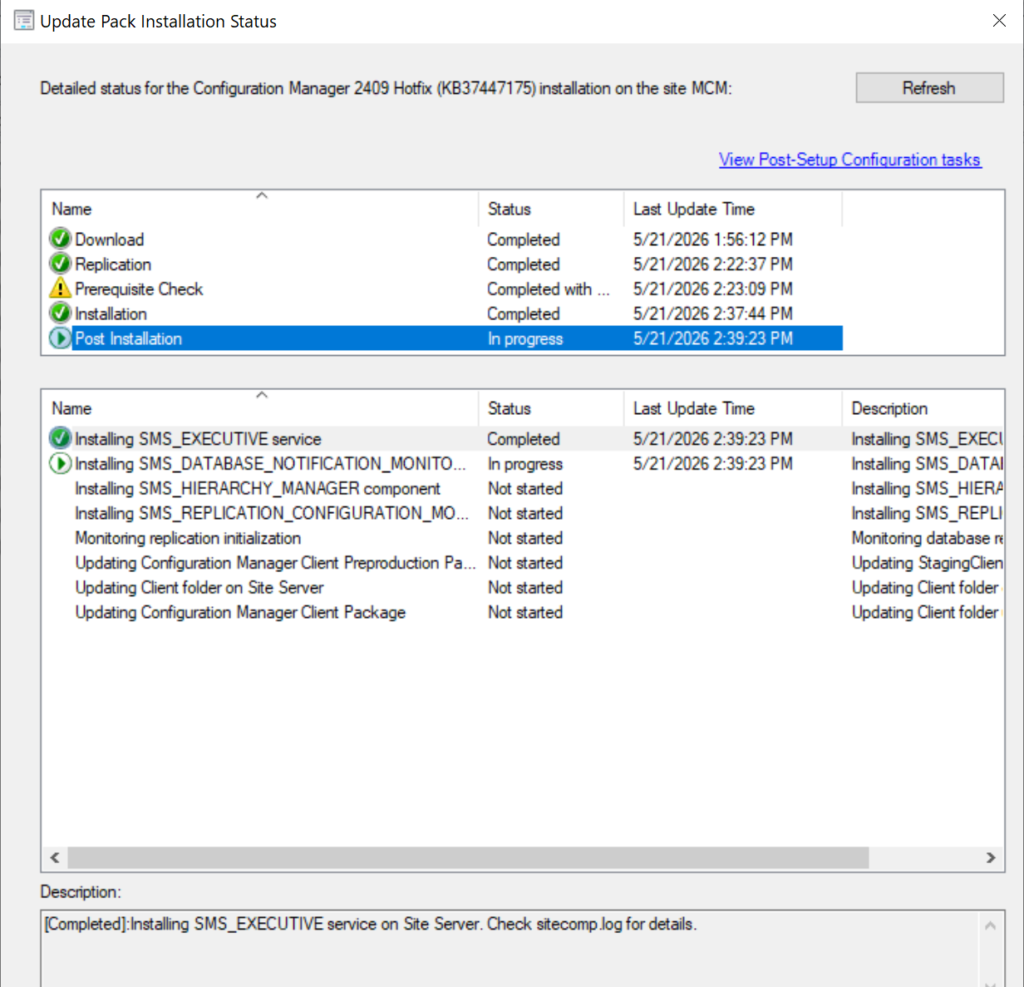
Track Hotfix Installation Progress
To track the progress of KB37447175 hotfix installation, navigate to Monitoring\Overview\Updates and Servicing Status. If the hotfix fails to install, this section will show you the exact step where the update failed. Another way to monitor the hotfix installation progress is by reviewing the cmupdate.log file.
To verify if the KB37447175 hotfix is installed, open the console and go to Administration > Updates and Servicing. If the State column for the hotfix shows ‘Installed‘, it means the update installation is completed.
Post the hotfix installation, the Configuration Manager SMS Provider (smsprov.dll) is updated to the following versions:
- 2503: 5.00.9135.1025
- 2409: 5.00.9132.1041
Secondary Sites
After installing the KB37447175 update on a primary site, pre-existing secondary sites must be manually updated. This must be done on all the secondary sites present in your setup.
Log in to the secondary site server, and open the Configuration Manager console. Go to Administration > Site Configuration > Sites > Recover Secondary Site, and then select the secondary site. Run the following SQL Server command on the site database to check whether the updated version of a secondary site matches that of its parent primary site:
select dbo.fnGetSecondarySiteCMUpdateStatus ('SiteCode_of_secondary_site')If the above command returns value 1, it means the site is up-to-date, with all the hotfixes applied on its parent primary site. If the value 0 is returned, the site has not installed all the fixes that are applied to the primary site. You should use the Recover Secondary Site option to update the secondary site.
Lastly, take a look at all the versions of Configuration Manager current branch and their build and console version numbers.
