

This article is a complete step-by-step SCCM 2603 upgrade guide that covers all you need to know to update your existing Configuration Manager servers to version 2603. It also covers all the new features and fixes in 2603, including the console and client upgrade details and hotfixes.
ConfigMgr 2603 update (KB37426535) is a production-ready release and marks the first current branch update of 2026. The version number “26” represents the year 2026, while “03” denotes March. To upgrade to SCCM 2603, your current sites must be running version 2409 or later. Upgrading to the latest current branch version ensures your site benefits from the latest features and critical bug fixes.
Microsoft has announced an update to its release cycle for Configuration Manager, shifting to an annual release schedule. Starting after the launch of Configuration Manager version 2609, only one update will be rolled out each year. Version 2609, the next version of Configuration Manager, is scheduled for release this December.
Hotfixes Included in Version 2603
The current branch version 2603 of Configuration Manager includes the following hotfixes:
- KB35877153: Summary of changes in Configuration Manager current branch, version 2509
- KB33247081: Microsoft Connected Cache update for Configuration Manager
- KB36419072: Feedback for Configuration Manager
- KB36495448: Software update management client fix for Configuration Manager versions 2503 and 2509
- KB37447175: Security update for Microsoft Configuration Manager
- KB37172183: Software Center client fix for Configuration Manager
Issues fixed in Configuration Manager 2603
- This update enhances security in Configuration Manager by improving access controls for the Network Access Account (NAA).
- An essential internal service for device compliance checks will be deprecated in October 2026. After deprecation, compliance checks in Software Center may fail in co-managed environments where Intune manages the Compliance workload. To avoid disruptions, ensure this update is applied before October 2026.
- Resolves the issue where Microsoft Connected Cache (MCC) setup fails with ReturnCode 13631517 on distribution points where a proxy server is configured in the Site System Properties.
- This update adds support and testing for PKI certificates used in site system-to-SQL Server communication.
- All ConfigMgr components and site roles are updated to remove the dependency on the deprecated SQL Server Native Client (sqlncli.msi). Customers can now safely uninstall sqlncli from site systems. The product no longer includes sqlncli.msi in its redistributable.
- The Microsoft SQL Server Management Objects and Microsoft System CLR Types for SQL Server are updated from the deprecated SQL Server 2014 versions to the SQL Server 2016 versions (SMO 17).
- The Orchestration Group member reset function now also resets the RequestSent registry key (HKLM\SOFTWARE\Microsoft\CCM\Orchestration\RequestSent), preventing clients from being stuck in a state where they perpetually wait for an orchestration lock and are unable to install updates.
- The stored procedure spCanDisableLEDBAT can produce a “Subquery returned more than 1 value” error in WSUSCtrl.log when one distribution point server name is a substring of another DP server name. The LIKE pattern now uses proper delimiters to ensure exact server name matching.
- The EnableCertPaddingCheck registry keys are now set by default on Cloud Management Gateway (CMG) Virtual Machine Scale Set instances to mitigate CVE-2013-3900 (WinVerifyTrust Signature Validation Vulnerability).
- The prerequisite check for Network Access Account (NAA) is updated to acknowledge documented scenarios where NAA is still required, such as the Request State Store task sequence step and Apply OS Image with direct DP access.
- Deprecated Management Insights entries for the retired Upgrade Readiness / Desktop Analytics service are removed from the Cloud Services category.
- The Windows Defender Antivirus (WDAV) reporting for tenant-attached ConfigMgr clients no longer incorrectly shows ‘True’ in the ‘Signature Update Overdue’ field when clients have up-to-date signature definitions.
- A race condition in Orchestration Groups is fixed that previously caused sequencing settings to be ignored, allowing multiple servers to install updates and reboot simultaneously instead of one at a time as configured.
- Validation of the anti-malware policy path exclusion confirms proper enforcement, ensuring that wildcards are not permitted in the server name section of UNC paths, aligning with Microsoft Defender for Endpoint documentation.
- The Software Update Health Troubleshooting Dashboard is hidden in this release due to severe performance issues in large environments.
- The New-CMCloudManagementGateway PowerShell cmdlet now allows combining the -IsUsingExistingGroup $true parameter with -ServerAppClientId, enabling automated CMG deployment into existing Azure resource groups without requiring interactive credentials.
- Build and Capture task sequences on Windows 11 24H2 (November/December 2024 media) no longer produce a “Why did my PC restart” error dialog during deployment of the captured image.
- The misleading Network Access Account (NAA) requirement warning in the Distribution Points tab of the Task Sequence deployment wizard is updated to accurately reflect when NAA is actually required.
- Site upgrades no longer fail on SQL Server Always On Availability Group environments due to the UpgradeDatabase function incorrectly attempting to set SINGLE_USER mode on a database participating in an availability group.
- The CMG outbound traffic alert and “Total Outbound data” metric now work correctly for CMGv2 (Azure Virtual Machine Scale Set based) deployments. Previously, network-out usage metrics were not collected for Virtual Machine Scale Set deployments.
- Windows 10 IoT Enterprise LTSC 2021 devices are no longer incorrectly reported as ‘not supported’ or ‘end of life’ in Management Insights and the Product Lifecycle dashboard. The lifecycle matching logic now correctly distinguishes IoT LTSC editions from standard Windows 10 version 21H2 editions.
- The BitLocker Management HelpDesk portal’s “Recovery Audit Report” now loads correctly when SQL Server Reporting Services (SSRS) is installed in a non-English language. The report name is no longer inadvertently translated.
- When you create a script with a Boolean parameter and a default value of True, the checkbox state now correctly matches the actual value passed to the script at execution time.
- The ConfigMgr console In-App Feedback feature is updated to support the new OCV Feedback SDK with authenticated submissions. Both authenticated and offline feedback submission modes are supported.
- Windows Update scan source registry settings are no longer incorrectly modified on co-managed devices when third-party updates are enabled, preventing Feature Updates and Quality Updates intended for Microsoft Intune/WUfB from being redirected to WSUS/Configuration Manager.
- CMPivot queries through the AdminService no longer fail with a 400 Bad Request error due to a query parsing issue in the KustoParser.
- Weak DHE (Diffie-Hellman Ephemeral) cipher suites are disabled on Cloud Management Gateway (CMG) instances. Only TLS 1.3 (AES_256_GCM, AES_128_GCM) and TLS 1.2 ECDHE ciphers remain enabled.
- The “All Application deployments (advanced or basic)” reports no longer return duplicate results when viewing detailed errors or unknown deployment states. Previously, each result was multiplied by the number of deployment collections.
- The deprecated “Asset Intelligence synchronization point” site role is removed from the site roles selection UI, preventing inadvertent installation of this nonfunctional role.
- The Import-CMDriver PowerShell cmdlet now correctly includes Arm64 platform support when importing drivers from INF files. Previously, Arm64 was filtered out from the Supported Platforms list.
- Applications with OS requirements (such as “All x64 Windows 11 and higher Clients”) no longer fail during OSD with a 404 error when the client attempts to download the OS requirement policy definition after upgrading to a new version.
- An informational notice is added to the Schedule Updates Wizard to inform administrators that offline servicing (applying software updates to OS images) doesn’t work on all Windows platforms.
- The System.Linq.Dynamic.Core library used by the AdminService component is updated from version 1.0.20.0 to version 1.7.1, resolving CVE-2023-32571 (Dynamic LINQ injection remote code execution vulnerability).
- CMG deployment no longer fails with an InvalidTemplateDeployment error when Azure security policies are applied to the subscription. The Virtual Machine Scale Set SKU capacity field in the Azure Resource Manager (ARM) template is now correctly defined as an integer instead of a string.
- Software update synchronization no longer reimports previously declined Surface firmware driver updates on every sync cycle. This resolves sync delays of several hours in environments with many declined drivers.
- CMG deployment error handling is improved to capture and display detailed Azure error response information when Attribute-Based Access Control (ABAC) conditions block role assignments. Previously, only a generic 403 Forbidden error was shown.
- Client push installation (CcmSetup) now successfully completes on Windows 11 Arm64 devices when upgrading from ConfigMgr versions 2403 or 2503. Previously, the process failed with error code 0x80070643 due to an attempt to uninstall a 32-bit Management Point Provider component incompatible with the Arm64 architecture.
- Intune Endpoint Detection and Response (EDR) policies now apply correctly on ConfigMgr clients via tenant attach (non-co-managed). This is a regression fix for an issue introduced in ConfigMgr 2503.
Release Date and Support Timelines
For early adopters, Microsoft released SCCM 2603 on May 5, 2026. Currently, you’ll need to run PS script to early enable opt-in for this update. The 2603 version of SCCM is not a baseline version. When installing a new site, you can download and use the 2503 baseline version.
Support for SCCM version 2603 will commence on May 5, 2026 and conclude on November 4, 2027. In this period, it will receive the updates to ensure the product remains safe. For more details, refer to SCCM support end dates for the current branch version.
Important: You cannot upgrade to SCCM 2603 if you are running older versions of ConfigMgr, such as SCCM 2012 or SCCM 2012 R2. If you are still running an older version of Configuration Manager, you must upgrade to the current branch first. Please refer to the SCCM in-place upgrade paths for more information.
Windows ADK Support for version 2603
SCCM 2603 supports both the latest versions of the Windows 10 ADK and the Windows 11 ADK.
- For Windows 10, you can install the Windows ADK for Windows 10 version 2004.
- For Windows 11, you can install the Windows ADK version 10.1.26100.2454.
If you have installed an older version of ADK on your SCCM server, you must upgrade your ADK to the latest and most compatible version available. Use the following guide to update ADK on SCCM server.
Pre-Upgrade Checklist
Before you upgrade to Config Manager version 2603, please go through the upgrade checklist and prerequisites.
- Starting with version 2603, the Configuration Manager upgrade will be blocked if you are running Windows Server 2012/2012 R2. To resolve this, upgrade the servers to a higher version, such as 2016, 2019, or 2022.
- Your ConfigMgr servers will require the latest version of the Microsoft ODBC driver for SQL Server. The ODBC driver for SQL Server needs to be installed on site servers before upgrading to the 2603 version. Microsoft recommends installing SNAC 11.0 with the latest ODBC driver, version 18.4.0 or later. This prerequisite is required when you create a new site or update an existing one and for all remote roles.
- If you’re running a multi-tier hierarchy, start at the top-level site in the hierarchy. Perform the CAS upgrade first, then begin the upgrade of each child site. Complete the upgrade of each site before you begin to upgrade the next site.
- Ensure that you are running a supported Operating System for SCCM.
- Starting with the current branch 2303, SQL Server 2022 support has been added. SCCM 2603 will support the following versions of SQL: SQL 2017, SQL 2019, and SQL 2022.
- If you’re running a SCCM version older than version 1910, check the SCCM In-place upgrade paths for proper upgrade paths.
- The Configuration Manager should have an online service connection point before you upgrade to 2603.
- You must remove the enrollment point, enrollment point proxy, and device management point roles before upgrading to version 2603.
Run EnableEarlyUpdateRing 2603 script
At this time, version 2603 is released for the early update ring. To install this update, you need to opt in. The following PowerShell script adds your hierarchy or standalone primary site to the early update ring for version 2603: Version 2603 opt-in script.
Follow these steps to run enableearlyupdatering2603.ps1:
- Close the Configuration Manager console. On your SCCM server, launch PowerShell as an administrator.
- Change the path to the script location and run the enableearlyupdatering2603.ps1 script.
- Enter the site server name (top-level site server name or IP address), and the script will download the SCCM 2603 update in the SCCM console.
EnableEarlyUpdateRing2603.ps1 <SiteServer_Name> | SiteServer_IP>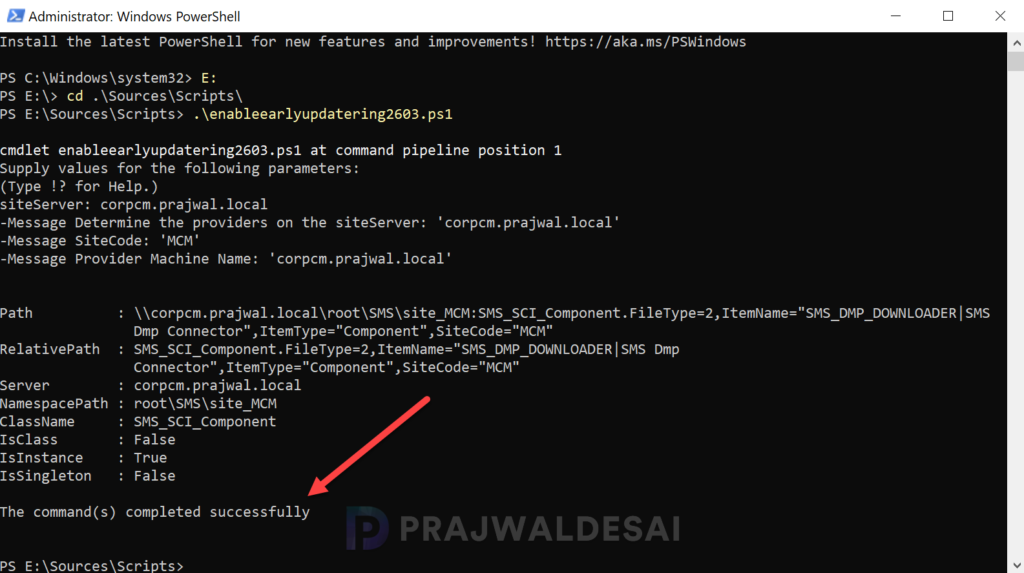
Once the script is executed, the update download process initiates. The SCCM server starts retrieving the 2603 update package from Azure servers, and you can monitor the download progress in the dmpdownloader.log file.
If the update displays as Downloading and doesn’t change its status, I recommend reviewing the hman.log and dmpdownloader.log for errors.
Wait for ConfigMgr update 2603 to download and extract all the files needed for the upgrade. The state of the update is changed from ‘Downloading‘ to ‘Ready to Install‘ in the console.
Run Prerequisite Check
Always run the prerequisite check before installing the SCCM 2603 update. This step ensures the update can be installed smoothly without encountering any issues.
You can run the prerequisite check only when an update shows the status as Ready to Install. If the update is stuck or is not downloading, please consider using the solutions described in this guide.
Perform the following steps to initiate the SCCM 2603 prerequisite check on the server:
- Launch the Configuration Manager console.
- Navigate to Administration > Overview > Updates and Servicing.
- Select the Configuration Manager 2603 update and in the top ribbon, select Run Prerequisite Check.
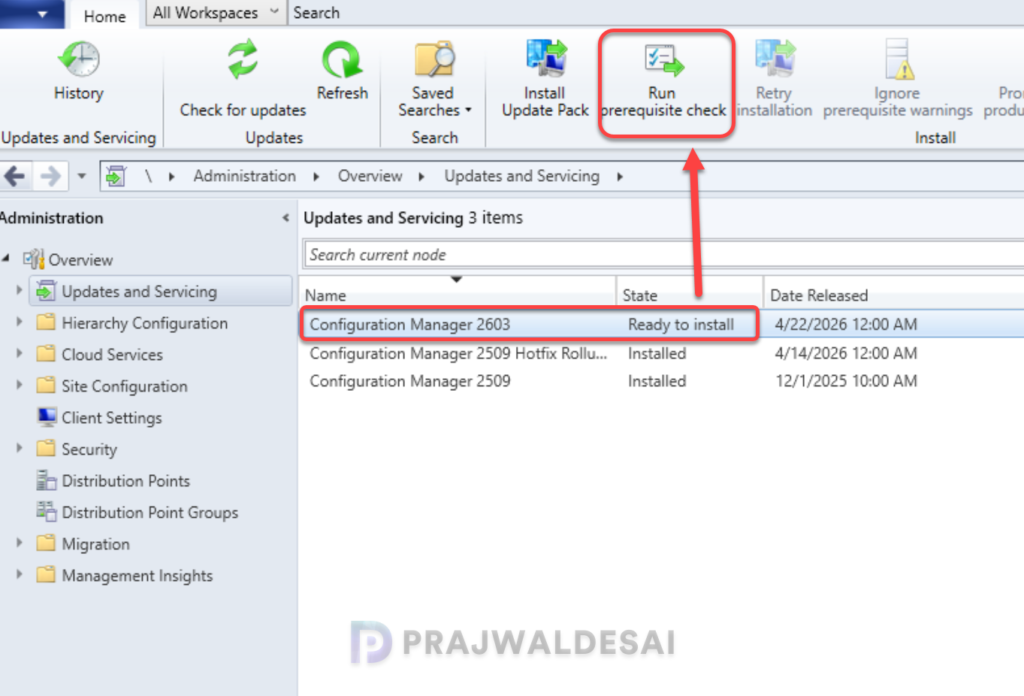
After you run a prerequisite check for an update, it takes a while to actually begin the prerequisite check process. You can monitor all the prerequisite checks in the monitoring node of the console. In addition, you can also review the ConfigMgrPreReq.log to know the status of the prerequisite check. Have a look at a list of all the SCCM log files useful for monitoring the upgrades.
SCCM 2603 Upgrade
After successfully completing the prerequisite checks with no errors or warnings, you can proceed with the upgrade. To perform the SCCM 2603 upgrade, follow these steps:
- Launch the Configuration Manager console.
- Navigate to Administration > Overview > Updates and Servicing Node.
- Right-click Configuration Manager 2603 Update and select Install Update Pack.
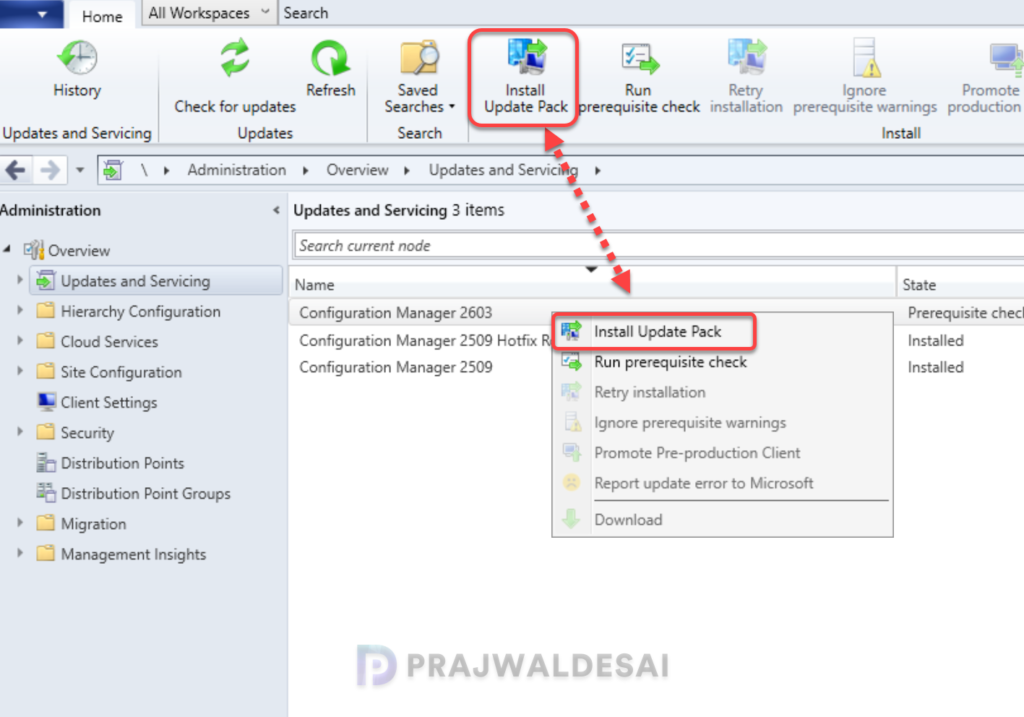
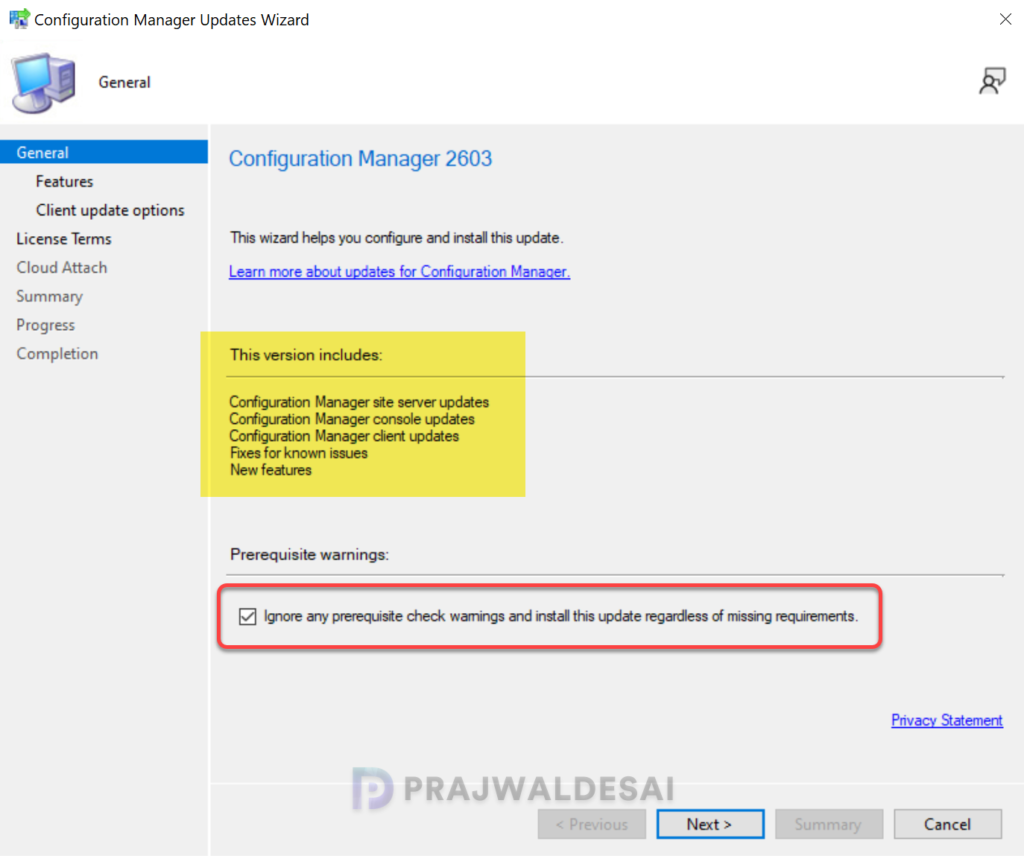
The following components have been updated in Configuration Manager version 2603:
- Configuration Manager site-server updates
- Configuration Manager console updates
- Configuration Manager client updates
- Fixes for known issues
- New Features
Since we have already performed the prerequisite check, you can enable the checkbox to ignore the prerequisite check warnings. Click Next.
On the Features tab, check the boxes for the new 2603 features you want to enable during the upgrade. You can enable these new features after installing the update from Administration > Updates and Servicing > Features. Click on Next to continue.
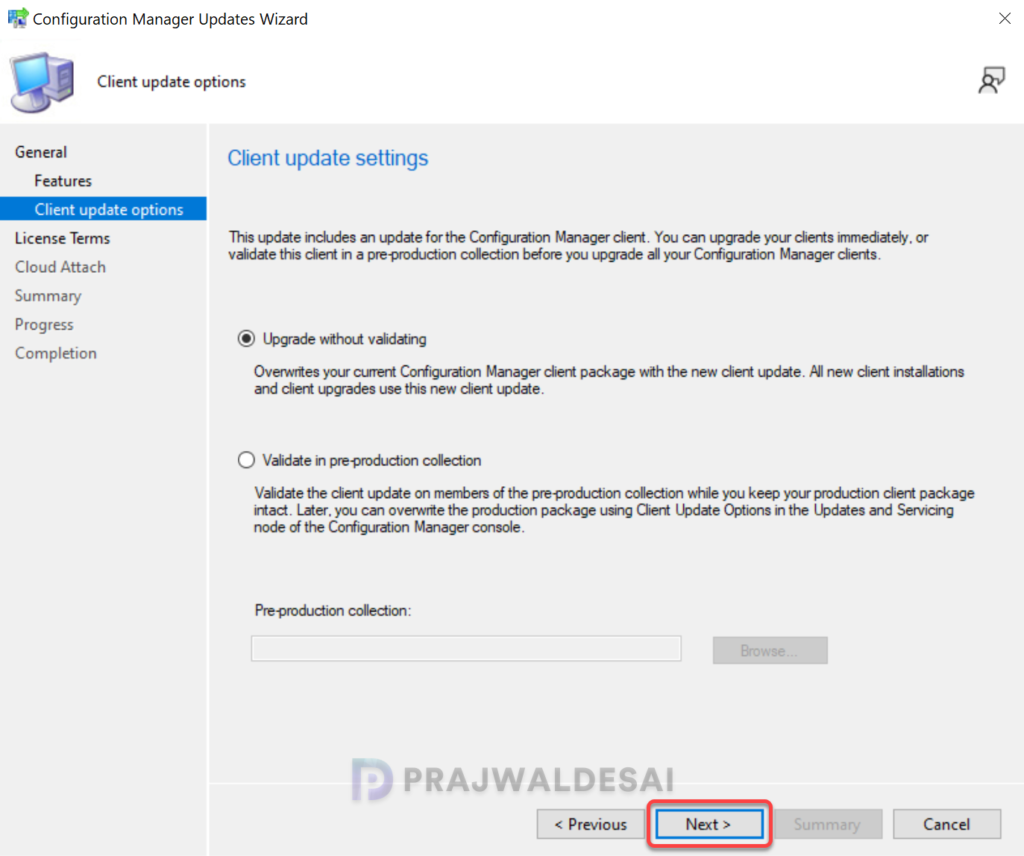
For Client Update Options, select the desired option for updating the clients in your hierarchy. There are two client update options available while installing the update.
- Upgrade without validating: This option allows updating only client members of a specific collection.
- Validate in pre-production collection: With this option, you can validate the client update on members of the pre-production collection while keeping your production client package intact.
Please refer to the SCCM client upgrade options to understand the options available for upgrading the client agents automatically to the latest version. Select the desired client agent update option and click Next to continue.
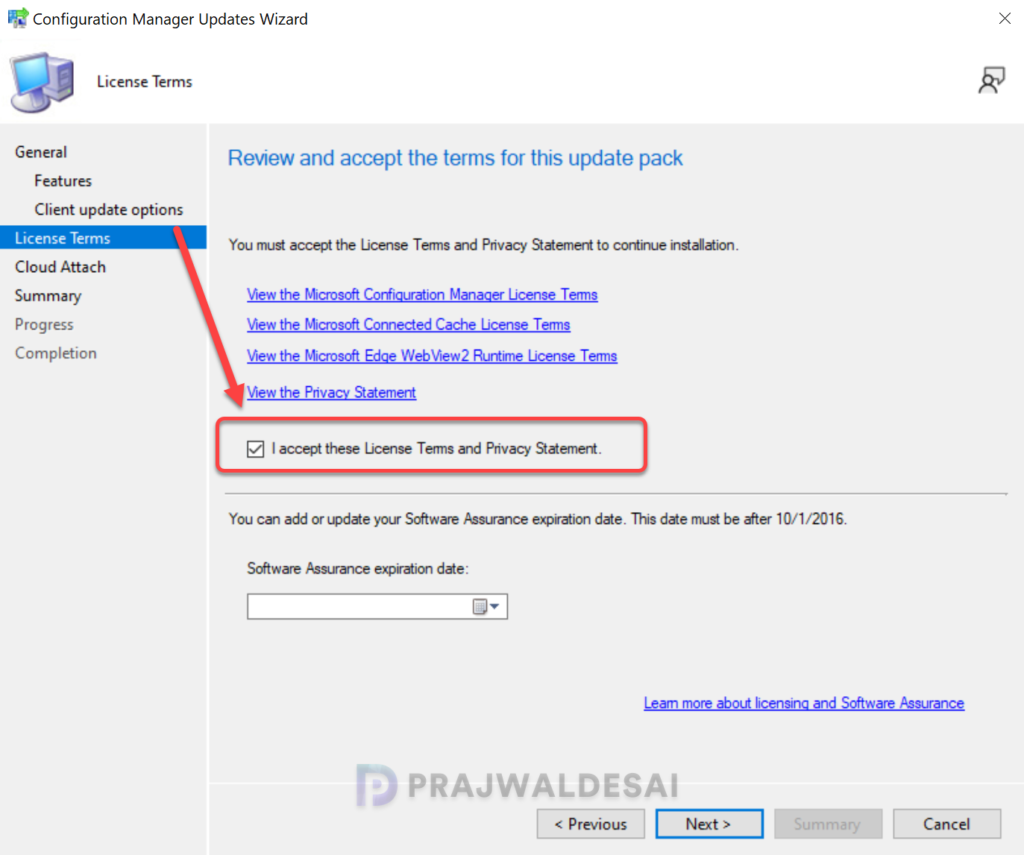
Accept the license terms that are mandatory to install the update and click Next.
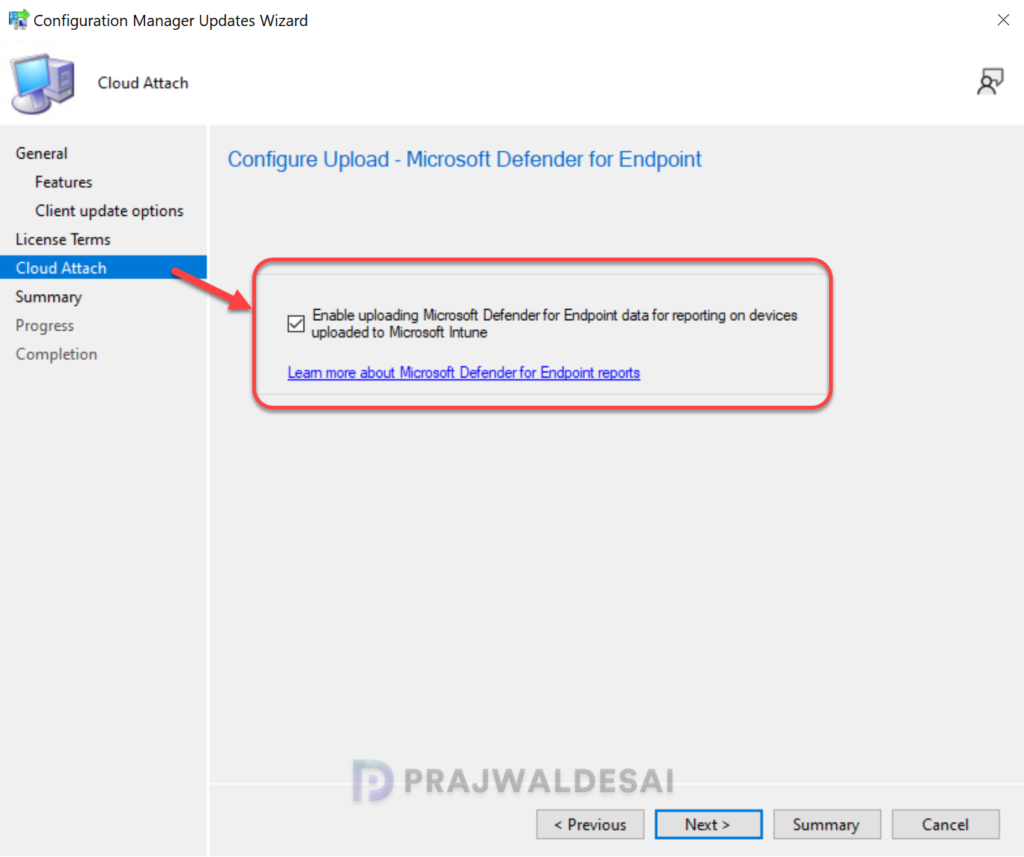
If you have already enabled SCCM Cloud Attach (Tenant Attach) with Intune, you will see an option to upload the Microsoft Defender for Endpoint Data for reporting on devices uploaded to Intune. If your SCCM setup does not include tenant attach, you can skip this step and proceed to the next step.
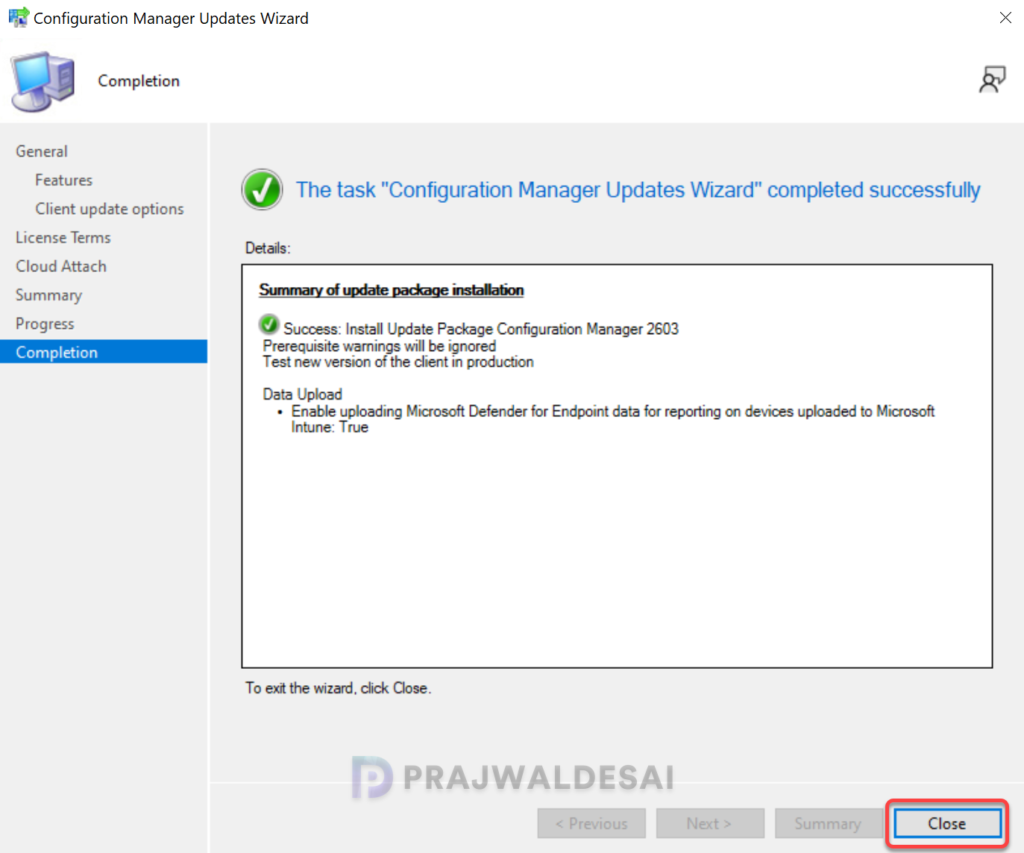
In the Summary window, you see a summary of the settings that you have configured for installing the update. Review them and click Next. On the Completion window, click Close. This completes the steps for installing the Configuration Manager 2603 update.
Monitoring the Upgrade
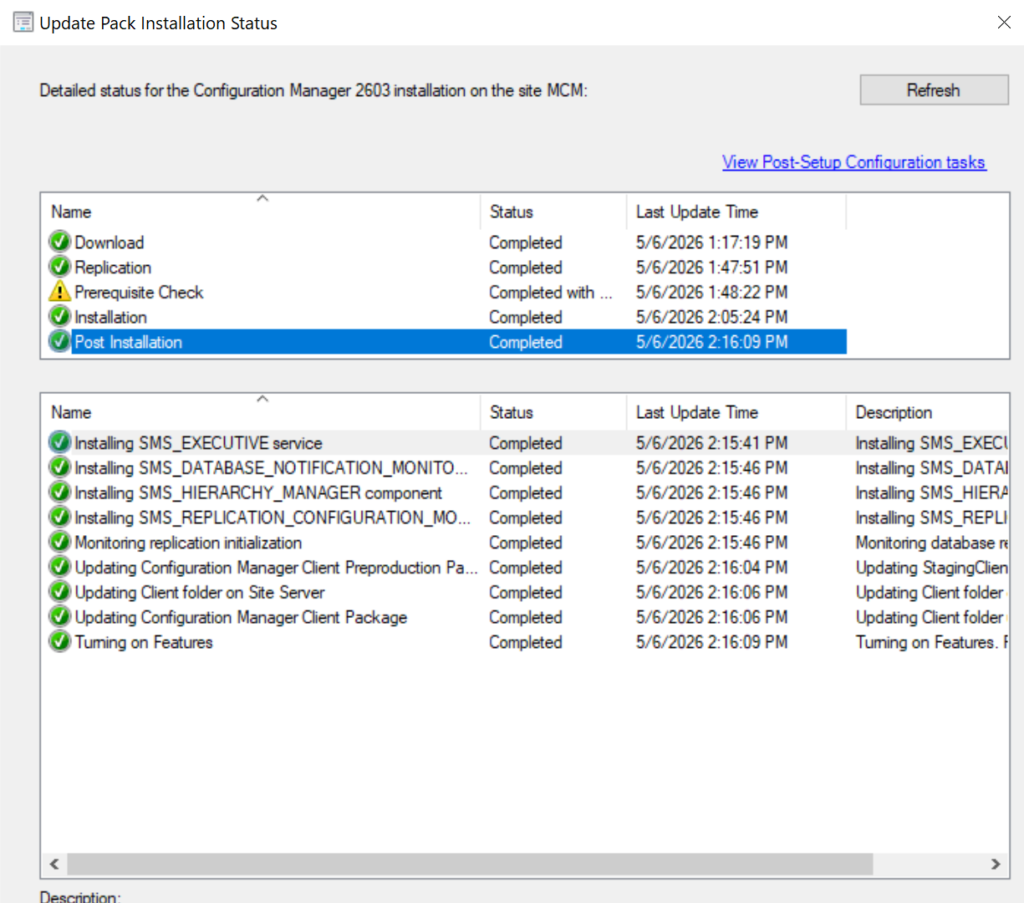
A Configuration Manager administrator can monitor the upgrade process using the following steps:
- In the Configuration Manager Console, go to the Monitoring workspace.
- Select Overview > Updates and Servicing Status.
- Right-click the Configuration Manager 2603 update and select Show Status.
- You can also monitor the upgrade progress by reviewing the CMUpdate.log file located on the site server.
Upgrading the Console
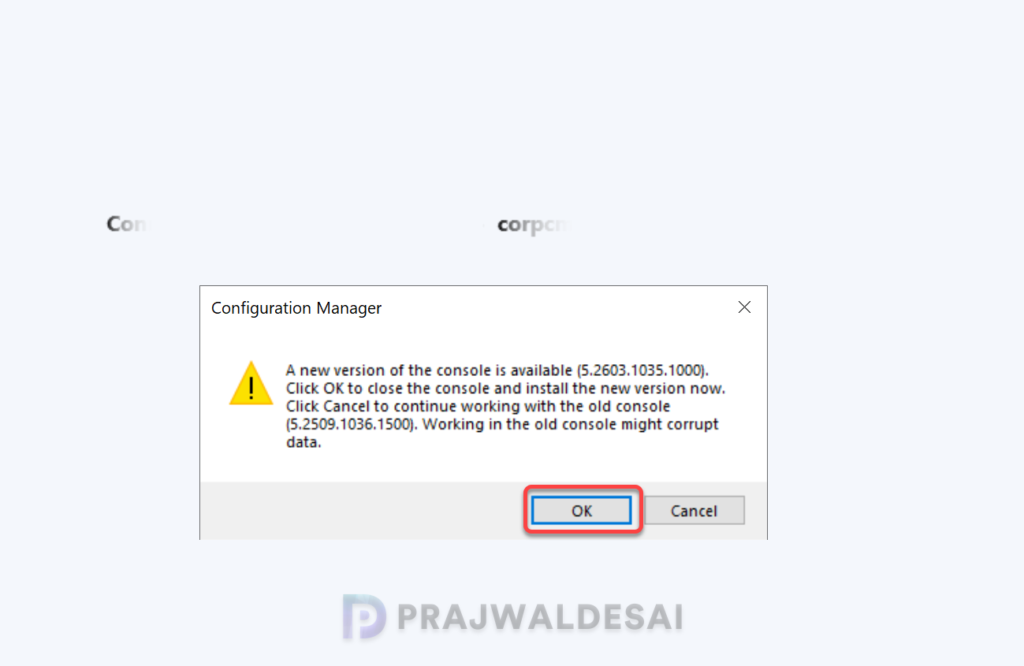
Once the Configuration Manager 2603 update installation is complete, it will uninstall the old console version and install a newer one. You should not skip the console upgrade process because you will be unable to use an older version of the console.
To upgrade the Configuration Manager console to the latest version, you can either refresh the console once or close and launch the console. For some of you, a yellow notification bar appears just below the top ribbon. Click Install the new console version to begin the console upgrade.
After upgrading to version 2603, the new Configuration Manager console version is 5.2603.1035.1000. If the console upgrade fails, restart the server and try again. If the error persists, review the ConfigMgr Console log files.
Verify Upgrade
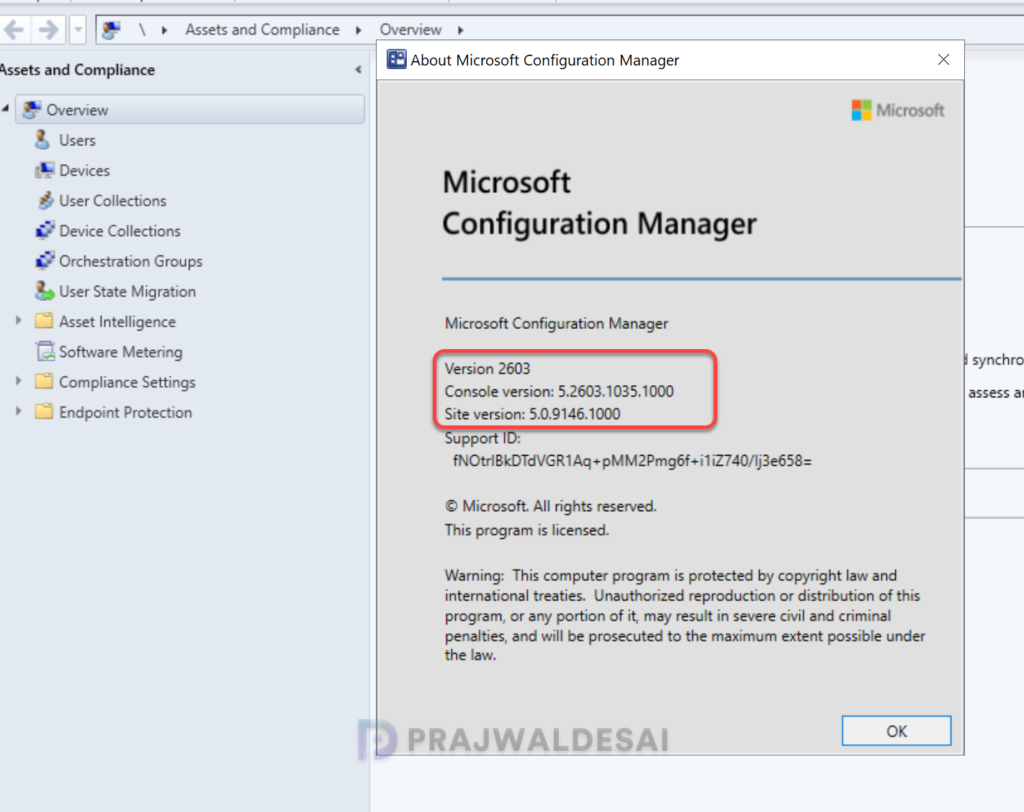
After the SCCM 2603 console upgrade is complete, launch the console and select About Microsoft Configuration Manager. The following details confirm that your site has been upgraded to version 2603.
- Microsoft Configuration Manager Version: 2603
- Console Version: 5.2603.1035.1000
- Site Version: 5.0.9146.1000
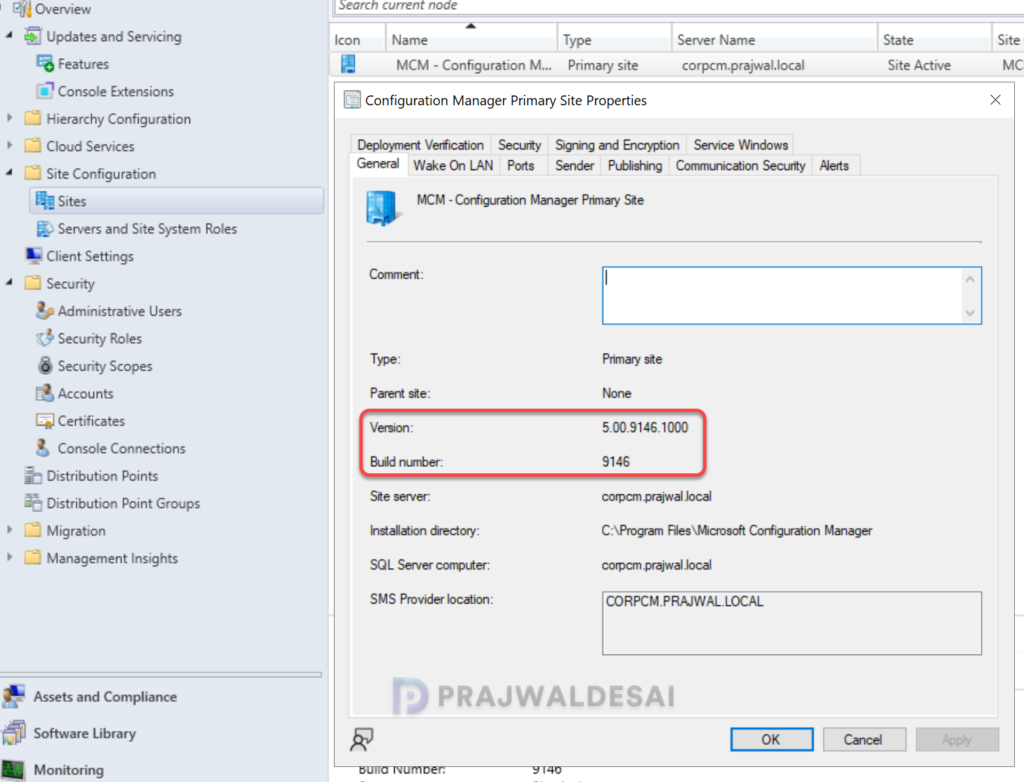
You can manually verify the build number and version with the following steps:
- In the ConfigMgr console, navigate to Administration > Site Configuration > Sites.
- Right-click your site and select Properties.
- The version is 5.00.9146.1000 and the build number is 9146.
Update Boot Images to Distribution Points
After upgrading to Configuration Manager 2603, the default boot images (x64 and x86) will automatically be updated on all the distribution points. If it’s not updated, you can manually update the boot images using the following procedure for Boot Image (x64) and Boot Image (x86):
- Launch the Configuration Manager console.
- Go to the Software Library > Operating Systems > Boot Images.
- Right-click the boot image and select Update Distribution Points.
SCCM 2603 Upgrade – SCCM Client Upgrade
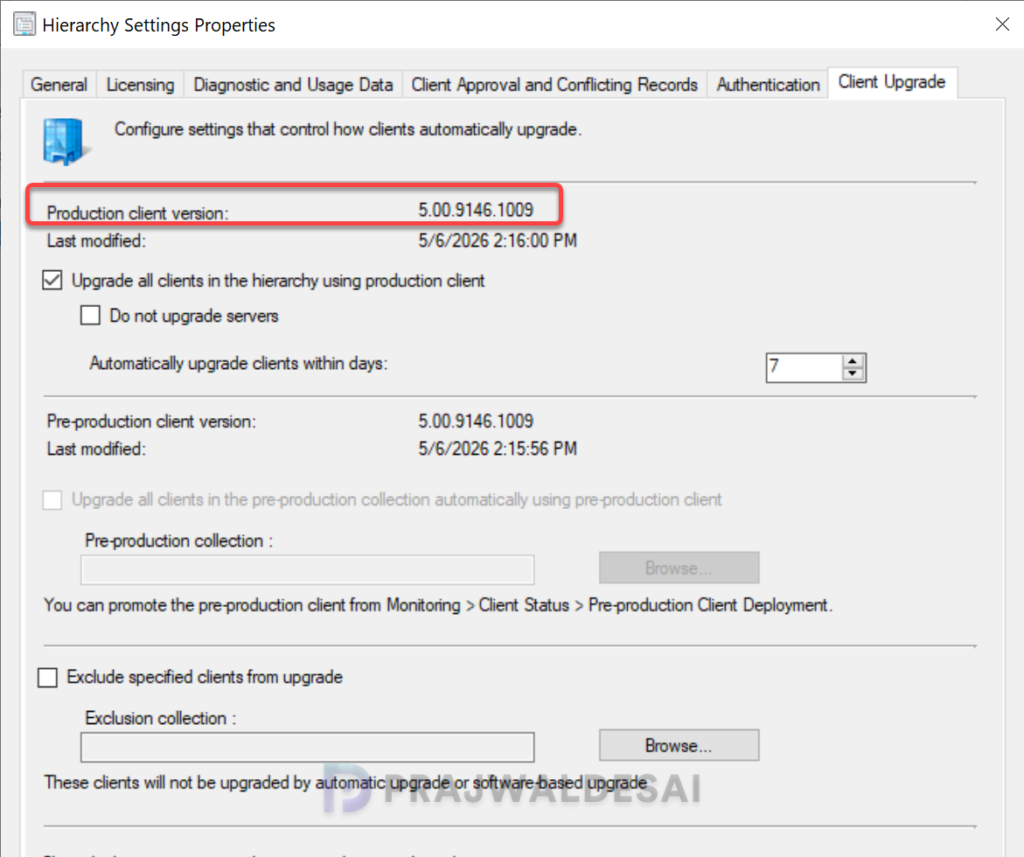
The production client version of SCCM 2603 is 5.00.9146.1009. The recommended method to upgrade SCCM 2603 clients is by using the Automatic Client Upgrade feature. This will upgrade all the clients in your production setup to version 5.00.9146.1009.
Using the automatic client upgrade, you can upgrade the clients to the 2603 version.
- In the SCCM console, go to Administration > Site Configuration > Sites.
- Click Hierarchy Settings in the top ribbon and select the Client Upgrade tab.
- Tick the checkbox “Upgrade all clients in the hierarchy using production client“.
- Set the required number of days for an automatic client upgrade to occur. Click Apply and OK.
To group all the clients who have not updated to the latest version for the 2603 build, use the query below to create a device collection. The query will list all the computers that don’t have the latest client agent version, 5.00.9146.1009.
select SMS_R_SYSTEM.ResourceID,SMS_R_SYSTEM.ResourceType,SMS_R_SYSTEM.Name,SMS_R_SYSTEM.SMSUniqueIdentifier,SMS_R_SYSTEM.ResourceDomainORWorkgroup,SMS_R_SYSTEM.Client from SMS_R_System where SMS_R_System.ClientVersion != '5.00.9146.1009'Post Upgrade Checklist
After upgrading to current branch version 2603, Microsoft suggests the following post-update checklists:
- Confirm SCCM version and restart the server (if necessary)
- Confirm site-to-site replication is active
- Update Configuration Manager consoles to the latest version
- Reconfigure database replicas for management points
- Reconfigure availability groups and any disabled maintenance tasks
- Restore hardware inventory customizations
- Restore user state from active deployments
- Update Client Agents
- Check for expired third-party extensions
- Enable any custom solutions
- Update boot images and media
- Update PowerShell to help content
Troubleshooting ConfigMgr 2603 Upgrade Issues
The SCCM 2603 update can sometimes remain stuck in the downloading state on various setups. I’ve created a detailed article outlining the most common errors and warnings encountered during the prerequisite check: https://www.prajwaldesai.com/fix-sccm-update-stuck-downloading-state/.
Here are common causes for upgrade prerequisite check failures, along with their corresponding solutions to address errors and warnings.
- The site database has a backlog of SQL change tracking data: Solution
- Configuration Manager Pending System Restart: Solution
- SQL Server Native Client Version: Solution
- SCCM Update Stuck at Downloading State: Solution
- Enable site system roles for HTTPS or SCCM Enhanced HTTP: Solution
- Recommended version of the Microsoft .NET Framework. Warning: The Configuration Manager 2603 update requires at least DotNet version 4.6.2 but recommends the latest version 4.8: Solution
- ConfigMgr Database Upgrade Error 0x87d20b15: Solution
- Co-Mgmt slider is not pointed to Intune: Solution
- SQL client prerequisites are missing for Config Manager setup: Solution
Known Issues
Configuration Manager 2603 is a production-ready release and is safe for upgrading. No issues have been reported with this version at the moment. This section will be updated promptly if any significant issues are identified.

We recently did an update from 2503 to 2603 following steps provided. Our ‘build and capture’ task sequence which creates a gold/referenced image (.WIM), which than is used referenced in other builds, no longer works. It fails on the Prepare Windows for Capture step with the following error in the smsts log.
osVersionInfo.dwBuildNumber < 26100, HRESULT=80004005
Sysprep under SYSTEM token is not supported for Windows build 26100 or later.
Detected build: 26200
I tried running sysprep with the local admin account that is created during the Apply Operating system (prior to sysprep) but to no resolve.
Any ideas on the potential cause or resolution are greatly appreciated!
My go to guy for each and every update guide for SCCM.
My company recently upgraded to 2603 and we have an issue with Applications, not Packages, failing to install during task sequences. This does not happen with application deployments, just during task sequences. Would you have any insight as to where to look?
Thank you in advance.
Do you see any error with the applications failing to install?
Prerequisite checker complains about unsupported OS – Windows Server 2025 Standard Edition.
Excellent guide with clear instructions 👍. Thanks for making it easy for upgrading.