


Microsoft has rolled out the KB5083631 non-security cumulative update for Windows 11, introducing over 30 enhancements. The key highlights include a new Xbox mode designed for Windows PCs, improved haptic feedback effects, updates to Windows driver policy, strengthened security and performance for batch files, and optimized performance for launching startup applications.
KB5083631 is a non-security preview update released on April 30, 2026 for Windows 11 25H2 and 24H2 that’s designed to allow administrators to test Windows bug fixes, enhancements, and new features ahead of their official release during the following month’s Patch Tuesday. Unlike cumulative updates, this update is an optional update that focuses mainly on quality improvements and does include security fixes.
Changes and Fixes
The KB5083631 update introduces more than 30 changes and fixes across various Windows components. Here are some of the most exciting updates.
- File Explorer: This update expands the list of archive formats that can be used in File Explorer to include uu, cpio, xar, and NuGet Packages (nupkg). The view and sort preferences are preserved in folders such as Downloads and Documents when apps launch File Explorer directly to those locations. The update eliminates a white flash that might occur when opening “This PC” or resizing the Details pane in dark mode. Additionally, it enhances the reliability of explorer.exe processes, ensuring they terminate properly after closing File Explorer windows.
- Gaming Mode: The new Xbox Mode is now available on Windows 11 PCs, including laptops, desktops, and tablets. Drawing inspiration from the Xbox console experience, this mode delivers a sleek, full-screen interface that prioritizes your games and reduces background distractions.
- Haptic Feedback Effects: Haptic feedback effects are available on compatible input devices during specific actions, like aligning objects in PowerPoint or snapping and resizing windows. These haptic signals can be turned on or off in Settings > Bluetooth & devices > Mouse, Touchpad, or Pen > Haptic signals.
- Sharing: Drag Tray has been renamed to Drop Tray. Its settings are now under Settings > System > Multitasking (previously Nearby sharing).
- New Agents on Taskbar: Windows is adding a new way to monitor your agents from the taskbar. This feature enhances support for agents across both first- and third-party applications, with the Microsoft 365 Copilot app’s Researcher tool leading the way as the initial adopter.
- Enterprise State Roaming (ESR): ESR can now be managed through Windows Backup for Organizations policies.
- Policy-Based Removal of Preinstalled Microsoft Apps: KB5083631 update adds support for a dynamic app removal list to the “Remove Default Microsoft Store packages” policy for Windows Enterprise and Education. Administrators can remove additional MSIX/APPX-packaged apps by specifying their app package family names using Group Policy.
- Update for Windows Driver Policy: This update improves Windows security by changing how the Windows kernel trusts third‑party drivers. Default trust for cross‑signed drivers is removed, while drivers from the Windows Hardware Compatibility Program (WHCP) and an allowed list of trusted legacy drivers remain allowed.
- Enhanced security and performance for batch files: Administrators and Application Control for Business policy authors now have additional control over how the system processes batch files and Command Prompt (CMD) scripts.
- Improved Voice Typing: The voice typing on the touch keyboard now looks simpler and more intuitive. The update also adds Arabic 101 Legacy keyboard layout to the list.
Updates to AI Components
The KB5083631 preview update for Windows 11 includes the updates for the following AI components.
| AI Component | Version |
|---|---|
| Image Search | 1.2604.515.0 |
| Content Extraction | 1.2604.515.0 |
| Semantic Analysis | 1.2604.515.0 |
| Settings Model | 1.2604.515.0 |
Installing KB5083631 via Windows Update
The KB5083631 update is offered through Windows Update for devices running Windows 11 25H2 and 24H2. If you don’t see the update listed, open the “Windows Update” settings, turn on the “Get the latest updates as soon as they’re available” option, and click the “Check for Updates” button.
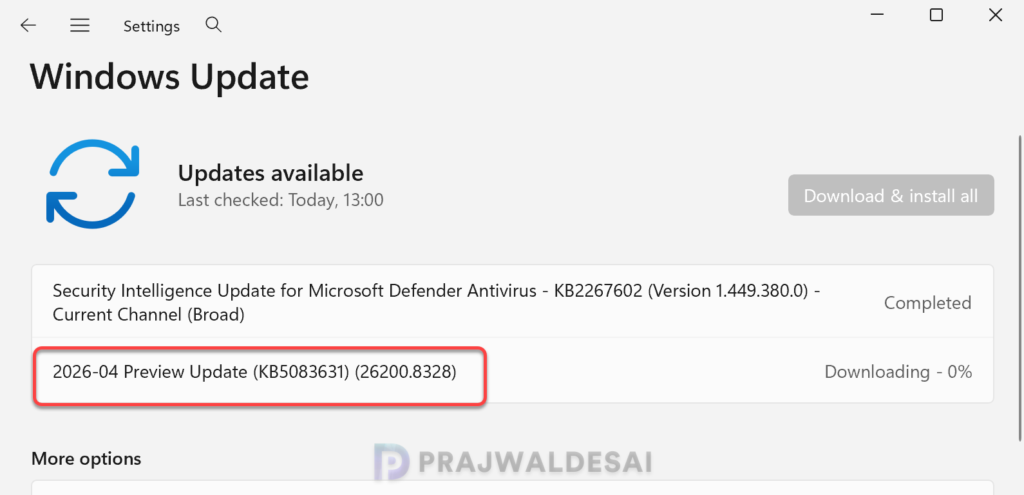
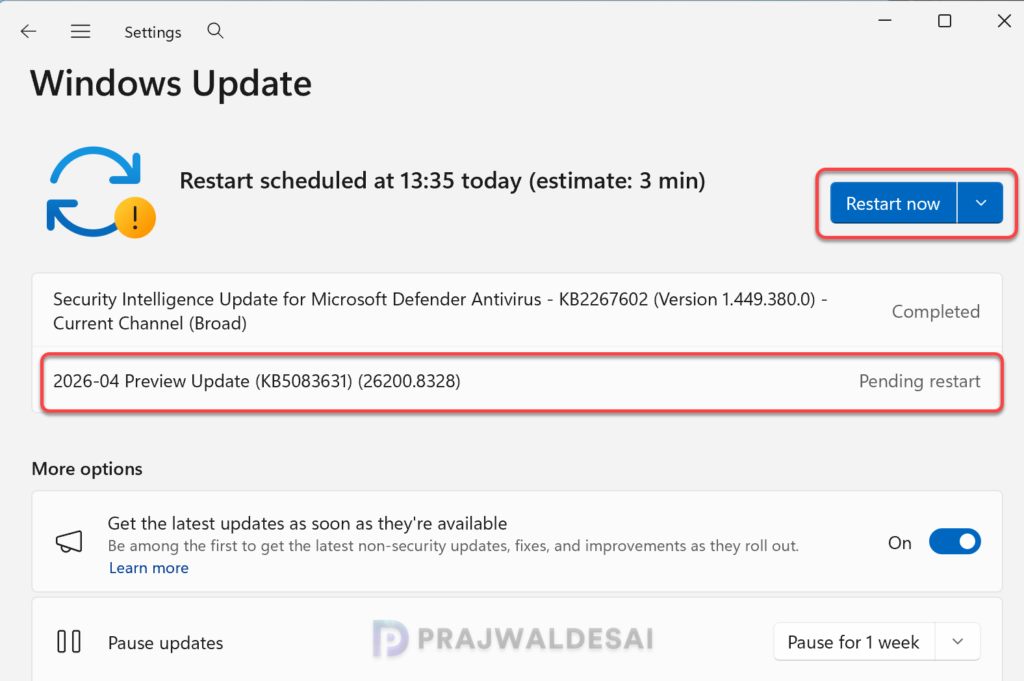
The update requires a system reboot to complete the installation. Simply click the “Restart Now” button to restart your computer. Once your system restarts, your Windows 11 25H2 build will be updated to version 26200.8328, and the Windows 11 24H2 build will be updated to version 26100.8328.
Download KB5083631 from Microsoft Update Catalog
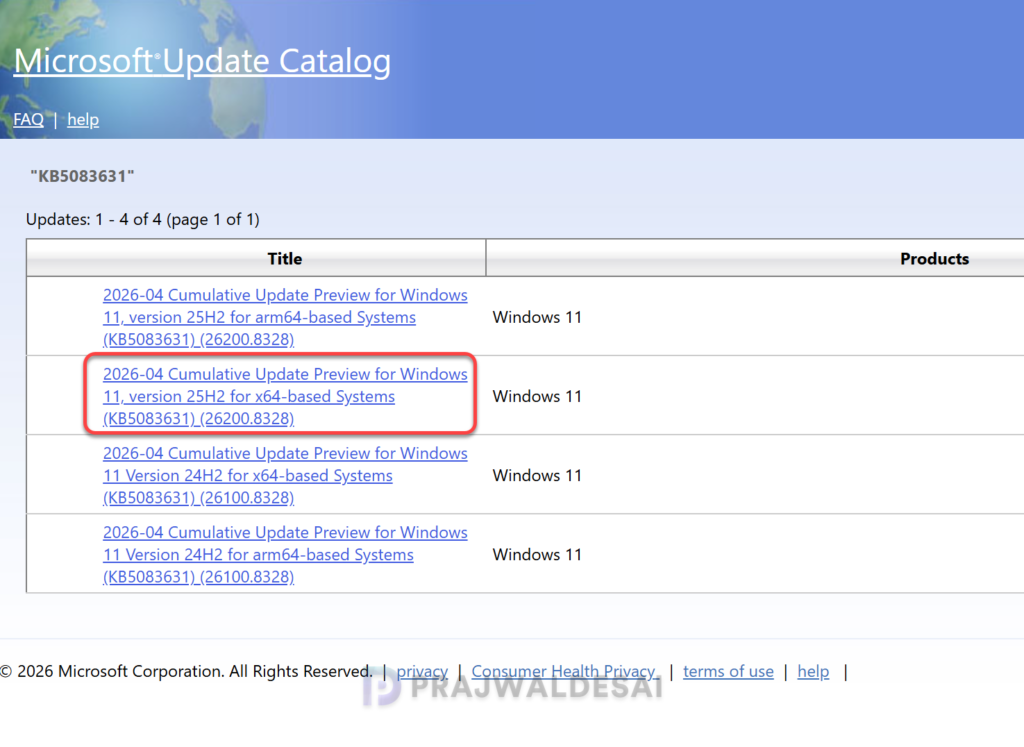
The KB5083631 update should be downloaded and installed automatically from Windows Update. However, if you’ve problems getting this update via Windows Update or wish to get the standalone package(s) for this update, go to the Microsoft Update Catalog website and download it.
Uninstall the 2026-04 Cumulative Update Preview
If you haven’t patched your devices with the 2026-04 Cumulative Update Preview yet, you may pause updates in Settings. If you’ve already installed the update, and you are encountering some of the known issues, go to Settings > Windows Update > Update history > Uninstall updates. Alternatively, you may also use PowerShell to list the updates and uninstall them.
Known Issues
After installing the KB5083631 preview update, some devices with an unrecommended BitLocker Group Policy configuration might be required to enter their BitLocker recovery key on the first restart after installing this update. This was also a known issue with the KB5083769 April 2026 Patch Tuesday update. For now, Microsoft provides a workaround for this issue that is provided in KB 5083631 documentation. Microsoft plans to deliver a permanent solution for this issue in an upcoming Windows update.
