

In this blog post, I’ll show you how to remove default Microsoft Store packages using Group Policy. The process includes creating a GPO, enabling the policy to remove default Microsoft Store apps, choosing the apps to be uninstalled, and applying the policy to an OU.
We all know that Windows 11/10 comes preinstalled with a list of Microsoft Store apps. Many users find these apps unnecessary and rarely use them. Previously, organizations had to use custom scripts to remove these pre-installed app packages. However, Microsoft has now introduced a policy-based method for uninstalling pre-installed Microsoft Store apps.
With policy based removal of Store apps, organizations can either choose Microsoft Intune or Group Policy to get rid of pre-installed app packages. In my earlier guide, I demonstrated the procedure for removing pre-installed Microsoft Store apps using Intune. This guide demonstrates the GPO method for removing pre-installed Store packages.
Important
- Before proceeding, please note that the policy for removing default Microsoft Store packages, whether using Intune or GPO, is only applicable to Windows 11 Enterprise or Education, version 25H2. See how to upgrade from windows 11 pro to enterprise.
- Begin by testing app removal on a pilot group of devices. Once confirmed, extend the GPO to larger OUs, especially when conducting tests in a production environment.
Remove Default Microsoft Store Packages Group Policy Missing
Administrators may find the Remove Default Microsoft Store Packages from system GPO setting missing in the GP Management Editor. This is due to the fact that the setting is part of the Administrative Templates (ADMX) introduced with the Windows 11 September 2025 Update. So you must import the latest AMDX template files for version 25H2 before proceeding.

Download Administrative Templates for Windows 11 25H2
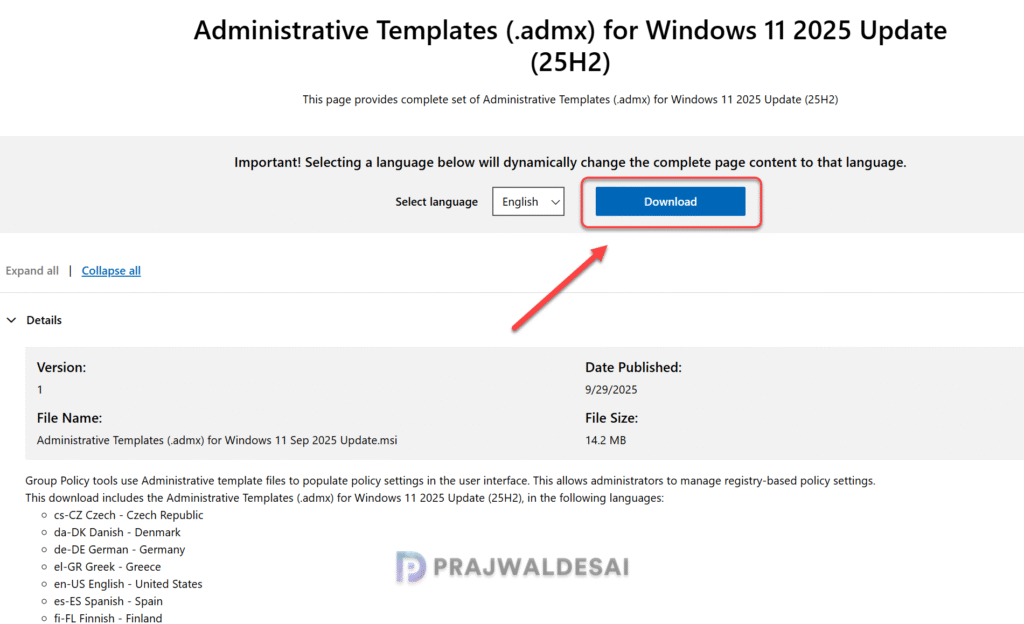
Let’s download the ADMX templates for Windows 11 2025 update. Open the browser and download the ADMX template files for Windows 11, 25H2. Save the installer to your computer.
Install and Import ADMX Templates for 25H2
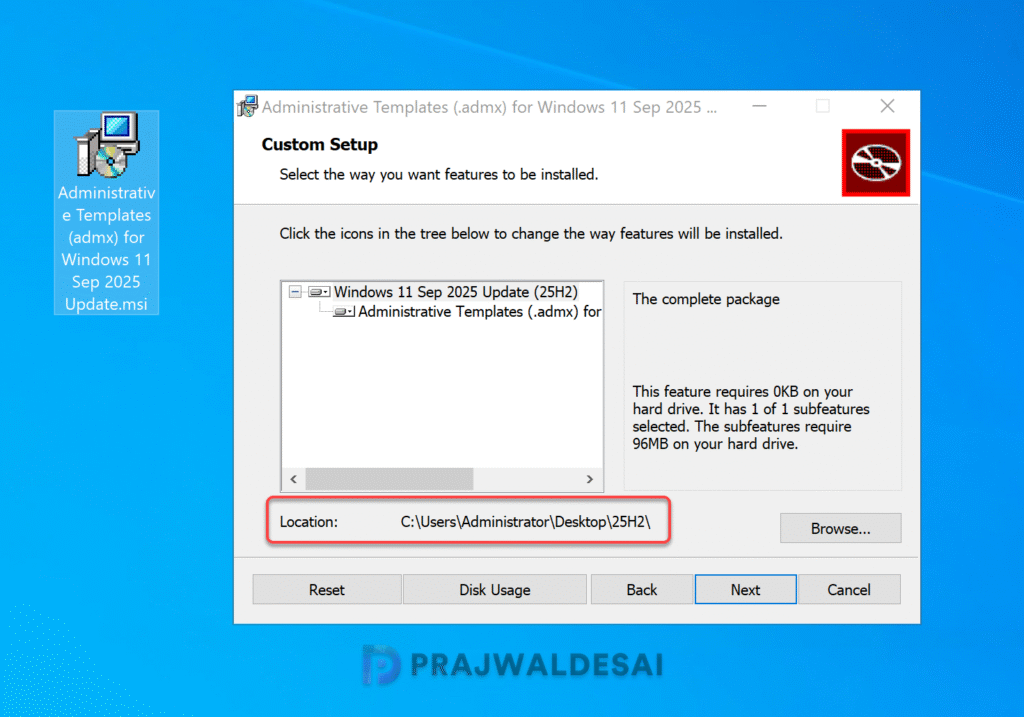
Double-click the downloaded Administrative Templates (admx) for Windows 11 Sep 2025 Update to begin the installation. On the Welcome screen, click Next. Specify the folder location to install or extract the ADMX and ADML files. Upon the successful installation, click the Finish button to exit the setup wizard.
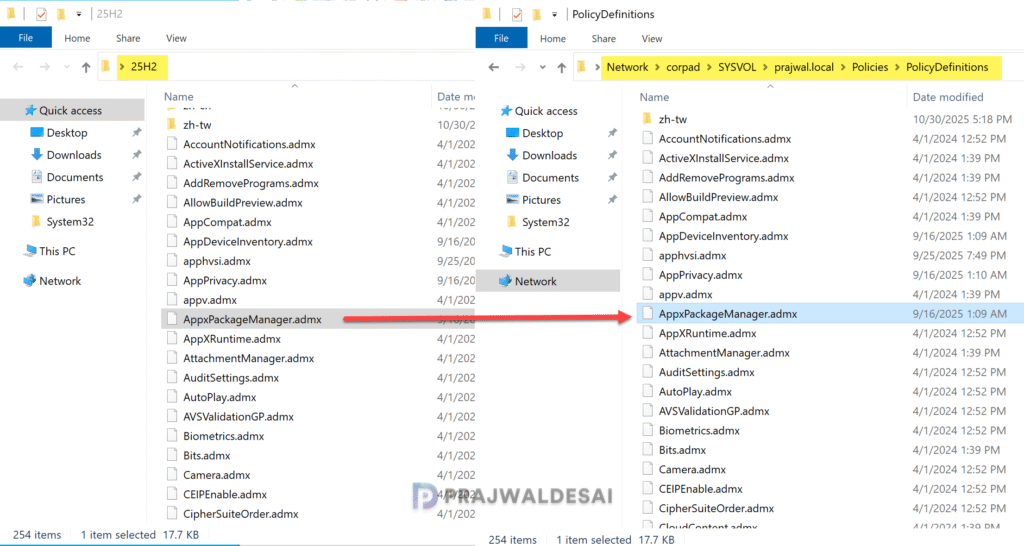
The ‘appxpackagemanager.admx‘ is the file that actually contains the GPO setting – Remove Default Microsoft Store packages from the system. You can import all the 25H2 ADMX and ADML files into Central store or just the ones that you need. To do that, refer to the guide on installing Administrative Templates for Windows 11.
In the below image, you can see that I have the Windows 11 25H2 ADMX templates imported into central store. The appxpackagemanager.admx is also present in the policy definitions folder.
Create a GPO to Remove Default Microsoft Store Packages
Let’s create a Group Policy Object (GPO) to uninstall the default Microsoft Store packages from Windows devices.
Log in to your Active Directory server, open the Group Policy Management console. In the Group Policy Management console, expand the domain, right-click Group Policy Objects and select New. Enter the GPO name as ‘Remove Default Microsoft Store Packages‘ and click OK.

Edit the GPO that you just created. In the Group Policy Management Editor, go to the following policy path: Computer Configuration\Policies\Administrative Templates\Windows Components\App Package Deployment.
Edit the setting “Remove Default Microsoft Store packages from the system” and select Enabled. Once you have enabled the policy setting, select the list of Microsoft Store apps to uninstall. Unselected apps in the list will not be removed. Click Apply and OK to save the changes. Close the GP management editor.

Link the GPO to an OU
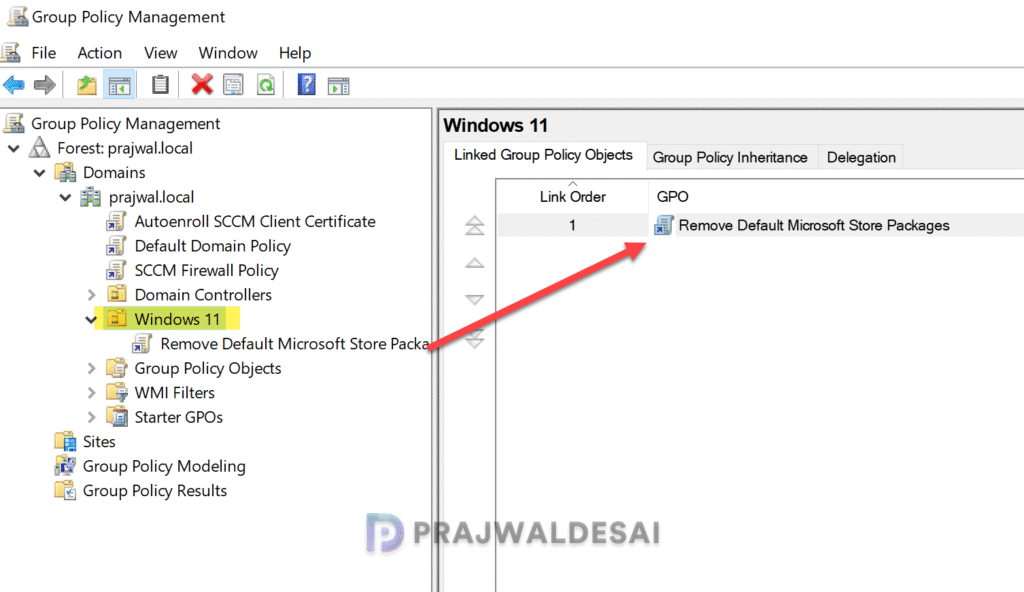
After creating the GPO, the next step is to link it to an OU if you haven’t already. You can also link it to the domain, but doing so will apply the policy settings applicable to every computer in the domain, so it is not advised.
Right-click the OU, choose “Link an Existing GPO,” select “Remove Default Microsoft Store Packages” from the GPO list, and click “OK.”
Refresh the Group Policies
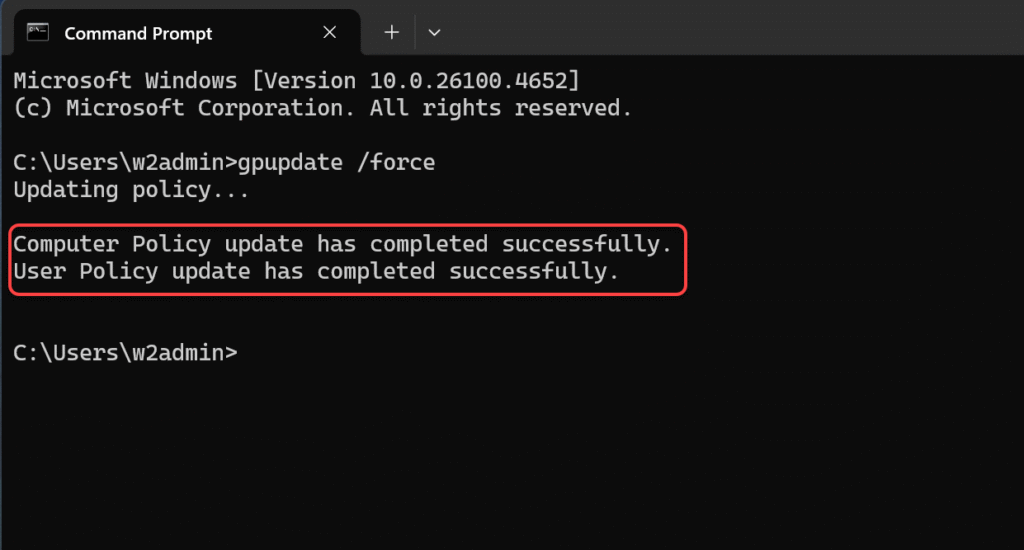
The Windows 11 devices will get the latest policies based on the GP Refresh Interval time that is configured for your organization. On a test client machine, you can manually perform the group policy update by running the gpupdate /force command. There are multiple ways to perform the group policy update on remote computers.
Verify Removal of Microsoft Store Packages
After the devices successfully update the group policies, the final step is to verify if the selected Microsoft Store packages are uninstalled.
Sign in to your Windows 11 device, click Start, and type the name of the Microsoft Store app you configured for removal. You’ll notice the app is no longer present.
An alternate way to double-check that this policy is active and applied to your Windows device is to check registry keys. Open the registry editor on the computer and browse to the below mentioned path.
HKLM\SOFTWARE\Policies\Microsoft\Windows\Appx\RemoveDefaultMicrosoftStorePackagesIn the below image, we see that each Microsoft Store app has a corresponding folder created. Within each folder, two keys are displayed: Default and RemovePackage. For apps designated for removal through group policy, the RemovePackage value is set to 1. Conversely, for apps not selected for uninstallation, the RemovePackage value remains at 0.

In conclusion, utilizing group policy allows you to securely uninstall pre-installed Microsoft Store packages from Windows devices.
Thank you for reading this guide! Feel free to share any questions or thoughts in the comments section below.
