


It’s April 2026 and Microsoft has rolled out the KB5083769 security update for Windows 11, versions 25H2 and 24H2. This Patch Tuesday addresses the “Reset this PC” error triggered by the KB5079420 update, enhances reliability when using SMB compression over QUIC, and strengthens defenses against phishing attacks involving Remote Desktop (.rdp) files.
The cumulative update (KB5083769) for Windows 11, versions 25H2 and 24H2, delivers the latest security enhancements, performance improvements, and includes non-security updates introduced in last month’s optional preview release.
The KB 5083769 security update contains fixes and quality improvements from KB5079473 (released March 10, 2026), KB5085516 (released March 21, 2026), KB5079391 (released March 26, 2026: no longer offered), and KB5086672 (released March 31, 2026).
Issues fixed
The April 2026 Patch Tuesday update KB5083769 for Windows 11 resolves the following issues.
- Secure Boot: The status of Secure Boot certificate updates on your device may be displayed in the Windows Security app (Settings > Privacy & security > Windows Security). This update addresses an issue where the device might enter BitLocker Recovery after the Secure Boot updates.
- Networking: This update improves reliability when Windows uses SMB compression over QUIC. After you install this update, SMB compression requests over QUIC complete more consistently, reducing the likelihood of timeouts and supporting smoother, more dependable performance.
- Remote Desktop: This update enhances protection against phishing attacks involving Remote Desktop (.rdp) files. Upon opening an .rdp file, Remote Desktop displays all requested connection settings before establishing a connection, with each setting disabled by default. Additionally, a one-time security warning is shown the first time an .rdp file is opened on a device.
- Reset this PC: This update addresses an issue that might cause device reset to fail when using the “Keep my files” or “Remove everything” options. This might occur after installing the March 2026 (KB5079420) Hotpatch security update.
Download KB5083769 from Microsoft Update Catalog
The KB5083769 update should be downloaded and installed automatically from Windows Update. However, if you wish to get the standalone package(s) for this update, go to the Microsoft Update Catalog website and download it.

Installing KB5083769 via Windows Update
The security update is offered through Windows Update for devices running Windows 11 25H2 and 24H2. If you don’t see the update listed, open the “Windows Update” settings, turn on the “Get the latest updates as soon as they’re available” option, and click the “Check for Updates” button.
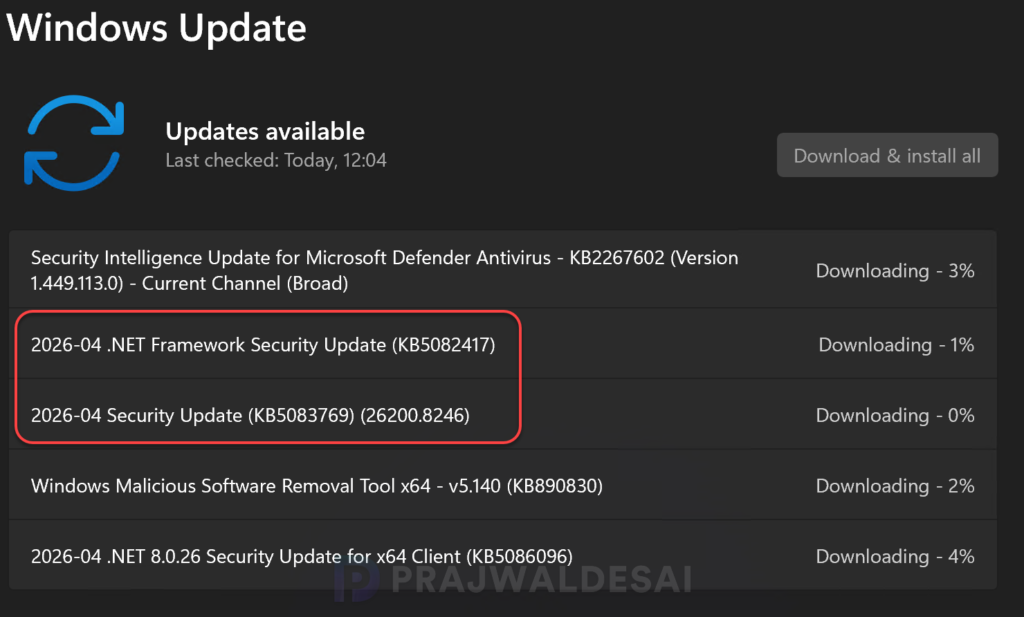
On my laptop, I received the following additional updates through Windows Updates:
- 2026-04 .NET 8.0.26 Security Update for x64 Client (KB5086096)
- 2026-04 .NET 8.0.26 Security Update for x64 Client (KB5086096)
- 2026-04 Security Update (KB5083769) (26200.8246)
- 2026-04 .NET Framework Security Update (KB5082417)
- Security Intelligence Update for Microsoft Defender Antivirus – KB2267602 (Version 1.449.113.0) – Current Channel (Broad)
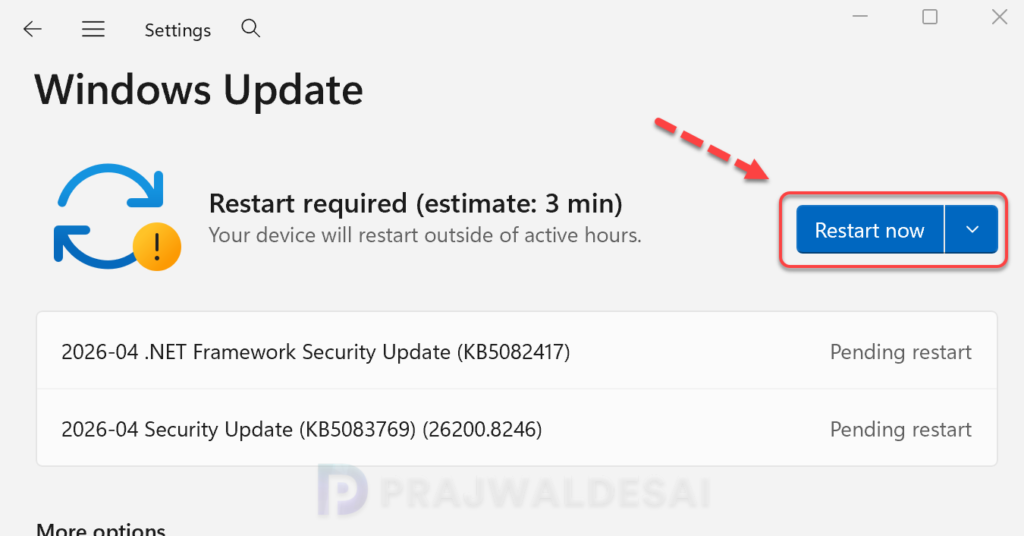
The update requires a system reboot to complete the installation. Simply click the “Restart Now” button to restart your computer. Once your system restarts, your Windows 11 25H2 build will be updated to version 26200.8246, and the Windows 11 24H2 build will be updated to version 26100.8246.
Installing KB5083769 Security Update using Intune
The KB5083769 security update can be deployed by configuring an expedite policy in Intune and assigning it to the appropriate groups containing Windows 11 24H2 and 25H2 devices. For more information, see how to expedite Windows quality updates in Intune.
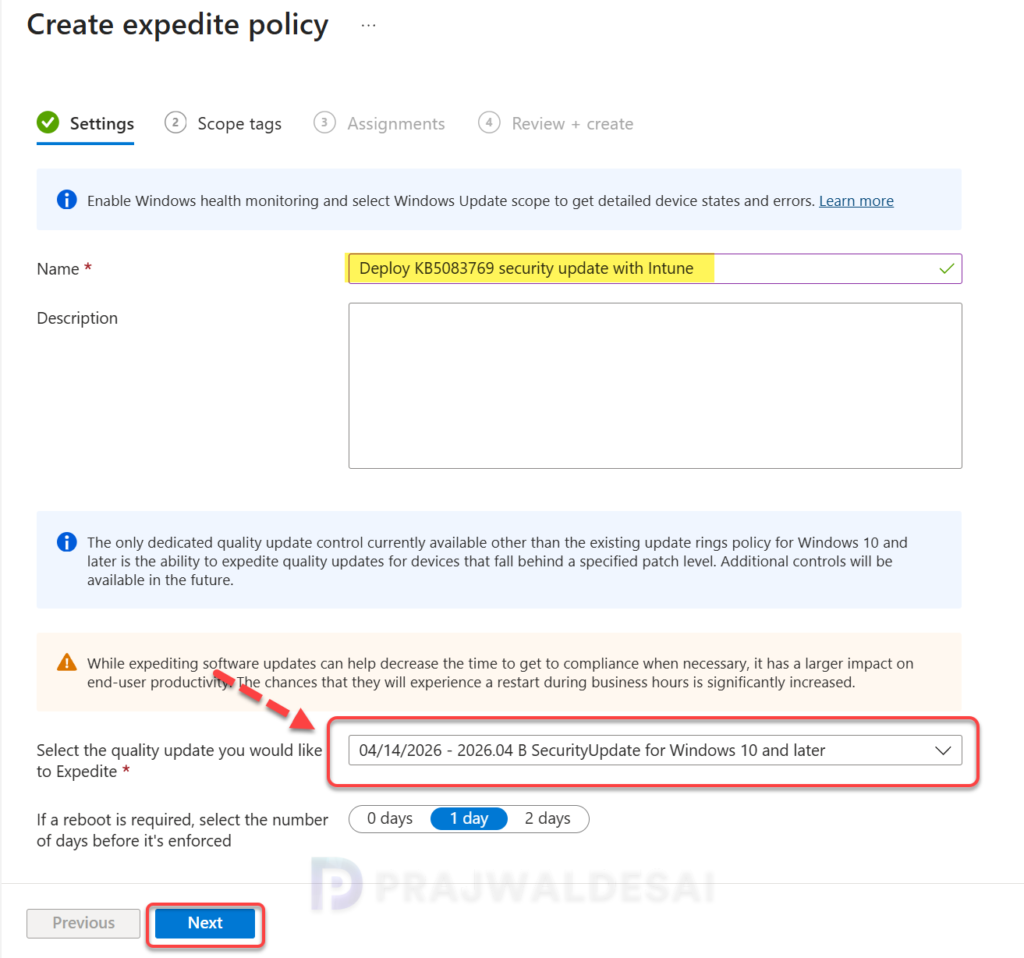
- Sign in to the Intune admin center. Go to Devices > Windows > Windows Updates > Quality Updates.
- Create a new Expedite policy and enter a descriptive name for the profile.
- Select the Windows quality update “04/14/2026 – 2026.04 Security Update for Windows 10 and later” to expedite from the drop-down list.
- Specify the number of days to wait before restart is enforced.
Click Next.
On the Assignments tab, select Add groups and then select device or user groups to assign the policy. Click Next. On the Review+Create page, have a look at the expedite policy settings. If it’s all good, click Create. After the policy is created, it is deployed to assigned groups.
Deploying KB5083769 Update via WSUS/SCCM
Organizations that rely on WSUS or Configuration Manager to distribute software updates to on-premise devices can deploy the KB5083769 update efficiently. If you don’t see the OOB update either in WSUS or SCCM, you must manually import the update into WSUS.
In the below image, I have successfully imported the 5083769 update into WSUS. If you’re using WSUS standalone in your setup, right-click the update and approve it. The deployment occurs based on the schedule you’ve configured.
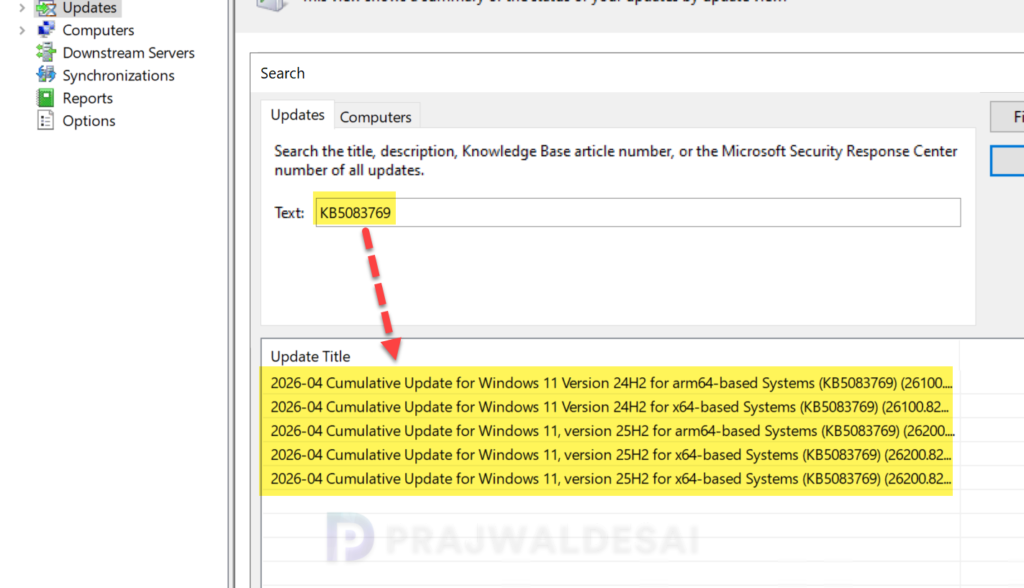
To deploy the update using Configuration Manager, ensure you open the console and synchronize the software updates. This will display all the latest updates from WSUS, including those you manually imported into the console.
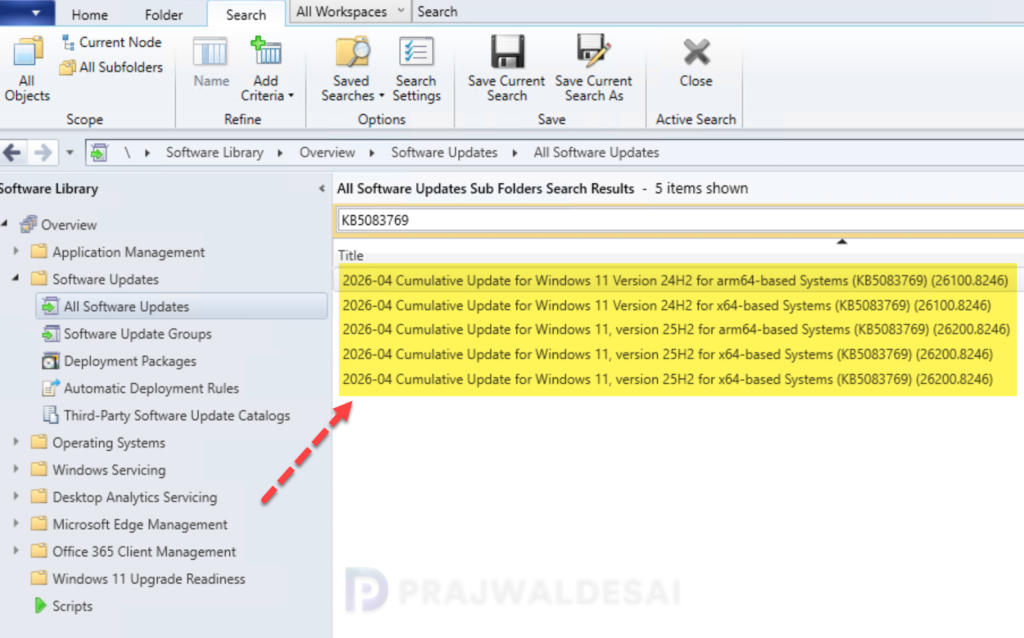
Once the sync is complete, go to Software Library > Software Updates > All Software Updates. In the search bar, type “KB5083769” and click search. You should now see the update 2026-04 Cumulative Update for Windows 11, version 25H2 for x64-based Systems (KB5083769) (26200.8246) listed in the console. From here, you can refer to the SCCM patching guide to deploy it to your Windows devices.
Uninstalling the Update
If you haven’t patched your devices with the KB5083769 security update yet, you may pause updates in Settings. If you’ve already installed the update, and you are encountering some of the known issues, go to Settings > Windows Update > Update history > Uninstall updates. Alternatively, you may also use PowerShell to list the updates and uninstall them.
Known Issues
The April 2026 Patch Tuesday security is a stable update with one known issue that has been reported so far. After installing this update, some devices with an unrecommended BitLocker Group Policy configuration might be required to enter their BitLocker recovery key on the first restart after installing this update. This issue now affects only a limited number of systems with certain conditions that can be checked here. Otherwise, the update is quite stable.
Meanwhile, here’s a comprehensive guide detailing the updates released for each version of Windows 11, including their respective KB numbers and build numbers.
