In this guide, you’ll learn how to expedite Windows quality updates using Intune. Expedited updates allow you to quickly install Windows security updates via Intune, such as the latest Patch Tuesday release or an out-of-band security update addressing a zero-day vulnerability.
Expedited Windows quality updates are installed as soon as possible and offer the advantage that you can deploy the update on demand without interrupting or modifying the existing update process.
However, it’s important to note that not all updates are eligible for expediting. Only security updates can be expedited in Intune. For patching regular monthly quality updates, utilize standard Windows Update methods like update rings or Windows quality update policies.
In the past, I demonstrated some examples of deploying out-of-band Windows updates using Intune for updates such as Windows App auth error 0x80080005, KB5061768, etc. In this guide, I will cover the prerequisites for expediting Windows updates, outline the steps to create an expedited policy, and explain how to monitor update deployments.
How Expedited Updates Work
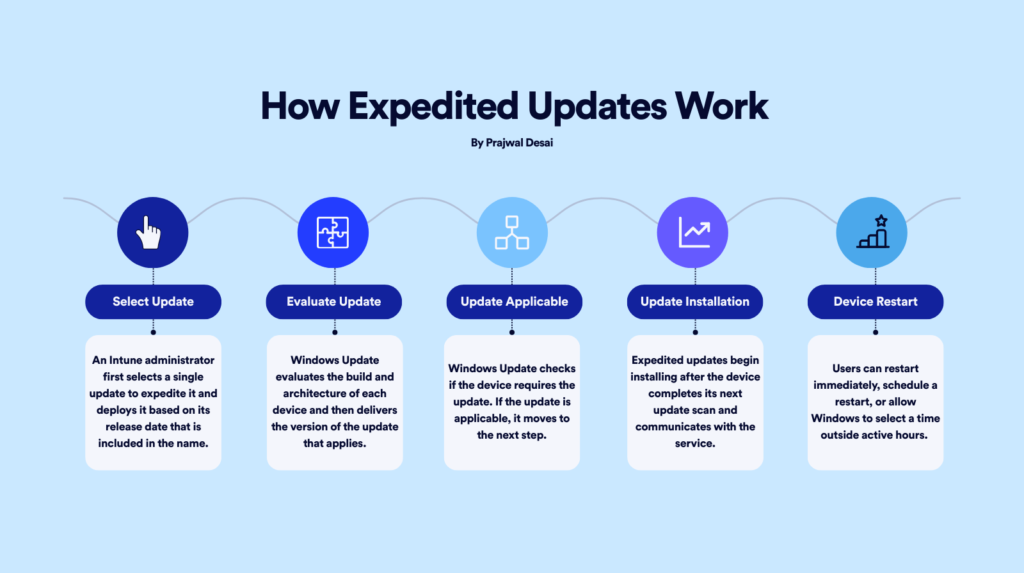
Before creating a policy to expedite quality updates in Intune, it is important to understand how it works. Here is the 5-step workflow involved in expediting quality updates in Intune.
- Select an update: An Intune administrator first selects a single update to expedite it and deploys it based on its release date that is included in the name.
- Update Evaluation: Windows Update evaluates the build and architecture of each device and then delivers the version of the update that applies.
- Applicability of Update: Windows Update doesn’t expedite the update for devices that already have a revision that’s equal to or greater than the updated version. For devices with a lower build version than the update, Windows Update confirms that the device still requires the update before installing it.
- Update Installation: Expedited updates begin installing after the device completes its next update scan and communicates with the service.
- Device Restart: If a restart is required, you can configure a restart deadline that defines how long users have to restart their device before enforcement. Users can restart immediately, schedule a restart, or allow Windows to select a time outside active hours. Notifications inform users of the pending restart and deadline.
The image below illustrates the workflow process for expediting quality updates in Intune.
Patch Tuesday vs. Out-of-Band Updates
In this section, I will highlight some important differences between Patch Tuesday updates and OOB updates.
Patch Tuesday is the second Tuesday of every month when Microsoft releases updates and patches for its software products, primarily Windows and Office. Out-of-band updates are released outside the regular update schedule, typically in response to urgent security vulnerabilities or critical issues. Out-of-band releases are cumulative and include the updates from the previous security and/or non-security release, as well as the additional fix.

Understanding OOB Update Naming
It is important to identify and understand the way out-of-band updates are represented in Intune. When choosing an OOB update to expedite, this information will surely help.
- Updates that include the letter B in their name identify updates that were released as part of a Patch Tuesday event (second Tuesday of the month). For example, 2026.01 B Update for Windows 10 and later.
- Updates that include the letter D in their name identify updates that have been released since the latest Patch Tuesday security week. For example, 2026.01 D Update for Windows 10 and later.
- Critical out-of-band patch releases have different identifiers. For example, 2025.05 OOB security Update for Windows 10 and later.
- Updates without the word SecurityUpdate indicate that it is not a security update. Non-security updates are displayed only for the latest release.
Prerequisites
The following are requirements to qualify for installing expedited quality updates with Intune. These are referenced as provided by Microsoft.
Required Licenses
In addition to a license for Intune, your organization must have one of the following subscriptions that include a license for Windows Autopatch:
- Windows Enterprise E3 or E5 (included in Microsoft 365 F3, E3, or E5)
- Windows Education A3 or A5 (included in Microsoft 365 A3 or A5)
- Windows Virtual Desktop Access E3 or E5
- Microsoft 365 Business Premium
- Microsoft Intune Plan 1
Cloud Requirements
- Public cloud
- Government Community Cloud (GCC)
Supported Windows Versions and Editions
The following versions and editions of Windows 10/11 are supported for expediting Windows quality updates.
- Versions: Windows 10, Windows 11 – x86 or x64 architecture.
- Editions: Professional, Enterprise, Education, Pro Education, Pro for Workstations.
Device Join Requirements
- The Windows devices must be enrolled in Intune MDM.
- Devices can be Microsoft Entra joined or Microsoft Entra hybrid joined. Note that Workplace Join isn’t supported.
Network and Connectivity Requirements
Devices must have internet access and be able to reach required Microsoft endpoints:
The devices must also be configured to get quality updates directly from the Windows Update service.
Monitoring and Reporting
Before you can monitor results and update status for expedited updates, your Intune tenant must enable data collection.
Device Settings
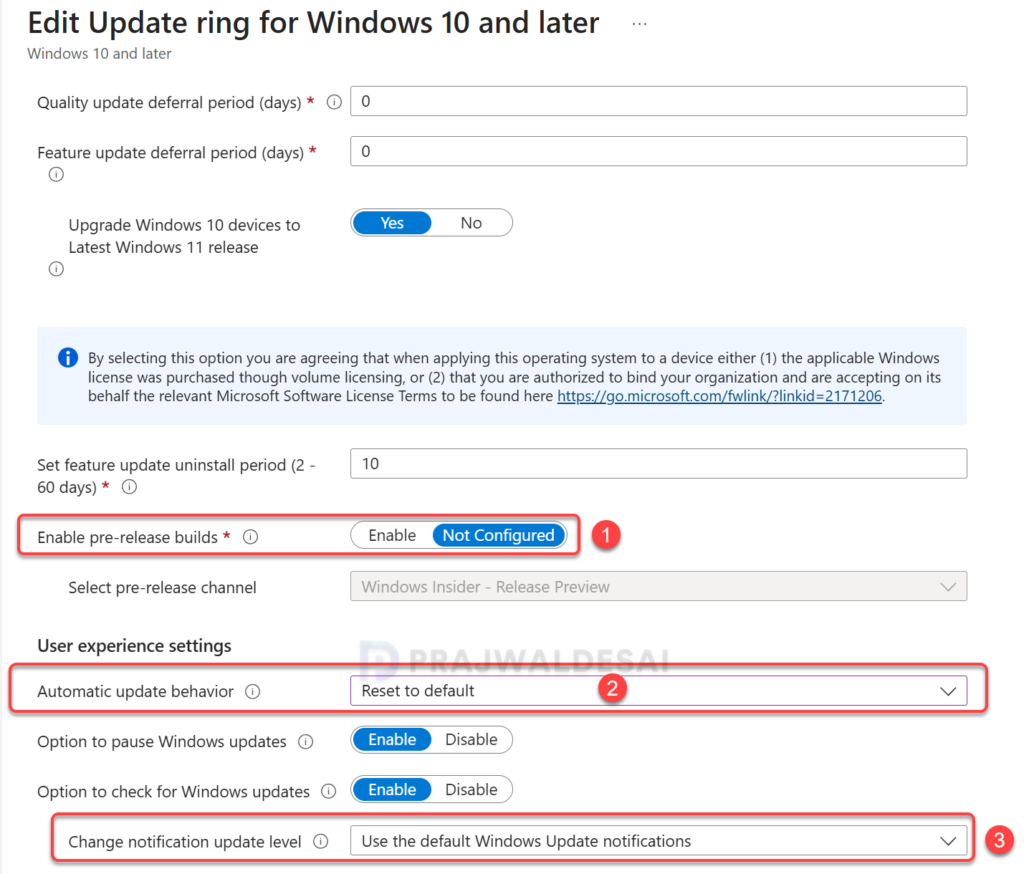
To prevent conflicts or settings that might hinder the installation of expedited updates, configure devices accordingly. Utilize Intune Update rings for Windows 10 and later policies to manage these configurations effectively.
| Intune Update Ring setting | Recommended value |
|---|---|
| Enable pre-release builds | This setting should be set to Not configured. Preview builds, including the Beta and Dev channels, are not supported with expedited updates. |
| Automatic update behavior | Reset to default |
| Change notification update level | Use any value other than Turn off all notifications, including restart warnings |
Create an Intune Policy to Expedite Windows Quality Updates
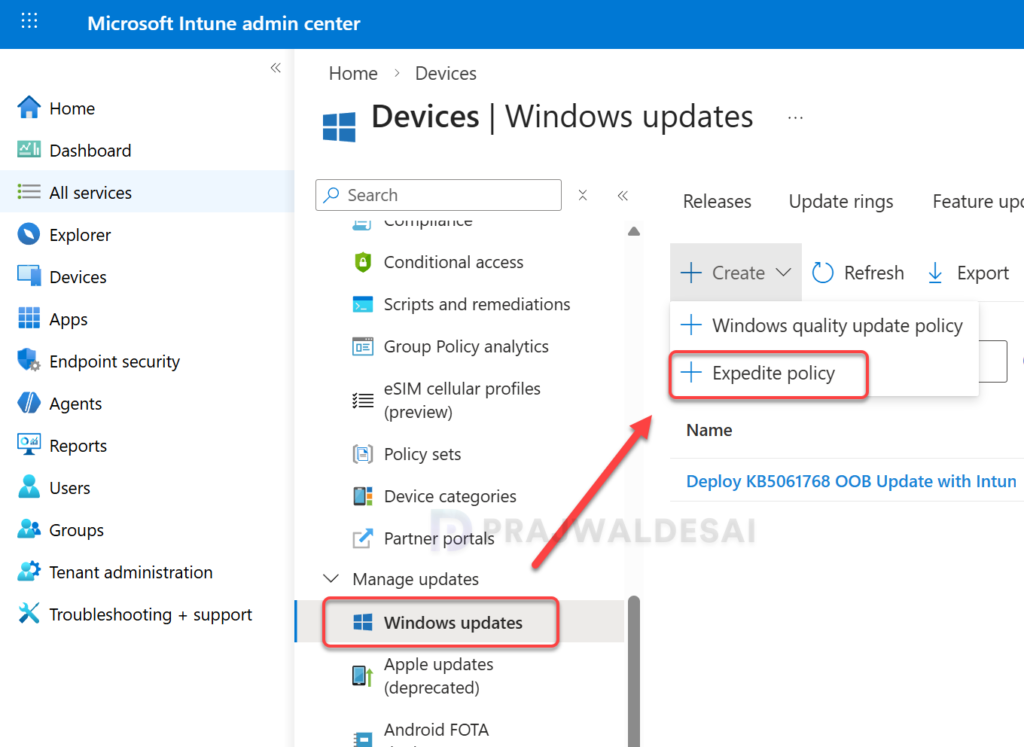
Let’s create an expedited quality update policy in Intune. Sign in to the Microsoft Intune admin center. Go to Devices > Manage updates > Quality updates tab. Select Create > Expedite Policy.
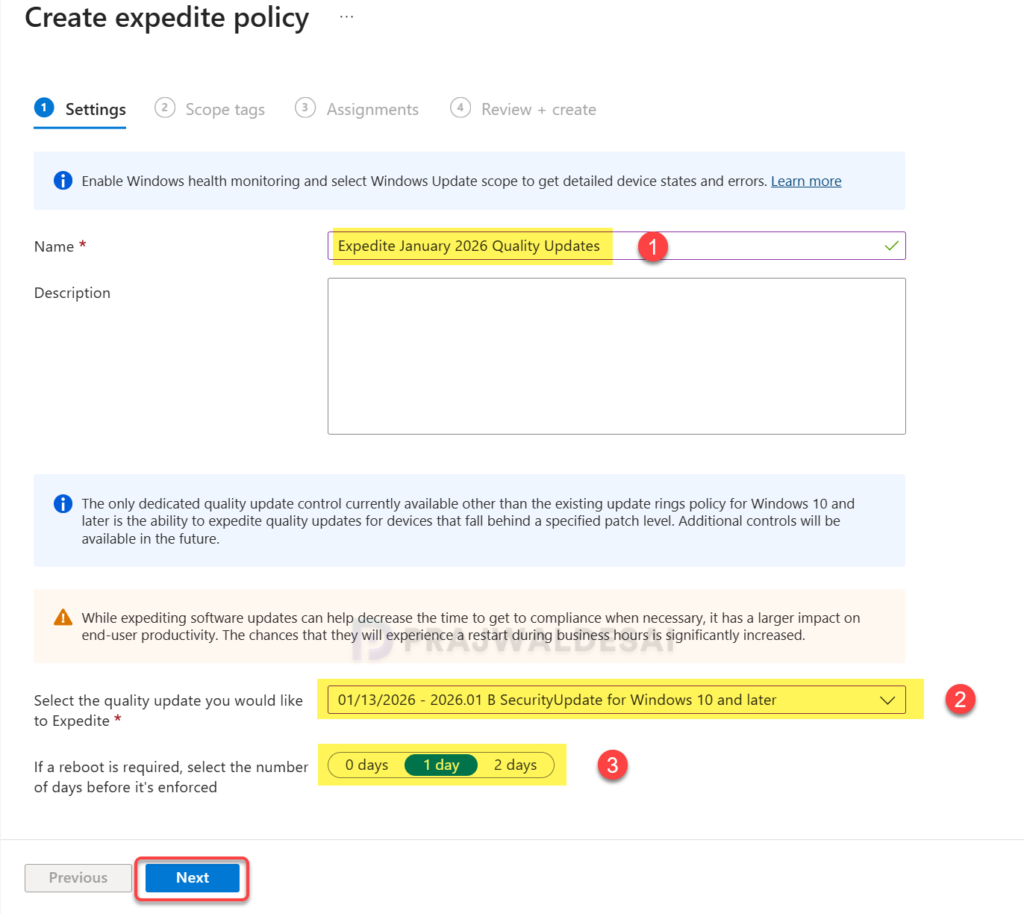
In the Settings tab, enter the following properties to identify this profile:
- Name: Enter a descriptive name for the profile.
- Description: Enter a brief description for the profile.
- Select the quality update you would like to expedite: Select the Windows quality update that you want to expedite from the drop-down list.
- If a reboot is required, select the number of days before it’s enforced: Choose how soon a device will automatically restart to finalize the update installation after it has been installed. Options range from zero to two days.
- Enforce reboot in 0 days: Selecting 0 days means the device will notify the user about the restart immediately after the update is installed, allowing them limited time to save their work.
- Enforce reboot in 1 or 2 days: Choosing 1 or 2 days allows users more flexibility to manage the restart before it becomes mandatory. These options correspond to an automatic restart delay of 24 or 48 hours after the update is installed.
Click Next to continue.
In the scope tags section, add your scope tags. If you haven’t created them, I have published a step-by-step guide on creating Intune scope tags. Note that specifying scope tags is optional, and you may skip this step. Click Next.
In Assignments, select Add groups and then select device or user groups to assign the expedite policy. Click Next.

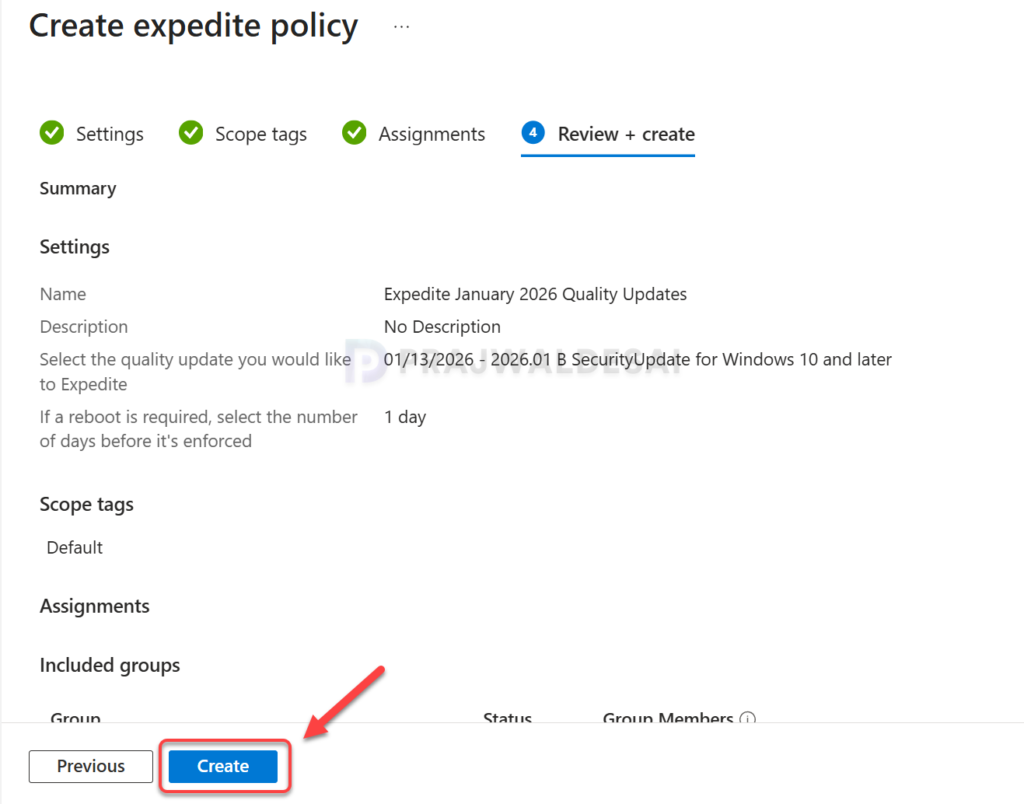
In Review + create, select Create. After the expedite policy is created, it is deployed to assigned groups. A notification will also appear in the top-right corner of the portal indicating that the expedited policy is successfully created.
The expedited updates will start installing after the device completes its next update scan and communicates with the service.
Monitor Windows Expedited Updates Deployment
Before you can monitor results and update status for expedited updates, your Intune tenant must enable data collection. Once an expedited policy is created, you can monitor results, alerts, and update status and review errors or failures through the following reports.
- Windows Expedited Update Report
- Expedited quality update policies with alerts
Windows Expedited Update Report
This is a useful report that shows the current status of all devices within the profile, providing a summary of how many devices are in the process of installing an update, have successfully completed the installation, or have encountered an error. Here’s how you can locate and generate this report.
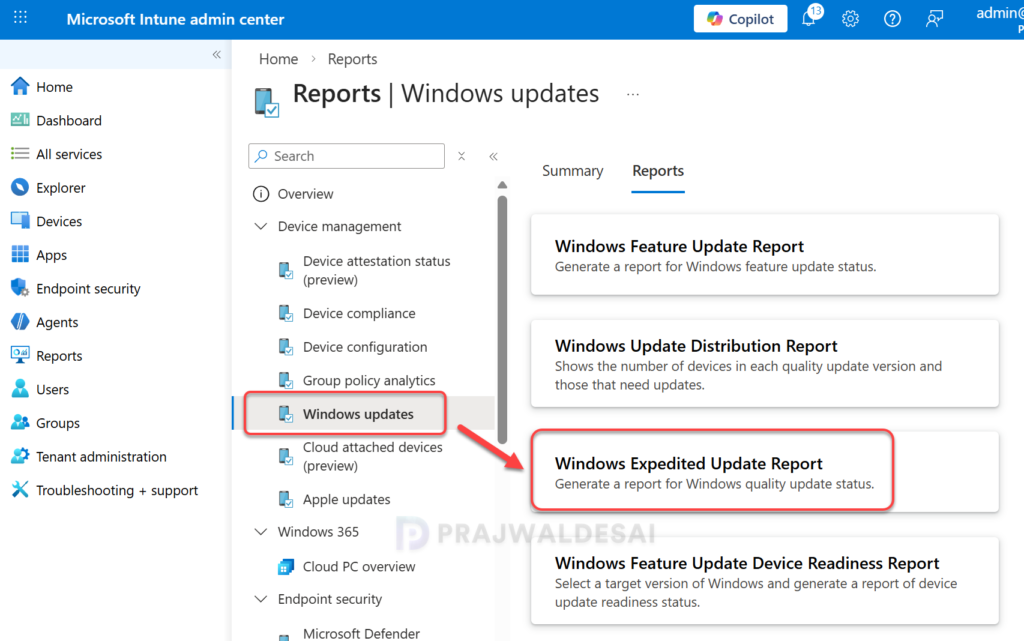
Sign in to the Microsoft Intune admin center. Select Reports > Windows updates. Switch to the Reports tab, and then select Windows Expedited Update Report as shown in the below image.
Click the link ‘Select an expedited update policy‘.
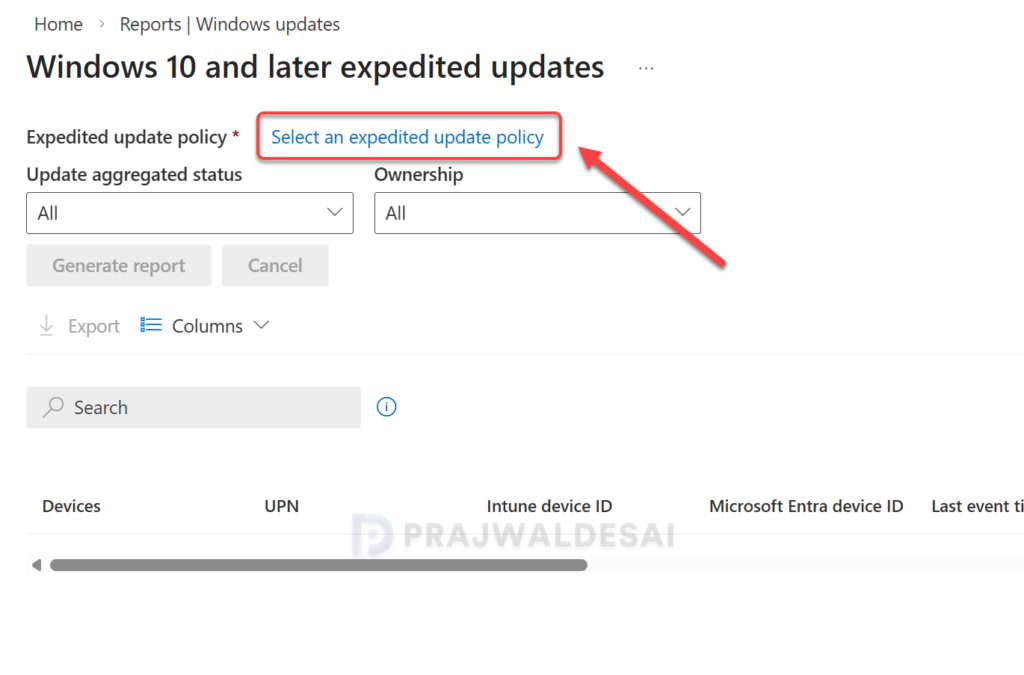
From the list of profiles displayed on the right side of the page, select an expedited update profile and click the “Generate Report” button.
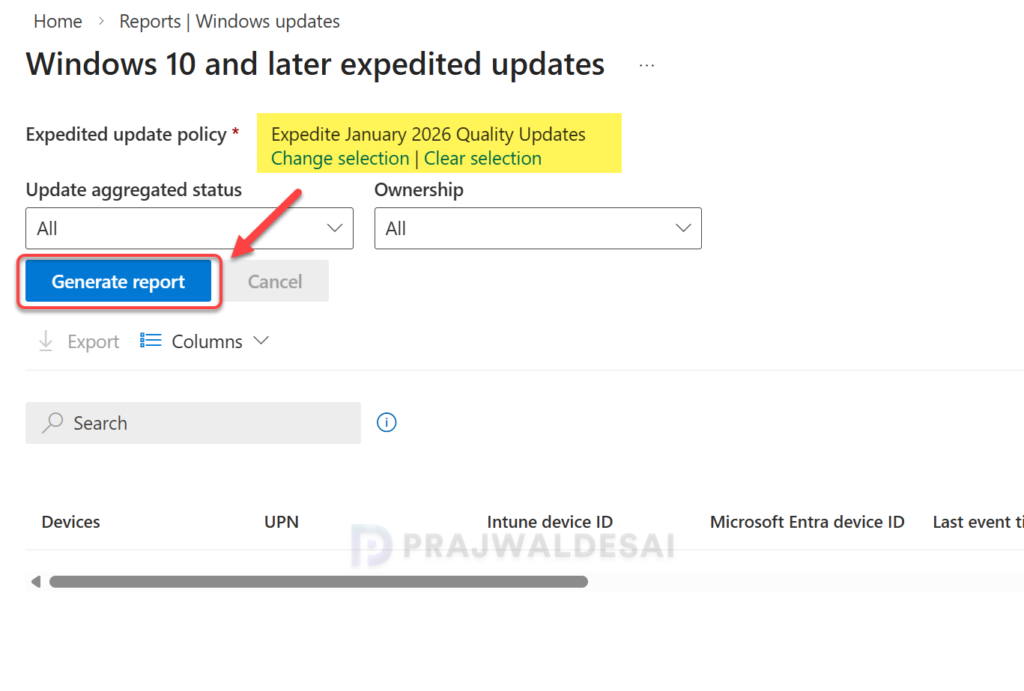
The report runs in the background and shows the deployment status of the expedited update. Review the Update Status column to find out the deployment progress. Refer to the Microsoft documentation to understand the meaning of each update status.
In the below image, we see the deployment status of the expedited update is In Progress for assigned devices. Once the update is installed on the devices, the count of devices is updated under the Success column.

Expedited Quality Update policies with alerts
The Windows Expedited Update failures report can help you find devices with alerts or errors and can help you troubleshoot update issues.
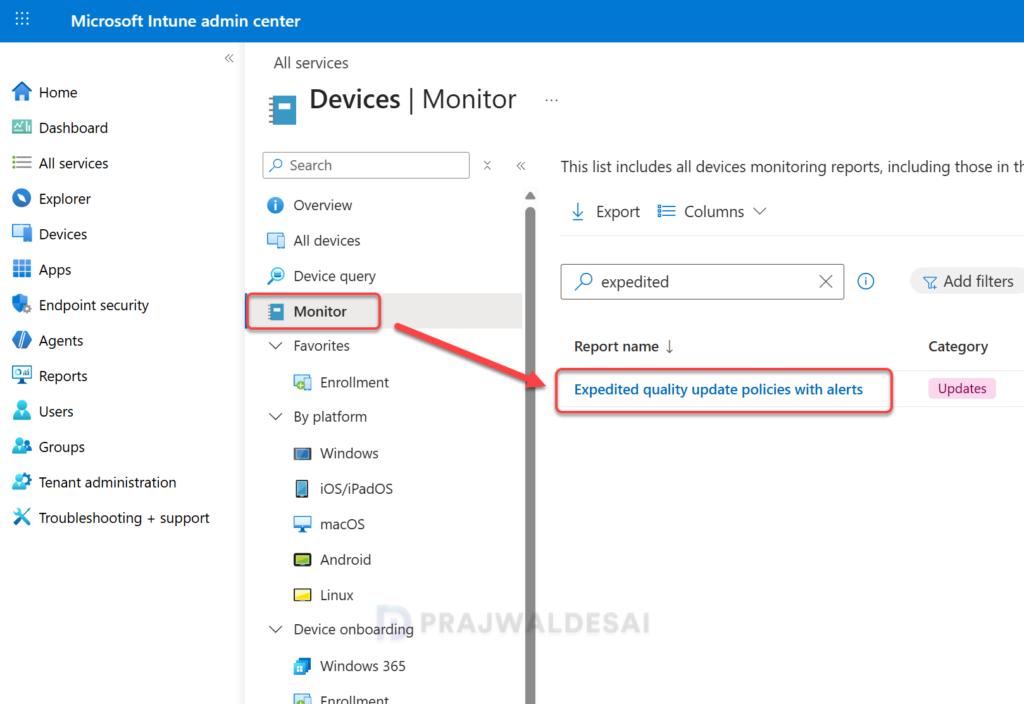
Sign in to the Microsoft Intune admin center. Select Devices > Monitor. In the list of monitoring reports, scroll to the software updates section and select Expedited quality update policies with alerts. From the list of profiles that is shown on the right side of the page, select a profile to see the results.
Delete an Expedite Policy
Administrators can delete an existing expedite policy from the Intune admin center if it’s not required anymore. Remember that deleting a policy removes it from Intune but won’t result in the update uninstalling if it has already completed installation. However, if the quality update has not yet been installed, Windows Update will ‘try‘ to cancel any ongoing installations.
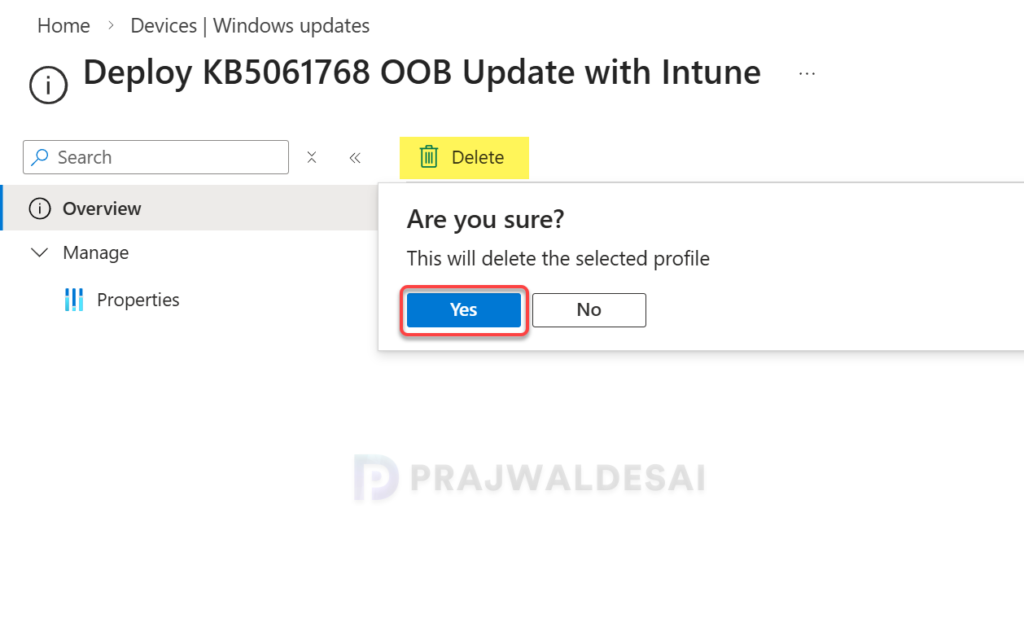
To delete an expedite policy in Intune, go to Devices > Manage updates > Quality updates tab. Select the expedited update policy and click on Delete. Click Yes to confirm the deletion.