


In this deployment guide, I will show you how to deploy Remote Help app for macOS using Intune. The process is straightforward: upload the remote assistance PKG app to Intune, configure the app information, and deploy it as an LOB app to your Mac devices.
Remote Help is a cloud-based solution for secure help desk connections with role-based access controls. With the connection, your support staff can remotely connect to the user’s device. If you’re unfamiliar with this concept, check out my guide on setting up remote help in Intune.
Microsoft has recently announced a significant upgrade to Microsoft Intune Remote Help, introducing full control functionality for macOS devices. For Windows devices, you can deploy the Remote Help app as a Win32 app, whereas for Mac devices, it can be deployed as either a line-of-business app or a PKG app.
Step 1: Download the Remote Help App for Mac
First, click on the following link to download the latest version of the remote help app for macOS. The browser downloads Microsoft_Remote_Help_version_installer.pkg which I will be uploading into Intune for deployment.
Before going forward, ensure you have enrolled your Mac devices into Intune. To ensure successful app deployment, the user must be assigned a valid Intune license. If you’re deploying the PKG app for the first time, I suggest reviewing the guide on deploying PKG apps using Intune.
Step 2: Upload and Configure Remote Help App for Mac
The deployment procedure involves uploading the Remote Help PKG file to Intune, configuring the app information, and then assigning it to macOS devices.
To upload the Remote Help app into Intune:
- Sign in to the Microsoft Intune admin center.
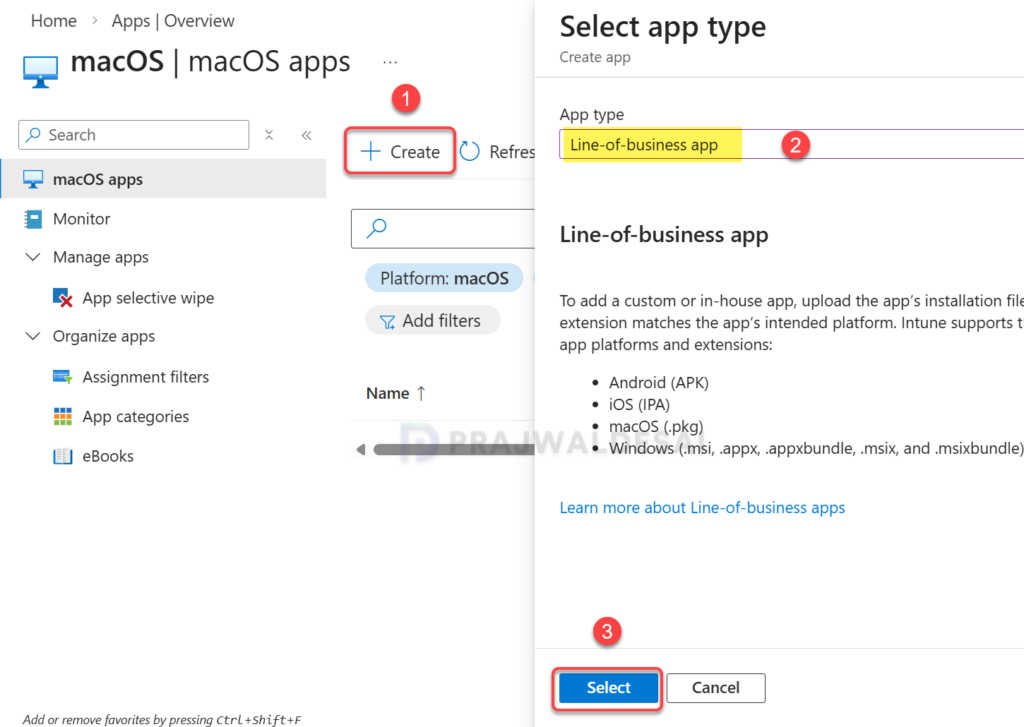
- Go to Apps > macOS > macOS apps and select + Create.
- In the Select App Type pane, select Line-of-business app from the drop-down.
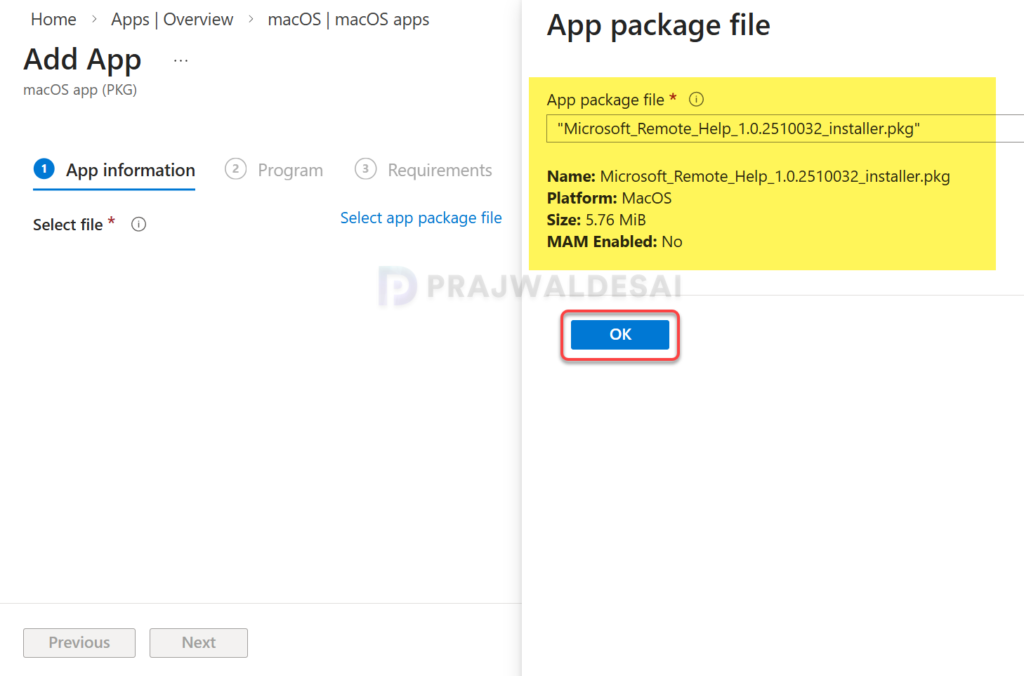
Click on Select app package file and select the Microsoft_Remote_Help_installer.pkg file. The app details will be displayed on the screen. When you’re finished, select OK on the app package file pane to add the app.
In my example, the following details were populated after uploading the PKG file to Intune:
- Name: Microsoft_Remote_Help_1.0.2510032_installer.pkg
- Platform: macOS
- Size: 5.76 MiB
- MAM Enabled: No
Click OK to continue.
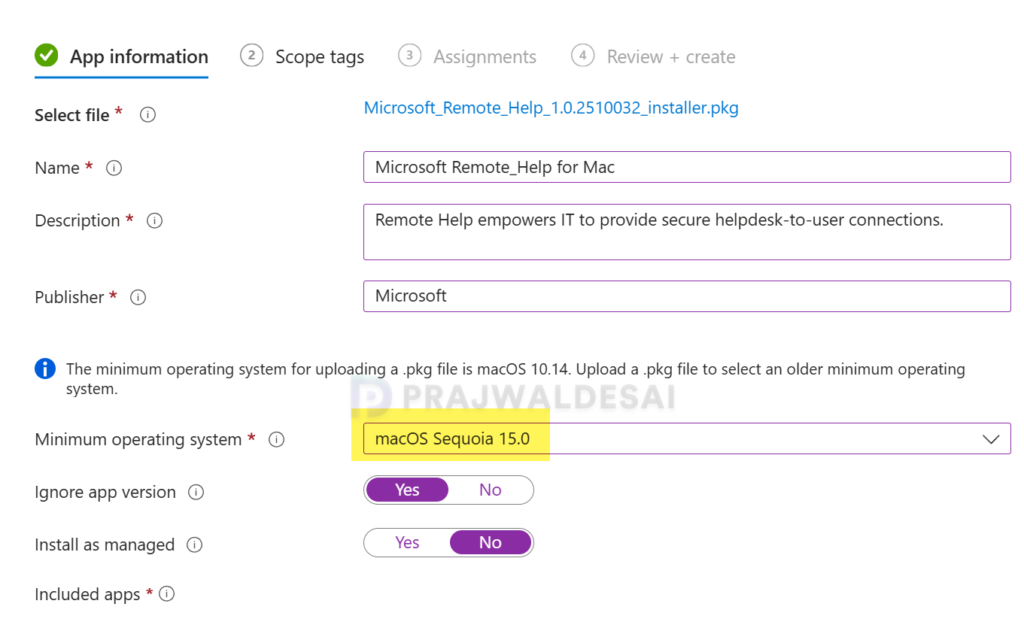
On the App Information page, add some basic details about the application you’re deploying. This includes name of the application, description, publisher details and much more.
Next, specify the following configurations:
- Minimum operating system: I have selected macOS Sequoia 15.0
- Ignore app version: Yes
- Install as managed: No
When you add the PKG app package file to Intune, the detection rules are automatically populated for you. In the below image, we see that App bundle ID (CFBundleIdentifier) and App Version (CFBundleShortVersionString) are pre-configured with this PKG file. In case you want to add another set of detection rules for app detection, you can do so.
Click Next to continue.

Step 3: Deploy Remote Help App for macOS
Once you’ve configured the application details, the next tab is for Scope tags. Specifying the scope tags is optional. Check out the guide for implementation of Intune Scope tags.
On the Assignments tab, select and add the Mac groups to whom you want to target this application. If you are deploying the remote help app for the first time, I recommend creating a pilot device group consisting of macOS devices. Once you find the deployments successful, you can then expand them to a larger group. Click Next.

On the Review + Create tab, review the values and settings you entered for the Remote Help app. When you are done, click Create to add the app to Intune. The Overview pane displays the newly created app.

Step 4: Synchronize Intune Policies
Once you have assigned the Remote Help app to your Mac groups, the deployment happens when the devices update the latest policies from Microsoft Intune. By default, the macOS device checks with Intune for the latest policies every 8 hours. However, you can initiate the Company Portal sync action to reconnect and bring your device up-to-date.
Step 5: Monitor Remote Help App Installation
After assigning the Intune Remote Help app to your macOS devices, administrators can monitor its deployment progress. In the Intune admin center, go to Apps > macOS > macOS apps. From the list of apps, select Microsoft Remote Help app. On the Overview pane, review Device Install Status or User Install Status to find the devices or users that have successfully received the application.

If you encounter any Remote Help PKG app installation failures, refer to the IntuneMDMDaemon.log and IntuneMDMAgent.log files. Also refer to the guides for gathering Intune logs on macOS devices and resolving error 0x87D13BA2 for LOB apps.
Step 6: End User Experience
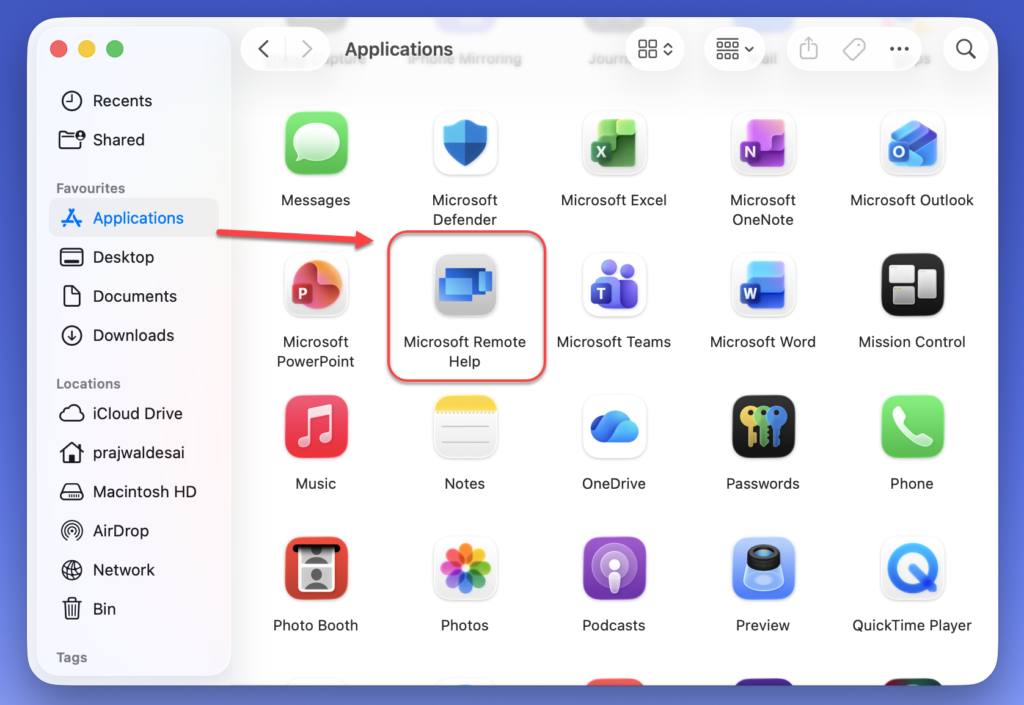
To confirm if the Intune remote help app is installed on targeted Mac devices, sign in to the Mac device. Open Finder on your Mac, navigate to the Applications, and use the search feature to locate the Microsoft Remote Help app. This confirms that app deployment is successful.

Nice document thank you for sharing