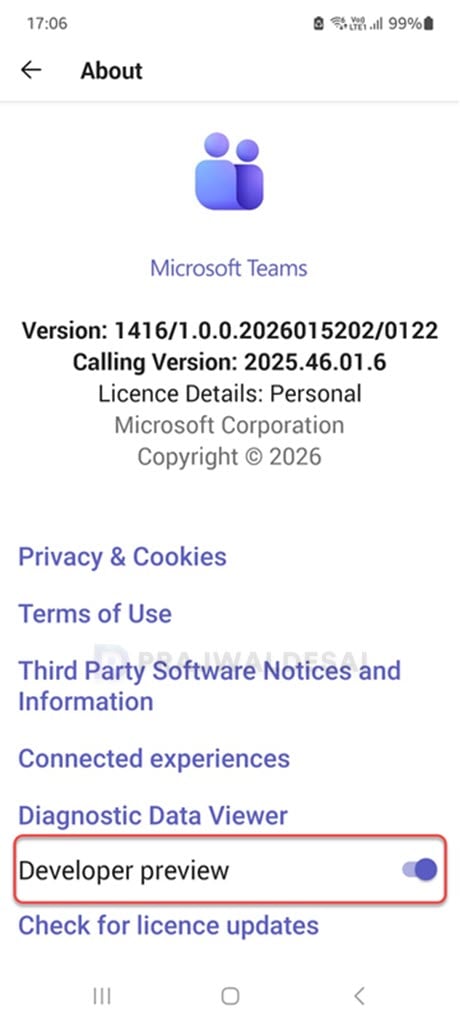
In this guide, I will demonstrate the steps to enable public developer preview in Teams app. As the name suggests, these are development features that provide users with early access to upcoming functionalities in Microsoft Teams when enabled.
The Developer Preview and Public Preview for Microsoft Teams offer early access to unreleased features, but they differ in functionality and scope. The Developer Preview is activated on a per-client basis and requires organizational-level control to enable the option. In contrast, the Public Preview is enabled for individual team users, ensuring it does not impact the entire organization.
The main purpose of enabling developer preview access in Teams is to evaluate upcoming features for potential integration into your Teams app and share your feedback with the Microsoft team.
Note: Using a Teams app with developer preview features enabled may lead to unexpected behavior for clients or users. Therefore, activating MS Teams preview features for your organization’s users is optional and should only proceed with proper business approval.
Enabling public developer preview in Microsoft Teams
Let’s go through the required steps for turning on public developer preview access for users in Microsoft Teams.
Step 1: Enable Upload of Custom Apps
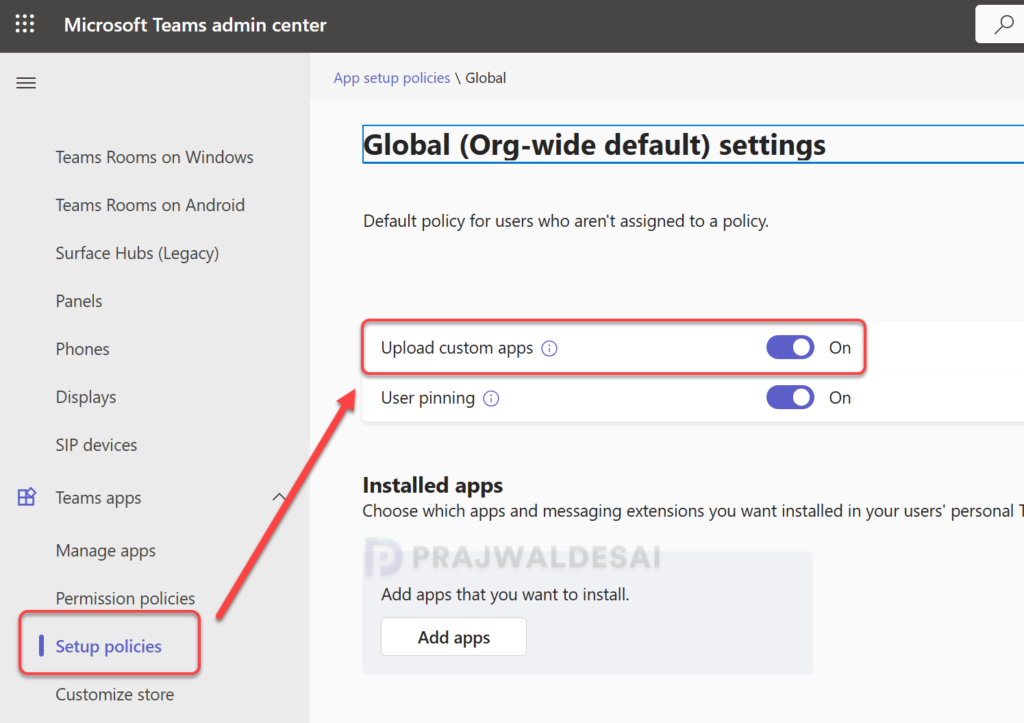
An important prerequisite for turning on the public developer preview is to allow the tenant to “Enable custom Teams apps and turn on custom app uploading“. This can be done by signing in to the Microsoft Teams admin center with your admin credentials. Go to Teams apps > Setup Policies > Global. Toggle Upload custom apps to the On position. Select Save.
Note that the changes made to Global (Org-wide default) will have an impact across the organization and can’t be rolled back immediately.
Step 2: Configure Teams Update Policy
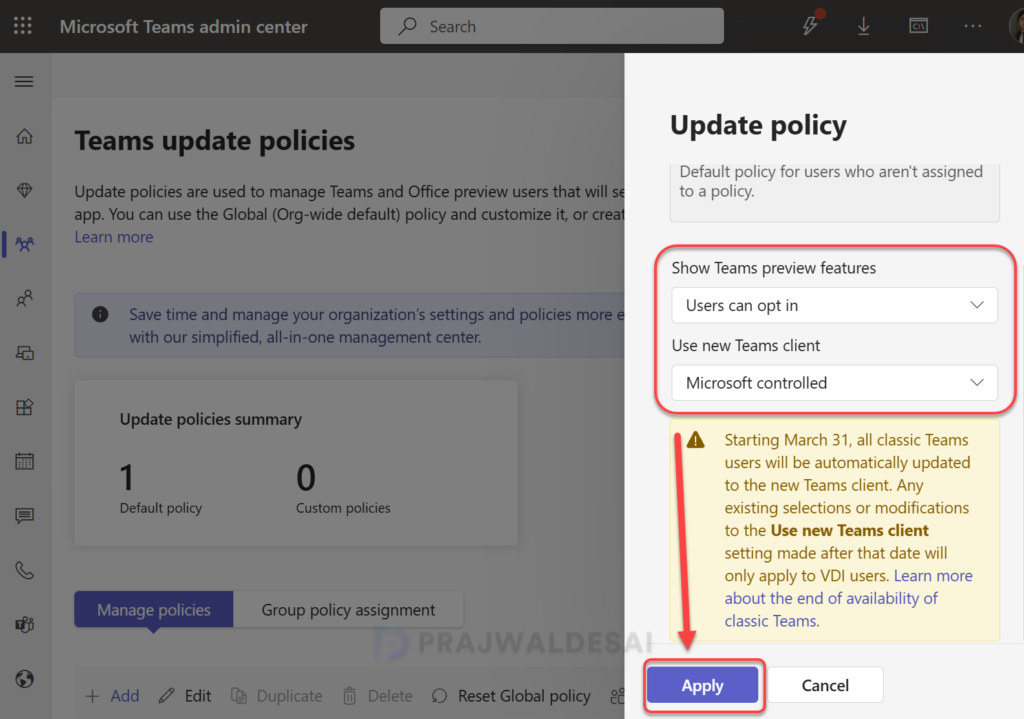
Before you allow users to activate the public developer preview in Teams, the update policy must be configured to allow users to turn on preview features.
Sign in to the Microsoft Teams admin center. Select Teams > Teams Update Policies. Select an existing policy, or you can click Add to set up a new one.
The following options are available for the “Show Teams preview features” setting:
- On for users in Current Channel (Preview) (default): The default setting enables Teams Public Preview features for all users enrolled in the Office Current Channel (Preview).
- Users can opt in: This option activates Teams Public Preview, independent of a user’s enrollment in the Office Current Channel (Preview).
- Off: Select this setting to disable Teams Public Preview features for users.
- On for everyone: This option turns on Teams Public Preview regardless of whether a user is enrolled in Office Current Channel (Preview).
Configure the update policy settings based on your organization’s requirements and click Apply.
Step 3: Enable Public Developer Preview in Teams
The public developer preview can be enabled separately for the New Teams Client, Classic Teams, and Teams Mobile Client. Details for each are outlined below.
New Teams Client
To enable Public Preview on a new Teams desktop or web client:
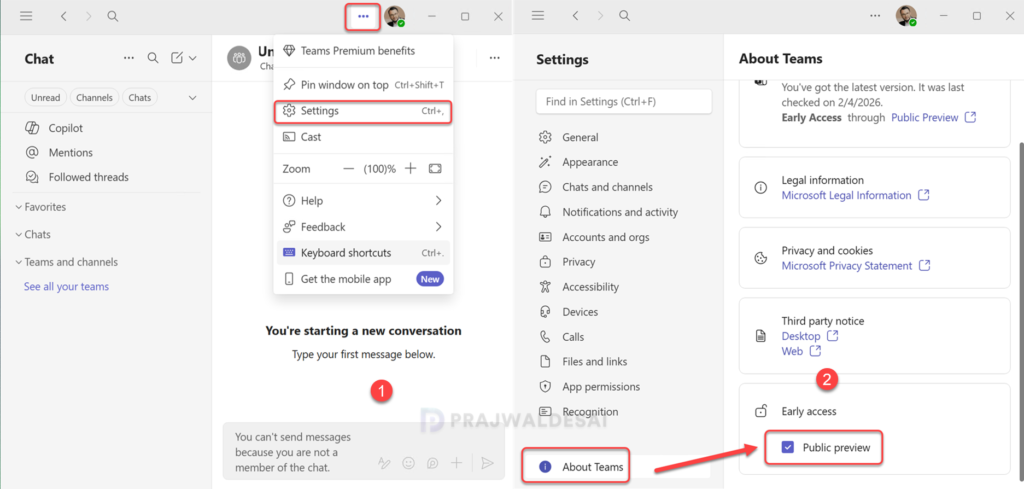
- Launch Teams, and select Settings and more (…) next to your user profile.
- Select Settings > About Teams.
- Under Early access, select the Public preview checkbox.
Classic Teams
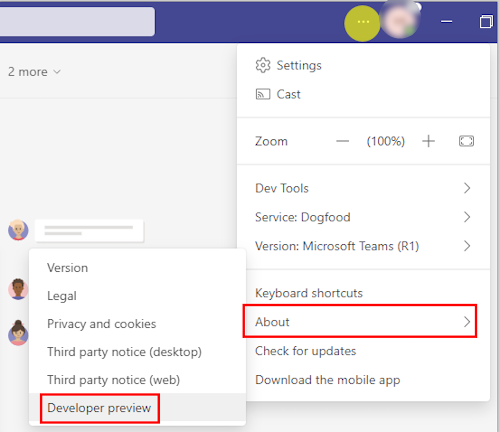
To enable public developer preview in Teams Classic desktop or web client:
- Click Start and launch the Teams Classic.
- Select the Settings and more (…) next to your user profile.
- Select About > Developer preview.
Teams Mobile Client
To enable the public developer preview on the Teams mobile client:
- Open the Teams mobile app. In the upper-left corner, select your user profile.
- Select Settings. Select About.
- Turn on the Developer preview toggle to activate it.