

In this post, I will explain how to resolve Windows App authentication error 0x80080005 for AVD and Windows 365 (Cloud PC) and demonstrate how you can deploy the KB5077744 and KB5077793 OOB updates using WSUS, SCCM, and Intune in your organization.
After installing the January 2026 Windows security update (KB5074109), some users experienced authentication error 0x80080005 when connecting to Cloud PC via Windows App. This error was also experienced by users who were using AVD. Microsoft has issued the out-of-band update KB5077744 for Windows 11 25H2/24H2 and KB5077793 for Windows Server 2025 to address this authentication error.

The Windows devices that were patched with January 2026 updates (KB5074109) have been affected by this problem. This update caused a major issue that primarily impacted the authentication process for various Remote Desktop applications on Windows, including the Windows app.
If you have not yet deployed the January 2026 Windows security update and your IT environment includes the affected applications and features, I recommend applying the KB5077744 and KB5077793 OOB updates to your Windows devices instead.
Resolving Windows App Authentication Error 0x80080005
Alright, let’s get to the point. To resolve the authentication error 0x80080005 for Windows app that is causing sign-in failures during Remote Desktop connections, do the following.
- For Windows 11 25H2/24H2: Install the KB5077744 OOB update
- For Windows Server 2025: Install the KB5077793 OOB update
Installing KB5077744 OOB Update on Windows 11 25H2/24H2
For Windows 11 25H2/24H2 devices, the KB5077744 OOB update can be installed in different ways that include Microsoft Intune, Configuration Manager, or manually downloading and installing it from Microsoft Update Catalog.
Manual Installation
On Windows 11 devices, you can download the KB5077744 update from the Microsoft Update Catalog and install it manually. Here is how you can do that. Download KB5077793 from Microsoft Update Catalog and place it in a folder (for example, C:/Packages). Open PowerShell as administrator and run the below command.
Add-WindowsPackage -Online -PackagePath "c:\packages\Windows11.0-KB5077744-x64.msu"To apply the KB5077744 update using DISM on a running Windows PC, run the following command from an elevated Command Prompt:
DISM /Online /Add-Package /PackagePath:c:\packages\Windows11.0-KB5077744-x64.msu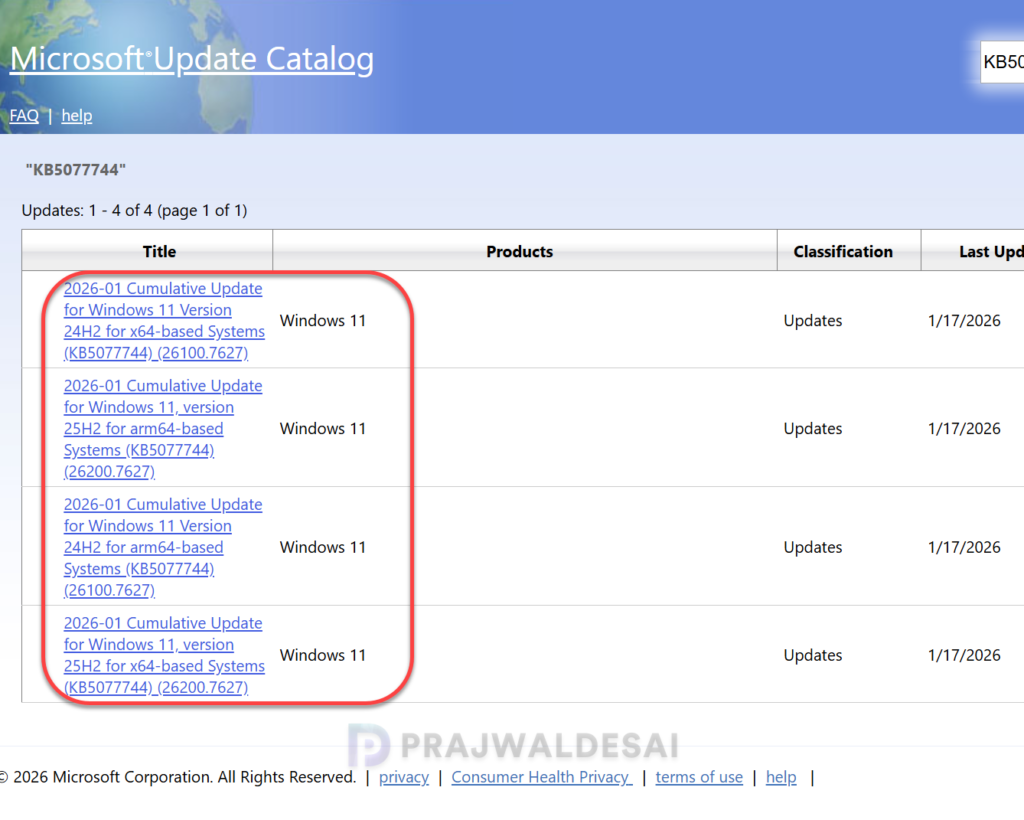
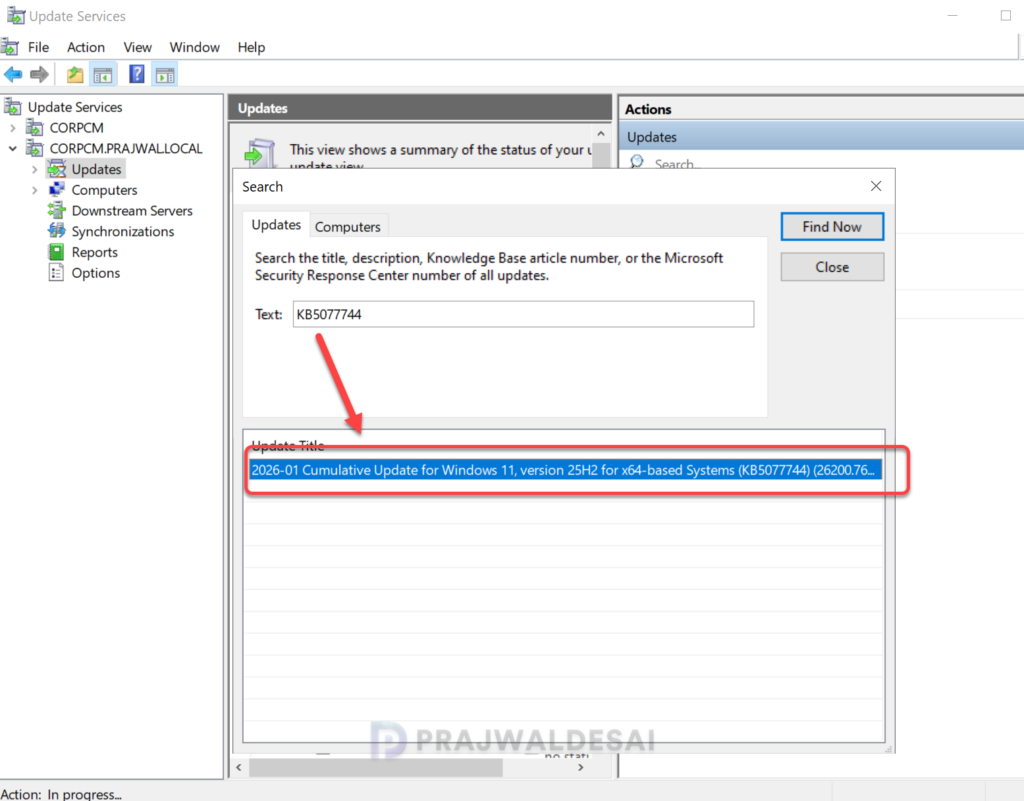
Import KB5077744 OOB update into WSUS
The KB5077744 update is not available in WSUS, which means you will have to wait for it to appear or import it manually into WSUS. I tried importing this update, and it successfully showed up in the WSUS admin console.
Deploy KB5077744 via Configuration Manager
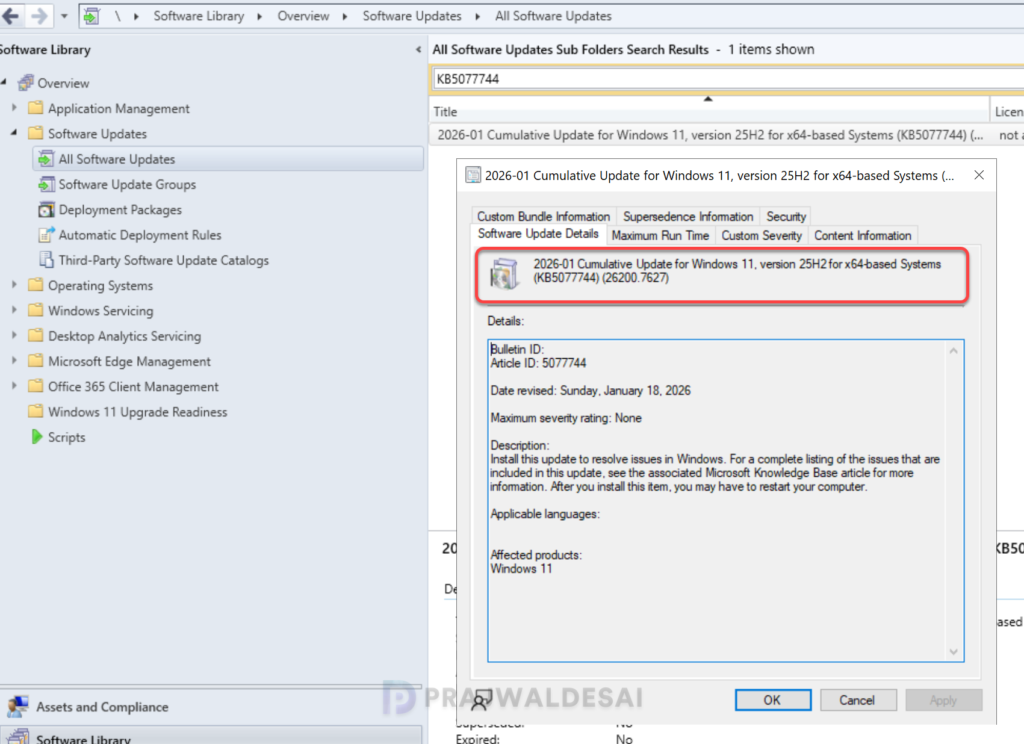
If you have manually imported the KB5077744 OOB update into WSUS, the same update can be deployed using Configuration Manager. Make sure you synchronize the software update once before looking for this update in the console.
Go to Software Library > Software Updates > All Software Updates. Search for KB5077744 update. Right-click the 2026-01 Cumulative Update for Windows 11, version 25H2 for x64-based Systems (KB 5077744) (26200.7627) and select Deploy. Follow the wizard to complete the deployment.
Install KB5077744 via Microsoft Intune
Sign in to the Intune admin center. Go to Devices > Windows > Windows Updates > Quality Updates. Create a new expedite policy and enter a descriptive name for the profile. Select the quality update you would like to expedite, choose the OOB update, and complete the policy.
Note: I have to mention here that the KB5077744 OOB update is still not included in the latest expedited policy yet. When it appears, I will update the below image. If you wish to deploy this update ASAP through Intune, you must deploy the update by wrapping it as a Win32 app.
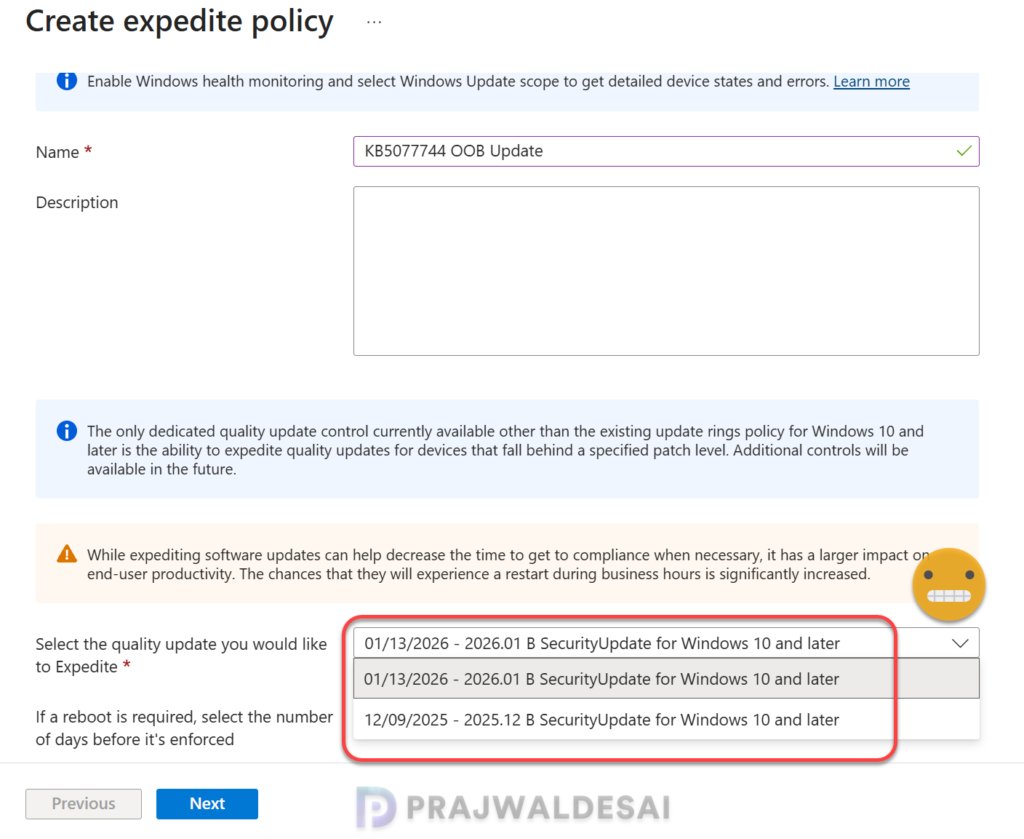
Another workaround for deploying Windows Update KB5077744 via Intune is to download the .msu file link with the correct KB. Once you have downloaded the update, you can package and deploy it as a Win32 app. This approach has worked for several of my customers, and going forward, this is how you must deploy OOB updates with Intune.
Installing KB5077793 OOB Update on Windows Server 2025
For Windows Server 2025, you can download the KB5077793 update from the Microsoft Update Catalog and install it manually. Here is how you can do that.
Download KB5077793 from Microsoft Update Catalog
Download KB5077793 from Microsoft Update Catalog and place it in a folder (for example, C:/Packages). Open PowerShell as administrator and run the below command.
Add-WindowsPackage -Online -PackagePath "c:\packages\Windows11.0-KB5077793-x64.msu"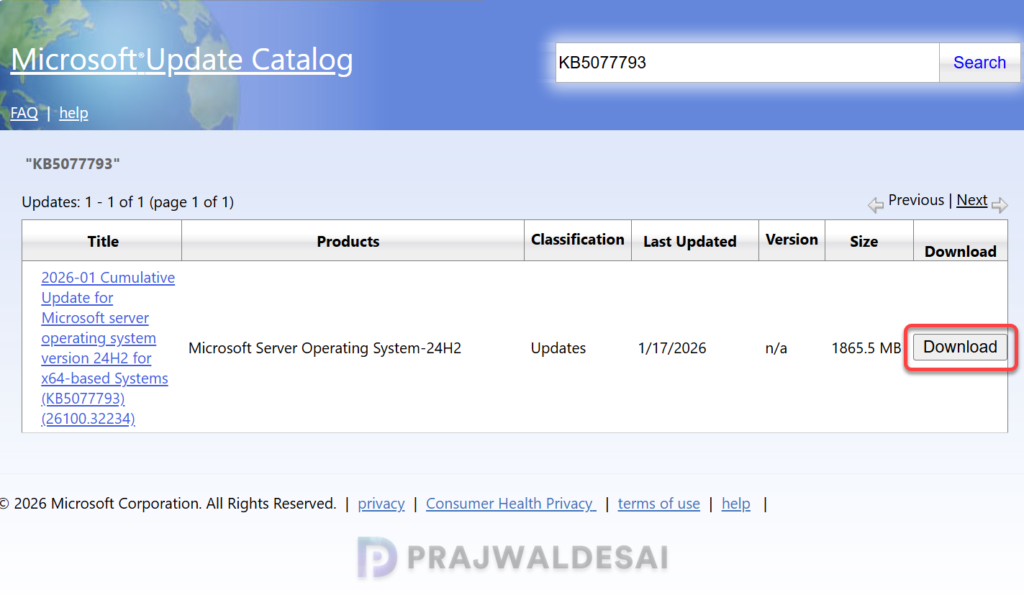
Import KB5077793 into WSUS
The KB 5077793 update is not available in WSUS, which means you will have to wait for it to appear or import it manually into WSUS. I tried importing this update, and it successfully showed up in the WSUS admin console.
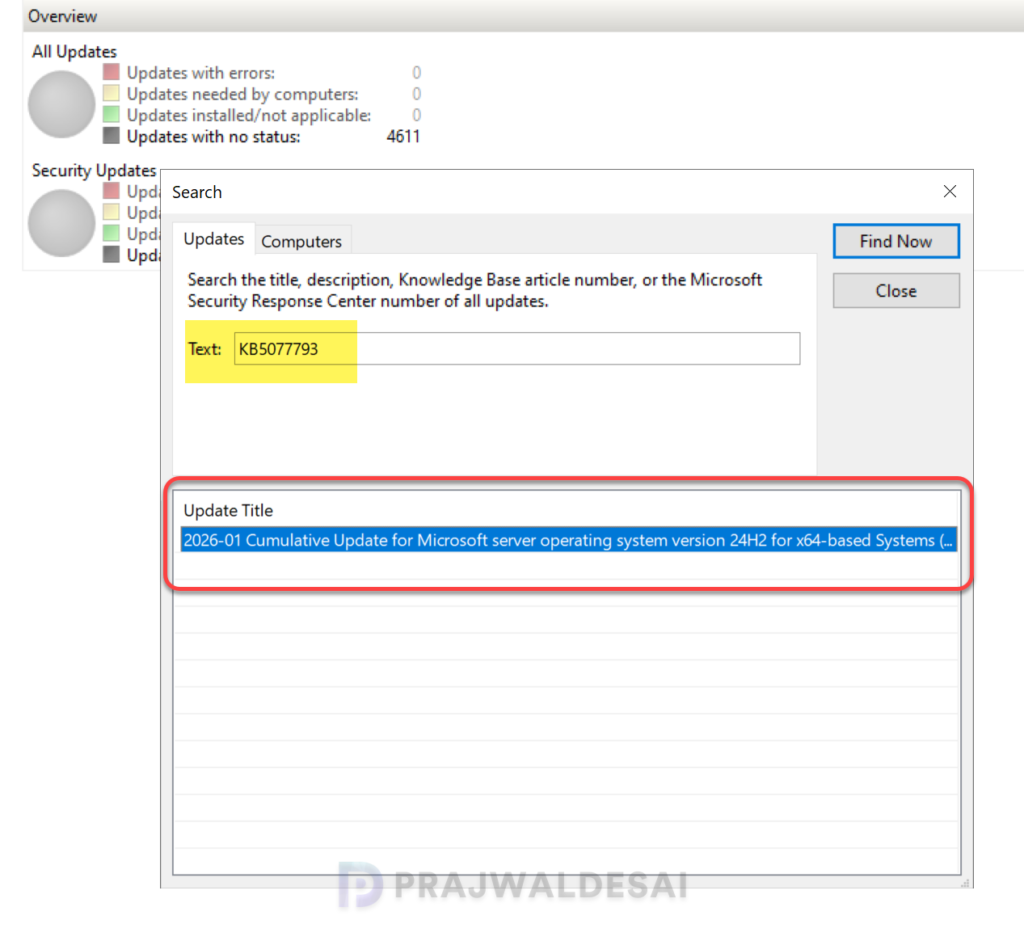
Deploy the KB5077793 update using SCCM
If you have manually imported KB5077793 OOB update into WSUS, the same update can be deployed using Configuration Manager. Make sure you synchronize the software update once before searching for it in the console.
To deploy the KB5077793 update using SCCM, navigate to Software Library > Software Updates > All Software Updates. Search for KB50777493 update. Right-click the 2026-01 Cumulative Update for Microsoft server operating system version 24H2 for x64-based Systems (KB5077793) (26100.32234) and select Deploy. Follow the wizard to complete the deployment.
For more help, refer to the guide on deploying software updates using Configuration Manager.


Hi Prajwal, thanks for this guide. We were initially facing problems while importing KB5077744 update into WSUS but then it look much longer for the update to appear in SCCM (don’t know why). The update does requires a reboot post installation.
Thanks Prajwal, installing the KB5077744 update resolved this problem.
I’m still experiencing the same issue when connecting through the Windows App, even after installing the recommended KB5074105 (25H2 OS Builds 26200.7705 and 26100.7705) Preview. Could you please check and advise?
How to fix authentication error Code: 0x80080005
I’ve received multiple confirmations that installing the KB5077744 OOB update has resolved the authentication error (Code: 0x80080005). Could you confirm if you’re using the Windows 11 23H2 OS?
For authentication is working but shutdown issue not resolved in 23H2 and camera not working in 23H2 installed Laptop (Make: Lenovo, Model: T14,X13) after installation of KB5077797.
We are deploying via Intune and detection method is giving us a problem. But update is installing on WIn 11 25H2 device. Any help on detection method would help.
What detection method are you using?