


Microsoft has rolled out KB5085516, an emergency OOB update to resolve a critical problem disrupting sign-ins for Microsoft accounts across various apps, including MS Teams and OneDrive.
After installing the Windows update KB5079473 released on March 10, 2026 (Patch Tuesday update for March 2026), some users experienced an issue signing in to apps with a Microsoft account. Even when the device has a working Internet connection, a “no Internet” error appears during sign-in and prevents access to Microsoft services and apps such as Microsoft Teams Free and OneDrive.
Microsoft states that only sign-ins using Microsoft accounts are impacted. Organizations utilizing Microsoft Entra ID for app authentication do not face this issue. If you’re experiencing the sign-in issues as described in the update description, installing the KB5085516 emergency update should resolve the described issues.
KB5085516 applies to Windows 11, version 25H2 and 24H2 (OS Builds 26200.8039 and 26100.8039) and includes updates from previous security and non-security releases, along with an additional fix.
Download KB5085516 from Microsoft Update Catalog
On Windows 11 PCs, the update downloads and installs automatically from Windows Update. However, if you wish to get the standalone package(s) for this update, go to the Microsoft Update Catalog website and download it.
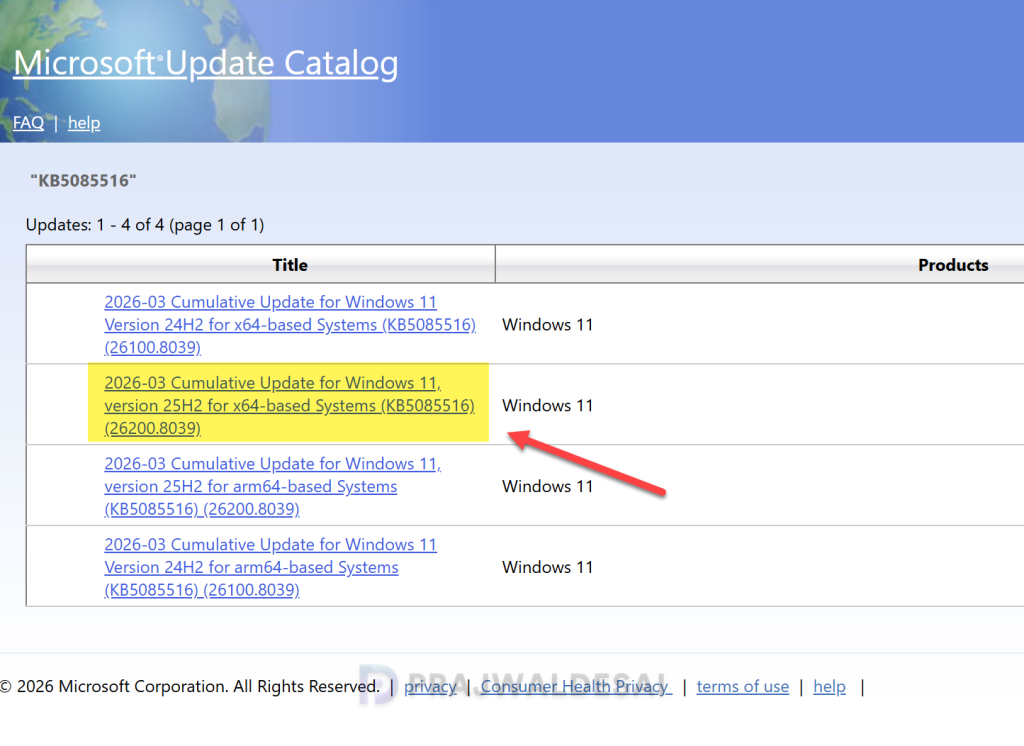
Installing KB5085516 on Windows 11 24H2 and 25H2
The KB 5085516 OOB update is offered through Windows Update for devices running Windows 11 that have already installed KB 5079473. If you don’t see the update listed, open the “Windows Update” settings, turn on the “Get the latest updates as soon as they’re available” option, and click the “Check for Updates” button.
If your device has the option “Get the latest updates as soon as they’re available” enabled, it will receive this update automatically. In case you’ve turned off the option, you can install the update manually by going to Settings > Windows Update and selecting Download & install.
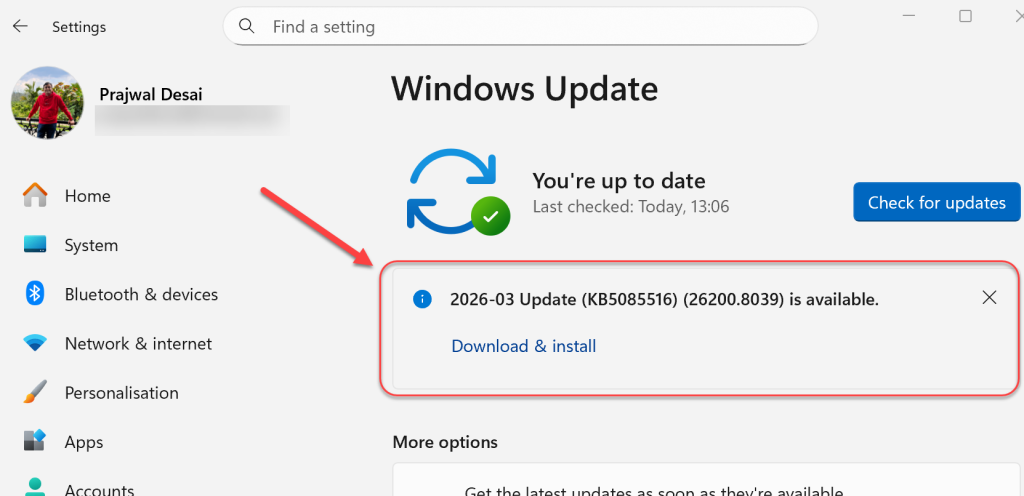
The KB5085516 update requires a system reboot to complete the installation. Simply click the “Restart Now” button to restart your computer. Once your system restarts, your Windows 11 25H2 build will be updated to version 26200.8039, and the Windows 11 24H2 build will be updated to version 26100.8039.
Deploy KB5085516 OOB Update with Intune
The KB5085516 out-of-band update can be deployed by creating an expedite policy in Intune and targeting the necessary groups that include Windows 11 24H2 and 25H2 devices. For more information, see how to expedite Windows quality updates in Intune.
Use the below steps to deploy the KB5085516 OOB Update for Windows 11 devices using Microsoft Intune.
- Sign in to the Intune admin center. Go to Devices > Windows > Windows Updates > Quality Updates.
- Create a new Expedite policy and enter a descriptive name for the profile.
- Select the Windows quality update “03/23/2026 – 2026.03 OOB SecurityUpdate for Windows 10 and later” to expedite from the drop-down list.
- Specify the number of days to wait before restart is enforced.
That’s it, click Next.
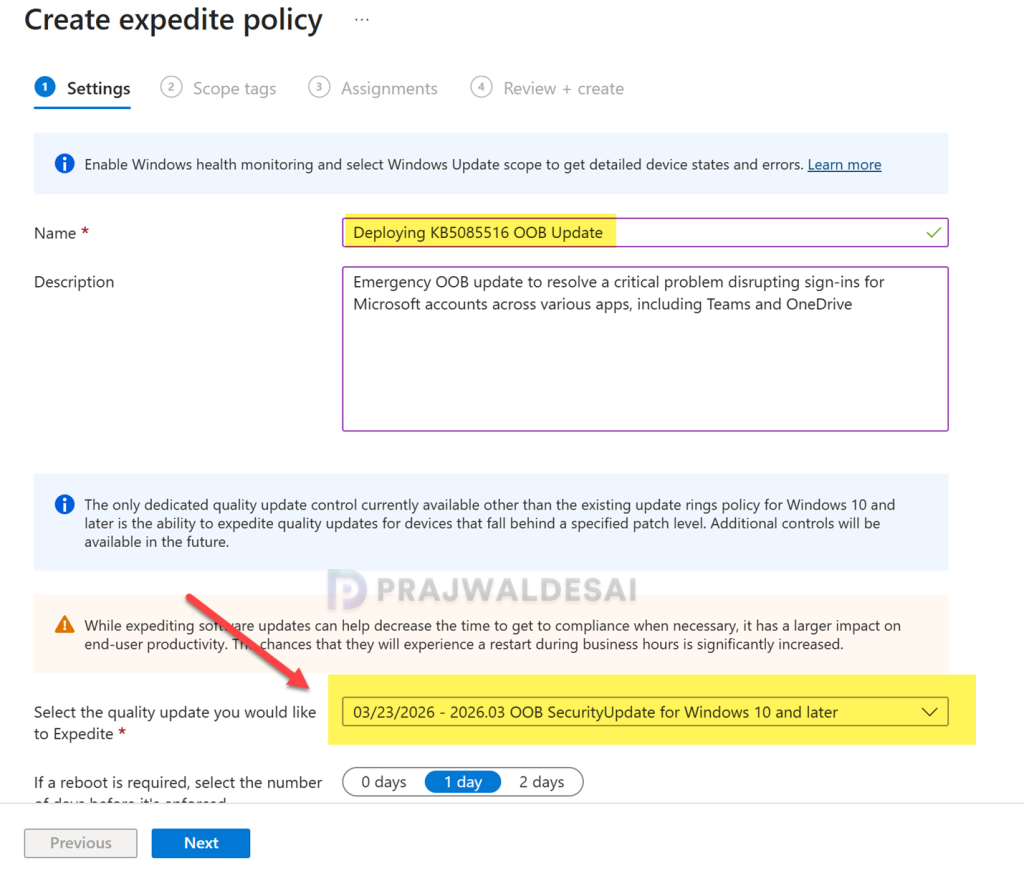
On the Assignments tab, select Add groups and then select device or user groups to assign the policy. Click Next. On the Review+Create page, have a look at the expedite policy settings. If it’s all good, click Create. After the policy is created, it is deployed to assigned groups.
Deploying KB5085516 Update via WSUS/SCCM
Organizations that rely on WSUS or Configuration Manager to distribute software updates to on-premise devices can deploy KB5085516 emergency update efficiently. If you don’t see the OOB update either in WSUS or SCCM, you must manually import the update into WSUS.
Once the update is visible in WSUS, all you need to do is open the Configuration Manager console and synchronize the software updates. This should display all the latest updates from WSUS within the console.
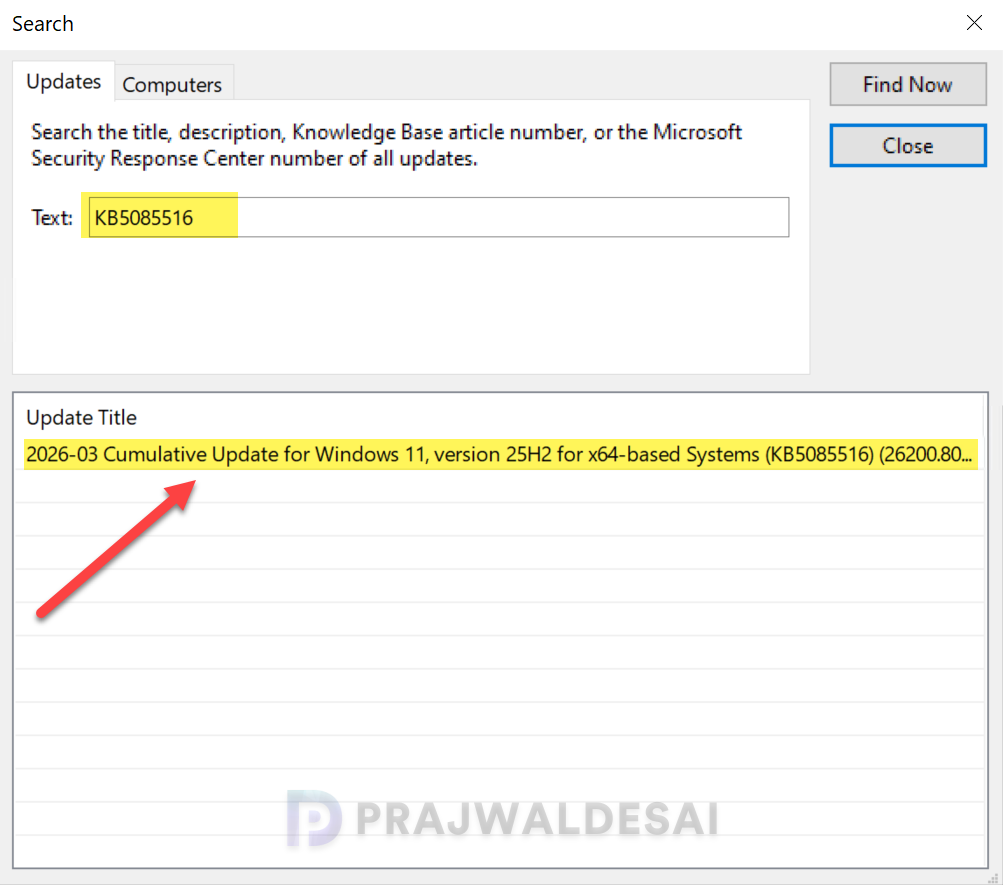
Go to Software Library > Software Updates > All Software Updates. Search for KB5085516 update. Right-click the 2026-03 Cumulative Update for Windows 11, version 25H2 for x64-based Systems KB5085516 (26200.8039) and select Deploy. Select the device collection to target this update and follow the wizard to complete the deployment.
Uninstalling the Update
If you haven’t installed the March 2026 security update yet, you may pause updates in Settings. If your devices are already installed with this update, and you are encountering some known issues, go to Settings > Windows Update > Update history > Uninstall updates. Alternatively, you may also use PowerShell to list the updates and uninstall them.
Known Issues
KB 5085516 is a stable update with no known issues reported so far. Should any problems arise, this section will be updated accordingly. Meanwhile, here’s a comprehensive guide detailing the updates released for each version of Windows 11, including their respective KB numbers and build numbers.
