

Microsoft has released the KB5086672 out-of-band update for Windows 11, versions 25H2 and 24H2 that resolves installation error 0x80073712 caused by the March 2026 optional update KB5079391.
On March 26, 2026, Microsoft released a preview update KB5079391 for Windows 11 versions 25H2 and 24H2. However, some devices encountered the following error while installing this update. Some update files are missing or have problems. We’ll try to download the update again later. Error code: (0x80073712).
Noticing the above issue, Microsoft pulled back the KB5079391 update and released a new out-of-band update KB5086672 that resolves the above-mentioned error. This new update applies to both Windows 11, version 25H2 and 24H2 and includes updates from previous security and non-security releases.
Updates to AI Components
The out-of-band security update released on 31st March 2026 for Windows 11 includes the updates for the following AI components.
| AI Component | Version |
|---|---|
| Image Search | 1.2603.377.0 |
| Content Extraction | 1.2603.377.0 |
| Semantic Analysis | 1.2603.377.0 |
| Settings Model | 1.2603.377.0 |
Download KB5086672 from Microsoft Update Catalog
The out-of-band update downloads and installs automatically from Windows Update and Microsoft Update. However, if you wish to get the standalone package(s) for this update, go to the Microsoft Update Catalog website and download it.
Installing KB5086672 via Windows Update
The KB 5086672 OOB update is offered through Windows Update for devices running Windows 11 that have already installed KB5079473 and later. If you don’t see the update listed, open the “Windows Update” settings, turn on the “Get the latest updates as soon as they’re available” option, and click the “Check for Updates” button.
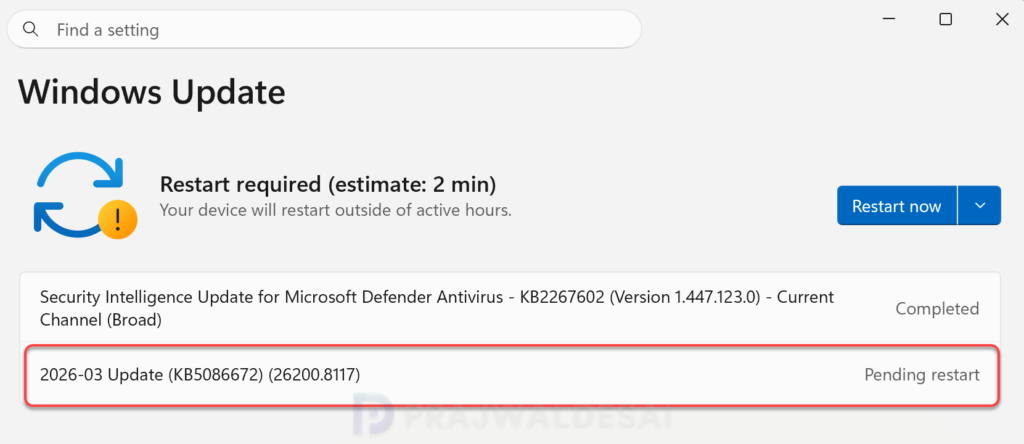
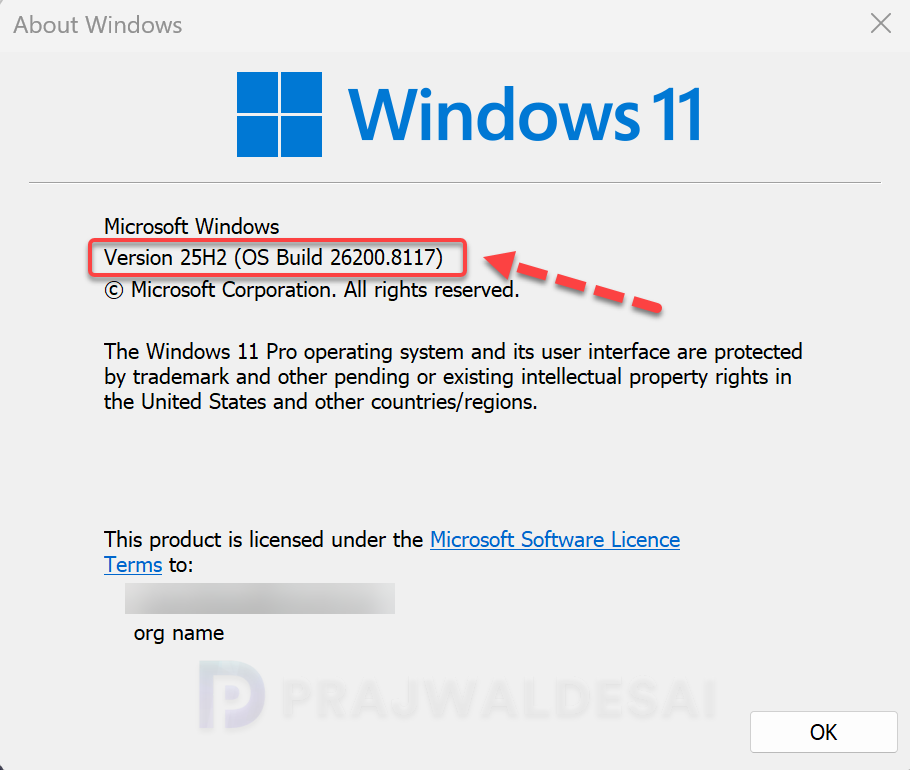
The update requires a system reboot to complete the installation. Simply click the “Restart Now” button to restart your computer. Once your system restarts, your Windows 11 25H2 build will be updated to version 26200.8117, and the Windows 11 24H2 build will be updated to version 26100.8117.
Deploy KB5086672 OOB Update with Intune
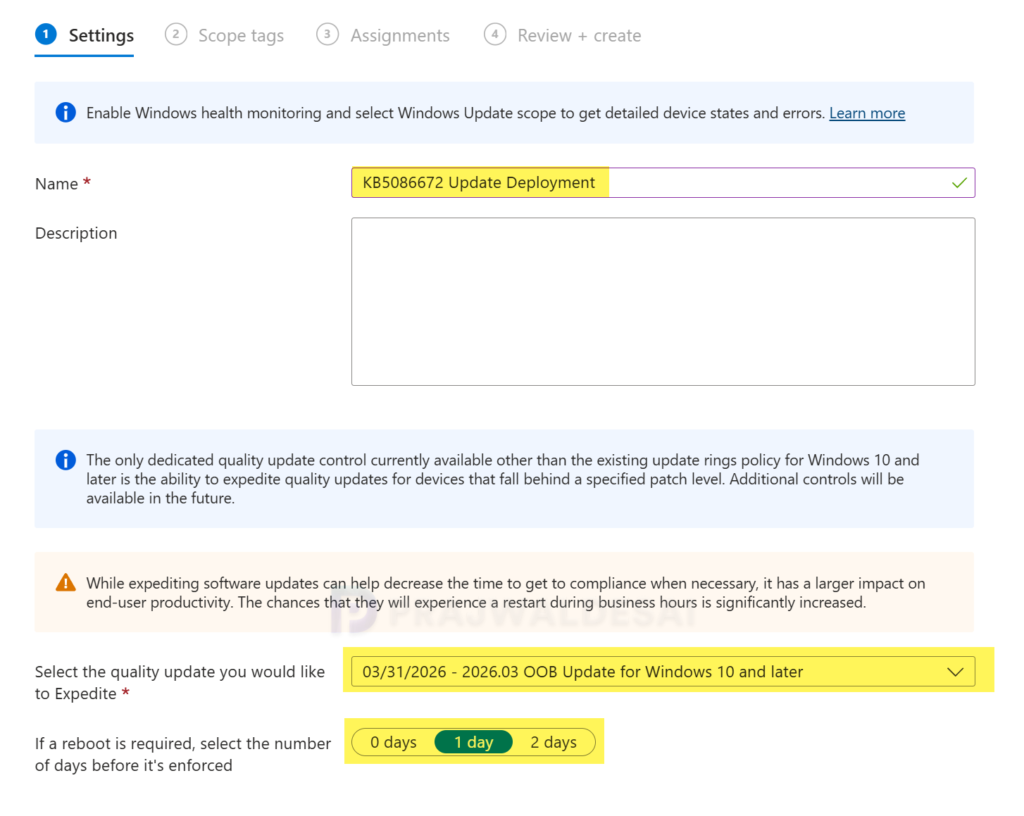
The KB5086672 out-of-band update can be deployed by configuring an expedite policy in Intune and assigning it to the appropriate groups containing Windows 11 24H2 and 25H2 devices. For more information, see how to expedite Windows quality updates in Intune.
- Sign in to the Intune admin center. Go to Devices > Windows > Windows Updates > Quality Updates.
- Create a new Expedite policy and enter a descriptive name for the profile.
- Select the Windows quality update “03/31/2026 – 2026.03 OOB Update for Windows 10 and later” to expedite from the drop-down list.
- Specify the number of days to wait before restart is enforced.
That’s it, click Next.
On the Assignments tab, select Add groups and then select device or user groups to assign the policy. Click Next. On the Review+Create page, have a look at the expedite policy settings. If it’s all good, click Create. After the policy is created, it is deployed to assigned groups.
Deploying KB5086672 OOB Update via WSUS/SCCM
Organizations that rely on WSUS or Configuration Manager to distribute software updates to on-premise devices can deploy the KB5086672 OOB update efficiently. If you don’t see the OOB update either in WSUS or SCCM, you must manually import the update into WSUS.
In the below image, I have successfully imported the KB5086672 update into WSUS. If you’re using WSUS standalone in your setup, right-click the update and approve it. The deployment occurs based on the schedule you’ve configured.
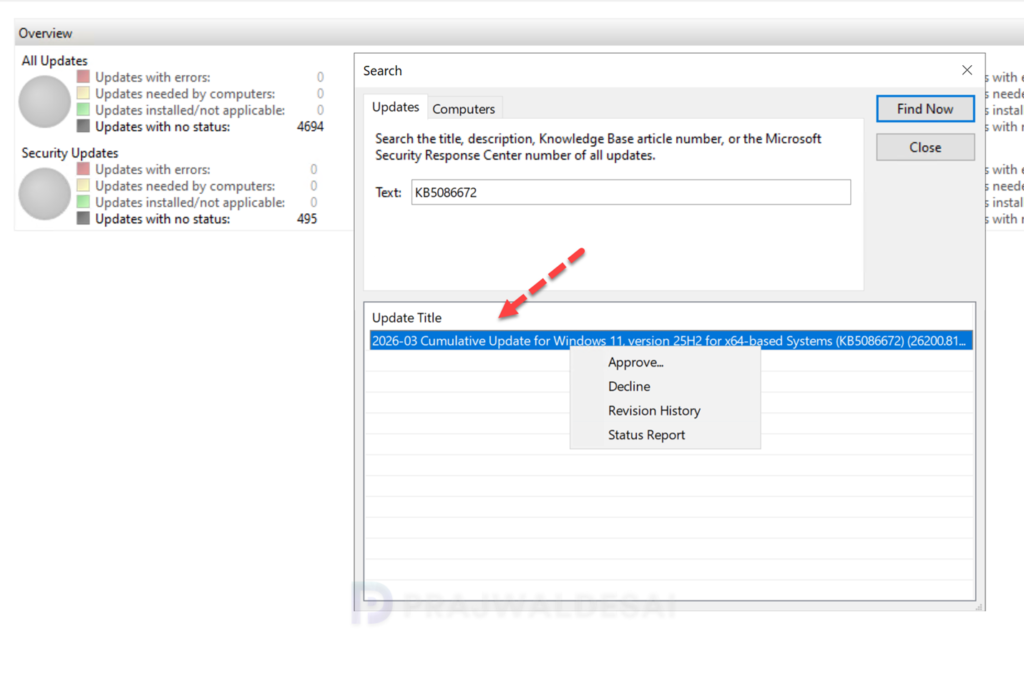
To deploy the update using Configuration Manager, open the console and synchronize the software updates. This will display all the latest updates from WSUS, including those you manually imported into the console.
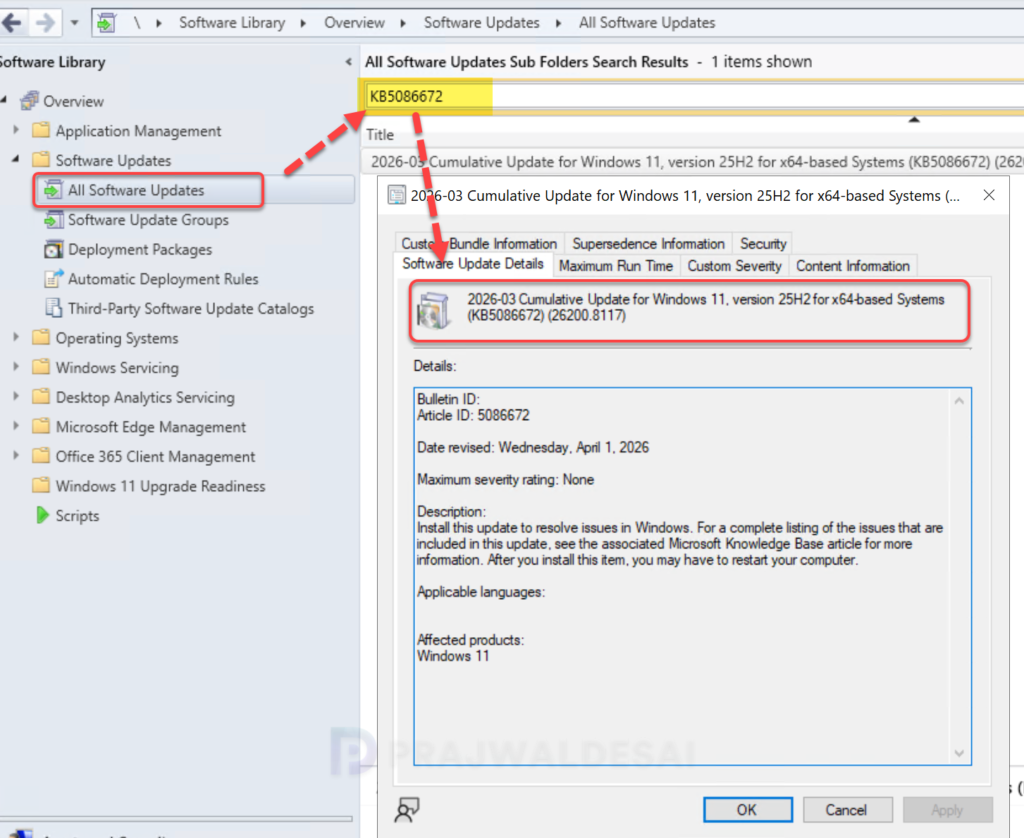
Once the sync is complete, go to Software Library > Software Updates > All Software Updates. In the search bar, type “KB5086672” and click search. You should now see the update 2026-03 Cumulative Update for Windows 11, version 25H2 for x64-based Systems (KB5086672) (26200.8117) listed in the console. From here, you can refer to the SCCM patching guide to deploy it to your Windows devices.
Known Issues
KB5086672 is a stable update with no known issues reported so far. Should any problems arise, this section will be updated accordingly.
Meanwhile, here’s a comprehensive guide detailing the updates released for each version of Windows 11, including their respective KB numbers and build numbers.
Uninstall Windows 11 KB5086672 Update
If you haven’t patched your devices with the KB 5086672 OOB update yet, you may pause updates in Settings. If you’ve already installed the update, and you are encountering some of the known issues, go to Settings > Windows Update > Update history > Uninstall updates. Alternatively, you may also use PowerShell to list the updates and uninstall them.
