This tutorial will guide you through various methods to check Defender AV signature version, including using Intune, PowerShell, Command Prompt, the Windows Security app, and the Windows Registry.
Microsoft Defender regularly downloads security intelligence updates (signatures) to identify the latest viruses, ransomware, and spyware. The signatures are updated automatically through Windows Update, Windows Server Update Services (WSUS), or Configuration Manager. The signature data files are stored in %ProgramData%\Microsoft\Windows Defender\Definition Updates\ folder path.
The Microsoft Defender Antivirus must be updated constantly to protect against thousands of new daily malware variants and evolving security threats. Frequent daily updates ensure the software stays equipped with the latest signatures to detect, identify, and block malicious code, while also enhancing detection methods and addressing security vulnerabilities.
To find more about defender updates and determine the latest signatures released for Microsoft Defender, visit Security intelligence updates for Microsoft Defender Antivirus.
Method 1: Check Defender AV Signature Version from Intune Admin Center
To determine the Microsoft Defender AV signature versions across multiple Windows devices, Intune serves as an ideal solution. The only requirement is that the Windows devices must be enrolled in Intune.
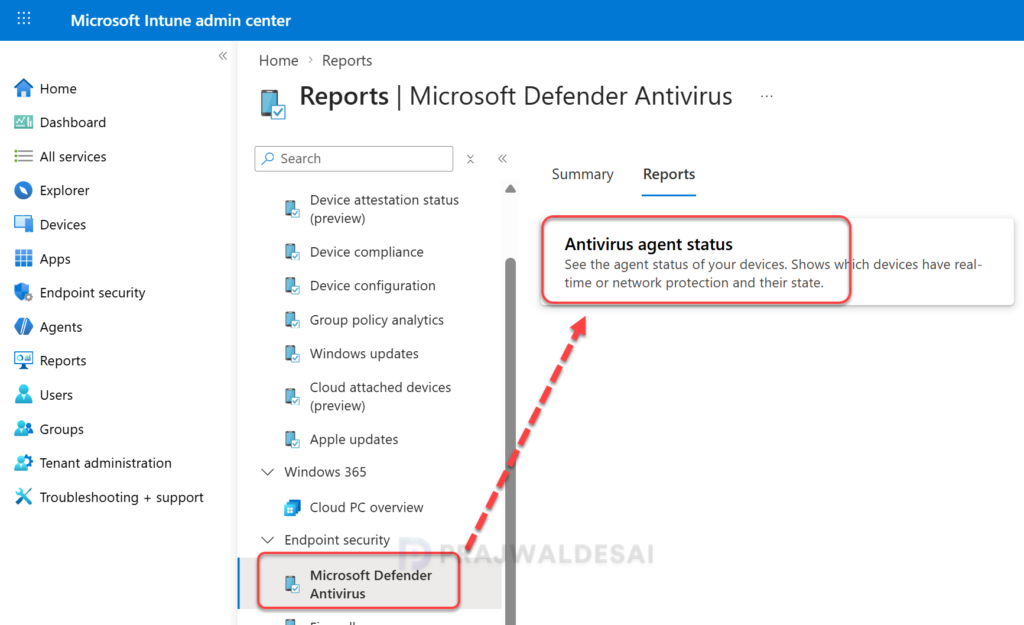
Sign in to Microsoft Intune admin center. Navigate to Reports > Endpoint Security > Microsoft Defender Antivirus. Select the Reports tab and click Antivirus agent status report as shown in the below image.
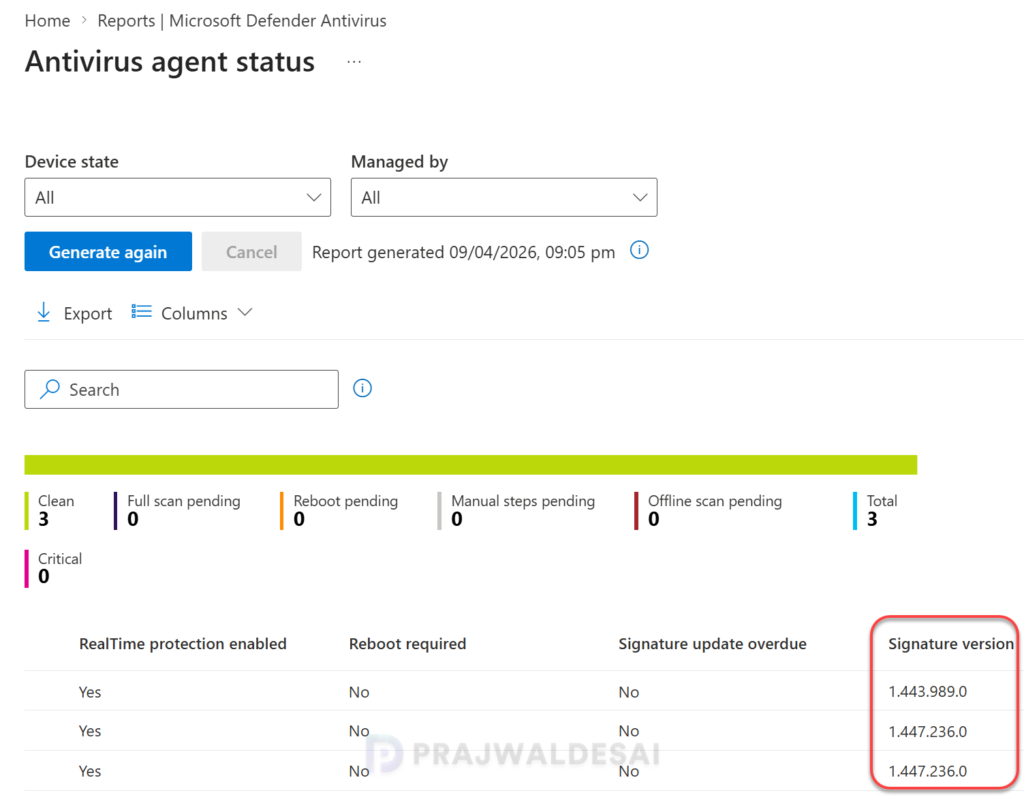
If the Antivirus agent status report has not been generated for an extended period, click the “Generate Again” button to create a new report. After completing that step, locate the Signature Version column, which displays the AV signature version for each computer.
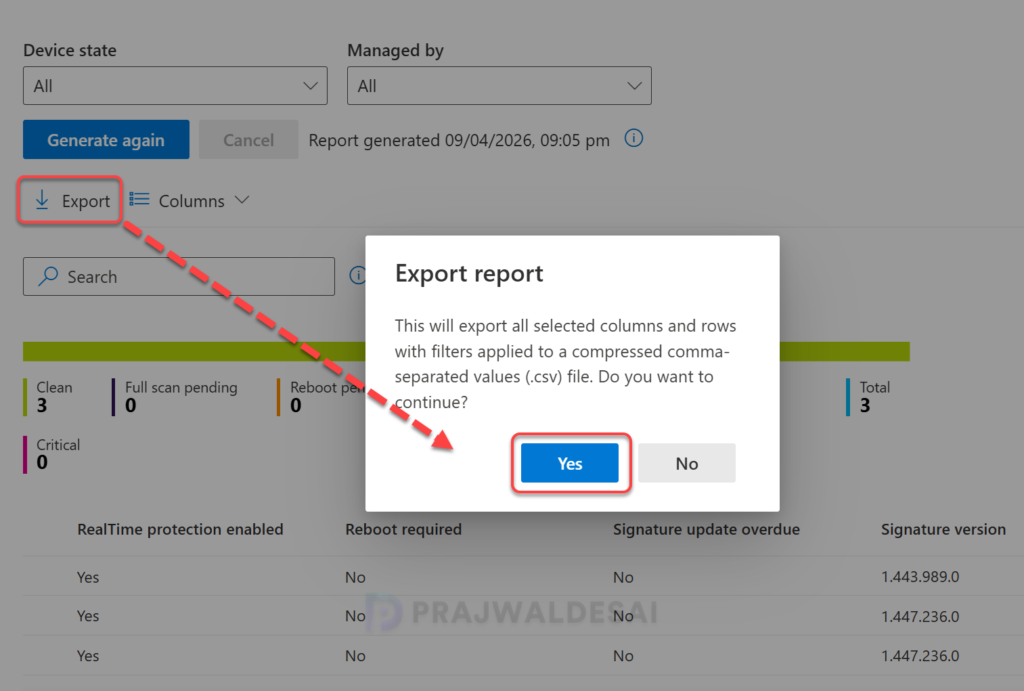
You can also export the above report data from Intune as a ZIP file containing a CSV file for auditing purposes. Simply choose the columns that you require and click the “Export” option, and your browser will download a ZIP file with a CSV that includes all Defender AV data, including the signature version installed on every computer.
Method 2: Check Defender AV Signature Version using PowerShell
PowerShell is the quickest and easiest method to check the Defender AV Signature version. To accomplish that, launch the PowerShell as administrator and run the below command.
Get-MpComputerStatus | Select-Object AntivirusSignatureVersion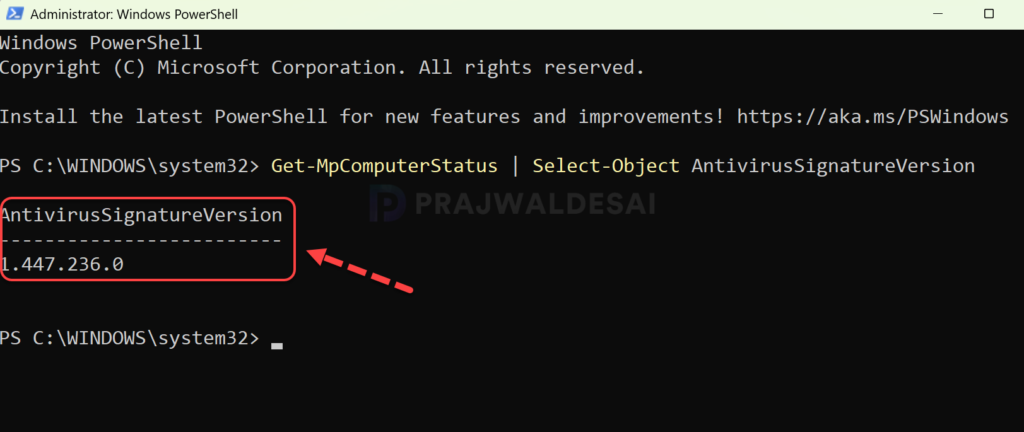
To view more information about the Defender antivirus components, execute the following command. The output contains the following information:
- AMServiceVersion
- AntispywareSingnatureVersion
- AntivirusSignatureVersion
- AntivirusSignatureLastUpdated
Get-MpComputerStatus | Select-Object AMServiceVersion, AntispywareSignatureVersion, AntivirusSignatureVersion, AntivirusSignatureLastUpdated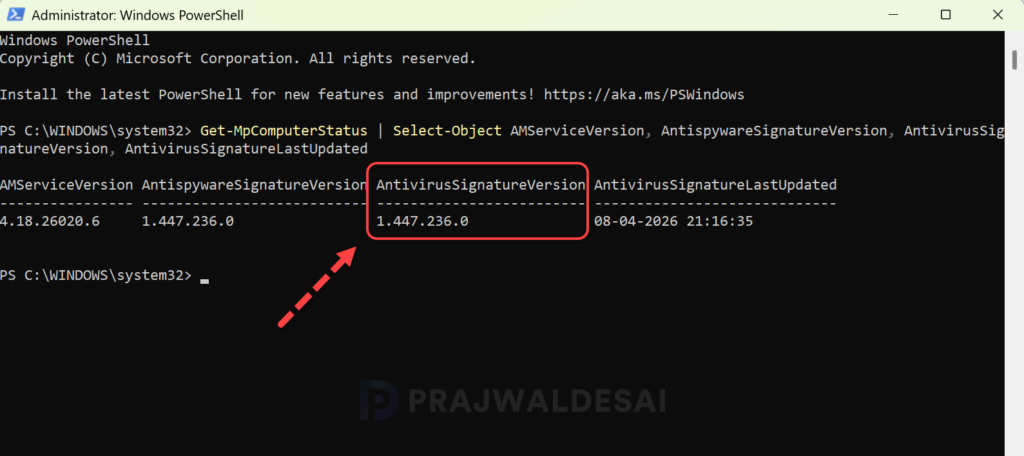
Method 3: Determine Defender AV Signature Version using CMD Prompt
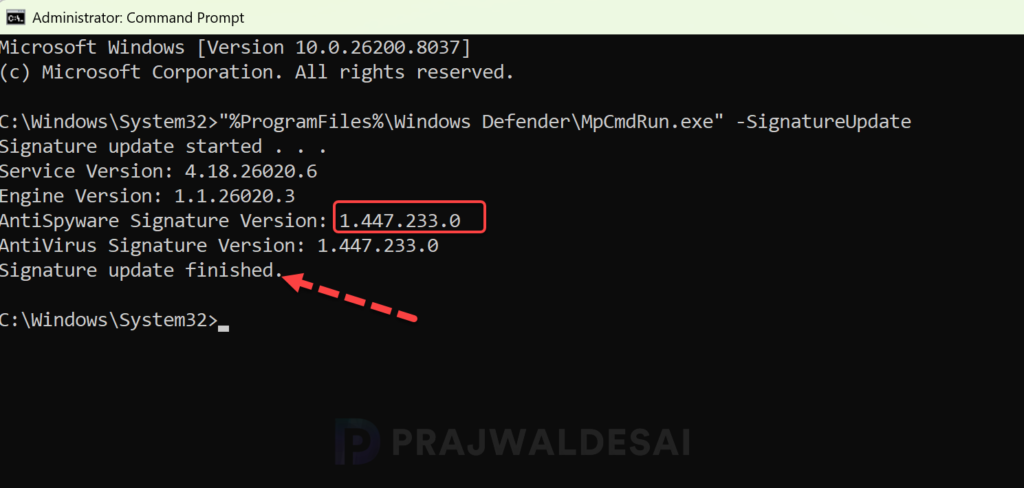
If PowerShell isn’t your preferred choice, you can use the Command Prompt to check the AV signature version on any Windows computer. Launch the Command Prompt as administrator and run the below command.
"%ProgramFiles%\Windows Defender\MpCmdRun.exe" -SignatureUpdateThe benefit of using the MpCmdRun command is that it first updates the AV signature version of the defender component to the latest version and then displays the Antivirus and Anti-Spyware signature versions.
Method 4: Manually Verify Defender Antivirus Signature Version
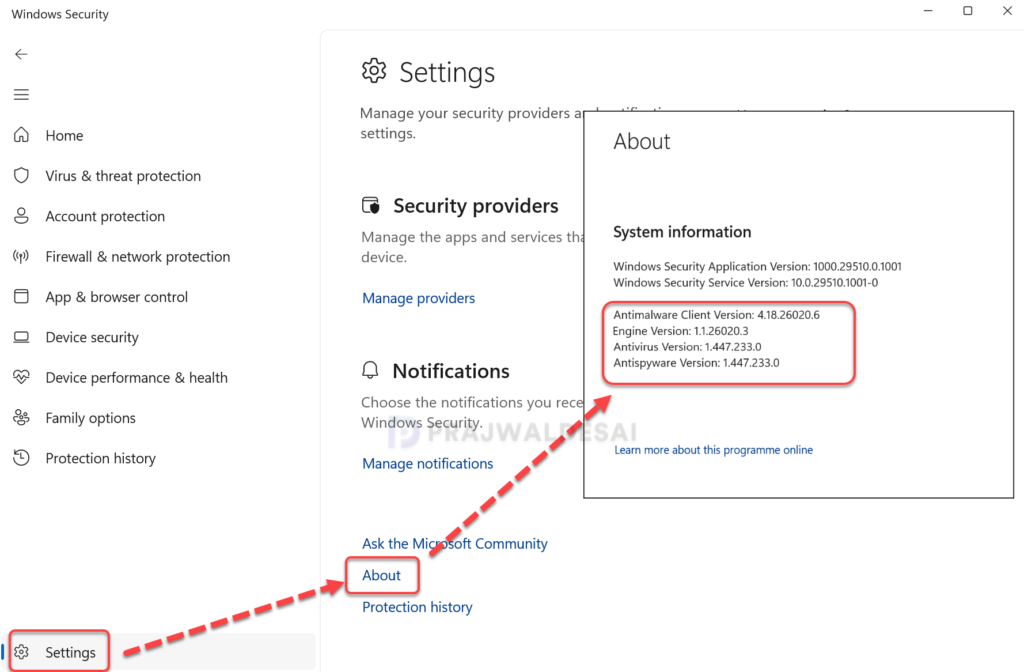
On Windows 10 and Windows 11, the Microsoft Defender Antivirus settings are viewable in the Windows Security app. Use the below steps to find the defender antivirus signature version:
- Open the Windows Security app by searching the start menu for Security, and then selecting Windows Security 🛡️.
- On the left menu bar, select the Settings icon ⚙️.
- In the Settings page, click on About link to view the current Antivirus version, engine version, Antispyware version and other details.
Method 5: Check Defender AV Signature Version in Registry
Windows users can check the Defender antivirus signature version from the Windows Registry. On your Windows PC, right-click Start, select Run. Type regedit and press the enter key to launch the registry editor. Navigate to the below registry path and look for AVSignatureversion key value to determine the current defender AV signature version.
Computer\HKEY_LOCAL_MACHINE\SOFTWARE\Microsoft\Windows Defender\Signature UpdatesThe above registry path includes several entries, but the following two are the most important.
- AVSignatureVersion: This refers to the antivirus signature version.
- ASSignatureVersion: This refers to the anti-spyware signature version.
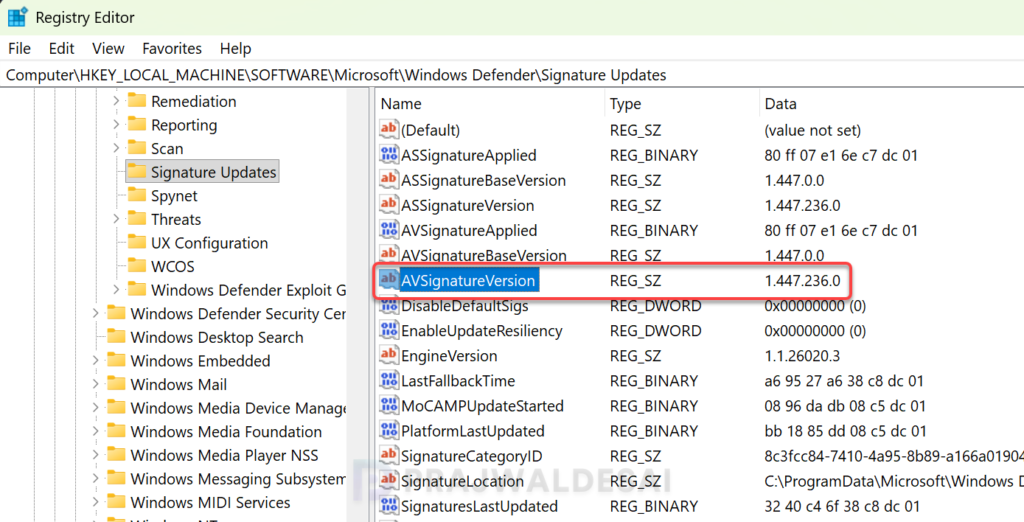
You can also run the below PowerShell command to directly query the value of AVSignatureVersion key of Windows Defender from the registry. If you cannot execute the command below, ensure that running PowerShell scripts is permitted on your device.
Get-ItemProperty "HKLM:\SOFTWARE\Microsoft\Windows Defender\Signature Updates" | Select-Object AVSignatureVersion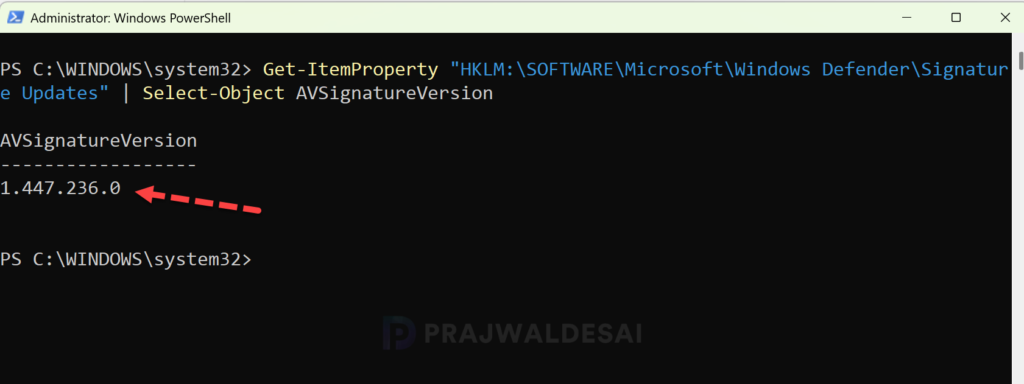
Update Microsoft Defender Security Intelligence version
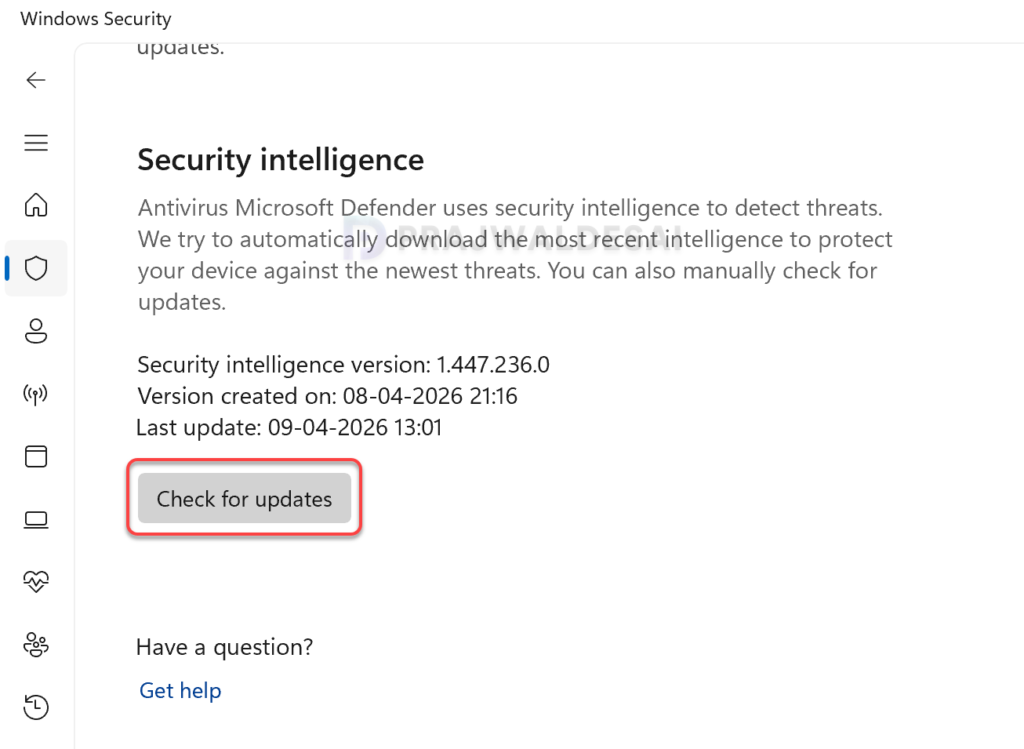
The good news is you can review the security intelligence update version and download the latest updates in the Windows Security app. You can manually check updates for Antivirus Microsoft Defender signatures using the below steps.
- Navigate to Settings > Privacy & Security > Windows Security.
- Click on Virus & threat protection > Protection updates and then select Check for updates.
- The latest signature versions are downloaded and installed from Microsoft online servers.