

This article is a complete Configuration Manager 2609 upgrade guide that covers all you need to know to update your existing SCCM servers to version 2609. It also covers all the new features, improvements, and fixes in 2609, including the console and client upgrade details and hotfixes.
SCCM 2609 update (KB2377842) is a production-ready release and marks the final current branch update of 2026. The version number “26” represents the year 2026, while “09” denotes September month. To upgrade to SCCM 2609, your current sites must be running version 2503 or later. Upgrading to the latest current branch version ensures your site benefits from the latest features and critical bug fixes.
Microsoft has announced an update to its release cycle for Configuration Manager, shifting to an annual release schedule. With the launch of Configuration Manager version 2609, only one update will be rolled out from next year.
Based on my observations, Configuration Manager version 2609 resolves numerous issues from earlier releases and includes most of the earlier hotfixes. Many features have been deprecated, and you should encounter fewer problems with this version.
Hotfixes Included in Version 2609
The current branch version 2609 of Configuration Manager includes the following hotfixes:
- KB37426535: Summary of changes in Configuration Manager 2603
- KB33247081: Connected Cache update for Configuration Manager versions 2409, 2503, 2509 and 2603
- KB37942646: Cloud management gateway virtual machine scale set image update for Configuration Manager
- KB38232642: Security update for Configuration Manager Console Extension
- KB38982839: Security update for the SMS Provider and administration service
- KB39398030: Security update for scripts, the SMS Provider, the Message Processing Engine, and Discovery Data Record processing
Issues fixed in Configuration Manager 2609
There are no new features included with SCCM 2609 update. Release version 2609 of Configuration Manager current branch contains fixes and feature improvements for the following components.
- Security Improvements: 2609 release enhances security in Configuration Manager, incorporating hotfixes. CMPivot’s certificate trust issue is resolved without manual certificate deployment. Configuration Manager no longer uses the TRUSTWORTHY property for SQLCLR, ensuring Microsoft-signed assemblies. A warning highlights sites using automatic computer approval, which will be removed in the future; switching to manual or trusted domain approval is recommended.
- Cloud Management Gateway:
- Shared key access is auto-disabled for CMG storage.
- Secrets by CMG in Azure Key Vault may lack expiration, violating Azure policies.
- BITS uploads through CMG may hang after connection drops, causing HTTP 500 errors, which delay client updates.
- CMG provisioning can fail if selecting an existing Azure resource group and Configuration Manager removes necessary tags, as required by Azure policies, with no validation on region alignment for the resource group and CMG.
- Content Management:
- Clients may not find peer cache sources when partial content downloads are enabled, due to a missing parameter error.
- CNG certificate distribution points can accumulate private-key files, increasing disk usage.
- In Configuration Manager version 2503, package downloads might not resume after a network failure, causing false content mismatch errors.
- The distribution point WMI provider can fail instead of crashing if the IISWebSiteName registry value is missing during IIS virtual directory creation.
- Client Fixes:
- Configuration Manager client upgrades might fail with error 1603 and MsiExec.exe crash if a process has over 1,000 modules loaded.
- Co-managed devices with Microsoft Entra accounts might resend unchanged compliance messages every hour, creating backlog when Intune manages compliance policies.
- On devices with UAC set to notify only for app changes, the UAC prompt can become unresponsive after selecting Configure Settings in the Configuration Manager control panel.
- Endpoint Protection:
- The Configuration Manager console and Set-CMAntimalwarePolicy cmdlet may reject valid Microsoft Defender Antivirus contextual exclusions.
- Intune-deployed antivirus exclusions on tenant-attached servers can persist post-policy removal.
- On co-managed devices, Configuration Manager may override Intune cloud block level and timeout settings.
- Exporting and importing an antimalware policy can change the daily quick scan setting from No to Yes.
- BitLocker Management: MBAM-Web event logs can be missing or fail to record events after installing the Configuration Manager BitLocker management websites. The event logs are now registered correctly so that website events are available in Event Viewer.
- Site Systems:
- Message processing engine may fail due to arithmetic overflow with large data volumes, halting data processing.
- Passive site server promotion issues may occur due to remote-only SMS Provider installation.
- Secondary site setup can crash with config data over 10 KB. Data warehouse sync problems may result in duplicate records for deletions.
- Remote server service connection point might not save Azure events due to database permissions.
- Performance counters may be missing on Windows Server 2025.
- Configuration Manager console can misreport space as 0 bytes after certain restarts.
- Uninstalling reporting services point doesn’t remove the component, hindering reinstallation.
- Large environments might face unresponsive management points due to TPM session limits.
- Site operations might fail to connect to the database with specific installation accounts, especially in untrusted domains.
- The console may incorrectly display boot image validation as in progress after completion.
- Configuration Manager setup may close unexpectedly if SQL Server startup parameters use large numeric suffixes.
- Discovery Methods: Heartbeat Discovery may corrupt multibyte characters in System OU Names, affecting collections using these in queries, especially in East Asian languages. Delta Active Directory Group Discovery might miss group membership changes in a child organizational unit if a different group scope is set in a parent, delaying updates until a full discovery is conducted.
- Software Updates:
- After renewing the WSUS signing certificate for third-party software updates, previous dates may still appear.
- Windows Update policies from Configuration Manager can persist on clients despite disabling software updates on them, allowing continued use of WSUS over Intune.
- WSUS maintenance can fail if both the update point and WSUS are on the site server using Windows Internal Database, affecting tasks like adding indexes and removing obsolete updates.
- A Windows feature update via Configuration Manager might revert to the previous Windows version after a device restart.
- Operating System Deployment Fixes:
- Task sequences deployed with Only media and PXE may be unavailable during startup, even with the SMSTSPreferredAdvertID specified.
- Policy retrieval through a cloud management gateway can fail in Windows PE if a CNG v3 certificate with a Key Storage Provider is used.
- Deployment can fail if the client relies on boundary group relationships instead of a directly assigned management point, often showing a misleading certificate error.
- Content downloads through a cloud management gateway may fail if an older application revision contains a deleted deployment type.
- Boot image updates may falsely report success if an optional component fails to install, leading to deployment failures or unexpected restarts.
- Duplicate records for Microsoft Entra-authenticated devices can appear post-deployment, and devices may switch to a different management point outside their boundary group in Windows PE.
- Migration: Microsoft 365 Apps updates can be missing from a migrated software update deployment package even though the migration job reports completion.
- Removal of Asset Intelligence reports: Starting in the version 2609 update, the Asset Intelligence reports are removed from the Monitoring > Reporting > Reports node.
- SCCM Tool and Remote Control: Configuration Manager tools and Remote Control Viewer can fail under certain conditions when NTLM authentication is disabled or if the user is in the Protected Users group.
- PowerShell: The New-CMFolder cmdlet fails to create a folder under Scripts when you specify .\Scripts for ParentFolderPath, reporting that the folder path is invalid.
- Console fixes and improvements:
- Editing filter criteria and pressing Enter in Resource Explorer may clear the filter or return incorrect results.
- The Configuration Manager console might close unexpectedly when opening the Windows Servicing dashboard after startup.
- Selecting Status Messaging in the Client Health Dashboard may show incorrect device counts.
- Importing a CNG certificate without elevated permissions could result in a legacy CSP certificate.
- The Network Adapter’s Speed property may appear empty in Resource Explorer.
- The console can crash when deleting a collection or viewing Cloud Attach settings without a Microsoft Entra web application.
- Imported self-signed certificates for HTTPS distribution points are now rejected.
- The Operating System Deployment group might show “Action needed” even with no list insights.
Release Date and Support Timelines
For early adopters, Microsoft released SCCM 2609 on September 28, 2026. Currently, you’ll need to run PS script to opt-in for this update. The 2609 version of SCCM is a baseline version, and you can use to install Configuration Manager from scratch. The baseline media will be available in VLSC and Visual Studio once the update is generally available for everyone.
Support for SCCM version 2609 will commence on September 28, 2026 and conclude on March 28, 2028. In this period, it will receive the updates to ensure the product remains safe. For more details, refer to SCCM support end dates for the current branch version.
Important: If you are still running an older version of Configuration Manager, you must upgrade to the current branch first. Please refer to the SCCM in-place upgrade paths for more information.
Pre-Upgrade Checklist
Before you upgrade to Configuration Manager 2609, please go through the upgrade checklist and prerequisites.
- Starting with version 2609, the Configuration Manager upgrade will be blocked if you are running Windows Server 2012/2012 R2. To resolve this, upgrade the servers to a higher version, such as 2019, 2022, or 2025.
- Your ConfigMgr servers will require a specific version of the Microsoft ODBC driver for SQL Server. For version 2609 and later, the minimum required ODBC driver version is 18.6.2.1 or later. This prerequisite is required when you create a new site or update an existing one and for all remote roles.
- If you’re running a multi-tier hierarchy, start at the top-level site in the hierarchy. Perform the CAS upgrade first, then begin the upgrade of each child site. Complete the upgrade of each site before you begin to upgrade the next site.
- Ensure that you are running a supported Operating System for SCCM.
- Starting with version 2609, Configuration Manager no longer supports SQL Server 2016 (Standard, Enterprise, and Express editions). Upgrade to a supported SQL Server version — at minimum, SQL Server 2017 (Cumulative Update 2 or later). If you don’t upgrade, Configuration Manager upgrades are blocked, and you see an error during the prerequisite check.
- If you’re running a SCCM version older than version 1910, check the SCCM In-place upgrade paths for proper upgrade paths.
- The Configuration Manager should have an online service connection point before you start the upgrade.
- You must remove the enrollment point, enrollment point proxy, and device management point roles before upgrading to version 2609.
ODBC Driver Issues with 2609 Upgrade
In most environments, when you attempt to run the prerequisite check for the 2609 update, it may fail with ODBC driver issue stating that installing the minimum required version or later of the Microsoft ODBC driver 18 for SQL Server is required. Microsoft clearly states this important information.
Microsoft ODBC Driver for SQL Server version 18.7.1.1 has a known issue with Configuration Manager version 2603 and earlier that can block site configuration. If you’re updating from one of these versions, don’t install ODBC driver version 18.7.1.1 before the update. Complete the Configuration Manager update to version 2609 before you install this ODBC driver version.
Don’t install the following Microsoft ODBC Driver for SQL Server versions. Known issues in these versions can block site configuration:
Version 18.6.1.1 in any Configuration Manager environment.
Version 18.7.1.1 with Configuration Manager version 2603 or earlier. Configuration Manager version 2609 and later supports version 18.7.1.1.
In my lab, I encountered the prerequisite check error for ODBC driver for SQL server. The version shipped with Configuration Manager 2609 is ODBC driver 18.6.2.1, which is the latest validated version. I recommend installing this same version on your site server before upgrading to version 2609.
Run EnableEarlyUpdateRing 2609 script
At this time, version 2609 is released for the early update ring. To install this update, you need to opt in. The following PowerShell script adds your hierarchy or standalone primary site to the early update ring for version 2609: Version 2609 opt-in script.
Follow these steps to run enableearlyupdatering2609.ps1 script on the primary site server:
- Close the Configuration Manager console. Launch PowerShell as an administrator.
- Change the path to the script location and run the enableearlyupdatering2609.ps1 script.
- Enter the site server name (top-level site server name or IP address), and the script will download the 2609 update in the SCCM console.
EnableEarlyUpdateRing2609.ps1 <SiteServer_Name> | SiteServer_IP>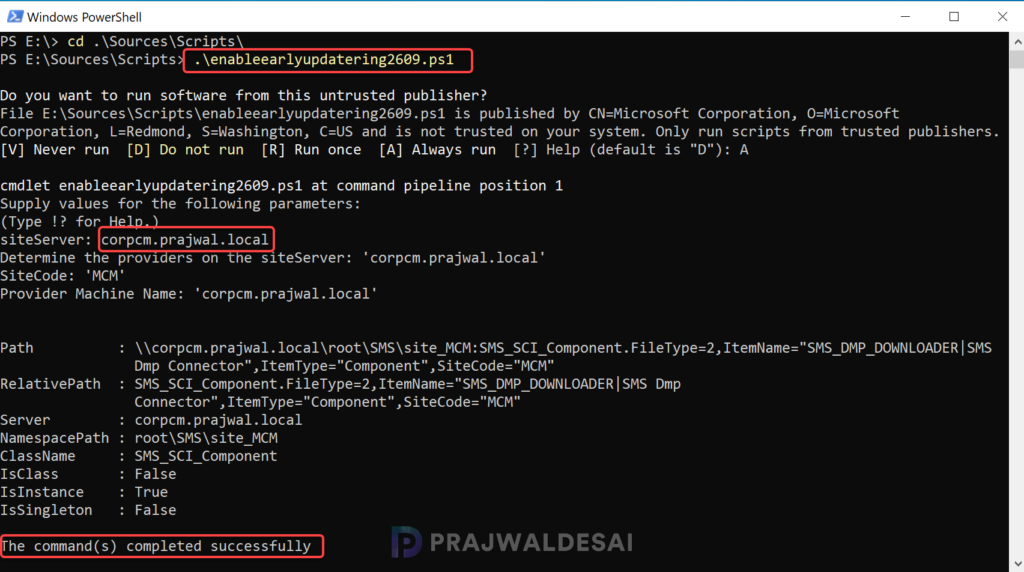
Once the script is executed, the update download process initiates. The SCCM server starts retrieving the 2609 update package from Azure servers, and you can monitor the download progress in the dmpdownloader.log file.
If the update displays as Downloading and doesn’t change its status, I recommend reviewing the hman.log and dmpdownloader.log for errors.
Wait for the update to download and extract all the files needed for the upgrade. The state of the update is changed from ‘Downloading‘ to ‘Ready to Install‘ in the console.
Run Prerequisite Check
Always run the prerequisite check before installing the SCCM 2609 update. This step ensures the update can be installed smoothly without encountering any issues. You can run the prerequisite check only when an update shows the status as Ready to Install. If the update is stuck or is not downloading, please consider using the solutions described in this guide.
Perform the following steps to initiate the SCCM 2609 prerequisite check on the server:
- Launch the Configuration Manager console.
- Navigate to Administration > Overview > Updates and Servicing.
- Select the Configuration Manager 2609 update and in the top ribbon, select Run Prerequisite Check.
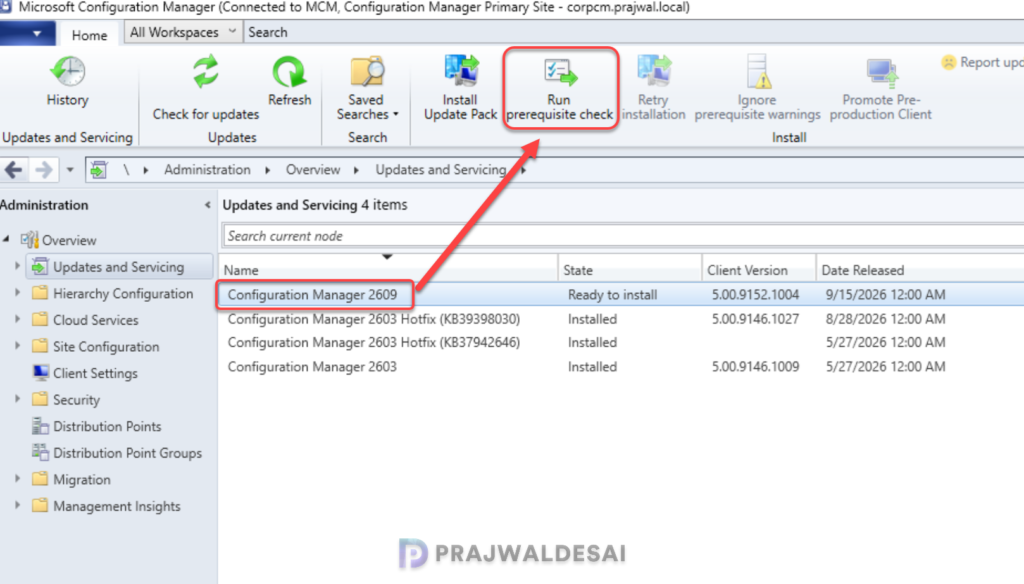
After you run a prerequisite check for an update, it takes a while to actually begin the prerequisite check process. You can monitor all the prerequisite checks in the monitoring node of the console. In addition, you can also review the ConfigMgrPreReq.log to know the status of the prerequisite check. Have a look at a list of all the SCCM log files useful for monitoring the upgrades.
Upgrade to Configuration Manager 2609
After successfully completing the prerequisite checks with no errors or warnings, you can proceed with the upgrade. To perform the SCCM 2609 upgrade, follow these steps:
- Launch the Configuration Manager console.
- Navigate to Administration > Overview > Updates and Servicing Node.
- Right-click Configuration Manager 2609 Update and select Install Update Pack.
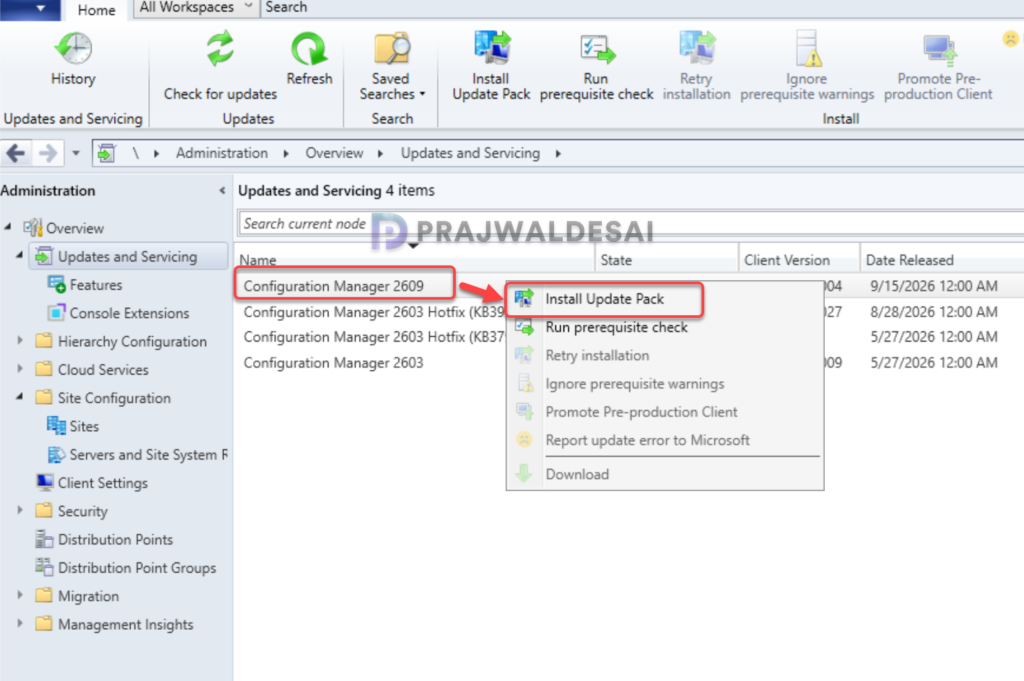
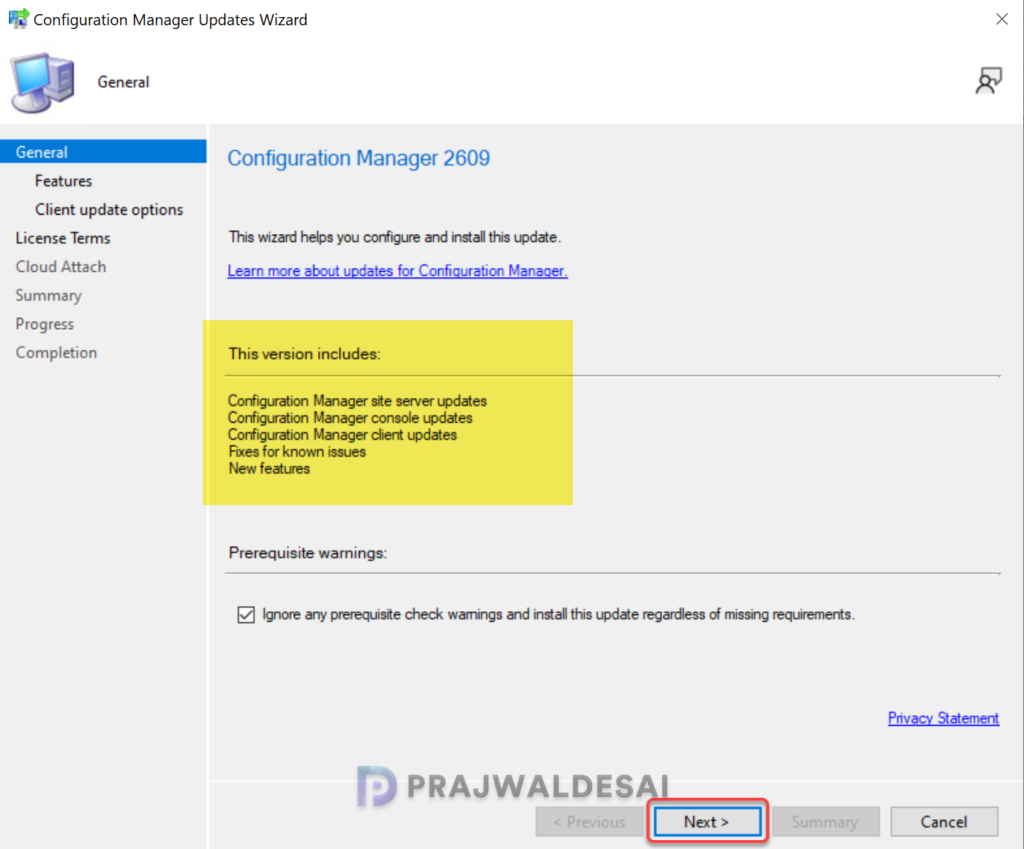
The following components have been updated in Configuration Manager version 2609:
- Configuration Manager site-server updates
- Configuration Manager console updates
- Configuration Manager client updates
- Fixes for known issues
- New Features
Since we have already performed the prerequisite check, you can enable the checkbox to ignore the prerequisite check warnings. Click Next.
On the Features tab, check the boxes for the new 2609 features you want to enable during the upgrade. You can enable these new features after installing the update from Administration > Updates and Servicing > Features. Click on Next to continue.
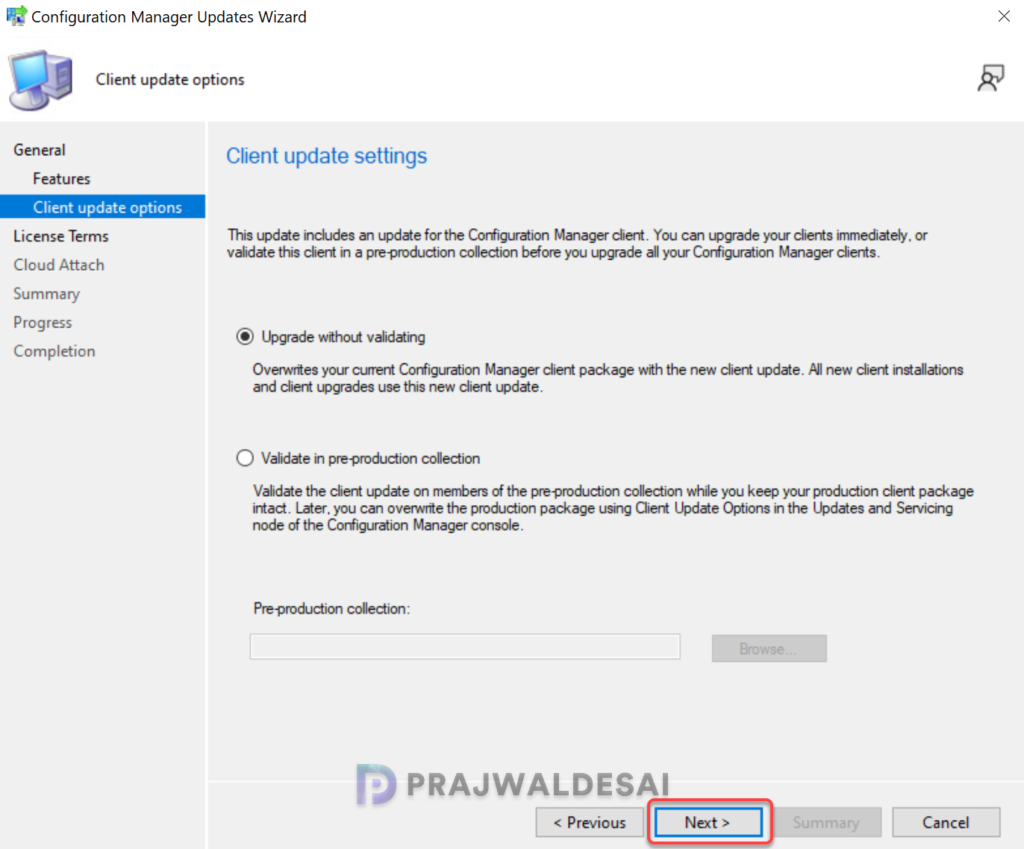
For Client Update Options, select the desired option for updating the clients in your hierarchy. There are two client update options available while installing the update.
- Upgrade without validating: This option allows updating only client members of a specific collection.
- Validate in pre-production collection: With this option, you can validate the client update on members of the pre-production collection while keeping your production client package intact.
Please refer to the SCCM client upgrade options to understand the options available for upgrading the client agents automatically to the latest version. Select the desired client agent update option and click Next to continue.
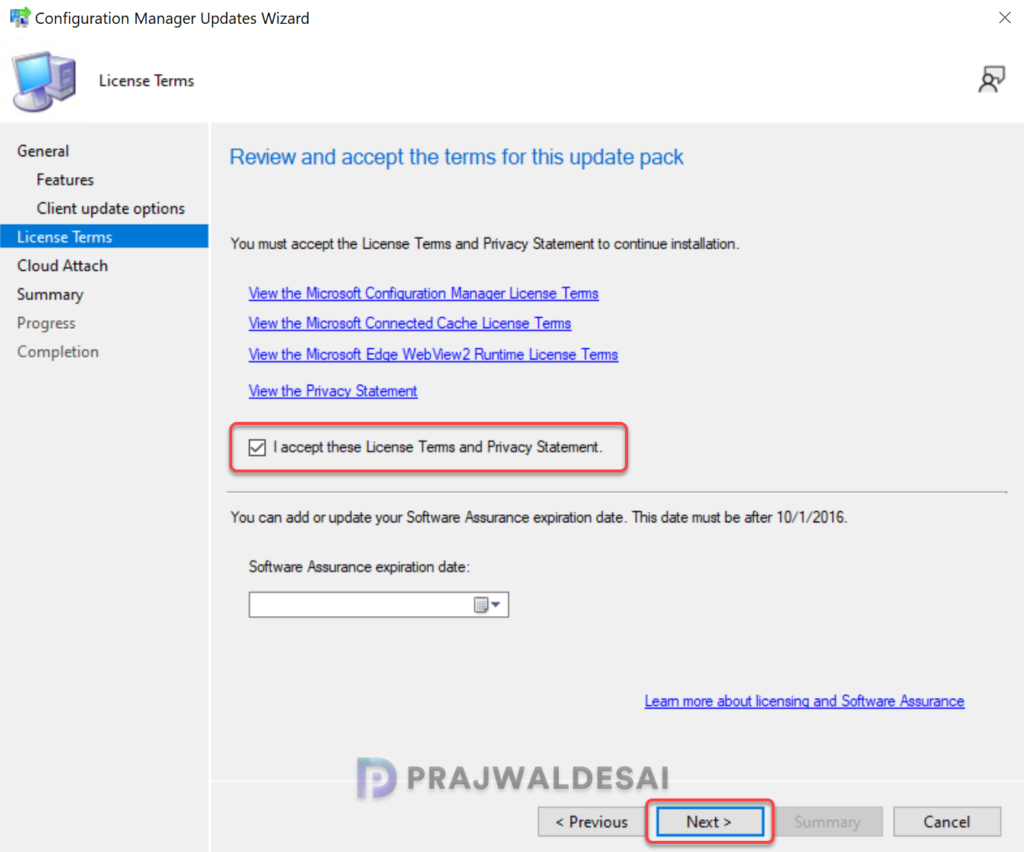
Accept the license terms that are mandatory to install the update and click Next.
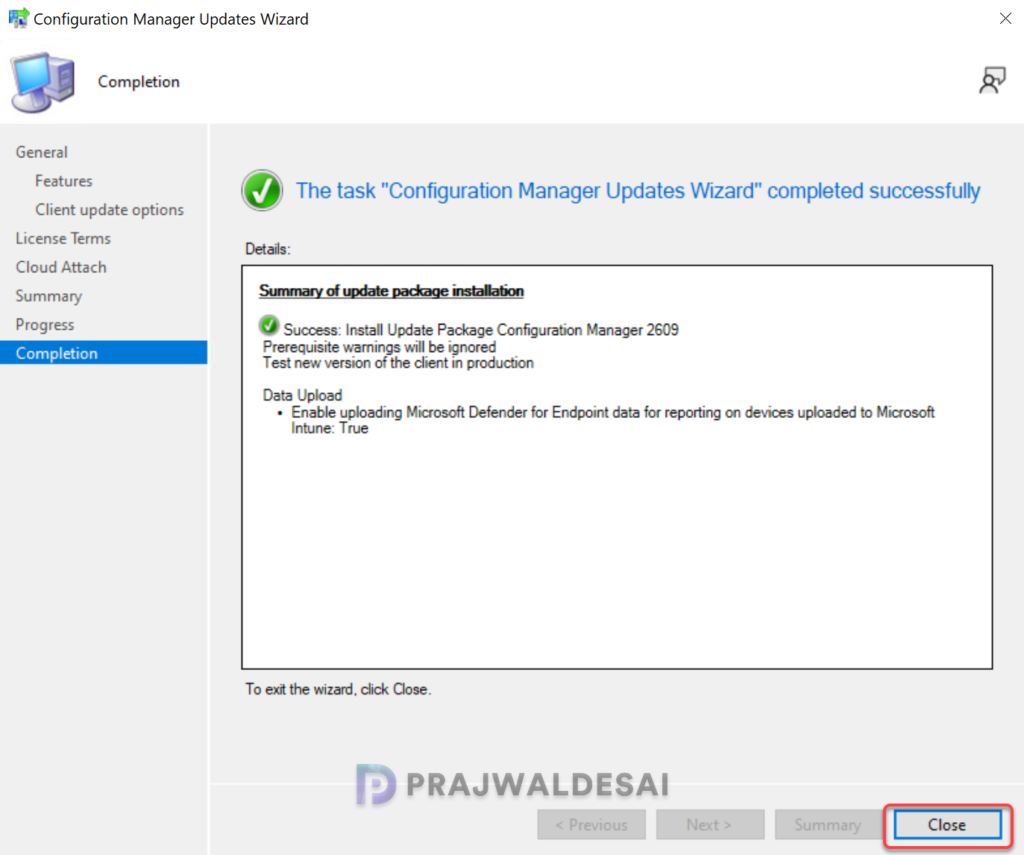
If you have already enabled SCCM Cloud Attach (Tenant Attach) with Intune, you will see an option to upload the Microsoft Defender for Endpoint Data for reporting on devices uploaded to Intune. If your SCCM setup does not include tenant attach, you can skip this step and proceed to the next step.
In the Summary window, you see a summary of the settings that you have configured for installing the update. Review them and click Next. On the Completion window, click Close. This completes the steps for installing the Configuration Manager 2609 update.
Monitoring the Upgrade
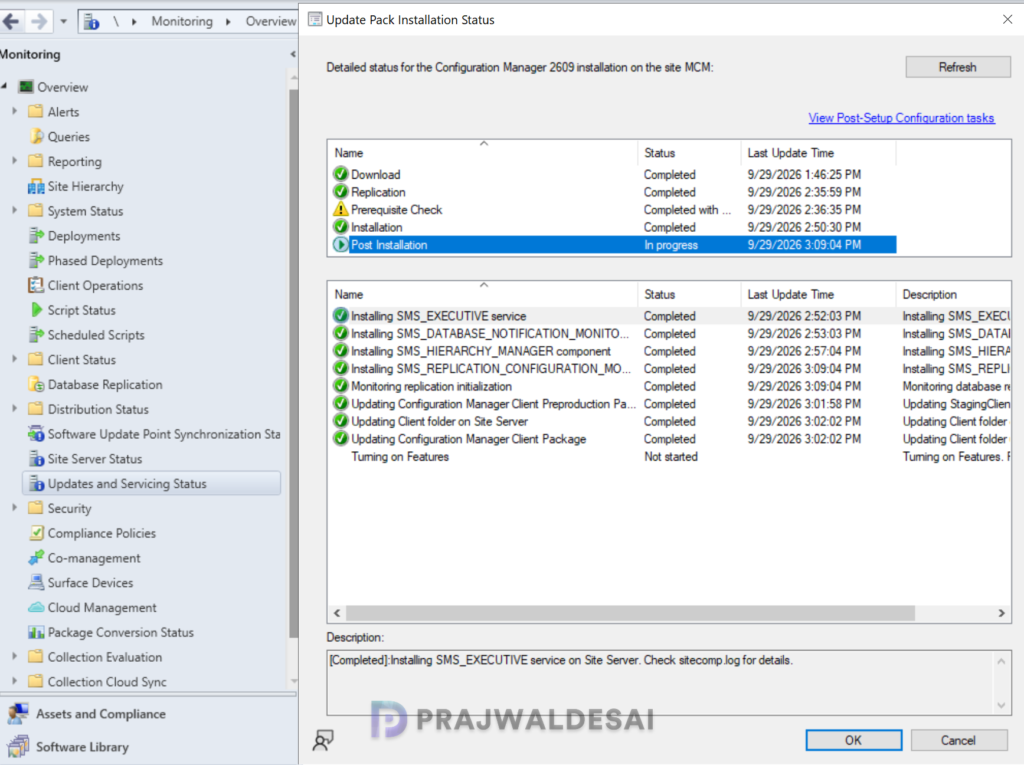
A Configuration Manager administrator can monitor the upgrade process using the following steps:
- In the Configuration Manager Console, go to the Monitoring workspace.
- Select Overview > Updates and Servicing Status.
- Right-click the Configuration Manager 2609 update and select Show Status.
- You can also monitor the upgrade progress by reviewing the CMUpdate.log file located on the site server.
Upgrading the Console
Once the Configuration Manager 2609 update installation is complete, it will uninstall the old console version and install a newer one. You should not skip the console upgrade process because you will be unable to use an older version of the console.
To upgrade the Configuration Manager console to the latest version, you can either refresh the console once or close and launch the console. For some of you, a yellow notification bar appears just below the top ribbon. Click Install the new console version to begin the console upgrade.
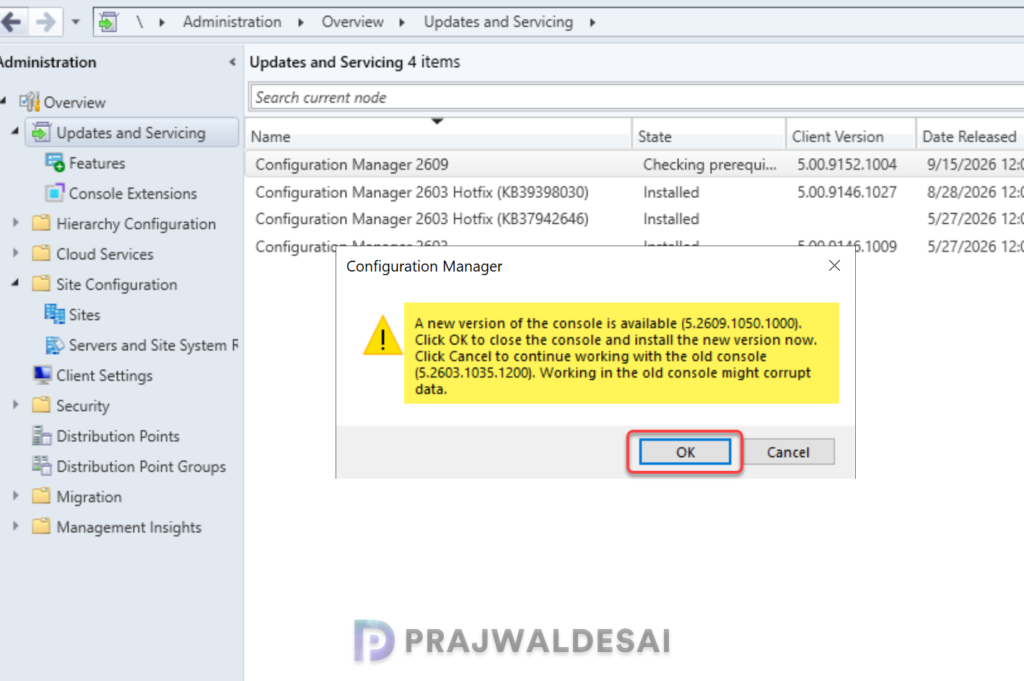
After upgrading to version 2609, the new Configuration Manager console version is 5.2609.1050.1000. If the console upgrade fails, restart the server and try again. If the error persists, review the ConfigMgr Console log files.
Verify Upgrade
Launch the console and in the top-left corner, click down arrow and select About Microsoft Configuration Manager. The following details confirm that your site has been upgraded to version 2609.
- Microsoft Configuration Manager Version: 2609
- Console Version: 5.2609.1050.1000
- Site Version: 5.0.9152.1000
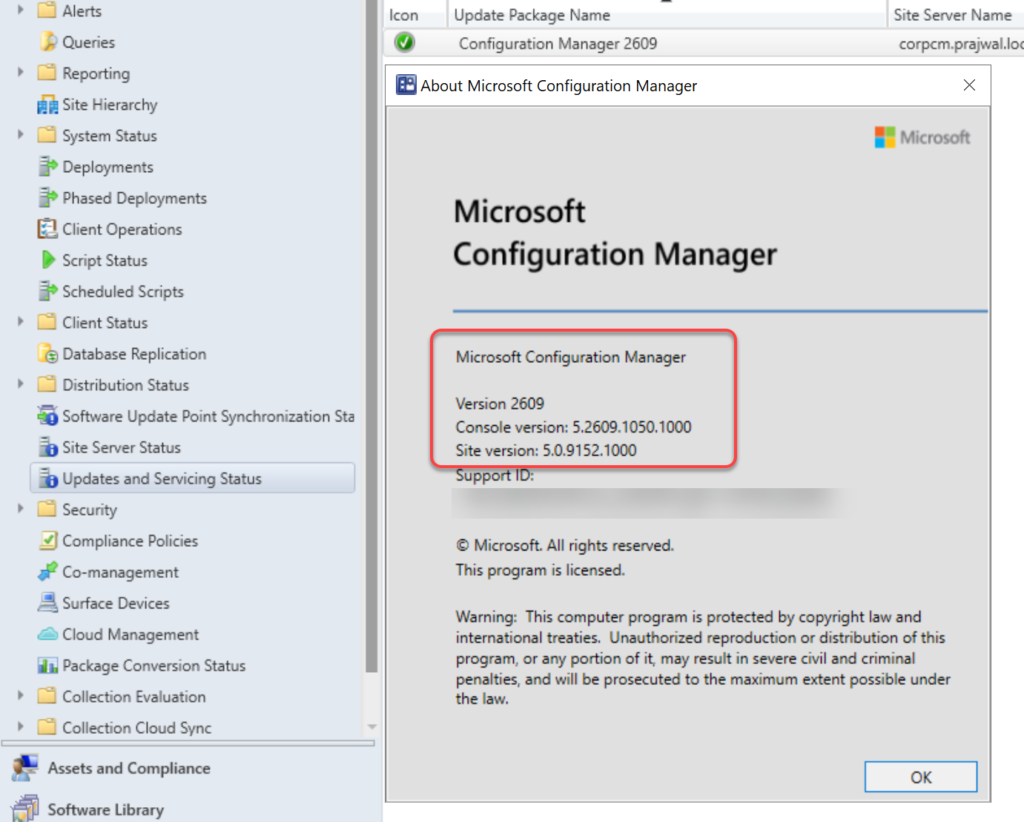
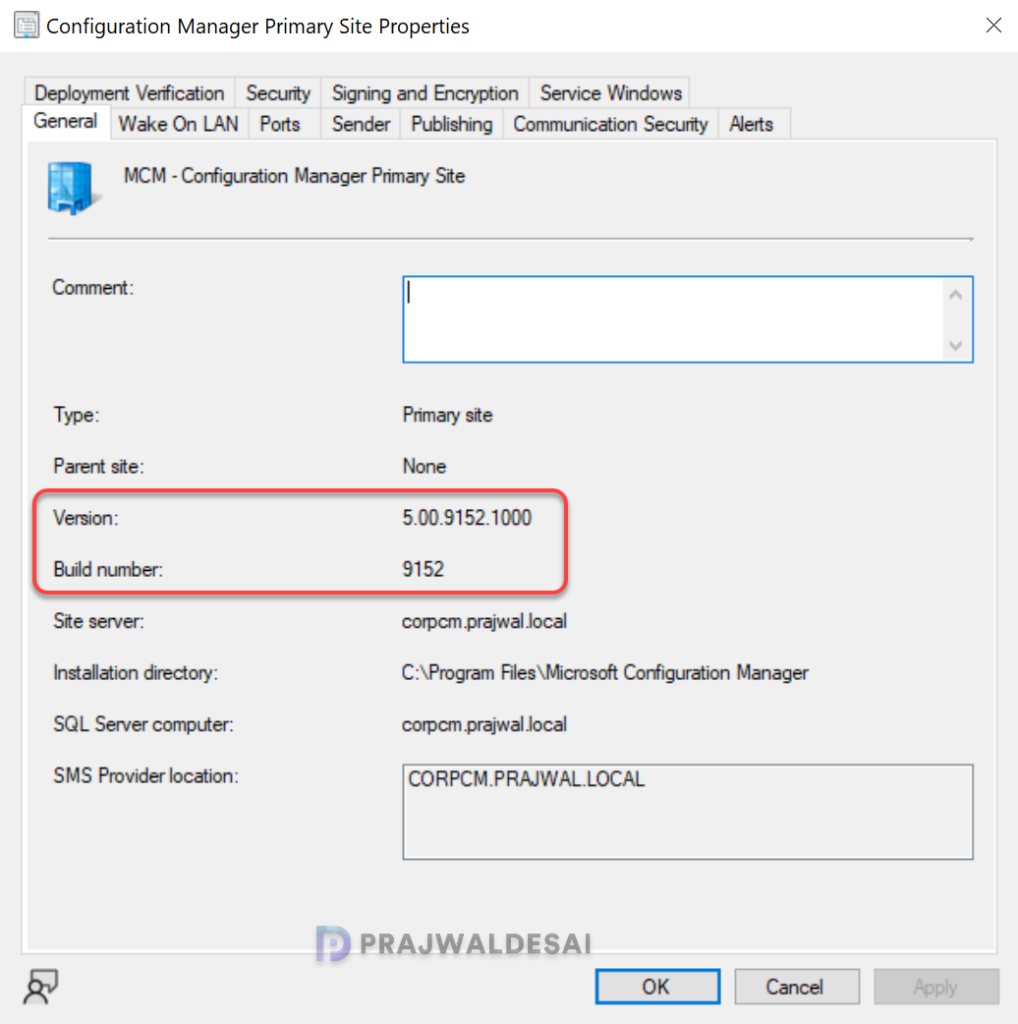
You can manually verify the build number and version of SCCM 2609 site with the following steps:
- In the ConfigMgr console, navigate to Administration > Site Configuration > Sites.
- Right-click your site and select Properties.
- The version is 5.00.9152.1000 and the build number is 9152.
Update Boot Images to Distribution Points
After upgrading to Configuration Manager 2609, the default boot images (x64 and x86) will automatically be updated on all the distribution points. If it’s not updated, you can manually update the boot images using the following procedure for Boot Image (x64) and Boot Image (x86):
- Launch the Configuration Manager console.
- Go to the Software Library > Operating Systems > Boot Images.
- Right-click the boot image and select Update Distribution Points.
SCCM 2609 Upgrade – Client Upgrade
The production client version of SCCM 2609 is 5.00.9152.1004. The recommended method to upgrade the clients is by using the Automatic Client Upgrade feature. This will upgrade all the clients in your production setup to the latest version.
Using the automatic client upgrade, you can upgrade the clients to the 2609 version.
- In the SCCM console, go to Administration > Site Configuration > Sites.
- Click Hierarchy Settings in the top ribbon and select the Client Upgrade tab.
- Tick the checkbox “Upgrade all clients in the hierarchy using production client“.
- Set the required number of days for an automatic client upgrade to occur. Click Apply and OK.
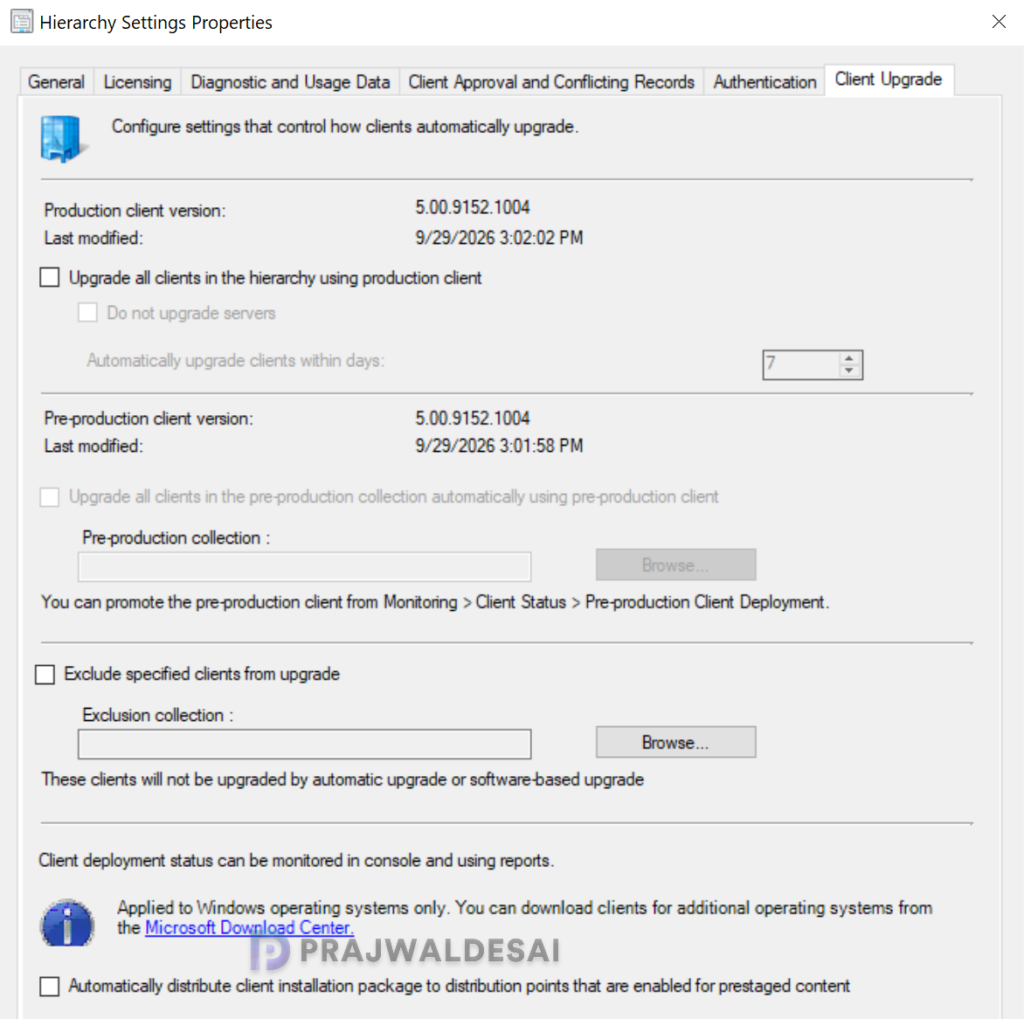
To group all the clients who have not updated to the latest version for the 2609 build, use the query below to create a device collection. The query will list all the computers that don’t have the latest client agent version, 5.00.9152.1004.
select SMS_R_SYSTEM.ResourceID,SMS_R_SYSTEM.ResourceType,SMS_R_SYSTEM.Name,SMS_R_SYSTEM.SMSUniqueIdentifier,SMS_R_SYSTEM.ResourceDomainORWorkgroup,SMS_R_SYSTEM.Client from SMS_R_System where SMS_R_System.ClientVersion != '5.00.9152.1004'Post Upgrade Checklist
After upgrading to current branch version 2609, Microsoft suggests the following post-update checklists:
- Confirm SCCM version and restart the server (if necessary)
- Confirm site-to-site replication is active
- Update Configuration Manager consoles to the latest version
- Reconfigure database replicas for management points
- Reconfigure availability groups and any disabled maintenance tasks
- Restore hardware inventory customizations
- Restore user state from active deployments
- Update Client Agents
- Check for expired third-party extensions
- Enable any custom solutions
- Update boot images and media
- Update PowerShell to help content
Troubleshooting ConfigMgr 2609 Upgrade Issues
The SCCM 2609 update can sometimes remain stuck in the downloading state on various setups. I’ve created a detailed article outlining the most common errors and warnings encountered during the prerequisite check: https://www.prajwaldesai.com/fix-sccm-update-stuck-downloading-state/.
Here are common causes for upgrade prerequisite check failures, along with their corresponding solutions to address errors and warnings.
- The site database has a backlog of SQL change tracking data: Solution
- Configuration Manager Pending System Restart: Solution
- SQL Server Native Client Version: Solution
- SCCM Update Stuck at Downloading State: Solution
- Enable site system roles for HTTPS or SCCM Enhanced HTTP: Solution
- Recommended version of the Microsoft .NET Framework. Warning: The Configuration Manager requires at least DotNet version 4.6.2 but recommends the latest version 4.8: Solution
- ConfigMgr Database Upgrade Error 0x87d20b15: Solution
- Co-Mgmt slider is not pointed to Intune: Solution
- SQL client prerequisites are missing for Config Manager setup: Solution
- Fix ODBC Driver issues with Configuration Manager: Solution
Known Issues
Configuration Manager 2609 is a production-ready release and is safe for upgrading. No issues have been reported with this version at the moment. This section will be updated promptly if any significant issues are identified.

Excellent guide !
We are still in 2509. Can we upgrade directly to 2609 or do we have to go through 2603 first ?
Thanks
To upgrade to SCCM 2609, your current sites must be running version 2503 or later. So yes, a direct upgrade from 2509 to 2609 will work.