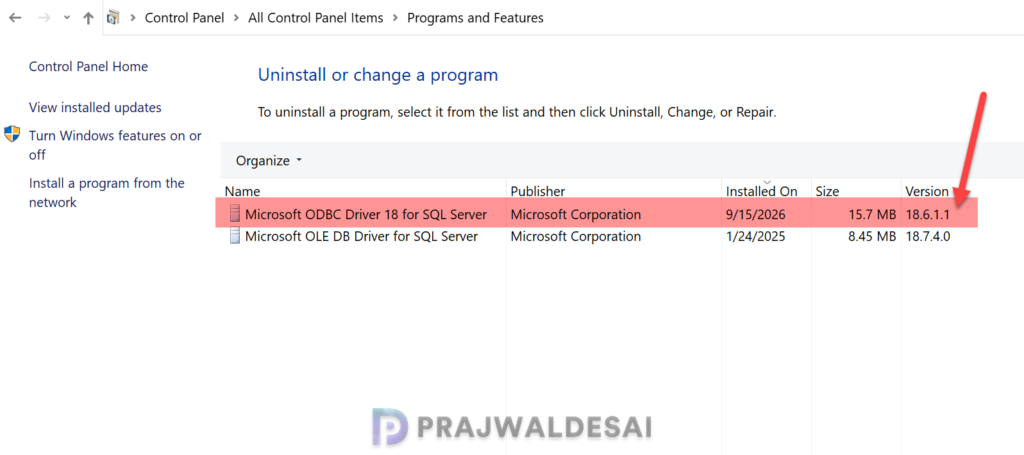
The ODBC driver for SQL Server version 18.6.1.1 has known issues wherein the Configuration Manager site installations might fail, and client notification features might stop working. The solution is to either upgrade to the newer ODBC driver version 18.6.2.1 or downgrade it to an older version 18.4.1.1.
It is a well-known thing that Configuration Manager version 2309 and later requires the installation of Microsoft ODBC driver 18 or later for SQL Server as a prerequisite. If you don’t install it you will see SQL client prerequisite missing for Config Manager setup during prerequisite check step.
The ODBC Driver version 18.6.1.1 includes a change that enforces stricter handling of NULL values for non-nullable columns. This change can cause failures in Configuration Manager operations that try to insert NULL values into such columns. Such failures generate errors during site installation and currently logged on user reporting.
To ensure you don’t end up with such issues, I strongly recommend checking the bugs fixed in the MS ODBC driver for SQL server before you install or upgrade it in your Configuration Manager environment.
Issue 1: New ConfigMgr site installations fail
With ODBC Driver 18.6.1.1 for SQL server installed, when you attempt to install a new ConfigMgr site, the operation fails and the ConfigMgrSetup.log file reports the following errors:
    INFO: Database watermark:
    ERROR: Failed parsing the watermark from the database: 80070057.
    INFO: Could not retrieve and process both watermarks, will import all tables from disk.
    INFO: On disk watermark is newer than the one in the database. All tables will be imported.
    INFO: Starting data import data to table: LU_LicensedProduct
    ***     MERGE [dbo].[LU_LicensedProduct] AS TARGET ~    using (select [LicensedProductID], [ProductPool], [ProductName], ~                  [FamilyName], [VersionSequence], [VersionCode], ~                  GETUTCDATE() , N'$CD' ~                  from tempdb.dbo.temp_LU_LicensedProduct) ~            as SOURCE ( [LicensedProductID], [ProductPool], [ProductName], ~                        [FamilyName], [VersionSequence], [VersionCode], ~                        [LastUpdated], [SourceSite]) ~    ON SOURCE.[LicensedProductID] = TARGET.[LicensedProductID] ~    when matched and (~        TARGET.[ProductPool] != SOURCE.[ProductPool] OR ~        TARGET.[ProductName] != SOURCE.[ProductName] OR ~        TARGET.[FamilyName] != SOURCE.[FamilyName] OR ~        TARGET.[VersionSequence] != SOURCE.[VersionSequence] OR ~        TARGET.[VersionCode] != SOURCE.[VersionCode] OR ~        TARGET.[SourceSite] != SOURCE.[SourceSite]) ~    then ~    UPDATE SET ~        [ProductPool] = SOURCE.[ProductPool], ~        [ProductName] = SOURCE.
    *** [23000][515][Microsoft][ODBC Driver 18 for SQL Server][SQL Server]Cannot insert the value NULL into column 'VersionCode', table 'CM_TS1.dbo.LU_LicensedProduct'; column does not allow nulls. UPDATE fails.
...
    ERROR: FAILED to import data to table LU_LicensedProduct
    ERROR: Failed to import data from CSV files
    ERROR: Failed to import Asset Intelligence data into the site database.
Issue 2: Client Notification stops working
Another issue that is observed in existing environments reveals that the currently logged on user column in the Configuration Manager console doesn’t populate. You also see the following error entry in the BGBMgr.log file on the Site Server.
BCP queued 18 rows for currently logged on users
*** [23000][515][Microsoft][ODBC Driver 18 for SQL Server][SQL Server]Cannot insert the value NULL into column 'CurrentLogonUser', table 'CM_P01.dbo.BGB_LiveDataLogonUsersPending'; column does not allow nulls. INSERT fails.
*** [01000][3621][Microsoft][ODBC Driver 18 for SQL Server][SQL Server]The statement has been terminated.
*** bcp_batch() failed
ERROR: Failed to send batched rows
ERROR: Failed to execute task class LiveDataBcp
ERROR: Failed to bcp file
ERROR: Failed to execute task class LiveDataProcessTask
WARNING: Failed to process file Bgbtdhs3.BLD, move it to bad inbox
Begin to move file from E:\Microsoft Configuration Manager\inboxes\bgb.box\Bgbtdhs3.BLD to C:\Microsoft Configuration Manager\inboxes\bgb.box\bad\Bgbtdhs3.BLDSolution: Upgrade ODBC Driver to version 18.6.2.1 or later
If you’re encountering any of the above-mentioned issues in your SCCM setup, they can be resolved by upgrading the ODBC Driver for SQL Server to version 18.6.2.1 or a newer version. However, you must first check your existing driver version before you decide to upgrade it.
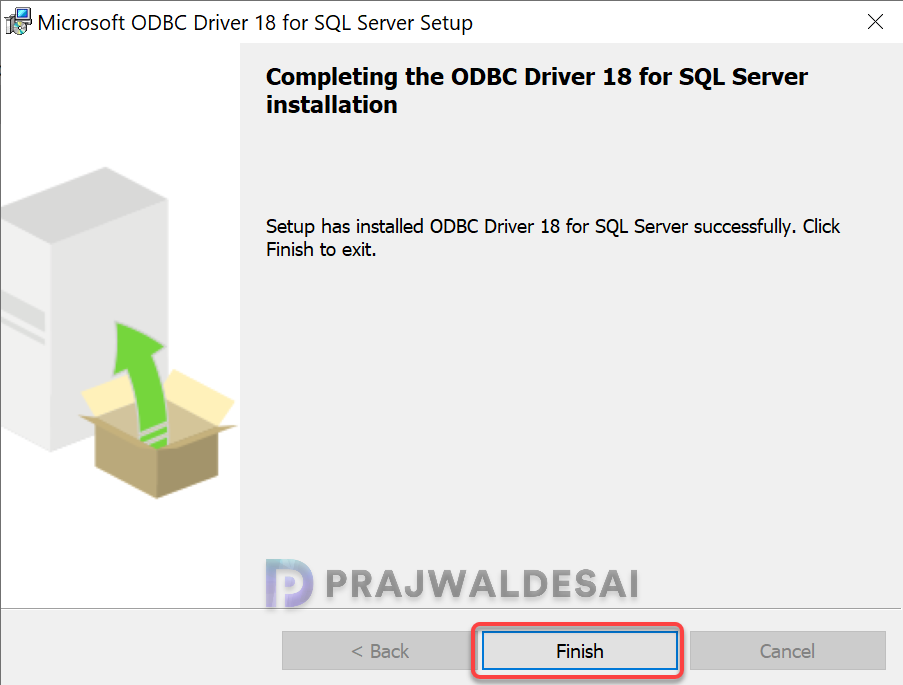
To begin with, download the latest ODBC Driver version for Windows onto your primary site server. In my case, the driver version 18.7.1.1 is available with Microsoft, and I have downloaded it onto my server. The installation is straightforward, launch the installer and follow the wizard to install it.
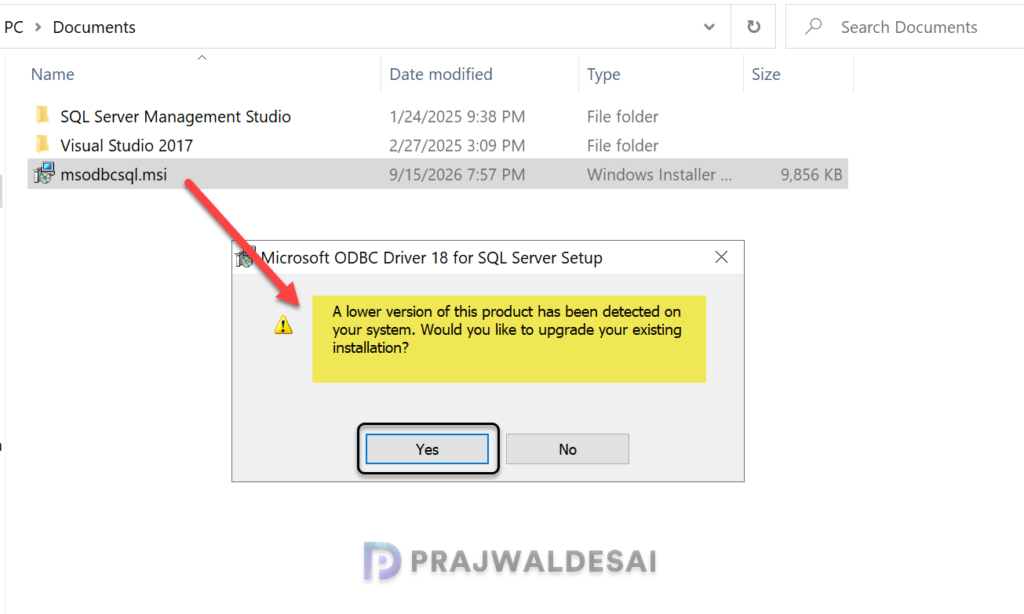
Whenever you attempt to install a newer version of ODBC driver for SQL server, you would see a warning “A lower version of this product has been detected on your system. Would you like to upgrade your existing installation?“. Select Yes to proceed.
On the welcome page of the installation wizard, click Next.
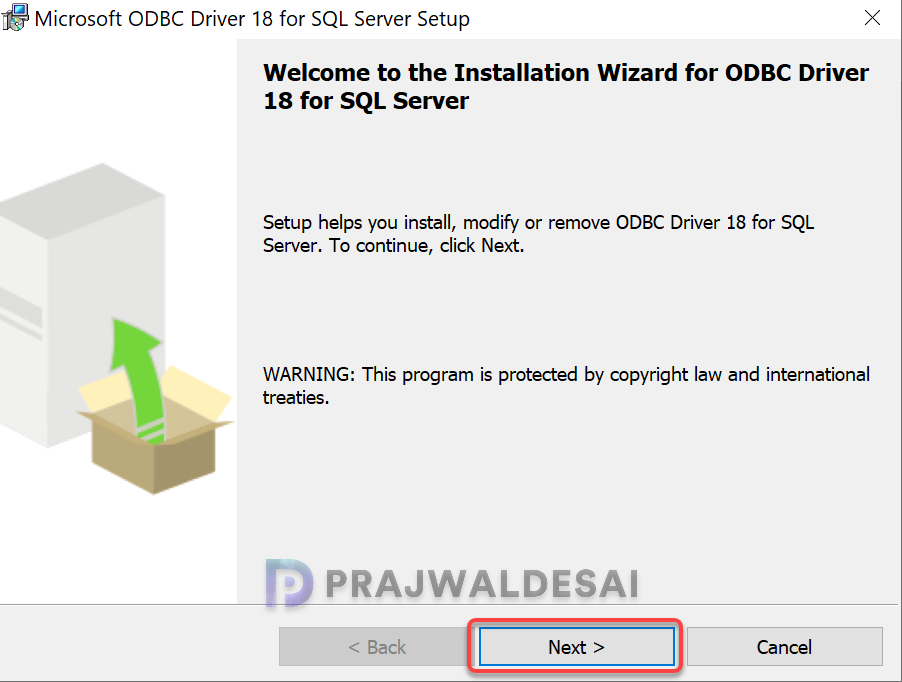
Accept the license terms and click Next. Complete the remaining steps and close the wizard.
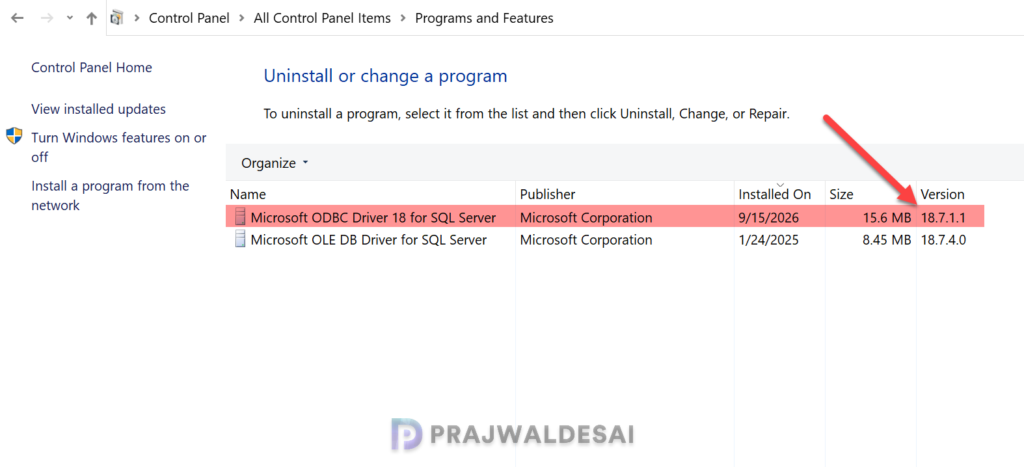
To check the installed version of ODBC driver for SQL Server installation, go to Control Panel\All Control Panel Items\Programs and Features. In the list of installed programs, locate the ODBC driver for SQL Server and look at the version column to find the installed version.
In the below image, we see the ODBC driver version is now updated to 18.7.1.1. I recommend restarting the server once post the upgrade is done.