

In this guide, I will provide multiple solutions to resolve Autopilot device enrollment error 80180003. Error code 80180003 during Autopilot means that the Windows user is not authorized to enroll the device into mobile device management (MDM). Let’s see why you encounter this error and how Intune admins fix it permanently.
Last week I was at an IT organization that recently set up a new Intune tenant and was testing the Autopilot for provisioning Windows 11 devices. For some unknown reason, enrollment of Windows devices failed with error code 80180003. I understood that this was a permissions or configuration issue rather than a problem with the Autopilot. Let me tell you what I discovered.
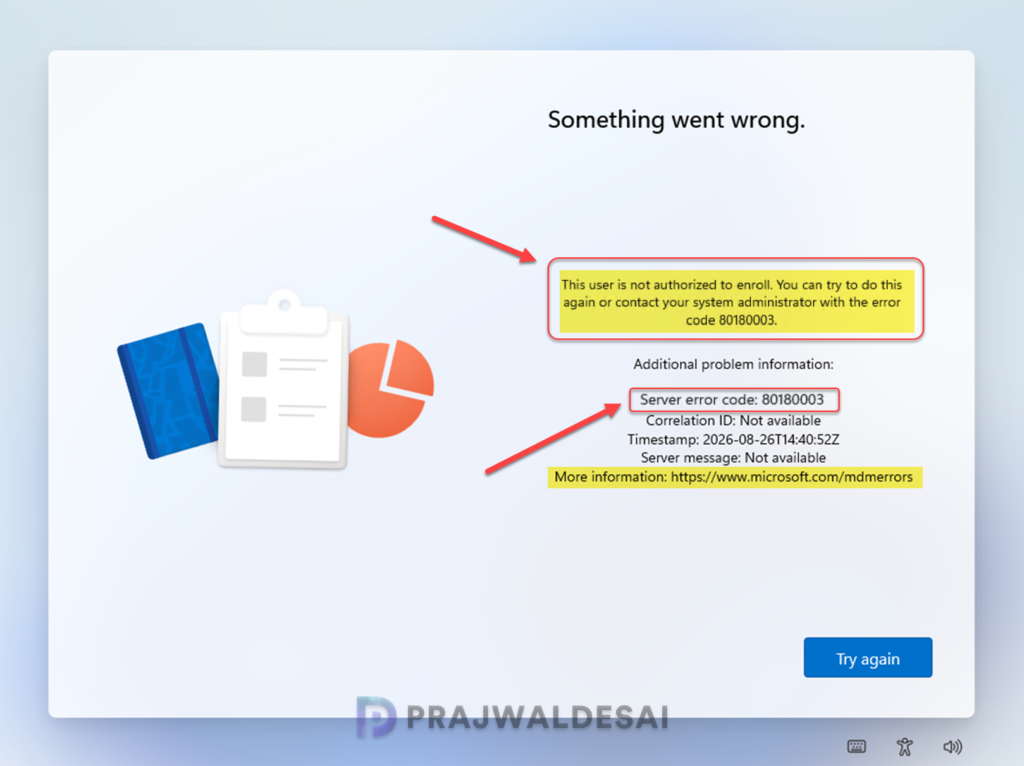
The below image shows the actual MDM enrollment error with some additional details that are presented to the user during the autopilot device enrollment phase.
“Something went wrong. This user is not authorized to enroll. You can try to do this again or contact your system administrator with the error code 80180003.”
If you choose Try again, the device restarts and the user sees the sign-in screen, but after entering your credentials, the same error appears.
Coming to the troubleshooting part, before you plan to review Autopilot logs for failures, I recommend reading a Microsoft article that lists the reasons why you encounter the error, Windows user is not authorized to enroll devices. I’ll go over the these solutions in detail, as well as some new ones, as well as some helpful hints.
Note: The majority of the solutions I’ve detailed below are meant for administrators, as users are minimally involved in fixing the autopilot device enrollment errors. These solutions primarily involve basic checks to ensure that device enrollment settings are properly configured. Let’s get started now.
Most common causes of Autopilot error 80180003
Here are some of the reasons why you encounter error 80180003 during the Autopilot device preparation phase of devices.
- The user has already enrolled or registered the maximum number of devices allowed by Intune.
- No Intune, EMS, or qualifying Microsoft 365 license assigned.
- The device platform is blocked by the device type restrictions in Intune.
- The computer is running Windows Home edition. Enrolling in Intune or joining Microsoft Entra ID is only supported on Windows 11 Pro and higher editions.
- The Microsoft Entra setting ‘Users may join devices to Microsoft Entra ID‘ is set to None, which prevents new users from joining their devices using Microsoft Entra ID.
- Intune MDM Authority is not configured by the administrator.
Let us go through each of the reasons listed above one by one. That is how you resolve these MDM errors.
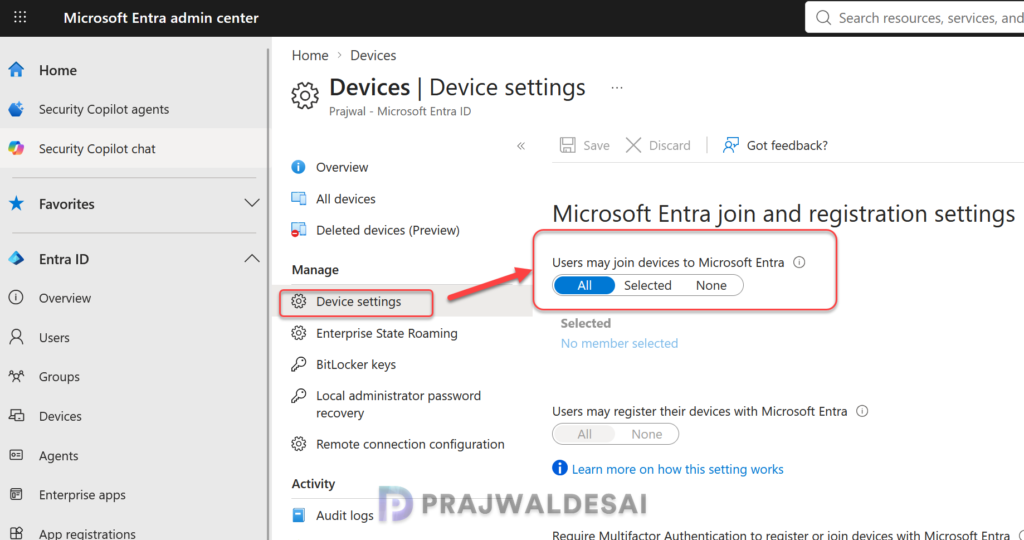
Solution 1: Confirm the user can join devices to Microsoft Entra ID
Sign in to the Microsoft Entra admin center with an administrator account. Go to Entra ID > Devices > Manage > Device settings. Under the section ‘Users may join devices to Microsoft Entra‘, choose either All or Selected and select the users who you want to allow permission to enroll devices to Microsoft Entra. Click Save to apply the changes.
The next time a user tries to join the device to Microsoft Entra, it should proceed seamlessly without the 80180003 error occurring. Jump to the next solution if this didn’t work for you.
Solution 2: Verify Windows Automatic Enrollment
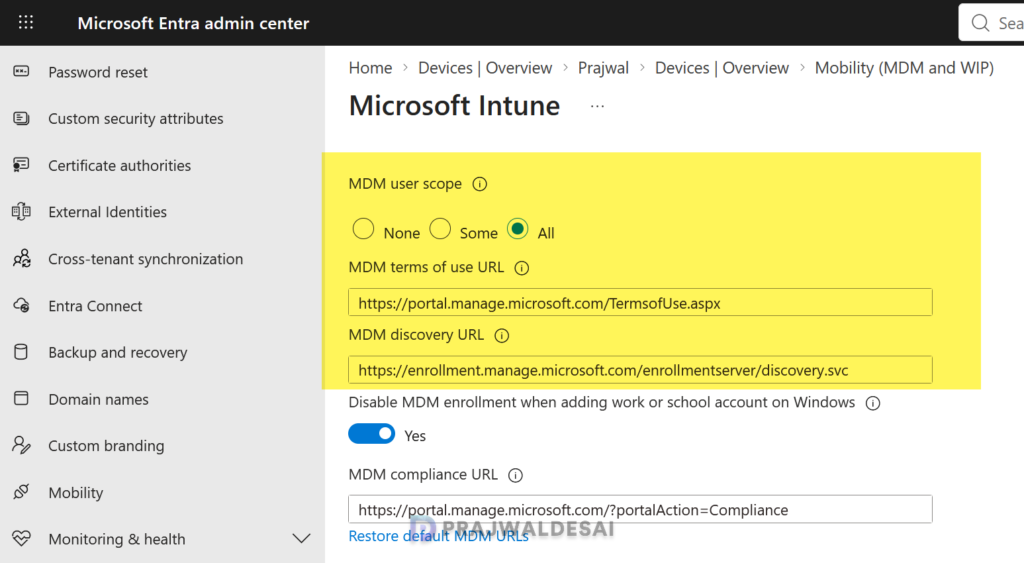
The MDM user scope in Microsoft Entra ID is a setting that determines which users can automatically enroll their Windows devices into an MDM provider like Microsoft Intune when joining or registering the device. If the user hasn’t been assigned with the correct scope or is restricted from enrollment, you may encounter failures such as error 80180003 during device provisioning.
To check the MDM user scope, sign in to the Microsoft Entra admin center. Go to Entra ID > Mobility and select Microsoft Intune. Under MDM user scope, you have three options for selection.
- None: Automatic MDM enrollment is disabled for all users.
- Some: Automatic MDM enrollment is enabled for the users you select.
- All: Automatic MDM enrollment is enabled for all users. Their devices automatically enroll in Intune when they join or register with Microsoft Entra ID.
Select All or Some to allow Entra users to automatically enroll their Windows devices into Intune. Save the changes you’ve made. The user should now have enough permission to enroll the device into Intune.
Solution 3: Check Device Platform Restrictions
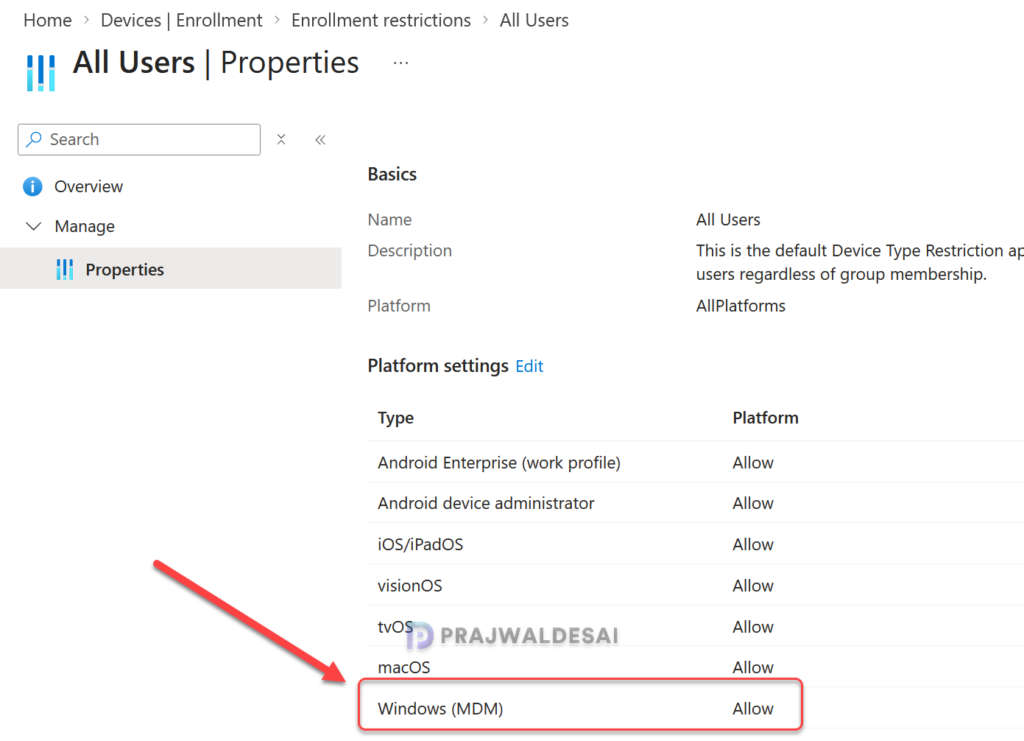
If multiple users are seeing error 80180003 during device enrollment, you must verify if the Windows devices are allowed for MDM enrollment. To check that, sign in to the Microsoft Intune admin center and navigate to Devices > Enrollment > Device platform restrictions. Under Windows restrictions, select the restriction policy > Platform settings and ensure Windows (MDM) devices are allowed for enrollment. See the below image for reference.
Solution 4: Verify the Edition of Windows
Both personal and organization-owned devices can be enrolled in Intune. However, to enroll a Windows 11 device in Microsoft Intune, your device must be running Pro or Enterprise edition. If you’re attempting to enroll a home edition of Windows PC to Entra ID or Intune, you may encounter 80180003 during the device preparation phase of Windows Autopilot.
To check the edition of Windows, select Start > Settings > System, then select About. Under Windows Info, you see Edition, Version, and OS Build information. If your Windows 11 PC is running the Home edition, you can refer to my guide on upgrading it to the Pro edition. After you’ve upgraded the edition to Pro or Enterprise, restart the computer and continue with the device preparation. The enrollment should now be completed successfully without prompting for error 8018003.
Solution 5: Check Device Limit Restrictions
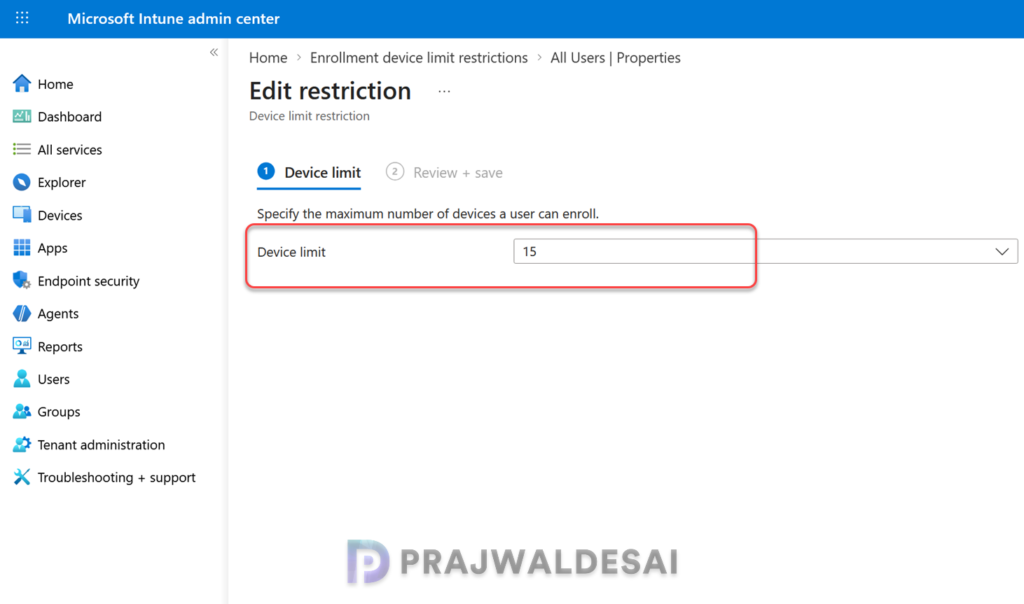
One of the primary reasons why users encounter error 80180003 during Autopilot enrollment is due to the device limit restrictions. Intune lets you configure a limit on the number of devices a user can enroll and the device limit you can specify is between 1 and 15. If the device enrollment is blocked by device type restrictions or if the user’s enrollment limit is set low, attempting to enroll an additional device results in a failure with the error code 80180003.
To check the device limit restrictions in the Intune admin center, go to Devices > Enrollment > Enrollment options > Device limit restriction. Select the existing device limit restriction profile and edit the device limits and specify how many devices each user can enroll. In the below image, the users have been defined with a maximum limit of 15 devices for enrollment.
If a user has already enrolled 15 devices in the past, you may have to go to the previously enrolled devices and remove the unused ones to proceed further. See how to delete Windows Autopilot device via different options.
Solution 6: Set MDM Authority to Microsoft Intune
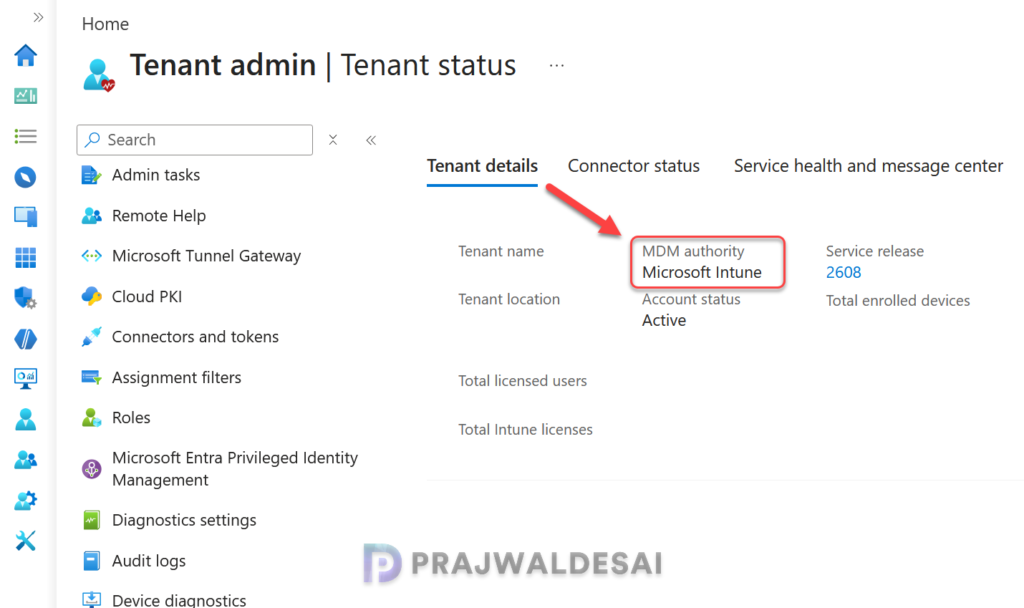
The mobile device management (MDM) authority setting determines how you manage your devices. You must set an MDM authority to Microsoft Intune before users can enroll devices for management. If your MDM authority shows as Unknown, then the device enrollment will fail with error code 80180003. For more information, see how to set MDM authority.
You can check your tenant’s Mobile Device Management (MDM) authority by navigating to Tenant administration > Tenant status in the Microsoft Intune admin center. In the below image, the MDM authority is set to Microsoft Intune.
Solution 7: Missing or Incorrect Intune Licenses
Users enrolling devices with autopilot will need a valid license. If there is no valid license assigned, you may either see error code 80180003 or 80180008. Check if the affected user has any of the following licenses assigned.
- Microsoft Intune Plan 1
- Microsoft Entra ID P1 or P2 license
- Microsoft 365 Business Premium, Enterprise (E3/E5), F1/F3, and Academic (A1/A3/A5)
To view licenses assigned to a specific user, go to Microsoft 365 Admin Center. Expand the navigation menu and select Users > Active users. Click on a username to open the details pane. Select the Licenses and apps tab to see the assigned licenses and services.
Collecting Autopilot Diagnostic logs for error 80180003
If the above solutions didn’t work, begin by collecting the logs and reviewing them to identify what else is causing the error code 80180003. I recommend reading this guide to automatically capture diagnostics when devices experience a failure during the Autopilot process.
Windows Autopilot logs entries into the event log. The log entries can be used to see details related to the Windows Autopilot profile settings and OOBE flow. These entries can be viewed using the Event Viewer at Application and Services Logs > Microsoft > Windows > ModernDeployment-Diagnostics-Provider > Autopilot.
When a device provisioning fails during the Out-of-Box Experience (OOBE) under Windows Autopilot Device Preparation, you can select Export logs. I recommend connecting a USB flash drive to the device where you’re encountering this issue and then selecting it as a destination to export the logs. You can review the logs to determine why the device provisioning is failing.
Lastly, I recommend reading my comprehensive guide on remotely collecting Intune logs from Windows devices for further troubleshooting. I hope the solutions provided in this guide have helped you to resolve the enrollment error 80180003. If you have any questions or find something else that works for you, please leave them in the comments section below.
