


In this guide, I’ll show you how to update Enterprise App Catalog apps in Intune. I will guide you on identifying Enterprise app catalog apps that need updates and using the supersedence feature to uninstall outdated app packages and replace them with the latest versions.
Microsoft Intune Enterprise App Management enables you to easily discover and deploy applications and keep them up to date from the Enterprise App Catalog. The Enterprise App Catalog is a collection of prepared Microsoft and non-Microsoft applications. These apps are Win32 apps that are prepared as Win32 apps and hosted by Microsoft.
Before upgrading Enterprise catalog apps to the latest version, ensure the new version has been thoroughly tested. While using the latest app version is generally recommended, any unresolved bugs could lead to instability. For large organizations where users depend heavily on these apps, updates should be rigorously tested for functionality and carefully planned before deployment.
Self-Updating Apps
The Enterprise App Catalog features apps with self-updating capabilities, allowing them to update on client devices following the vendor’s process. However, some Intune apps may not automatically update to their latest versions due to certain limitations. For applications that do not self-update, you can check available upgrades for the Enterprise App Management (EAM) app through the supersedence feature.
Steps for Updating Enterprise App Catalog Apps in Intune
Let’s go through the procedure for updating the enterprise app catalog apps in Microsoft Intune.
Step 1: Create an Enterprise App Catalog App
If you haven’t created any apps using the Enterprise App Catalog yet, I’ll briefly guide you through the process. If you’ve already done this, you may proceed to the next step.
Sign in to the Microsoft Intune admin center. Select Apps > All Apps > Create. Select Enterprise App Catalog app on the Select app type pane under the Other app types.
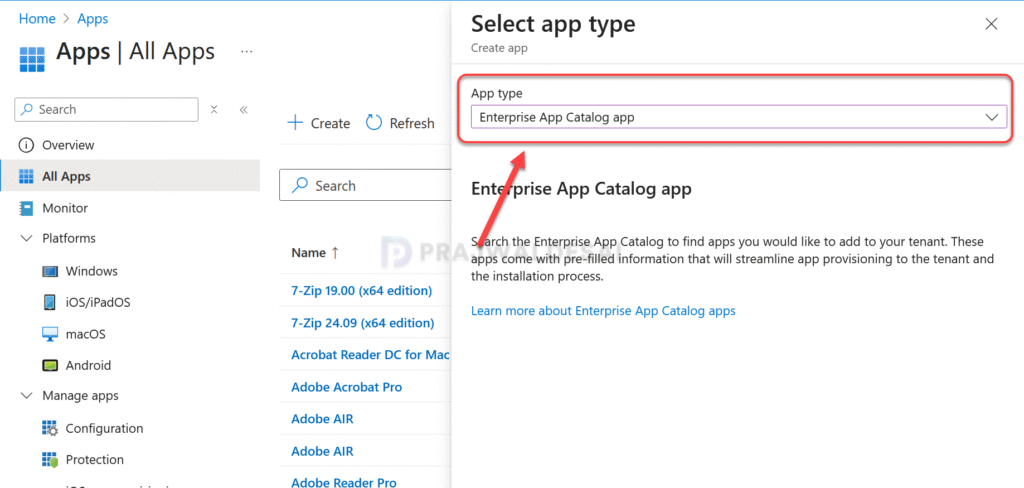
Simply input the name of the app you’d like to deploy, select it, and follow the deployment steps. Assign the app to your preferred groups, and you’re done! Deploying apps through the Enterprise app catalog is that straightforward.

Step 2: Check for Enterprise App Catalog App Updates
If your organization has deployed multiple apps through the Enterprise App Catalog, here’s how you can identify which apps need updates. In the Intune admin center, go to Apps > Monitor. Select Enterprise App Catalog apps with updates.

This “Enterprise App Catalog apps with updates” report includes a list of the apps offered through Enterprise App Management (EAM) with updates. The report shows apps that have newer available versions but have not been superseded.
In the below image, we see there are four Enterprise Catalog apps that need updates. The screen lists the app names along with their publisher details. Let’s explore the significance of the “Provisioned Version” and “Latest Available Version” columns.
- Provisioned version: Displays the version of app that you selected from the Enterprise app catalog.
- Latest available version: Displays the latest version of app that is available through the Enterprise app catalog.

Step 3: Update Enterprise App Catalog Apps
In this step, I’ll demonstrate how to update apps in the Enterprise App Catalog within Intune. I’ll use the Adobe Air app as an example and utilize the supersedence feature to replace it with the latest version.
In the Intune admin center, go to Apps > Monitor > Enterprise App Catalog apps with updates. Select the app and on the App Overview page, click Update.
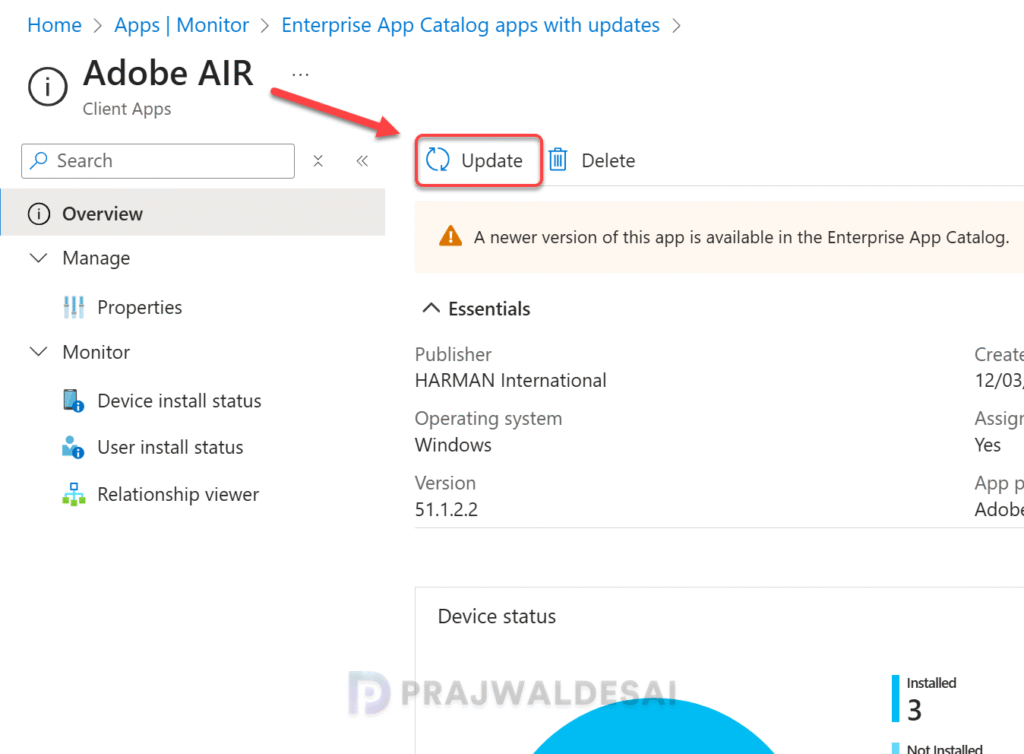
On the Update application blade, a message is displayed on the screen that “You’re updating Adobe AIR with a newer version.”
Intune will supersede this app with the latest version. Superseding creates a new app with the latest app package and sets up the supersedence relationship. Intune uses information from the Enterprise App Catalog to define properties and settings. Some settings, such as scope tags and assignments, will not be copied to the new app.
To confirm the app update, click Supersede app.

The App information tab shows the app details that are pre-configured by Microsoft. The App Version details indicate that it’s the latest version. To supersede the old app with the latest app version, click Next.
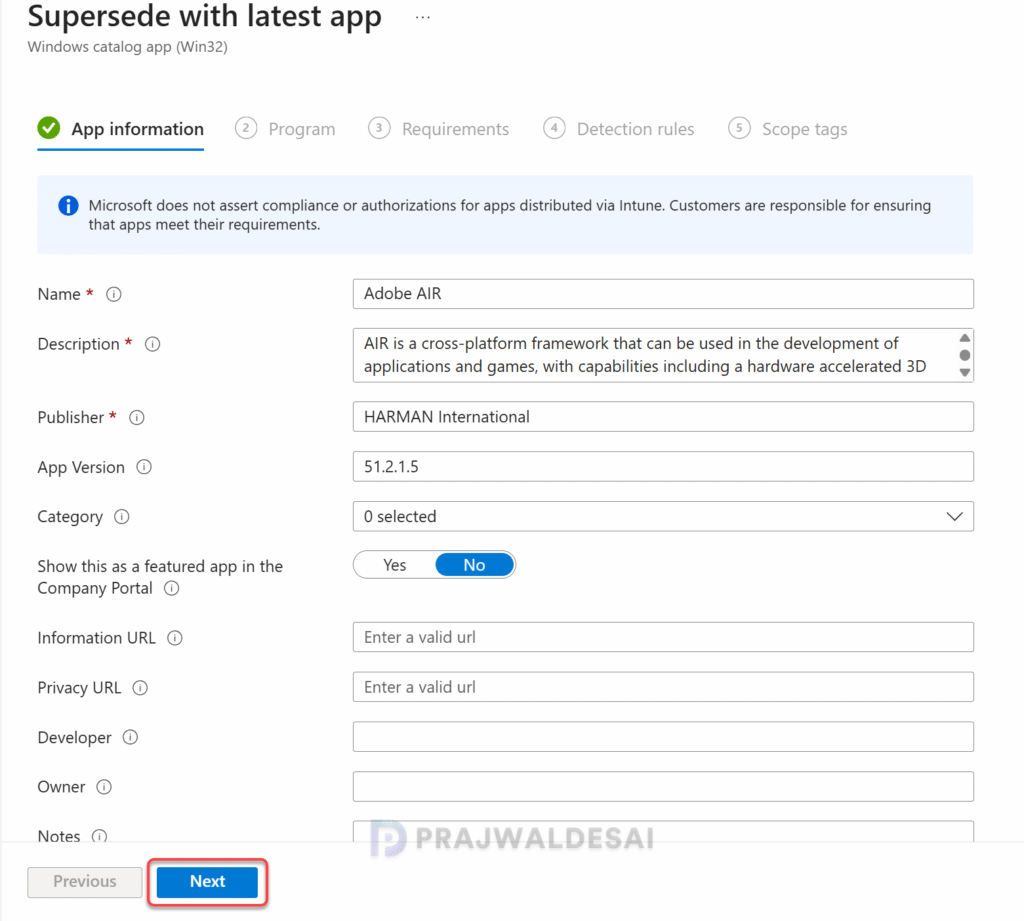
Under the Program tab, the app installation and uninstallation commands are pre-configured. No changes are required here. Simply click Next to proceed.

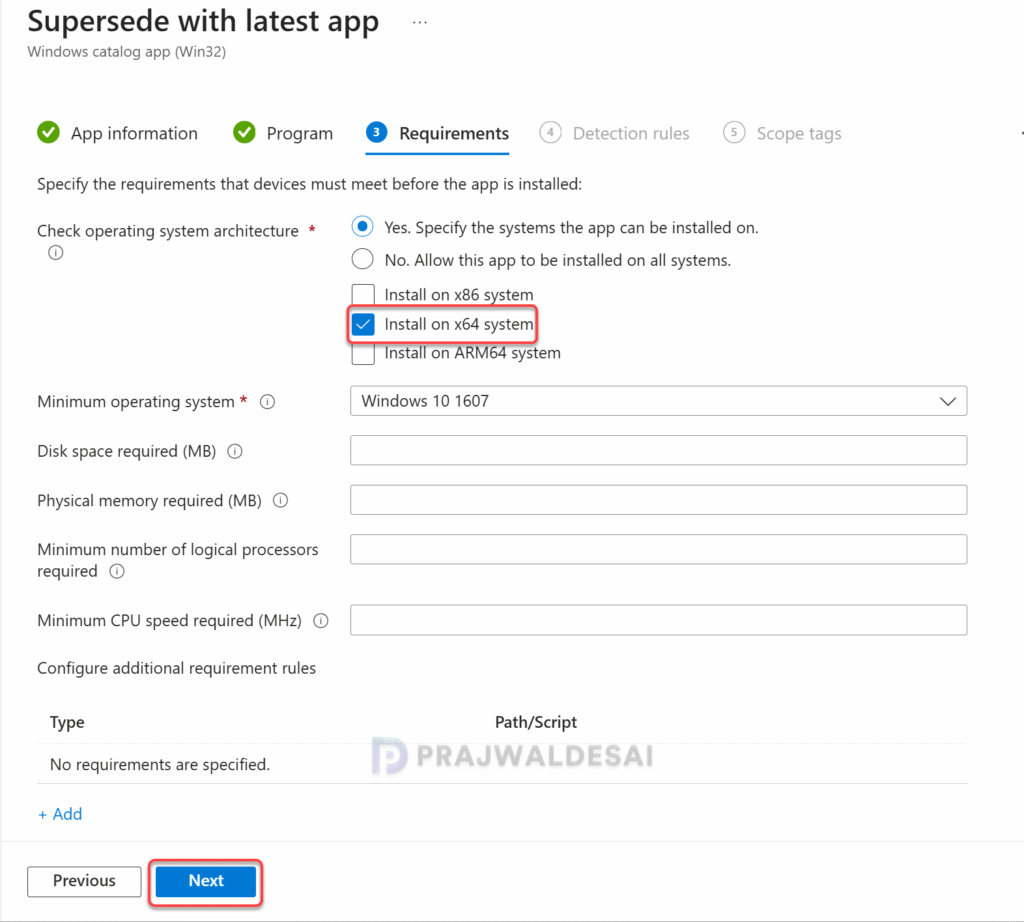
In the Requirements tab, the OS architecture, minimum operations system requirements are displayed. Again, you don’t need to make any changes here, click Next.
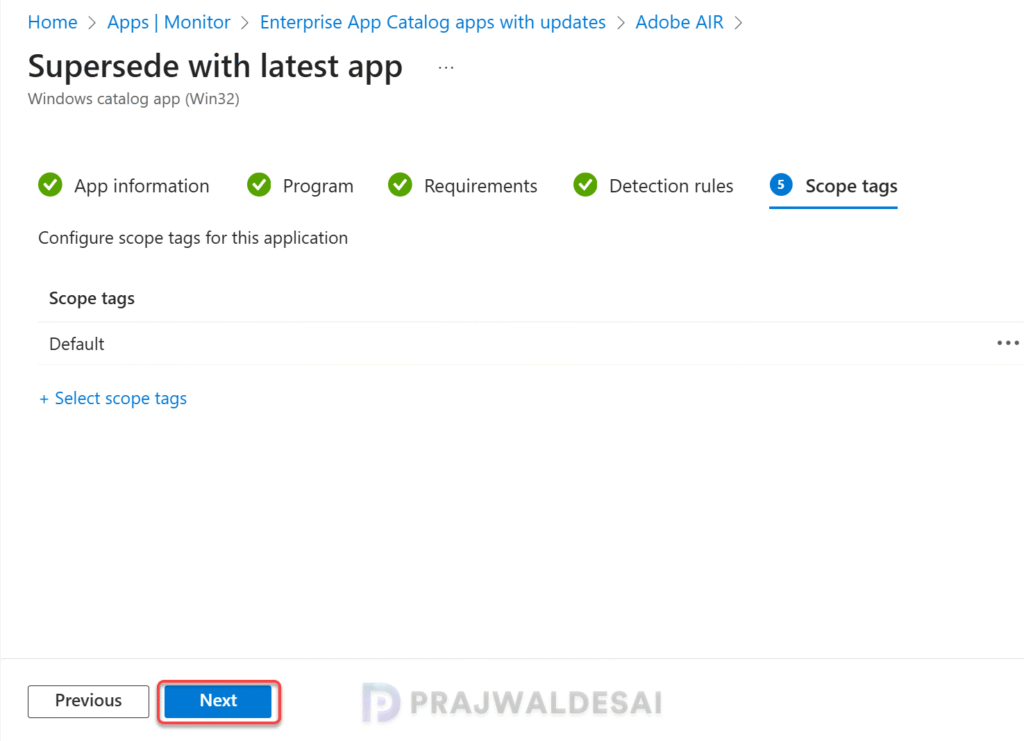
Choose Select scope tags to optionally add scope tags for the app. Learn how to create and use scope tags in Intune. Click Next.
In the Supersedence tab, you can specify whether the app should be updated or replaced. Let’s understand more about these options.
- App Replacement: If you select Uninstall previous version to Yes, the older app version will be uninstalled and the new app version will be installed.
- App Update: If you select Uninstall previous version to No, the older app version will be upgraded to the newer version. The installer of the newer version of the app (the superseding app) automatically updates the older version of the app to the newer version. Useful in scenarios where the IT admin wants to update an app with a newer version of the same app.
In the below example, I have set the uninstall previous version of the app to Yes. This means the old version of app will be replaced with a newer version. Click Next.

For Assignments, select the Entra ID groups to which you have targeted this application earlier. If you’re testing the app supersedence for the first time, I recommend creating a pilot device group consisting of users/devices and testing the installation. Once you find the supersedence working successfully, you can then expand them to a larger group. Click Next.

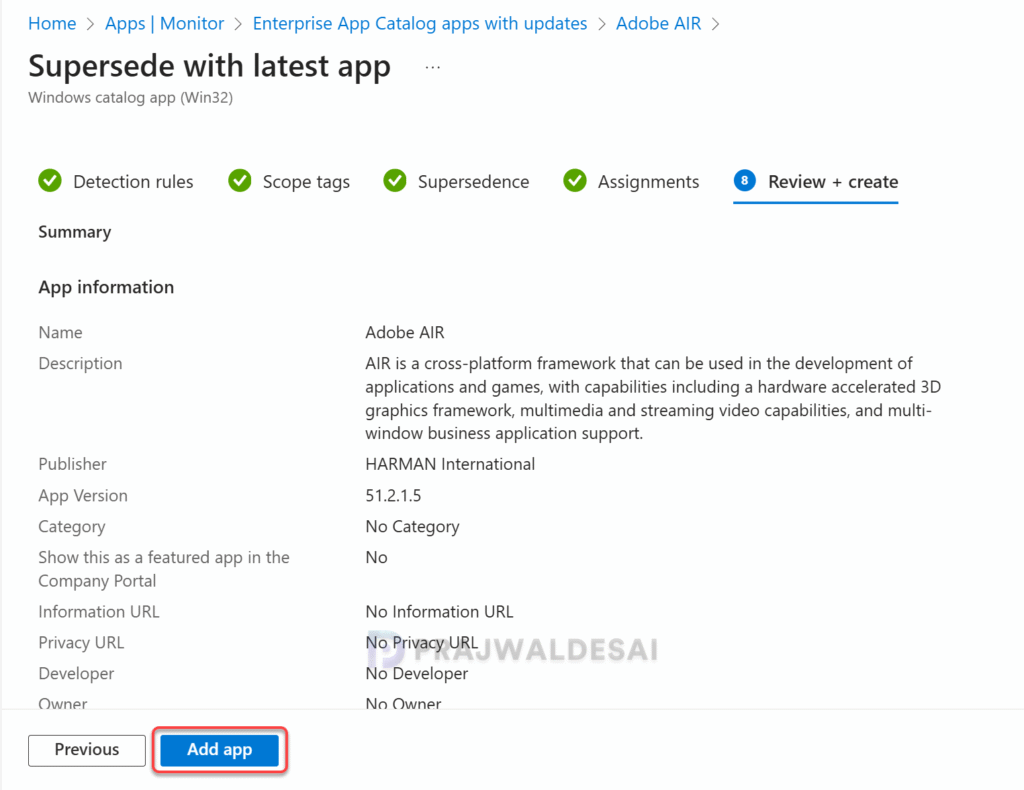
In the Review + Create tab, review all the settings you’ve configured to supersede Enterprise App Catalog app with the latest version. Click Add app.
This concludes the process of replacing the existing enterprise catalog apps with the latest version in Intune.
Step 4: Confirm App Supersedence
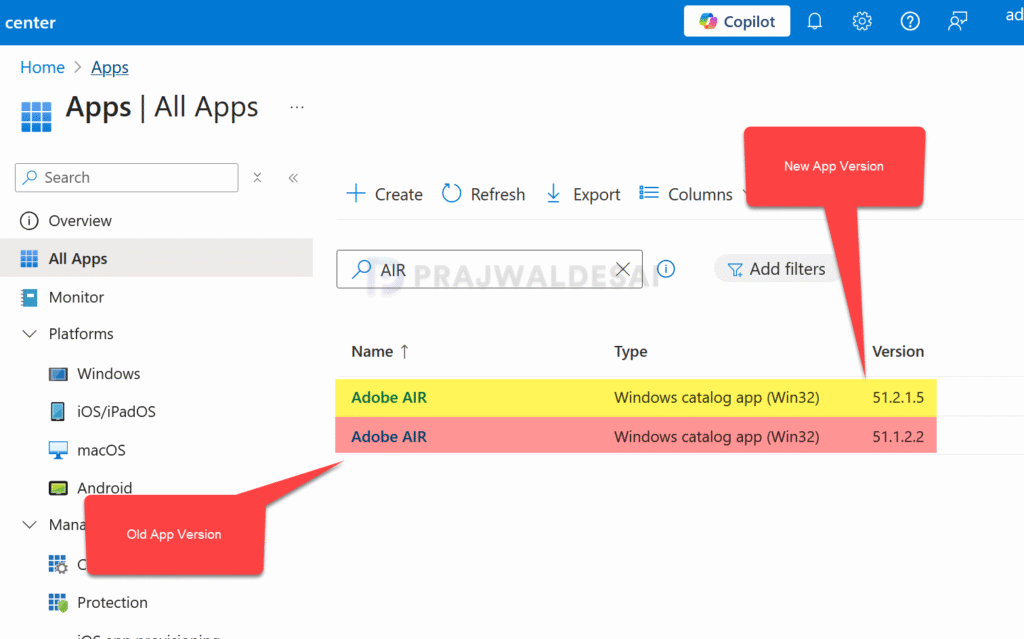
Once you’ve performed the above steps, Intune will create a new version for app which is the latest one. This can be confirmed by going to Apps > All Apps. The screenshot below shows two versions of the Adobe AIR app: the latest version and the deployed version, which is an older release.
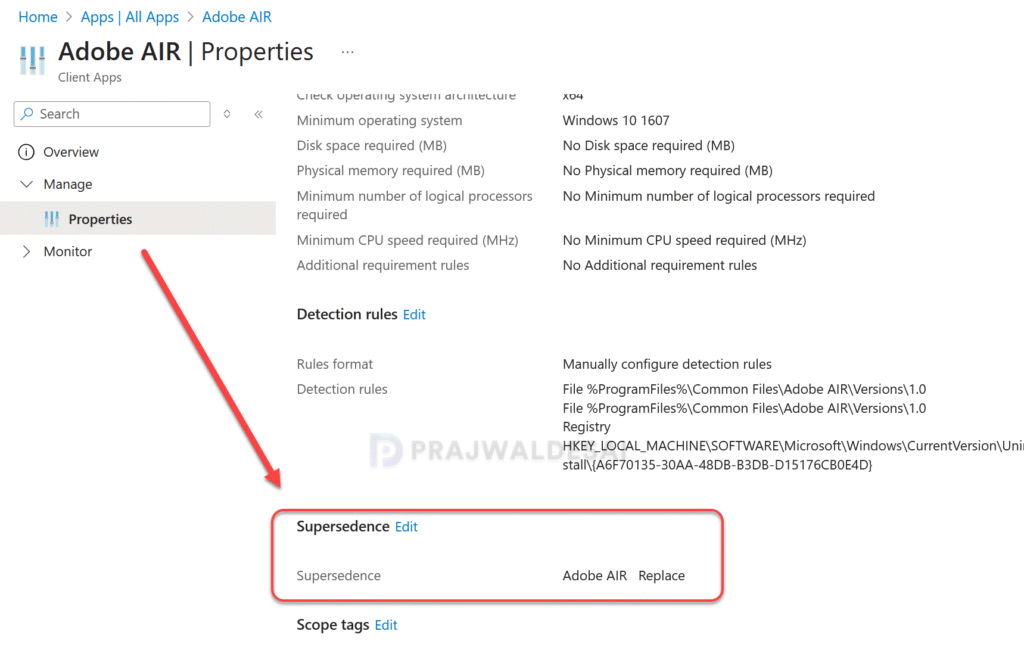
You can check the app supersedence behavior (in-place app update or supersedence app update) by going to the new app deployment and choosing Properties. Check the below image for better understanding.
Step 5: Sync Intune Policies
To speed up the policy assignments and app supersedence deployments, you can sync Intune policies using different methods on your windows computers. This should be done only when you need to test something and not every time.
Step 6: End-User Experience
When the targeted devices connect to Intune to retrieve the latest policies and deployments, the app supersedence configuration is applied. This ensures the older app package is automatically removed and replaced smoothly with the updated version.
The end users shouldn’t notice any issues because the app is either replaced with the latest version silently or simply updated to the latest version.
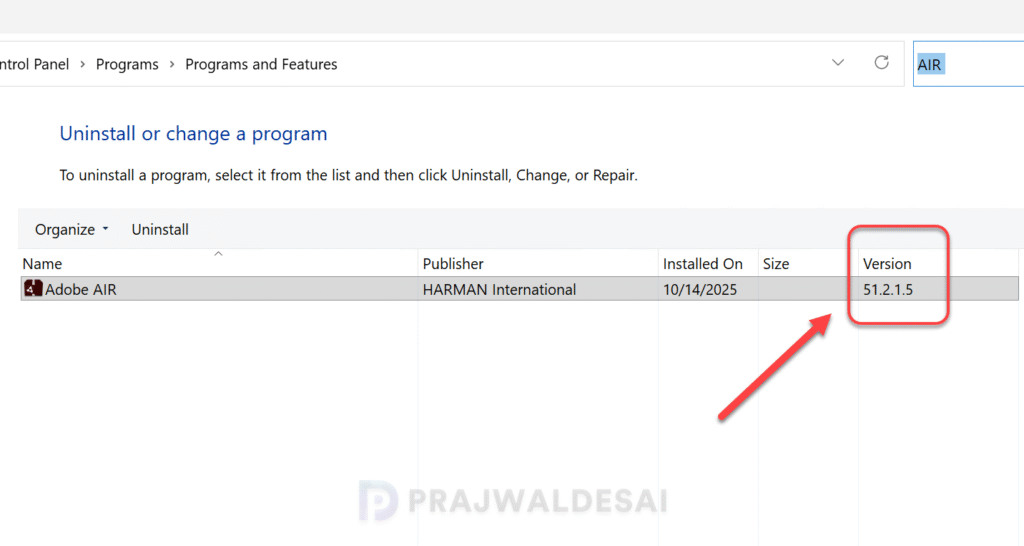
To see if the app is superseded with the latest version, sign in to Windows device. Go to Control Panel > Programs > Programs and Features. From the list of programs, look for the app (Adobe AIR in this case) and you’ll notice that it’s running the latest version now.
Troubleshooting
- In some cases, the app supersedence may fail to apply, thereby leaving the old version of app still running on the device. To troubleshoot these issues, review the essential Intune IME logs. You can also collect Intune logs from Windows devices for troubleshooting.
- Open the Event Viewer and look for event logs in the following path: Applications and Service Logs > Microsoft > Windows > AppxDeployment-Server > Microsoft-Windows-AppxDeploymentSever/Operational.
- If you encounter policy assignment failure on a remote device, generate an MDM diagnostic report for IT support. This can be done from Settings > Accounts > Access work or School > Info. Click on the Create Report button.
Conclusion
This concludes the guide on updating outdated Enterprise App Catalog apps to a newer version using Intune. Intune not only helps identify apps requiring updates but also streamlines the process of superseding them, ensuring you’re always running the latest app versions.

It is frustrating that Enterprise apps cannot supercede older Win32 apps, it will take some customization to ensure we do not have 2 versions side by side.