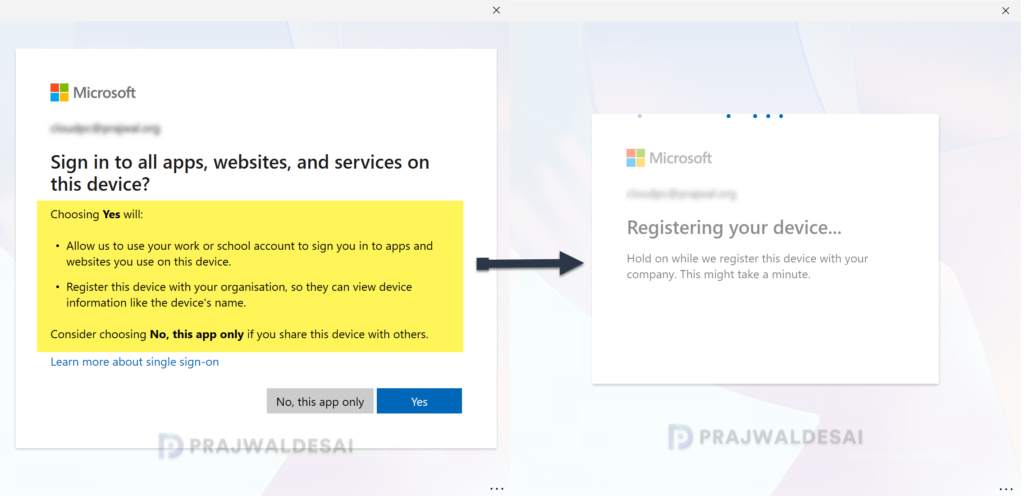
A new option in the Intune admin center now lets you disable MDM enrollment when adding work or school account on Windows. This setting controls if users who are in scope for MDM auto-enrollment will be prompted to MDM enroll their device when adding their work or school account on Windows.
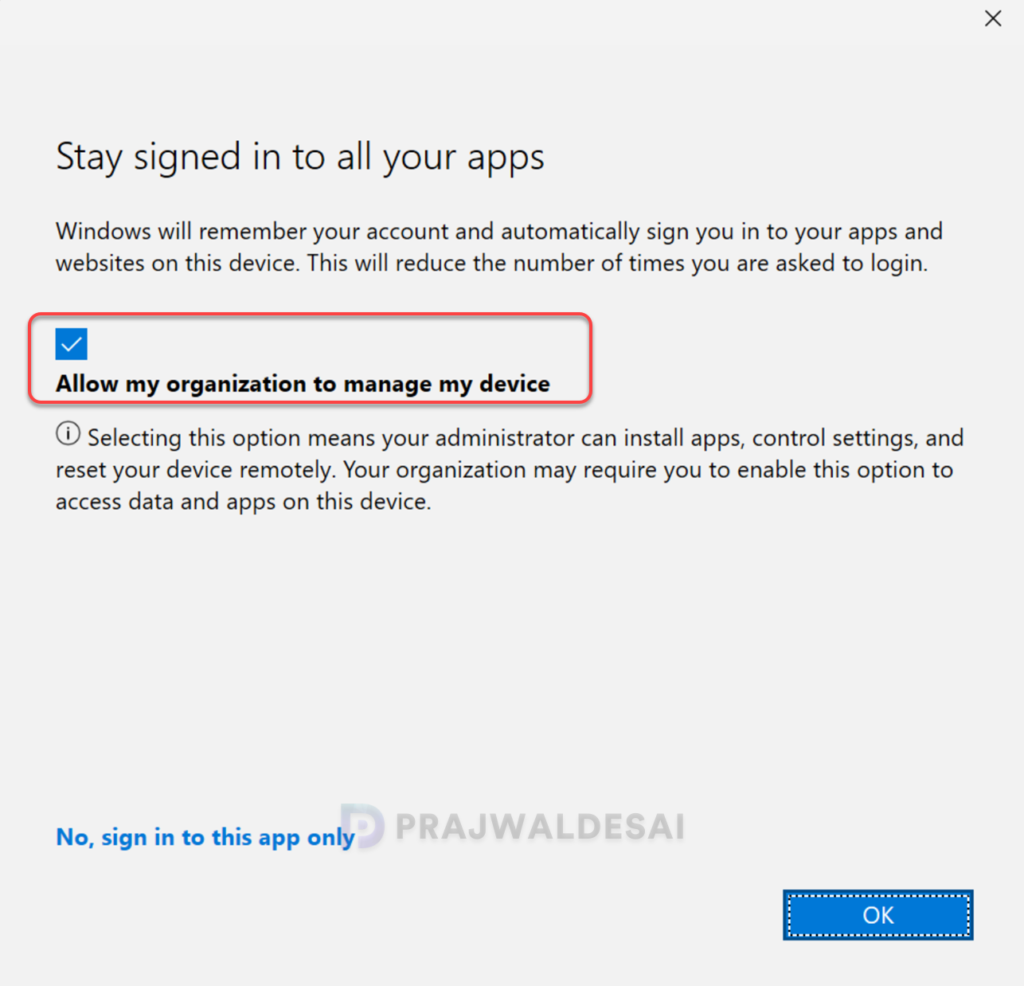
In many BYOD environments, users just want to access Outlook, Teams, or Office on a personal Windows PC and do not look for full device management. During the sign-in users are prompted with “Allow my organization to manage my device” checkbox which is easy to accept, and when automatic MDM enrollment is enabled, that single click can unexpectedly enroll a personal device into Microsoft Intune.
For many years, the administrators didn’t have much control over the MDM enrollment during work or school account registration. Thanks to Microsoft, you can now prevent those MDM enrollment prompts when users add a work or school account during the browser or native app registration flow and keep your personal devices protected. This applies only to Entra Registering/Work-Place Joining the Windows devices.
Prerequisites
To disable the MDM enrollment setting in Intune, the following are the requirements.
- Licensing requirements: A Microsoft Intune subscription. Microsoft Entra ID P1 or P2 or the Premium trial subscription.
- Role requirements: Built-in Intune Administrator Microsoft Entra role.
Limitations
It is important to note that when you disable MDM enrollment prompt for users who add a work/school account on Windows through common Microsoft app sign-in experiences (e.g., Edge, Office apps), this control doesn’t block enrollment when users add accounts via:
- Windows Settings: If a user manually enrolls their device via Settings > Accounts > Access work or school > Connect, the setting does not block the enrollment.
- Intune Company Portal: Users can enroll their devices via a company portal app. See how to enroll Windows 11 devices in Intune.
- Existing Enrollments: This new change doesn’t affect existing devices enrolled in Intune. Only new devices will see this new registration flow. Device enrollment methods such as Windows Autopilot remain unaffected with this change.
So, it’s best viewed as: “Stop accidental enrollment during casual sign-in”, not disable Intune enrollment everywhere. On the contrary, you may consider blocking personal Windows devices using enrollment restrictions in Microsoft Intune.
Disable MDM enrollment when adding work or school account
Here’s how to disable MDM enrollment when adding a work or school account in Intune:
- Sign in to the Microsoft Intune admin center.
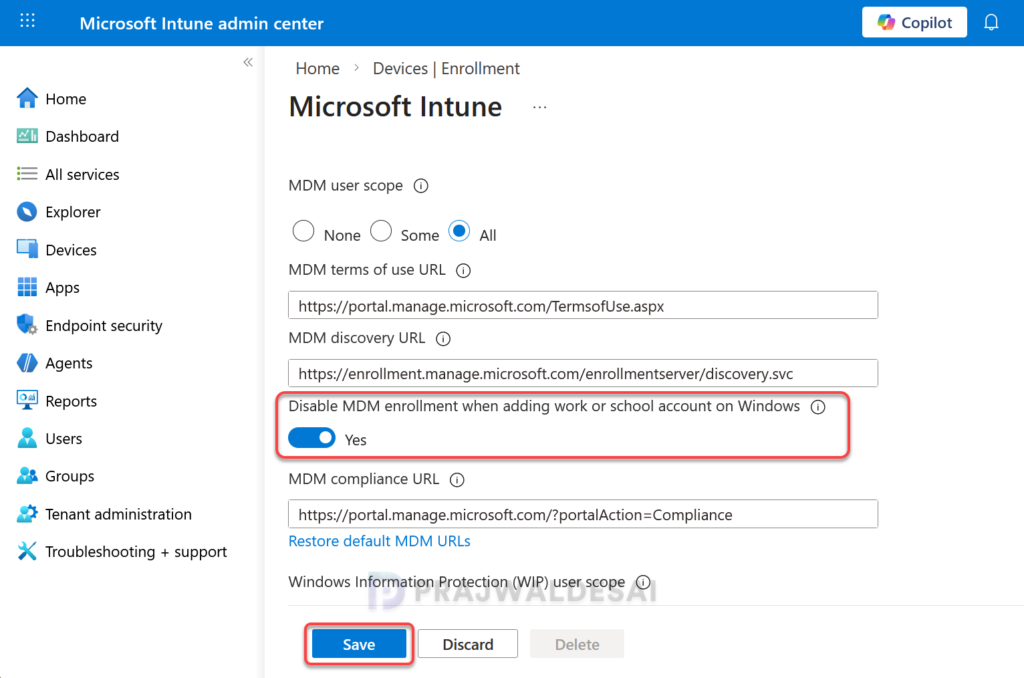
- Go to Devices > Device onboarding > Enrollment > Windows > Automatic Enrollment.
- Turn on Disable MDM enrollment when adding work or school account on Windows and select Save.
End User Experience: Disabled MDM enrollment
Once the configuration is applied, it becomes simple to utilize, as it seamlessly integrates with the new app-initiated enrollment process. Once MDM enrollment is disabled, users adding their work or school accounts via apps like Microsoft Edge, Teams, or Office will no longer be prompted for MDM enrollment. Instead, they will only go through the Microsoft Entra registration process. The device will be registered for identity purposes but will not be enrolled in Intune for management.