In this post, I will demonstrate how you can retrieve all queries in SCCM using SQL query. The query basically lists all the queries created in Configuration Manager along with the query name, ID, and description.
In Microsoft Configuration Manager (SCCM), queries in the Monitoring workspace are used to retrieve information about the environment, create dynamic collections, and generate reports for system health, deployments, and inventory.
At my previous organization, I managed a big team of engineers who created multiple queries in Configuration Manager for work purposes. Some queries were imported, while others were created manually. Over the time, there were plenty of queries and some of them were actually redundant.
Retrieve All Queries in SCCM using SQL Query
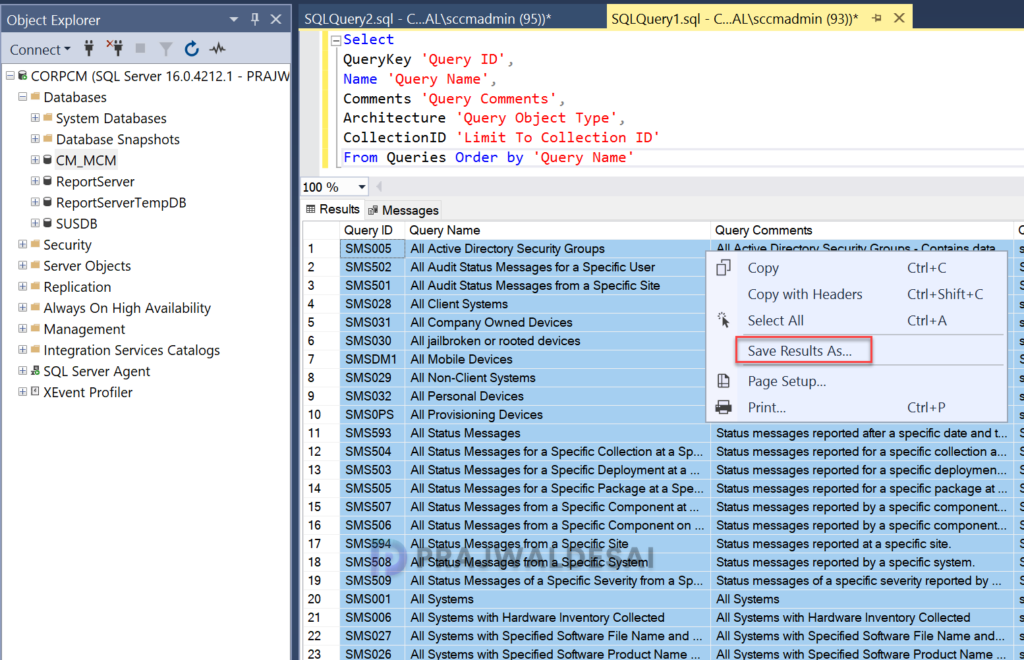
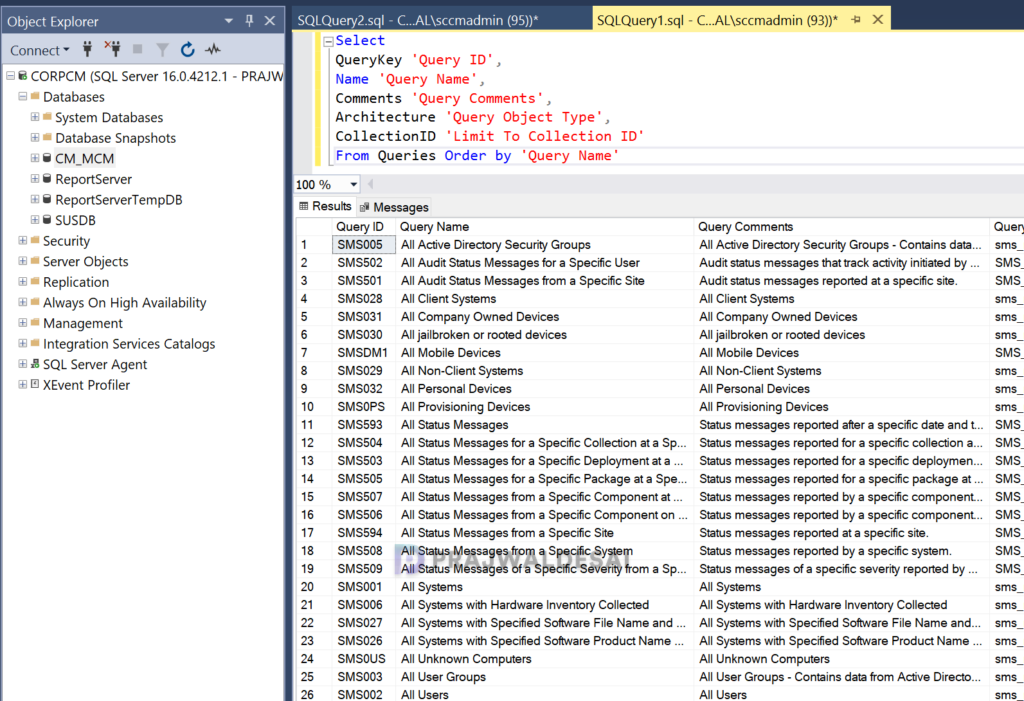
If you find yourself needing to review and export multiple queries from your ConfigMgr setup for auditing purposes, here’s how you can accomplish that efficiently using a SQL query. Launch the SQL Server Management studio (SSMS) and connect to the database engine. Expand Databases and right-click SCCM database and select New Query. In the query window, paste and execute the below query.
Select
QueryKey 'Query ID',
Name 'Query Name',
Comments 'Query Comments',
Architecture 'Query Object Type',
CollectionID 'Limit To Collection ID'
From Queries Order by 'Query Name'The above query returns all the queries that are present in Configuration Manager and the output includes the columns such as Query ID, Name, Comments, Object Type, etc. You may sort the data using Query ID or Query Name.
Exporting All SCCM Queries
To export the data of all queries in SCCM to Excel or CSV File, press Ctrl + A and right-click on the data and select save results as. Choose a.csv or .txt file to save the details.