

In this tutorial, I’ll demonstrate how to import and export passwords in Microsoft Edge browser. Modern browsers such as Chrome, Firefox, Brave, Vivaldi, etc. typically offer the ability to export and import saved passwords, simplifying the process of switching to a new browser without the hassle of manually retrieving and re-entering passwords.
According to Microsoft, syncing information across browsers isn’t always the ideal solution, particularly when setting up a password manager or switching to a different browser. In such cases, manually backing up your passwords and exporting them to a secure physical location can be a more reliable approach.
Before you begin
- Passwords are exported in plain text (CSV): Anyone with the file can read all your passwords instantly.
- Never email or share the exported file.
- Never store it on cloud storage (Google Drive, OneDrive, Dropbox) unencrypted.
- Delete the file immediately after import/export is done.
No matter if you’re using the Edge browser on Mac or Windows, importing or exporting passwords is a straightforward process. Let’s walk through the steps together.
Export Passwords from Microsoft Edge to a CSV File
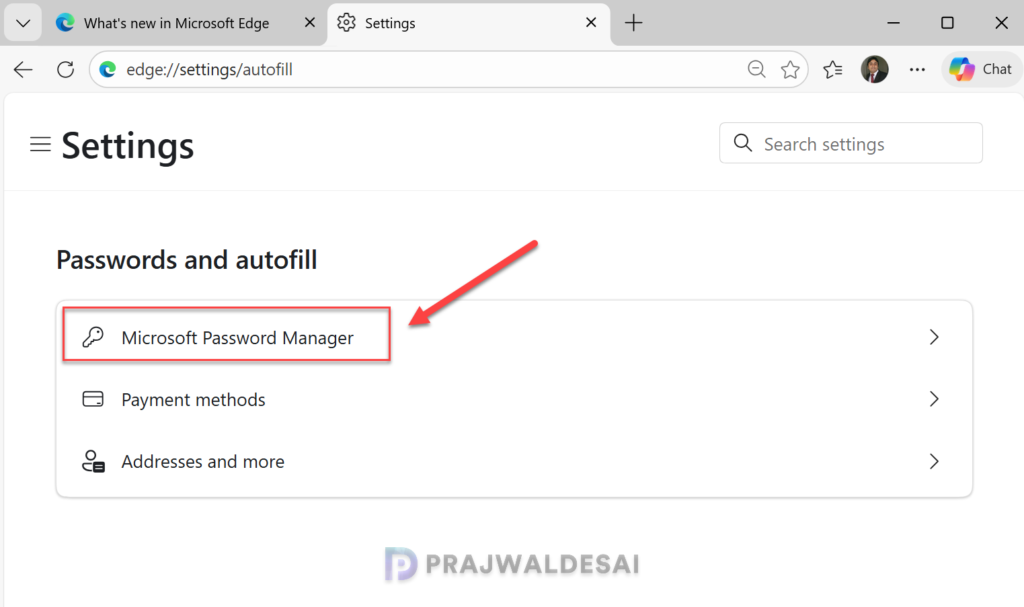
To export passwords from Microsoft Edge, click the three dots in the top-right corner and select Settings. In the left menu, select Passwords and autofill and then select Microsoft Password Manager.
Next to Passwords, click on three horizontal dots and select Export passwords.

On the Export passwords box, select Export.
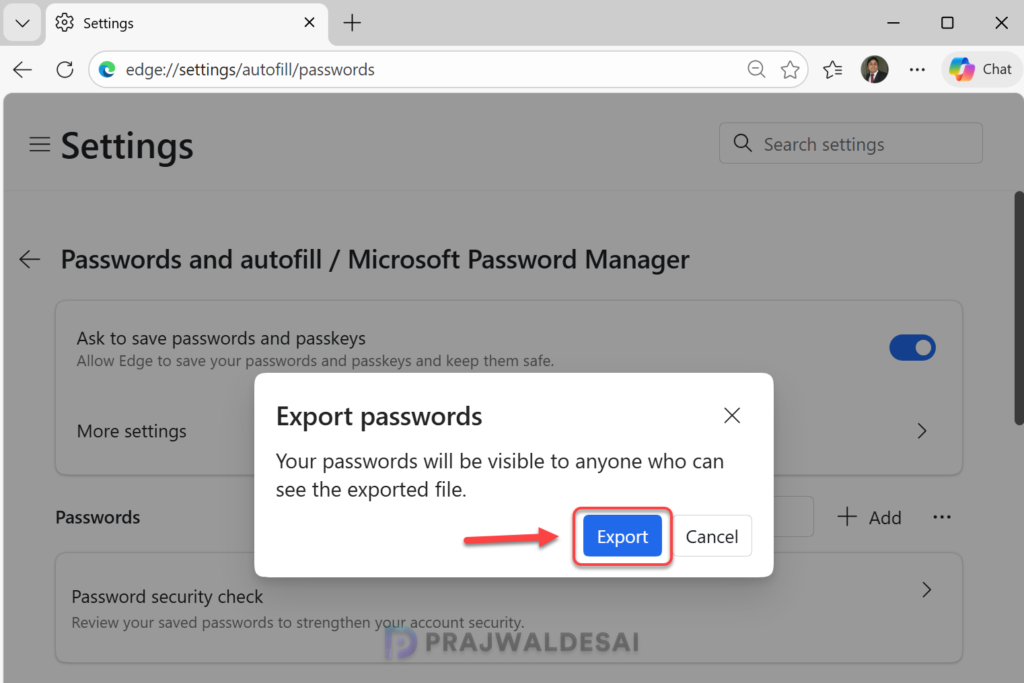
This generates a Microsoft Edge Passwords.csv file containing your credentials in plain text. Verify your identity with your computer PIN/password and choose a location to save the .csv file, and click Save.
Exported passwords in a CSV file can be viewed using Microsoft Excel or any other compatible application. One should quickly import these passwords into a different browser and delete it.
When you export, your passwords are saved to a CSV file with readable text. The exported CSV file is not encrypted and displays all usernames and passwords in plain text. It is highly recommended to immediately delete this file (using Shift+Delete) after importing it to another service to prevent unauthorized access.

Import Passwords in Edge from a CSV File
You can import the passwords in Microsoft Edge from an exported CSV file with the following steps. Open the Edge browser and click the three dots in the top-right corner and select Settings. In the left menu, select Passwords and autofill and then select Microsoft Password Manager. Next to Passwords, click on three horizontal dots and select Import passwords.

In the Import passwords menu, click the drop-down and select Passwords CSV file. Click the Choose CSV file button and select the CSV file containing the passwords that you imported from another browser.

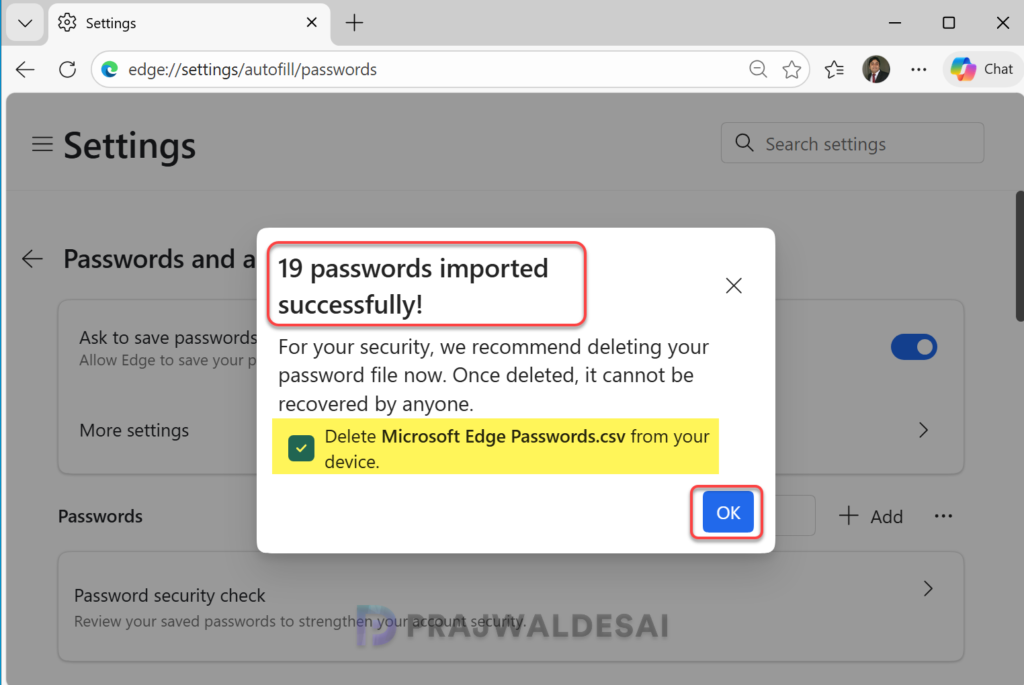
When the import is complete, you’ll see a notification showing the total count of passwords imported successfully. These imported passwords are added to your saved passwords in Microsoft Edge.
Most importantly, checkbox the option “Delete Microsoft Edge Passwords.csv from your device” and click OK. This will permanently delete the file so others who use this device can’t see your passwords.
Use a Password Manager Instead
Rather than relying on browser-based storage for passwords, consider migrating to a dedicated password manager such as:
- 🔒 Bitwarden (open-source, free)
- 🔒 1Password
- 🔒 Dashlane
- 🔒 KeePassXC (fully offline)
These offer encrypted vaults, breach alerts, and cross-device sync securely.
