


This comprehensive guide will walk you through configuring App Control for Business in Intune. You’ll learn how to set up a Managed Installer Policy in Intune and deploy an App Control for Business policy to effectively manage approved applications on Windows devices.
Every day, new malicious files and apps appear on the web. When you have an organization consisting of a large fleet of devices, these malicious apps (malware) present a risk, which can be hard to manage or prevent. To help prevent undesired apps from running on your managed Windows devices, you can use Microsoft Intune App Control for Business (ACfB) policies.
In my previous guide, I showed you how to implement AppLocker for Intune. Well, Microsoft has introduced App Control for Business, which is a more advanced and comprehensive solution designed for modern enterprises. Starting in Intune release 2508 (August 2025 Update), App Control for Business is now generally available with new targeting capabilities that make Managed Installers enterprise ready.
What is App Control for Business?
App Control for Business is a security feature in Microsoft Intune that helps organizations control which applications and drivers are allowed to run on managed Windows devices. It works by maintaining an explicit “allow list” of approved applications based on digital signatures, file hashes, application reputation, or managed installers.
When you configure App Control for Business policy in Intune, it guarantees that only authorized applications are permitted, effectively blocking any software that fails to comply with your company’s policies. These measures are integrated into Intune’s endpoint security and leverage the Windows ApplicationControl CSP to implement restrictions.
AppLocker vs. App Control for Business
AppLocker is a feature in Windows that allows administrators to control which applications and executable files users can run. It is primarily used for application whitelisting and restricting access to unauthorized software. Whereas App Control for Business (ACfB) is a more advanced and comprehensive solution designed for modern enterprises and provides dynamic application control and threat prevention capabilities.
To summarize, both tools are designed to help manage and secure applications within an organization, but they differ in scope, functionality, and use cases. Here’s a comparison of the two:
| Feature | AppLocker | App Control for Business |
|---|---|---|
| Scope | Basic application control | Advanced application control and threat prevention |
| Supported OS Version and Edition | Windows 10/11 | Windows 10/11 Pro, Enterprise, Education, and Pro Education/SE. |
| Deployment | On-premises | Cloud-native |
| Policy Deployment Support | Group Policy | Intune, SCCM, PowerShell. |
| Threat Intelligence | None | Integrated, real-time |
| Cost | Included with Windows | Subscription-based |
| Ease of Use | Simpler to deploy | Bit complex and requires expertise |
| Use Case | SMBs with basic needs | Organizations requiring advanced security and threat prevention capabilities. |
| Managed via Group Policy | Better integration with Group Policy | No support for GPO |
| Integration with Intune | Not Supported | Supported |
| Windows ApplicationControl CSP | Not Supported | Fully Supported |
Plan for App Control for Business
The initial step in implementing App Control involves planning how your policies will be managed and maintained over time. Establishing a clear process for overseeing App Control for Business policies is essential to ensure applications are consistently and effectively regulated within your organization.
- Decide what policies to create: Begin by deciding what policies to create. This is also known as circle-of-trust. Get an idea of apps that are used in your organization.
- Deploy the Policy in Audit Mode: Before you roll out the App control for business policy in Intune, build an audit mode version of the policy XML. Note that in audit mode, block events are generated but files aren’t prevented from executing.
- Monitor Events: In this step, you monitor audit block events from the intended devices and add/edit/delete rules as needed to address unexpected/unwanted blocks.
- Unexpected Events: If you encounter problems with policy, go back and refine the policy. If there are no unexpected events, head to the next step.
- Deploy the enforced mode policy: First, generate the enforced mode version of the policy and then deploy it to intended devices. Microsoft recommends using staged rollouts for enforced policies to detect and respond to issues before deploying the policy broadly.
The below App control for business workflow diagram helps how your policies will be managed and maintained over time. To effectively manage App Control for Business policies, you should store and maintain your policy XML documents in a central repository that is accessible to everyone responsible for App Control policy management.

Base Policies vs. Supplemental Policies
In App Control for Business, there are two types of policies that work together to enforce application control: Base Policies and Supplemental Policies. These policies allow organizations to customize how application control is applied across their environments. The table below highlights the differences between Base Policies and Supplemental Policies.
| Feature | Base Policy | Supplemental Policy |
|---|---|---|
| Purpose | Used to define Core rules for application control | Used to extend or refine rules of Base Policy |
| Number Allowed | One per system | Multiple per system |
| Policy Behavior | Global enforcement | Adds to Base Policy rules |
| Rule Type | Allow or block | Allow only |
| Modification | Requires careful management | Easier to modify and deploy |
| Use Case | Organization-wide rules | Department or user-specific exceptions |
Prerequisites for Intune App Control for Business
Organizations looking to configure App Control for Business in Intune must ensure the following prerequisites are met.
- Licensing Requirements: Microsoft 365 E3/E5, Microsoft 365 E5 Security, Microsoft Defender for Endpoint and Intune standalone subscription.
- Supported Operating Systems: Windows 10 (Enterprise, Pro, and Education editions). Windows 11 (Enterprise, Pro, and Education editions).
- Device Enrollment: Devices must be enrolled in Microsoft Intune to apply App Control policies. Windows Autopilot for Windows devices.
- Network Connectivity: Internet access with whitelisted URLs: *.microsoft.com, *.manage.microsoft.com, *.windows.net.
- Co-Managed devices: To support Application Control for Business Policies on co-managed devices, set the slider for Endpoint Protection slider from SCCM to Intune.
- Role based access controls:
- To enable use of a managed installer, the accounts must be assigned the role of Intune Administrator.
- To manage App Control for Business policy, the accounts must have the App Control for Business permission, which includes rights for Delete, Read, Assign, Create, Update, and View Reports.
- To view or access the reports for App Control for Business policy, the accounts must have App Control for Business permission with View Reports and Organization permission with Read.
Steps to Configure App Control for Business in Intune
Configuring App Control for Business in Intune requires two key steps: establishing a managed installer policy and deploying App Control for Business policies to Windows devices. To simplify the process, I’ve broken it down into clear, actionable steps for easier implementation.
Step 1: Create Managed Installer Policy in Intune
Intune’s Endpoint Security App Control for Business enables you to configure policies that designate the Intune Management Extension as a managed installer on your Windows devices.
After you enable a managed installer on your devices, all subsequent applications (Win32 apps, scripts, MS store apps) you deploy to Windows devices through Intune are marked with the managed installer tag. This tag indicates that the app was installed from a trusted source and is reliable.
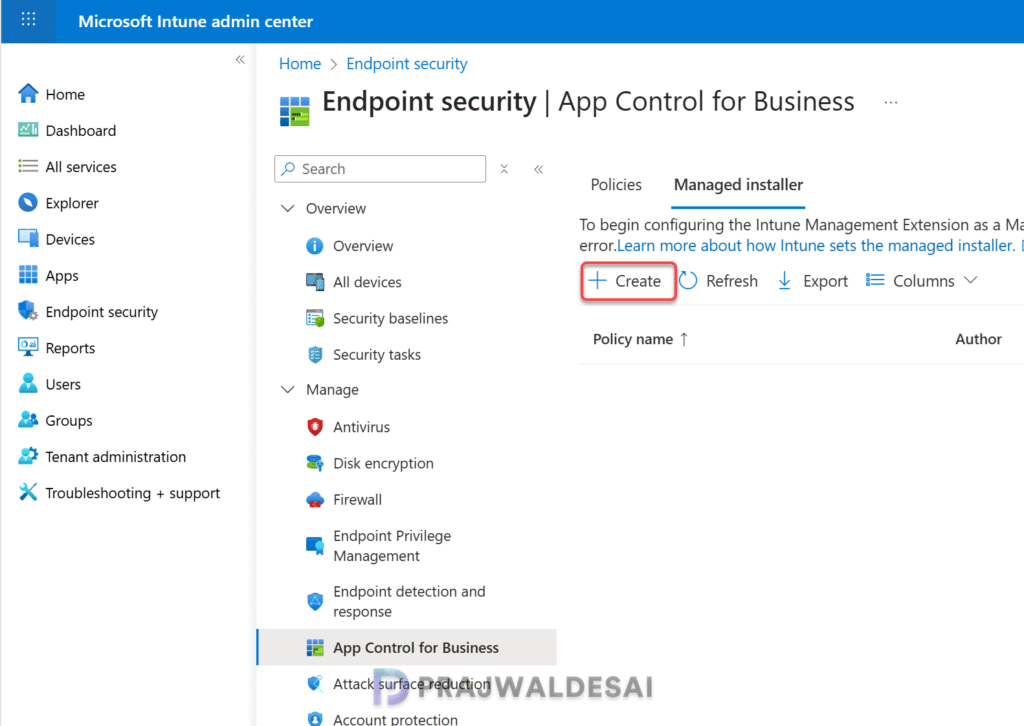
Let’s create a new managed installer policy in Intune. Sign in to the Microsoft Intune admin center. Go to Endpoint security > App Control for Business > select the Managed installer tab and then select Create.
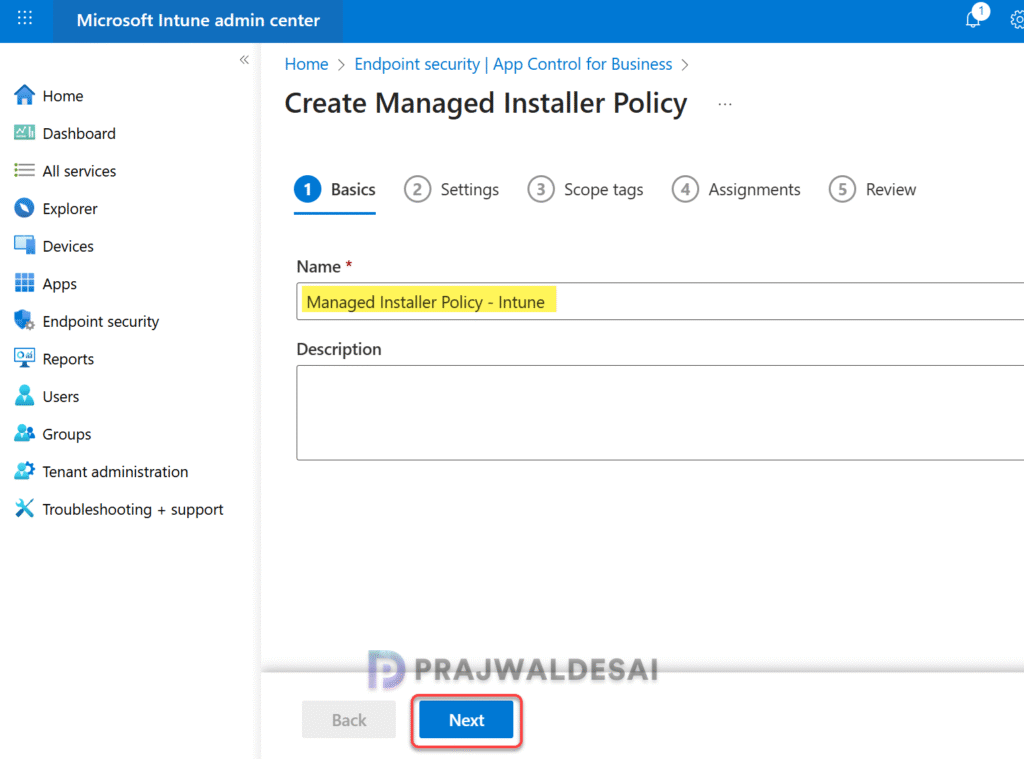
On the Basics page, enter the following properties:
- Name: Enter a descriptive name for the profile. For example, Managed Installer Policy – Intune.
- Description: Enter an optional description for the profile.
Click Next.
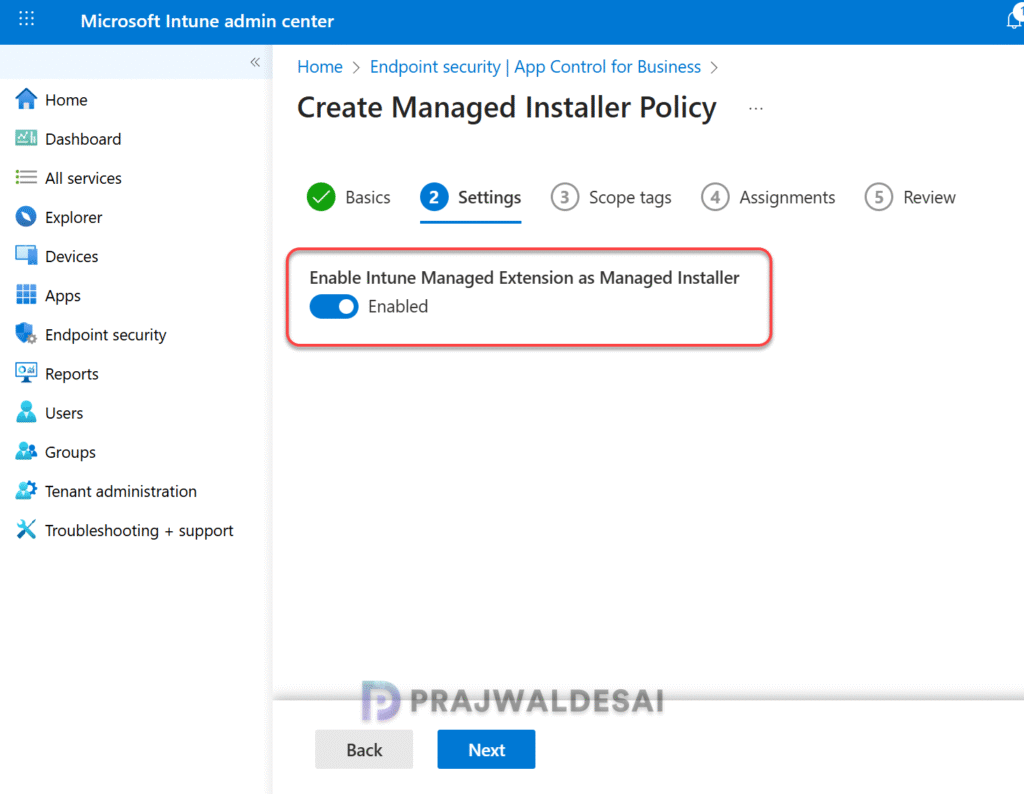
On the Settings page, set ‘Enable Intune Managed Extension as Managed Installer‘ to Enabled. When this setting is enabled, devices with this policy use the managed installer. When disabled, the device doesn’t actively use the managed installer.
Click Next.
On the Scope tags page, you may select any desired scope tags to apply. This is optional and you can skip to the next page. Learn how to create new scope tags in Intune. Click Next.

For Assignments, you can Include and Exclude Entra ID device groups from the policy. To continue, select Next.

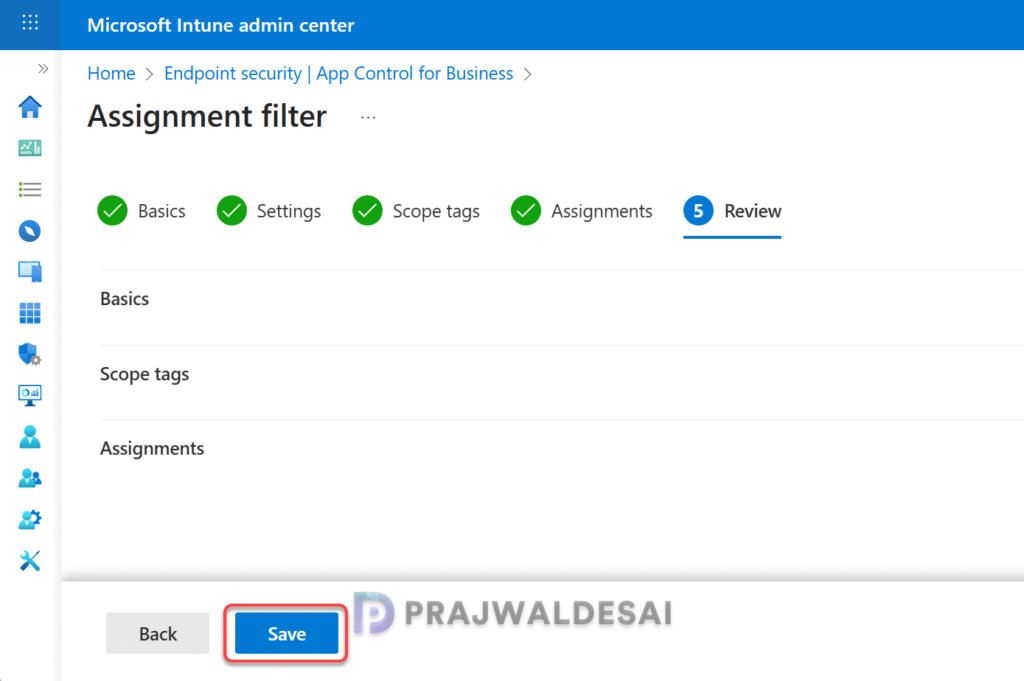
Review the managed installer policy settings on Review + create page and then click Save. The policy is now deployed to members of the assigned groups. That completes the procedure for adding a managed installer to your Intune tenant.
Sync Intune Policies
To apply the managed installer policy settings on targeted devices, you can manually sync Intune policies using various methods. The sync action prompts devices to instantly connect with Intune and apply the most up-to-date policies. This is typically performed to test an app or policy deployment and verify its functionality.
Monitor Managed Installer Policy Deployment
After you create a managed installer policy in Intune, you can monitor the policy assignments by going to Endpoint security > App Control for Business > Managed Installer tab. Select the ‘Managed Installer Policy‘ profile. This Overview page gives information about devices where the Managed installer is successfully set to the Intune Management Extension.
Note: Devices might see a wait of up to 30 minutes before the policy gets delivered. In my case, it took almost 20 minutes for devices to receive managed installer policy settings.

Step 2: Create App Control for Business Policy in Intune
The App Control for Business (ACfB) base policy lets you manage which apps on your managed Windows devices are allowed to run. Once you setup the base policy, you can then create supplemental policies to expand the scope of trust you define with this policy.
To create an App Control for Business policy, sign in to the Intune admin center. Go to Endpoint security > App Control for Business > Policies tab and select Create.

On the Basics page, enter the following properties:
- Name: Enter a descriptive name for the profile. For example, App Control Policy – Intune.
- Description: Enter an optional description for the profile.
Click Next.

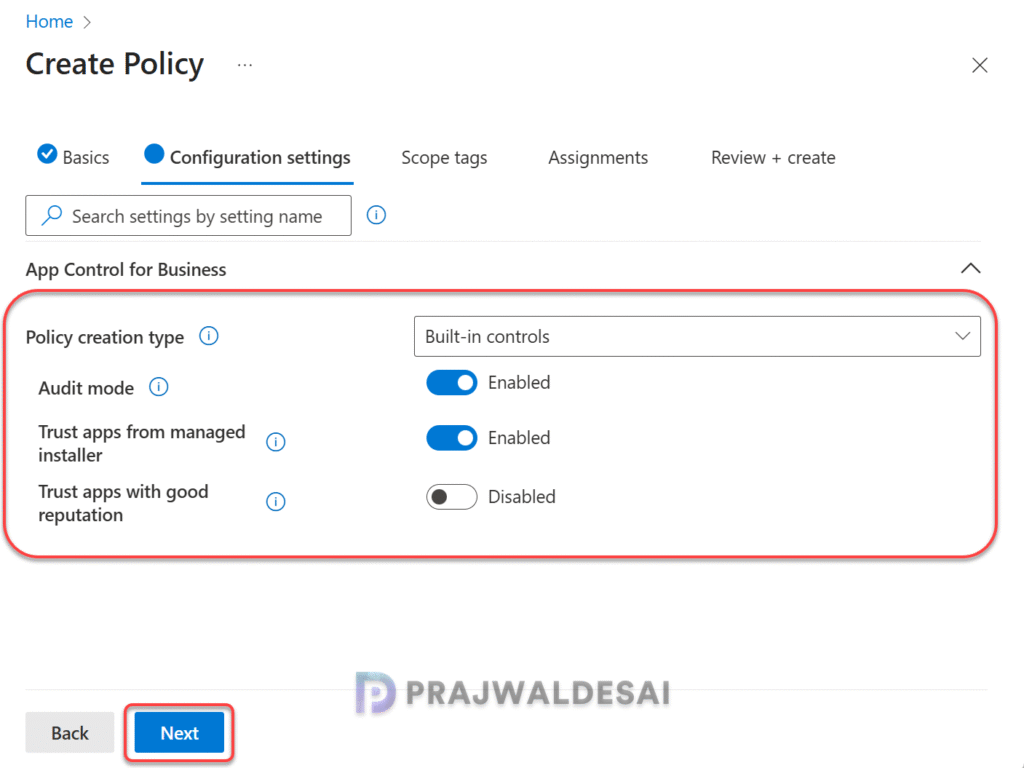
On Configuration settings, choose a Configuration settings format:
- Enter XML data – With this option you must provide custom XML properties to define your App Control for Business policy.
- Built-in controls: This option doesn’t require custom XML. Instead, configure the following settings.
- Audit Mode: Turning audit mode on will not enforce the policy. Microsoft recommends first running the policy with audit mode turned on prior to enforcement to determine the impact of the policy.
- Trust apps from managed installer: Turning Trust apps from managed installer on will not enforce the policy. Microsoft recommends first running the policy with Trust apps from managed installer turned on prior to enforcement to determine the impact of the policy.
- Trust apps with good reputation: When enabled, applications with known good reputation as defined by the Microsoft’s Intelligent Security Graph (ISG) are whitelisted.
- Not Configured: Equivalent of not configuring this policy.
Click Next.
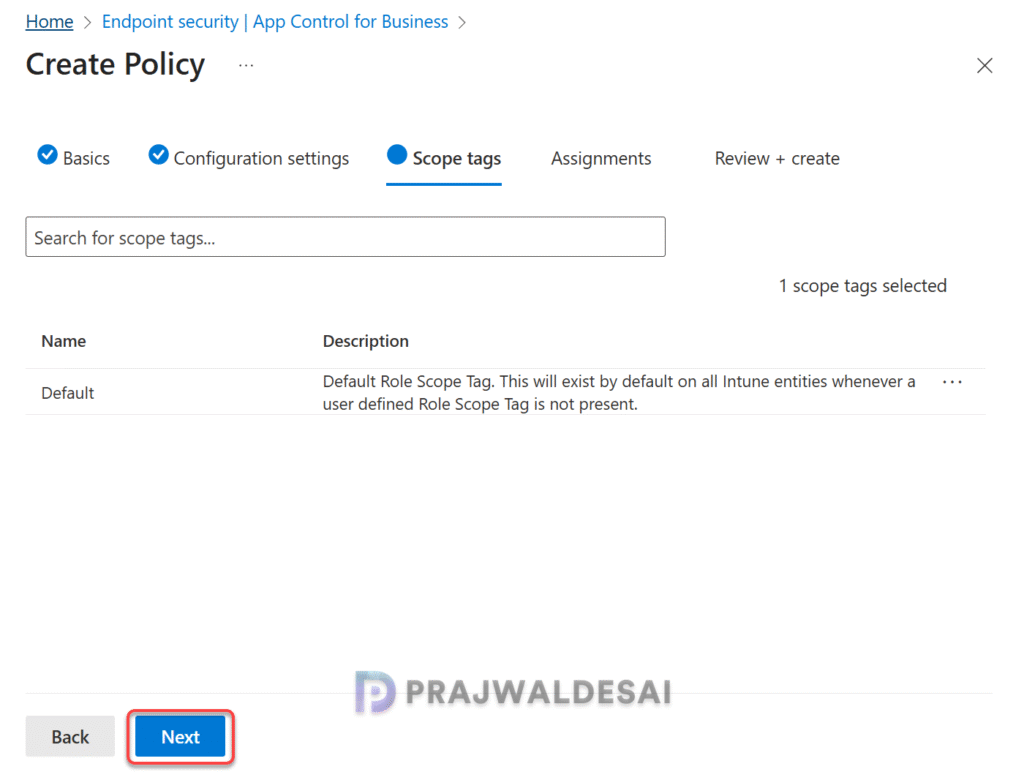
On the Scope tags page, you may select any desired scope tags to apply. This is optional and you can skip to the next page. Learn how to create new scope tags in Intune. Click Next.
For Assignments, you can Include and Exclude Entra ID device groups from the policy. To continue, select Next.

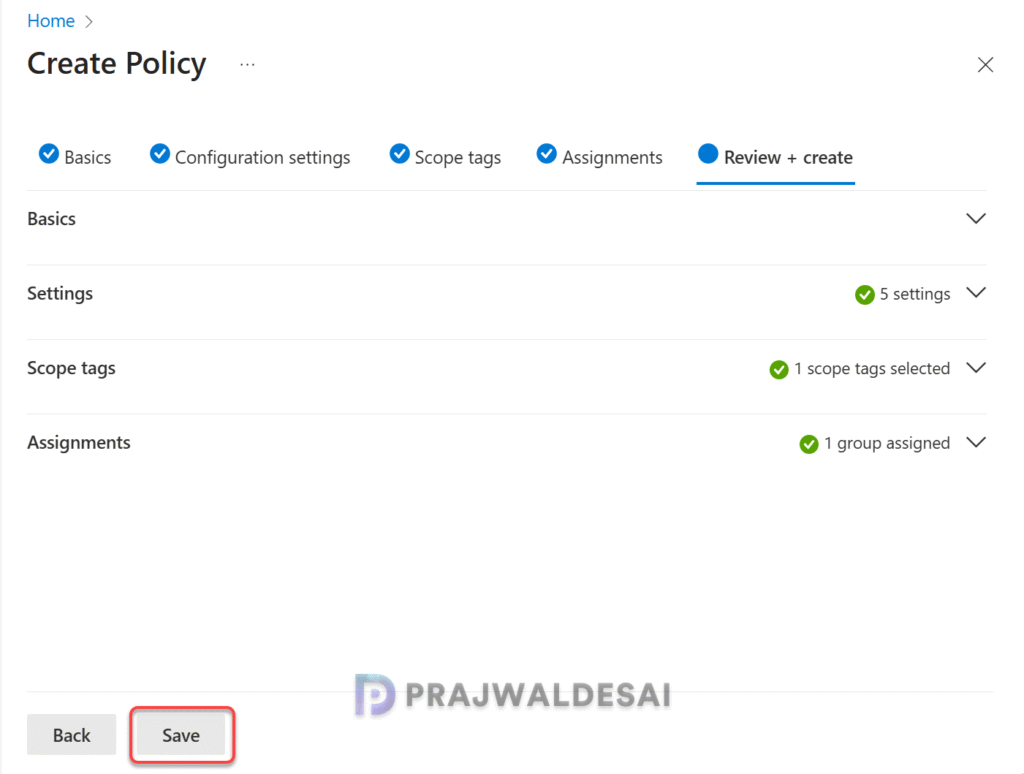
Review the Intune App control for Business policy settings on Review + create page and then click Save. The policy is now deployed to members of the assigned groups.
Update the Intune Policies
To apply the App control for business policy settings on targeted devices, you can manually sync Intune policies using various methods. The sync action prompts devices to instantly connect with Intune and apply the most up-to-date policies. This is typically performed to test an app or policy deployment and verify its functionality.
Monitor App Control for Business Policy Deployment
After devices are assigned App Control for Business policies, you can view policy details within the Intune admin center. Go to Endpoint Security > App Control for Business > Policies tab and select the App Control policy.
On the Overview page, under Device and user check-in status section, you can find out information about devices for which the ACfB policy assignments are successfully. Click on the View Report button to view a list of the devices that received this policy.

End User Experience
Once the targeted devices have successfully received the App Control for Business policy, it’s time to verify the applied the configuration. To test if the ACfB policies are working, you can try installing the applications that are not allowed or restricted.
When a user tries to open an application restricted by the App Control for Business policy rules, a notification is displayed on the screen “Your organization used App Control for Business to block this app“.
Alternatively, you can manually verify the applied IDs of the Application Control policies. Navigate to C:\Windows\System32\CodeIntegrity\CiPolicies\Active and locate the PolicyID of the base Application Control policy and the policy ID of the supplemental Application Control policy.
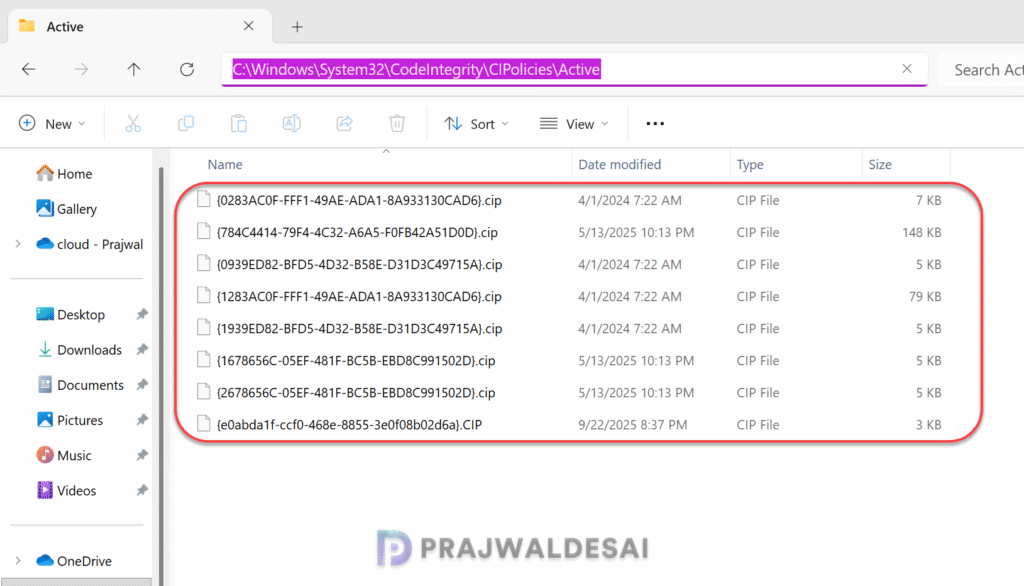
This confirms that the App control for business policy is successfully applied to the device, and the unwanted apps are prevented from running on the Windows devices.
Troubleshooting App Control for Business Policies
App Control logs events when a policy is loaded, when a file is blocked, or when a file would be blocked if in audit mode. These block events include information that identifies the policy and gives more details about the block.
The App Control for Business policy events are generated under two locations in the Windows Event Viewer:
- Applications and Services logs > Microsoft > Windows > CodeIntegrity > Operational includes events about App Control policy activation and the control of executables, dlls, and drivers.
- Applications and Services logs > Microsoft > Windows > AppLocker > MSI and Script includes events about the control of MSI installers, scripts, and COM objects.
While working on App Control logs events, there are two important events that you need to consider:
- Event 3077: This is the App Control enforcement block event. Indicates that a script or executable was blocked from running because it did not meet the policy requirements defined in the ACfB configuration.
- Event 3089: This is an App Control signature information event. It is logged when ACfB loads or enforces a new application control policy.
For further information, refer to App Control block events for executables, dlls, and drivers.
Conclusion
Intune App Control for Business feature allows organizations to manage app permissions, enforce security policies, and prevent unauthorized apps from running on Windows devices. By using managed installers and ACfB policies, administrators can ensure that only trusted apps are allowed, improving security and compliance across their environments.
If you have any questions about implementing the App control for business policies with Intune, let me know in the comments section.
