


In this post, I will show you how to deploy AppLocker policy with Intune. You’ll learn how to set up a custom executable rule to deny specific applications, export the AppLocker policy and deploy it to Entra ID groups via Microsoft Intune.
AppLocker is a security feature in Microsoft Windows that allows administrators to control which applications and scripts users can run on a computer. These include executable files, scripts, Windows Installer files, dynamic-link libraries (DLLs), packaged apps, and packaged app installers.
When you implement AppLocker policies with Intune, you can prevent unauthorized or harmful software from being executed, thereby enhancing security and compliance within an organization. If you are new to the concept of AppLocker, I recommend reading the AppLocker Documentation by Microsoft first. This provides an overview of what AppLocker does and highlights how organizations can benefit from implementing AppLocker policies.
Key Features of AppLocker
I have seen AppLocker rules commonly implemented in enterprise environments to secure systems by restricting applications to only those approved by administrators. Besides that, it provides numerous benefits that include:
- Control your applications: Enables administrators to specify rules that allow or block certain executable files, scripts, Windows Installer files, and packaged apps
- Rule Creation: The rules can be created for specific users or groups. The rules are based on file attributes such as publisher, product name, file name, and file version.
- Security and Compliance: AppLocker rules prevent malware and unauthorized applications from running. It also enforces compliance with organizational policies by restricting applications to only those approved.
- Audit Mode: Allows administrators to test rules without enforcing them immediately. This helps identify potential issues before full implementation.
- Vast File Extensions Support: Supports rules for various file types, including executables, Windows installer files, scripts, and packaged applications.
- Group Policy Integration: AppLocker feature is ideal for large organizations that currently use Group Policy to manage their PCs.
- Intune Support: You can export AppLocker policies and deploy it with Microsoft Intune for Entra ID users or groups.
Prerequisites to deploying AppLocker policies
To deploy AppLocker policies with Intune, the following are the prerequisites:
- A device running a supported operating system to create the rules.
- For Group Policy deployment, pick a device with Group Policy Management Console (GPMC) or Remote Server Administration Tools (RSAT) installed to host the AppLocker rules.
- End devices must be running a supported operating system to enforce the AppLocker rules that you create. Policies deployed through MDM are supported on all Windows editions.
- Windows devices must be enrolled in Intune. See the enrollment guide.
Supported File Extensions for AppLocker Rules
AppLocker policy rules support different file extensions that include:
- Windows Installer files (*.mst, *.msi and *.msp)
- Executable files (*.exe and *.com)
- Scripts (*.js, *.ps1, *.vbs, *.cmd, and *.bat)
- DLL files (*.dll and *.ocx)
- Packaged apps (*.appx).
Create an AppLocker Policy
This section explains how to create an AppLocker policy that contains custom rules to block or restrict an executable for end users. We’ll export the AppLocker policy to an XML file and deploy it with Intune. The process is divided into clear, step-by-step instructions for easy implementation.
Step 1: Configure AppLocker Enforcement Rule
To create a new AppLocker policy, sign in to a Windows 11 device with an Administrator account. right-click on Start and select Run. Type secpol.msc and press Enter. In the Local Security Policy Editor, expand Application Control Policies and right-click AppLocker and select Properties.
In the AppLocker Properties, you can enable the enforcement for the file types you want to control:
- Executable Rules
- Windows Installer Rules
- Script Rules
- Packaged App Rules
For this post, I will only configure AppLocker executable rules that apply to files with the .exe and .com extensions that are associated with an app. Click the drop-down and select Enforce Rules. Now click Apply and OK to save the changes.

Step 2: Create AppLocker Default Rules
In this step, we will create default rule for Executable rules in AppLocker. The purpose of these rules is to ensure that essential files required for Windows to function correctly are included in the AppLocker rule collection.
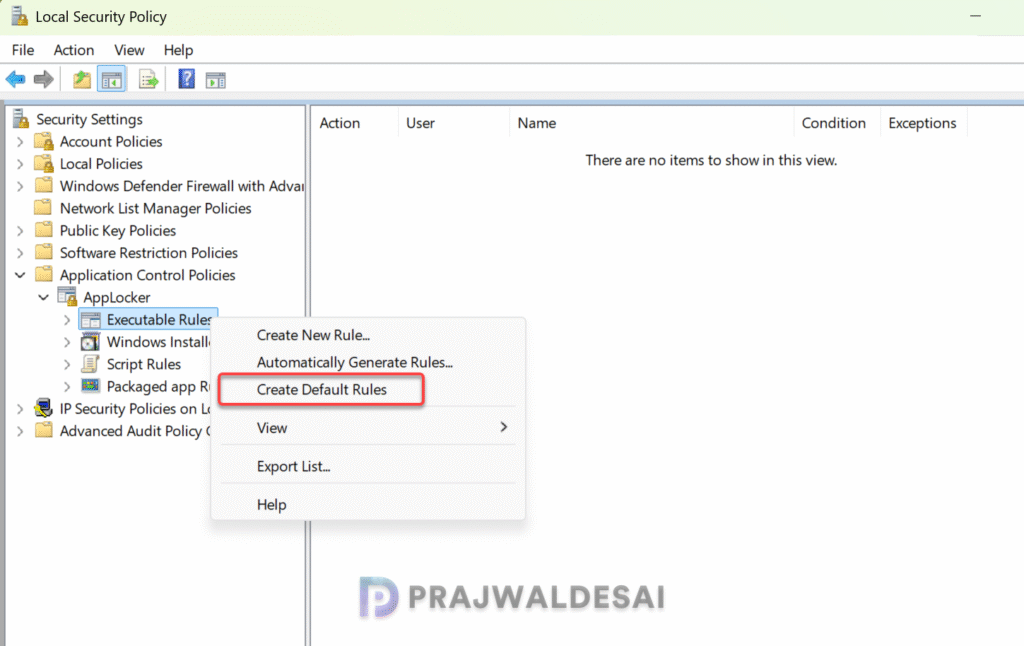
The default rules that you create applies to files with the .exe and .com extensions. In the Local Security Policy console, right-click Executable Rules and select Create Default Rules.
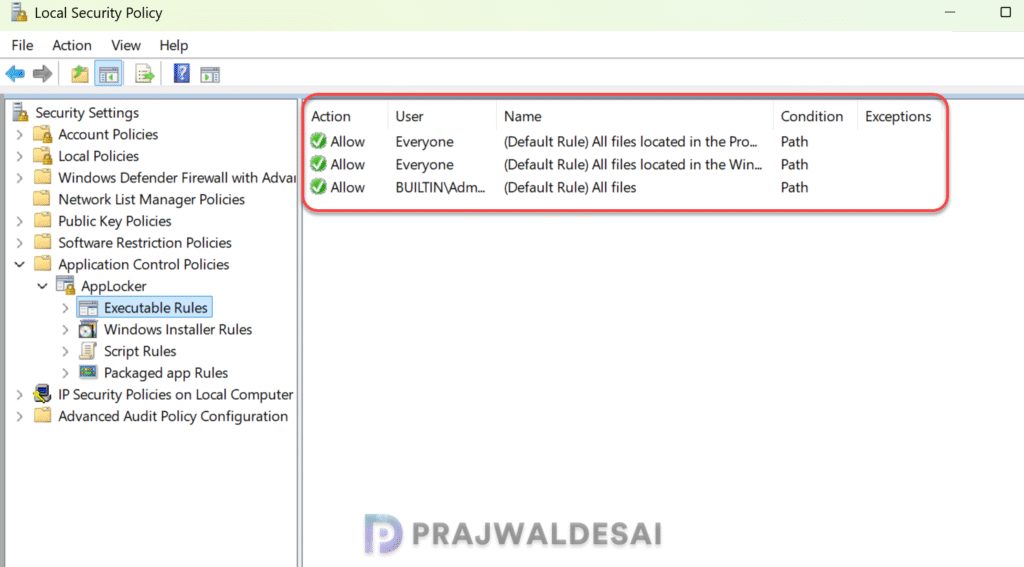
The image below displays three default executable rules, each serving a distinct purpose. The table data is provided by Microsoft. It outlines the rule name, description, condition type, and applicable users or groups.
| Rule Name | Description | User | Rule condition type |
|---|---|---|---|
| (Default Rule) All files | This rule allows members of the local Administrators group access to run all the executable files. | BUILTIN\Administrators | Path: * |
| (Default Rule) All files located in the Windows folder | Allow all users to run executable files in the Windows folder | Everyone | Path: %windir%* |
| (Default Rule) All files located in the Program Files folder | Allow all users to run executable files in the Program Files folder | Everyone | Path: %programfiles%* |
To check if AppLocker is enabled and active, open the Event viewer and navigate to the following path. Look for events related to AppLocker enforcement or auditing.
Applications and Services Logs > Microsoft > Windows > AppLocker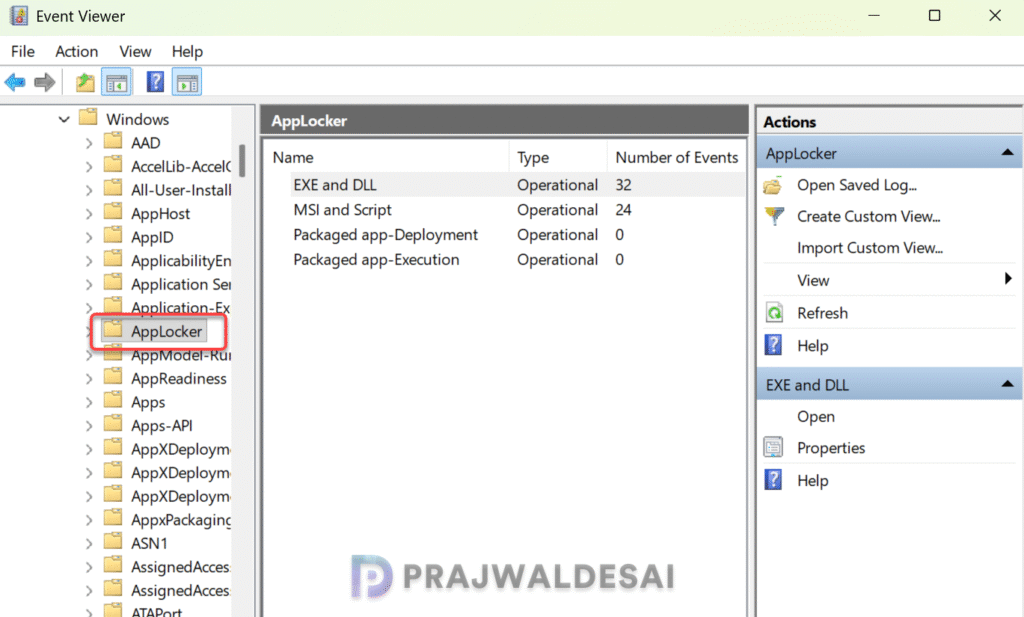
Step 3: Create Custom AppLocker Rules
In this step, I will create a new custom AppLocker rule to explicitly deny an application (executable) running on the device. You can deny any executable file (.exe or .com) with this rule.
For instance, you can deny users from using browsers such as Chrome or Firefox, or any third-party application installed on the devices. Since I have already deployed Chrome browser to devices with Intune, I will restrict users from using Chrome.exe on their device.
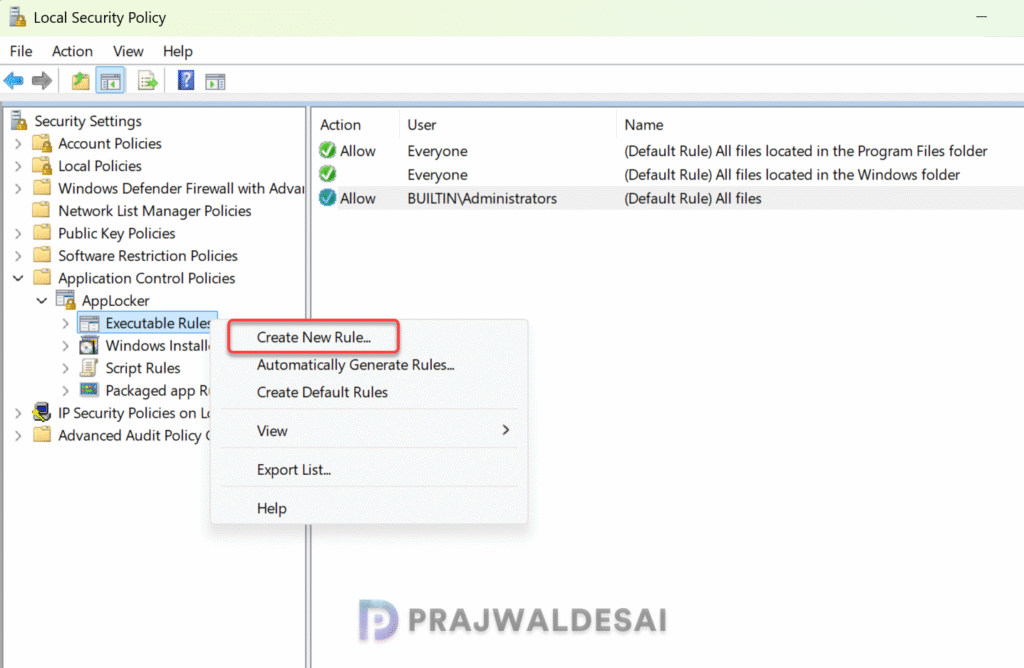
To create a new custom executable rule in AppLocker, right-click Executable Rules and select Create New Rule.
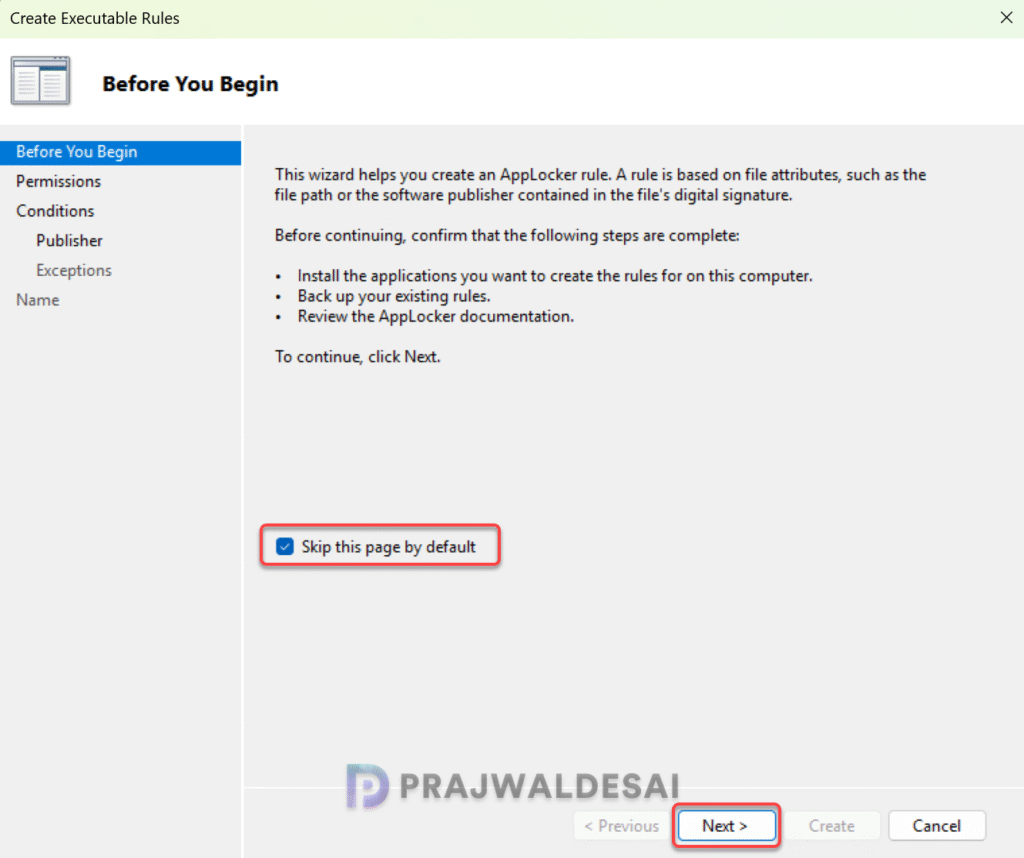
On the Before you begin page, select skip this page by default and click Next.
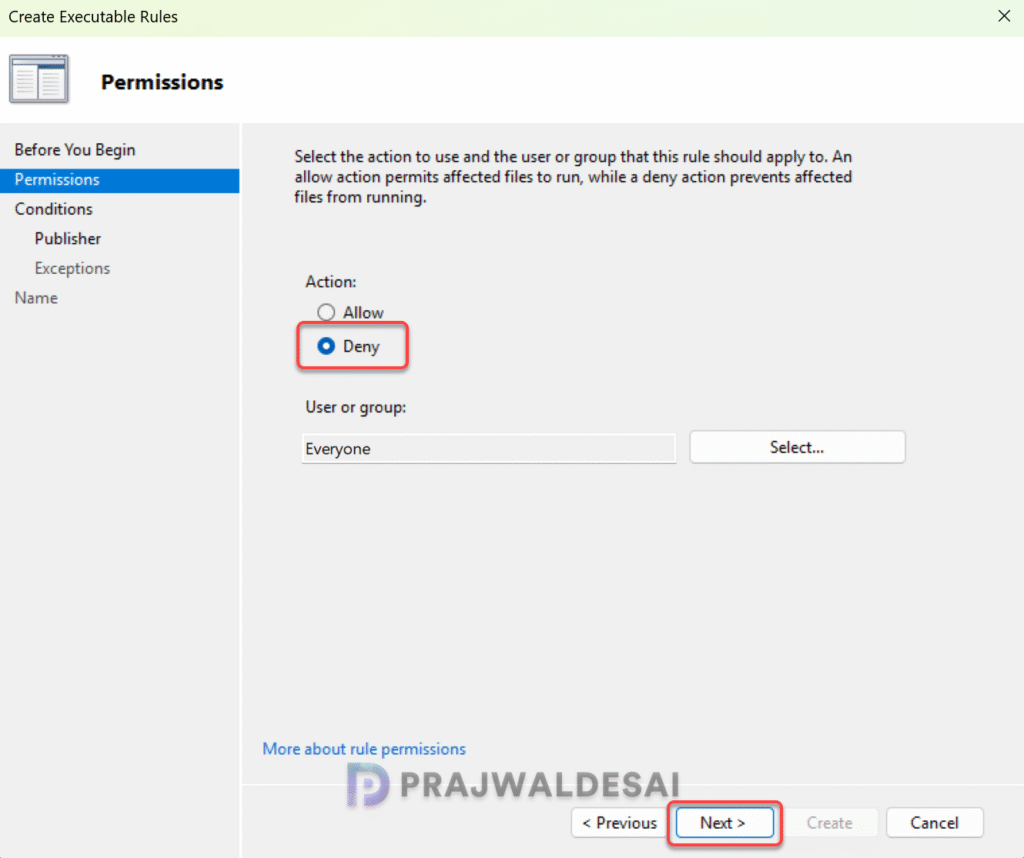
On the Permissions page, configure the following:
- Action: Deny
- User or Group: Everyone
Click Next.
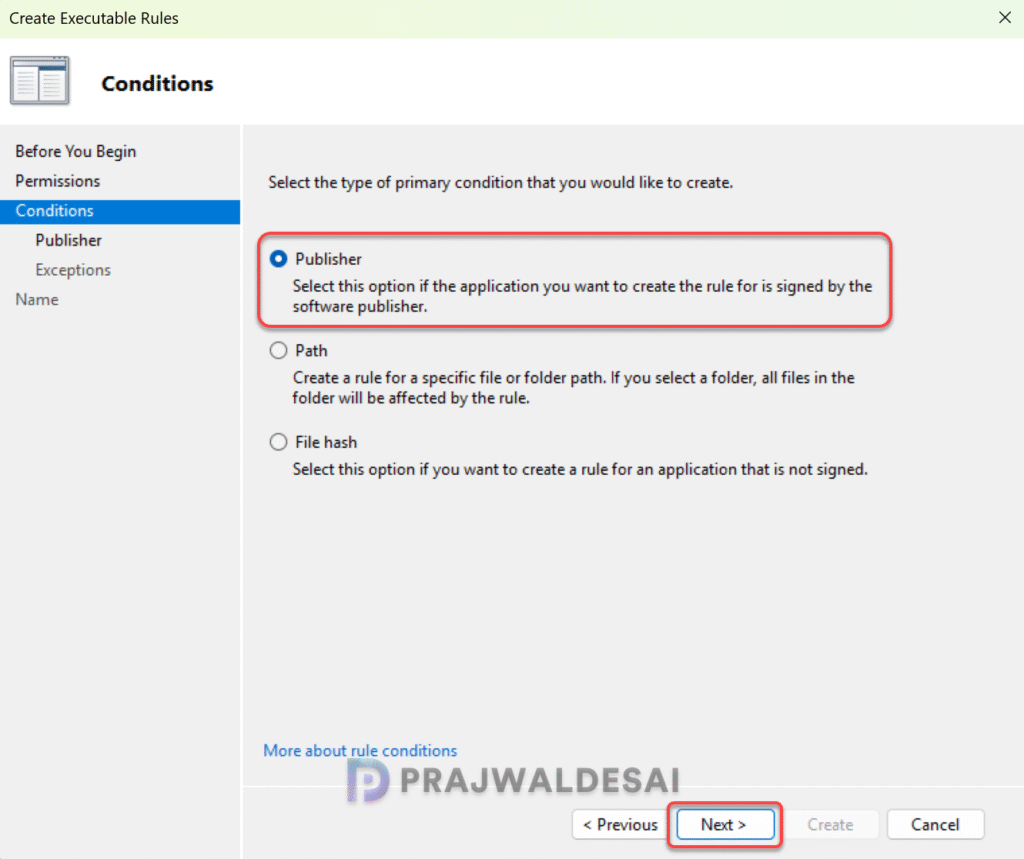
Select the primary condition that applies to this rule. You see three options here:
- Publisher: Select this option to allow or deny an application that is signed by a software publisher.
- Path: Select this option to create a rule for a specific file or folder path.
- File Hash: Select this option if you want to create a rule for an app that is not signed.
I have selected Publisher as my primary condition for this rule. Click Next.
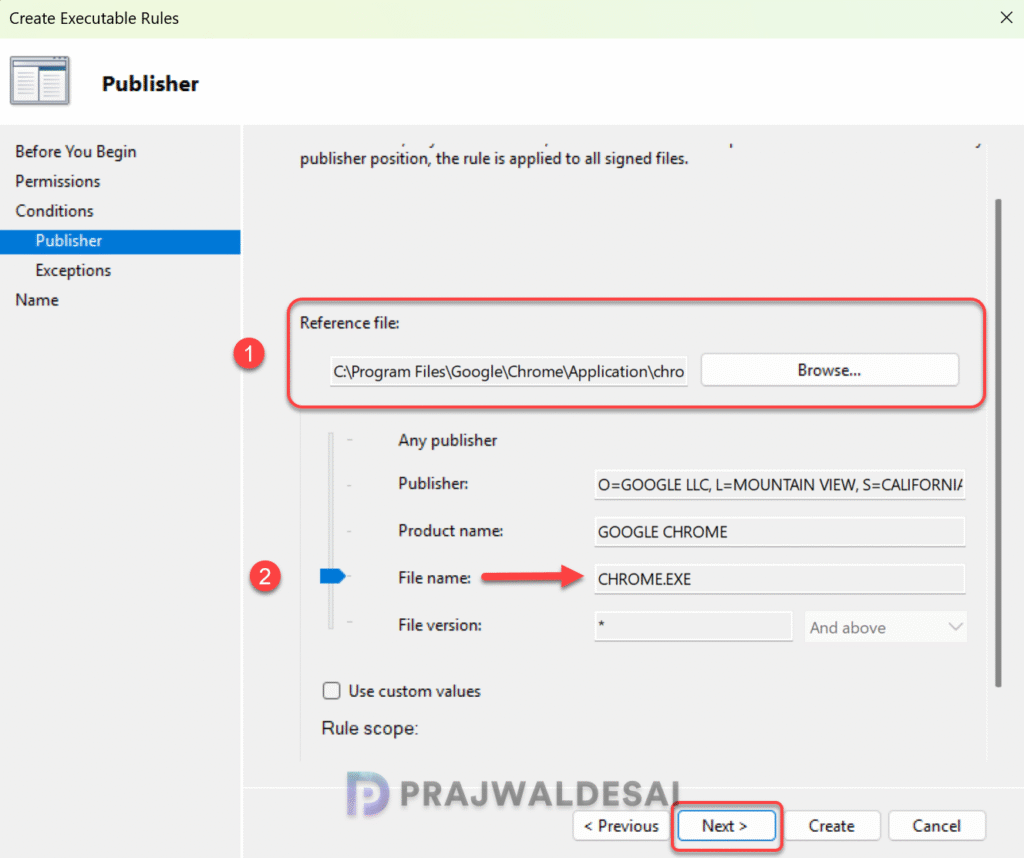
On the Publisher page, click Browse and select the executable file that you want to deny or restrict for your users. In my case, it’s Google Chrome application and the Chrome.exe is located in C:\Program Files\Google\Chrome\Application.
When you select the executable, most of the application details are populated that include Publisher, Product Name, File name, File version etc. If you want to restrict running all versions of Google chrome on all devices, move the slider to point to File name: CHROME.EXE. If you wish to restrict a specific application version running on devices, check the box ‘Use custom rules‘ and specify the full application version number.
Click Next.
Click Next on Exceptions page.
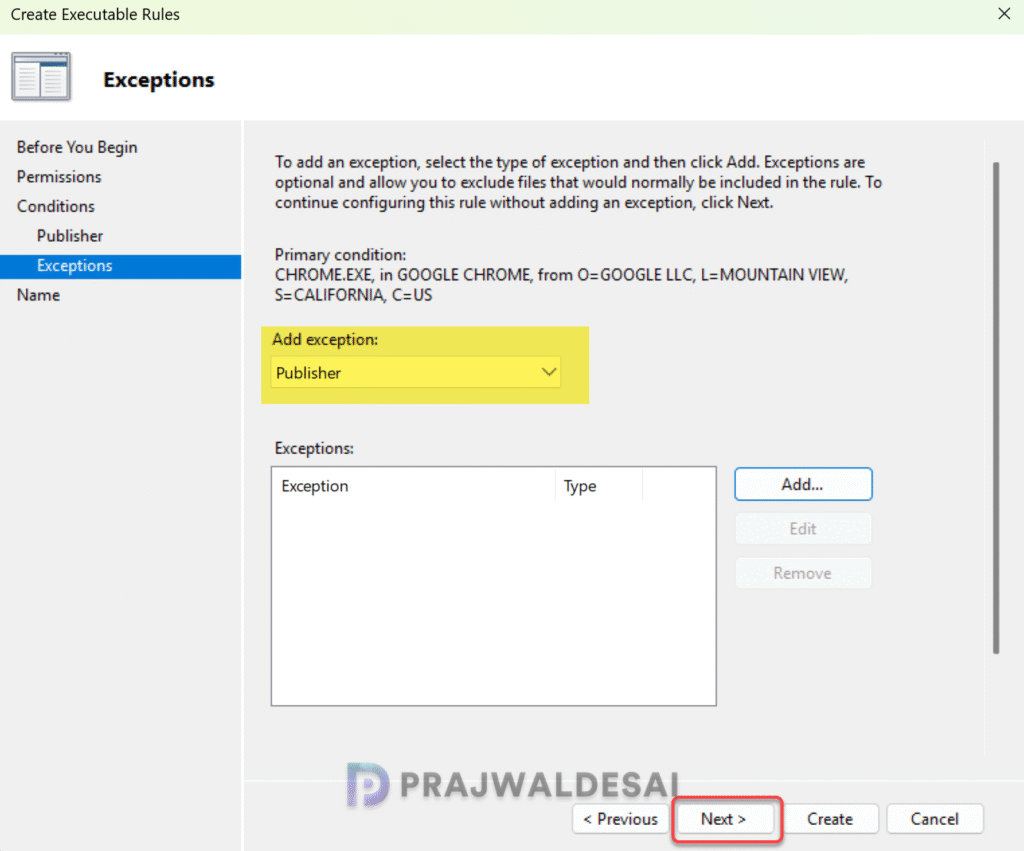
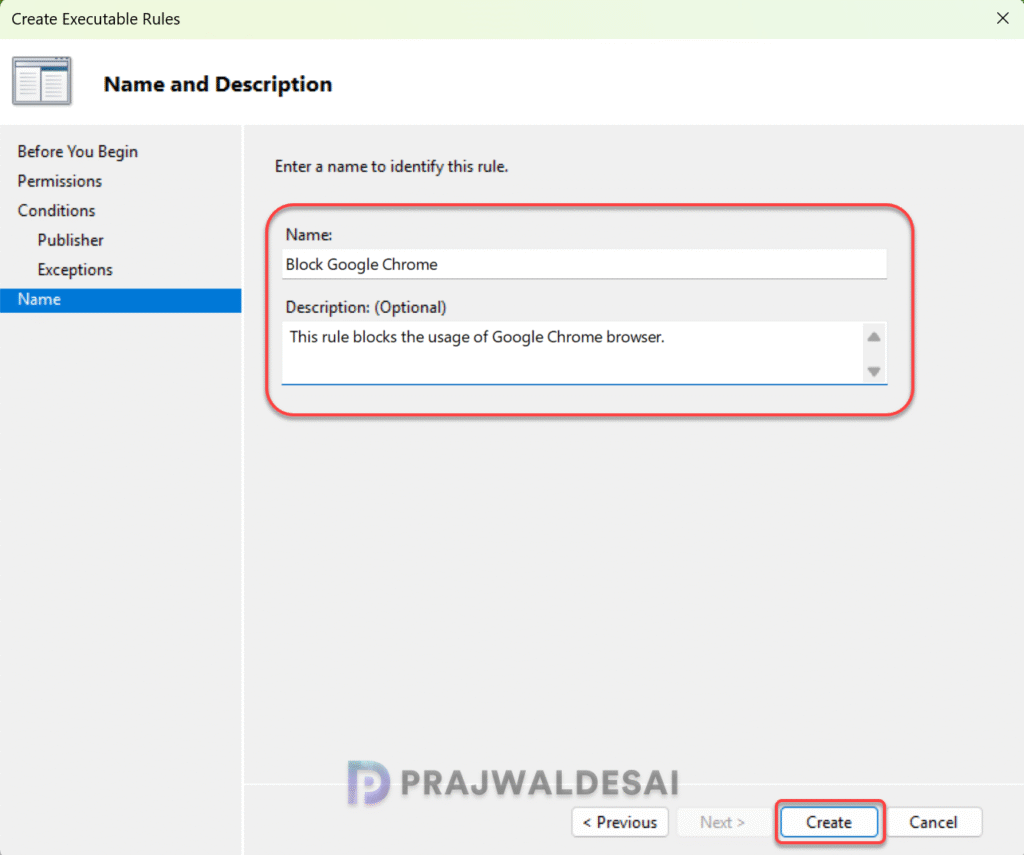
On the Name page, specify the rule name and an optional description. For example, the rule name can be ‘Block Google Chrome‘ and the description can be ‘This rule blocks the usage of Google Chrome browser‘. Click Create.
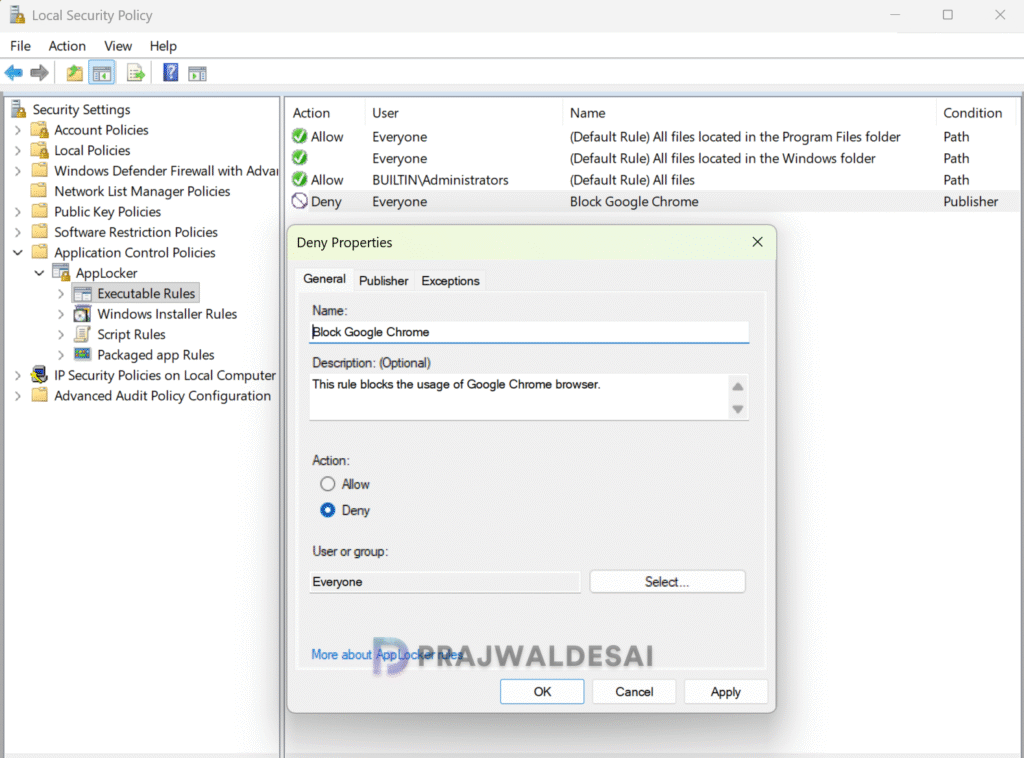
The new AppLocker rule that you just created to block Google Chrome app is now listed under Executable Rules. From here, you can edit the rules and make the changes if required.
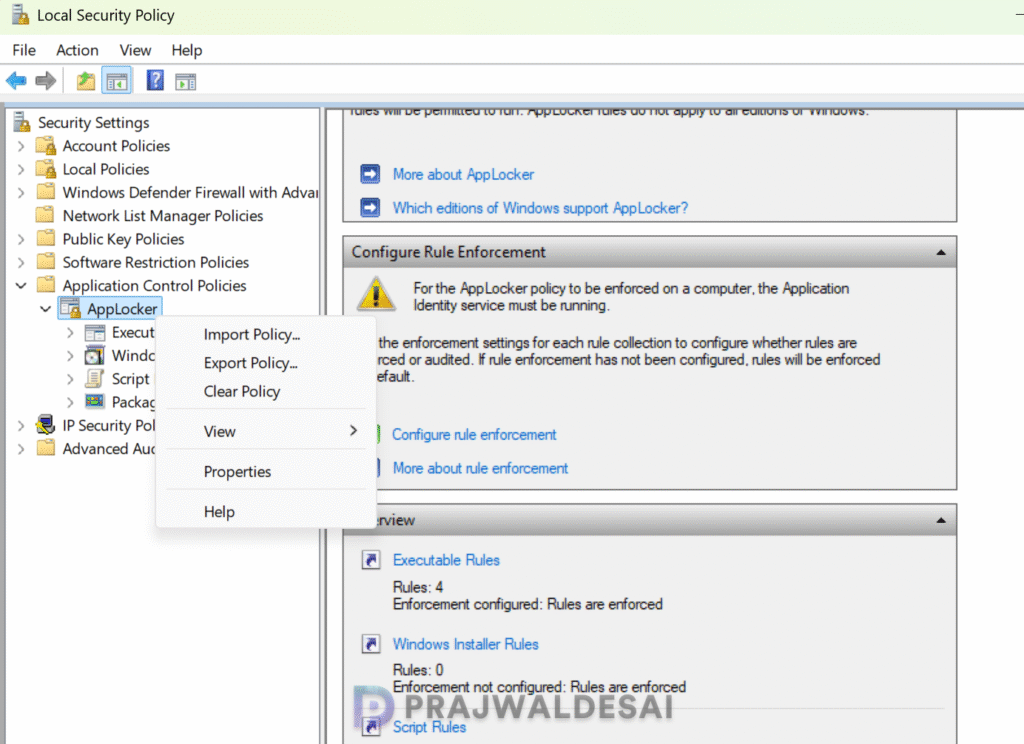
Step 4: Export AppLocker Policy
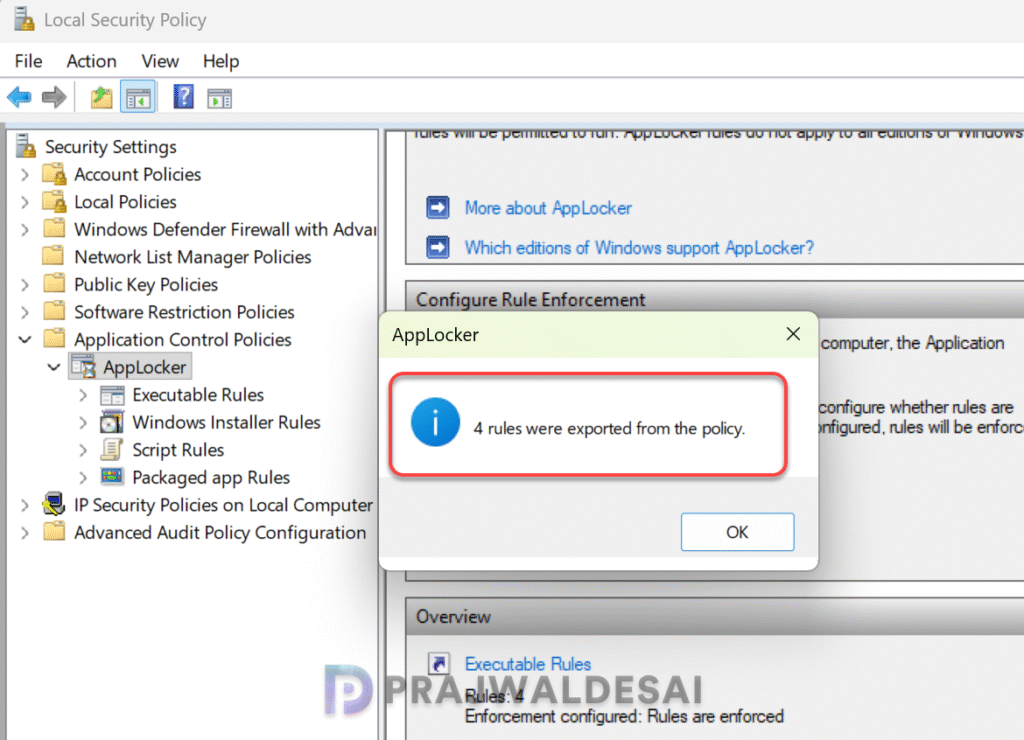
In this step, I will export the AppLocker policy rules to an XML file. Exporting this policy exports all the 4 rules (3 Default rules + 1 custom rule for Chrome) to an XML file. Right-click AppLocker and select Export Policy. Specify the file name and choose the location to export this file.
We see that the AppLocker rules have been successfully exported from the policy. Click OK.
Deploy AppLocker Policy with Intune
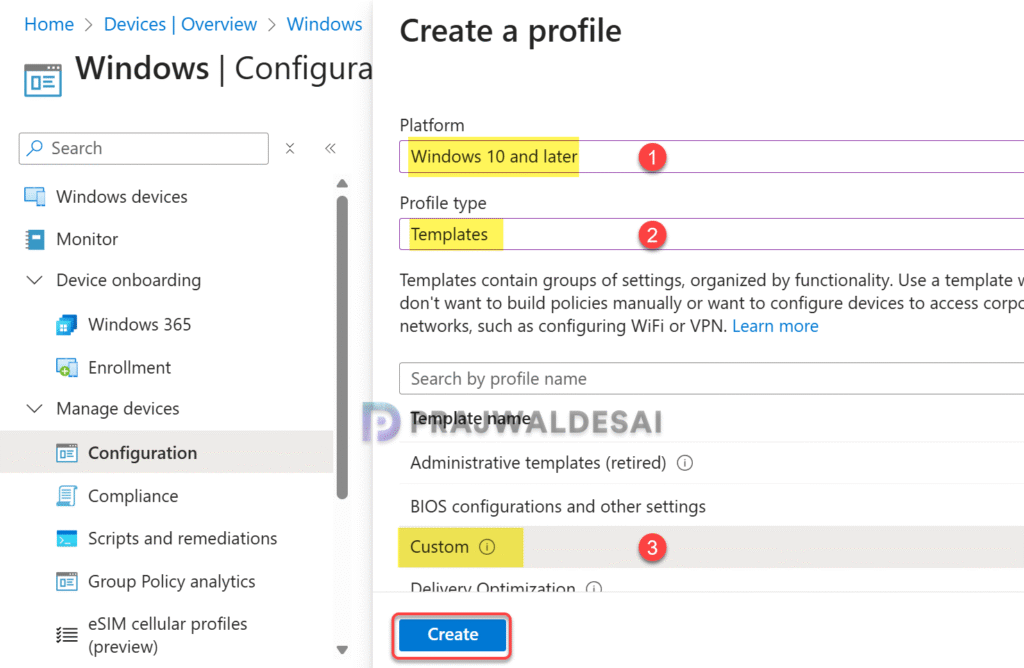
In this step, I will create a new policy to deploy AppLocker rules using Intune. Sign in to Intune admin center and navigate to Devices > Windows > Configuration. Create a New Policy and select the following:
- Platform: Windows 10 and later
- Profile Type: Templates
- Template name: Custom
Click Create.
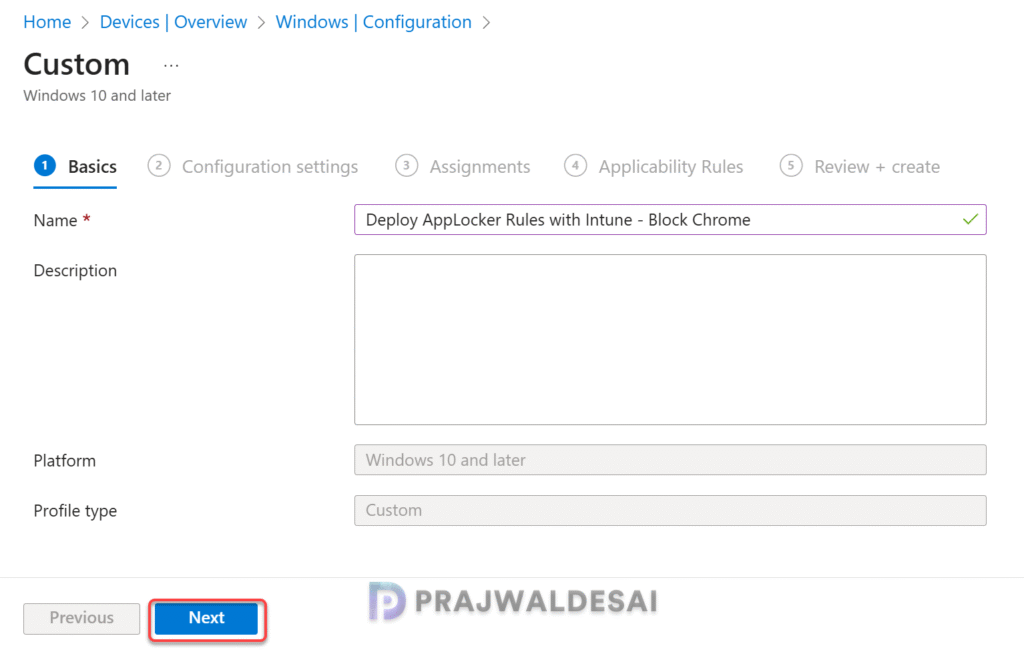
Enter the policy name and description. Click Next.
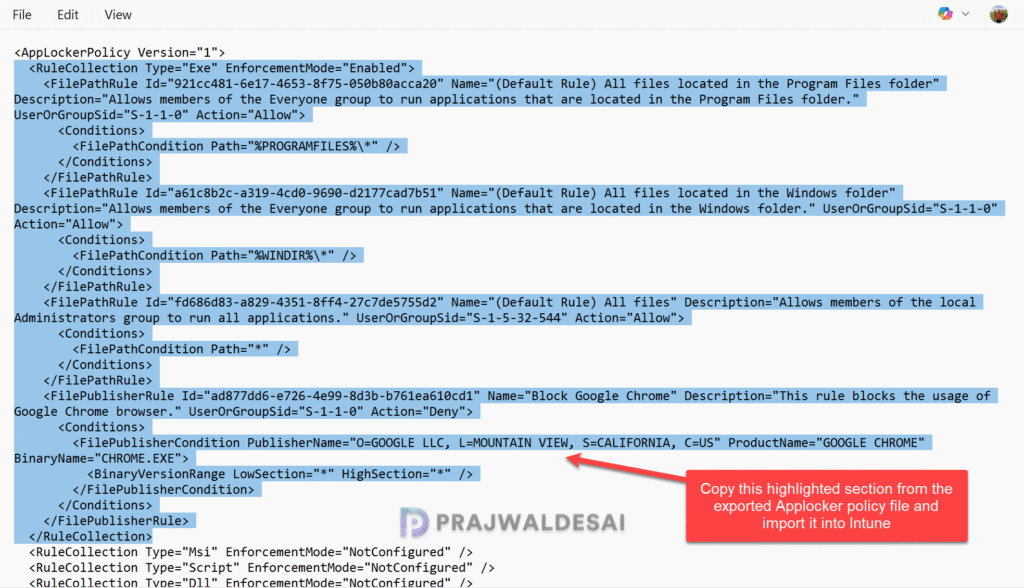
Next, open the Chrome AppLocker policy XML file with Notepad app. This file contains the Chrome application data that include publisher details, name, the application file path and much more. All these details were configured with AppLocker rules. You don’t need all of this data from XML to imported into Intune. Copy only the content starting from <RuleCollection> and ending with </RuleCollection>.
On the Configuration Settings tab, Add new set of OMA-URI settings. On the Add Row, enter the following data:
- Name: Enter the name
- Description: Enter the description
- OMA-URI: ./Vendor/MSFT/AppLocker/ApplicationLaunchRestrictions/apps/EXE/Policy
- Data type: String
- Value: Paste the data from the AppLocker policy XML file.
Note: The AppLocker configuration service provider is used to specify which applications are allowed or disallowed. The OMA-URI path for restricting that launching of EXE applications can be found in the AppLocker CSP Intune Policy documentation.
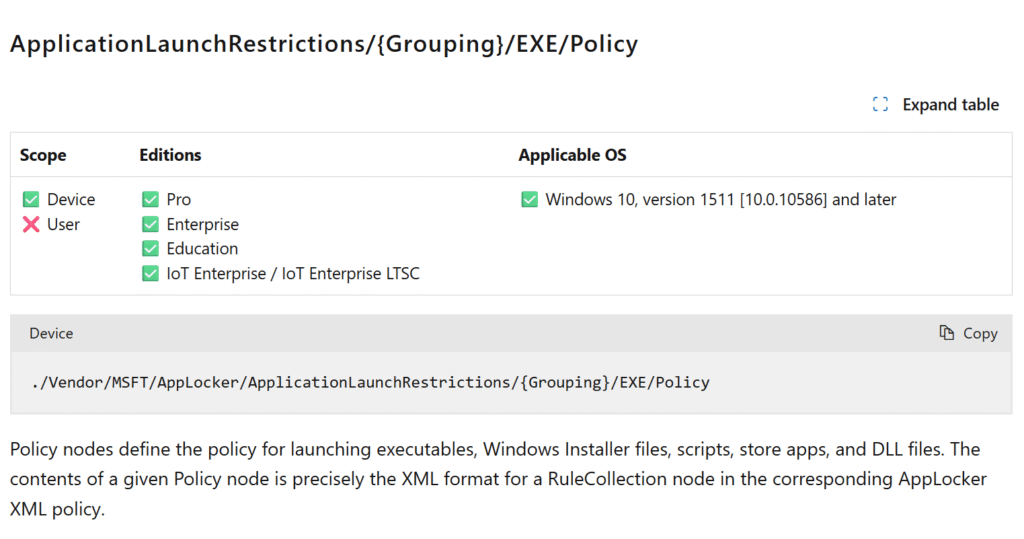
Click Save and proceed to the next step.

In the scope tags section, you specify scope tags. Specifying scope tags is optional, and you may skip this step. Click Next.
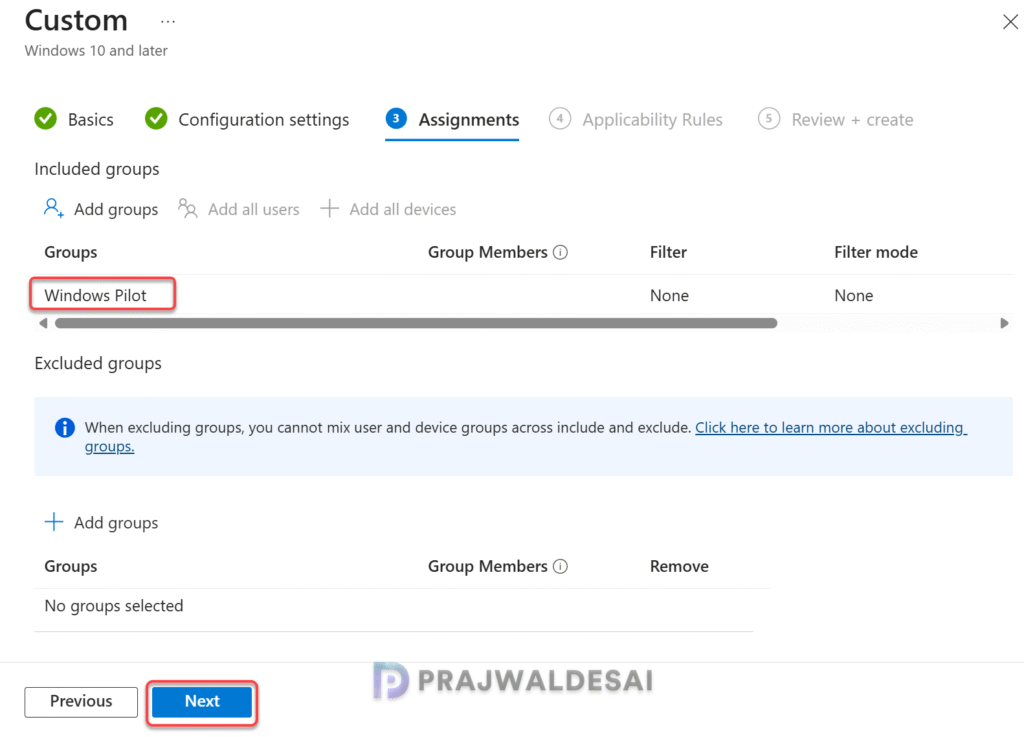
In the Assignments tab, select the Entra ID security user groups to which you want to assign the AppLocker policy. If you are deploying this policy for the first time, I recommend deploying it to a few test groups first and then expanding it to more users or devices if the testing is successful. Select Next.
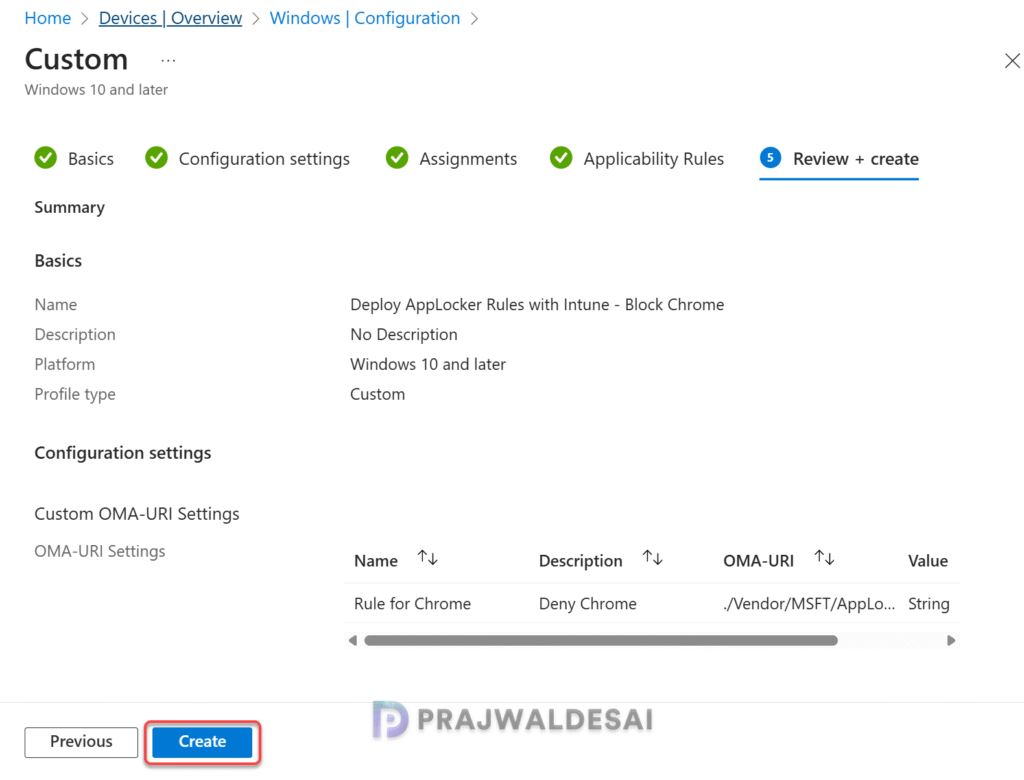
On the Review + Create page, review all the policy settings that you have configured so far and select Create. A newly created policy must appear in the Configuration Profiles list.
Synchronize policies with Microsoft Intune
To speed up the policy assignments for AppLocker policy, you can manually sync Intune policies using various methods on windows computers. The sync action prompts devices to instantly connect with Intune and apply the most up-to-date policies. This is typically performed to test an app or policy deployment and verify its functionality.
Monitor Intune AppLocker Policy Assignments
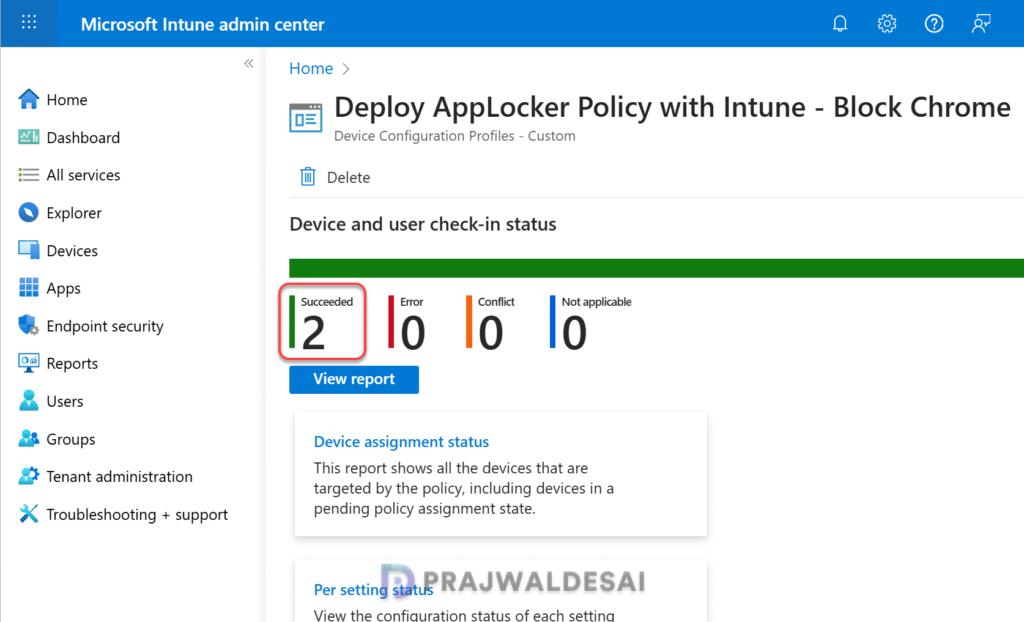
To monitor the AppLocker policy assignments in Intune, go to Devices > Windows > Configuration. Select the ‘Deploy AppLocker Policy‘ profile. On the Policy overview page, check the device and user check-in status. You can see the number of devices or users on which the policy has been applied successfully.
End User Experience
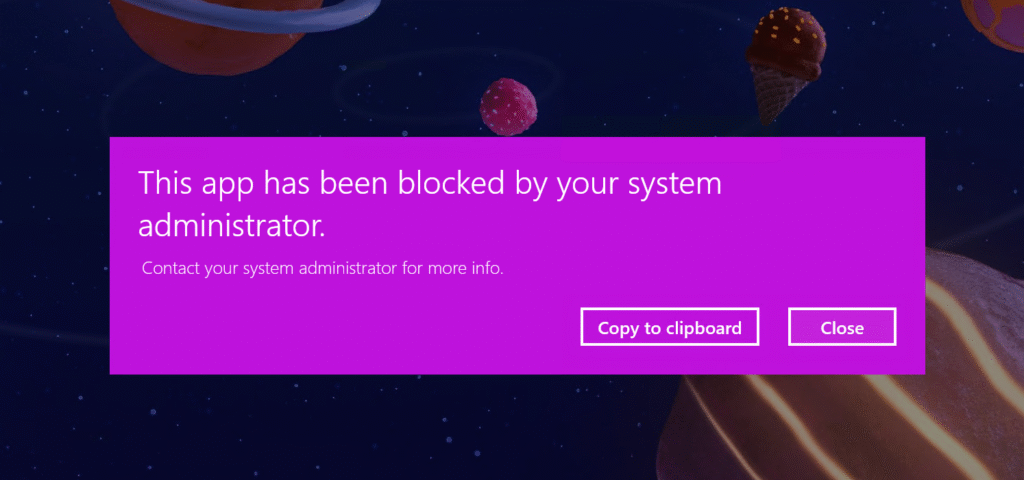
Sign in to the Windows device where the AppLocker policy is applied. Launch the application that you’ve blocked with the policy. The following message appears on the screen “This app has been blocked by your system administrator. Contact your system administrator for more info.” This confirms that the AppLocker Intune policy is successfully applied to this device and, as per the AppLocker rules, the application is prevented from running on this device.
Review Event ID 8004 for AppLocker
Intune administrators can monitor the actual implementation of the AppLocker policy by reviewing the event logs. AppLocker Event ID 8004 refers to an event logged into the Windows Event Viewer when a file is blocked from running due to an AppLocker rule via Intune. This event helps administrators monitor and troubleshoot application control policies.
To launch the Event Viewer, press Win + R, type eventvwr.msc, and press Enter. Navigate to Applications and Services Logs > Microsoft > Windows > AppLocker > EXE and DLL. Look for entries with Event ID 8004. In the below screenshot, we see that Event 8004 is restricting users from launching the executable that is blocked via AppLocker policy.
Event 8004, AppLocker - %PROGRAMFILES%\GOOGLE\CHROME\APPLICATION\CHROME.EXE was prevented from running.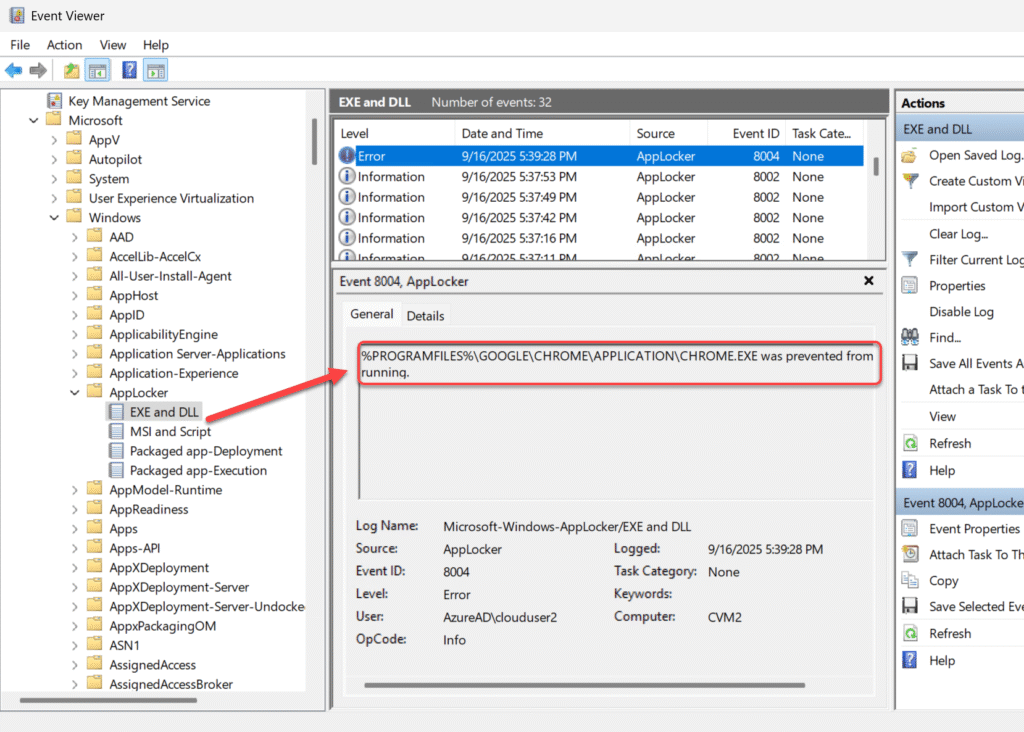
To locate the AppLocker EXE rules that you applied via Intune policy on the Windows device, navigate to the following path:
C:\Windows\System32\AppLocker\MDM\randomnumber\PolicyID\AppLocker\ApplicationLaunchRestrictions\apps\EXE\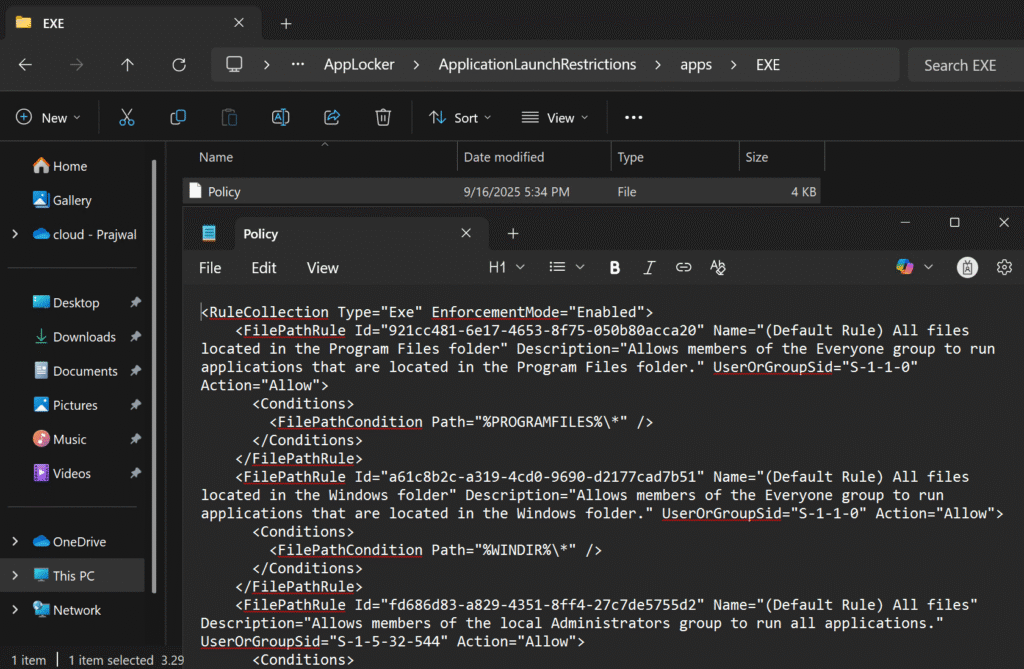
Verify AppLocker Settings in Registry
The applied AppLocker policy settings via Intune are stored in the Windows registry in the following path:
HKEY_LOCAL_Machine\Software\Policies\Microsoft\Windows\SrpV2If the AppLocker policy is working on your Windows device but the settings are not visible in the registry, try restarting your PC.
Conclusion
I hope the steps covered in this guide helped you to implement AppLocker with Microsoft Intune. Deploying AppLocker policies via Intune is an efficient way to enforce application control across managed devices in an organization. With AppLocker and Intune, organizations can effectively reduce their attack surface and maintain a secure computing environment.
If you have any questions, please let me know in the comments below.

I’ve successfully deployed the rule through intune, I can find the policy file in the applocker folder, but it does not show in the registry or apply the settings.
Not sure that was the issue, the service was running, but I am still not seeing it block the exe I defined. Back to the drawing board. I tried to block java.exe all versions 1.0.0.0 and greater. Maybe it’s not reading the version correctly?
It seems by default the service that controls and uses the rules is not running and set to manual by default. Need to start this service and set it to start automatically.
sc config “AppIDSvc” start=auto & net start “AppIDSvc”
I am looking at how to deploy this via intune, perhaps a remediation script to ensure this service is enabled and running on the devices to ensure the assigned app locker rule will work as expected.
Once the default rule is created in Applocker other apps are blocking example notepad and company portal
Review the executable rule to identify precisely what has been denied and to whom.
I have tested to deny arc Ai browser still this deny is not working as expected could you please help me out? Above is the download link.
It seems that with only the exe rules set, the other parts of AppLocker give errors like this in Event Viewer – “No packaged apps can be executed while Exe rules are being enforced and no Packaged app rules have been configured.” So I have all exe allowed, but can’t for example launch NotePad on my test machine because it’s a “Packaged app”.
I faced the same issue. Here is what you should do.
In the secpol.msc, go to Applocker and then Packaged app Rules> right click and select Create default rules.
By doing this all the application such as notepad, company poral will work.