


In this guide, I’ll show you how to perform Windows 11 25H2 upgrade using SCCM. I will use Windows Servicing to download the Windows 11 25H2 feature update and deploy it with Configuration Manager.
Microsoft has released Windows 11, version 25H2 update on September 30, 2025. It’s an enablement package and includes all features and fixes in previous cumulative updates to Windows 11, version 24H2.
The enablement package was first made available on Intune, and I published a guide on upgrading to Windows 11 25H2 using Intune. Starting October 14, 2025, the 25H2 feature update will be available in WSUS and SCCM for deployment.
Windows 10 has reached its end of support on October 14, 2025, organizations should look to upgrading their existing fleet of Windows 10 devices to the 25H2 version to get security and critical updates regularly.
Both Configuration Manager and Intune are capable of rolling out Windows 11 25H2 feature update. With Configuration Manager version 2503 or later, administrators can make use of Windows Servicing to quickly distribute the 25H2 enablement package to eligible devices. You can also perform in-place upgrade of Windows 11 to version 25H2 using Intune.
Prerequisites
Below are the prerequisites necessary for upgrading to Windows 11 25H2 using SCCM.
- Configuration Manager 2503 or a later version must be used for deploying Windows 11 2025 update.
- Ensure the service connection point is online before you sync the updates.
- Configure Software Update Point to make sure the Windows 11 product is enabled under Software Update Point > Products.
- If you don’t see the feature update for 25H2 in the console, check how to sync 25H2 updates in WSUS/SUP.
- Turn on dynamic updates for feature updates and specify thread priority for feature updates to Normal in Configuration Manager Client Settings.
- I recommend setting testing the upgrade on a pilot device collection. Use the following guide to create Windows 11 device collections in SCCM.
- To determine the current version, see Windows 11 versions and update history.
Steps to Upgrade to Windows 11 25H2 using SCCM
Here are the steps to performing an in-place upgrade of Windows 11 to version 25H2 using SCCM servicing.
Step 1: Download the Windows 11 25H2 feature update
Use the following steps to download the Windows 11, version 25H2 feature update in the Configuration Manager console.
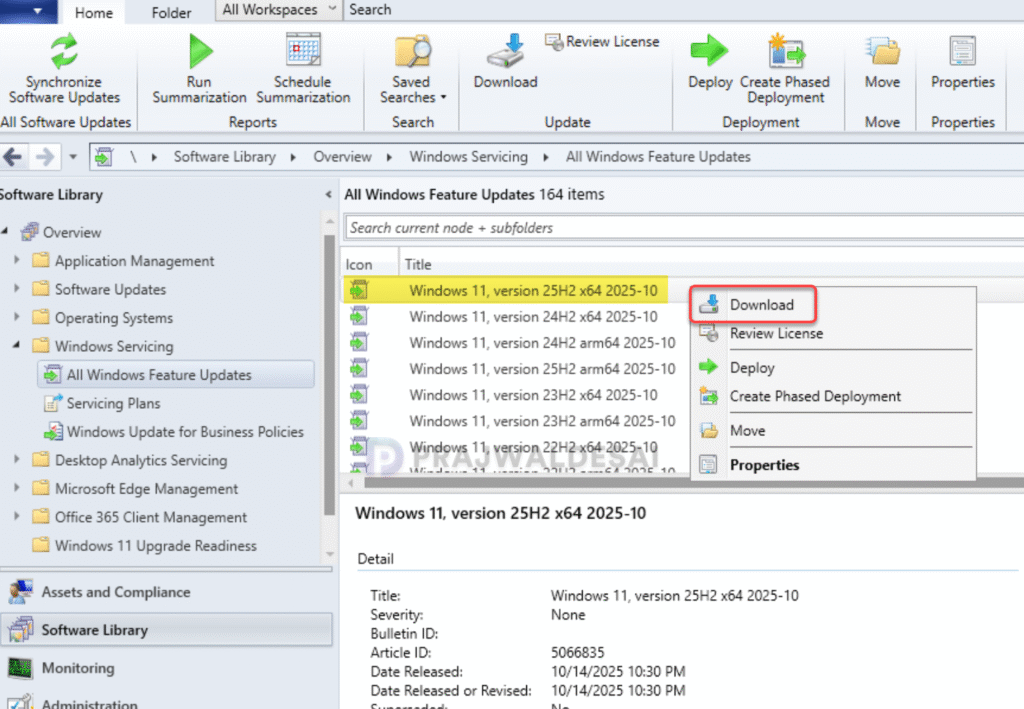
- In the SCCM console, go to Software Library > Windows Servicing > All Windows Feature Updates.
- In the search box, type ‘25H2‘ and click on Search. This will filter the updates and display only 25H2 updates.
- Right-click on the Windows 11, version 25H2 x64 2025-10 update and select Download.
The console displays the version ‘25H2 x64 2025-10‘, which signifies the following:
- Version 25H2: The feature update version, 25 is for the year 2025, H2 is the annual release of Windows 11.
- x64: Indicates that it’s a 64-bit update.
- 2025-10: The update is released in Year 2025 and in the month of October. In the month of November, you may see a new update 25H2 x64 2025-11, and likewise.
Step 2: Create a deployment package for Windows 11 25H2
I recommend creating a new deployment package for the Windows 25H2 feature update that will contain the required upgrade files. This package will be created in Software Library > Software Updates > Deployment Packages.
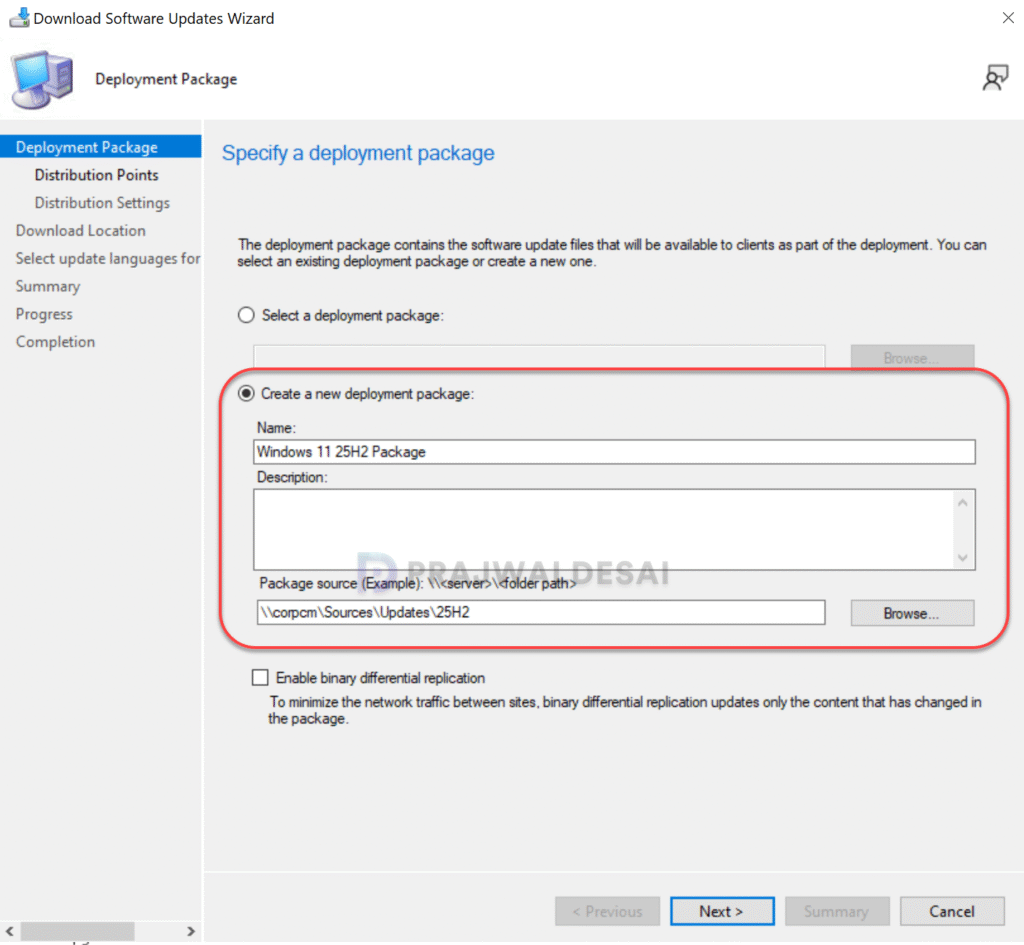
To begin with, choose the option Create a new deployment package and specify the package name as Windows 11 25H2 Deployment Package. Next, specify the package source, which is a shared folder where you want to download the updates. Enabling the binary differential replication is optional. Click Next.
Click on the Add button and select the distribution points to host the package content. You may select distribution point groups as well if you have to send the content to a group of DPs. Click Next.
On the Distribution Settings page, configure the general distribution settings for the deployment package. Click Next.
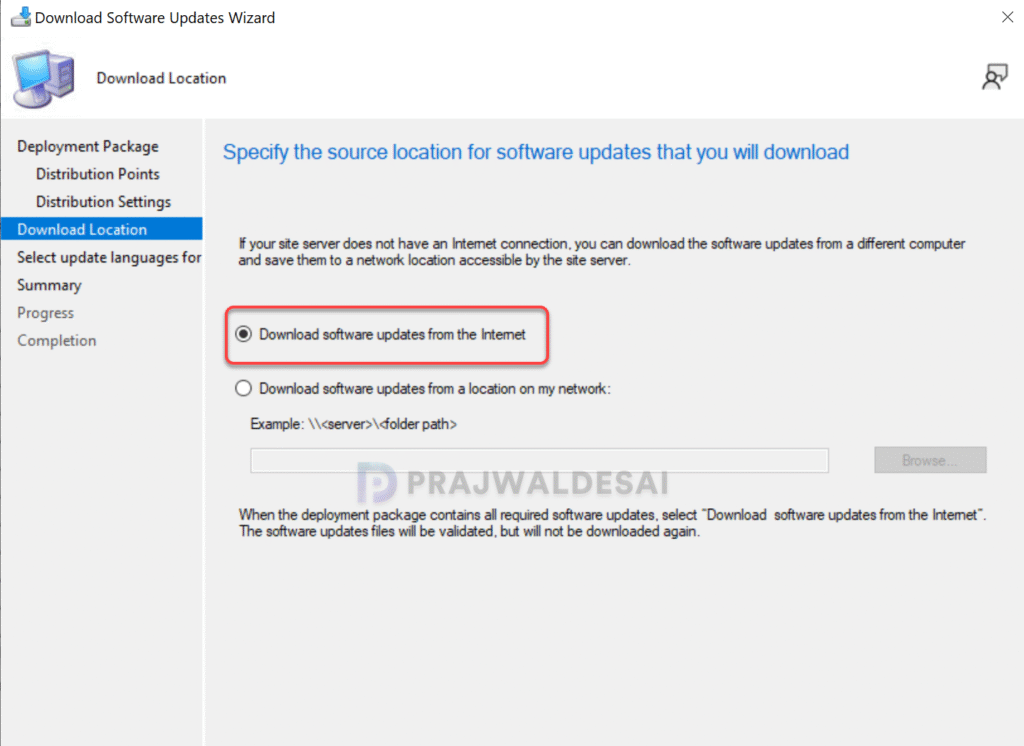
On the Download Location page, select the location from where you want to download the 25H2 upgrade files. In the below example, I have selected the option to download software updates from the internet. Click Next.
In the Summary window, review the settings for the deployment package and click Next. Now, on the Progress tab, we see the Windows 11 25H2 package updates being downloaded.
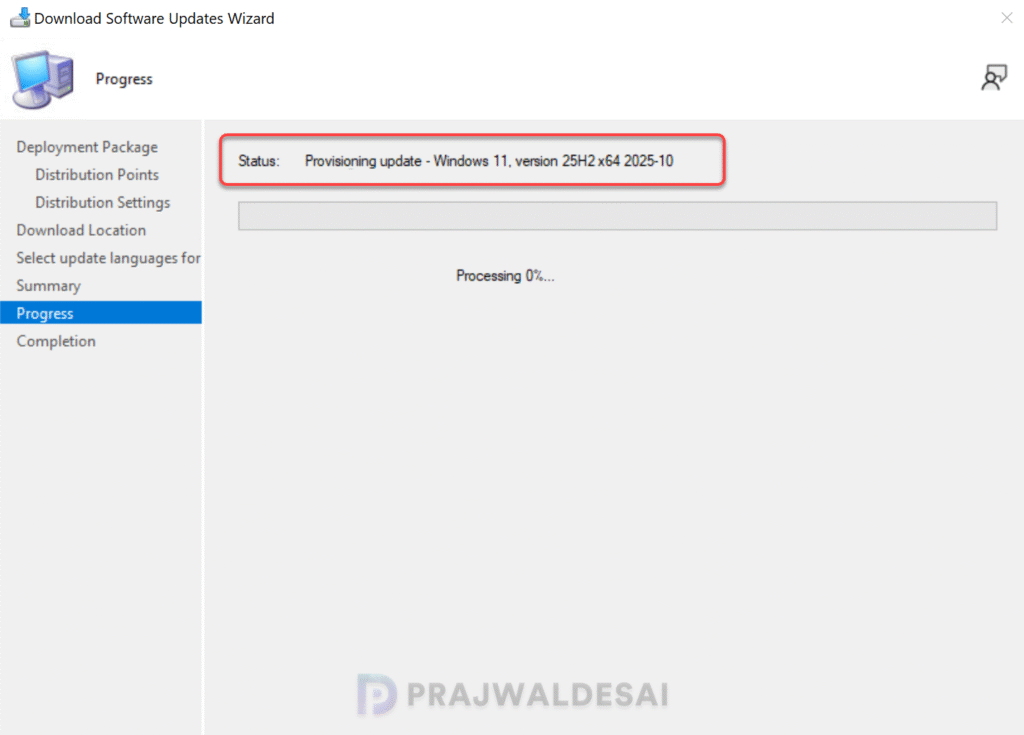
The version 25H2 feature update is an enablement package, ensuring a quick download process. As shown in the image below, the Windows 11 version 25H2 x64 2025 update has been successfully downloaded in SCCM.
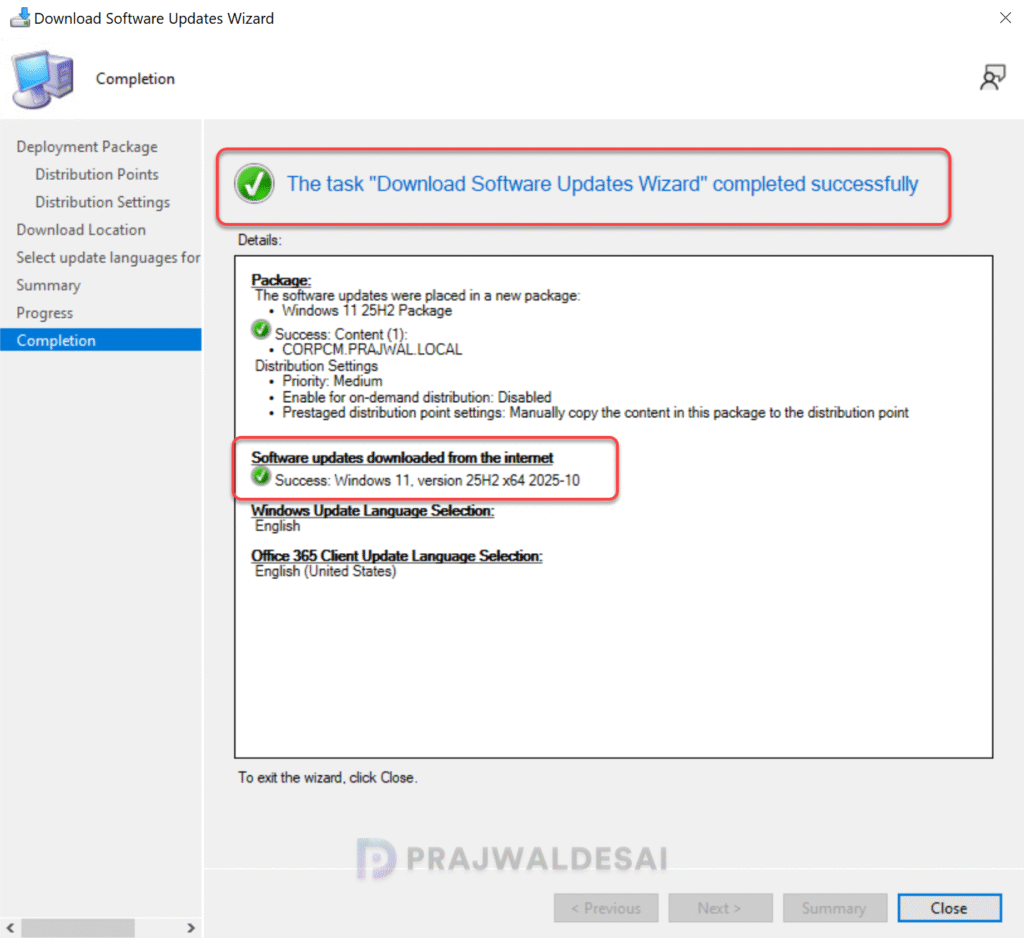
If you’re as curious as I am about what was downloaded to the source location, let’s take a closer look. Upon navigating to the downloaded location, you’ll find that the 25H2 update package consists of three folders, each containing multiple updates. In my lab, the total size of these folders amounted to 16.0 GB.

Step 3: Deploy Windows 11 25H2 Feature Update
Use the following steps to deploy the Windows 11 25H2 feature update using SCCM.
- In the ConfigMgr console, navigate to Software Library\Overview\Windows Servicing\All Windows Feature Updates.
- Select Windows 11, version 25H2 x64 2025 update, and in the top ribbon, click Deploy.
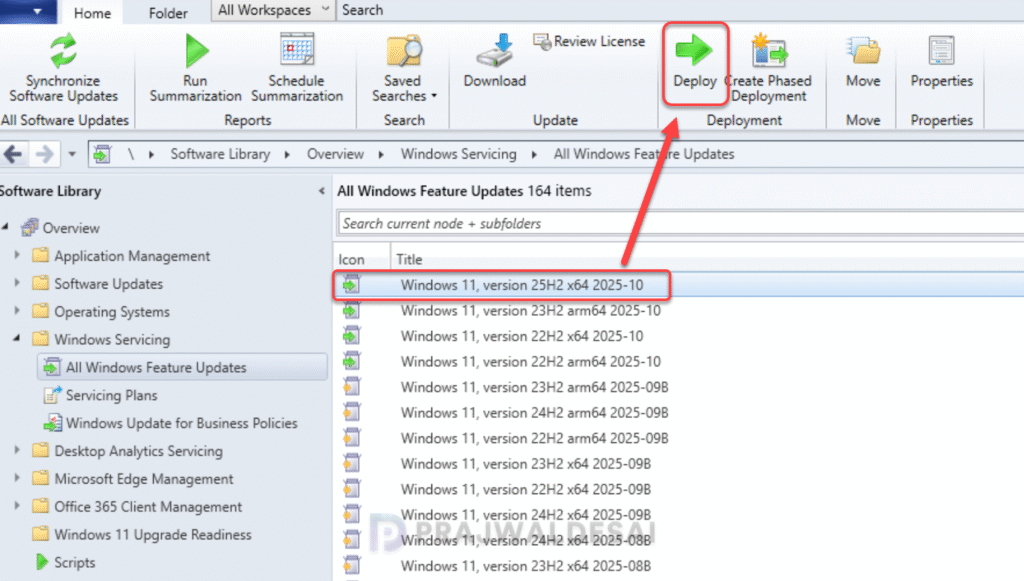
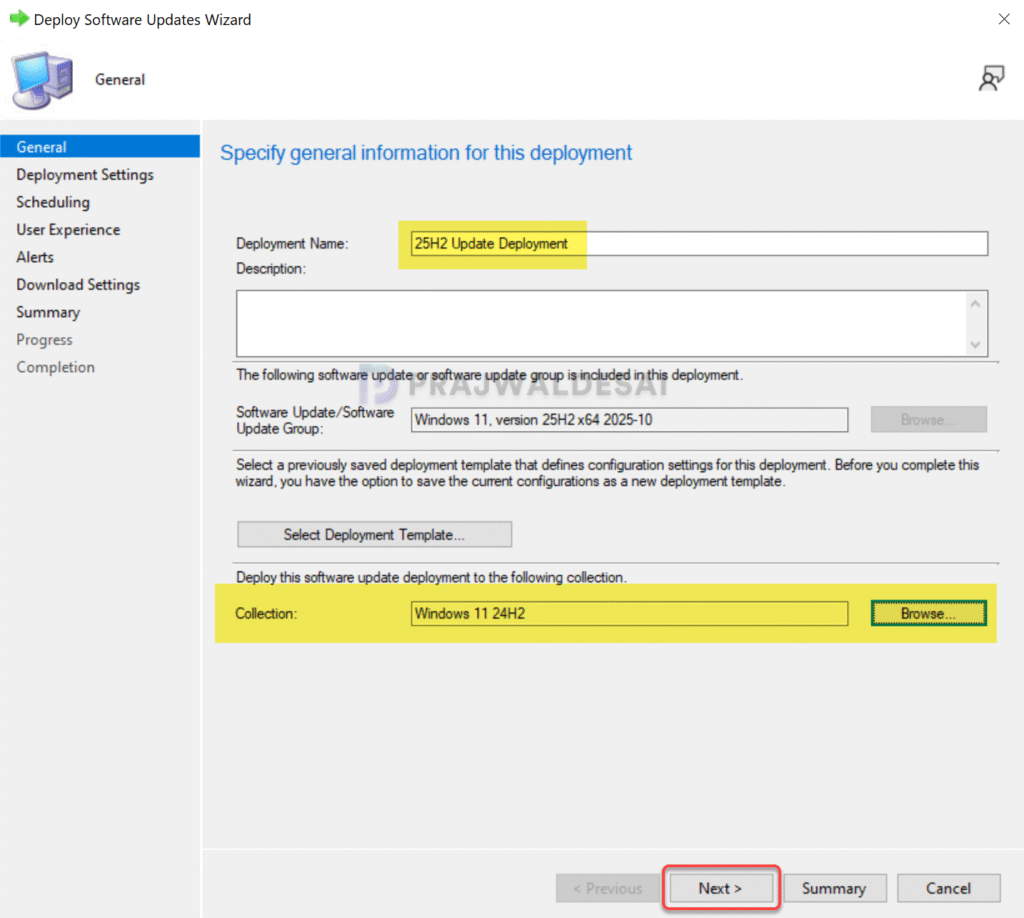
On the General page, enter the following details for the feature update deployment.
- Deployment Name: Enter the deployment name, for example, Windows 11 25H2 upgrade.
- Description: Add a brief description about the deployment.
- Software Update Group: This is created automatically and is visible under Software Update Groups in the Configuration Manager console.
- Collection: Click Browse and select a device collection consisting of a few pilot devices selected for testing the Windows 25H2 upgrade.
Click the Next button to continue.
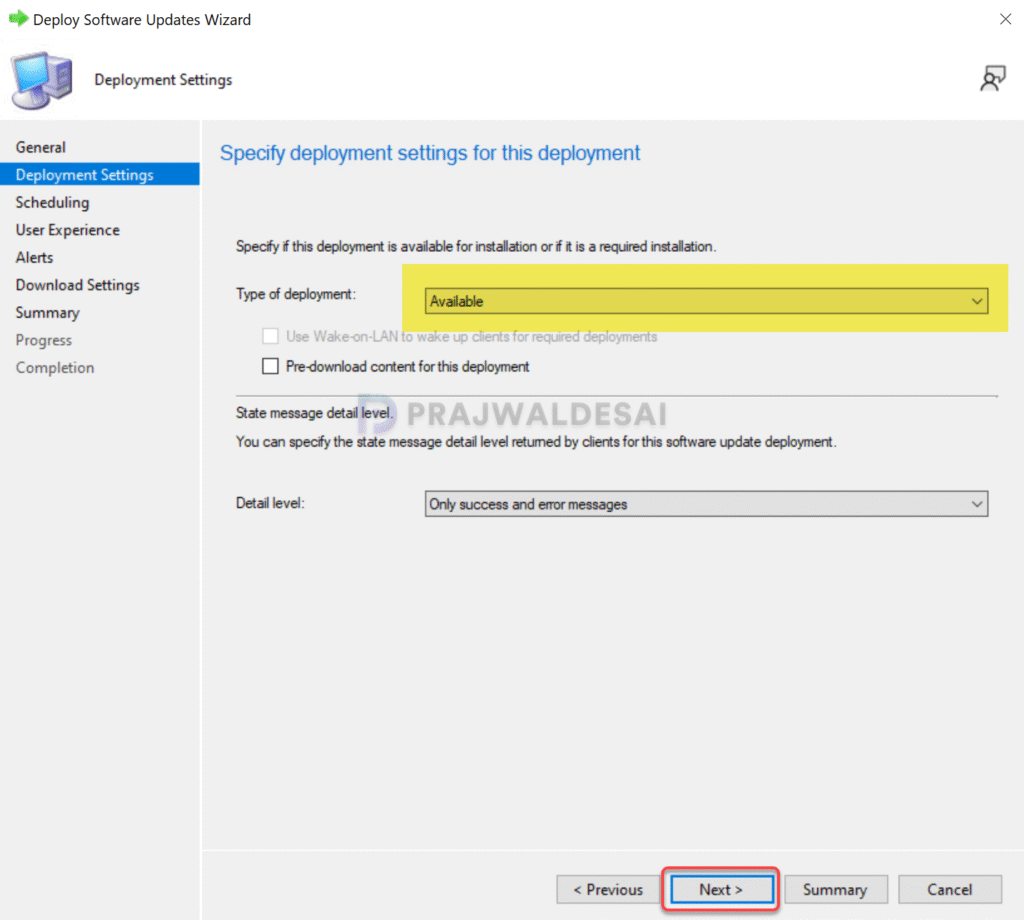
On the Deployment Settings page, specify the deployment type. Choose whether you want to make the 11 25H2 upgrade available for users in the Software Center or deploy it as required. Read more about Available vs. Required in ConfigMgr to know the differences. Click Next.
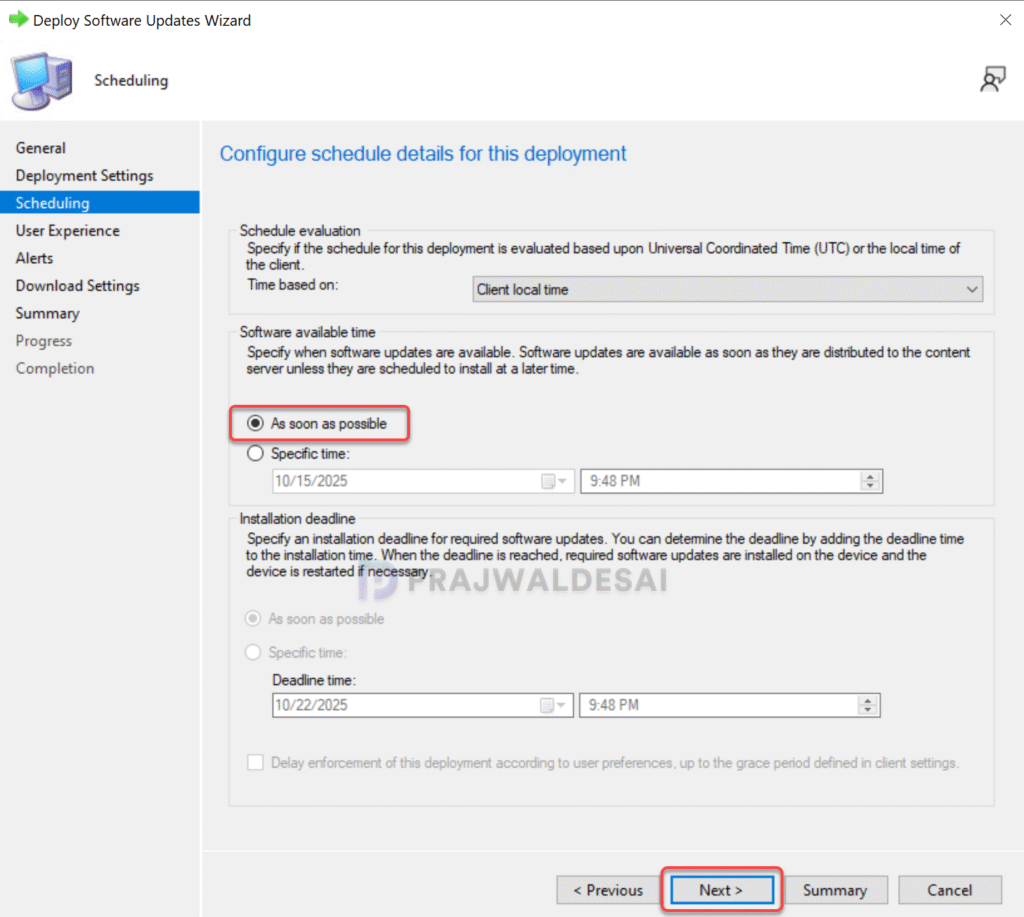
On the Scheduling page, specify a schedule for the deployment. Configure the following settings:
- Time Based on: Select Client Local Time.
- Software Available Time: As soon as possible.
If you want to make the 25H2 upgrade available at a specific date and time, select a specific time and define it. Define the deadline for installation to ensure the upgrade happens within the defined period. Click Next.
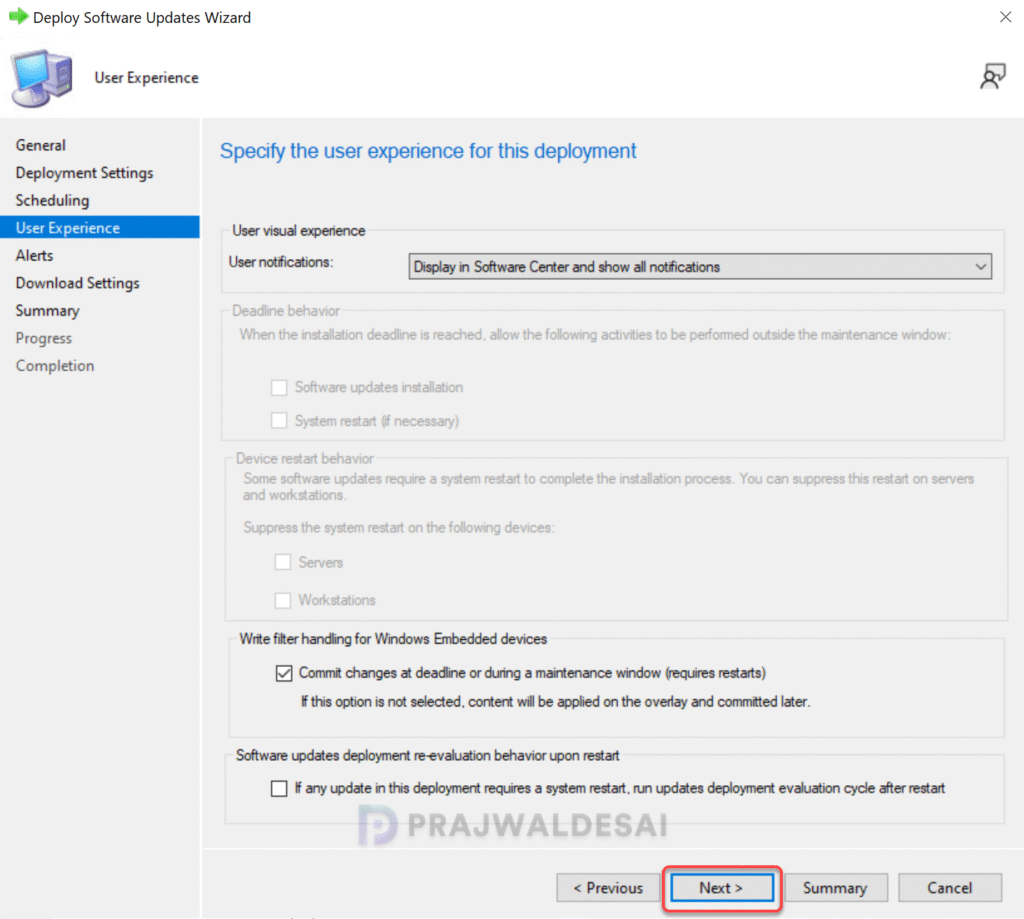
Specify User Experience Settings for 25H2 upgrade as shown in the below screenshot. Click Next.
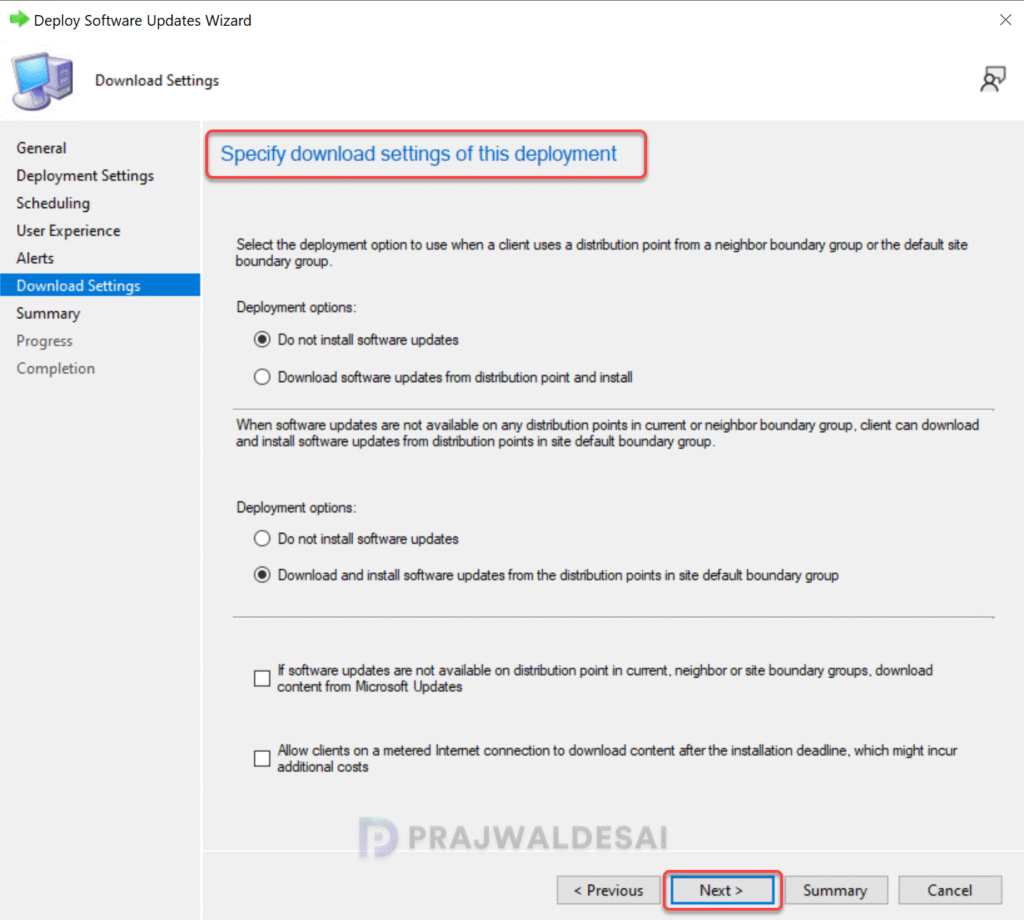
Specify download settings for Windows 11 25H2 feature update. Click Next.
On the Summary page, review the settings that you configured for the deployment. On the completion page, click Close. This completes the procedure for deploying Windows 11 25H2 feature update using SCCM.

Step 4: Perform Windows 11 25H2 Upgrade using SCCM
After you have deployed the Windows 11 25H2 feature update using Windows Servicing, it’s time to perform the upgrade on Windows computers. The end-user experience is similar to other feature upgrades.
Important: On the client computer, close all the files that are in use. Because this is an in-place OS upgrade, save all of your important documents to an online storage service like OneDrive, Google Drive, etc.
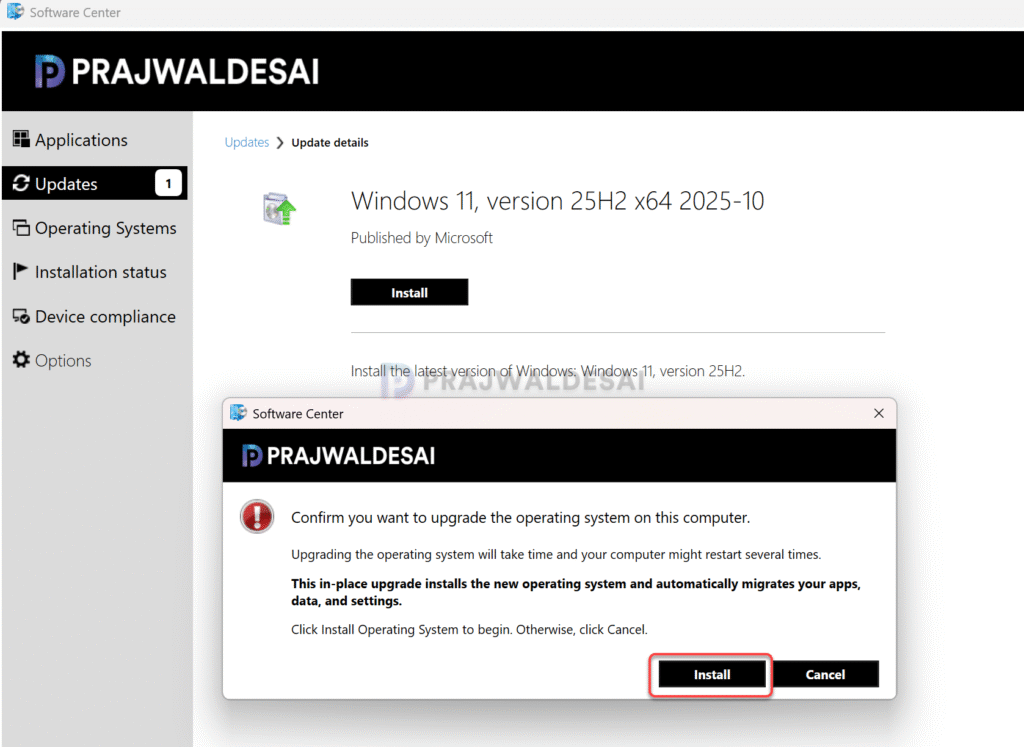
To begin, launch the Software Center on the Windows 11 computer. Once the Software Center has been opened, select Windows 11, version 25H2 x64 2025-10 update by clicking the Updates tab. Click on the Install button.
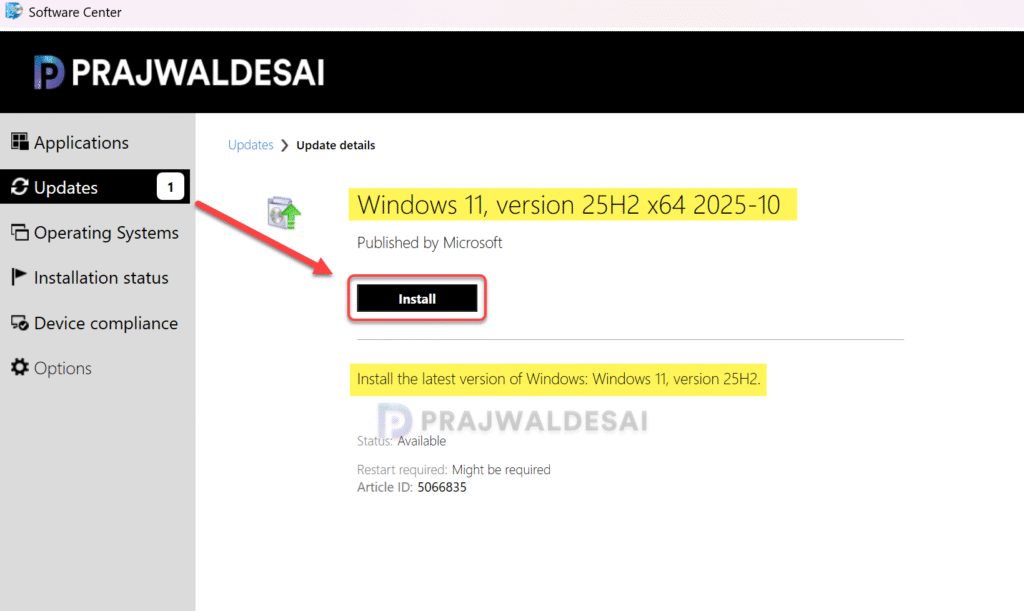
Confirm that you want to upgrade this computer’s operating system. Note that this is an in-place upgrade to version 25H2, and the setup automatically migrates your apps, data, and settings. Click on the Install button to begin the Windows 11 25H2 upgrade.
The Windows 11, version 25H2 update starts to download. Wait for the upgrade to complete. In my lab, it took around 20 minutes for the upgrade files to download and begin the installation.
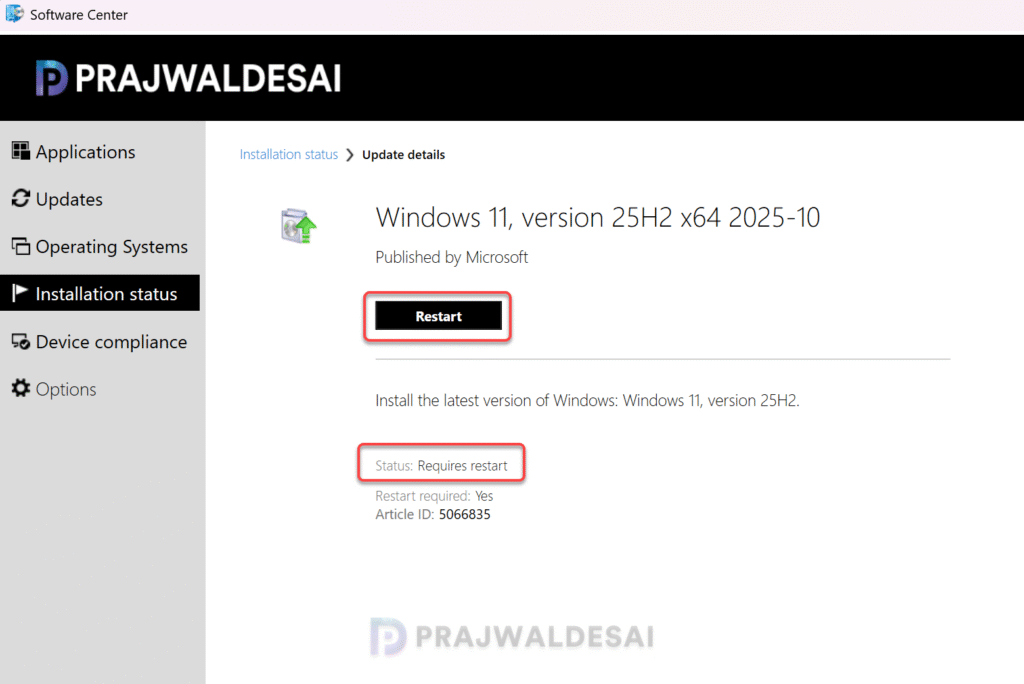
After the upgrade is finished, click the Restart button in the Installation Status section of the Software Center. The computer will restart and perform an in-place upgrade to version 25H2.
Step 5: Verify the Upgrade
There are many ways to check if the in-place upgrade to version 25H2 is successful via SCCM. Sign in to your Windows PC after it has rebooted and run the command ‘winver‘ to get the details about Windows. In the below screenshot, we see the new version of Windows 11 is 25H2 and the OS build is 26200.6899.

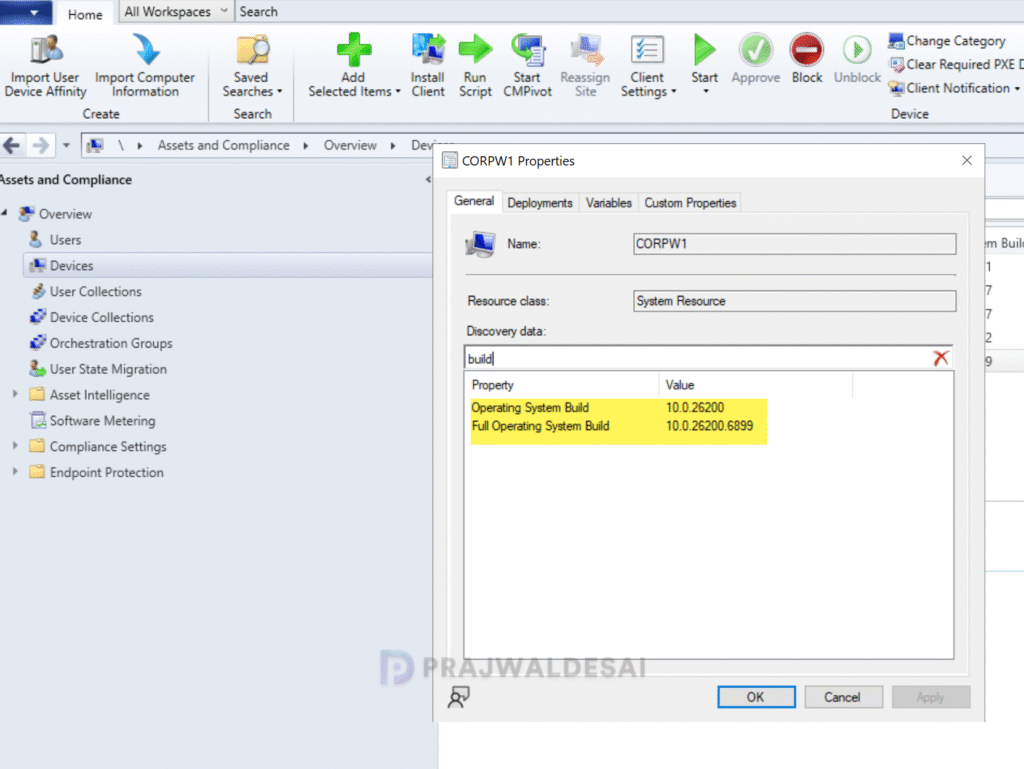
To check the OS system build information of clients in the Configuration Manager console, navigate to Devices. Right-click on the client upgraded to version 25H2, then access discovery data. Search for “build,” and it will display the build number as 10.0.26200, which corresponds to Windows 11, version 25H2.
Troubleshooting
Honestly speaking, troubleshooting feature update deployments is a complex topic in SCCM but from my experience, I can suggest some key things to help you out.
- Feature update download error: In some environments, the download software updates wizard fails to download the feature update. To troubleshoot these download issues, review the PatchDownloader.log located in the %temp% folder on SCCM server. This file records all the errors that occur during the download of Windows 11 feature updates.
- Software Center fails to download feature update: On the client computer, if the 25H2 upgrade fails during the feature update download, review the DeltaDownload.log located in the C:\Windows\CCM\Logs folder to locate the cause of errors.
- Review Windows Upgrade Logs: The Windows upgrade log files can be found in C:\Windows\Panther (including Setupact.log and setuperr.log) and C:\Windows\Logs (including SetupCleanupTask and SetupDiag logs). You can view them by enabling hidden items in File Explorer.
- Firewall Configuration: Based on my knowledge, if the firewall is configured correctly and all necessary SCCM firewall ports are allowed, you shouldn’t experience any download issues.
- Cache Size: Importantly, make sure your administrator has not limited the CCMCache size; else the feature update files fail to download from the nearest distribution point server as the file sizes are almost 16 GB.

I am in the same scenario. My environment is predominantly 23h2. I do not want to deploy a full upgrade as that is a clunky process, when the enablement package works fantastic. Is there a way to deploy the 25h2 enablement package to multiple 23h2 devices? I was thinking of somehow in sccm deploying the 25h2 enablement package, but set the 24h2 enablement package as a prerequisite. Is that possible? or is there a better way?
also, since 25h2 requires the machine to be on 24h2, I am trying to deploy the 24h2 enablement package first, but device installing via software center is horribly slow, after double clicking the 24h2 update, it takes hours to “download” it
Can you please explain the upgrade windows 11 23H2 to 25H2.
Where is this officially documented?
“Configuration Manager 2503 or a later version must be used for deploying Windows 11 2025 update.”
Hi, we’re seeing problems with the download for Windows 11 taking several hours even on very good links, 25H2 seems to be the same. I’ve got delivery optimisation settings applied and downloads are about 14GB. Can anyone share what delivery optimisation policy settings you use and advise for improving the download speed. Thank you.
Hi,
i want use a KB5054156 Enablemet Package but i dont see it in SCCM. It is only my problem or global? Thanks for info.
Best regards
Why doesn’t the update appear in the Software Center after deploying? I’ve been waiting for several minutes…
I’m doing this in a test environment before rolling it out to the entire network. It’s easier to update this way than with an ISO update.
in my case it also does not appear. the version i get from the device i wanted to deploy the upgrade is: Version 24H2 (Build 26100.6899)
the article ID of the Feature Update is: 5066835 and it says (OS Build 26100.6899)
soo i think we have to wait another version? or is their an other solution?
Have you gone into your software update point and selected windows 11 25h2 so wsus can download it?
yeah sure otherwise i wouldnt be able to deploy it.
I also have a client with 23H2 22631.6199. the compliant status is green altough 25H2 isnt installed at all
Can I use SCCM 2409 to deploy 25H2 ?
I recommend using SCCM 2503 to deploy 25H2 and manage it as a client. Microsoft is yet to confirm the minimum ConfigMgr version that supports 25H2 as a client.
Hi Prajwal,
The 25H2 enablement package is a small update, only a few megabytes in size.
For machines already running 24H2, why do we need to download more than 16 GB when only a few MB should be required?
Wouldn’t it be simpler to deploy the enablement package through a standard application or SCCM package?
Nicolas
At the time of deployment, i didn’t find the enablement package. Let me check if its already available.
Is Windows 11 25H2 supported as a client OS version for config mgr 2503 or do I need to wait until 2509?
Version 2503 supports Windows 11 25H2 as client.