


In this step-by-step guide, I will show you how to efficiently upgrade to Windows 11 25H2 using Intune. By leveraging a Feature Update Policy in Intune, I will demonstrate how to perform an in-place upgrade of your existing Windows 11 versions to 25H2 seamlessly.
Windows 11, version 25H2, is the new update released by Microsoft for year 2025. It brings new features, enhanced performance, and improved security to your devices. Most importantly this feature update incorporates all features and fixes introduced in the previous cumulative updates for Windows 11, version 24H2.
Last week, I tested the 25H2 upgrade rollout through Intune on a few pilot devices running Windows 11 version 24H2. The upgrade went really well, and I did not encounter any errors. The app compatibility was also tested and all the third-party apps and proprietary in-house apps worked well.
I want to highlight a key point here: Windows 11 25H2 is delivered as an enablement package (eKB). This is great news for SCCM and Intune administrators, as deploying the enablement update package is much easier, faster, and more reliable.
Before you upgrade
For Organizations planning to upgrade to Windows 11 version 25H2 using SCCM, Intune, or other methods, I suggest following these best practices.
- Pilot Deployment: Select a small group of devices for a test run of the 25H2 upgrade process. This helps identify potential issues before a full rollout.
- Application Compatibility: Test critical business applications for compatibility with the new Windows version. Update or replace any incompatible software if you encounter apps not working or crashing.
- User Feedback: Most importantly, gather feedback from pilot users to determine if the upgrade impacts workflows or causes any problems.
- Plan for Rollout: After confirming the functionality of the 25H2 upgrade, identify the devices eligible for the update and implement a strategic rollout plan. Establish update rings to define the timing and method for delivering feature and quality updates to your Windows devices through Windows as a Service.
Prerequisites
The table below outlines all the prerequisites and provides a description of each requirement necessary for the successful rollout of the Windows 11 25H2 update using the feature update policy in Intune.
| Prerequisites | Description |
|---|---|
| Supported Device Editions | Windows 10 and Windows 11: Pro/Enterprise/Education/Pro Education/Pro for Workstations |
| Enrollment | The Windows 11 devices must be enrolled in Intune MDM and should be either Hybrid AD joined or Microsoft Entra joined. |
| Licensing | Windows Enterprise E3 or E5 (included in Microsoft 365 F3, E3, or E5) Windows Education A3 or A5 (included in Microsoft 365 A3 or A5) Windows Virtual Desktop Access E3 or E5 Microsoft 365 Business Premium |
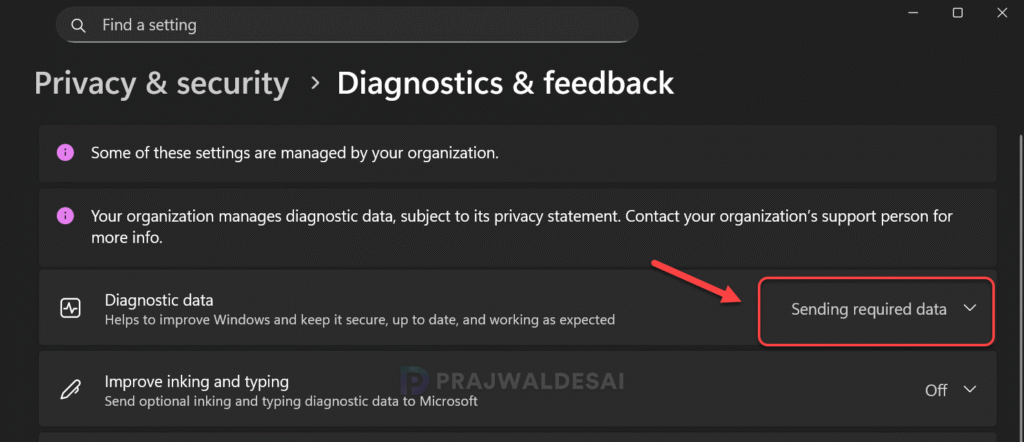
| Telemetry | The Windows devices should have Telemetry turned on, with a minimum setting of Required. |
| Services | The Microsoft Account Sign-In Assistant (wlidsvc) service must be enabled for installing feature updates. |
| Hardware Requirements | Ensure your devices meet the minimum system requirements for Windows 11. |
Steps to Upgrade to Windows 11 25H2 using Intune
I’ll now walk you through the process of upgrading to Windows 11 25H2 using Intune.
Step 1: Configure Windows Update Rings Policy
In Intune, you can create update rings that specify how and when Windows as a Service updates your Windows devices with feature and quality updates. When you use update rings to upgrade to Windows 11, devices install the most current version of Windows 11.
If you have already created and assigned the windows update rings policy to your devices, review it once before you rollout 25H2 update. For those of you who haven’t created update rings policy in Intune, you can do so by following the below steps.
Sign in to the Microsoft Intune Admin Center. Navigate to Devices > Windows > Windows Updates > Update Rings. Click on + Create profile and provide a profile name and description.
Update ring settings: The update ring settings that I have configured for my Intune tenant are as follows:
- Microsoft product updates: Allow
- Windows drivers: Allow
- Quality update deferral period (days): 0
- Feature update deferral period (days): 0
- Upgrade Windows 10 devices to latest Windows 11 release: Yes.
- Set feature update uninstall period (2 – 60 days): 10 days.
- Enable pre-release builds: Not Configured.

User experience settings: My update rings policy has the following settings configured for user experience.
- Automatic update behavior: Auto install at maintenance time.
- Active hours start: 8 AM
- Active hours end: 11 PM
- Option to pause Windows updates: Enable
- Option to check for Windows updates: Enable
- Change notification update level: Use the default Windows Update notifications.
- Use deadline settings: Not Configured.

Note: You need to configure the Windows Update Rings policy settings according to your organization’s specific requirements. Since these settings can differ for each organization, it is essential to test them on a set of pilot devices first. Once confirmed to work successfully, the settings should then be deployed across all Windows devices.
Step 2: Create Feature Update Policy
To create a Windows 11 25H2 feature update policy in Intune, sign in to the Microsoft Intune admin center. Go to Devices > Windows Updates. Switch to the Feature updates tab and select Create > Create feature update policy.
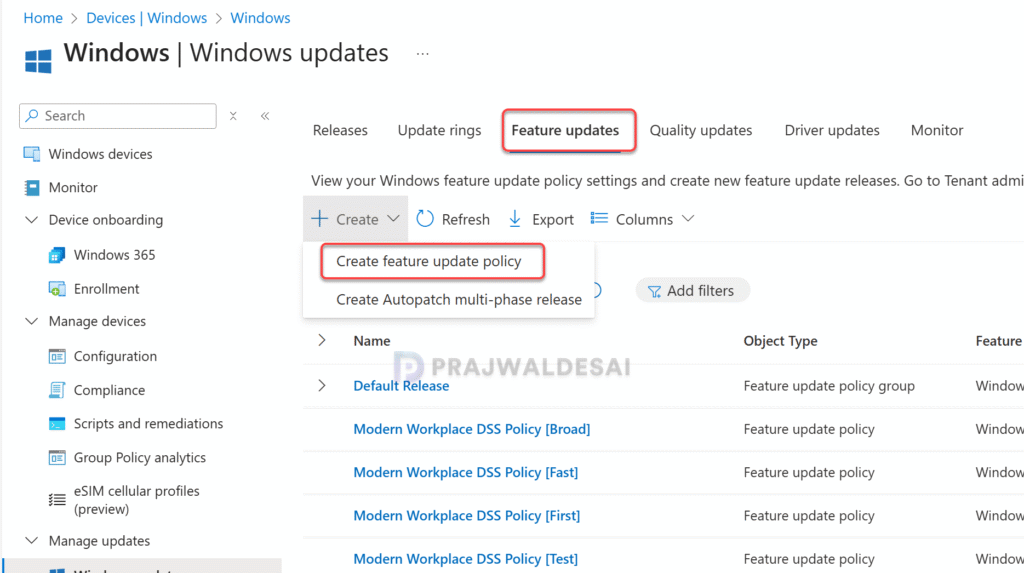
In the Deployment settings tab, enter a meaningful name and a description for the policy. In my case, I have specified the following details:
- Name: Upgrade to Windows 11 version 25H2
- Description: A feature updates policy to upgrade Windows 11 devices to version 25H2
Next, click on the drop-down next option: Feature update to deploy and select Windows 11, version 25H2 from the list.
Rollout options for feature updates: Once you choose the required Windows 11 version, the next step is to choose how you want to make the update available for end users. Intune offers two options for rolling out feature updates to end users.
- Make available to users as a required update: If you select this option, the next time the device checks for updates, the 25H2 update is automatically installed as a Required update.
- Make available to users as an optional update: If you select this option, the selected updates are made available to users as an optional update. To get the update, the user must navigate to the Windows update settings and manually download the ‘Windows 11 25H2 update‘.
In the below example, the Windows 11 25H2 update is deployed as a required update for users. Click Next.

On the Scope tags page, you may select any desired scope tags to apply. This is optional and you can skip to the next page. Learn how to create new scope tags in Intune. Click Next.

Under Assignments, choose + Add groups and select the pilot group(s) containing the devices chosen for testing the 25H2 upgrade. Click Next.

Under Review + create, review the update policy settings. You may go back and modify the settings if required. If everything looks good, select Create to create this new feature update policy.

Step 3: Monitor the 25H2 Upgrade Progress
In this section, I will show you how to monitor the progress of OS upgrade and find out the number of devices that successfully upgraded to Windows 11 25H2 and those that failed to install the update. Follow these steps to track the progress of the Windows 11 25H2 upgrade in Intune.
- In the Intune admin center, navigate to Reports > Windows Updates and select Windows Feature Update Report.
- Select the Windows 11 25H2 Feature update policy to monitor.
- Click on Generate Report to find the progress of upgrade.
The report data highlights the Windows 11 devices that have successfully received the 25H2 update. In the screenshot below, see the “Update Aggregated” column and the status shows as “In Progress,” indicating that the 25H2 update rollout is still underway.
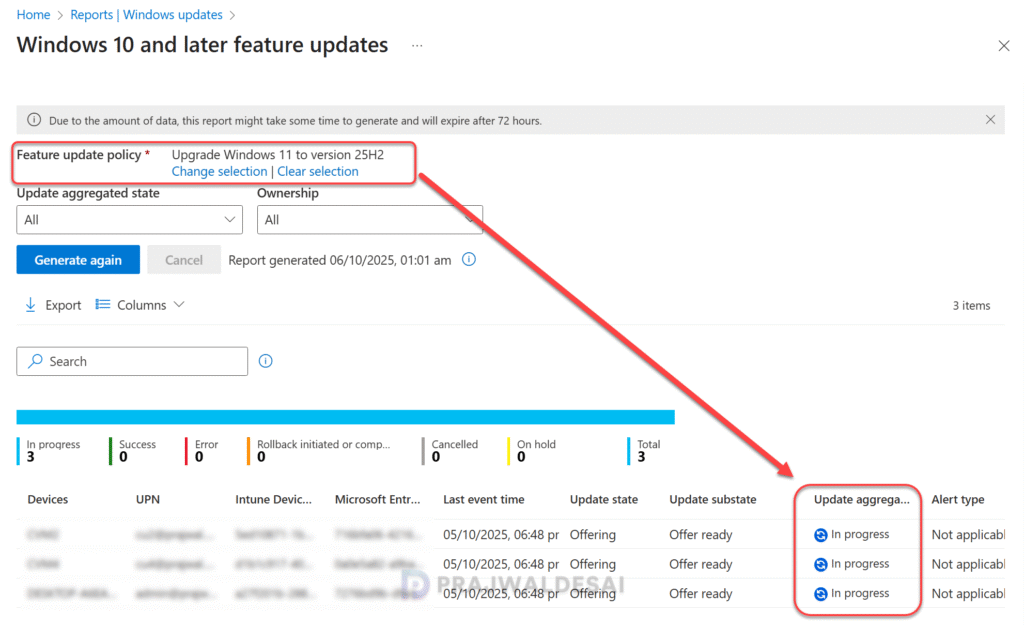
After some time, generate the feature update report again to see the upgrade progress. In the screenshot below, see the “Update Aggregated” column and the status shows as “Success,” indicating that the 25H2 update rollout is successful.

Step 4: Sync Intune Policies
After the 25H2 feature update deployment policy is assigned to the device groups, you can manually sync Intune policies on Windows devices. The sync action basically prompts devices to instantly connect with Intune and apply the most up-to-date policies.
Step 5: Verify Windows 11 25H2 Upgrade
Based on the rollout options you’ve configured, the 25H2 feature update will be delivered to the targeted Windows devices. In my case, I set the rollout option to deploy version 25H2 as a required update, meaning the 25H2 update will be automatically installed as a mandatory update.
To verify if feature update policy has upgraded your device to 25H2, sign in to a Windows 11 device. Launch the Settings and go to Windows Update. Here you can find out if the Windows 11 version 25H2 is already installed or its in progress.
In my case, I logged in to a Windows 11 device targeted with the above policy. In the Windows Update settings, I noticed the version 25H2 update installation was successful and it required a restart. You can select Restart now to immediately restart the PC or choose another time for reboot.
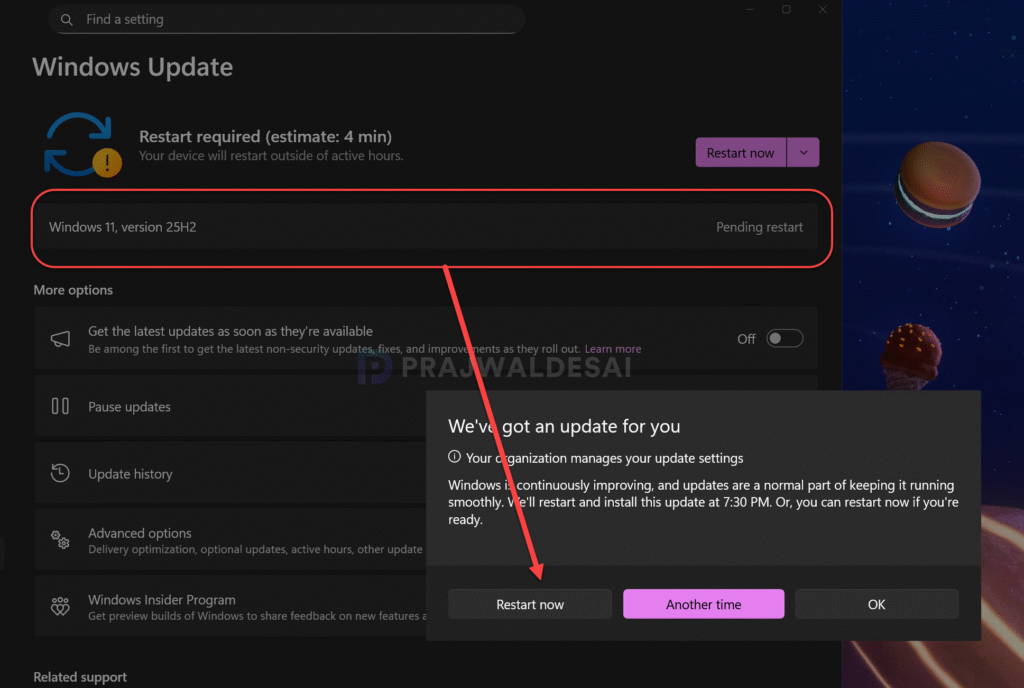
To finish the upgrade, simply restart your PC. Sign in to the Windows 11 PC and open Settings app and go to System > About. Under Windows specifications, you can confirm the Edition, Version, and OS Build number of Windows 11 25H2.
- Version: 25H2
- OS Build: 26200.6584
Note: The primary OS build number for Windows 11 version 25H2 is 26200, with the minor build number continuously incremented as updates are released. To track the updates released for all version of Windows 11, check out my Windows 11 updates release guide.
The below screenshot confirms successful upgrade from Windows 11 24H2 to version 25H2 using Intune. 🏆

Troubleshooting
If the deployment of the Windows 11 25H2 feature update policy fails or devices encounter errors, I recommended these troubleshooting steps.
1. Review Event Viewer Logs
Event logs are very critical and play a major role during troubleshooting the Windows 11 upgrade issues. On the device that doesn’t receive the Windows 11 25H2 update, launch the event viewer. Navigate to Application and Services Logs > Microsoft > Windows > DeviceManagement-Enterprise-Diagnostics-Provider. Select Admin and examine the event ID 814, 813 for 25H2 feature update policy and other event IDs for errors.

2. Check Safeguard holds on Windows 11 devices
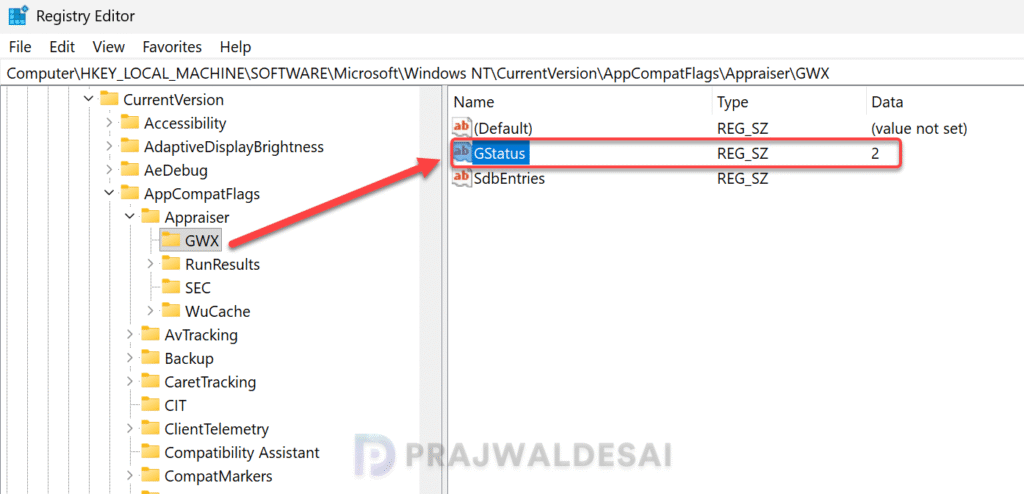
Safeguard holds prevent a Windows device with a known issue from being offered a new operating system version. If the 25H2 upgrade fails on any of your devices, you can check the status of safeguard hold in Windows Registry.
Press Windows + R to open the Run box. Type ‘regedit‘ and press enter to open the registry editor. Navigate to the below registry path.
HKLM:\SOFTWARE\Microsoft\Windows NT\CurrentVersion\AppCompatFlags\Appraiser\GWXHere look for the GStatus value that determines whether safeguard hold is active or isn’t in effect.
- GStatus = 2: A safeguard hold isn’t in effect
- GStatus = 0: A safeguard hold is in effect
In the below screenshot, the GStatus value is 2 indicating that Windows 11 25H2 upgrade isn’t blocked or restricted.
3. Verify the status of Microsoft Account Sign-In Assistant (wlidsvc) service
The Microsoft Account Sign-In Assistant (wlidsvc) service needs to be enabled to install feature updates. If this service is disabled or blocked, the Windows 11 25H2 upgrade will not proceed successfully.
4. Check Telemetry Level
The devices that you intend to upgrade to 25H2 must have telemetry turned on, with a minimum setting of Required. If the Telemetry level is set to Optional or disabled, the feature update policy deployment will fail. The devices that receive a feature updates policy and that have Telemetry set to Not configured (off), might install a later version of Windows than defined in the feature updates policy. Learn how to configure Windows Telemetry or Diagnostic data for your Windows devices using Intune.
Conclusion
This comprehensive guide provides everything you need to successfully plan and execute the Windows 11 25H2 upgrade using Intune, including prerequisites, rollout strategy, upgrade procedures, and troubleshooting steps.
Upgrading to Windows 11 25H2 using Intune is a straightforward process that ensures your organization benefits from the latest features and security enhancements. By leveraging Intune’s update management capabilities, IT administrators can efficiently deploy the upgrade across their environment with minimal disruption.
If you need more help on any of the above topics, let me know in the comments section.

We are seeing incosistent notification behaviour in our environment, Devices wont show up restart toast notification after update installation gets complete. Did you also experience this?
Hi Simran, I haven’t seen this during the upgrade. In fact I got the toast notification on almost every device during upgrade. Can you check the configuration for Do Not Disturb and Settings > System > Notifications.