In this article, you’ll learn how to download and import Notepad ADMX templates into Intune and Active Directory. The ADMX templates add rules and settings for the Notepad app to the Policy Definition template folder on individual computers.
The procedure for importing administrative template files for Notepad is different for Intune and Active Directory. For on-premises environments, you copy the .admx and .adml files to your central store. For cloud management, you simply upload them via the Intune portal.
The settings catalog in Microsoft Intune covers most policies for the Notepad app and is frequently updated. However, if a particular policy setting is missing in Intune or Group Policy, manually importing the template files is a practical solution.
To configure ADMX files for Notepad, you must have the Notepad app installed on the Windows devices. By default, Windows 11 comes with the Notepad app preinstalled; however, recently Microsoft allowed the removal of the pre-installed apps via Intune or Group Policy. So make sure the Notepad app is present on your Windows devices before applying any of its settings.
Download ADMX Policy Templates for Notepad
To get the latest version of ADMX policy templates for the Notepad app, open your browser and visit the Notepad Administrative Template (ADMX) link. The browser downloads the WindowsNotepadAdminTemplates.cab file onto your computer.
Next, right-click the WindowsNotepadAdminTemplates.cab file and select Extract. Specify a folder location where you want the files to be extracted.
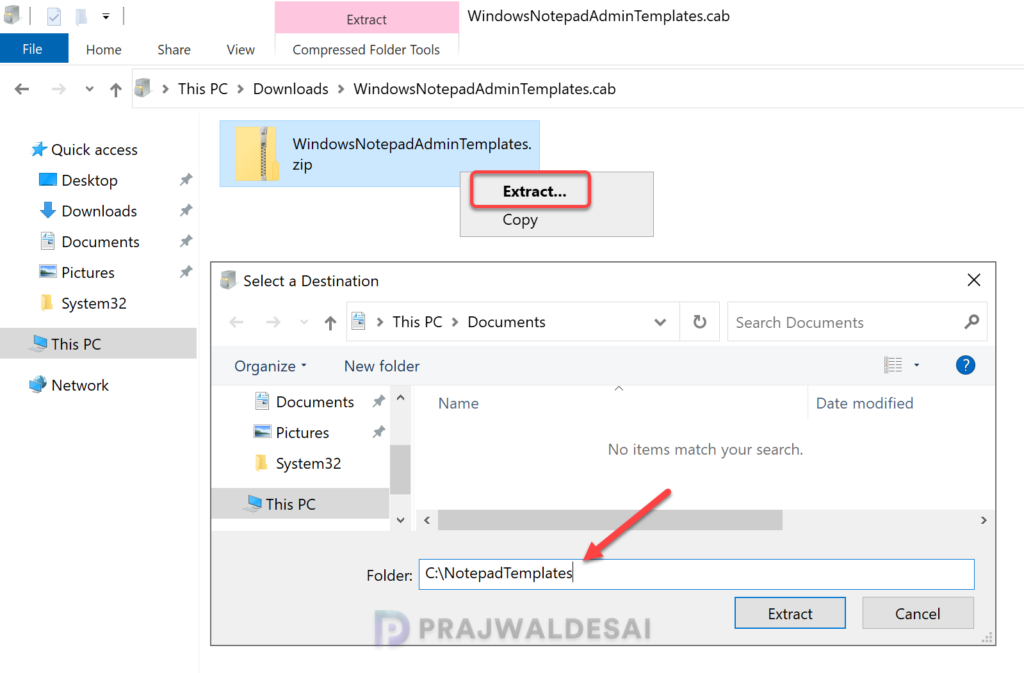
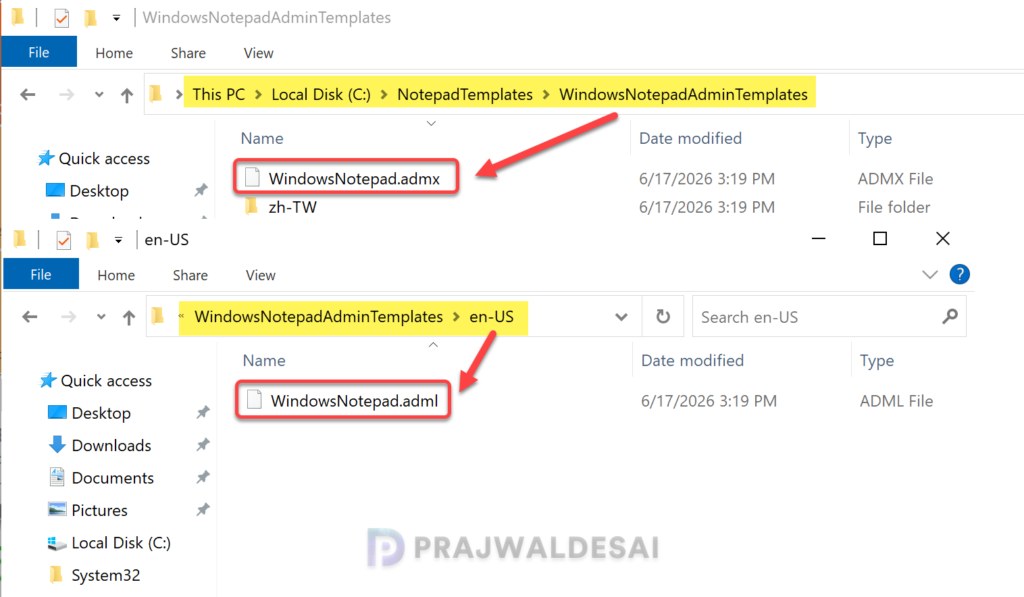
Next, you’ll have to extract the WindowsNotepadAdminTemplates.zip to a folder. When done, look for the WindowsNotepad.admx file in this folder that contains all the policy settings for the Notepad app. Within each language folder, you will find the WindowsNotepad.adml file. These two files will be imported separately into Intune and Active Directory.
Import Notepad ADMX Templates into Intune
Perform the following steps to import Notepad ADMX template files into Intune:
- First, sign in to the Microsoft Intune admin center.
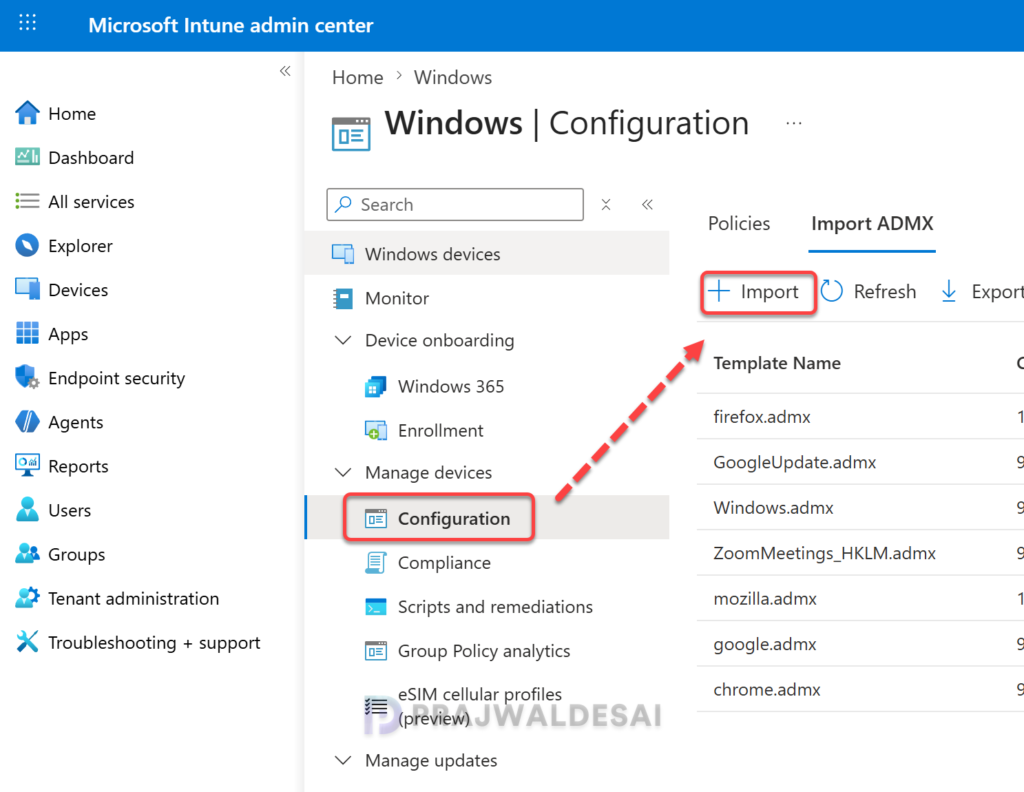
- Go to Devices > Windows > Configuration > Import ADMX.
- Click Import to upload a new administrative template file.
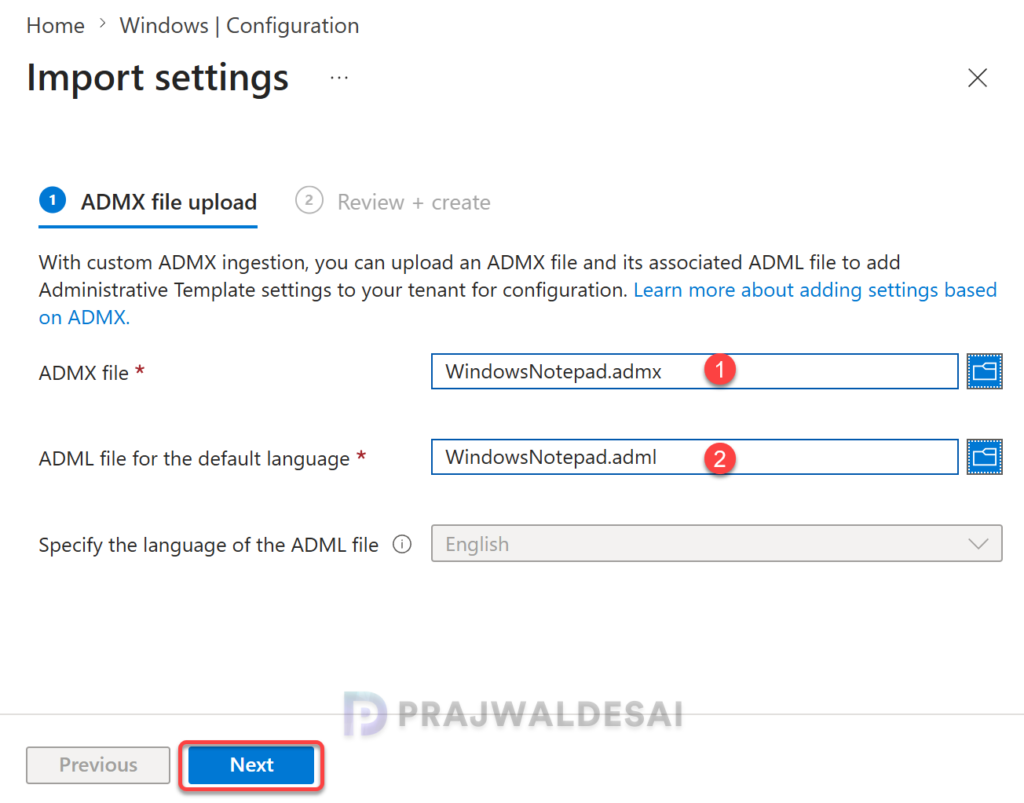
On the ADMX file upload tab, configure the following:
- ADMX file: Upload the Windows Notepad admx file.
- ADML file for the default language: Upload the Windows Notepad adml file. Remember, you can add only one language file for each ADMX file you upload.
- Specify the language of the ADML file: Shows the ADML language of the file you uploaded.
Note: While uploading Notepad admx and adml files, if you run into the error “ADMX file referenced not found NamespaceMissing Microsoft Policies Windows“, ensure you upload the latest Windows.admx as it’s a prerequisite. That should resolve the Notepad admx import error.
Click Next to continue.
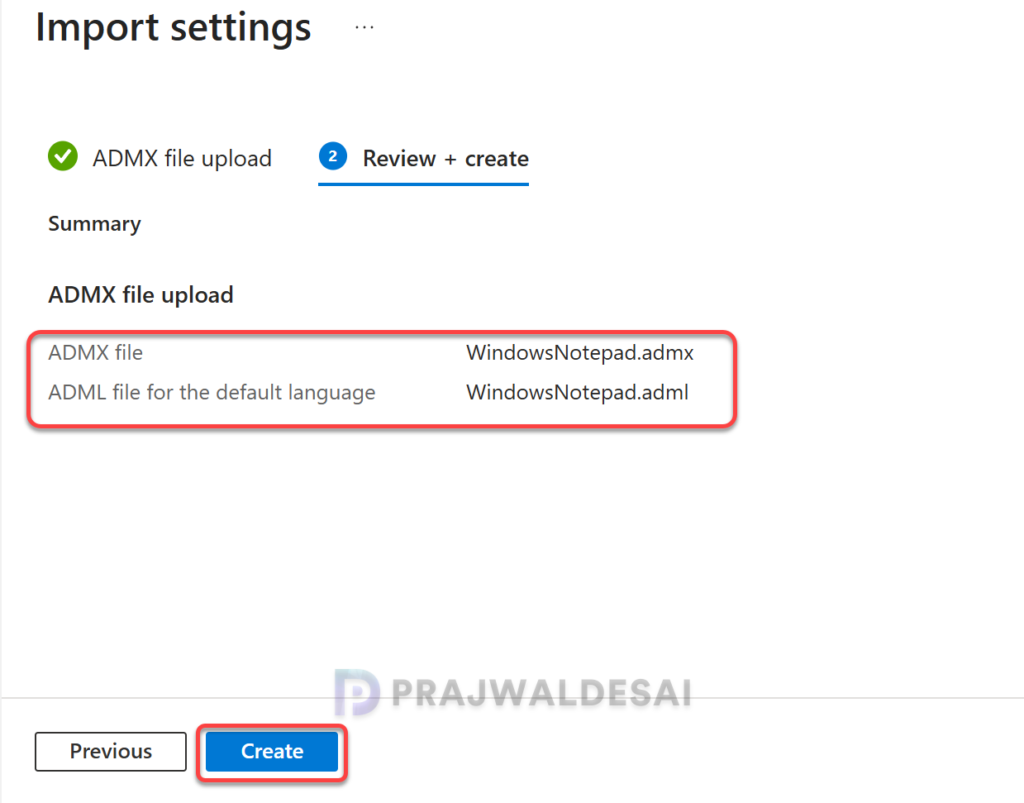
In Review + Create, review your changes. Select Create to import the files. That completes the steps for importing ADMX template files for the Notepad app into Intune.
After you’ve imported the policy templates, you can now create a new settings catalog policy and configure Notepad settings and apply them to your managed Windows devices.
Import Notepad ADMX Template Files into Active Directory
For Active Directory environments, the process of importing ADMX templates for Notepad app primarily involves two steps: importing the Notepad ADMX template and then importing the Notepad ADML files. Before you begin, ensure you are using an account that has domain administrator privileges for importing the ADMX templates. Otherwise, the import process will fail.
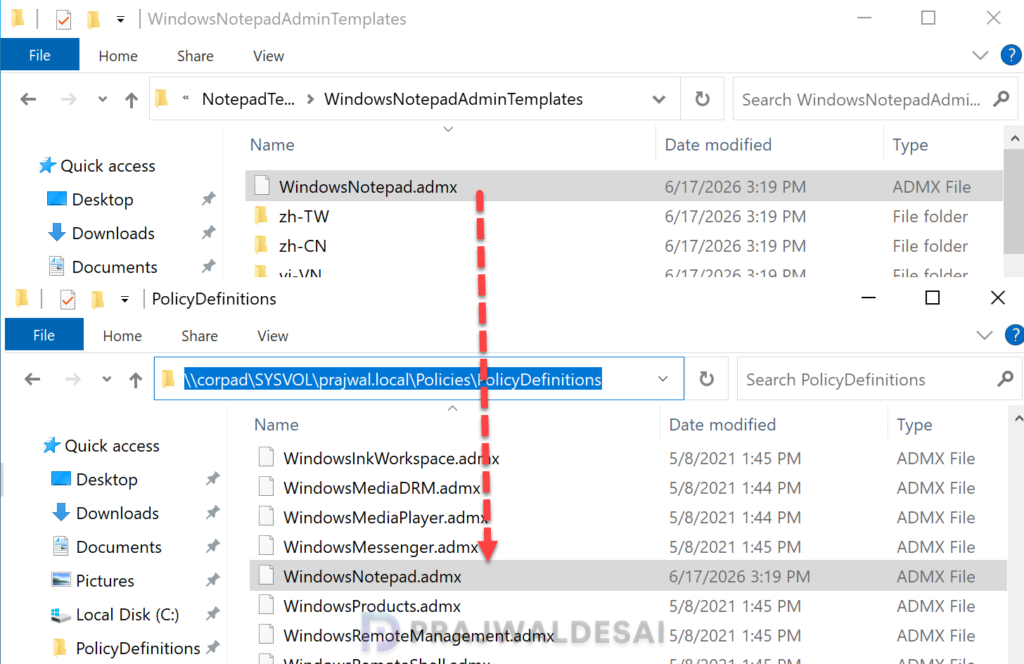
Sign in to your Windows domain controller and locate the PolicyDefinitions directory in your domain’s SYSVOL path (\\yourdomain.com\SYSVOL\yourdomain.com\policies\PolicyDefinitions). This folder serves as the Group Policy Central Store for your Active Directory. If the PolicyDefinitions folder is not present, you’ll have to manually create it. Copy the WindowsNotepad.admx file that you extracted from the above step to the PolicyDefinitions folder as shown in the below image.
Copy the WindowsNotepad.adml file that you extracted in the above step to the relevant language folder. For instance, in the below image, I have copied the Notepad adml file to the en-US folder. If the OS language is different in your case, make sure you copy the language-specific adml files to the relevant folder.
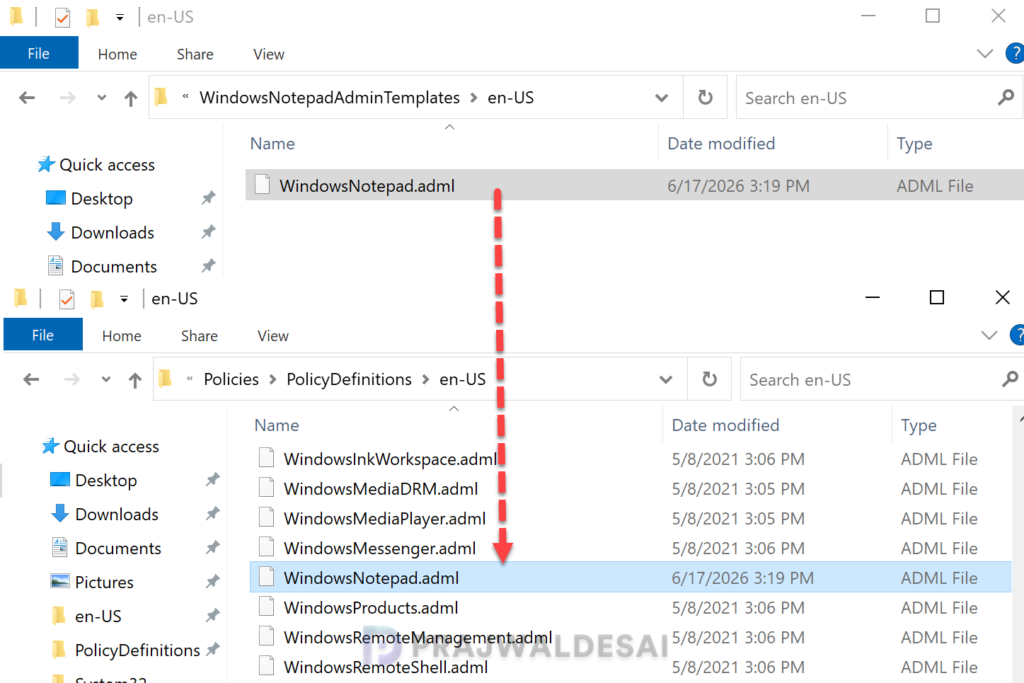
To verify if you can see Notepad ADMX policies, launch the Group Policy Management console on the domain controller. Right-click your domain entry and select Create a GPO in this domain, and Link it here. In the GPMC editor, navigate to Computer Configuration > Policies > Administrative Templates > Windows Components > Notepad. Here you should see all the available Notepad related policy settings.
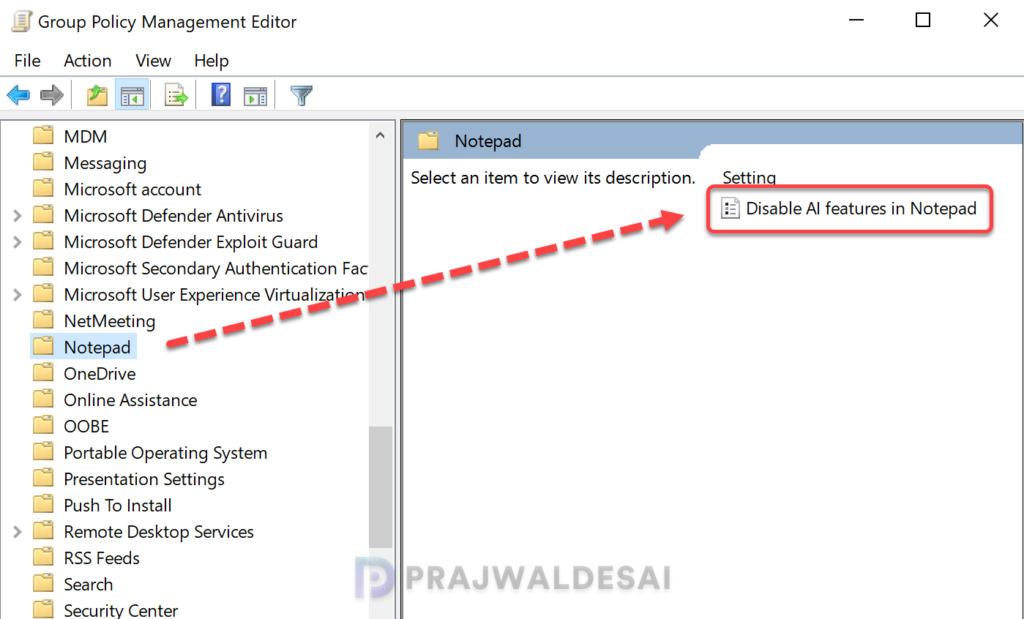
Policy settings for Notepad
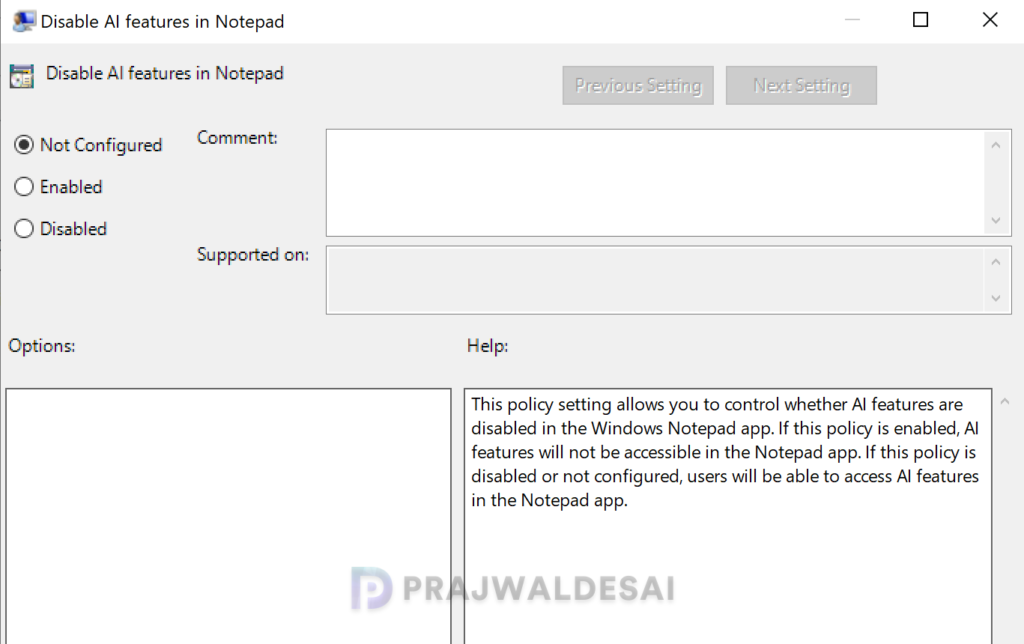
There is only one policy setting available for Notepad, which is Disable AI features in Notepad. This policy setting allows you to control whether AI features are disabled in the Windows Notepad app. If this policy is enabled, AI features will not be accessible in the Notepad app. If this policy is disabled or not configured, users will be able to access AI features in the Notepad app. Microsoft may add more new Notepad policy settings in the future.