

If you are looking to automatically update Google Chrome using Intune, this guide is for you. The procedure involves downloading the Chrome ADMX templates, importing them into Intune, and configuring the Update policy override policy to always allow updates for Chrome.
Google Chrome and other Chromium-based browsers typically install updates automatically, eliminating the need for manual intervention. However, Group policy or Intune is still necessary to enforce an auto-update policy because some users may disable Chrome’s automatic update feature via registry or other methods, thereby preventing the browser from staying up to date.
Google’s browser update strategy recommends enabling Auto-update across most of your fleet to ensure Chrome is automatically updated with each new release. This approach guarantees that all users promptly receive essential security patches and access to the latest features.
The best part is with Google’s ADMX templates for chrome, administrators can manage Chrome settings via Group Policy or Intune. For devices managed by Intune, enforcing automatic Chrome updates is straightforward using a configuration policy. Let’s dive in!
Step to Keep Google Chrome Auto-Updating with Intune
To automatically update Google Chrome using Microsoft Intune, we will configure a policy that ensures Chrome updates automatically across managed devices. Here’s the step-by-step procedure:
Step 1: Download Google Chrome ADMX Templates
First, let’s get the latest ADMX templates and ADMX template update files for Google Chrome. Navigate to the Chrome Enterprise website to download the ADMX templates for the Chrome browser.
Here make the following selections and Click on Accept and download link to download these policy template files.
- Policy templates: Click the drop-down and select Chrome ADM/ADMX templates.
- Update management templates: Click the drop-down and select Google Updater ADMX template update.
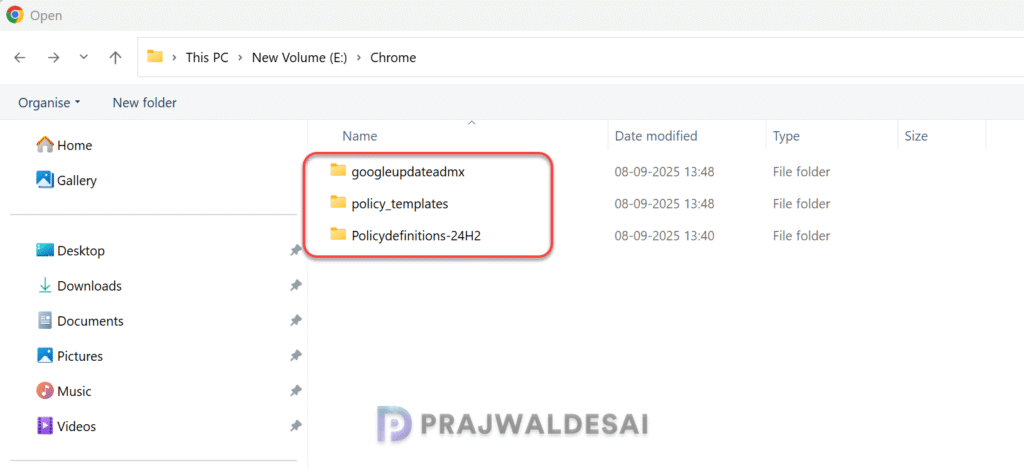
The browser now downloads two files: policy_templates.zip and googleupdateadmx.zip. Extract these zip files to a folder to see all the the .admx and .adml files.

I have placed the Google Update ADMX, Policy Templates and Policy Definition files for Windows 11, 24H2 into a single folder. This makes it easy when you’re uploading them to Intune.
Note that you don’t necessarily need to have 24H2 policy files imported as most of its settings are already included in Intune. In case you encounter the weird “NamespaceMissing:Microsoft.Policies.Windows” error during template import, ensure you import Windows.admx first and then the other ones.
Step 2: Import Chrome ADMX Templates into Intune
Google provides ADMX templates that allow administrators to manage Chrome settings via Group Policy or Intune. You need to upload these templates to Intune before you can configure any of its settings.
To import the Chrome ADMX templates into Intune and update ADMX files, use these steps:
- Sign in to Intune admin center. Go to Devices > Manage Devices > Configuration.
- Select the Import ADMX tab and click on + Import button to upload the Google.admx, chrome.admx, and GoogleUpdate.admx files. You must also upload the relevant .adml files for each of the .admx files.
- Once you have done this, select the Refresh option to view the list of ADMX files that you’ve uploaded.

You should see the following Chrome ADMX files successfully imported to Intune.
- Google.admx: Contains all the settings under one hood. You should see this folder while configuring any policy settings for Chrome in Intune.
- Chrome.admx: Contains all the Chrome browser settings.
- GoogleUpdate.admx: This contains the settings for controlling updates delivered to the Chrome Enterprise browser.
Proceed to the next step.
Step 3: Configure the Auto-Update Policy for Chrome
Sign in to Intune admin center and go to Devices > Windows > Configuration. Create a new policy and select the following as shown in the below screenshot.
- Platform: Windows 10 and later
- Profile Type: Templates
- Template Name: Imported Administrative Templates
After making the above selections, click Create.

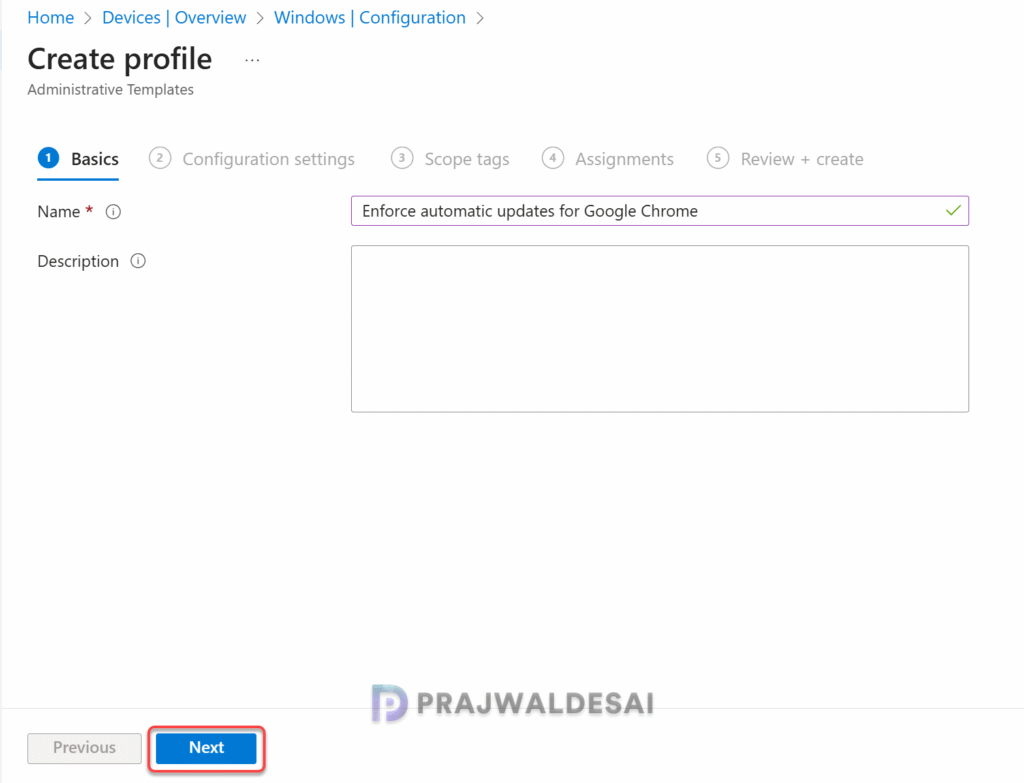
On the Basics tab of the Create Profile window, specify the name of the profile as Enforce automatic updates for Google Chrome. You may add a brief description about the profile. Click Next to continue.
On the Configurations settings tab, navigate to Computer Configuration\Google\Google Update\Applications\Google Chrome. From the list of settings, select Update policy override. In the selection pane, choose Enabled to activate this policy. Click the drop-down for policy and select “Always allow updates (recommended).” Click OK to save the changes.
This should effectively enforce automatic updates for the Chrome browser on every machine targeted with this policy.
Based on the policy description, let me cover the other update options that Google offers for managing the Chrome Updates:
- Always allow updates: Updates are always applied when found, either by periodic update check or by a manual update check.
- Manual updates only: Updates are only applied when the user does a manual update check. (Not all apps provide an interface for this.)
- Automatic silent updates only: Updates are only applied when they are found via the periodic update check.
- Updates disabled: Never apply updates.
Click Next.

In the scope tags section, you specify scope tags. Specifying scope tags is optional, and you may skip this step. Click Next.
In the Assignments window, select the user groups to which you want to assign the Chrome auto update policy. I recommend deploying the profile to a few test user groups first and then expanding it to more users if the testing is successful. Select Next.

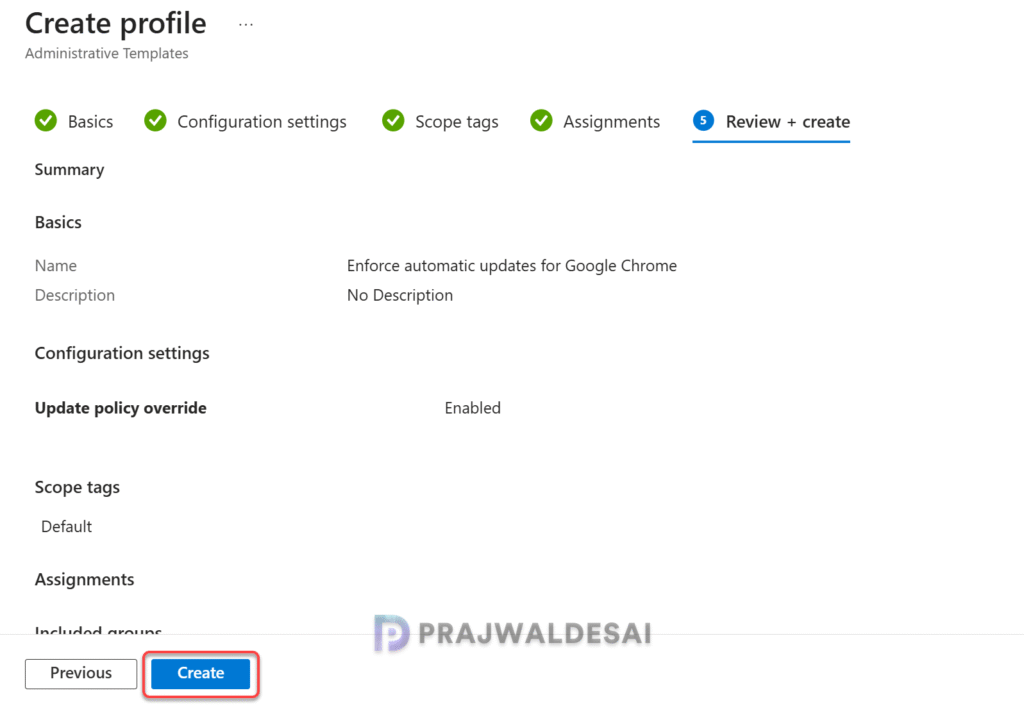
On the Review + Create page, review all the settings that you have configured so far and select Create. A new policy is created, and you can find it under the list of Configuration Profiles.
Step 4: Sync Intune Policies
To speed up the policy assignments, you can manually sync Intune policies using different methods on your windows computers. The sync action will force devices to immediately check-in with Intune and retrieve the latest policies.
Step 5: Monitor Policy Deployment
To monitor the Chrome auto update policy assignments in Intune, go to Devices > Windows > Configuration. Select the ‘Enforce Auto updates for Chrome‘ Profile. On the Policy overview page, check the device and user check-in status. You can see the number of devices or users on which the policy has been applied successfully.

If you want to see the specific Chrome policy settings applied to the groups, click on Per Settings status. In the below screenshot, you can see that the Chrome Update policy override (\Google\Google Update\Applications\Google Chrome) setting is applied to the devices successfully.

In some cases, the policy settings may fail to apply to certain users. To resolve these issues, you will need to troubleshoot the issue by reviewing Intune logs on Windows computers. These are essential IME logs that are useful for troubleshooting app and policy assignments failures on remote computers.
Step 6: Verify Deployment
Let’s verify if the automatic updates for Chrome are applied in accordance with Intune policy. On a managed device, open Google Chrome and navigate to chrome://policy. Scroll down and look for the Google Update Policies section. Here we see the policies related to auto-updates are applied successfully with these details:
- Policy Name: UpdatePolicy
- Policy value: 1
- Source: Platform
- Applies to: Machine
- Level: Mandatory
- Status: OK
With the above settings in place, the Google Chrome will automatically update in the background whenever new updates are available. Users are unable to disable automatic updates due to restrictions imposed by the Intune policy.

Conclusion
I hope this guide has been helpful in configuring automatic updates for the Chrome browser using Intune policies. Enabling auto-updates for Google Chrome using Intune ensures that all managed devices stay secure and up-to-date with the latest features and patches. By leveraging Intune’s configuration profiles and Chrome’s ADMX templates, administrators can enforce consistent update policies across the organization, reducing vulnerabilities and minimizing manual intervention.
That concludes this guide. To explore more helpful resources, be sure to bookmark this site. If you have any questions, feel free to share them in the comments section.

Hello,
Must Chrome be deployed as a Windows MSI Line-of-Business application, or are there alternative deployment methods that work with Intune’s update management features?
Does the Intune Chrome auto-update policy apply to managed devices where Google Chrome is already installed outside of the Company Portal (i.e., user-installed Chrome), or does it only work with Chrome deployed through Intune?
Thank you in advance 🙂
These only work for AD joined computers, right?
“This policy is available only on Windows instances that are joined to a Microsoft® Active Directory® domain.”
Hi How to create like notification for the relaunch? will this work? thanks
Relaunch Chrome after updating or after installing?
How did you get the .adml files? I can only find the .admx and .adm files via the link in the article.
The adml files are located within the package in the individual language folder.
Is there a way to force launch after update is done??
I haven’t imported an ADMX to Intune yet. What happens when Google updates the files?
Hi Prajwal,
Does it update eve if chrome is not launched ? Chrome is designed to auto update only when in use. Once updates are downloaded it will require chrome to relaunch to apply the update. Some users only use edge and they dont launch chrome and it causes vulnerabilities. Please let me know if there is any solution for this scenario.
Thanks,
Senthil.
What I am guessing is the updates are downloaded while the user is working in the background and they will be installed when users relaunch the chrome. That’s the standard way chrome updates are delivered and installed.