

In this guide, I’ll cover the steps to deploy Windows 11 26H2 update using SCCM. I will use Windows Servicing to sync and download the most recent feature updates and perform an in-place upgrade of eligible Windows 11 devices running version 24H2 or 25H2 to version 26H2 through Configuration Manager.
Windows 11, version 26H2 is the annual feature update for Windows 11 released by Microsoft on September 29, 2026. This version bundles features and enhancements gradually rolled out over the last year to versions 25H2 and 24H2 in the areas of security, management, accessibility, and productivity. For more information on new features, check out What’s new in Windows 11, version 26H2.
For PCs already running Windows 11 version 24H2 or 25H2, version 26H2 installs quickly via a small enablement package (eKB). Both Configuration Manager and Intune are capable of rolling out Windows 11 26H2 feature update. With Configuration Manager version 2609 or later, administrators can make use of Windows Servicing to quickly distribute the 26H2 enablement package to eligible devices. You can also perform in-place upgrade of Windows 11 to version 26H2 using Intune.
Prerequisites
Below are the prerequisites necessary for upgrading to Windows 11 26H2 using SCCM.
- Configuration Manager 2603 or a later version must be used for deploying Windows 11 2026 update. I recommend using version 2609 or newer for managing 26H2 devices.
- Ensure the service connection point is online before you sync the updates.
- Configure Software Update Point to make sure the Windows 11 product is enabled under Software Update Point > Products.
- If you don’t see the feature update for 26H2 in the console, sync updates in WSUS/SUP once.
- Turn on dynamic updates for feature updates and specify thread priority for feature updates to Normal in Configuration Manager Client Settings.
- If you’re rolling out the 26H2 update in your organization, I recommend testing the upgrade on a pilot device collection first and then expanding to a larger set of devices. Use the following guide to create Windows 11 device collections in SCCM.
- To determine the current version of your PC, see how to check the version and edition of Windows 11 PC.
Steps to Upgrade to Windows 11 26H2 using SCCM
Here are the steps to performing an in-place upgrade of Windows 11 24H2 or 25H2 devices to version 26H2 using SCCM servicing.
Step 1: Sync Feature Updates for Windows 11 26H2
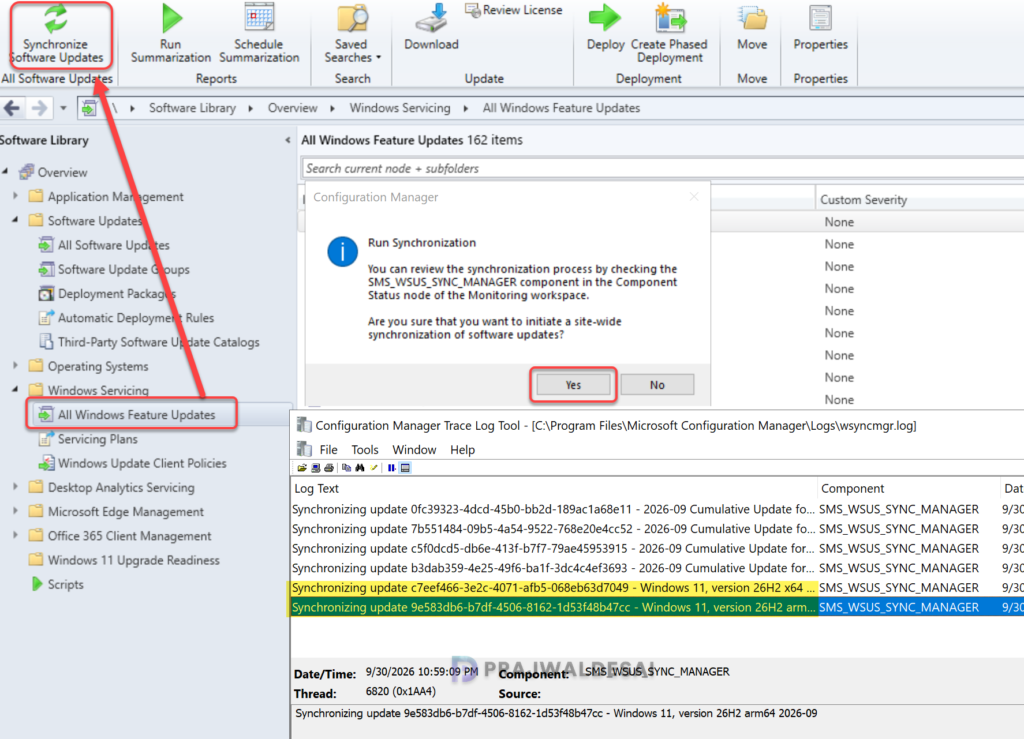
To begin with, you must first ensure you see the updates for Windows 11, version 26H2 in Configuration Manager console. If you don’t see them, open the console and go to Software Library > Windows Servicing > All Windows Feature Updates. Select Synchronize Software Updates and select Yes to begin the sync as shown in the below image.
To see the synchronization progress, review the wsyncmgr.log on the site server.
Step 2: Download the Windows 11 26H2 feature update
Use the following steps to download the Windows 11, version 26H2 feature update in the Configuration Manager console.
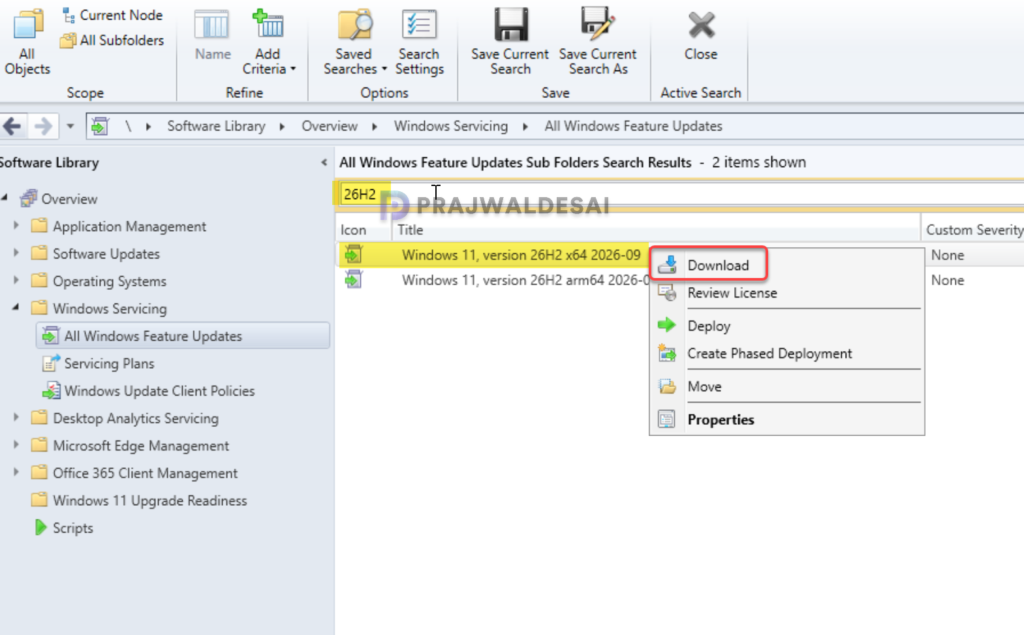
- In the SCCM console, go to Software Library > Windows Servicing > All Windows Feature Updates.
- In the search box, type ‘26H2‘ and click on Search. This will filter the updates and display only 26H2 updates.
- Right-click on the Windows 11, version 26H2 update and select Download.
Step 3: Create a deployment package
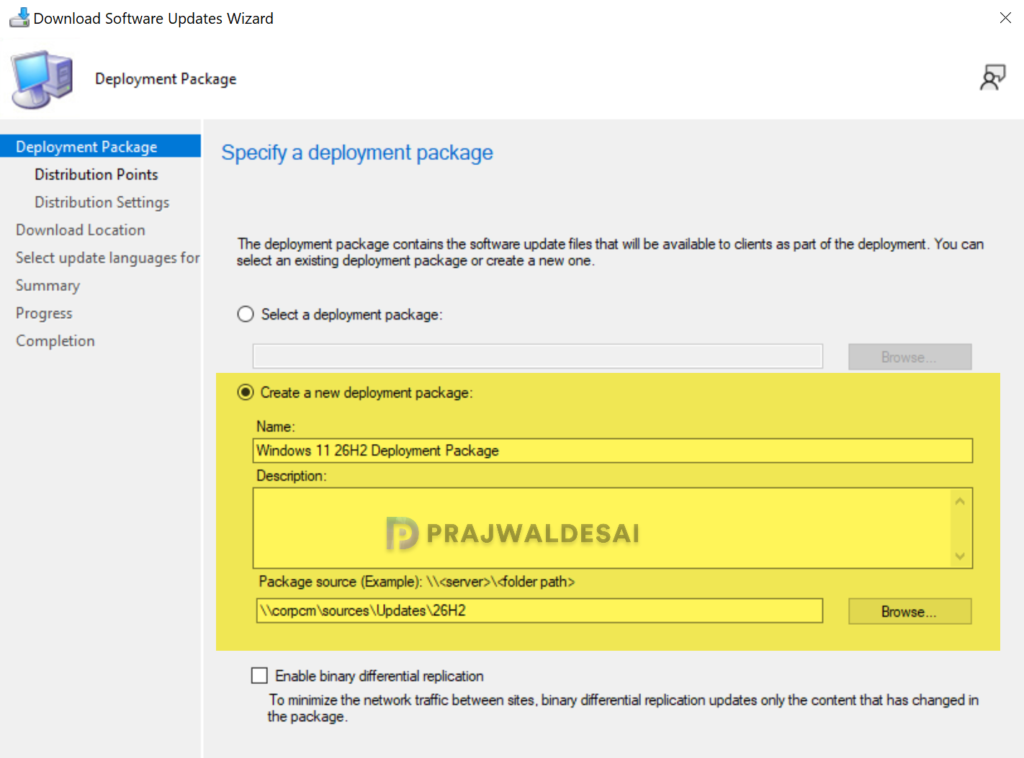
I recommend creating a new deployment package for the Windows 26H2 feature update that will contain the required upgrade files. This package will be created in Software Library > Software Updates > Deployment Packages.
To begin with, choose the option Create a new deployment package and specify the package name as Windows 11 26H2 Deployment Package. Next, specify the package source, which is a shared folder where you want to download the updates. Enabling the binary differential replication is optional. Click Next.
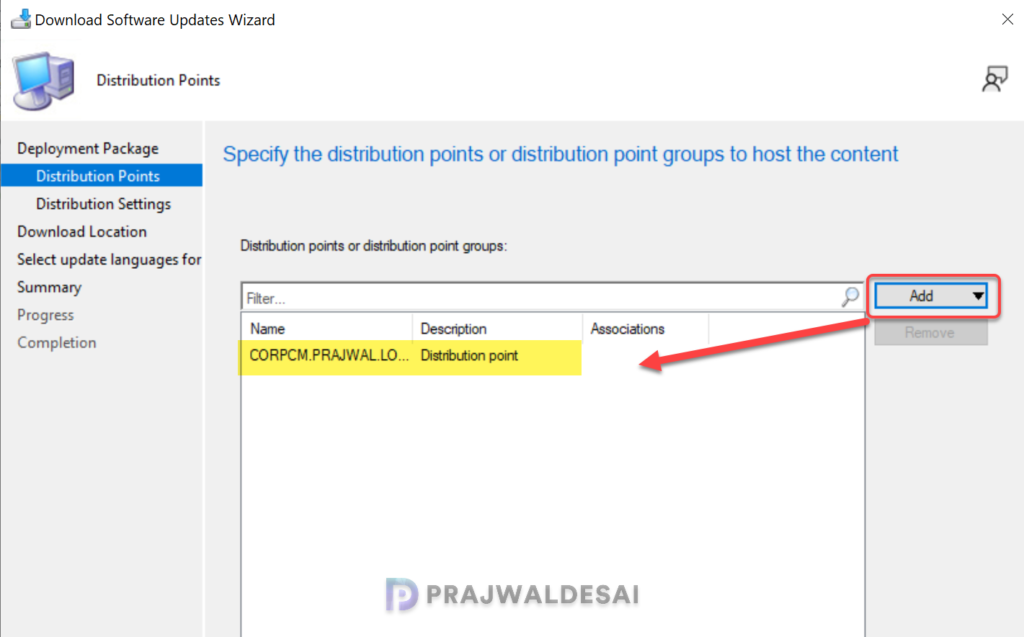
Click on the Add button and select the distribution points to host the package content. You may select distribution point groups as well if you have to send the content to a group of DPs. Click Next.
On the Distribution Settings page, configure the general distribution settings for the deployment package. Click Next.
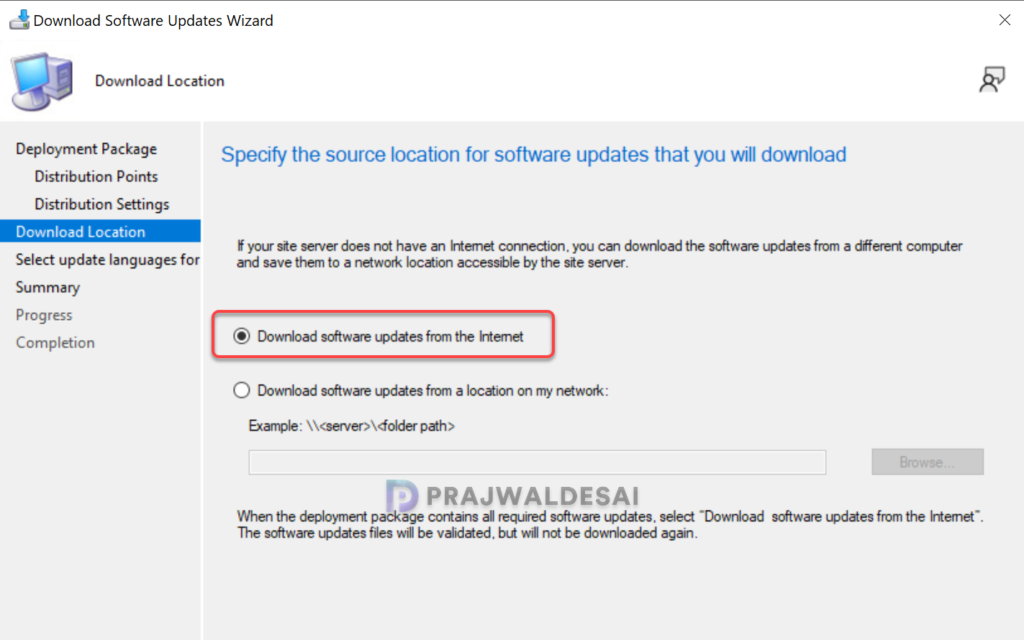
On the Download Location page, select the location from where you want to download the upgrade files for 26H2. In the below example, I have selected the option to download software updates from the internet. Click Next.
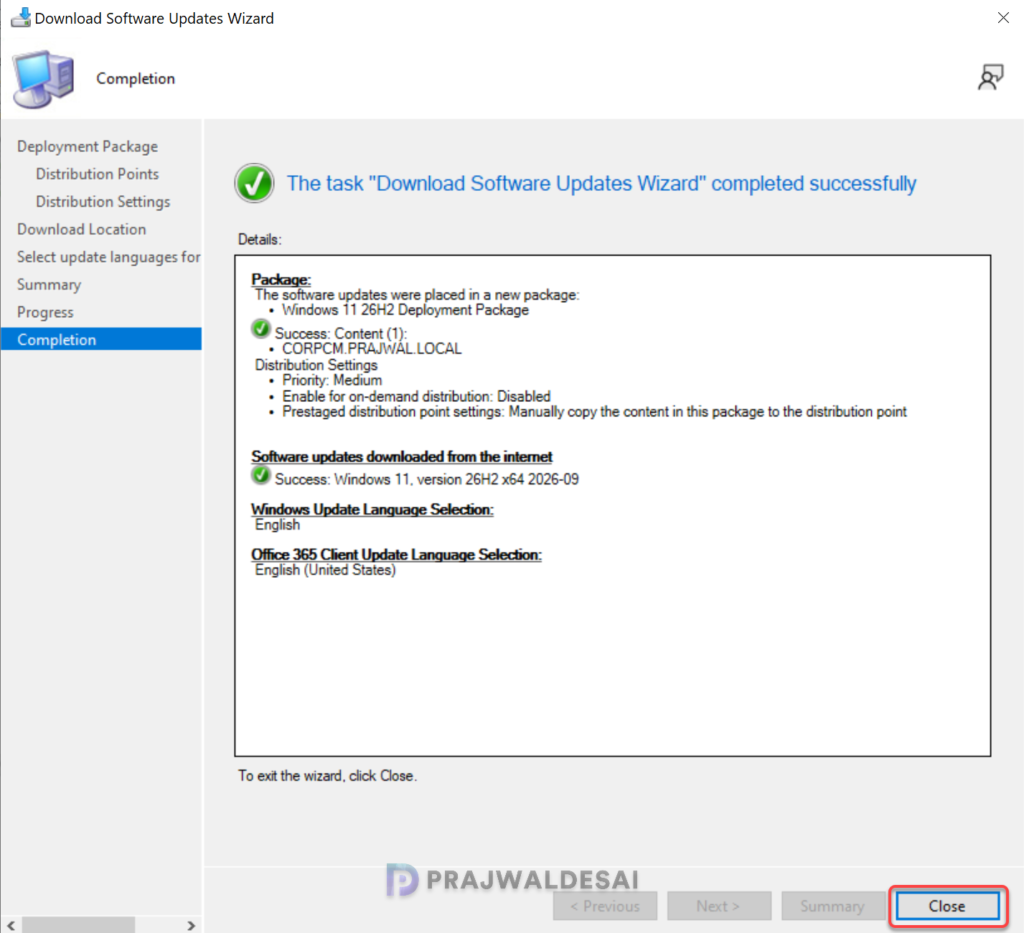
In the Summary window, review the settings for the deployment package and click Next. Now, on the Progress tab, we see the updates being downloaded. The version 26H2 feature update is an enablement package, ensuring a quick download process. As shown in the image below, the Windows 11 version 26H2 x64 2026 update has been successfully downloaded in SCCM.
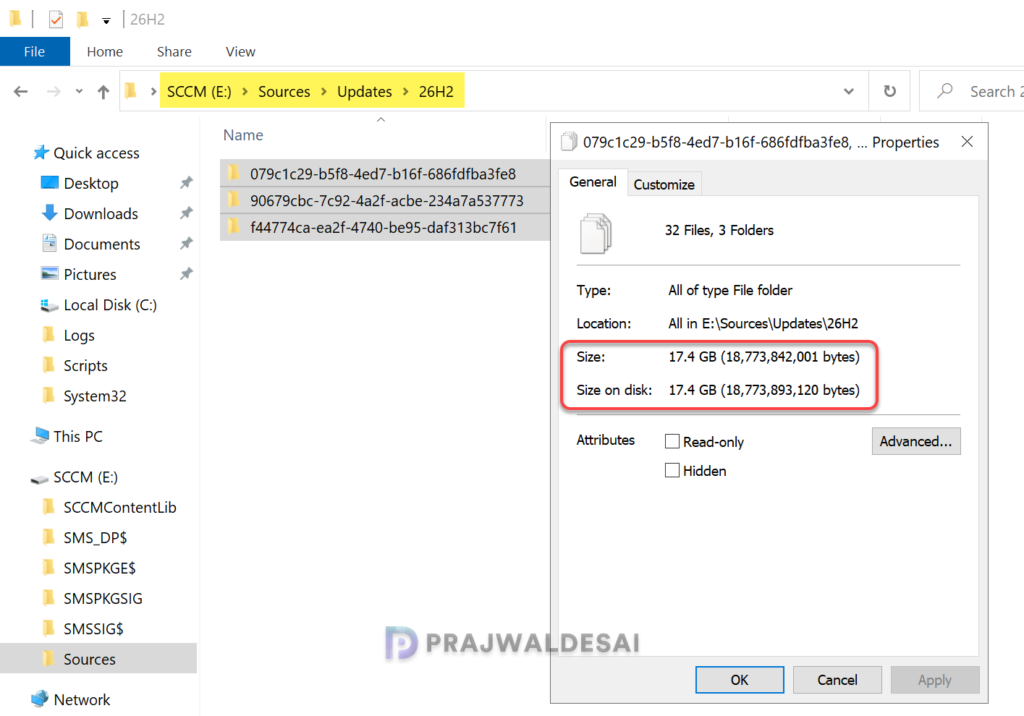
Upon navigating to the downloaded location, you’ll find that the 26H2 update package consists of three folders, each containing multiple updates. In my lab, the total size of these folders amounted to 17.4 GB.
Step 4: Deploy Windows 11 26H2 update using SCCM
Use the following steps to deploy the Windows 11 26H2 feature update using SCCM.
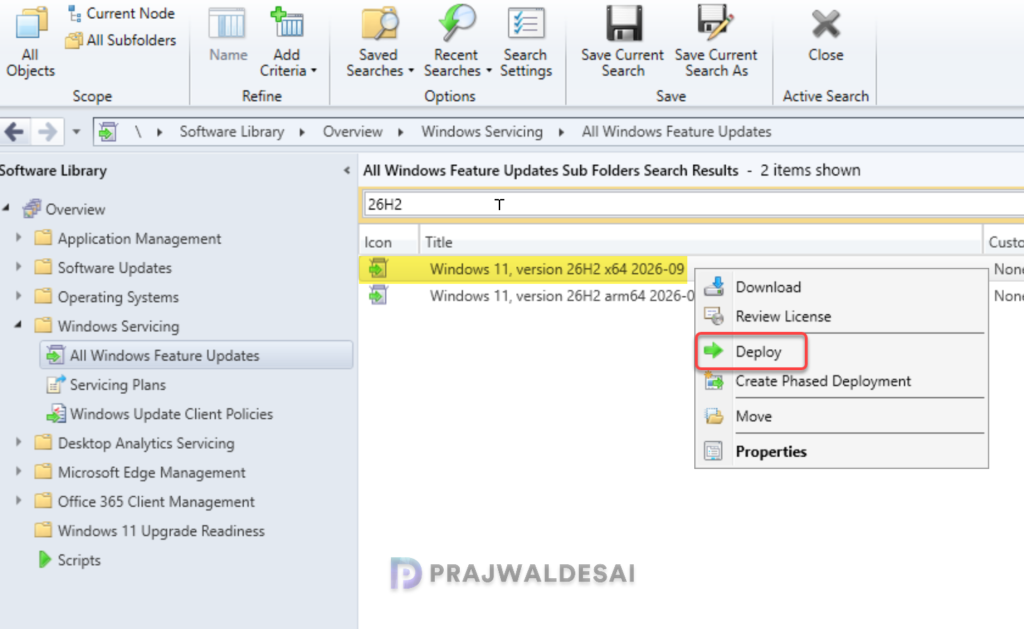
- In the ConfigMgr console, navigate to Software Library\Overview\Windows Servicing\All Windows Feature Updates.
- Right-click Windows 11, version 26H2 x64 update and select Deploy.
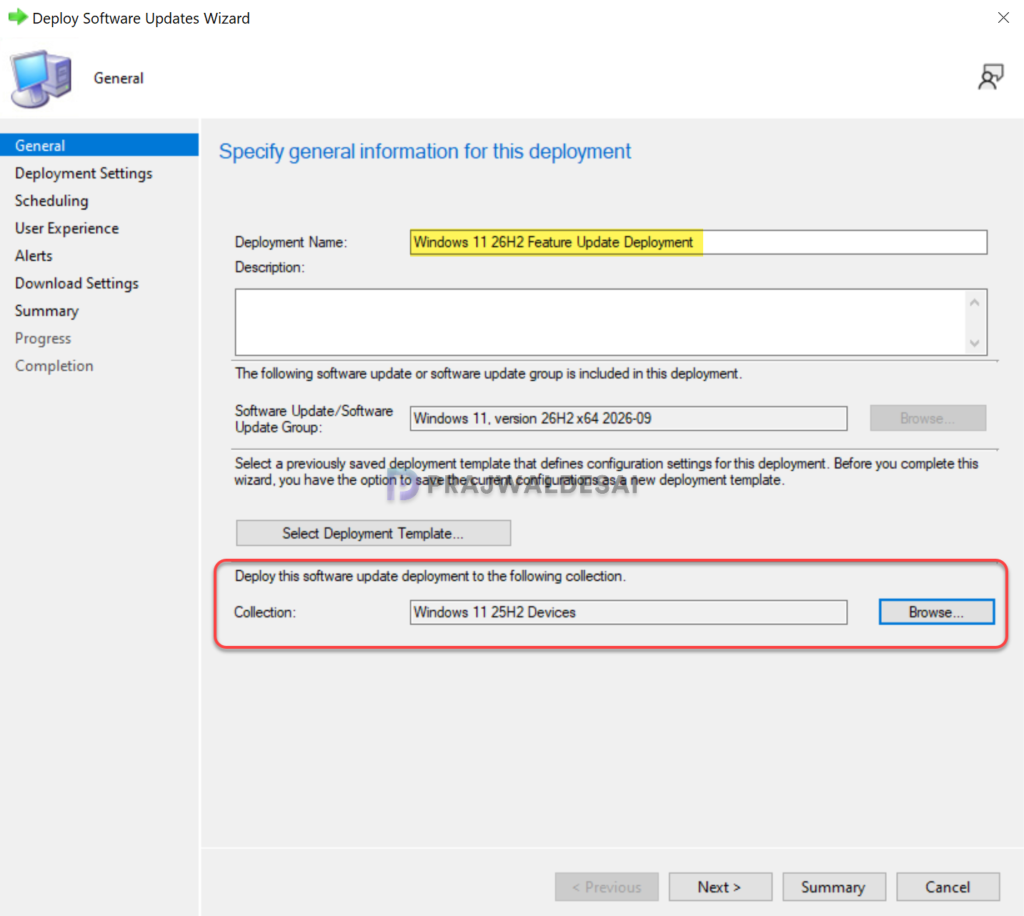
On the General page, enter the following details for the feature update deployment.
- Deployment Name: Enter the deployment name, for example, Windows 11 26H2 upgrade.
- Description: Add a brief description about the deployment.
- Software Update Group: This is created automatically and is visible under Software Update Groups in the Configuration Manager console.
- Collection: Click Browse and select a device collection consisting of a few pilot devices selected for testing the Windows 26H2 upgrade.
Click the Next button to continue.
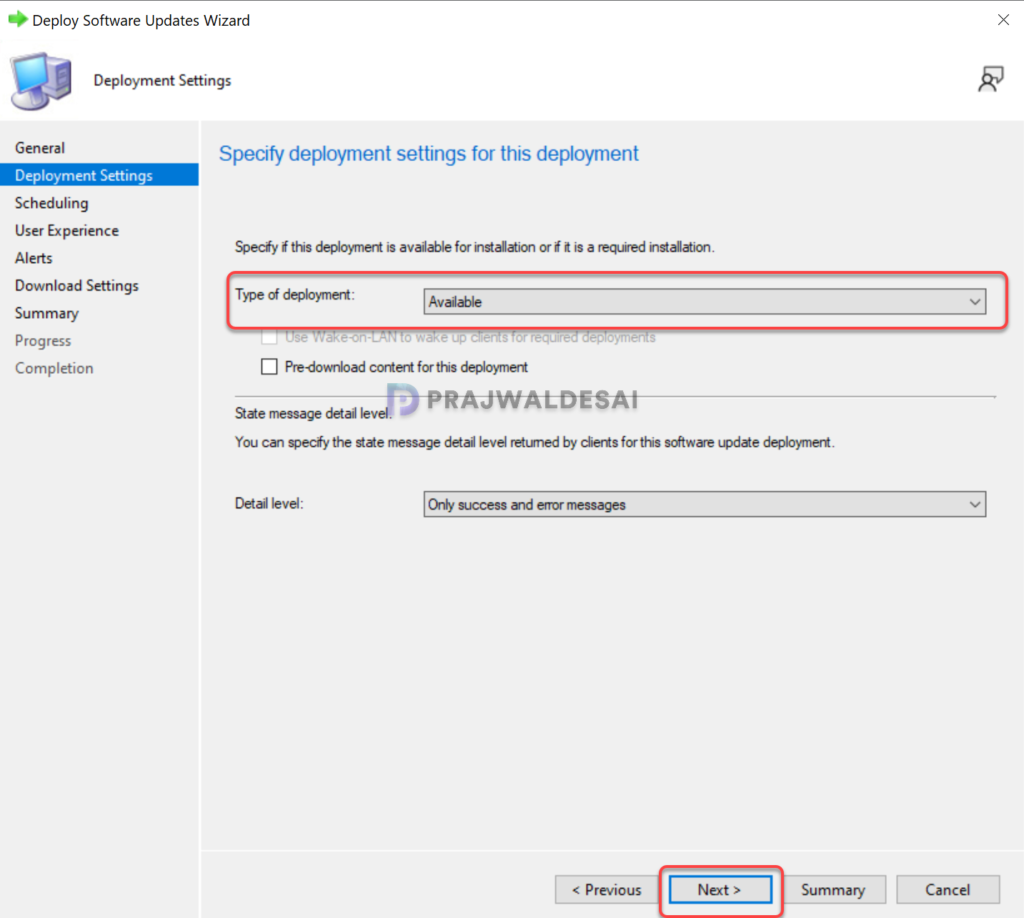
On the Deployment Settings page, specify the deployment type. Choose whether you want to make the 11 26H2 upgrade available for users in the Software Center or deploy it as required. Read more about Available vs. Required in ConfigMgr to know the differences. Click Next.
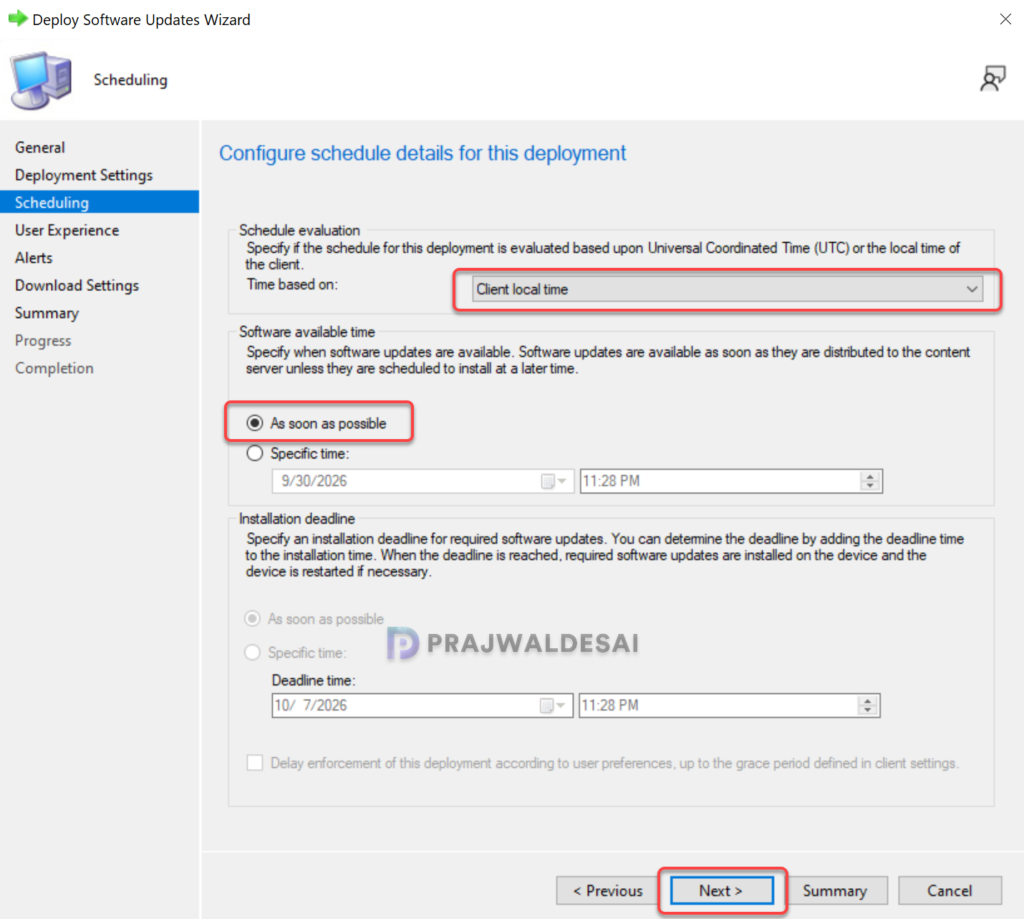
On the Scheduling page, specify a schedule for the deployment. Configure the following settings:
- Time Based on: Select Client Local Time.
- Software Available Time: As soon as possible.
If you want to make the 26H2 upgrade available at a specific date and time, select a specific time and define it. Define the deadline for installation to ensure the upgrade happens within the defined period. Click Next.
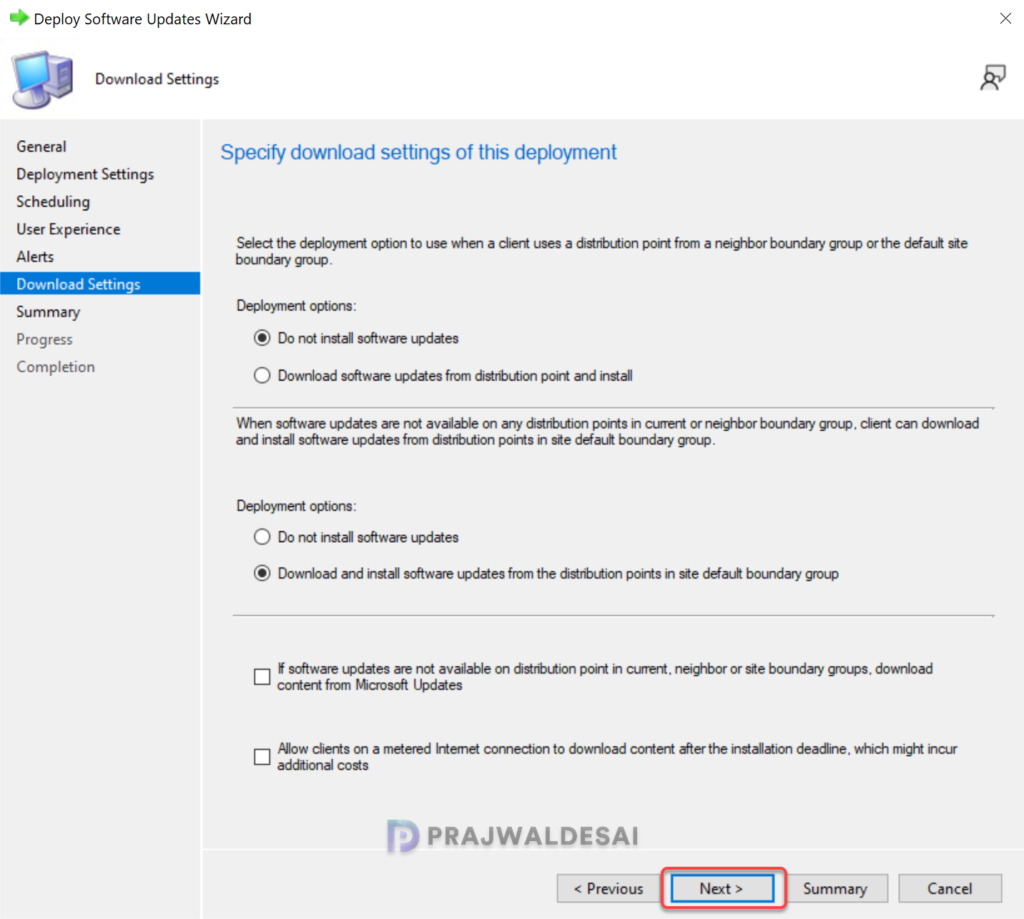
Specify User Experience Settings in accordance with your organization’s requirements. Click Next. Specify download settings for feature update as shown in the below screenshot. Click Next.
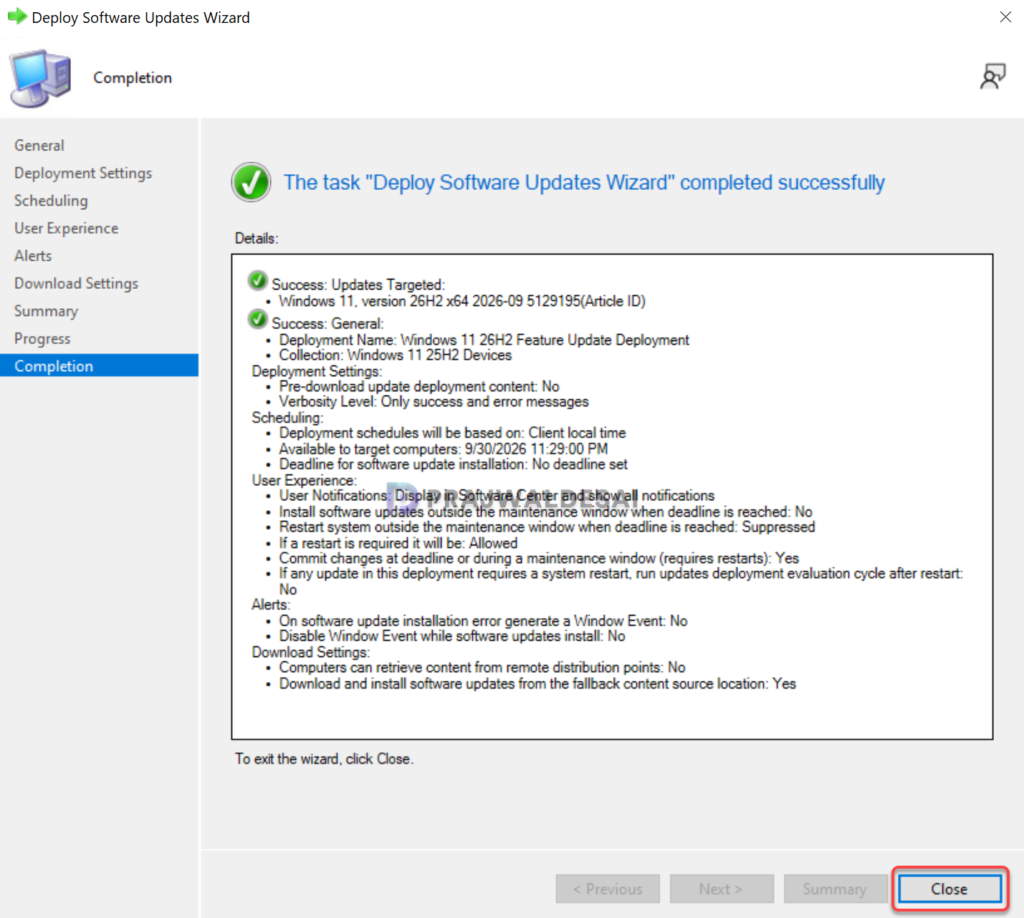
On the Summary page, review the settings that you configured for the deployment. On the completion page, click Close. This completes the procedure for deploying Windows 11 26H2 feature update using SCCM.
Step 5: Perform Windows 11 26H2 Upgrade
After you have deployed the Windows 11 26H2 feature update, it’s time to check if the update appears on the end devices and perform the upgrade. The end-user experience is similar to other feature upgrades.
Important: On the client computer, close all the files that are in use. Because this is an in-place OS upgrade, save all of your significant documents to an online storage service like OneDrive, Google Drive, etc.
To begin, launch the Software Center on the Windows 11 computer. Select the Updates tab and here we see Windows 11, version 26H2 update. Click on the Install button and confirm that you want to upgrade this computer’s operating system. Note that this is an in-place upgrade to version 26H2, and the setup automatically migrates your apps, data, and settings. Click on the Install again button to begin the Windows 11 26H2 upgrade.
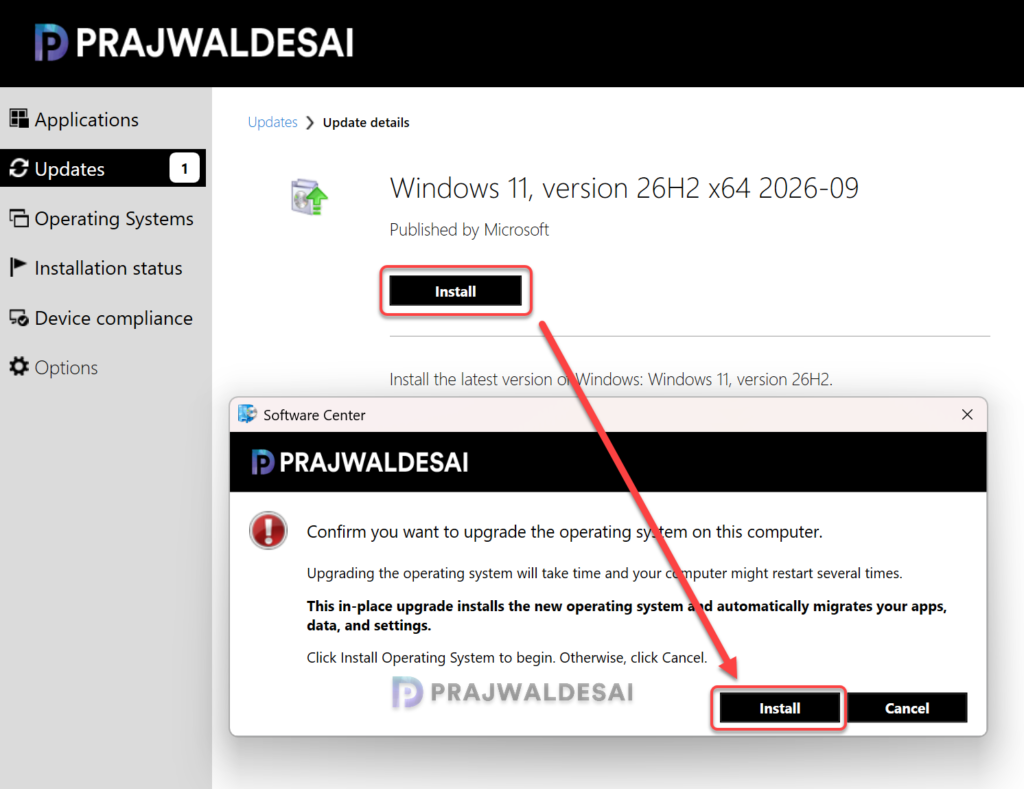
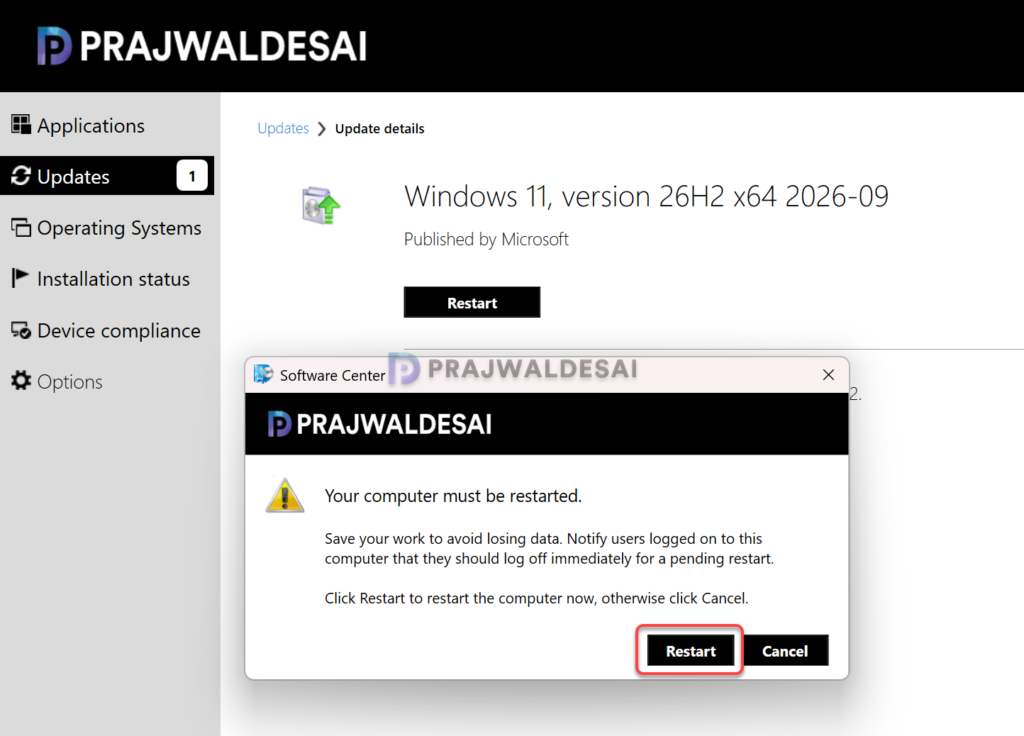
The Windows 11, version 26H2 update content starts to download from your local distribution point server. Wait for the upgrade to complete. In my lab, it took around 10 minutes for the upgrade files to download and begin the installation. After the upgrade is finished, click the Restart button in the Installation Status section of the Software Center. The computer will restart and perform an in-place upgrade to version 26H2.
Step 6: Verify the Upgrade
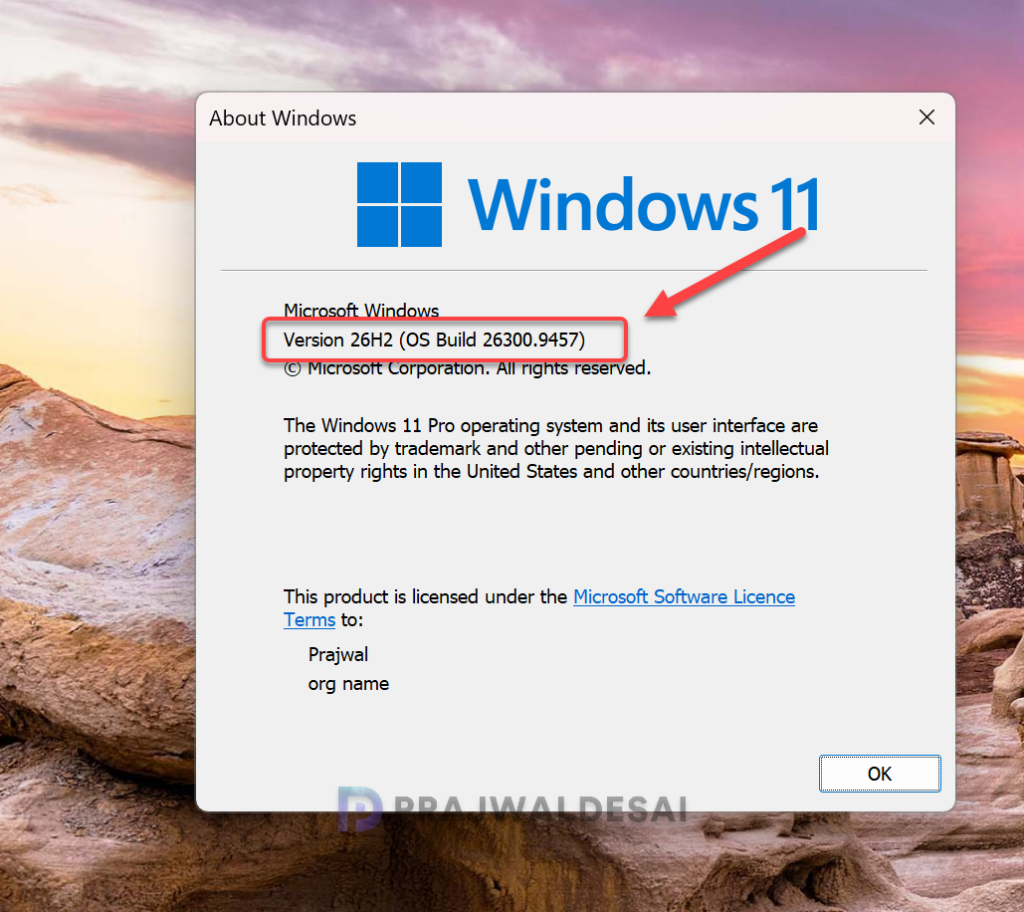
This is the last step where I will show you can check if the in-place upgrade to version 26H2 is successful via SCCM. Sign in to your Windows 11 PC after it has rebooted and run the command ‘winver‘ to get the details about Windows. In the below screenshot, we see the new version of Windows 11 is 26H2 and the OS build is 26300.9457.
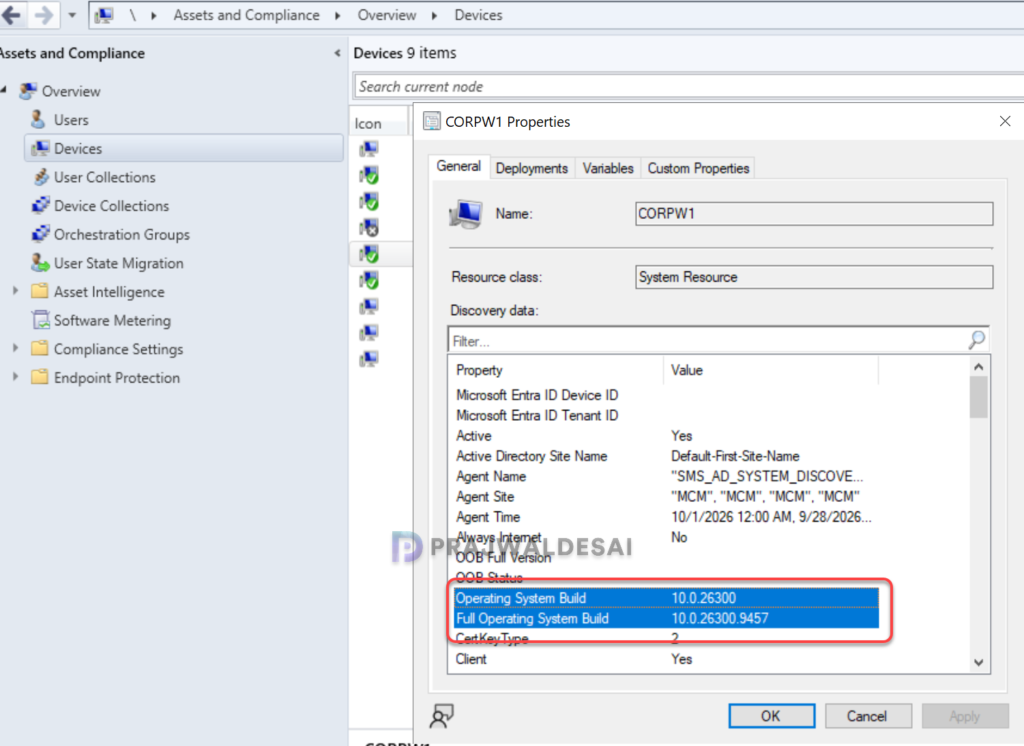
Another way to confirm the upgrade is to check the OS build details in the device data discovered by Configuration Manager. Open the console, navigate to Devices and right-click the client upgraded to version 26H2, then access discovery data. Search for “build,” and we see that the operating system build number is 10.0.26300, which corresponds to Windows 11, version 26H2.
Troubleshooting
Honestly speaking, troubleshooting feature update deployments is a complex topic in SCCM but from my experience, I can suggest some key things to help you out.
- Feature update download error: In some environments, the download software updates wizard fails to download the feature update. To troubleshoot these download issues, review the PatchDownloader.log located in the %temp% folder on SCCM server. This file records all the errors that occur during the download of Windows 11 feature updates.
- Software Center fails to download feature update: On the client computer, if the 26H2 upgrade fails during the feature update download, review the DeltaDownload.log located in the C:\Windows\CCM\Logs folder to locate the cause of errors.
- Review Windows Upgrade Logs: The Windows upgrade log files can be found in C:\Windows\Panther (including Setupact.log and setuperr.log) and C:\Windows\Logs (including SetupCleanupTask and SetupDiag logs). You can view them by enabling hidden items in File Explorer.
- Firewall Configuration: Based on my knowledge, if the firewall is configured correctly and all necessary SCCM firewall ports are allowed, you shouldn’t experience any download issues.
- Cache Size: Importantly, make sure your administrator has not limited the CCMCache size; else the feature update files fail to download from the nearest distribution point server as the file sizes are almost 17 GB.
