


In this post, I will explain how to resolve the prerequisite warning for automatic client approval in SCCM. The warning “Insecure client approval method detected” is encountered during the prerequisite check step, and I will explain why you encounter this and permanently resolve this.
Starting with Configuration Manager version 2609, Microsoft has added a new prerequisite check for client approval in your hierarchy. The upgrade prerequisite check warns when the client approval method is set to automatically approve all computers (not recommended). This check is a warning that doesn’t block the upgrade, but I believe you should consider resolving this.
Microsoft states that the automatically approve all computers (not recommended) option is planned for removal in a future release for security reasons, as it allows untrusted computers to be approved without administrator review. Hence, it is strongly recommended that you stop using this option as soon as possible.
In the below image, we see the client approval method in the site hierarchy settings is configured to approve all computers automatically. Assuming you don’t have CAS, this setting should be accessed from your primary site server.
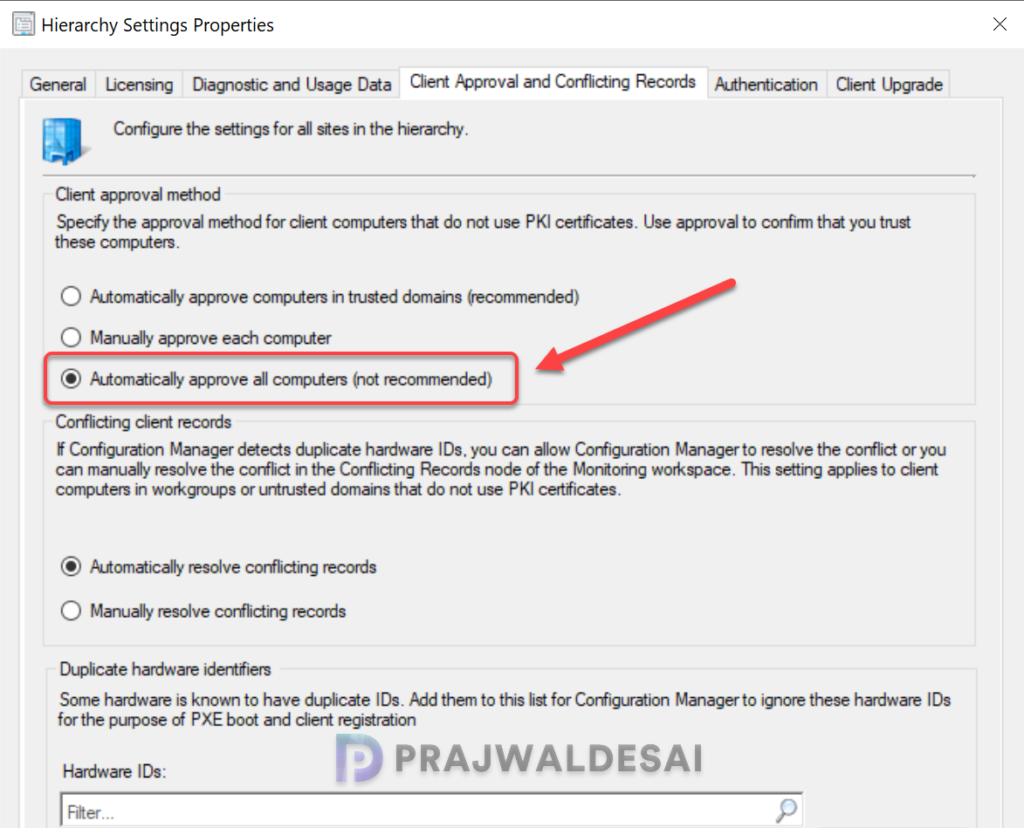
If you have a similar configuration for your site, when you attempt to upgrade your SCCM site or run a prerequisite check, the following warning is logged into ConfigMgrPrereq.log. Furthermore, in the console you’ll notice that the prerequisite check fails with warnings for version 2609 and later versions.
Insecure client approval method detected;
Warning: The client approval method is set to 'Automatically approve all computers (not recommended)'. This is a security risk because any computer, including untrusted or potentially compromised devices, will be auto-approved as a managed client. Change the setting to 'Manually approve each computer' or 'Automatically approve computers in trusted domains only' under Administration > Site Configuration > Sites > Hierarchy Settings > Client Approval.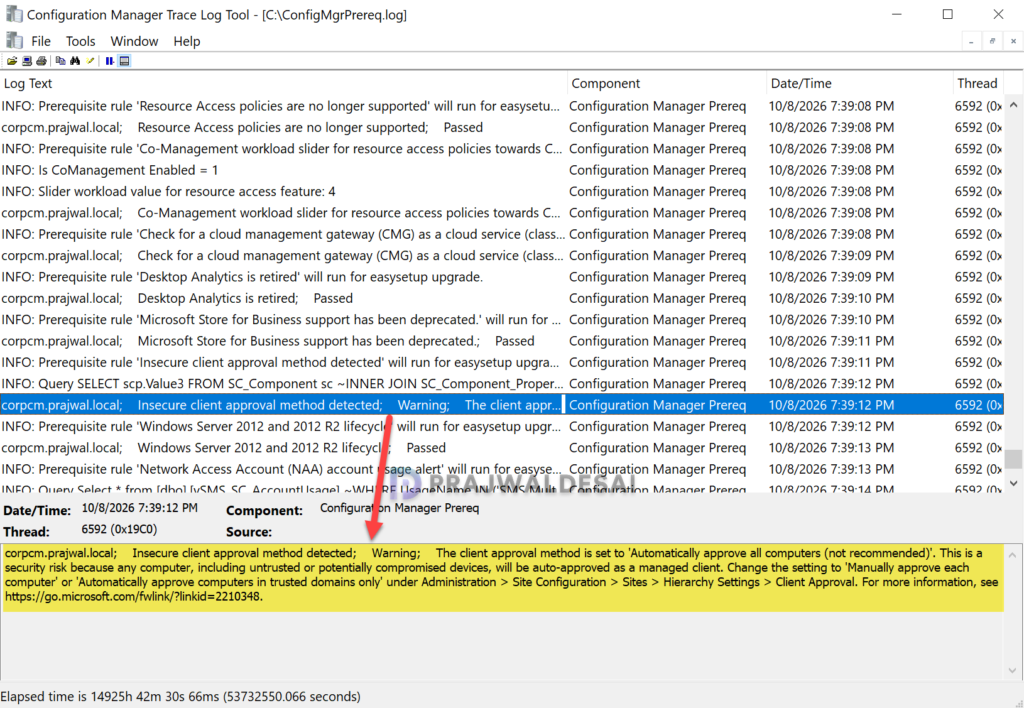
Fix Prerequisite Warning for Automatic Client Approval in SCCM
To resolve the prerequisite check warning for insecure client approval in SCCM, change the client approval method to manual approval or automatic approval for computers in trusted domains. Here’s how you can do that.
- Launch the Configuration Manager console.
- Navigate to Administration > Site Configuration > Sites > Hierarchy Settings > Client Approval and Conflicting Records.
- Under the Client approval method, change the setting to ‘Automatically approve computers in trusted domains (recommended)‘ or ‘Manually approve each computer.’
- Click Apply and OK.
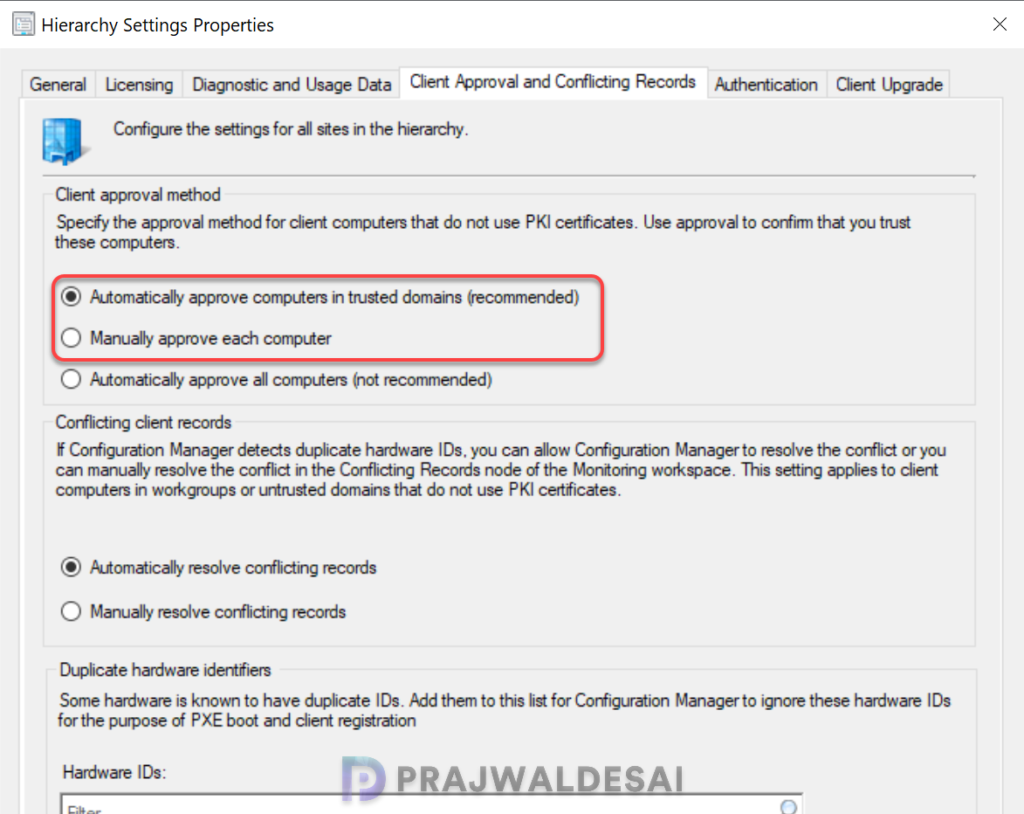
Once you’ve made the above changes, go to the Updates and Servicing node and run the prerequisite check again for the update. You shouldn’t encounter the warning Insecure client approval method detected anymore.
I hope this quick troubleshooting guide helps you. Please let me know if you have any questions in the comments below.
