

This post is a complete step-by-step SCCM 2509 upgrade guide that covers all you need to know to update your existing Configuration Manager servers to version 2509. The guide also lists all the new features in 2509, including the console and client upgrade details and hotfixes.
To upgrade to SCCM 2509, your current sites must be running version 2403 or later. SCCM 2509 is the second and final current branch release of the year 2025. As per the new release cadence, starting with version 2609, Configuration Manager will transition to an annual release cadence, pushing just one update every year. The upcoming version of SCCM is 2609 and is scheduled for release in September 2026 and version 2709 in September 2027.
Release Date
Microsoft released the version 2509 for the early update ring on November 13, 2025. As of December 8, 2025, version 2509 is globally available for all customers to install. You don’t need to execute the opt-in script to get the update anymore.
Support Period
Support for SCCM version 2509 will commence on Nov 12, 2025 and conclude on May 12, 2027. In this period, it will receive the updates to ensure the product remains safe. For more details, refer to SCCM support end dates for current branch version.
Baseline Version
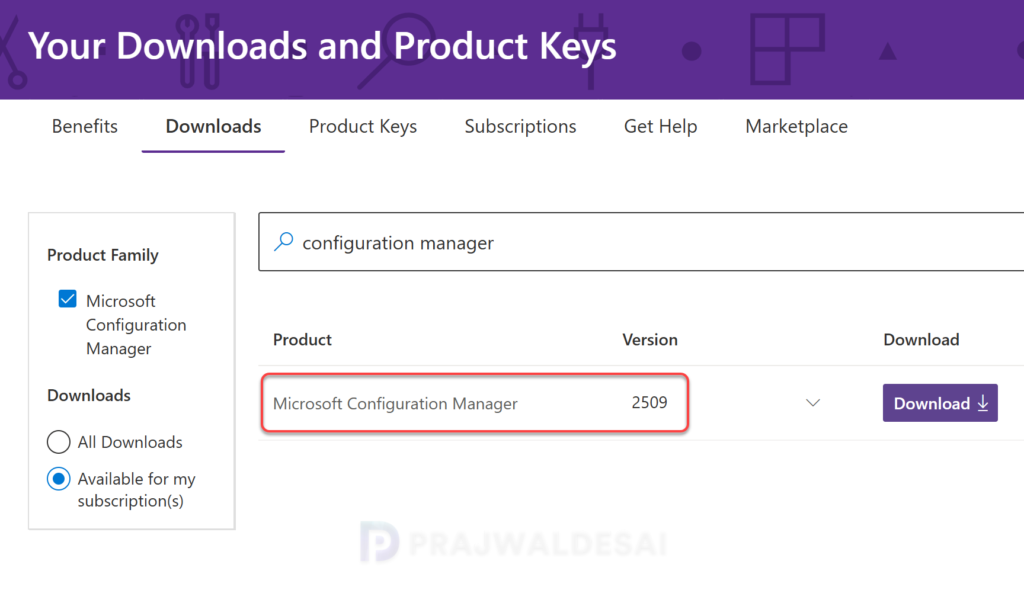
Microsoft has confirmed that version 2509 of SCCM is a baseline release. For new site installations, you can download and utilize the 2509 installation media. This baseline media is also available to VLSC and Visual Studio subscribers starting December 2025.
New Features and Fixes in SCCM 2509
Configuration Manager version 2509 does not introduce any notable new features. As part of Microsoft’s Secure Future Initiative (SFI) the 2509 version of SCCM focuses only on security and quality updates.
Have a look at the KB35877153 that lists the summary of changes in Configuration Manager current branch, version 2509.
- Task sequences fail to execute on ARM64 clients due to accessing an incorrect registry key.
- ARM64 devices fail to fetch policies following an upgrade from Windows 10 to Windows 11.
- The site server recovery process has been enhanced to avoid updating statistics on all tables, significantly boosting the efficiency of the recovery operation.
- Boundary group data is now synchronized with the central administration site (CAS). The “Boundary Group(s)” column is now available and can be populated when viewing devices on the console.
- The SCCMReporting.log file has been enhanced to provide more precise error details, significantly reducing the time required for troubleshooting reporting services.
- The error message “Violation of PRIMARY KEY constraint ‘CI_DocumentStore_PK‘” may appear when creating new applications or synchronizing Windows Server Update Services (WSUS). This issue typically arises after upgrading to a newer version of Configuration Manager.
- The discovery processing and logging for Active Directory (Microsoft Entra) have been enhanced to boost stability and streamline troubleshooting during the discovery process.
- The content library cleanup process now efficiently manages multiple SMS providers, ensuring seamless operation even if a provider is offline or temporarily unavailable.
- Deployed Task Sequences that are configured to only run and restart in a Maintenance Window fail to reboot using the “Restart Computer” step when only using a “Task sequences” Maintenance Window (Type 5).
- Enhanced logging capabilities have been implemented across various site server components to streamline troubleshooting processes.
- Client agent installation fails during OSD if the client.msi parameter CCMALWAYSINF=1 is provided and the device booted through the PXE Responder service.
- The Start-CMContentDistribution cmdlet doesn’t distribute content for task sequences.
- Group membership data for machines and users is removed if the discovery process fails with error 0x8007200F (ERROR_DS_UNAVAILABLE).
- The size of the client content cache is reported incorrectly when partial content is downloaded.
- Content can fail to download onto a client if the computer enters a connected standby state during the download process.
- The service connection tool now checks for the required ODBC driver version. Logging is also improved for easier troubleshooting.
- A management point in an untrusted forest can fail to manage clients due to a SQL connection error.
- The create task sequence media process fails when creating bootable media if the SMS provider isn’t installed on the management point.
- The New-CMAdministrativeUser cmdlet doesn’t work as expected if the Name value in Microsoft Entra doesn’t match the SamAccountName value.
- Available user deployments don’t appear in the Software Center when the Configuration Manager client is installed on Windows Server 2025.
- The Install Software Updates task sequence step fails on new computer (bare metal) installations after installing KB32851084 on version 2503.
Pre-Upgrade Checklist
Before you perform the Configuration Manager 2509 upgrade, please review the below pre-upgrade checklists:
- Begin installing the update 2509 from the top-level site of your hierarchy. Start the installation from your central administration site (CAS) or from your stand-alone primary site.
- To update to version 2509, ensure your Configuration Manager is running version 2403 or later.
- Configuration Manager now requires Microsoft .NET Framework version 4.6.2 for site servers, specific site systems, clients, and the console.
- Install Windows Updates on your site server before upgrading. Install any critical OS updates for each applicable site system. If there is a pending reboot, the upgrade will fail.
- Before upgrading to the 2509 version, site servers and site system roles must have the Microsoft ODBC Driver for SQL Server 18.1.0 or later installed.
- Make sure there are no database replication issues before the upgrade.
- Temporarily stop any antivirus software, as it may block the upgrade.
- Create a backup of the site database before the upgrade. A successful backup will aid in disaster recovery.
- If you or a third-party product customizes any Configuration Manager configuration files, save a copy of your customizations.
- Review hardware inventory customizations.
- Ensure that no content distributions are made to branch distribution points during the 2509 upgrade.
Installing Previous Hotfixes
There were plenty of hotfixes released for ConfigMgr versions. Before upgrading to a new ConfigMgr version, many administrators face the challenge of deciding whether to install older hotfixes or skip them. The simple answer is: you can skip the old hotfixes and directly upgrade to 2509. This is because the new SCCM 2509 release includes all previously issued hotfixes for Configuration Manager.
The Configuration Manage 2509 KB35877153 update includes that following hotfixes.
- KB 32851084: Update rollup for Microsoft Endpoint Configuration Manager current branch, version 2503.
- KB 33177653: Azure for US Government update for Microsoft Configuration Manager.
- KB 34503790: Revised security update for Microsoft Configuration Manager.
Run EnableEarlyUpdateRing 2509 Script
To get the 2509 update in the console, first download the version 2509 opt-in PS script. Running this script adds your hierarchy or stand-alone primary site to the early update ring for version 2509.
To run the version 2509 opt-in script:
- Open a Windows PowerShell session as administrator.
- Run the EnableEarlyUpdateRing2509.ps1 script, using the following syntax:
EnableEarlyUpdateRing2509.ps1 <SiteServer_Name> | SiteServer_IP>Enter the site server name (top-level site server name or IP address) and press the enter key. Please refer to the image below for further details.
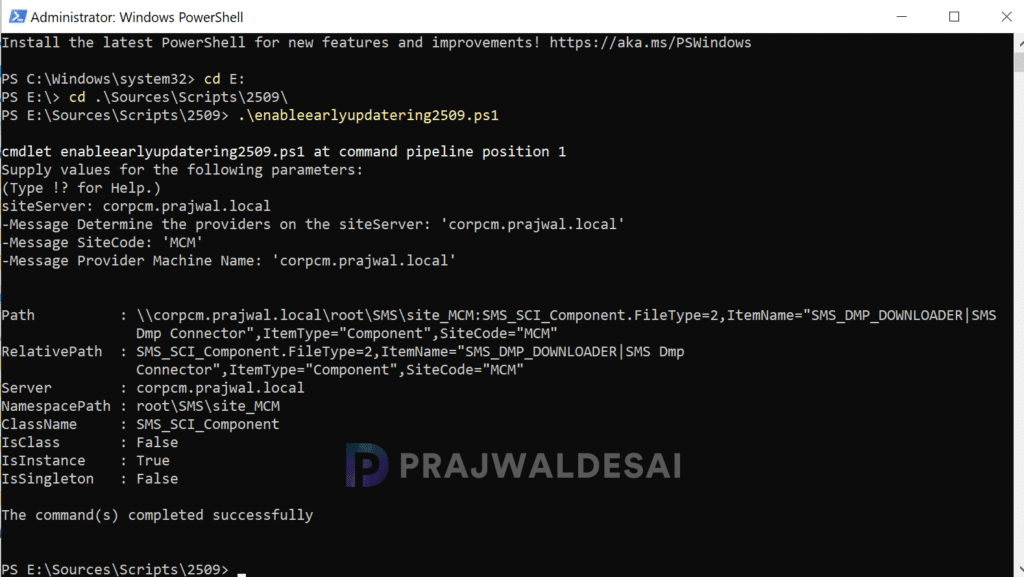
Once the script is executed, the update download process initiates. The SCCM server starts retrieving the 2509 update package from Azure servers, and you can monitor the download progress in the dmpdownloader.log file.
If the update displays as Downloading and doesn’t change, review the hman.log and dmpdownloader.log for errors.
Wait for ConfigMgr update 2509 to download and extract all the files needed for the upgrade. The state of the update is changed from ‘Downloading‘ to ‘Ready to Install‘ in the console.
Run Prerequisite Check
Before proceeding with the SCCM 2509 upgrade, always run the prerequisite check to ensure the update can be installed smoothly and without issues.
Here’s how you run a prerequisite check for the 2509 update. Launch the Configuration Manager console. Navigate to Administration > Overview > Updates and Servicing. Select the Configuration Manager 2509 update and in the top ribbon, select Run Prerequisite Check.
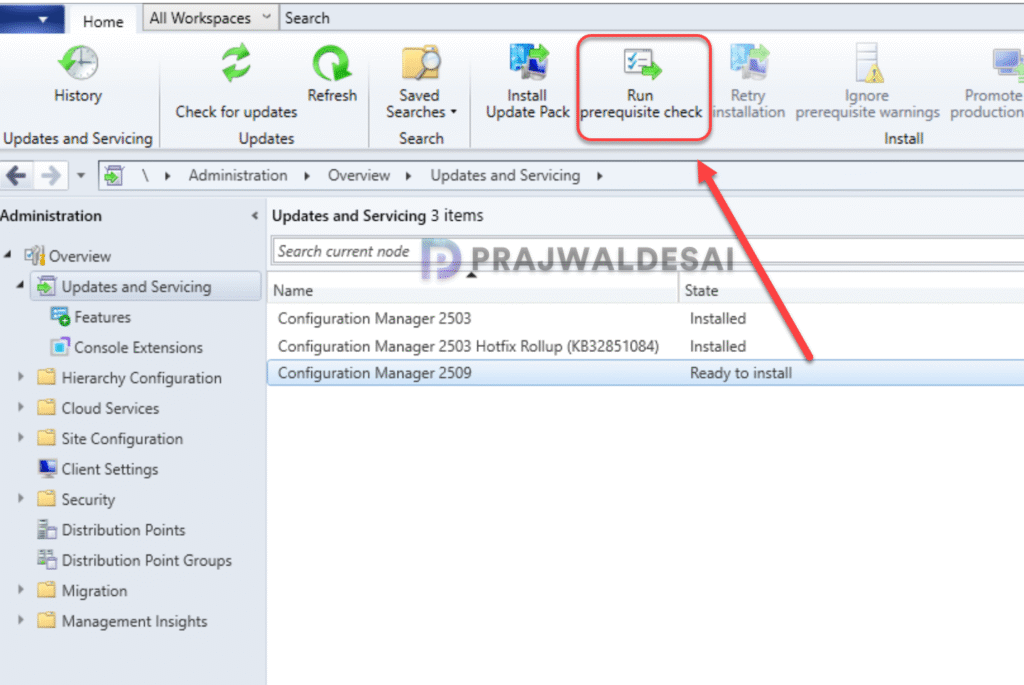
Depending on your configuration, the prerequisite check could take a long time to complete. You can monitor all the prerequisite checks in the monitoring node of the console. In addition, you can also review the ConfigMgrPreReq.log to know the status of the prerequisite check.
Upgrade to Configuration Manager 2509
Once the prerequisite check is successful, you can install the SCCM 2509 update with the following steps:
- Launch the Configuration Manager console.
- Navigate to Administration > Overview > Updates and Servicing Node.
- Select the Configuration Manager 2509 update and click ‘Install Update Pack.’
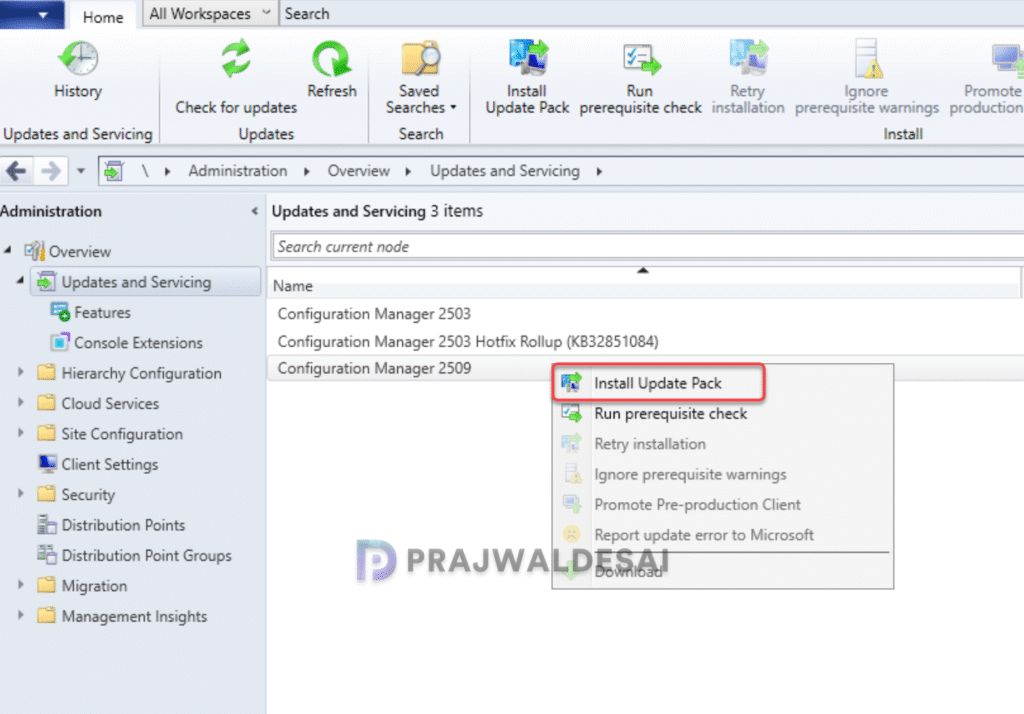
Configuration Manager version 2509 includes the following updated components:
- Configuration Manager site server updates
- Configuration Manager console updates
- Configuration Manager client updates
- Fixes for known issues
- New Features
Since we have already performed the prerequisite check, you can enable the checkbox to ignore the prerequisite check warnings. Click Next.

On the Features tab, check the boxes for the new features you want to enable during the upgrade. For now, you can skip this step and enable these new features after the upgrade is complete.
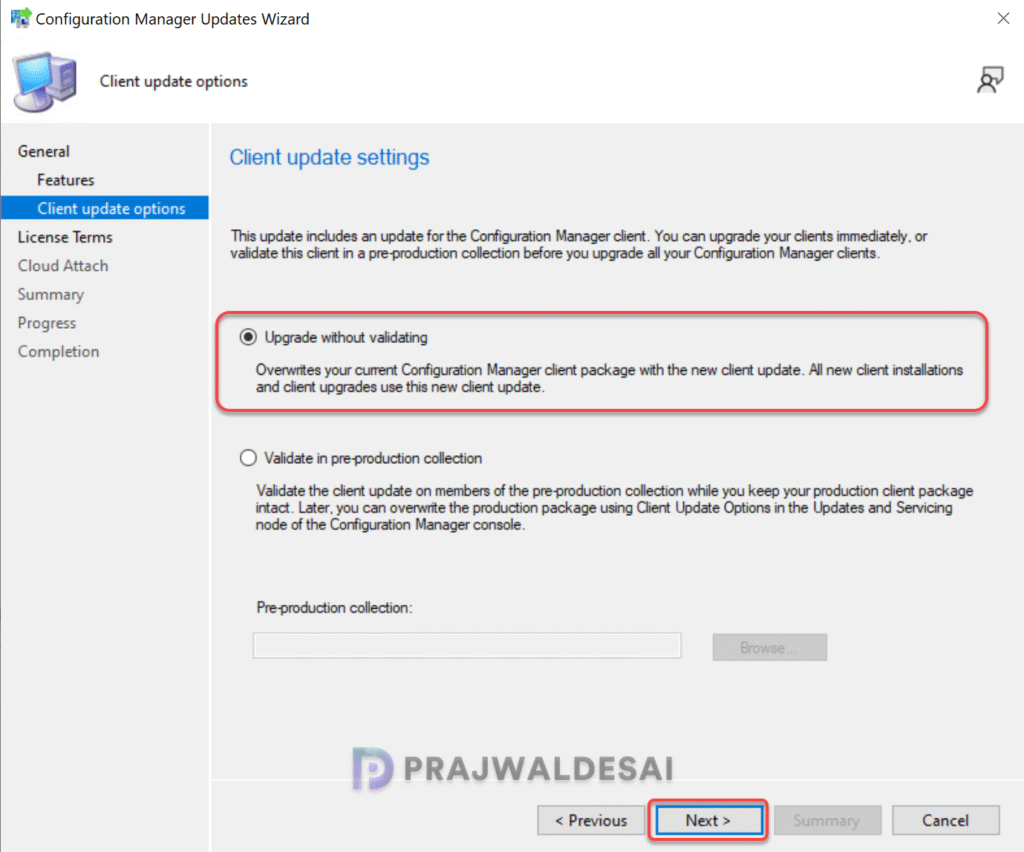
For Client Update Options, select the desired option for updating the clients in your hierarchy. There are two client update options available while installing the update.
- Upgrade without validating: This option allows updating only client members of a specific collection.
- Validate in pre-production collection: With this option, you can validate the client update on members of the pre-production collection while keeping your production client package intact.
Please refer to the SCCM client upgrade options to understand the options available for upgrading the client agents automatically to the latest version. Select the desired client agent update option and click Next to continue.
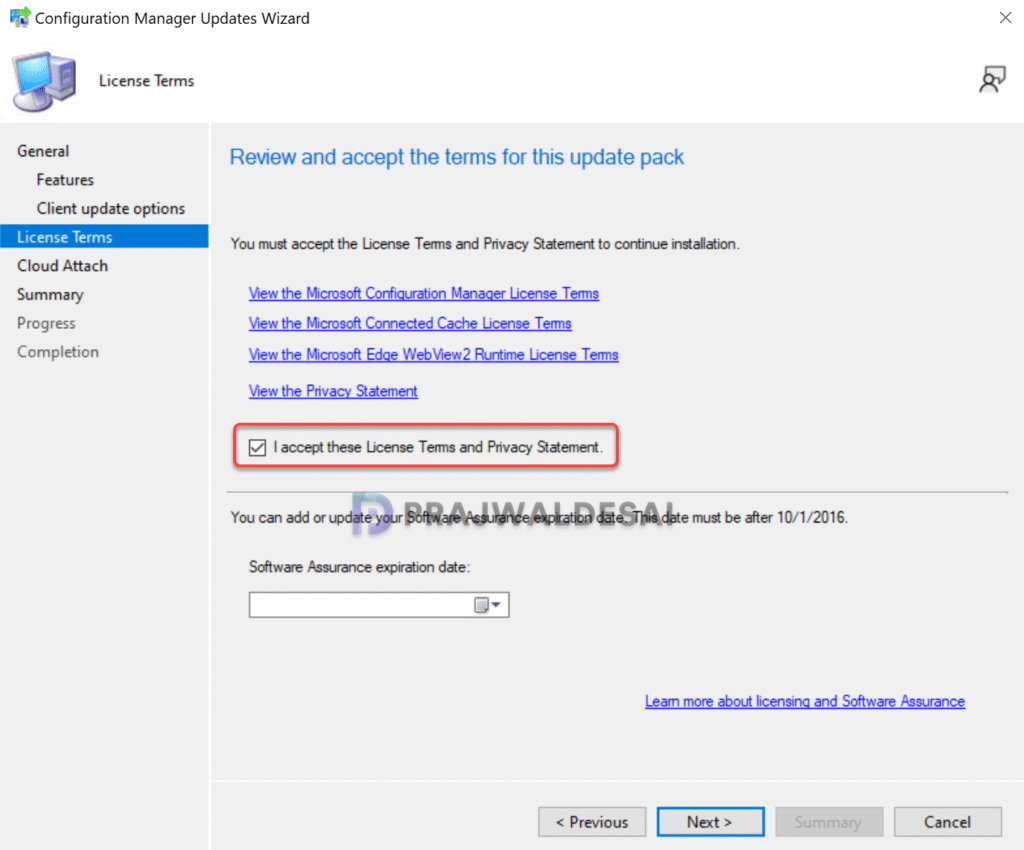
On the License Terms tab, review and accept the mandatory license terms required for the update installation, then click Next.
If you have already enabled SCCM Cloud Attach (Tenant Attach) with Intune, you will see an option to upload the Microsoft Defender for Endpoint Data for reporting on devices uploaded to Intune. If your SCCM setup does not include tenant attach, you can skip this step and proceed to the next step.
In the Summary window, you see a summary of the settings that you have configured for installing the SCCM 2509 update. Review them and click Next.
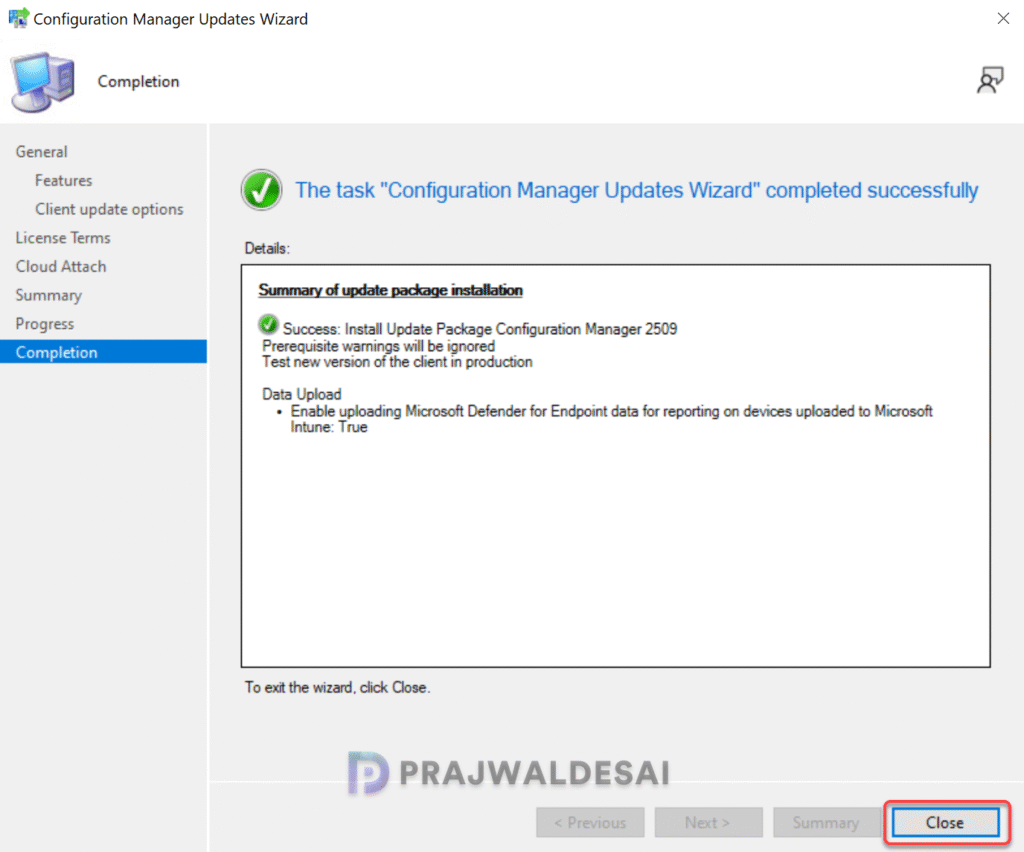
On the Completion window, click Close.
Monitor SCCM 2509 Upgrade
A Configuration Manager administrator can monitor the 2509 upgrade process using the following steps:
- In the Configuration Manager Console, go to the Monitoring workspace.
- Select Overview > Updates and Servicing Status.
- Right-click the Configuration Manager 2509 update and select Show Status.
- You can also review the upgrade progress by reviewing the CMUpdate.log file located on the site server.
Console Upgrade
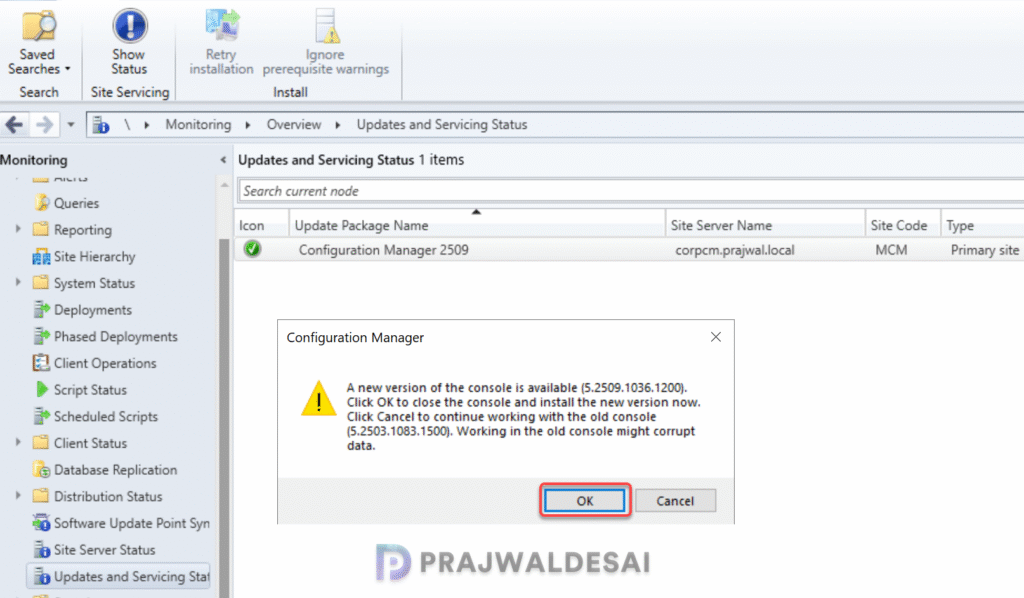
Once the 2509 update installation is complete, it will uninstall the old console version and install a newer one. You should not skip the console upgrade process because you will be unable to use an older version of the console.
To upgrade the Configuration Manager console to the latest version, you can either refresh the console once or close and launch the console. For some of you, a yellow notification bar appears just below the top ribbon. Click Install the new console version to begin the console upgrade.
After upgrading to version 2509, the new Configuration Manager console version is 5.2509.1036.1200. If the console upgrade fails, restart the server and try again. If the error persists, review the ConfigMgr Console log files.
Verify Upgrade
Once you’ve upgraded the console, launch it. Click on File and from the drop-down, select About Microsoft Configuration Manager.
The following details confirm that your site has been upgraded to version 2509.
- Microsoft Configuration Manager Version: 2509
- Console Version: 5.2509.1036.1200
- Site Version: 5.0.9141.1000

You can manually verify the site build number and version with the following steps:
- In the ConfigMgr console, navigate to Administration > Site Configuration > Sites.
- Right-click your site and select Properties.
- The site version is 5.00.9141.1000 and the build number is 9141.

Upgrade Boot Images
After upgrading to version 2509, the default boot images (x64 and x86) will automatically be updated on all the distribution points. If it’s not updated, you can manually update the boot images using the following procedure for Boot Image (x64) and Boot Image (x86):
- Launch the Configuration Manager console.
- Go to the Software Library > Operating Systems > Boot Images.
- Right-click the boot image and select Update Distribution Points.
SCCM 2509 Upgrade – SCCM Client Upgrade
The production client version of SCCM 2509 is 5.00.9141.1011. The recommended method to upgrade all the existing clients is by using the Automatic Client Upgrade feature. This will upgrade all the clients in your production setup to the latest version.
Using the automatic client upgrade, you can upgrade the clients to the 2509 version.
- In the SCCM console, go to Administration > Site Configuration > Sites.
- Click Hierarchy Settings in the top ribbon and select the Client Upgrade tab.
- Tick the checkbox “Upgrade all clients in the hierarchy using the production client“.
- Set the required number of days for an automatic client upgrade to occur.
- Click Apply and OK to save the changes.

To group all the clients who have not updated to the latest version for the 2509 build, use the query below to create a device collection. The query will list all the computers that don’t have the latest client agent version, 5.00.9141.1011.
select SMS_R_SYSTEM.ResourceID,SMS_R_SYSTEM.ResourceType,SMS_R_SYSTEM.Name,SMS_R_SYSTEM.SMSUniqueIdentifier,SMS_R_SYSTEM.ResourceDomainORWorkgroup,SMS_R_SYSTEM.Client from SMS_R_System where SMS_R_System.ClientVersion != '5.00.9141.1011'Post Upgrade Checklist
After installing SCCM 2509 update, Microsoft suggests the following post-update checklists:
- Confirm SCCM version and restart the server (if necessary)
- Confirm site-to-site replication is active
- Update Configuration Manager consoles to the latest version
- Reconfigure database replicas for management points
- Reconfigure availability groups and any disabled maintenance tasks
- Restore hardware inventory customizations
- Restore user state from active deployments
- Update Client Agents
- Check for expired third-party extensions
- Enable any custom solutions
- Update boot images and media
- Update PowerShell to help content
Troubleshooting 2509 Upgrade Issues
The SCCM 2509 update can sometimes remain stuck in the downloading state on various setups. I’ve created a detailed article outlining the most common errors and warnings encountered during the prerequisite check: https://www.prajwaldesai.com/fix-sccm-update-stuck-downloading-state/.
Here are common causes for upgrade prerequisite check failures, along with their corresponding solutions to address errors and warnings.
- The site database has a backlog of SQL change tracking data: Solution
- Configuration Manager Pending System Restart: Solution
- SQL Server Native Client Version: Solution
- SCCM Update Stuck at Downloading State: Solution
- Enable site system roles for HTTPS or SCCM Enhanced HTTP: Solution
- Recommended version of the Microsoft .NET Framework. Warning: The Configuration Manager 2509 update requires at least DotNet version 4.6.2 but recommends the latest version 4.8: Solution
- ConfigMgr Database Upgrade Error 0x87d20b15: Solution
- Co-Mgmt slider is not pointed to Intune: Solution
- SQL client prerequisites are missing for Config Manager setup: Solution
Known Issues
Configuration Manager 2509 is stable and safe for upgrading. However, one documented requirement is to upgrade SQL Server 2012 or 2014 (Express, Standard, Enterprise editions) to SQL Server 2016 or a newer version. Additionally, the VC++ Redistributable version must be updated to the latest version on secondary sites.
