

Microsoft has released a new hotfix rollup KB39169655 for Configuration Manager version 2603 to enhance system security and resolve several critical issues, ensuring smoother operation and improved performance.
The update is available in the Updates and Servicing node of the Configuration Manager console for environments that were installed by using the globally available build of version 2603. This update doesn’t require a computer restart but will initiate a site reset after installation.
If you haven’t yet installed the earlier hotfixes for version 2603, I suggest installing the KB39169655 rollup update, as it contains four of the previously issued updates. Alternatively, you may consider skipping the KB39169655 update and directly upgrading to version 2609.
Issues Resolved in KB39169655 Update Rollup
- Security improvements have been made for client notification, remote control, scripts, SMS provider, administration service, console, distribution points, OSD PXE, Message Processing Engine, and DDR processing.
- CMPivot may fail if the device’s PowerShell execution policy is set to AllSigned and its signing certificate isn’t in Trusted Publishers. The Configuration Manager client now auto-adds the certificate before running the script.
- On Windows Server 2025, performance counter registration might fail on primary site servers or management points, making Configuration Manager performance counters unavailable. This update ensures correct registration of these counters.
- On a Configuration Manager client with UAC set to “Notify me only when apps try to make changes,” selecting Configure Settings may cause an unresponsive UAC prompt; this update resolves the issue.
- This update resolves an issue in Configuration Manager version 2503 where interrupted BITS package downloads could remain suspended and not resume after network restoration, causing incorrect content mismatch errors in deployment reports.
- The CMG virtual machine scale set image now uses a supported Windows Server 2022 image without deprecated .NET 6 packages.
- CMG deployments are moved from Azure Load Balancer inbound NAT rules version 1, retiring on September 30, 2027, to version 2. Install this update to use the supported inbound NAT rule version.
- CMG virtual machine scale sets also migrate to newer VM sizes, replacing retiring Av2-series and B-series (V1) by November 2028, offering better performance and more memory, with costs similar to previous sizes.
All the above improvements are also documented in the Microsoft documentation on the KB39169655 update for Configuration Manager version 2603.
Hotfixes Included
The KB 39169655 hotfix includes the following updates.
- KB 37942646: Cloud management gateway virtual machine scale set image update for Configuration Manager.
- KB 38232642: Security update for Configuration Manager Console Extension.
- KB 38982839: Security update for the SMS provider and administration service.
- KB 39398030: Security update for scripts, the SMS provider, the Message Processing Engine, and Discovery Data Record processing.
Install SCCM 2603 KB39169655 Hotfix Rollup
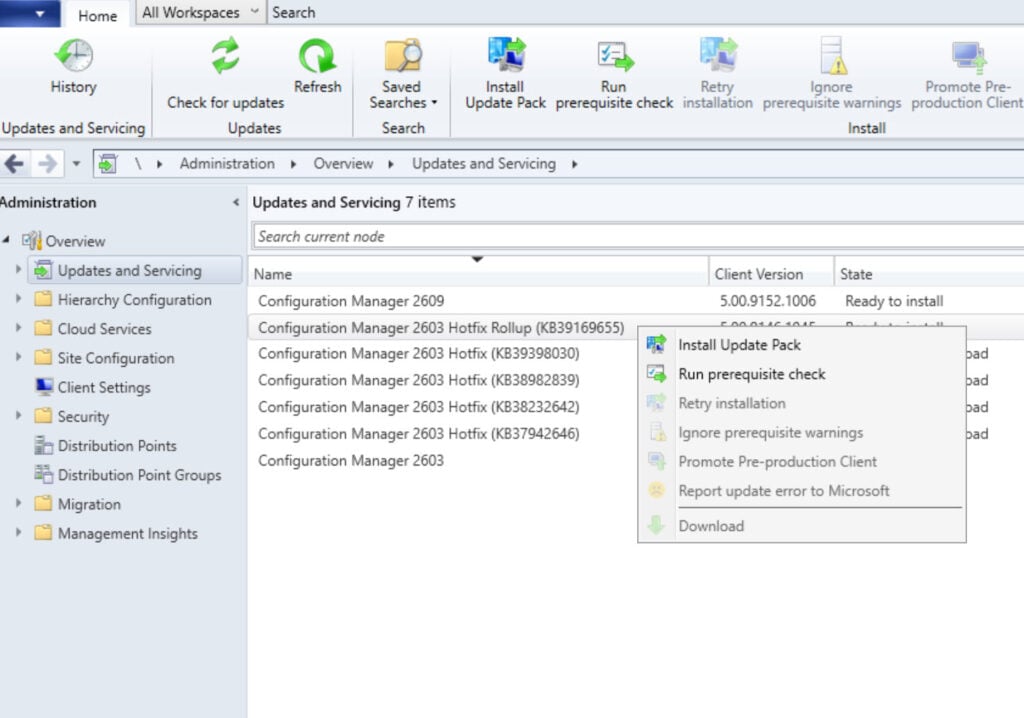
Open the SCCM console and go to Administration > Overview > Updates and Servicing. Right-click Configuration Manager 2603 Hotfix Rollup (KB39169655) update and select Install Update Pack.
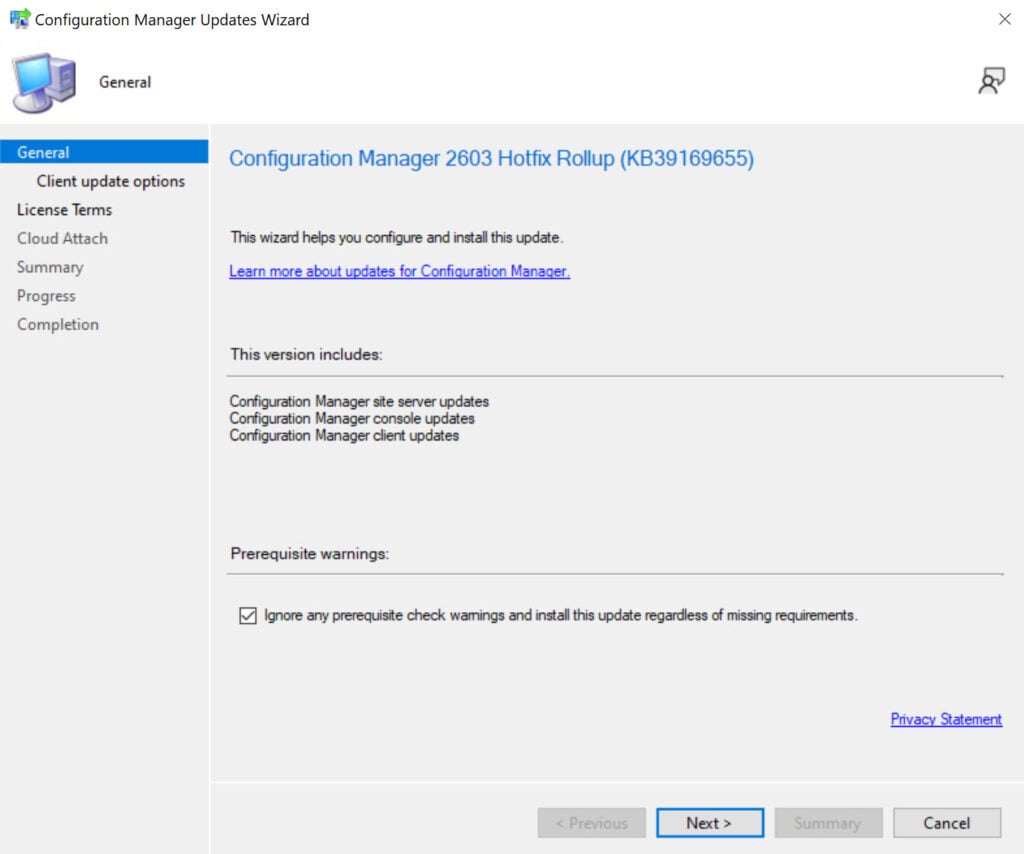
The hotfix includes updates for site servers, console, and clients. I highly recommend running a prerequisite check before installing this update. Click Next.
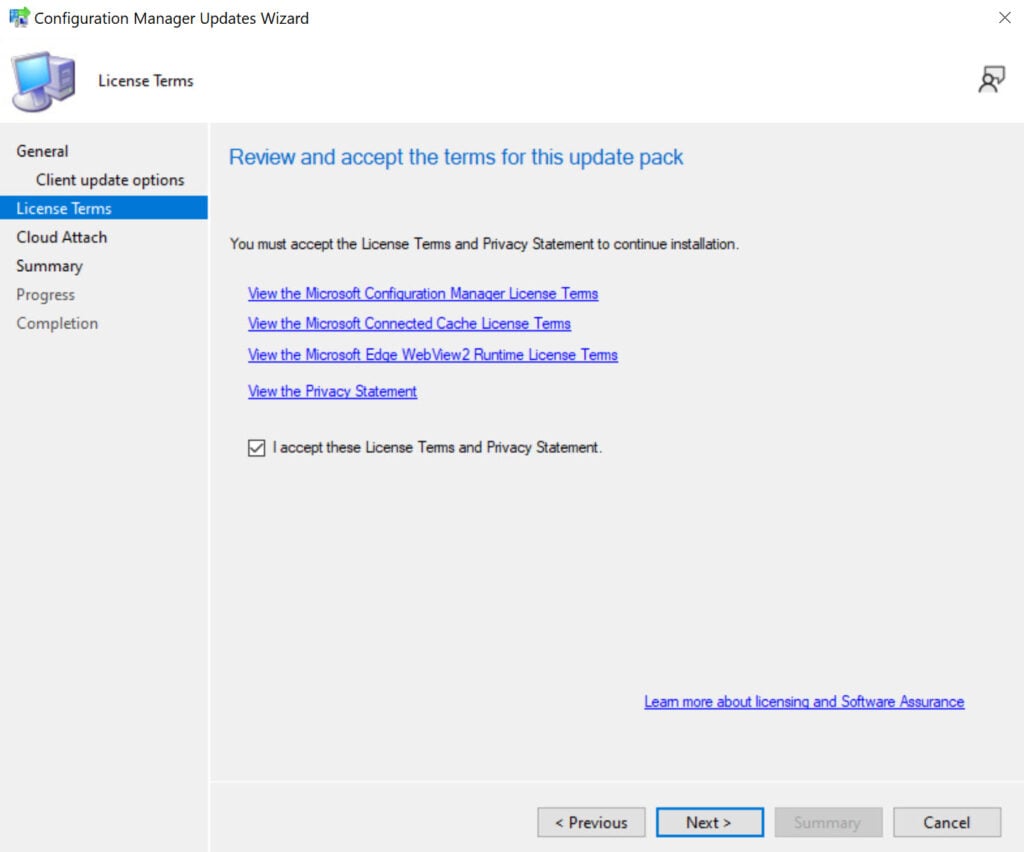
Accept the license terms for installing the update. Click Next.
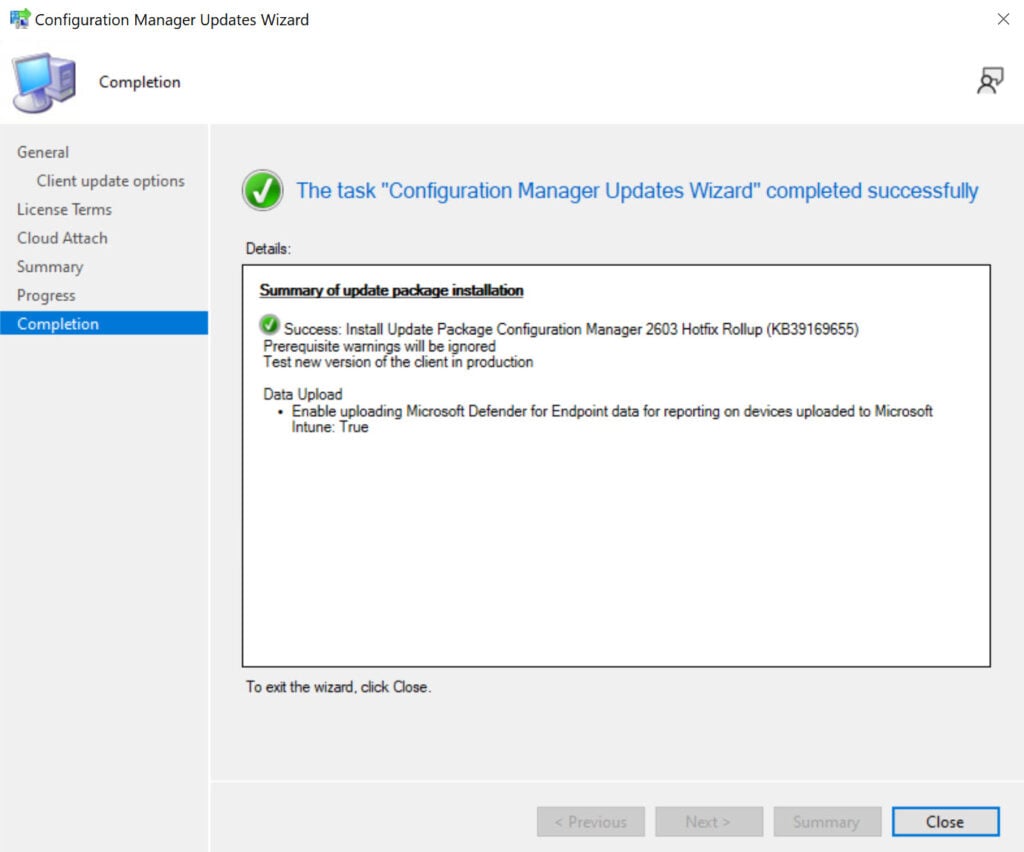
Complete the remaining steps in the wizard and close the update installation wizard. The hotfix installation begins now.
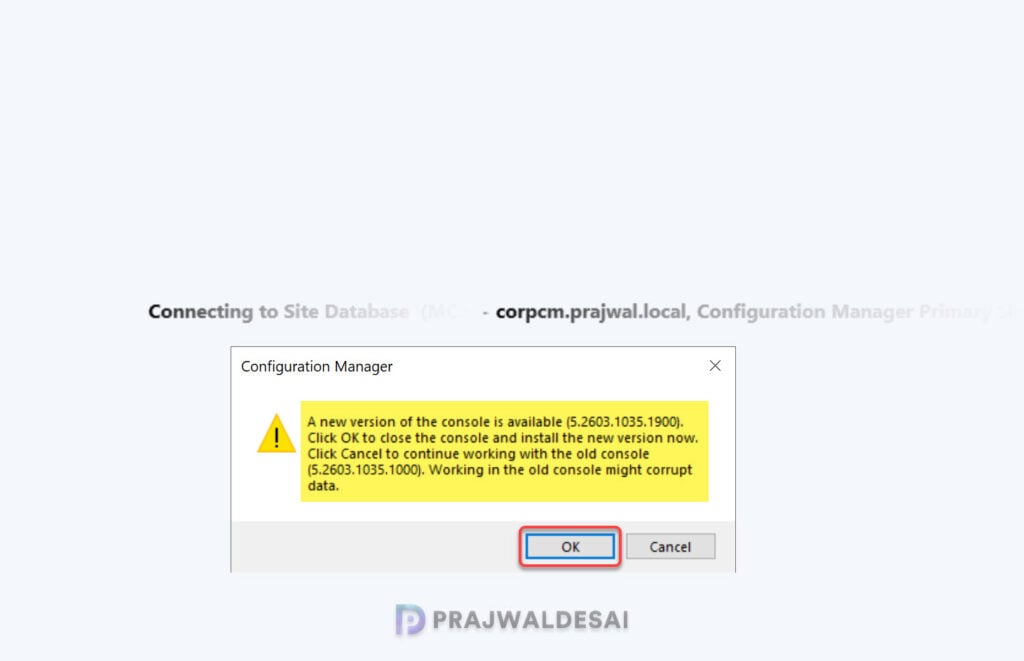
Console Upgrade
Once the update installation is completed, you will be prompted for the console upgrade. The hotfix upgrades the Configuration Manager Console to version 5.2603.1035.1900.
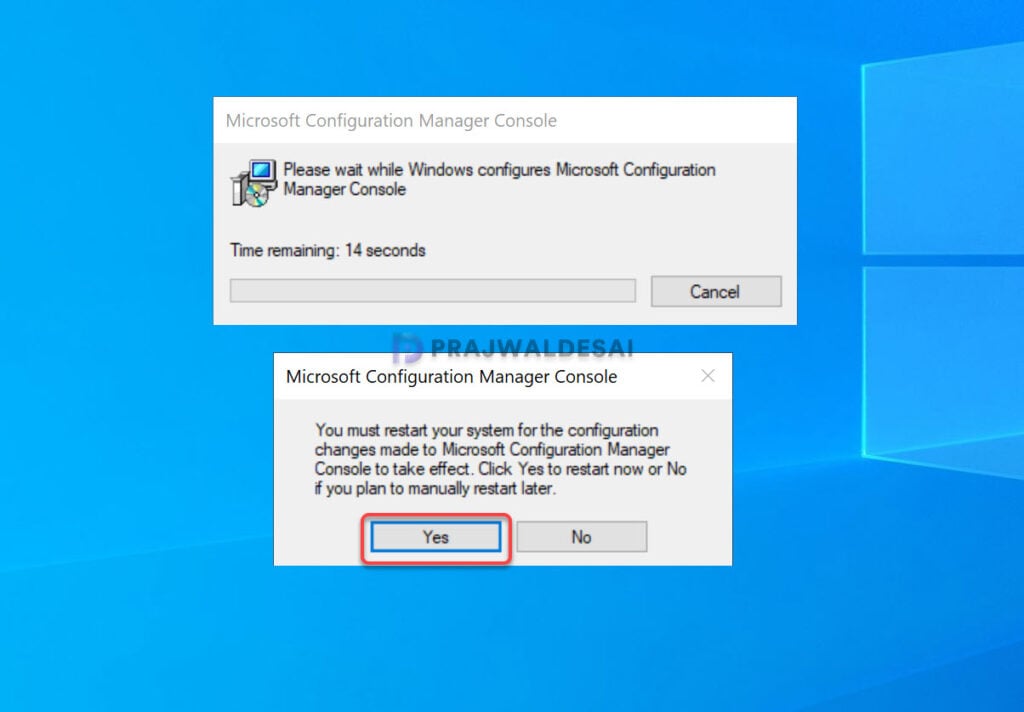
In many years, this is the first time I have seen a restart dialog on the server upon the completion of the console upgrade. Typically, hotfixes and OOB updates don’t require server restarts, but this one did.
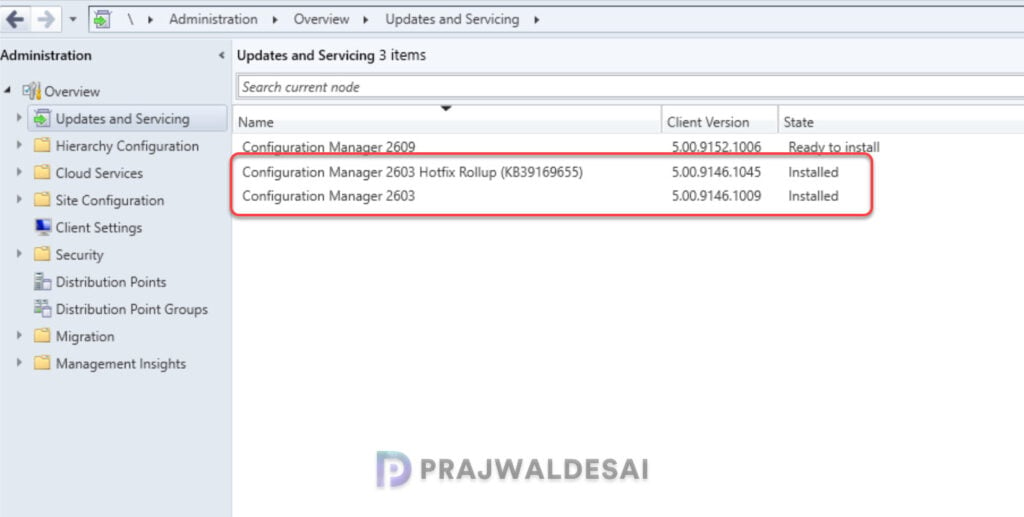
To verify if the KB39169655 hotfix is installed, open the console and go to Administration > Updates and Servicing. If the State column for the hotfix shows ‘Installed,’ it means the update installation is completed.
Notice that after installing the KB39169655 hotfix, the previously listed 2603 hotfixes no longer appear in the console.
Installing the hotfix on secondary sites
Secondary sites must be manually updated using the Recover Secondary Site option in the console. This must be manually done on all the secondary sites present in your setup.
On the secondary site server, open the Configuration Manager console. Go to Administration > Site Configuration > Sites > Recover Secondary Site, and then select the secondary site. Run the following SQL Server command on the site database to check whether the updated version of a secondary site matches that of its parent primary site:
select dbo.fnGetSecondarySiteCMUpdateStatus ('SiteCode_of_secondary_site')If the above command returns value 1, it means the site is up-to-date, with all the hotfixes applied on its parent primary site. If the value 0 is returned, the site has not installed all the fixes that are applied to the primary site. You should use the Recover Secondary Site option to update the secondary site.
Upgrading Clients
The hotfix KB39169655 updates the client agent version to 5.00.9146.1045. Make sure you upgrade the clients to the latest version to get the fixes and new features. For more help on upgrading the clients, refer to the guide on how to upgrade the SCCM client to the latest version.
