

In this step-by-step guide, I will show you how to efficiently upgrade to Windows 11 26H2 using Intune. By leveraging the Feature Update Policy in Intune, you can perform an in-place upgrade of your existing Windows 11 versions to 26H2 seamlessly.
Windows 11, version 26H2, is the new update released by Microsoft for the year 2026. It brings new features, enhanced performance, and improved security to your devices. Most importantly, this feature update incorporates all features and fixes introduced in the previous cumulative updates for Windows 11, version 25H2.
This week, I tested the 26H2 upgrade rollout through Intune on a few pilot devices running Windows 11 version 25H2. The upgrade went really well, and I did not encounter any errors. The app compatibility was also tested and all the third-party apps and proprietary in-house apps worked well.
I’d like to emphasize an important point: Windows 11 26H2 is provided as an enablement package (eKB). This is excellent news for SCCM and Intune administrators because deploying the enablement update package is simpler, quicker, and more dependable.
Before you upgrade
For organizations planning to upgrade to Windows 11 version 26H2 using SCCM, Intune, Autopatch, or other methods, I suggest following these best practices.
- Pilot Deployment: Choose a limited number of devices for a pilot trial of the 26H2 upgrade process. This will help uncover any potential problems before a complete rollout.
- Application Compatibility: Ensure business applications are compatible with the new Windows version; update or replace any incompatible software.
- User Feedback: Most importantly, gather feedback from pilot users to determine if the upgrade impacts workflows or causes any issues.
- Plan for Rollout: Once the functionality of the 26H2 upgrade is confirmed, determine which devices qualify for the update and create a strategic rollout plan. Develop update rings to outline the timing and approach for providing feature and quality updates to your Windows devices using Windows as a Service.
Prerequisites
The table below outlines all the prerequisites and provides a description of each requirement necessary for the successful rollout of the Windows 11 26H2 update using the feature update policy in Intune.
| Prerequisites | Description |
|---|---|
| Supported Device Editions | Windows 10 and Windows 11: Pro/Enterprise/Education/Pro Education/Pro for Workstations |
| Enrollment | The Windows 11 devices must be enrolled in Intune MDM and should be either Hybrid AD joined or Microsoft Entra joined. |
| Licensing | Windows Enterprise E3 or E5 (included in Microsoft 365 F3, E3, or E5) Windows Education A3 or A5 (included in Microsoft 365 A3 or A5) Windows Virtual Desktop Access E3 or E5 Microsoft 365 Business Premium |
| Telemetry | The Windows devices should have Telemetry turned on, with a minimum setting of Required. |
| Services | The Microsoft Account Sign-In Assistant (wlidsvc) service must be enabled for installing feature updates. |
| Hardware Requirements | Ensure your devices meet the minimum system requirements for Windows 11. |
Steps to Upgrade to Windows 11 26H2 using Intune
I’ll now walk you through the process of upgrading to Windows 11 26H2 using Intune.
Step 1: Configure Windows Update Rings Policy
In Intune, you can create update rings that specify how and when Windows as a Service updates your Windows devices with feature and quality updates. When you use update rings to upgrade to Windows 11, devices install the most current version of Windows 11.
If you have already created and assigned the windows update rings policy to your devices, review it once before you roll out the 26H2 update. For those of you who haven’t created an update rings policy in Intune, you can do so by following the below steps.
Sign in to the Microsoft Intune Admin Center. Navigate to Devices > Windows > Windows Updates > Update Rings. Click on + Create profile and provide a profile name and description.
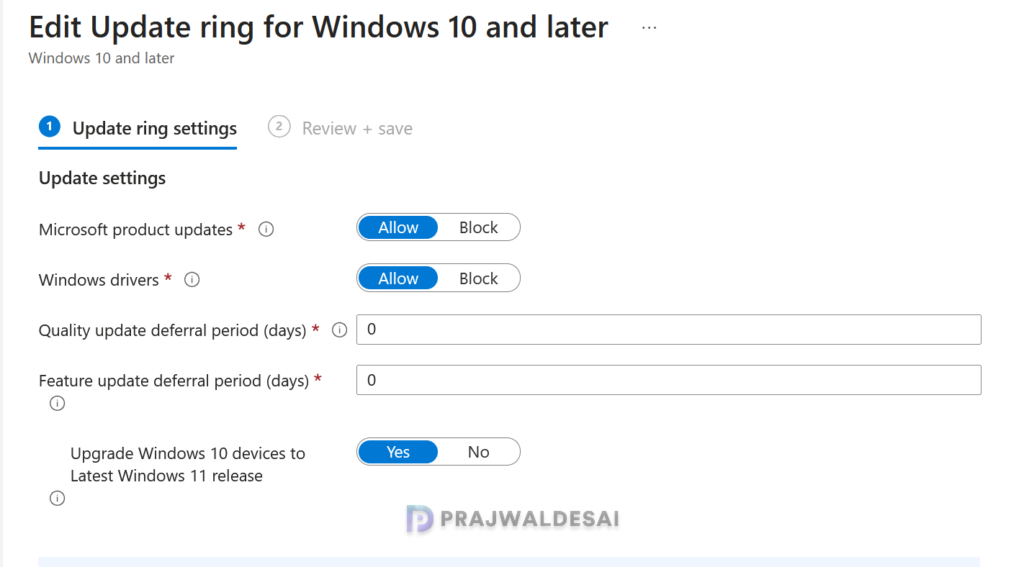
Update ring settings: The update ring settings that I have configured for my Intune tenant are as follows:
- Microsoft product updates: Allow
- Windows drivers: Allow
- Quality update deferral period (days): 0
- Feature update deferral period (days): 0
- Upgrade Windows 10 devices to latest Windows 11 release: Yes.
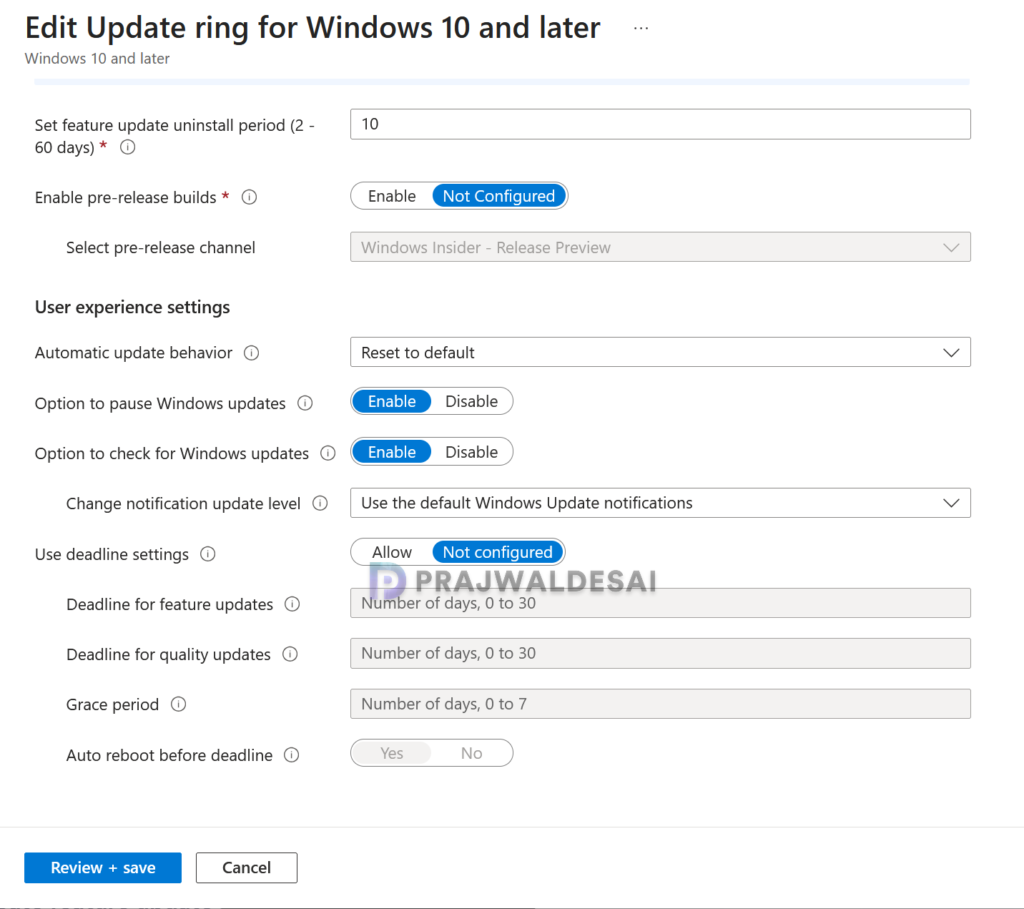
- Set feature update uninstall period (2 – 60 days): 10 days.
- Enable pre-release builds: Not Configured.
User experience settings: My update rings policy has the following settings configured for user experience.
- Automatic update behavior: Auto install at maintenance time.
- Active hours start: 8 AM
- Active hours end: 11 PM
- Option to pause Windows updates: Enable
- Option to check for Windows updates: Enable
- Change notification update level: Use the default Windows Update notifications.
- Use deadline settings: Not Configured.
Note: You need to configure the Windows Update Rings policy settings according to your organization’s specific requirements. Since these settings can differ for each organization, it is essential to test them on a set of pilot devices first. Once confirmed to be working successfully, the settings should then be deployed across all Windows devices.
Step 2: Create Feature Update Policy
To create a Windows 11 26H2 feature update policy in Intune, sign in to the Microsoft Intune admin center. Go to Devices > Manage Updates > Windows Updates. Switch to the Feature updates tab and select Create > Create feature update policy.
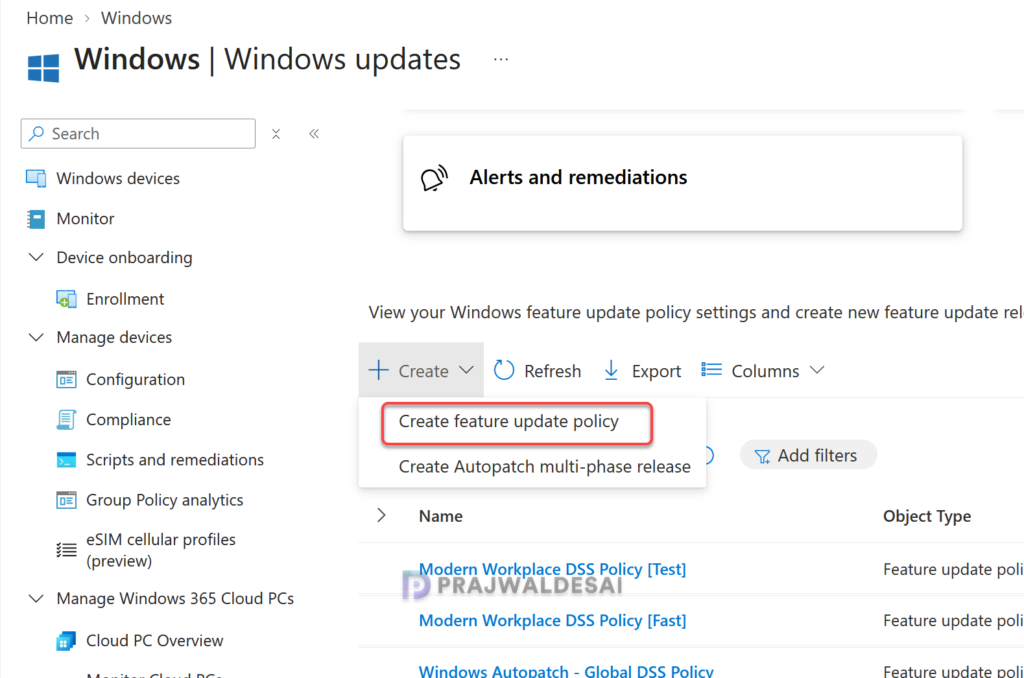
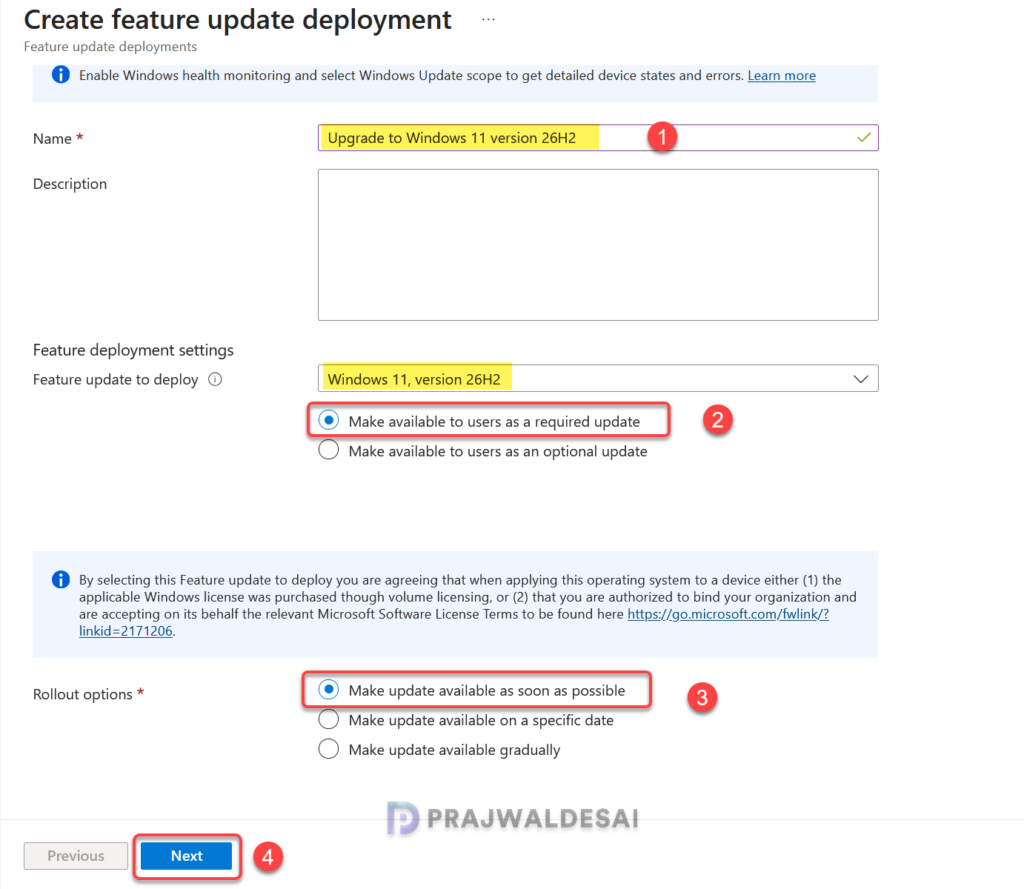
In the Deployment settings tab, enter a meaningful name and a description for the policy. In my case, I have specified the following details:
- Name: Upgrade to Windows 11 version 26H2
- Description: A feature updates policy to upgrade Windows 11 devices to version 26H2
Click on the drop-down next to Feature update to deploy and select Windows 11, version 26H2 from the list.
Feature Updates deployment options: Once you choose the required Windows 11 version, the next step is to choose how you want to make the update available for end users. Intune offers two options for rolling out feature updates to end users.
- Make available to users as a required update: If you select this option, the next time the device checks for updates, the 26H2 update is automatically installed as a Required update.
- Make available to users as an optional update: If you select this option, the selected updates are made available to users as an optional update. To get the update, the user must navigate to the Windows update settings and manually download the ‘Windows 11 26H2 update‘.
Rollout options for feature updates: Intune offers three rollout options for feature updates and the way they are delivered to end users.
- Make update available as soon as possible: Makes the update available to targeted devices without delay. This option reflects the default Windows Update behavior.
- Make update available on a specific date: Delays update availability until the date you specify. Devices don’t receive the update offer until that date is reached.
- Make update available gradually: This option lets you stage a feature update by making it available to subsets of targeted devices at different times.
In the below example, the Windows 11 26H2 feature update is deployed as a required update and the rollout option is configured to make the update available as soon as possible to the users. Click Next.
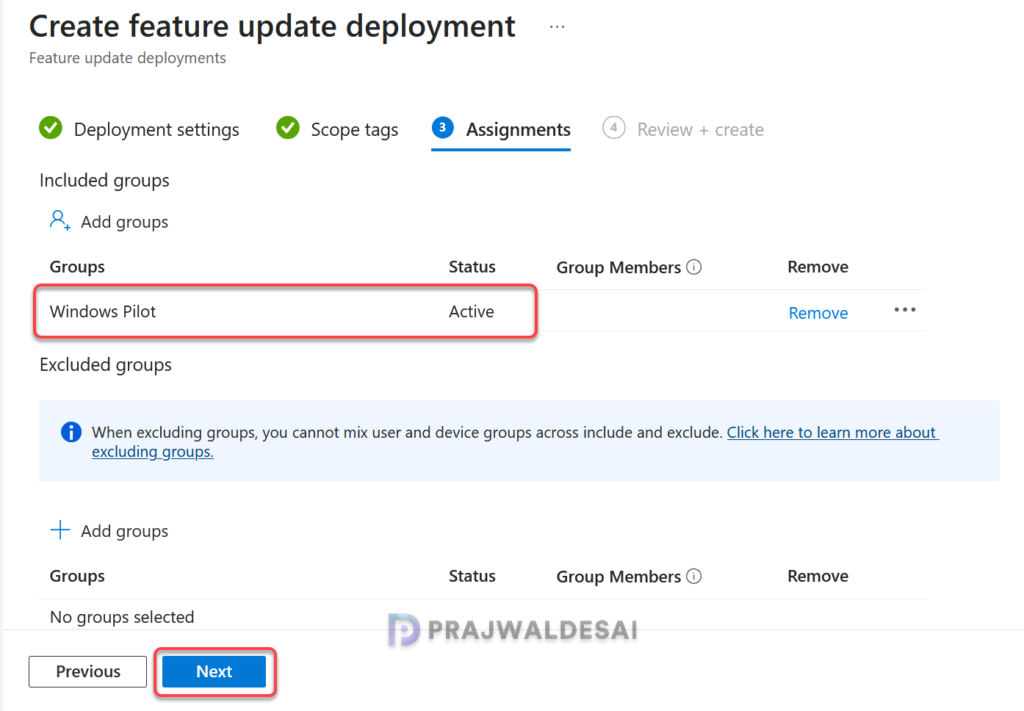
On the Scope tags page, you may select any desired scope tags to apply. This is optional, and you can skip to the next step. Learn how to create new scope tags in Intune. Click Next. Under Assignments, choose + Add groups and select the pilot group(s) containing the devices chosen for testing the 26H2 upgrade. Click Next.
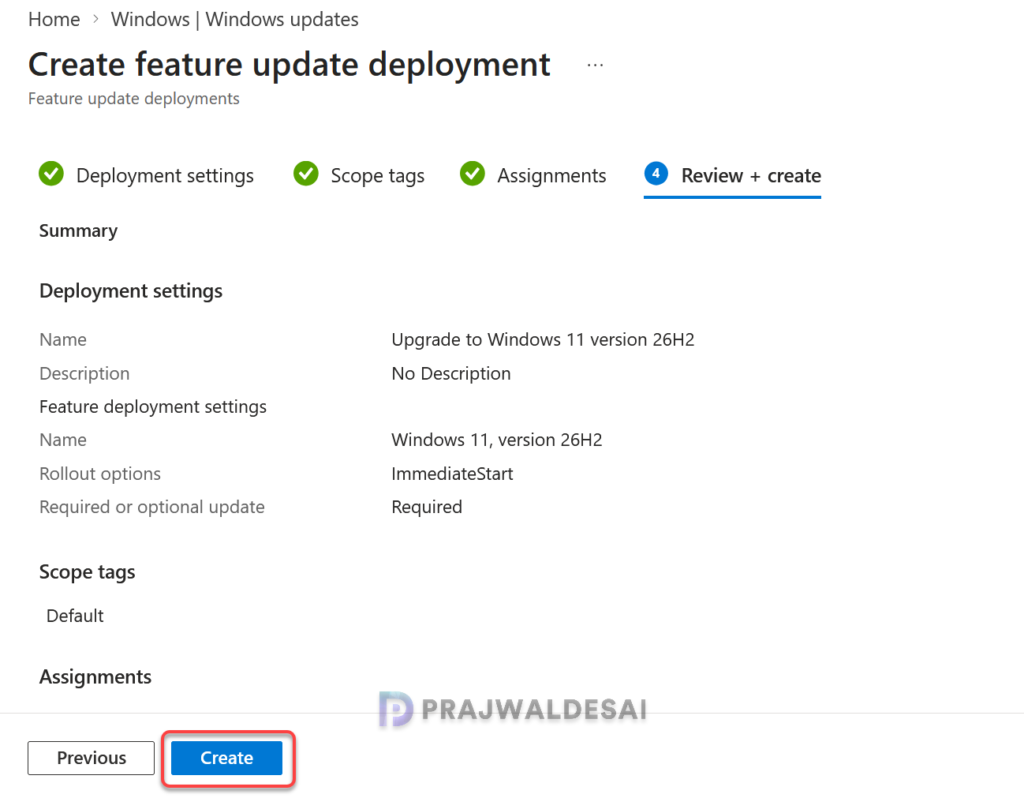
Under Review + create, review the update policy settings. You may go back and modify the settings if required. If everything looks good, select Create to create this new feature update policy.
Step 3: Monitor the Windows 11 26H2 Upgrade Progress
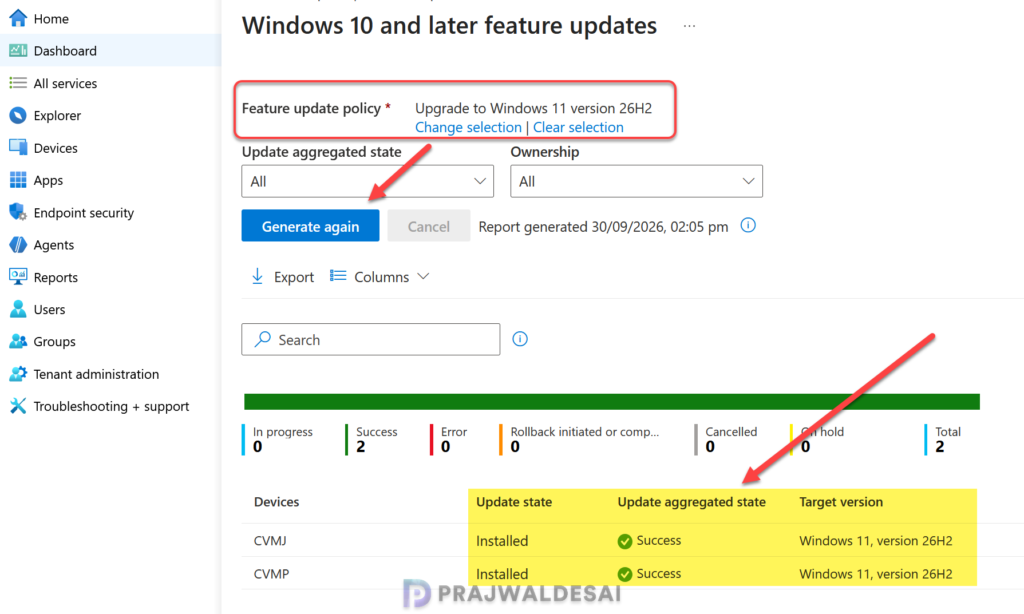
In this section, I will show you how to monitor the Windows 11 26H2 feature update policy deployment and find out the number of devices that successfully upgraded to version 26H2 and those that failed to install the update.
- In the Intune admin center, navigate to Reports > Windows Updates and select Windows Feature Update Report.
- Select the Windows 11 26H2 Feature update policy.
- Click on Generate Report to find the progress of upgrade.
The report data highlights the Windows 11 devices that have successfully received the Windows 11, version 26H2 update.
In the screenshot below, each column represents something important.
- Update Aggregated: Shows as “Success,” indicating that the 26H2 update rollout is successful.
- Update State: Confirms if the update was installed.
- Target version: Shows the version after the upgrade which is version 26H2 in this case.
You may click on the Export option to export the upgrade details to a CSV file for further analysis.
Step 4: Sync Intune Policies
After the feature update deployment policy is assigned to the device groups, you can sync Intune policies on Windows devices in different ways. The sync action basically prompts devices to instantly connect with Intune and apply the most up-to-date policies.
Step 5: Verify Windows 11 26H2 Upgrade
Based on the rollout options you’ve configured, the 26H2 feature update will be delivered to the targeted Windows devices. In my case, I set the rollout option to deploy version 26H2 as a required update, meaning the update will be automatically installed as a mandatory update.
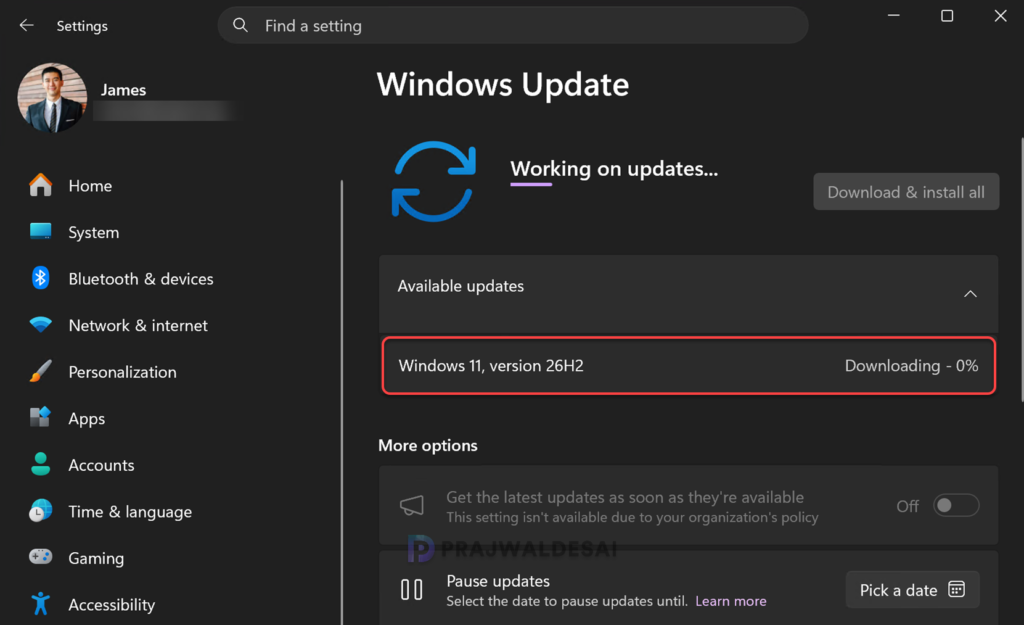
To verify if the feature update policy has been applied to your device, sign in to a Windows 11 work PC. Launch the Settings and go to Windows Update. Here we see that Windows 11 version 26H2 is in a downloading state.
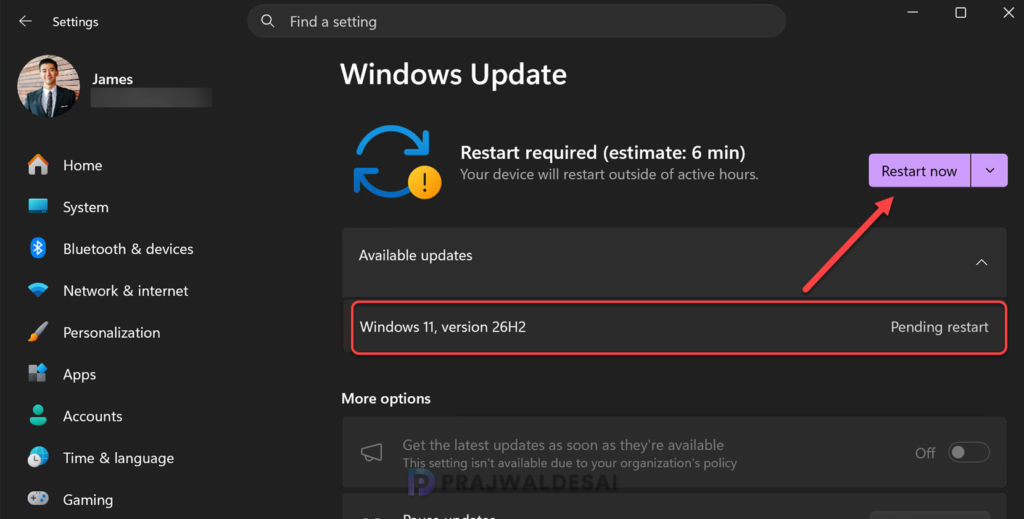
Since the 26H2 is an enablement package, the downloading and installation shouldn’t take much time. In my case, it took a few minutes to download and complete the update installation. The update requires a restart, click Restart now to immediately restart the PC.
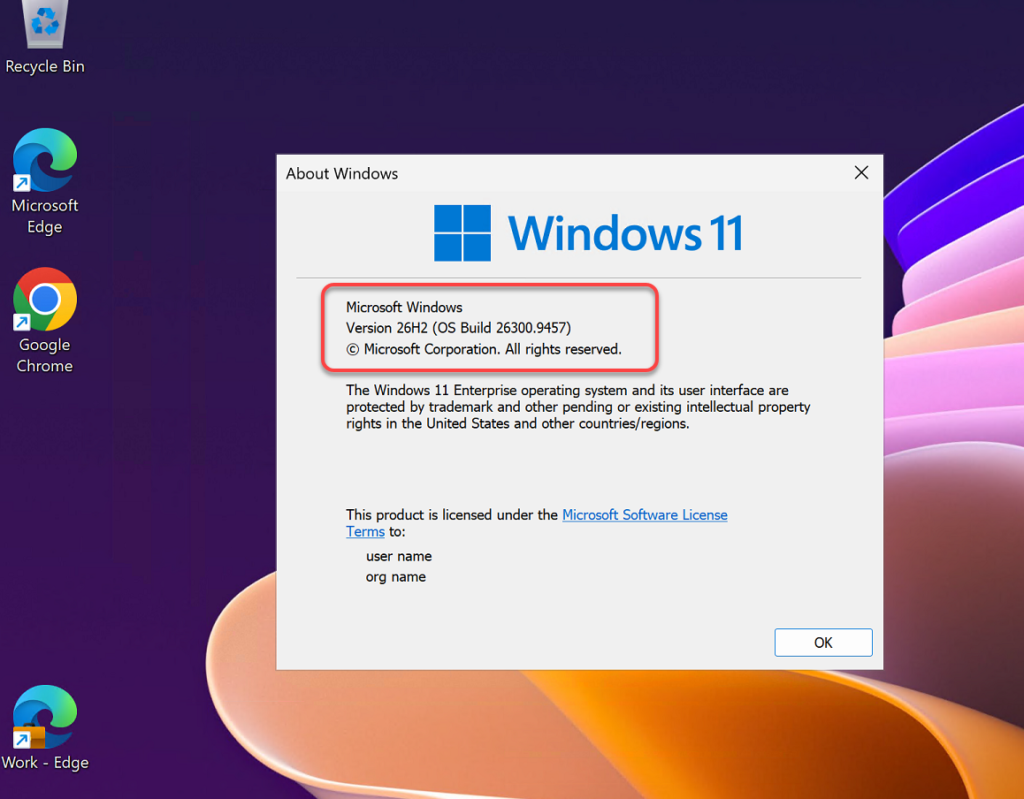
Sign in to the Windows 11 PC and open the Settings app and go to System > About. Under Windows specifications, you can confirm the Edition, Version, and OS Build number of Windows 11 26H2.
- Version: 26H2
- OS Build: 26300.9457
Note: The primary OS build number for Windows 11 version 26H2 is 26300, with the minor build number continuously incremented as updates are released. To track the updates released for all versions of Windows 11, have a look at my Windows 11 versions and build numbers release guide.
The below screenshot confirms the successful upgrade from Windows 11 25H2 to version 26H2 using Intune.
Troubleshooting
If the Windows 11 26H2 feature update policy deployment fails or devices encounter errors, I suggest following these troubleshooting steps.
Review Event Viewer Logs
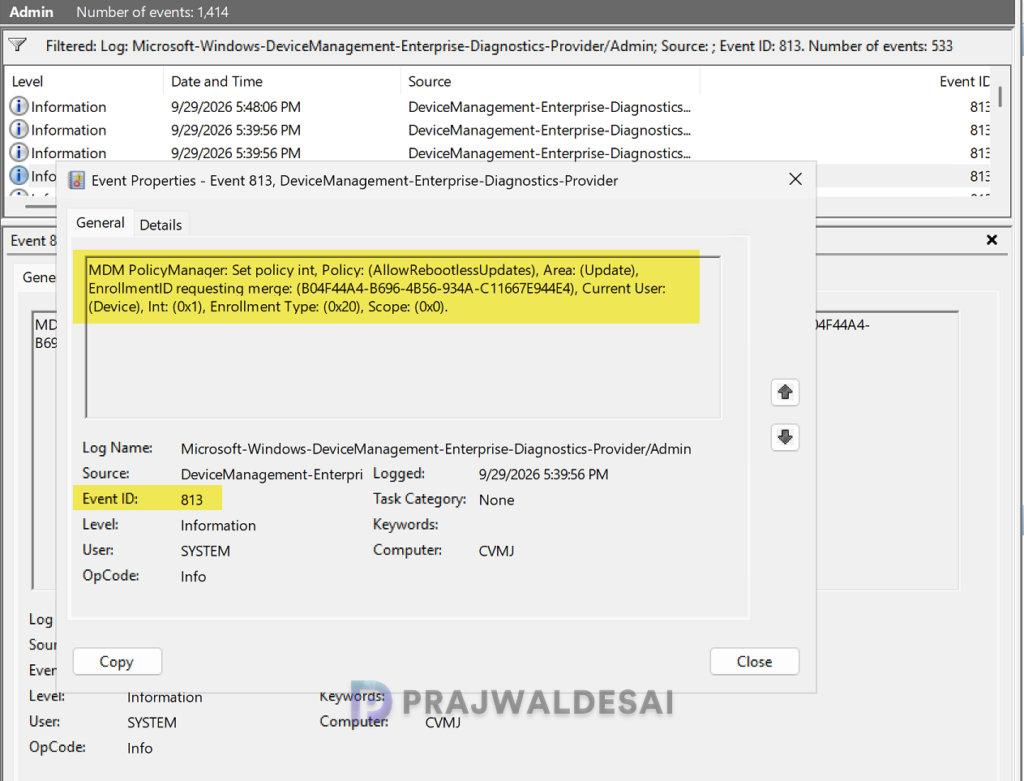
Event logs are very critical and play a major role in troubleshooting the Windows 11 upgrade issues. On the device that doesn’t receive the Windows 11 26H2 update, launch the event viewer. Navigate to Application and Services Logs > Microsoft > Windows > DeviceManagement-Enterprise-Diagnostics-Provider. Select Admin and examine the event ID 814, 813 for 26H2 feature update policy and other event IDs for errors.
Check Safeguard holds on Windows 11 devices
Safeguard holds prevent a Windows device with a known issue from being offered a new operating system version. If the 26H2 upgrade fails on any of your devices, you can check the status of safeguard hold in Windows Registry.
Press Windows + R to open the Run box. Type ‘regedit‘ and press enter to open the registry editor. Navigate to the below registry path.
HKLM:\SOFTWARE\Microsoft\Windows NT\CurrentVersion\AppCompatFlags\Appraiser\GWXHere look for the GStatus value that determines whether safeguard hold is active or isn’t in effect.
- GStatus = 2: A safeguard hold isn’t in effect
- GStatus = 0: A safeguard hold is in effect
Verify the status of Microsoft Account Sign-In Assistant (wlidsvc) service
The Microsoft Account Sign-In Assistant (wlidsvc) service needs to be enabled to install feature updates. If this service is disabled or blocked, the Windows 11, version 26H2 upgrade will not proceed successfully.
Check Telemetry Level
The devices that you intend to upgrade to 26H2 must have telemetry turned on, with a minimum setting of Required. If the Telemetry level is set to Optional or disabled, the feature update policy deployment will fail. The devices that receive a feature updates policy and that have Telemetry set to Not configured (off), might install a later version of Windows than defined in the feature updates policy. Learn how to configure Windows Telemetry or Diagnostic data for your Windows devices using Intune.
Conclusion
To conclude, this detailed guide covers all the necessary steps to plan and implement the Windows 11 26H2 upgrade via Intune, including prerequisites, deployment strategy, upgrade steps, and troubleshooting advice. Upgrading to Windows 11 version 26H2 through Intune is a simple process that allows your organization to take advantage of the latest features and security improvements. By utilizing Intune’s update management features, IT administrators can effectively roll out the upgrade across their network with minimal disruption.
If you need further assistance on any of these topics, feel free to mention it in the comments section.
