

In this guide, I’ll cover some practical methods to check OneDrive storage usage as an individual user, as an IT administrator, and for all users through PowerShell for larger environments. I have written this guide for enterprises looking to monitor and manage OneDrive space usage for their employees. I will also cover exporting the OneDrive storage usage data and activity reports to a CSV file for auditing purposes.
The default OneDrive storage space allocated to most Microsoft 365 business and enterprise users is 1 TB per user. However, company IT administrators can adjust the default storage limit for specific users or the entire organization via the SharePoint Admin Center.
Organizations should regularly monitor users’ OneDrive storage space to prevent workflow disruptions, control cloud costs, and catch security or data hoarding issues early. If your employees use OneDrive to store documents, photos, videos, and backups, it’s a good idea to keep an eye on how much space they’ve used. Once the storage gets close to full, syncing can slow down or stop, and they may not be able to upload new files.
Check OneDrive Storage Usage as a Standard User
Users in your organization have several ways of checking how much storage they are using on OneDrive. Below, I’ve illustrated each method.
OneDrive Web
Employees in your organization can view the consumed space by logging into OneDrive through a web browser. This approach is effective for most businesses, and if SSO is enabled for your users, it bypasses the sign-in process and swiftly directs you to the OneDrive files.
- Open the browser and go to https://onedrive.live.com.
- You should now see your organization’s SharePoint site.
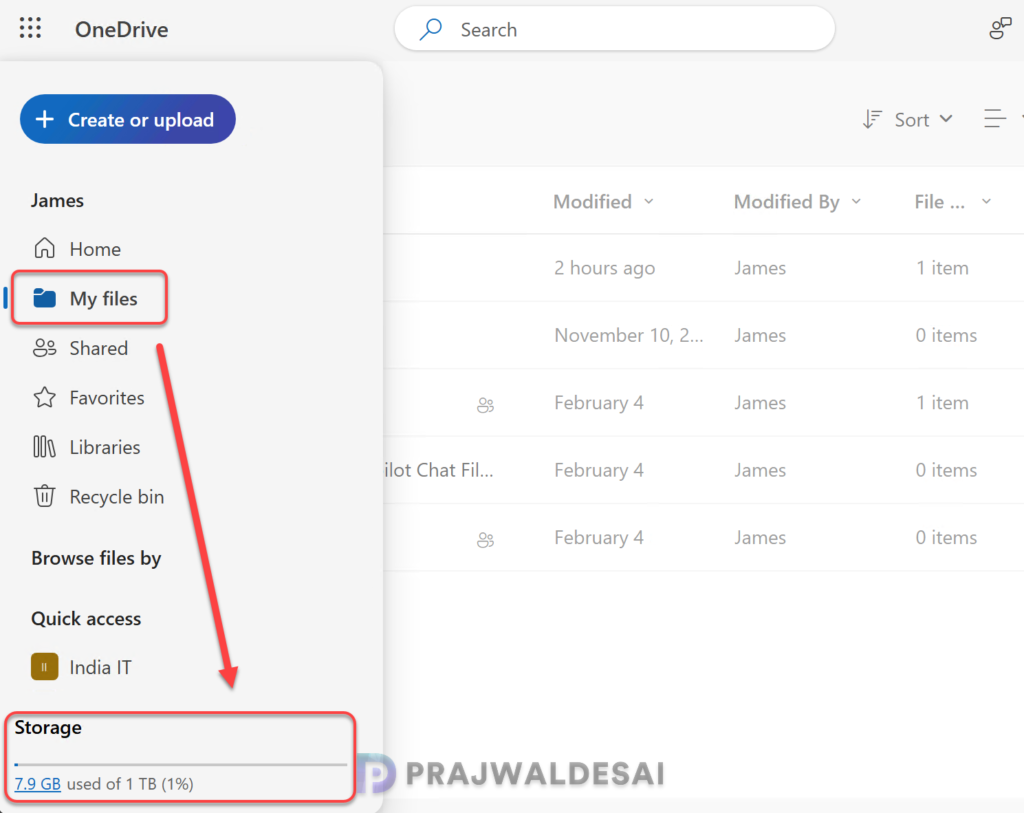
- In the left navigation pane, under Storage, you see the used storage and available storage for OneDrive.
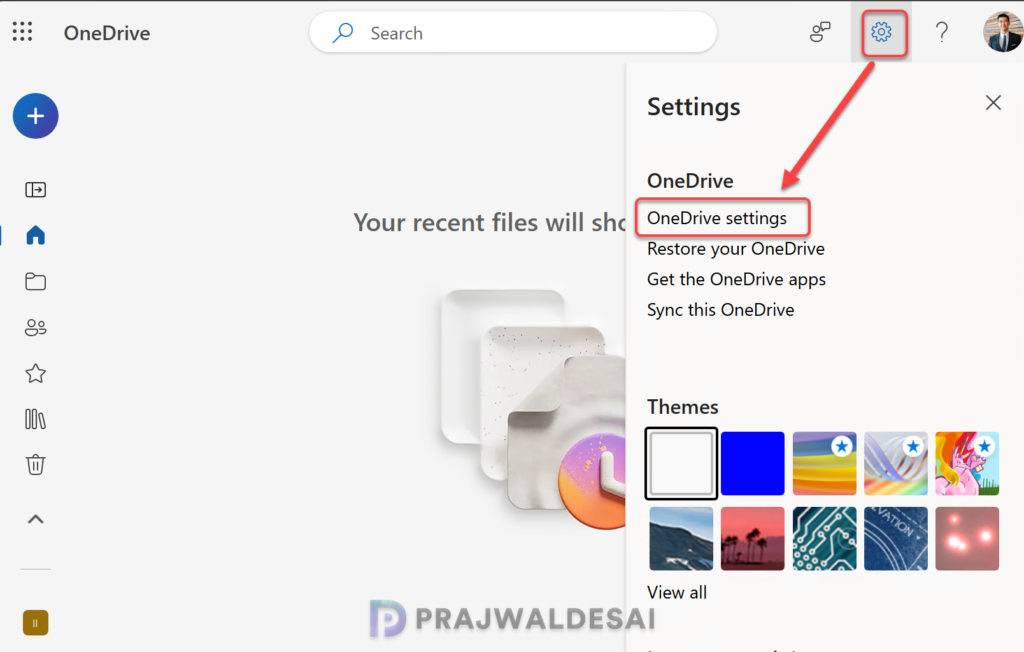
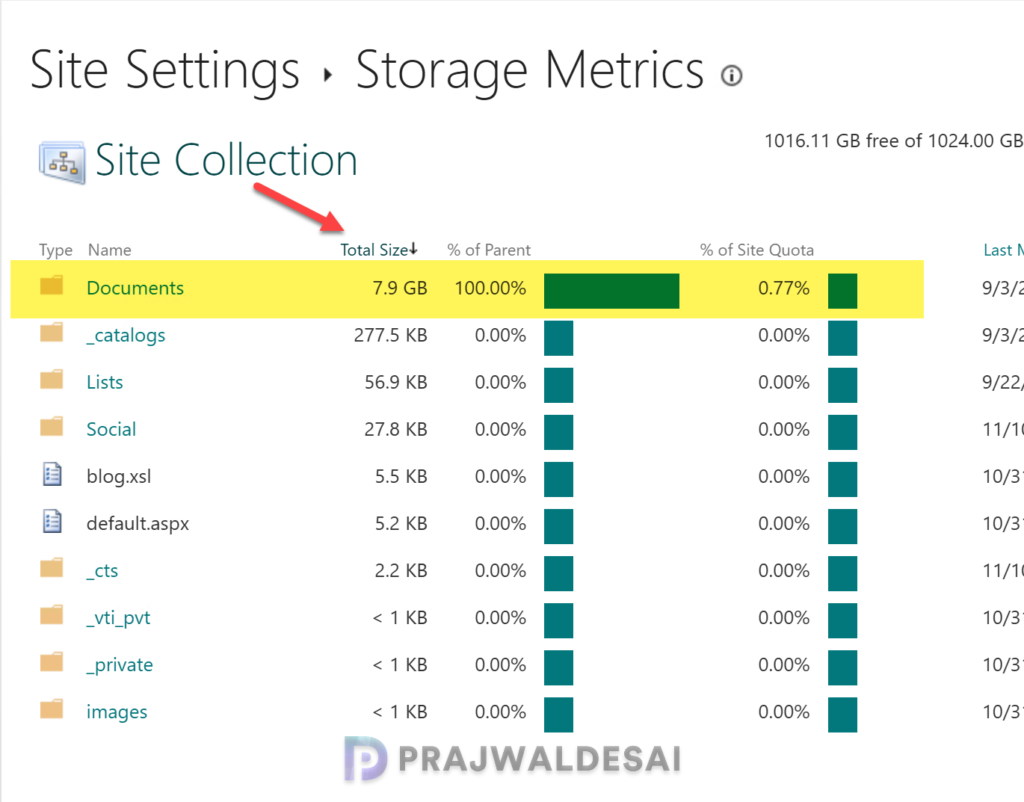
If you want to know what files are taking up the space on your OneDrive account, you must check the Storage Metrics. This setting is hidden under the OneDrive settings. To view that, click on the Gear icon located in the top-right corner of the screen and select OneDrive Settings.
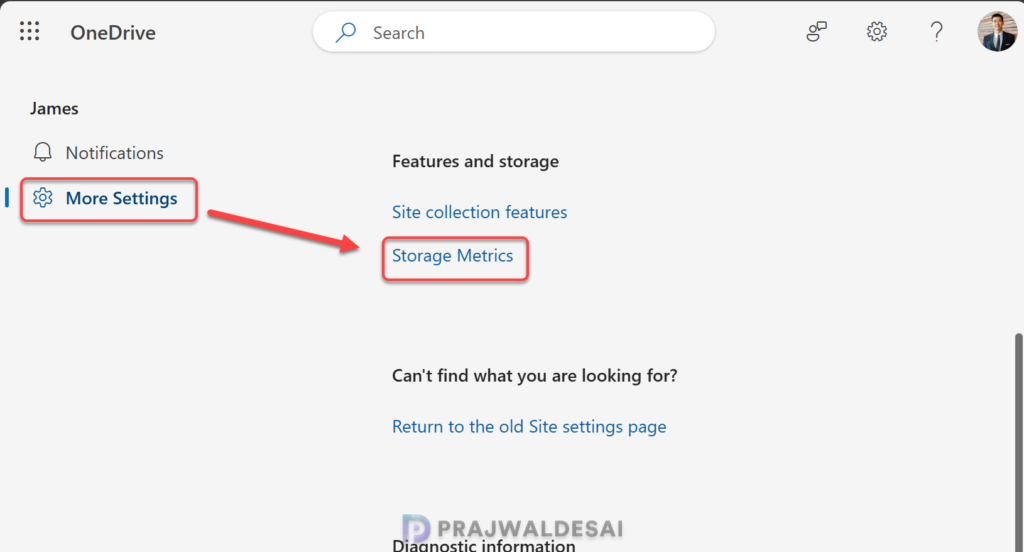
In the left navigation pane, click More Settings. On the right, scroll down and under Features and storage, select Storage Metrics as shown in the below image.
On the Storage Metrics page, you can see what folders and files are taking up the most of your OneDrive space. Click the Total Size column to sort the folders or files based on the overall space consumed.
OneDrive app
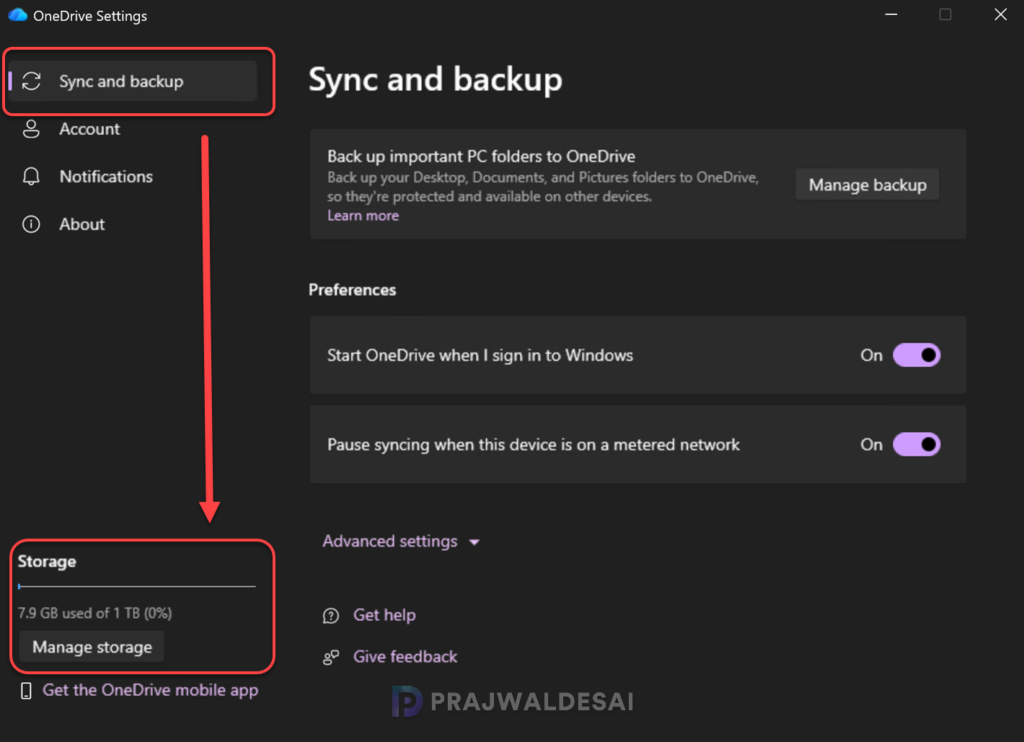
If the OneDrive sync application is installed on a Windows device, a user can easily view the available and used storage space. To check that, click the OneDrive cloud icon in the system tray. Click on the Gear icon and select Settings. In the bottom-left corner of the sync and backup page, the user can see the OneDrive storage space.
Check OneDrive storage of user as an Administrator
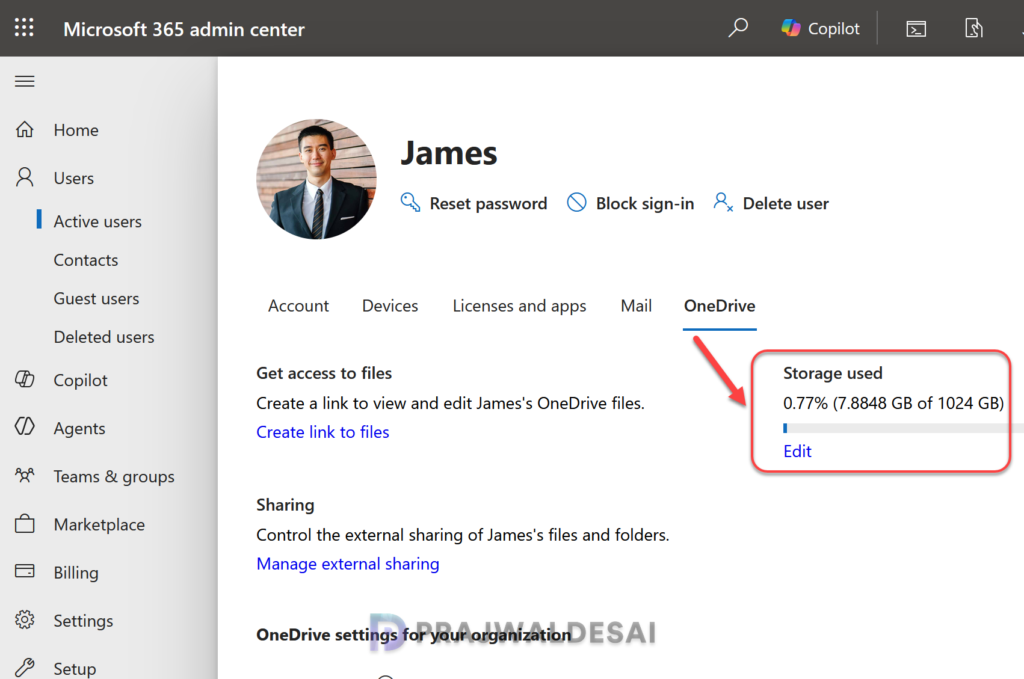
As a global administrator, you can check the OneDrive space details of any user in your organization via the Microsoft 365 admin center. To accomplish that, open the browser and access the Microsoft 365 admin center. Navigate to Users > Active Users. Select a user from the list and on the account information pane, select OneDrive tab. You can view the overall storage of an individual user and the remaining space in OneDrive.
View OneDrive Activity and Usage report in Microsoft 365 admin center
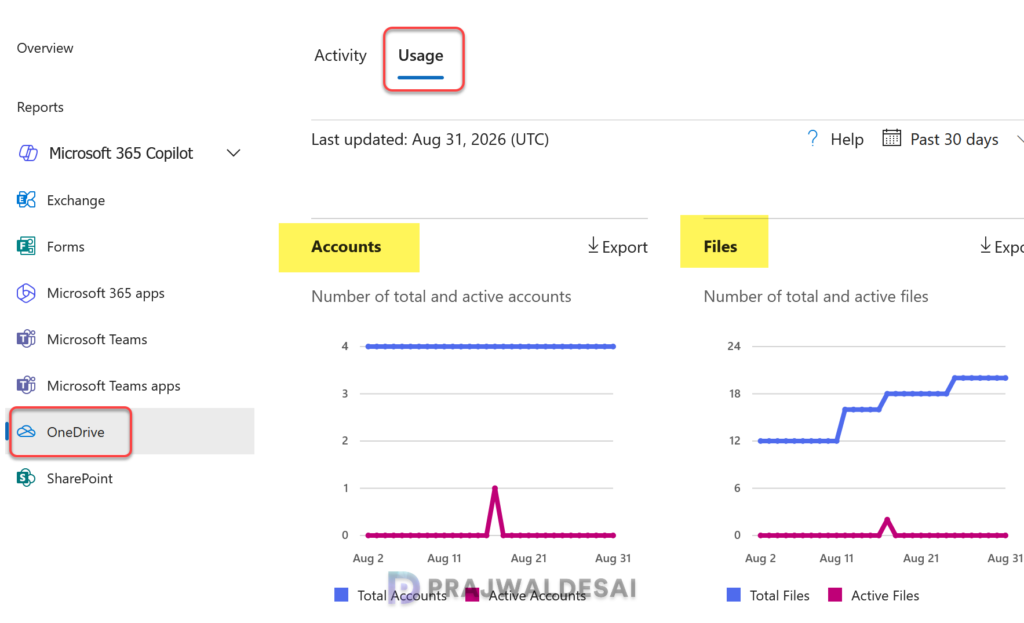
The OneDrive usage report contains the total number of accounts, files, and storage utilized throughout your organization. Whereas the OneDrive activity report offers insights into each user who has a OneDrive license by examining their file interactions on the platform.
Administrators can view the OneDrive activity and usage reports for all users in the M365 admin center using the following steps. Go to the Microsoft 365 admin center. In the navigation menu, select Reports > Usage > OneDrive. Select Usage or Activity tab depending upon where you want to view the usage data or activity data of users.
Export OneDrive Storage Usage Report of All Users
Sign in to the Microsoft 365 admin center and select Reports > Usage. To export the OneDrive storage usage report of all users into an .csv file, select Export. This action exports the usage data of all users and enables you to do simple sorting, filtering, and searching for further analysis.
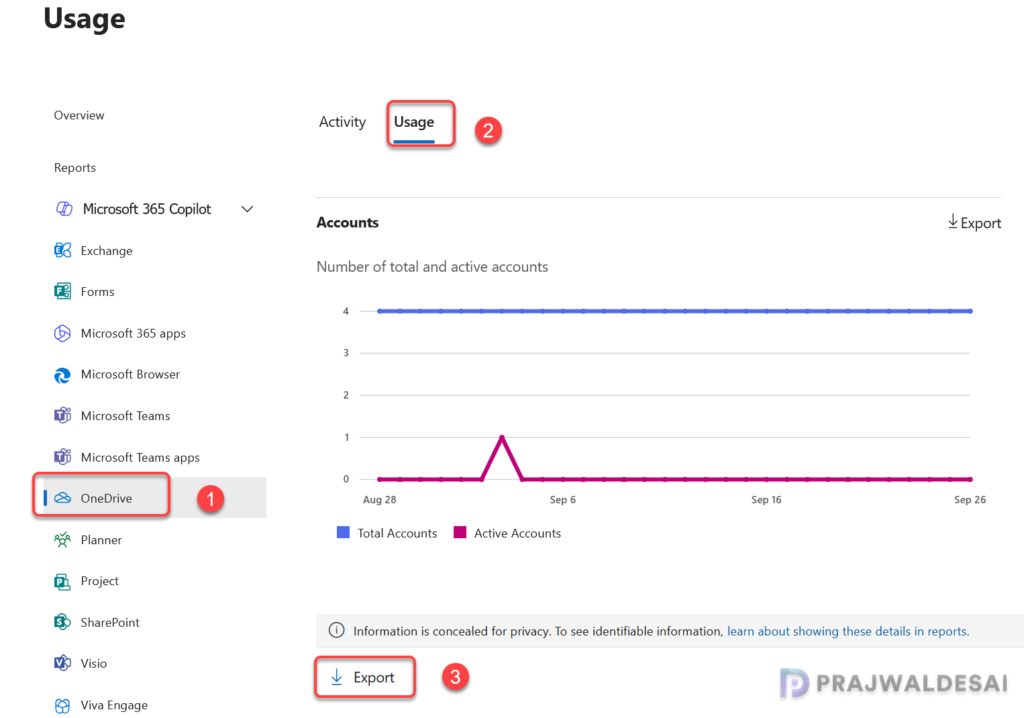
Similarly, you can go to the Activity tab and export the OneDrive activity of all users to a CSV file in your organization.
Check OneDrive Storage Usage using PowerShell
SharePoint Admins can also generate a full tenant-wide OneDrive storage usage report for all users using a PowerShell script. The below script written by me checks the OneDrive space usage for all users and exports it to a CSV file. I have tested this script in my setup and it works without any errors.
Copy the below script to a text file and save it as GetOneDriveStorageUsage.ps1. Alternatively, you can also download this script from GitHub.
In the below script, the command Get-SPOSite -IncludePersonalSite $True -Limit All -Filter “Url -like ‘-my.sharepoint.com/personal/'” is used in SharePoint Online and PnP PowerShell commands to query and retrieve all user OneDrive for Business personal site collections within a tenant.
<#
.SYNOPSIS
PowerShell script to check and export OneDrive Storage Usage for all users

.DESCRIPTION
This script checks the OneDrive space usage of all users and exports the data to a CSV file.

.NOTES
Author: Prajwal Desai
Website: https://www.prajwaldesai.com
Post Link: https://www.prajwaldesai.com/check-onedrive-storage-usage
#>

# Fetch all OneDrive personal sites
$OneDrives = Get-SPOSite -IncludePersonalSite $True -Limit All -Filter "Url -like '-my.sharepoint.com/personal/'"
$Result = @()

ForEach ($OneDrive in $OneDrives) {
    $Item = [PSCustomObject]@{
        Email       = $OneDrive.Owner
        URL         = $OneDrive.URL
        QuotaGB     = [Math]::Round($OneDrive.StorageQuota / 1024, 2)
        UsedGB      = [Math]::Round($OneDrive.StorageUsageCurrent / 1024, 2)
        PercentUsed = [Math]::Round(($OneDrive.StorageUsageCurrent / $OneDrive.StorageQuota * 100), 2)
    }
    $Result += $Item
}

# Display the OneDrive Data Usage details
$Result | Format-Table Email, UsedGB, QuotaGB, PercentUsed -AutoSize

#Export OneDrive Storage Usage Data to CSV file
$Result | Export-Csv -Path C:\OneDriveUsagedata.csv -NoTypeInformation
Write-Host "The OneDrive Storage Usage Data has been successfully exported to the CSV File" Before you run this script, you must first install the Microsoft Online SharePoint Powershell module and connect to SharePoint online. I have covered these steps below.
1. Install Microsoft SharePoint Online
To install the SharePoint Online PowerShell module, open Windows PowerShell as an Administrator. Run the following command to install the module for all users. Ensure the execution of scripts is allowed on the device.
Install-Module -Name Microsoft.Online.SharePoint.PowerShell -ForceIf you already have the module installed and need to update it to the latest version, execute the below command.
Update-Module -Name Microsoft.Online.SharePoint.PowerShell2. Connect to SharePoint Online
Connect to your tenant by substituting your actual tenant admin name into the following command. Sign in your administrator credentials when asked.
Connect-SPOService -Url https://yourtenant-admin.sharepoint.com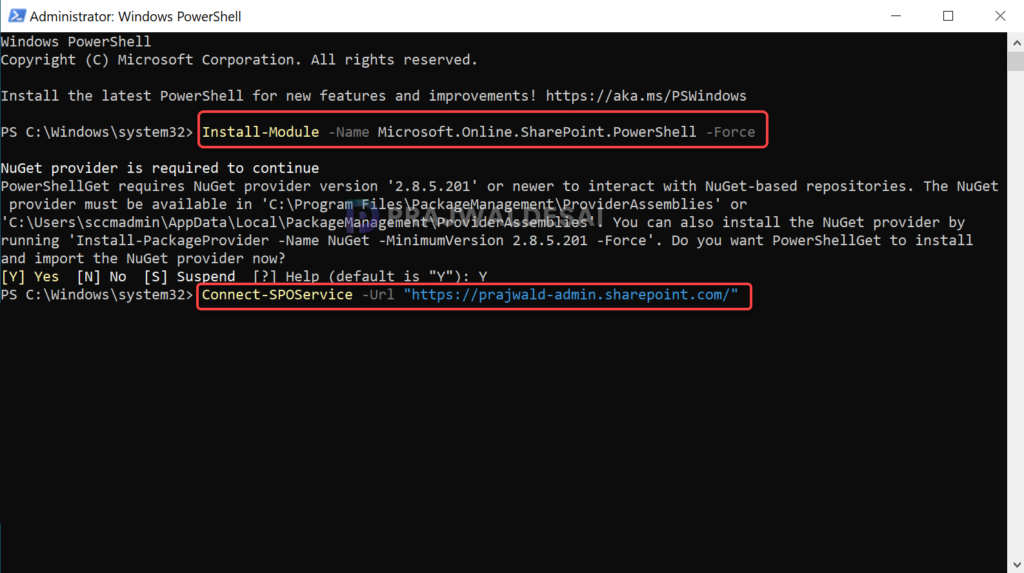
3. Run the OneDrive Storage Usage script
Once you’ve successfully connected to SharePoint online, run the script to view the OneDrive Storage usage data for all the users as well as export these details to a CSV file.
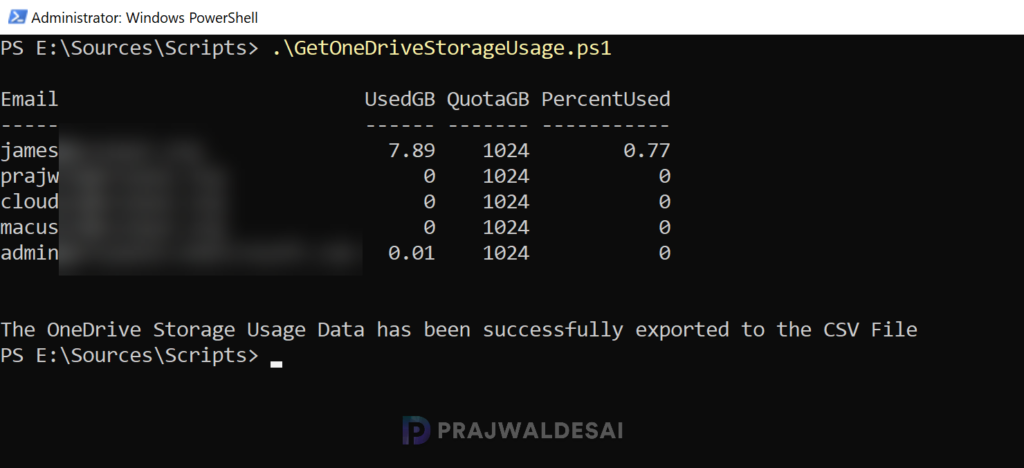
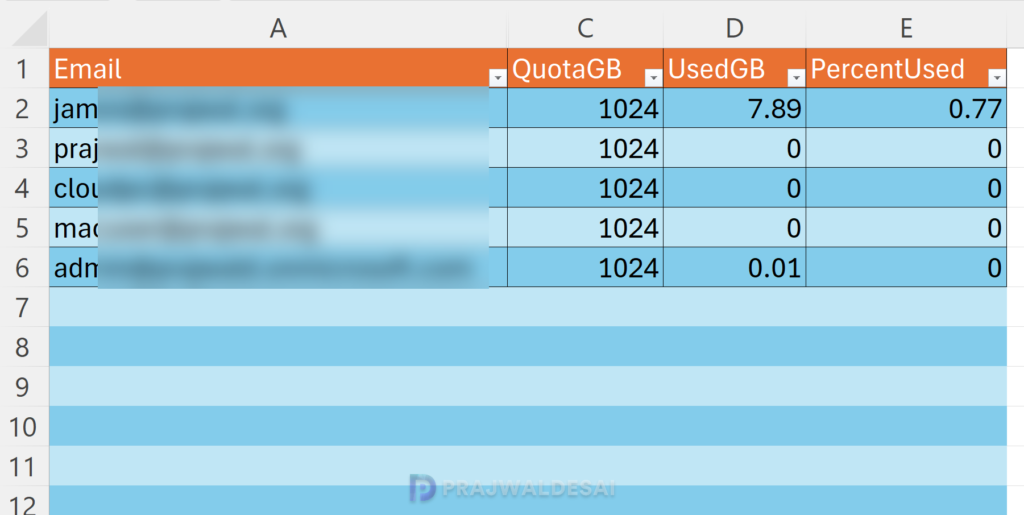
The exported CSV report contains the user’s email address, the actual OneDrive storage quota assigned to the user, total space used in GB, and percent of space used.
Microsoft does not provide any options such as sending an email to the IT administrator when a user’s OneDrive is full. This has to be monitored by organizations manually by viewing built-in native storage reports, setting up alert policies via Microsoft Purview, or automating custom storage alerts with PowerShell.
That concludes this guide and I hope it was useful. If you need any clarification, please let me know in the comments section.
