


In this guide, I’ll demonstrate how to automatically sync SharePoint site libraries using Intune. This solution enables users to effortlessly access essential SharePoint site library files directly through File Explorer, streamlining operations and greatly improving the user experience.
Last week, I worked on a SharePoint task where I was asked whether it’s possible to sync a team site library and files within it for specific users. The answer is yes; Intune administrators can leverage the settings catalog to automate the synchronization of SharePoint team site libraries for Windows users.
Both Intune and Group Policy include a setting “Configure team site libraries to sync automatically (USER)“. If you enable this setting, the OneDrive sync app will automatically download the contents of the libraries you specified as online-only files the next time the user signs in. If you disable this setting, team site libraries that you’ve specified won’t be automatically synced for new users. Additional details regarding this policy setting can be found in the Microsoft Documentation.
You can combine syncing SharePoint site libraries with configuring OneDrive auto sign-in through Intune. This enables users to automatically sign in to OneDrive upon login and quickly access synced SharePoint site libraries in the file explorer.
Prerequisites
Before deploying the SharePoint site library sync for users, confirm that all prerequisites are fulfilled.
- First and foremost, you must enable OneDrive Files On-Demand in your setup before syncing the team libraries for users.
- You will need the Site ID information, and I have outlined the most efficient method to retrieve it using PowerShell.
- Upon applying the Intune policy, it may take up to 8 hours after a user signs in before the SharePoint site libraries begin to sync.
- For performance reasons, Microsoft recommends not enabling this setting for site libraries with more than 5,000 files or folders.
- Don’t enable this setting for the same library with more than 1,000 devices.
- This feature isn’t enabled for on-premises SharePoint sites.
Automatically Sync SharePoint Site Libraries using Intune
Let’s go ahead and look at the steps to create Intune policy to sync SharePoint libraries automatically for OneDrive users.
Step 1: Find SharePoint Site Library ID
You need to first find the library ID of each SharePoint site that you want to sync automatically for OneDrive users. There are several ways to do this, but here is the easiest method.
To find the library ID, open your SharePoint site and go to the specific document library for which you need the ID. On the Menu, click on three horizontal dots and select Sync as shown in the image below.

In the We’re syncing your files dialog, select the Copy library ID link. Close the dialog box.

Step 2: Convert Site Library ID from Unicode to ASCII
The copied link has special characters in the string that are in Unicode and must be converted to ASCII. This can be done with PowerShell, and I will show you how. Open the PowerShell console on your computer. Run the following command in PowerShell, replacing “Copied String” with the site library ID.
[uri]::UnescapeDataString("Copied String")The command gives us the Site Library ID in ASCII format, which can be copied and added to the Intune device configuration profile. Refer to the image below to locate and copy the ‘ListID‘ of the SharePoint site.
Note: If you have multiple such SharePoint site libraries to sync via Intune, you must repeat the above step for each site to retrieve the list ID.

Step 3: Configure team site libraries to sync automatically
Let’s create a new Intune policy to configure team site libraries to sync automatically for OneDrive users. Sign in to Intune admin center. Navigate to Devices > Windows > Configuration > Create > New Policy. Choose Windows 10 and later as Platform and Settings Catalog as Profile Type.
On the Basics tab, specify the name of the profile as “Sync SharePoint Site Libraries Automatically“. You may add a brief description about the profile. Click Next to continue.

In the Settings Picker, search for “configure team site libraries“. From the results, under the OneDrive settings category, select the configure team site libraries to sync automatically (User) setting. Close the settings picker.

Enable the setting “Configure team site libraries to sync automatically (User)“. Next, under Libraries (User), enter the SharePoint site Library Name and corresponding Library ID value to sync with OneDrive. Use + Add option to add multiple sites for synchronization. Click Next.

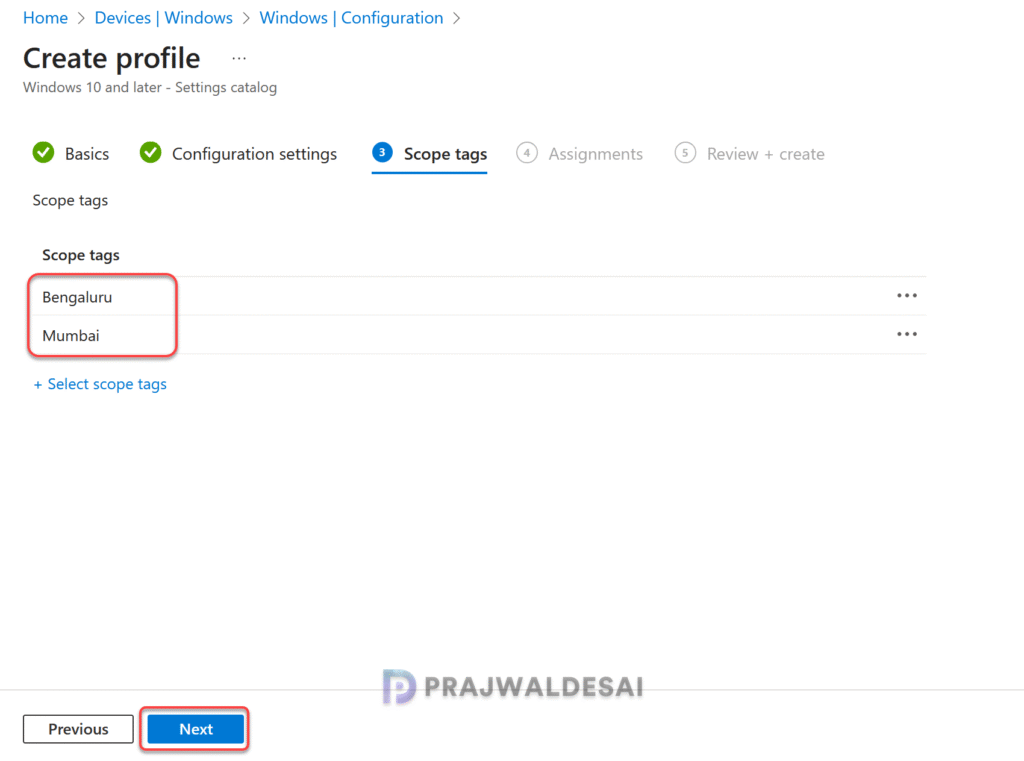
In the scope tags section, add your scope tags. If you haven’t created them, I have published a step-by-step guide on creating Intune scope tags. Note that specifying scope tags is optional, and you may skip this step. Click Next.
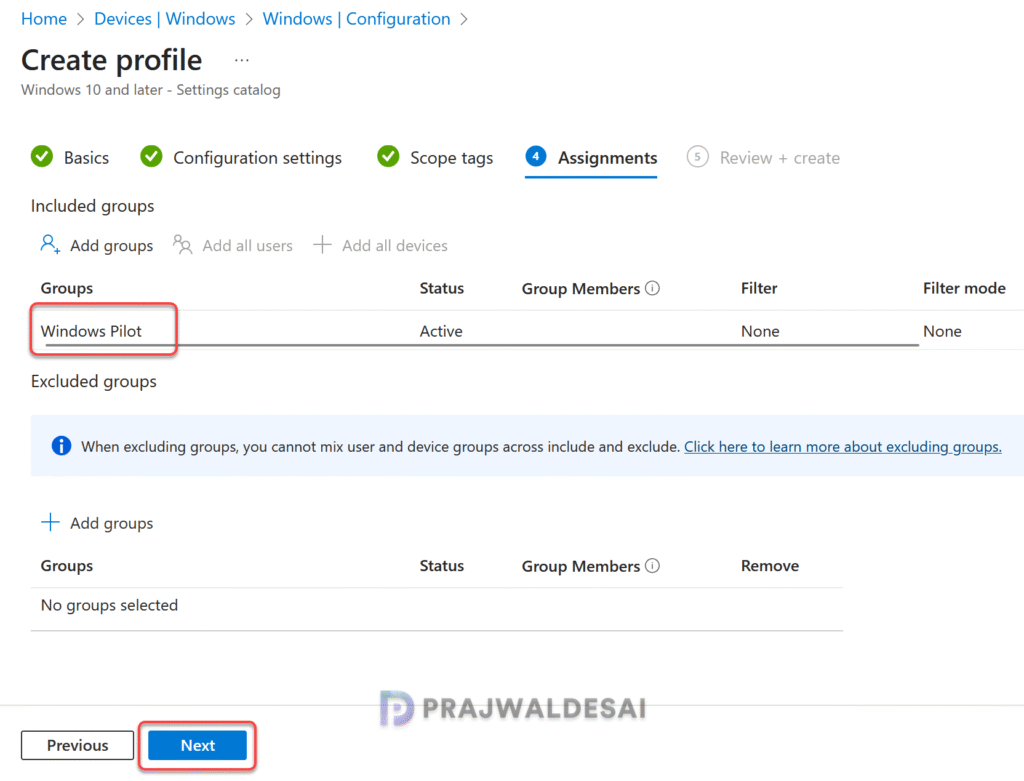
In the Assignments window, select the Entra security user groups to which you want to assign the policy. Start by deploying the profile to a select group of test users. If the testing proves successful, gradually roll it out to a larger user base. Select Next.
On the Review + Create tab, carefully review all the configured policy settings, then click Create. You should find this new profile in the list of all configuration profiles for Windows devices in Intune admin center.

Step 4: Monitor Policy Assignments
In the Intune admin center, go to Devices > Windows > Configuration and here select the Sync SharePoint Site Libraries profile. On the Policy overview page, check the device and user check-in status.
Here you will find the number of devices or users on which the policy has been applied successfully. The view report button lets you see the names of devices or users for which the policy deployments have been successful.
If you notice policy assignment failures, you can review the essential Intune IME logs to determine the exact cause of failure and take further steps to resolve it.

Step 5: Sync Intune Policies
If the above policy is taking time to apply to targeted groups, you can speed up the policy assignments by manually syncing Intune policies. In this guide, I have demonstrated different methods to initiate Intune policy sync, including PowerShell method. The sync action will force devices to immediately check-in with Intune and retrieve the latest policies.
Step 6: Verify SharePoint Site Libraries sync
Earlier, I mentioned that it might take up to 8 hours after a user signs in for the library to start syncing. Therefore, OneDrive users will need to wait until the libraries are fully synced.
Let me now show you how Intune administrators can manually confirm whether the policy has been successfully applied to organizational users using the following methods.
OneDrive App
The OneDrive sync app will automatically download the specified library contents as online-only files upon the user’s next sign-in. Open the OneDrive app and the user should see the SharePoint site libraries synced. The users can also see those synced site library files by opening the File Explorer. The screenshots will be updated soon.
Event Viewer
On the Windows 11 device targeted with the policy, open the Event Viewer and go the following path: Applications and Services Logs > Microsoft > Windows > Devicemanagement-Enterprise-Diagnostics-Provider > Admin. Look for the Event ID 814 to confirm if the team site libraries are synced automatically on the device.

In the below event viewer output, we see the AutoMountTeamSitesListBox is activated with the site value “All Staff (BLR and Pune)” and the site id 9a102561-5c63-4c4d-b2c8-ad2578eb2c45 for OneDrive users. All the details match with the information that we specified in the Intune policy.
Log Name: Microsoft-Windows-DeviceManagement-Enterprise-Diagnostics-Provider/Admin
Source: Microsoft-Windows-DeviceManagement-Enterprise-Diagnostics-Provider
Event ID: 814
Description:
MDM PolicyManager: Set policy string, Policy: (AutoMountTeamSites), Area: (OneDriveNGSCv2~Policy~OneDriveNGSC), EnrollmentID requesting merge: (53BCD465-4DE6-4293-8A28-9F048B2A1AD0), Current User: (S-1-12-1-668547369-1154075189-3672277412-345537846), String: (<enabled/><data id="AutoMountTeamSitesListBox" value="All Staff (BLR and Pune)9a102561-5c63-4c4d-b2c8-ad2578eb2c45" />), Enrollment Type: (0x0), Scope: (0x1).Windows Registry
Once your devices sync with Intune you should see your libraries along with their respective ID’s in the Registry. Sign in to a Windows device on which you’ve applied the policy. Open the registry editor by running regedit command. In the registry editor, navigate to the below path to see the synced SharePoint Site libraries along with their ID’s.
HKEY_CURRENT_USER\SOFTWARE\Policies\Microsoft\OneDrive\TenantAutoMountThe image below shows the SharePoint site library and corresponding site ID listed in the registry, confirming that team site libraries are successfully synchronized through Intune.


In my experience, if there are multiple libraries, OneDrive will add the first library after the 8 hour period. You then have to wait until the next period for the second library to appear, etc, etc.
In my case, I have four libraries, so this can potentially take 32 hours before all appear. That said, I’m not even sure they will all appear automatically unless OneDrive is restarted each time
When testing, I set TimerAutoMount to 1 and then restarted OneDrive. Each time I did that, the next library would automount.
Is there anyway to overcome this? I can’t have users wait in several working days for data to appear!
So you only need the siteID—not the full library ID? Is there an advantage to using one over the other?
Hello,
thanks for your article. I knew there was a limitation of 100 000 files/folders for all libraries (Onedrive included) but I was not aware of this 5000 files limitation (which is ridiculous). Where did you find it ? Could you share the Microsoft official links ?
Thanks a lot
Hi, I found the Microsoft doc
https://learn.microsoft.com/en-us/sharepoint/use-group-policy#AutoMountTeamSites
Thanks
Important
For performance reasons, we recommend not enabling this setting to libraries with more than 5,000 files or folders. Don’t enable this setting to the same library with more than 1,000 devices.