

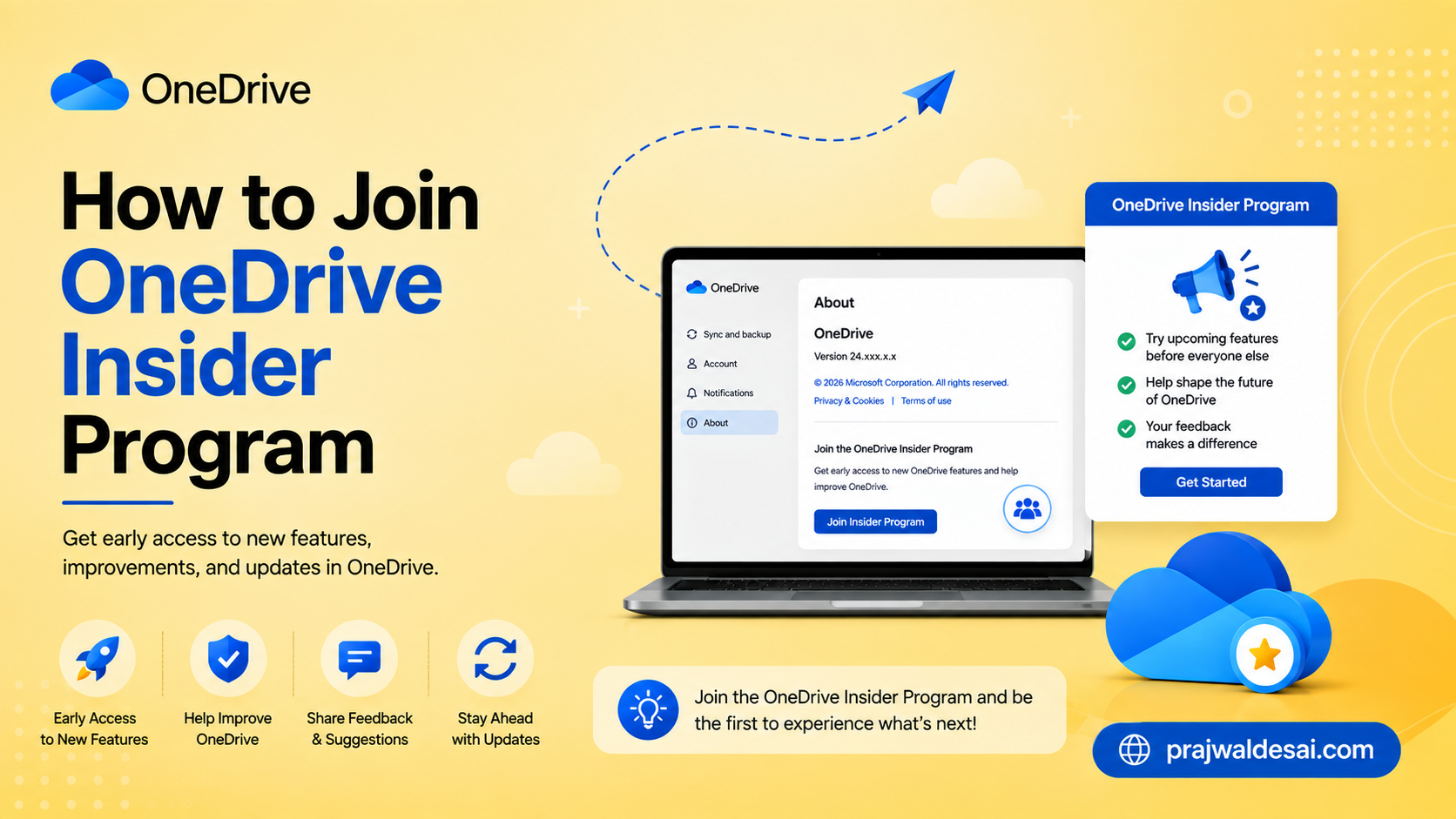
In this post, I will show you how to join OneDrive insider program on Windows 11. If you want early access to new OneDrive features on Windows 11, joining the insider preview program is the easiest way to try updates before they roll out to everyone.
Microsoft often tests new OneDrive improvements with insiders before a wider release. Some releases may include minor bug fixes, while others may include new features that will eventually make their way into stable builds. Most of all, enrolling in the insider preview program is free and you can leave the program at any point of time.
Microsoft has an Insider preview program available for a lot of its applications, such as Microsoft Office, Microsoft Edge, Windows Server etc. You can even join the Windows Insider Program on Windows 11 to get early access to new features.
Benefits of joining OneDrive Insider Program
Here are some reasons people join the OneDrive Insider Program:
- Try new features before general release.
- Help Microsoft test upcoming changes and provide early feedback.
- Access improvements sooner than standard users.
For tech enthusiasts, it’s a simple way to stay ahead of new OneDrive developments. I normally test the new features added by the latest updates on my Windows 11 insider preview builds.
Before You Enroll
Before enrolling in the insider program for OneDrive, it’s a good idea to understand a few things:
- Preview builds can be less stable than regular releases and may contain bugs.
- Features may not be fully polished. Some features may change or disappear later.
- You may occasionally run into sync issues or unexpected behavior, but that should be fixed in the next update if reported.
- It’s best for advanced users, testers, or enthusiasts.
If you rely heavily on OneDrive for critical work, I wouldn’t recommend switching to Insider builds.
Prerequisites
To join the OneDrive Insider Program on Windows 11, you generally need:
- A Windows 11 PC updated with the latest patches.
- The OneDrive desktop sync app installed.
- A Microsoft account signed on to OneDrive.
- Internet access to download preview updates.
In some cases, you may also need to be signed in with an account that is eligible for Insider features. If your Windows 11 device is managed by Intune or SCCM, you may contact the administrator to enable access to OneDrive preview builds 🔍.
Steps to Join OneDrive Insider Program
Here’s how you can join the insider program of OneDrive on Windows 11 PC. Begin by opening the OneDrive Settings. Click the OneDrive icon in the taskbar notification area. Select the gear icon ⚙️ and click Settings.

Switch to the About tab and, under OneDrive insider Program, toggle on the option “Get OneDrive Insider preview updates before release“. After this change, the next time OneDrive looks for an update, it will download a preview version. You will now get the insider preview updates for OneDrive client.
Occasionally, OneDrive may need a restart before the change takes effect. You can do that by right-clicking the OneDrive cloud icon > Choosing Quit OneDrive and launching OneDrive again from the Start menu.
Note: Microsoft may change the wording slightly over time, but the option is usually listed somewhere in settings if it is available for your version.

If you have already joined the Windows 11 Insider Program, you’ll notice that the option “Get OneDrive Insider preview updates before release” is already turned on and greyed out.
How to Leave the OneDrive Insider Program
If you want to stop receiving preview builds for OneDrive app, follow the below steps.
- Right-click on the OneDrive cloud icon, and select Settings from the menu.
- Switch to the About tab and toggle off the option “Get OneDrive Insider preview updates before release“.
- Uninstall the OneDrive program (insider preview version) on your computer.
- Reboot the computer, and redownload the regular version of OneDrive and install it.
After you complete the steps, OneDrive will gracefully opt out of the program and eventually return to the stable version.

