


In this post, I’ll demonstrate how to configure OneDrive auto sign-in using Intune. ‘OneDrive Auto Sign-in‘ is a feature that allows users to automatically log into their Microsoft OneDrive account without manually entering credentials each time they access the service.
The benefit of enabling automatic sign-in for OneDrive users is that it removes the need to log in manually each time. It helps ensure files remain consistently updated across devices and, most importantly, saves valuable time, allowing users to concentrate on their tasks without unnecessary interruptions. The same advantages are applicable when configuring an Intune policy for Outlook automatic login.
Organizations aiming to enable OneDrive auto sign-in for their users can achieve this through Group Policy or the Intune settings catalog policy. In an Active Directory environment, it is recommended to use a GPO to enable Windows auto sign-in for OneDrive. If the Windows devices are managed via Intune MDM, the settings catalog should be utilized for this purpose.
Prerequisites
- Ensure that you have Microsoft Intune set up and your devices are enrolled.
- The devices should be running Windows 10/11.
- Users must have a valid Microsoft 365 license that includes OneDrive.
That’s all about the prerequisites; let’s get started with policy creation.
Create OneDrive Auto Sign-in Intune Policy
Let’s create a new policy in Intune that will silently sign in users to the OneDrive app with their Windows credentials. Open the browser and sign in to the Intune admin center. Navigate to Devices > Windows > Configuration > Create > New Policy.
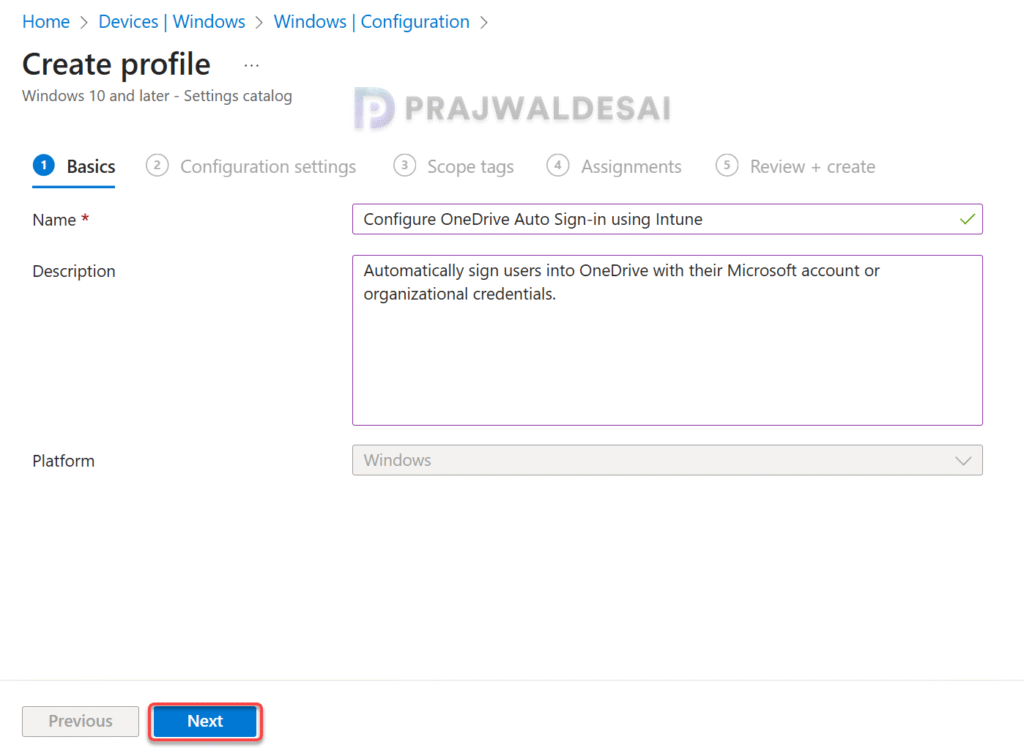
Choose Windows 10 and later as Platform and Settings Catalog as Profile Type. On the Basics tab, specify the name of the profile as “Setup OneDrive Automatic Sign-in.” You may add a brief description about the profile. Click Next to continue.
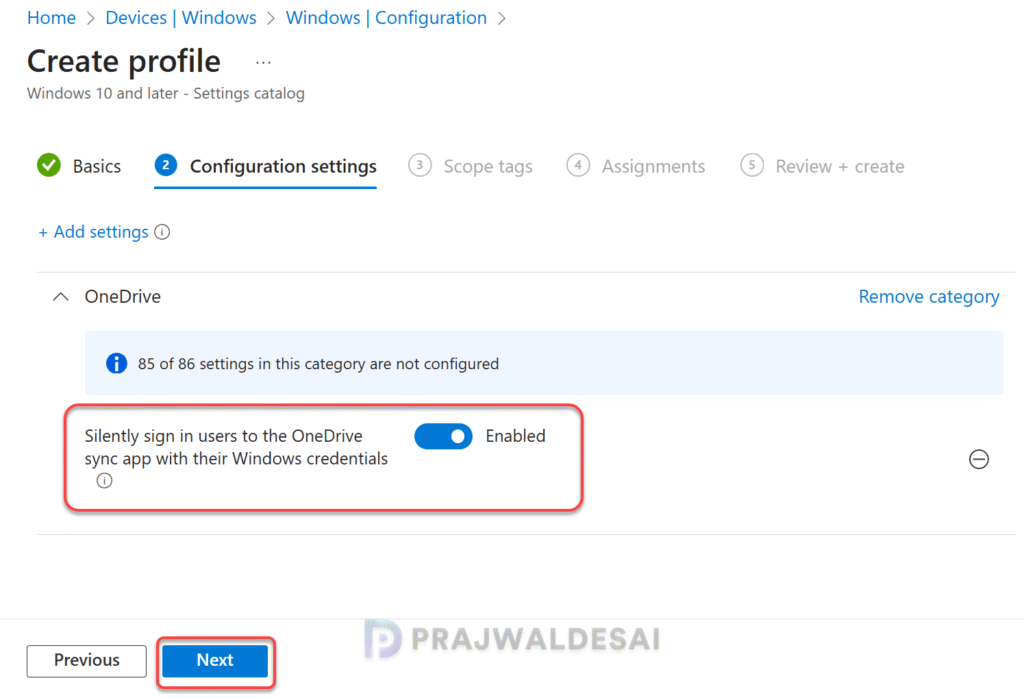
In the Settings Picker, search for “silently sign in users to the OneDrive.” From the results, select the category named ‘OneDrive.’ Now select the setting “Silently sign in users to the OneDrive Sync app with their Windows credentials” and close the settings picker.
Policy Description: The automatic sign-in feature for OneDrive lets you silently sign in users to the OneDrive sync app (OneDrive.exe) with their Windows credentials. When you enable this setting, users who are signed in on the PC with the primary Windows account can set up the sync app without entering the credentials for the account. Users will still be shown OneDrive Setup so they can select folders to sync and change the location of their OneDrive folder. If you disable or do not configure this setting, users will need to sign in with their work or school account to set up sync.

Set the policy setting ‘Silently sign in users to the OneDrive Sync app with their Windows credentials‘ to Enabled. Click Next.
In the scope tags section, you specify scope tags. Specifying scope tags is optional, and you may skip this step. Click Next.
In the Assignments tab, select the Entra ID security user groups to which you want to assign the policy. If you are deploying this policy for the first time, I recommend deploying it to a few test groups first and then expanding it to more users or devices if the testing is successful. Select Next.

On the Review + Create page, review all the policy settings that you have configured so far and select Create. A new policy is created, and you can find it under the list of Configuration Profiles.

Synchronize Intune Policies
When you deploy a policy in Intune to your groups, devices might not receive it immediately. To speed up the policy assignments in your tenant, you can manually sync Intune policies using different methods on your enrolled Windows computers, including PowerShell. The sync action will force devices to immediately check in with Intune and retrieve the latest policies.
Monitor OneDrive Auto Sign-in Policy
To monitor the OneDrive auto sign-in policy assignments in Intune, go to Devices > Windows > Configuration and here select the Setup OneDrive Auto Sign-in profile. On the Policy overview page, check the device and user check-in status.
Here you will find the number of devices or users on which the policy has been applied successfully. The view report button lets you see the names of devices or users for which the policy deployments have been successful.
End-user Experience
Log in to the Windows device where the policy is applied. In the system tray, click the OneDrive icon to observe that OneDrive is automatically signed in with the user’s Windows credentials. Manual configuration of OneDrive settings is no longer required.
The image below compares two scenarios: on the left, before enabling the OneDrive auto sign-in Intune policy, OneDrive displays a message indicating it is not connected, requiring the user to manually sign in to proceed; on the right, OneDrive is automatically signed in using the user’s Windows credentials, with all files successfully synced. This confirms our Intune policy worked correctly.

Troubleshooting
- In some cases, the OneDrive auto sign-in policy may fail to apply to certain users. To troubleshoot these issues, review the essential Intune IME logs. In addition, review Event ID 814 in Event Viewer. Use the following path: Applications and Services Logs > Microsoft > Windows > Devicemanagement-Enterprise-Diagnostics-Provider > Admin.
- If you encounter policy assignment failure on a remote device, generate an MDM diagnostic report for IT support. This can be done from Settings > Accounts > Access work or School > Info. Click on the Create Report button.

MDM PolicyManager: Set policy string, Policy: (SilentAccountConfig), Area: (OneDriveNGSCv2~Policy~OneDriveNGSC), EnrollmentID requesting merge: (F9E02C1B-7E89-4FA6-8CA3-E4D996556522), Current User: (Device), String: (<enabled/>), Enrollment Type: (0x0), Scope: (0x0).This concludes my guide on configuring OneDrive automatic user sign-in with Intune. This policy is critical and useful as it enhances user experience and ensures consistent usage of OneDrive across the organization. For more such guides, consider bookmarking my website. If you require any further assistance, please let me know in the comments below.

Hi Prajwal,
Thank you for writing about OneDrive Sync Silent Sign-in.
How would the MFA affect the silent sign in for OneDrive?