If you’re going to set up Universal Print for your organization, I will show some useful methods to check if a printer is Universal Print Ready.
If you haven’t heard of the term ‘Universal Print‘ before, it’s basically a Microsoft 365 cloud-based printing solution for enterprises. It allows organizations to manage their printing infrastructure without requiring on-premises print servers, drivers, or physical connections. Read the Microsoft documentation to understand how universal print works.
Most modern printers are Universal Print Ready, allowing them to connect directly to the service without requiring extra configuration. However, not all printer models support this feature. For those that don’t, you can use a Universal Print connector.
Let’s now go through some methods to determine if your printer can be configured for Universal Print.
1. Check Microsoft’s Universal Print ready Printers model list
To determine if your current printer is Universal Print Ready, the most reliable way is to visit the official list of Universal Print Ready models by Microsoft. When you visit this webpage, you will notice that there are multiple printer brands that are supported for Universal Print. To make it quick and easy, click the drop-down and choose your printer brand. Now you should see all the printer models that are universal print ready.
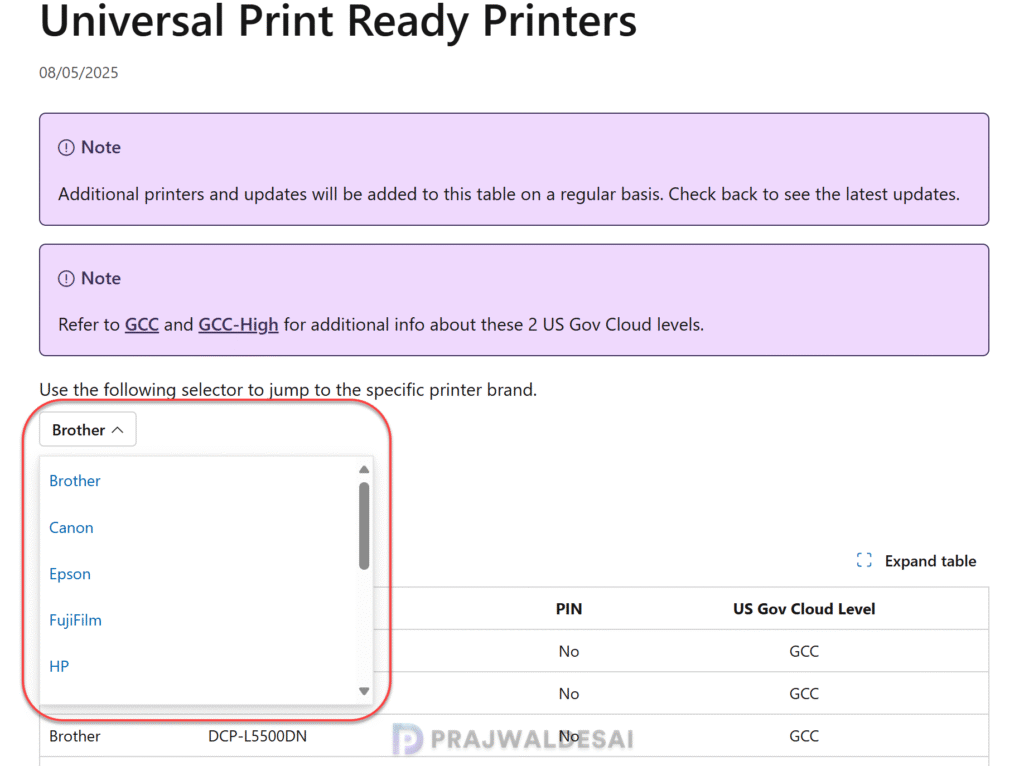
Here is an interesting thing that I noticed, when I selected the HP brand, it showed me “Printer model list coming soon“. Microsoft is yet to update the HP printer models that are compatible with Universal Print. After conducting some research, I found this HP webpage that lists all the printer models with built-in support for Universal Print from Microsoft.
2. Access Printer’s Web Interface
Some printers allow you to check for Universal Print support directly through their web interface, also known as Embedded Web Server (EWS). You can access the web interface using the IP address of the printer that is connected to the network. This interface provides access to various printer settings, status information, error logs, and configuration options.
You may have to log in to the web interface to access advanced configuration of the printer. Once you are in, use the search box and look for the terms such as “Universal Print” or “Print Ready”.
3. Check the Printer Specifications on Manufacturer’s Website
Before buying a new printer, I recommend consulting your printer’s manual or the manufacturer’s website for information on Universal Print compatibility.
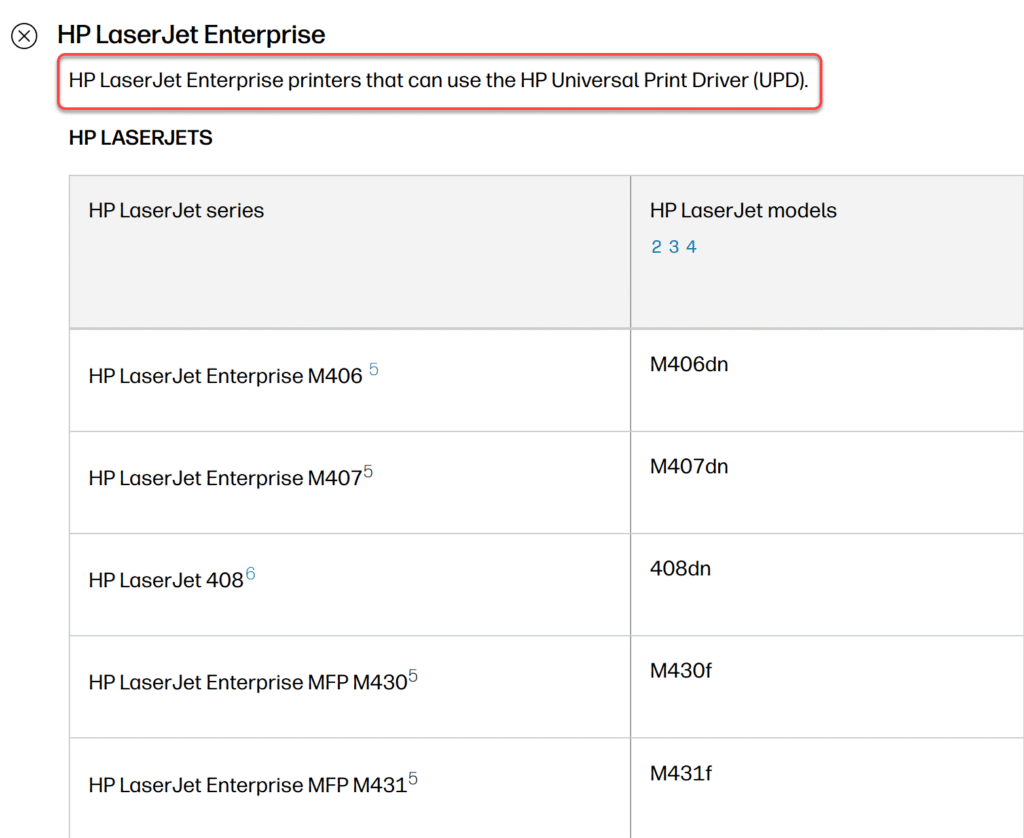
For instance, if you are buying an HP printer for your organization or small office, visit the HP printer site and check for universal ready printers. In the screenshot below, we see that HP clearly states the printer models that can use the HP Universal Print Driver (UPD).