

Microsoft has released KB5124010, a new non-security preview update for Windows 11 versions 24H2 and 25H2, on September 22, 2026. The update adds support for Emoji 17.0, new Tips widget, improvements to desktop background experiences, Bluetooth device connectivity, and much more.
Unlike Patch Tuesday security updates, preview releases such as KB5124010 are generally designed to deliver bug fixes, quality improvements, and early changes that Microsoft wants to validate before wider deployment. The new features and fixes introduced in this update will be added to the next upcoming update.
One of the most important announcements in this release is that KB5124010 is the final preview update for Windows 11 version 24H2. As per Microsoft, supported editions of 24H2 will continue to receive monthly security updates according to their servicing lifecycle. However, users who rely on preview releases should plan to move to a newer Windows 11 version to keep receiving non-security preview updates.
Note: Microsoft also reminds customers that Windows 11 Home and Pro editions of version 24H2 reach the end of support in October 2026.
New Features & Improvements in KB5124010 Preview Update for Windows 11
- File Explorer: This update enhances the preview pane for files from the web, adding a “Preview anyway” button for HTML files and automatic previews for non-HTML files like PDFs. File Explorer Home now retains the state of sections, and thumbnail previews for cloud files are more reliable. The update also reorganizes the details pane for easier file property access and resolves an issue where the address bar could be cleared when entering edit mode.
- Emojis: This update adds support for Emoji 17.0 with new emojis like distorted face, fight cloud, and hairy creature, accessible via Windows + . It also redesigns some existing emojis for consistency, including saluting face 🫡, face with peeking eye 🫣, goose 🪿, lotus 🪷, and kissing cat 😽.
- Widgets: KB5124010 preview update adds the new Tips widget for guidance on Windows features by opening the Widgets board, selecting Add widgets, and choosing Tips. To display it on the lock screen, navigate to Settings > Personalization > Lock screen and include Tips in the lock screen widgets.
- Personalization: This update enhances desktop background features including reliability of Personalization settings, DIB image support, slideshow transitions, and preview resolution. It also improves compatibility with portrait mode monitors, rapid wallpaper changes, and using slideshow wallpapers across multiple desktops.
- Bluetooth: The update enhances Bluetooth audio stability, microphone compatibility with certain devices, resolves a crash issue (error code 0x139) while streaming, and improves performance with LE Audio accessories and shared audio reliability.
- Accessibility: This update adds an accessibility setting to automatically maximize app windows upon opening, enhancing the user experience for screen readers, magnification, and full-screen preferences. Enable this via Settings > Accessibility > Visual effects. It also improves Bluetooth quick settings navigation using keyboard, game pad, or Narrator.
- Magnifier: This update modernizes the Magnifier taskbar with a refreshed visual design, aligning toolbar icons with Windows 11 for a cleaner look. Spacing and padding have been refined for a consistent layout. The functionality for views, zoom controls, keyboard shortcuts, and Read Aloud remains unchanged.
- File History: This update addresses an issue where File History might fail to back up or restore files to an external drive or network location. Affected devices might incorrectly display a “Reconnect your drive” message even when a compatible backup drive is connected and working properly.
- Camera: This update addresses an issue where the built-in camera might stop working in the Camera app and other apps that use the camera.
- Copilot Key: This update introduces a new Windows 11 setting that lets you remap the Copilot key to function as the Right Ctrl or Context Menu key, helping preserve familiar keyboard shortcuts and accessibility workflows.
- Camera Roll: This update introduces Camera roll backup in Settings, helping eligible users protect their photos with OneDrive.
Install Windows 11 KB5124010 Preview Update
The KB5124010 preview update is offered through Windows Update for devices running Windows 11 25H2 and 24H2. If you don’t see the update listed, open the “Windows Update” settings, turn on the “Get the latest updates as soon as they’re available” option, and click the “Check for Updates” button.
The 2026-09 Preview Update (KB5124010) (26200.9550) update begins to download and wait for it to complete the installation. The update requires a system reboot to complete the installation. Simply click the “Restart Now” button to restart your computer.
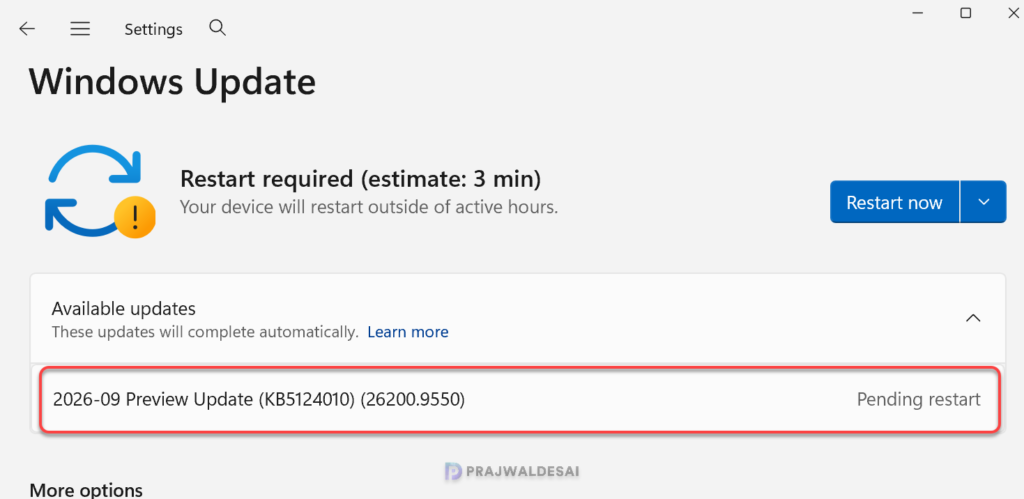
After installing the KB5124010 preview update, the devices are updated to the following build numbers:
- Windows 11 24H2: OS Build 26100.9550
- Windows 11 25H2: OS Build 26200.9550
Known Issues
With the release of KB5124010, Microsoft has acknowledged several known issues that administrators and IT professionals should review before deployment:
- Domain-joined devices may lose their secure trust relationship with the domain. After installing the September 8, 2026, Windows security update (KB5124008), or later updates, some Credential Guard protected machine accounts might lose their secure channel with an on-premises Active Directory (AD) domain.
- Certain USB Audio Class 1.0 devices may experience a Code 10 error or fail to produce audio output.
- For IT administrators updating Windows installation media, Microsoft highlights the importance of including the boot.stl file when deploying dynamic updates to an existing Windows image. Failure to include this file may prevent devices from booting successfully and can result in the error code 0xc0430001.
Lastly, here’s a comprehensive guide by me detailing the updates released for each version of Windows 11, including their respective KB numbers and build numbers.
