

Microsoft has released KB5124008 as part of the September 2026 Patch Tuesday rollout for Windows 11 versions 24H2 and 25H2. The cumulative update brings the latest monthly security fixes, improves Secure Boot certificate delivery, and resolves quality issues affecting personalization, Arm64 apps, mouse cursor customization bug, and Remote Desktop audio.
For users and IT admins, this is a fairly important cumulative update not only because it includes Microsoft’s latest security protections, but also because it continues the company’s ongoing work around Secure Boot certificate expiration, which has been a notable focus in recent months.
Overview
After installing Patch Tuesday updates released in September 2026, devices are updated to the following build numbers:
- Windows 11 24H2: OS Build 26100.9445
- Windows 11 25H2: OS Build 26200.9445
As part of Microsoft’s monthly Patch Tuesday rollout, KB5124008 update includes the latest security improvements and cumulative fixes from previous updates that include August 27, 2026-KB5120998 (OS Builds 26200.9278 and 26100.9278)
KB5124008 also includes KB5124007, the latest Servicing Stack Update (SSU), bringing systems to Build 26100.9441 for the servicing stack. Microsoft also mentions that if your PC already has previous updates installed, only the new changes in this package will be downloaded and applied.
Fixes included in KB5124008
The update introduces quality improvements in the following areas:
1. Mouse cursor customization bug fixed
Some users experienced problems where custom cursor styles and colors did not display properly. Microsoft says that after installing the KB5124008 update, the selected pointer options should now appear as expected.
2. Black desktop background and personalization issues resolved
The update fixes a bug where desktop background and personalization settings might fail to load correctly, sometimes leaving users with a black wallpaper.
3. Teams and Outlook crashes on Arm64 PCs
For users on Arm64-based Windows 11 devices, Microsoft addressed an issue that could cause Microsoft Teams and Microsoft Outlook to unexpectedly close.
4. Morocco time zone update
KB5124008 includes a Morocco Standard Time adjustment to reflect the country’s transition to permanent UTC+00:00 starting September 20, 2026.
5. Remote Desktop audio redirection fix
KB5124008 resolves an issue affecting Remote Desktop audio redirection, where audio from a remote session might fail to play on the local device in certain setups.
6. Better OMA-DM diagnostics
The update improves OMA-DM client logging, giving IT teams and device admins more diagnostic details when troubleshooting management server connection problems.
Updated AI components
Microsoft says this release also updates the following built-in AI components to version 1.2608.951.0.
- Image Search
- Content Extraction
- Semantic Analysis
- Settings Model
Installing security update KB5124008 on Windows 11
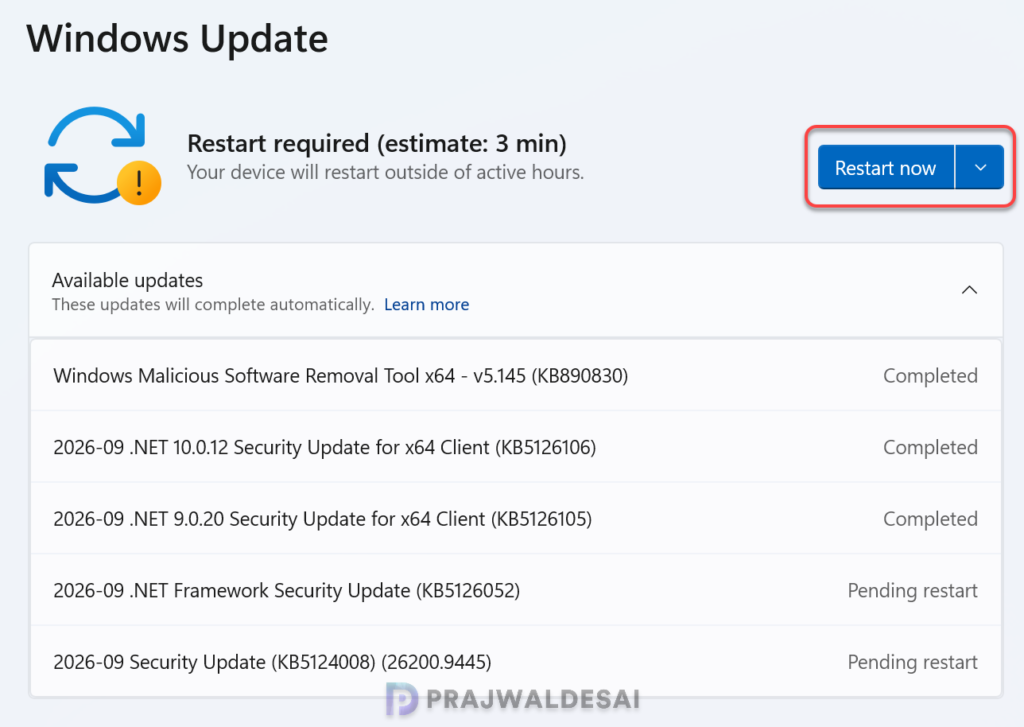
The KB5124008 security update is offered through Windows Update for devices running Windows 11 25H2 and 24H2. To check for the latest update, enter Windows Update settings (Settings > Windows Update) and select Check for updates. The 2026-09 Security Update (KB5124008) (26200.9445) begins to install now.
The update requires a system reboot to complete the installation. Simply click the “Restart Now” button to restart your computer. On my PC, the following updates were also installed.
- Windows Malicious Software Removal Tool x64 – v5.145 (KB890830)
- 2026-09 .NET 10.0.12 Security Update for x64 Client (KB5126106)
- 2026-09 .NET 9.0.20 Security Update for x64 Client (KB5126105)
- 2026-09 .NET Framework Security Update (KB5126052)
Download offline installer for KB5124008 Security Update
The KB5124008 security update for Windows 11 should be downloaded and installed automatically from Windows Update. However, if you wish to get the standalone package(s) for this update, go to the Microsoft Update Catalog website and download it.
Installing Update using WSUS/SCCM
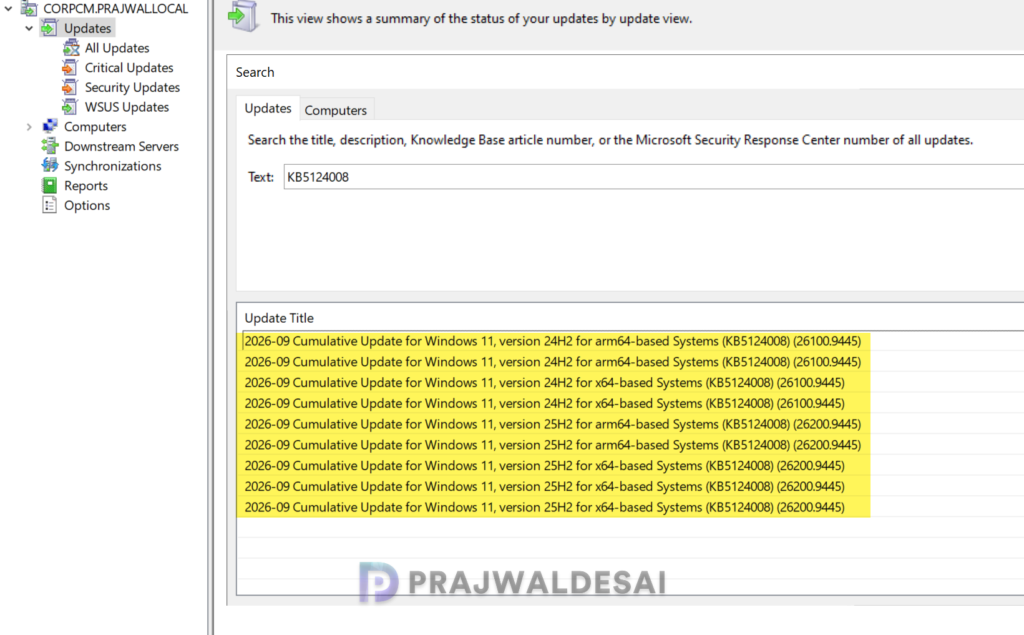
Organizations that rely on WSUS or Configuration Manager to distribute software updates to on-premise devices can deploy the KB5124008 update efficiently. If you don’t see the update either in WSUS or SCCM, you must manually import the update into WSUS.
In the below image, I have successfully imported the KB 5124008 update into WSUS. If you’re using WSUS standalone in your setup, right-click the update and approve it. I suggest rolling out the update to a group of pilot devices initially, and once confirmed that the update causes no issues, proceed to deploy it across all Windows 11 devices. The deployment occurs based on the schedule you’ve configured.
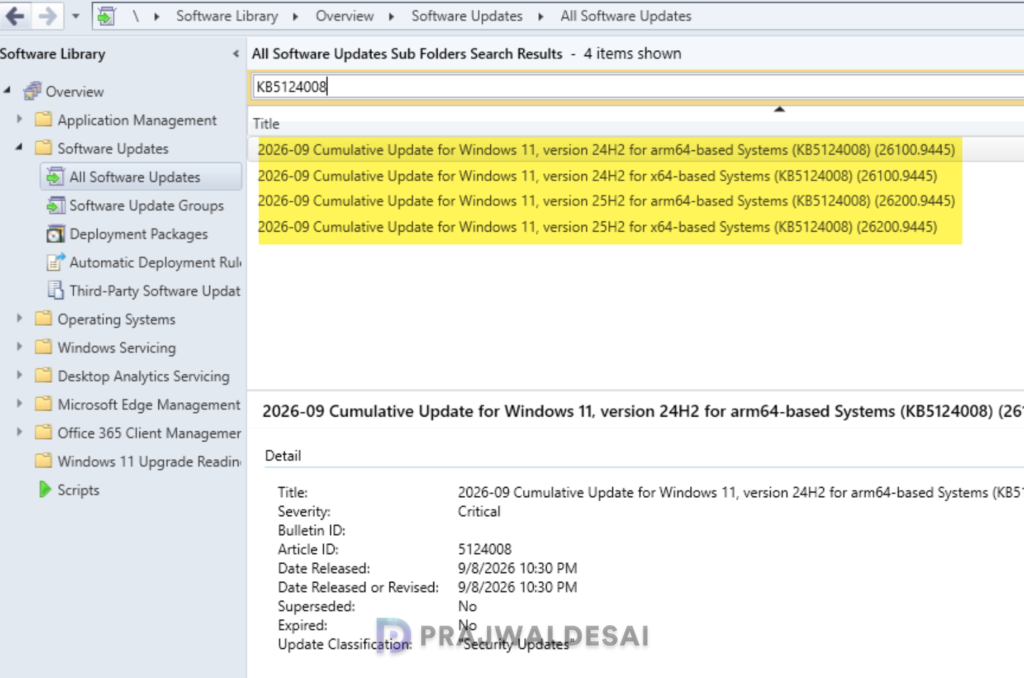
To patch the same update using Configuration Manager, ensure you open the console and synchronize the software updates. This will display all the latest updates from WSUS, including those you manually imported into the console.
Once the sync is complete, go to Software Library > Software Updates > All Software Updates. In the search bar, type “KB5124008” and click search. You should now see the update 2026-09 Cumulative Update for Windows 11, version 25H2 for x64-based Systems (KB5124008) (26200.9445) listed in the console. From here, you can refer to the SCCM patching guide to deploy it to your Windows devices.
Deploy September 2026 Patch Tuesday Update via Intune
The KB5124008 Patch Tuesday update can be deployed by configuring an expedite policy in Intune and assigning it to the appropriate groups containing Windows 11 24H2 and 25H2 devices. For more information, see how to expedite Windows quality updates in Intune.
- Sign in to the Intune admin center. Go to Devices > Windows > Windows Updates > Quality Updates.
- Create a new Expedite policy and enter a descriptive name for the profile.
- Select the Windows quality update “08/09/2026 – 2026.09 B Security Update for Windows 10 and later” to expedite from the drop-down list.
- Specify the number of days to wait before a restart is enforced.
On the Assignments tab, select Add groups and then select device or user groups to assign the policy. Click Next. On the Review+Create page, have a look at the expedite policy settings. If it’s all good, click Create. After the policy is created, it is deployed to assigned groups.
Update Uninstallation
If you haven’t installed the September 2026 security update yet, you may pause updates in Settings. If you’ve already installed the update, and you are encountering some known issues, go to Settings > Windows Update > Update history > Uninstall updates. Alternatively, you may also use PowerShell to list the updates and uninstall them.
Known Issues
At release time, Microsoft says it is not currently aware of any issues with KB5124008. That is always a positive sign, although as with any large Windows cumulative update, enterprise admins may still want to validate deployment in test rings before broad rollout.
Lastly, here’s a comprehensive guide detailing the updates released for each version of Windows 11, including their respective KB numbers and build numbers.
