In this basic guide, I will demonstrate how to enable OneDrive files on-demand using Intune. OneDrive Files On-Demand helps you access all the files in your cloud storage in OneDrive without having to download them and use storage space on your computer.
The setting Use OneDrive Files On-Demand lets you control whether OneDrive Files On-Demand is enabled for your organization. When enabled, users can see all their files as online-only files in File Explorer, but they won’t take up space. When connected to the Internet, users can access and use the files just like any other files on your device.
The Files On-Demand feature for OneDrive can be turned on or turned off manually for individual computers. However, organizations looking to enable or disable files on demand for OneDrive for multiple users can use either Group Policy or Microsoft Intune.
Note: Enabling OneDrive Files On-Demand is a key requirement for syncing SharePoint team libraries. This allows users to access SharePoint site library files directly through File Explorer.
Prerequisites
To enable and use Files On-Demand, the following requirements must be met.
- Windows 10 1709 or later, or Windows Server 2019.
- Windows devices must be enrolled in Intune. See Windows 11 enrollment guide.
- OneDrive build 23.066 or later has Files On-Demand enabled by default.
- Files On-Demand might not be compatible with some third-party antivirus solutions.
- Files On Demand feature is not yet supported when WIP is enabled.
- Works with all your personal and work files from OneDrive, SharePoint in Microsoft 365, and SharePoint Server 2019 team sites.
Enable OneDrive Files On-Demand using Intune
Sign in to Intune admin center. Go to Devices > Windows > Configuration. Create a new policy and choose Windows 10 and later as Platform and Settings Catalog as Profile Type.
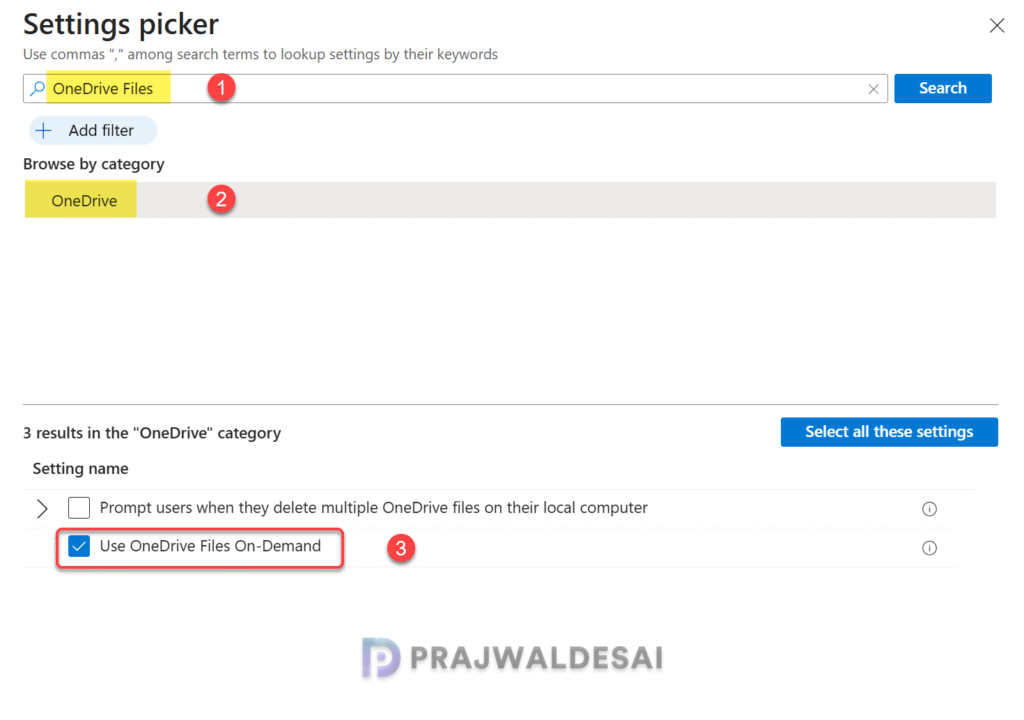
On the Basics tab, enter profile name and description and click Next. In the Settings Picker, search for the term “OneDrive Files“. From the results, select the OneDrive category and then select Use OneDrive Files On-Demand setting. Close the settings picker.
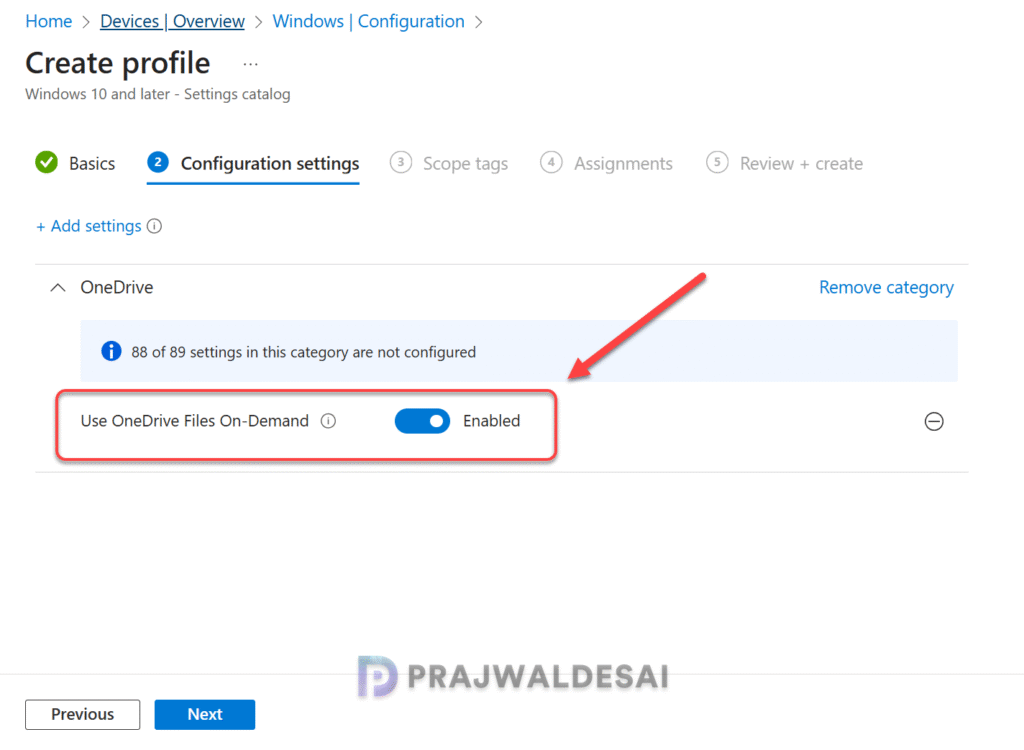
Set the Use OneDrive Files On-Demand setting to Enabled. Enabling this setting will turn on OneDrive Files On-Demand by default. New users who set up the sync app see online-only files in File Explorer. Disabling this setting will explicitly turn off OneDrive Files On-Demand, preventing users from enabling it.
Click Next.
In the scope tags section, add your scope tags. If you haven’t created them, I have published a step-by-step guide on creating Intune scope tags. Note that specifying scope tags is optional, and you may skip this step. Click Next.
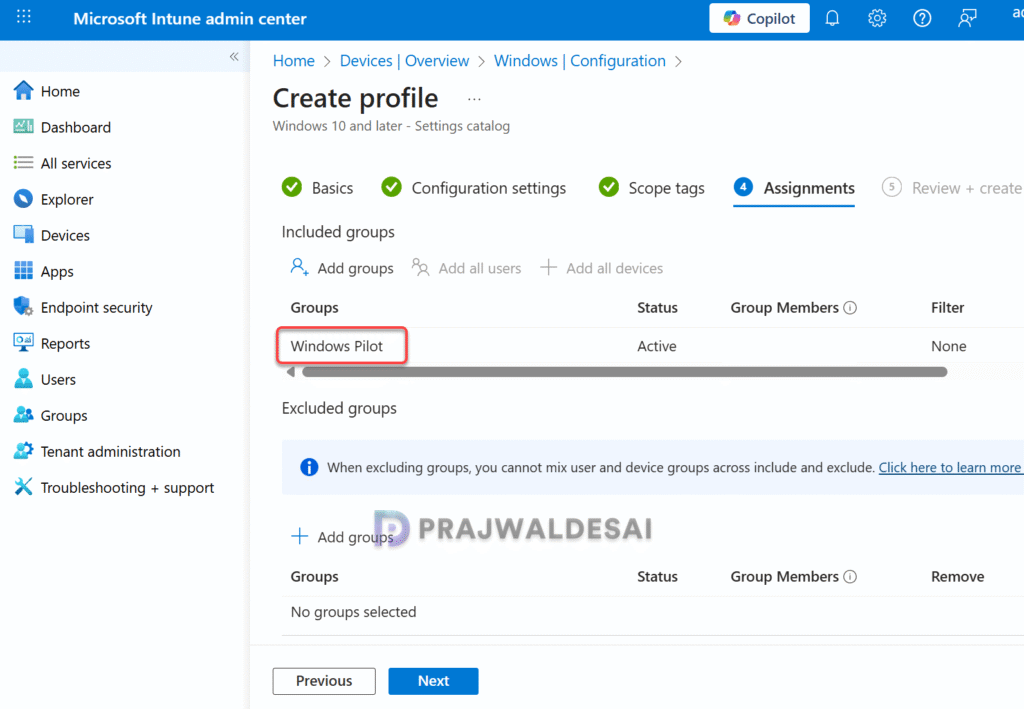
In the Assignments window, select the Entra security user groups to which you want to assign the policy. Start by deploying the profile to a select group of test users. If the testing proves successful, gradually roll it out to a larger user base. Select Next.
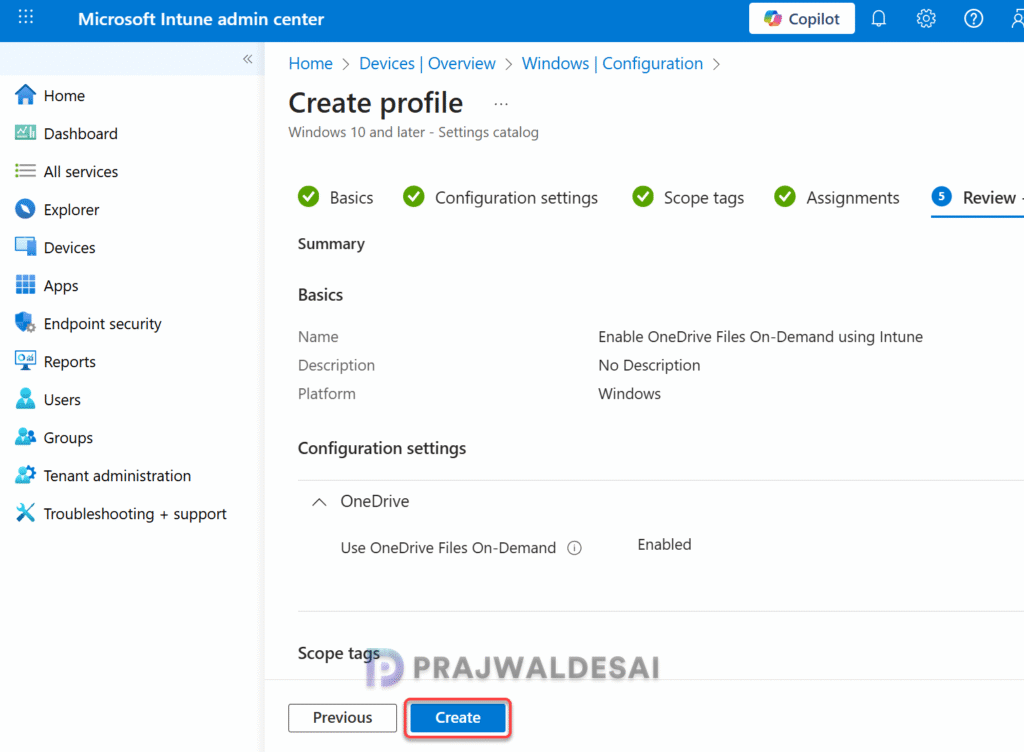
On the Review + Create tab, carefully review all the configured policy settings, then click Create. You should find this new profile in the list of all configuration profiles for Windows devices in Intune admin center.
Monitoring OneDrive Files On-Demand Policy
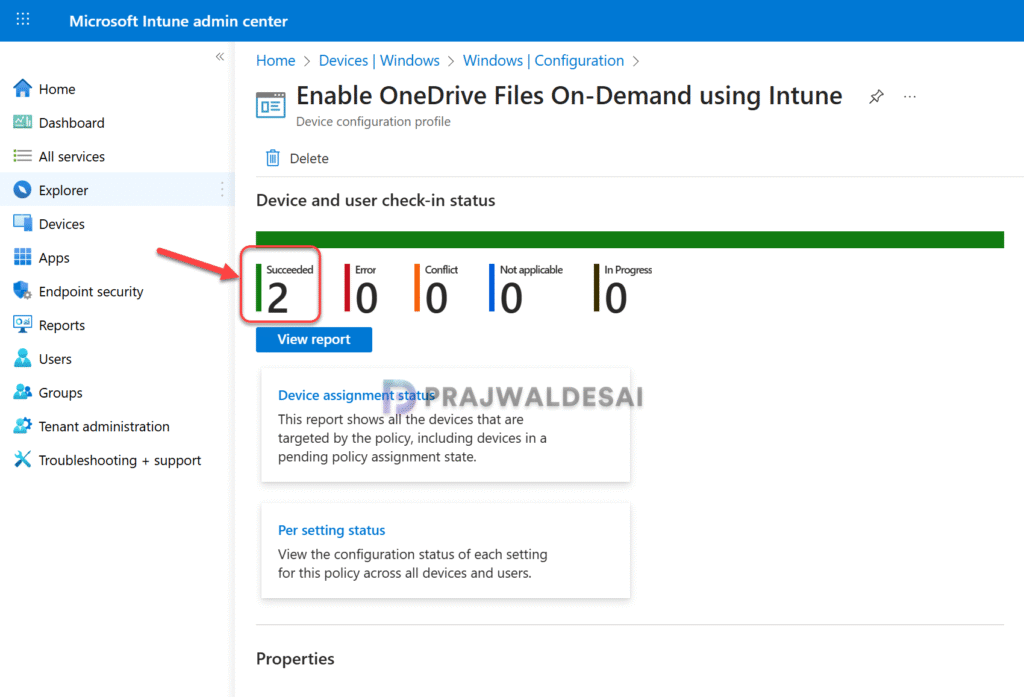
In the Intune admin center, go to Devices > Windows > Configuration and here select the Enable OneDrive Files On Demand profile. On the Policy overview page, check the device and user check-in status.
Here you will find the number of devices or users on which the policy has been applied successfully. The view report button lets you see the names of devices or users for which the policy deployments have been successful.
If you notice policy assignment failures, you can review the essential Intune IME logs to determine the exact cause of failure and take further steps to resolve it.
Update Intune Policies on Windows Devices
If the above policy is taking time to apply to targeted groups, you can speed up the policy assignments by manually syncing Intune policies. In this guide, I have demonstrated different methods to initiate Intune policy sync, including PowerShell method. The sync action will force devices to immediately check-in with Intune and retrieve the latest policies.
Verify if Files on Demand is Enabled
Intune administrators can verify whether the Files On-Demand feature has been successfully enabled for organizational users using any of these methods.
OneDrive App
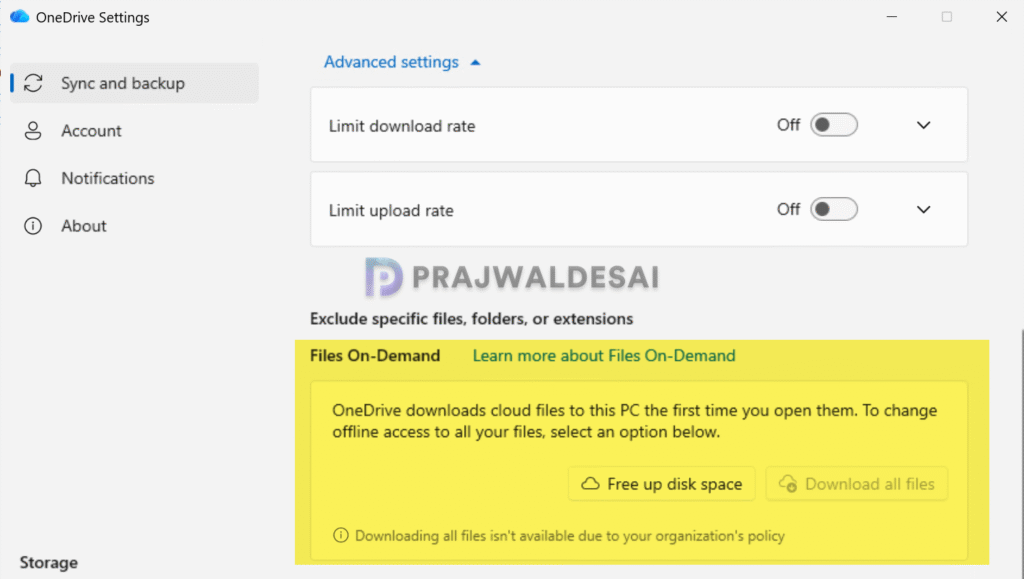
Sign in to a Windows 11 device targeted with the policy. Right-click on the OneDrive cloud icon in your notification area, and then the Settings icon and from the menu select Settings. Go to the Sync and back up tab, expand the Advanced settings. If the Intune policy is applied, the user cannot toggle on Files On-Demand option.
Event Viewer
On the Windows 11 device targeted with the policy, open the Event Viewer and go the following path: Applications and Services Logs > Microsoft > Windows > Devicemanagement-Enterprise-Diagnostics-Provider > Admin. Look for the Event ID 814 to confirm if the FilesOnDemandEnabled policy is applied to the user.
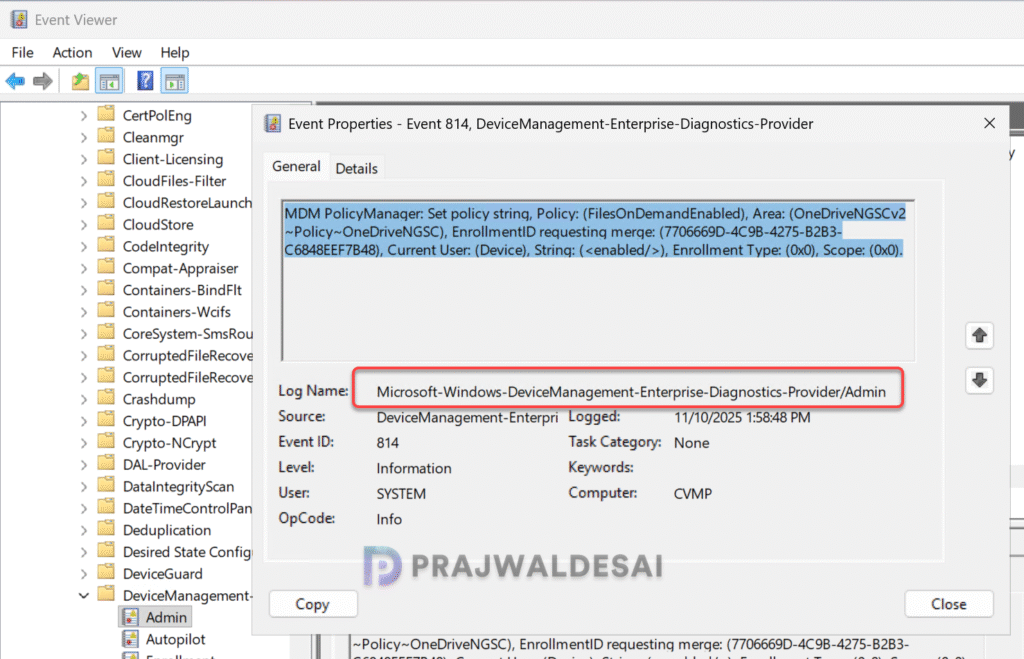
MDM PolicyManager: Set policy string, Policy: (FilesOnDemandEnabled), Area: (OneDriveNGSCv2~Policy~OneDriveNGSC), EnrollmentID requesting merge: (7706669D-4C9B-4275-B2B3-C6848EEF7B48), Current User: (Device), String: (<enabled/>), Enrollment Type: (0x0), Scope: (0x0).Windows Registry
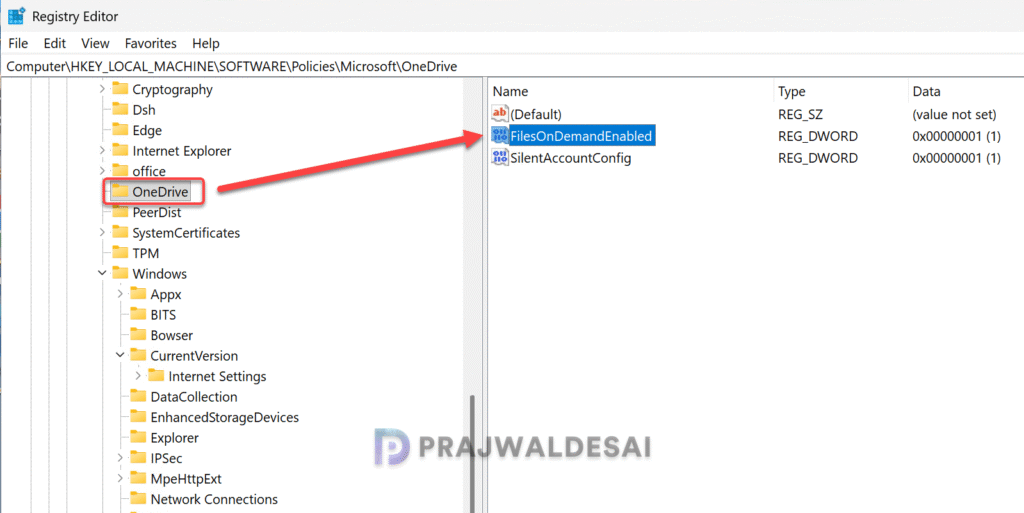
Sign in to a Windows device on which you’ve applied the policy. Open the registry editor by running regedit command. In the registry editor, navigate to the below path.
HKEY_LOCAL_MACHINE\SOFTWARE\Policies\Microsoft\OneDriveIf the value of FilesOnDemandEnabled = 1, it means the OneDrive files on demand is enabled. If the value of FilesOnDemandEnabled = 0, it means the files on demand feature is turned off or not enabled.