


This step-by-step guide shows how to configure platform SSO for macOS using Intune. By configuring the Platform SSO policy, users can sign-in into their managed Mac devices with their Microsoft Entra ID credentials and Touch ID.
Platform SSO (PSSO) is a Microsoft Entra feature that enhances the Microsoft Enterprise SSO plug-in and the SSO app extension. According to Microsoft, when you deploy Platform Single Sign-on policy to macOS devices, the Mac devices join a Microsoft Entra ID tenant and then the devices get a workplace join (WPJ) certificate. This WPJ certificate is really important because the apps and web browsers completely rely on this certificate to access resources secured using Conditional Access.
A commonly asked question is when should you assign the Platform SSO policy, during device enrollment or after enrollment? Well, Microsoft says you assign the policy preferably when the user enrolls the device in Intune. But it can be assigned at any time, including on existing devices. If you’ve already enrolled Mac devices in Intune, you can still configure and apply the Platform SSO policy.
Benefits of using Platform SSO
Platform SSO offers the following benefits in case you are considering implementing for your organization.
- When you implement Platform SSO, you get the benefits of Microsoft Entra join, which allows any organization user to sign into the device.
- It includes the Mac SSO app extension and therefore you don’t configure the SSO app extension separately.
- Its phishing-resistant, hardware-bound credentials allow you to go passwordless on your Mac device. It also helps minimize the number of times users need to enter their Microsoft Entra ID credentials.
- The sign-in experience for end user is similar to signing into a Windows device with a work or school account.
- It helps reduce the number of passwords users need to remember.
- Platform SSO is included with all Microsoft Intune licensing plans. You don’t need to purchase any extra addons or licenses.
Supported Authentication Methods
There are three different authentication methods supported by macOS Platform Single Sign-on that determines the end-user experience. You’ll have to select one of these authentication methods when creating the platform SSO policy in Intune. Users will sign in to their macOS devices with the authentication method you select.
- User Secure Enclave Key: This is a recommended authentication method by Microsoft. It provisions a secure enclave backed hardware-bound cryptographic key that is used for SSO across apps that use Microsoft Entra ID for authentication. The user’s local account password isn’t affected and is required to sign in to the Mac.
- Smart card: The user logs into the machine using an external smart card or a smart card-compatible hardware token, such as a Yubikey. After unlocking the device, the smart card integrates with Microsoft Entra ID to enable seamless single sign-on (SSO) across applications that rely on Microsoft Entra ID for authentication.
- Password as authentication method: Selecting this method syncs the user’s Microsoft Entra ID password with the local account and enables SSO across apps that use Microsoft Entra ID for authentication.
The image below from Microsoft highlights the features provided by each authentication method. Review the features and select the authentication method for Platform SSO that best suits your preferences.

Prerequisites
To deploy Platform SSO for macOS, you need the meet following minimum requirements.
- The Mac devices must be running macOS 14.0 and newer.
- Set up a pilot security group in Microsoft Entra and include your Mac devices and users to test the platform’s SSO policy deployment. Once the policy is verified to function correctly, extend its application to other groups.
- Microsoft Intune Company Portal app version 5.2404.0 and newer is required on the devices. This version includes Platform SSO.
- Supported web browsers include Safari, Microsoft Edge, and Google Chrome with SSO extension.
- To create a settings catalog policy for Platform Single Sign-on, the account must have the following Intune permissions: Device Configuration Read, Create, Update, and Assign permissions. Read how to create custom RBAC role in Intune.
- Users must have sufficient permissions to register and join devices to Microsoft Entra ID.
Create Platform SSO Policy for macOS in Intune
Here’s how you can create a Platform SSO policy for macOS devices in Intune. Sign in to Intune admin center. Go to Devices > Manage devices > Configuration > Create > New policy. Select macOS as Platform and Settings catalog as Profile type and click Create.

In Basics, enter the following:
- Name: Enter a descriptive name for the policy. For example, name the policy Configure Platform SSO for macOS.
- Description: Enter a description for the policy. This setting is optional, but recommended.
Click Next.

In Configuration settings, select Add settings. In the settings picker, expand Authentication, and select Extensible Single Sign On (SSO).
Microsoft recommends the following selections for Platform SSO policy:
- Authentication Method (Deprecated) (Select for macOS 13 only)
- Extension Identifier
- Expand Platform SSO and select the following:
- Authentication Method (Select for macOS 14+)
- FileVault Policy (Select for macOS 15+)
- Token To User Mapping
- Use Shared Device Keys
- Registration Token
- Screen Locked Behavior
- Team Identifier
- Type
- URLs
Once the above settings are selected, close the settings picker.

Here comes the important step where you must enter the values for each of the above settings. The table below lists the setting names and configuration values that are Microsoft-recommended and are required to set up the Platform SSO policy for macOS.
| Setting Name | Configuration Value |
|---|---|
| Authentication Method (Deprecated) | Password or UserSecureEnclaveKey |
| Extension Identifier | com.microsoft.CompanyPortalMac.ssoextension |
| Platform SSO > Authentication Method | Password, UserSecureEnclaveKey, or SmartCard |
| Platform SSO > FileVault Policy | AttemptAuthentication |
| Platform SSO > Use Shared Device Keys | Enabled |
| Registration token | {{DEVICEREGISTRATION}} |
| Screen Locked Behavior | Do Not Handle |
| Token To User Mapping > Account Name | preferred_username |
| Token To User Mapping > Full Name | name |
| Team Identifier | UBF8T346G9 |
| URLs | https://login.microsoftonline.com https://login.microsoft.com https://sts.windows.net |
When you’re entering the URLs make sure you enter them one by one. The Platform SSO settings that I configured for my tenant are shown in the screenshot below.

Here’s the screenshot of the remaining policy settings that I have configured in my tenant.

Once you’ve configured the profile as per the information provided above, it looks similar to the following example. Click Next.

In Assignments tab, select the macOS user or device groups that receive your profile. If you are deploying this policy for the first time, I recommend deploying it to a few test groups first and then expanding it to more users or devices if the testing is successful. Select Next.

On the Review + Create page, review all the policy settings that you have configured so far and select Create. A newly created policy must appear in the Configuration Profiles list.

Update Intune policies on macOS devices
After assigning the macOS Platform SSO policy using Intune, it’s time to wait for the devices to check in with Intune for the latest updates. You can either wait for the Intune policy refresh cycle to occur on macOS devices or manually trigger the sync. Refer to the following guide on how to sync Intune policies on MacOS devices.
Monitor Platform SSO Policy Deployment
Intune administrators can monitor single sign-on policy deployment for Mac devices using the following steps:
- Sign in to Intune admin center.
- Navigate to Devices > macOS > Manage Devices > Configuration.
- Select the “Configure Platform SSO for macOS” policy.
- Check the Device and User check-in status to see the policy deployment statistics.
From the below screenshot, we see the SSO policy settings are applied on the Mac devices successfully. To find the devices or users that have successfully received the policy settings, review Device Install Status or User Install Status, respectively.
You can review the device assignment status to identify which devices successfully applied the policy settings and which ones failed to do so. Additionally, the per-setting status provides detailed information on the configuration status of each setting within the current policy across all devices and users.

End User Experience
When the macOS device receives the Platform SSO policy settings, there’s a Registration required notification that shows in the Notification Center. It states, “Registration Required – Use you identity provider password to log in to your Mac“.
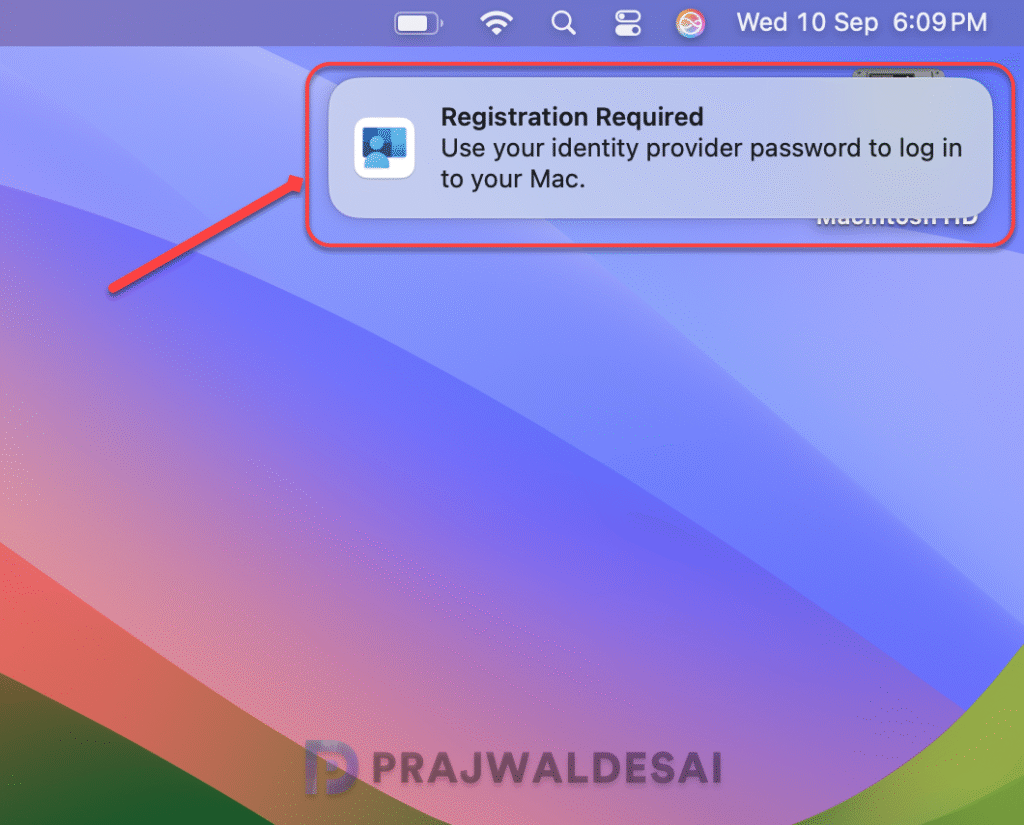
End users should select the notification, and this brings up the platform single sign-on registration window that includes.
- Device Registration
- Password synchronization
- Data access
Click Continue.

Sign in to the Microsoft Entra ID plug-in with your organization account, and complete multifactor authentication (MFA), if asked.

The Platform SSO registration begins, the Mac SSO extension is installed, and this process may take less than a minute to complete.

When Mac devices join a Microsoft Entra ID tenant, the devices get a workplace join (WPJ) certificate. This WPJ certificate is hardware-bound and is only accessible by the Microsoft Enterprise SSO plug-in.
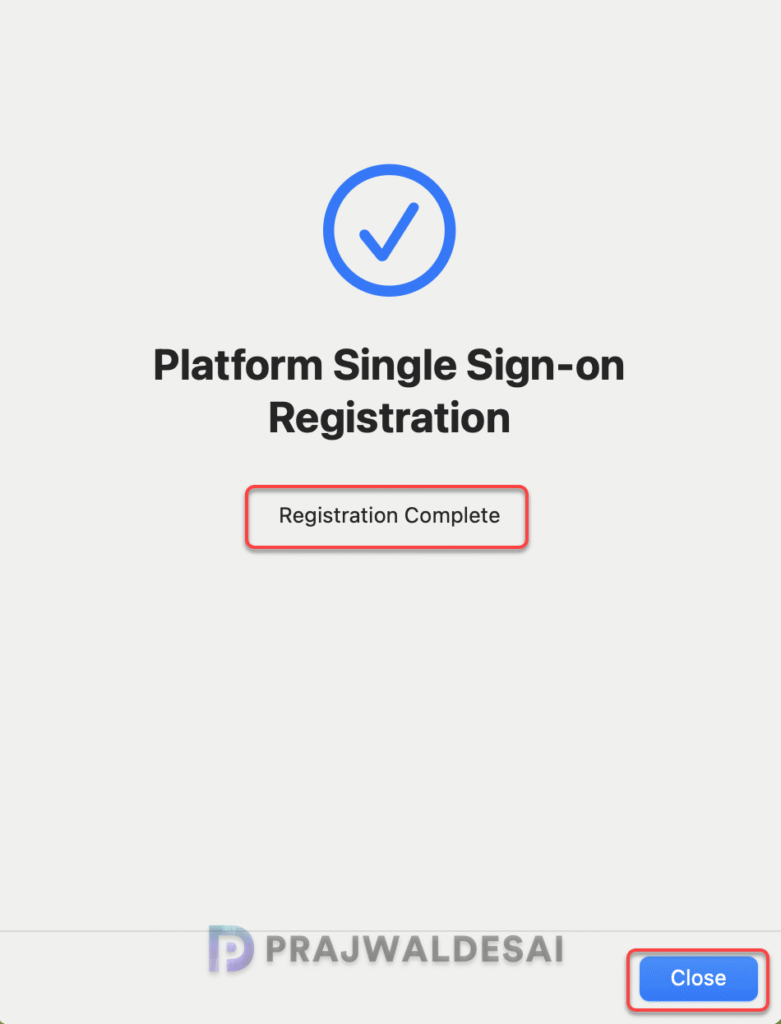
Confirm Platform SSO settings on Mac Devices
After completing the Platform SSO registration, you can confirm its functionality and successful configuration through various methods.
Method 1: On Intune enrolled devices, you can also go to System Settings > Privacy and security > Profiles. Your Platform SSO profile is shown under com.apple.extensiblesso Profile. Select the profile to see the settings you configured, including the URLs.

Method 2: To check if Mac SSO extension is successfully installed, navigate to Settings and select Users & Groups. Select Edit next to Network Account Server and verify that Platform SSO is listed as Registered.

Method 3: To confirm if the Platform SSO is active, open the Safari browser. Visit the https://portal.office.com site. You will notice that the browser doesn’t prompt you to enter the username and password to access the portal. This confirms that Platform SSO is correctly working on the Mac devices.
Troubleshooting
Configuring Platform SSO may result in errors, deployment failures etc, which are identifiable through specific error codes. These error codes provide valuable information to help troubleshoot and resolve issues during the Platform SSO deployment.
- Refer to the macOS Platform single sign-on known issues and troubleshooting article by Microsoft to fix common problems.
- Analyze the logs on Mac devices to troubleshoot policy assignment failures. Take a look at this excellent guide for gathering Intune logs on macOS devices.
- If you are encountering Platform SSO Error 10001, it typically indicates a misconfiguration in the SSOe payload. To resolve this issue, ensure all required settings are properly configured within the settings catalog profile.
- If you are encountering Platform SSO Error 10002, it means multiple SSO extension payloads are applying to the device and are in conflict. To resolve this, make sure there is only one extension profile on the device, and that profile should be the settings catalog profile.
This completes the Platform SSO configuration guide for macOS devices using Microsoft Intune. Feel free to share any questions about the deployment or the topic at hand in the comments below.

Hello Prajwal,
Thank you very much for this guide. Is this required for ADE or is this sort of an extension to it?
Regards,
Ernani
Hello Prajwal Desai,
Thank you for this guide. I really appreciate it.
I have a concern and would like to seek your further advice.
Currently, we have several macOS devices in operation in our organization. These devices are joined to Active Directory and are also enrolled in Microsoft Intune.
At the moment, we are facing some issues with macOS users. When users change their password in the domain, the new password is not reflected on their macOS devices. As a result, they are unable to sign in to the device. Based on my research, domain users cannot sign in to the macOS device for the first time after a password change because they do not have the token required to decrypt the Mac’s hard disk.
In this situation, the user needs to log in using a local account first, then log out and sign in again with their domain account.
Additionally, users cannot access this page:
https://forms.office.com/
The page always reports that the device is not compliant, even though the device status in Intune shows that it is compliant.
From my investigation, the issue seems related to the Workplace Join (WPJ) certificate on the macOS device. The browser cannot validate the certificate and repeatedly prompts for the Keychain password. However, even after entering the password, it always shows that the password is incorrect.
Therefore, I am considering deploying the method described in your guide so that macOS devices no longer need to be joined to Active Directory.
Would this approach help resolve the issues mentioned above?
Thanks in advance for your advice.
Best regards,
Parker
Hi, i am wondering if you configure this, how much do you still have to consider the apple password policy. For example the local device policy ?
Hi Issohadore,
I have applied a compliance profile from Intune to these Mac devices. In this profile, there are conditions such as password age, password complexity, and password reuse requirements before the device is marked as compliant.
However, I am not sure whether these Mac devices have a local password policy applied to the local account.
My expectation is that users can log into their Macs with their domain accounts. I’m running a Hybrid AD environment and applying write-back passwords, the users are managed under on-premise AD.
Regards,
Parker