


In this guide, I will demonstrate how to create desktop shortcuts using Intune. By utilizing a PowerShell script, enterprise administrators can efficiently deploy both Windows app and web URL shortcuts, ensuring they are accessible on the desktop for all users.
In my previous organization, I was tasked with placing a desktop shortcut for the Software Center on the desktops that would allow users to launch it quickly and install apps. Alongside, I also worked on deleting desktop shortcuts from the user’s desktops, and all this was done with GPO.
When your Windows devices are on-premises and AD joined, shortcuts can be deployed using Group Policy. Using an MDM solution like Intune, deploying shortcuts becomes more efficient and streamlined through PowerShell scripts. This approach is not only more dynamic and flexible, but also significantly reduces the time spent on manually creating shortcuts.

You might wonder where exactly you require to create these shortcuts. Well, when you install an application, it typically creates a shortcut on the user’s desktop for easy access. However, some custom applications don’t generate a desktop shortcut. In such cases, users have to launch the by either searching the app or going to a specific app installation path. To avoid that, the solution is to use Intune to automate the creation of app or web shortcuts.
Methods for creating desktop shortcuts with Intune
There are several ways to create desktop shortcuts using Microsoft Intune. Below, I’ve outlined the methods and detailed which approach works best for specific scenarios. I hope you find this information helpful.
- PowerShell script: This method is pretty simple and should be used when you need to add a simple shortcut for users.
- Win32 app: When you require complete control over shortcuts, such as installation or deletion of shortcuts, this method is recommended.
- Remediation / proactive remediation: This is typically used when your shortcuts must exist on the target device despite users removing them manually.
- Custom OMA-URI: I would say this method is less commonly used for shortcut deployment.
From the above listed methods, the simplest method for shortcut creation is using a PowerShell script deployed through Intune. I am going to demonstrate the same method in this guide.
Prerequisites
- Have the PowerShell script ready, and manually test it on a few devices before you deploy it. Refer to the guide on deploying PS scripts with Intune.
- Ensure your Windows devices are enrolled in Intune.
- Review the PowerShell execution configuration on your devices. See how to set PS execution policy using Intune.
Public Desktop vs. Current User Desktop
When creating shortcuts, you might wonder where to place them? You have two options: either on the public desktop or the current user’s desktop. A public desktop shortcut appears for all users on the device in the following path: C:\Users\Public\Desktop. Choose this when deploying the shortcuts to devices. Make sure you run script as System in Intune admin center.
The current user’s desktop shortcut appears only for the logged-in user in the following path: C:\Users\<UserName>\Desktop. Use this method if you need to deploy shortcuts for individual users. Ensure the script is set to execute as the logged-in user in Intune portal.
PowerShell Script for Desktop and Web Shortcuts
A desktop shortcut can be an application shortcut or a web shortcut. An application shortcut launches the installed app directly, while a web shortcut opens the target URL in the default browser.
I’ve covered both scripts below, thoroughly tested them on multiple devices, and can confidently confirm they work perfectly. You can also download the scripts from my GitHub Repository. Let’s proceed now.
PowerShell script for creating app shortcut
The below script creates a desktop shortcut for a built-in Windows app (Notepad) for all users on the device. My MVP friend, Florian Salzmann, also has a similar script for deploying Windows app shortcuts—be sure to check out his site as well.
#Script to create a desktop shortcut for Notepad App

# 1. Define the target file and the shortcut location
$TargetFile = "C:\Windows\System32\notepad.exe"
$ShortcutFile = "C:\Users\Public\Desktop\Notepad.lnk"

# 2. Create the COM object
$WshShell = New-Object -ComObject WScript.Shell

# 3. Create the shortcut object and set its properties
$Shortcut = $WshShell.CreateShortcut($ShortcutFile)
$Shortcut.TargetPath = $TargetFile
$Shortcut.Description = "Notepad"
$Shortcut.WorkingDirectory = "C:\Windows\System32"

# 4. Save the shortcut to the file system
$Shortcut.Save()PowerShell script for creating a Web URL shortcut
The below PowerShell script creates a website shortcut on the desktop for all users. The following script is straightforward, and you can tweak it by adding multiple websites. For further code suggestions, Reddit, and other online PS forums can be valuable resources.
For instance, you can use the below script to create a shortcut that opens your company portal, intranet sites such as SharePoint, HR Portal, etc. Ensure you configure the $Shortcut.TargetPath to the correct URL in the below script before using it.
$WshShell = New-Object -ComObject WScript.Shell
$Shortcut = $WshShell.CreateShortcut("C:\Users\Public\Desktop\Prajwal Desai.url")
$Shortcut.TargetPath = "https://www.prajwaldesai.com"
$Shortcut.Save()PowerShell script for creating App and Web Shortcuts
The below PowerShell script creates both app and website shortcuts on the desktop for all users. You can tweak the below script and add more apps or shortcuts if required. Copy and save the code to a text file and rename it as createdesktopshortcuts.ps1.
#Script to create a desktop and web shortcuts for All Users
# 1. Define the target file and the shortcut location
$TargetFile = "C:\Windows\System32\notepad.exe"
$ShortcutFile = "C:\Users\Public\Desktop\Notepad.lnk"
# 2. Create the COM object
$WshShell = New-Object -ComObject WScript.Shell
# 3. Create the shortcut object and set its properties
$Shortcut = $WshShell.CreateShortcut($ShortcutFile)
$Shortcut.TargetPath = $TargetFile
$Shortcut.Description = "Notepad"
$Shortcut.WorkingDirectory = "C:\Windows\System32"
$Shortcut.Save()
#4. Create a web url shortcut
$WshShell = New-Object -ComObject WScript.Shell
$Shortcut = $WshShell.CreateShortcut("C:\Users\Public\Desktop\Prajwal Desai.url")
$Shortcut.TargetPath = "https://www.prajwaldesai.com"
$Shortcut.Save()Deploy Desktop Shortcuts using Intune
Now that our scripts for creating desktop shortcuts are tested and ready, let me demonstrate how to deploy them via Intune. Open the browser and sign in to Microsoft Intune admin center. Navigate to Devices > Scripts and remediations > Platform scripts. Click Add and select Windows 10 and later.

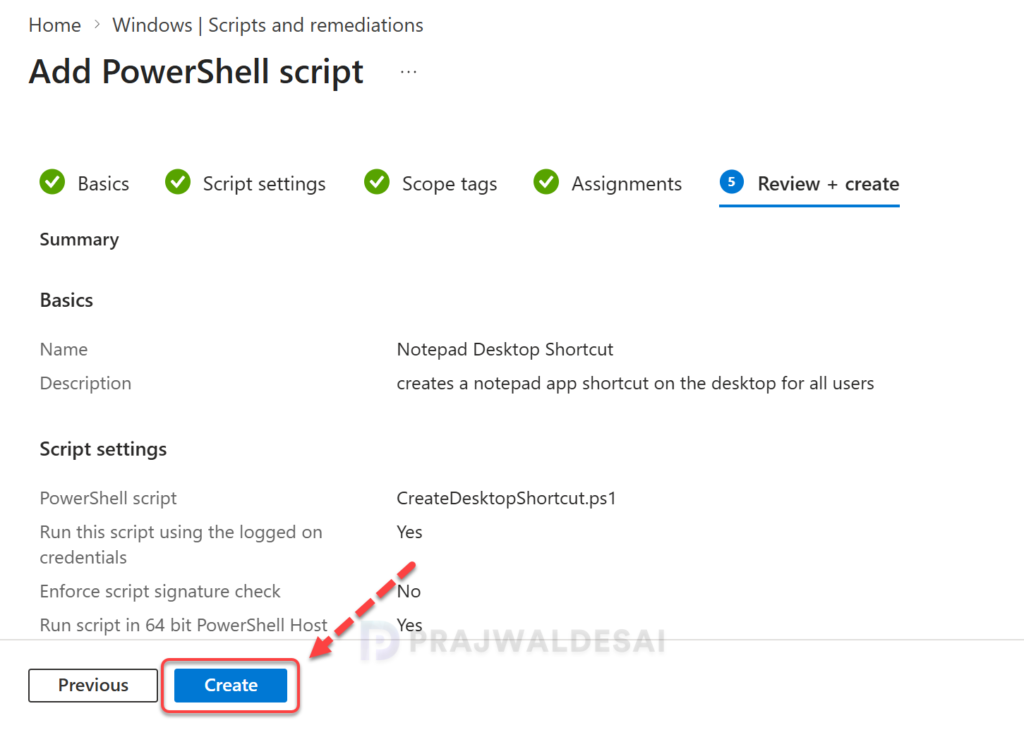
On the Basics tab, specify the name of the script and a brief description. Click Next.

In the Script settings tab, configure the following:
- Script location: Browse and select the createdesktopshortcuts.ps1 script.
- Run this script using the logged on credentials: Select No to run the script in the system context.
- Enforce script signature check: Select No because the script isn’t signed.
- Run script in 64-bit PowerShell host: Select Yes to run the script in a 64-bit PowerShell host on a 64-bit client architecture.
Once you’ve configured the above, click Next.

In the scope tags section, add your scope tags. If you haven’t created them, I have published a step-by-step guide on creating Intune scope tags. Note that specifying scope tags is optional, and you may skip this step. Click Next.
In the Assignments window, select one or more groups to receive the script. I recommend starting by deploying the script to a targeted group of devices or users. If the testing proves successful, gradually roll it out to larger groups. Select Next.
On the Review + Create tab, carefully review all the configured script settings, then click Create. The new script you created should now appear in the Scripts and Remediations > Platform Scripts section.
Sync Intune Policies
To speed up the PowerShell script assignments, you can manually sync Intune policies using various methods on Windows computers. The sync action prompts devices to instantly connect with Intune and apply the most up-to-date policies. This is typically performed to test an app, PS script, or policy deployment and verify its functionality.
Monitor Desktop Shortcuts Script deployment
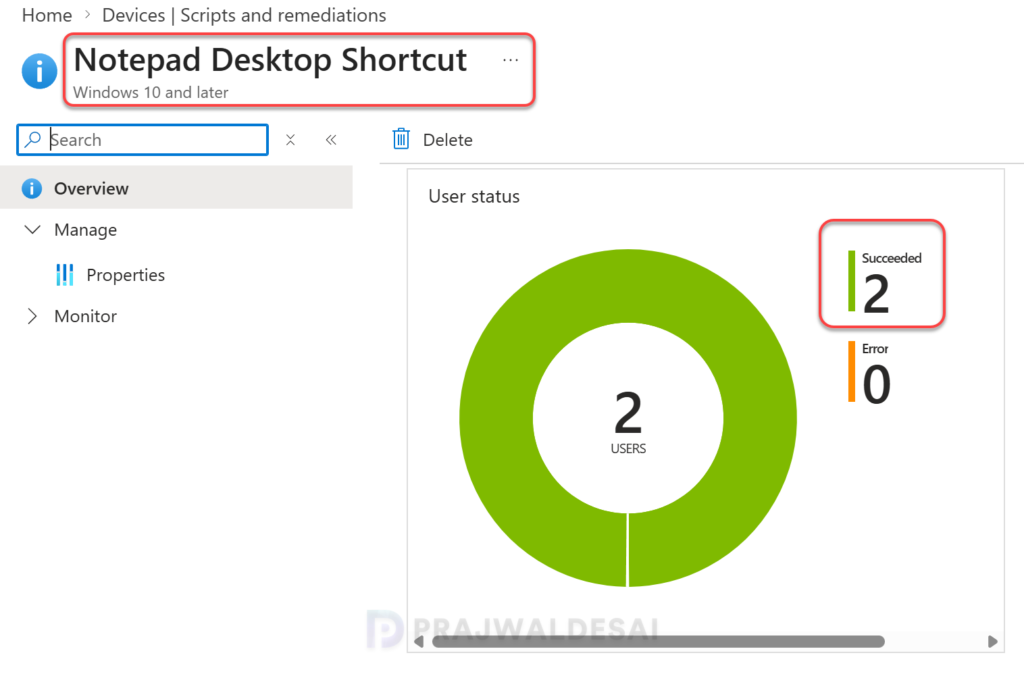
You can monitor the execution status of PowerShell scripts for users and devices in the portal. In the Intune admin center, go to Devices > Scripts and remediations > Platform scripts. From the list, select the shortcut deployment script. On the Overview page, check the device and user check-in status to determine the number of devices or users on which the script has been assigned successfully.
If you encounter any errors when deploying shortcuts with Intune, review the Intune Management Extension logs first. The logs are located in C:\ProgramData\Microsoft\IntuneManagementExtension\Logs folder. Review the IntuneManagementExtension.log to find the exact error code.
In the below image, we see that the desktop shortcut script is applied to devices/users without any errors.
End User Experience
To verify if the web or app shortcuts are created for on the user’s desktop, sign in to a Windows device that is targeted with the platform script. There are three scenarios that I would like to mention here.
- If the script is configured to create shortcuts on the public desktop, browse to C:\Users\Public\Public Desktop and here you should find the deployed app shortcuts as well as your web shortcuts.
- If the script is configured to create shortcuts on the current user’s desktop, browse to: C:\Users\<username>\Desktop. You should find the deployed shortcuts here.
- If your organization has Windows known folders redirected to OneDrive, check the C:\Users\<username>\OneDrive – <OrganizationName>\Desktop for shortcuts.
The image below shows that both the Notepad app shortcut and a web URL shortcut have been successfully created on the public desktop. This confirms that the script functioned as intended, and the task was accomplished.

That’s all for this guide, I hope you find this useful. If you need any clarification related to the scripts or using them with Intune, feel free to let me know in the comments section below.
