

In this guide, let’s look at how to customize OneDrive sync root folder name using Intune. By default, the folder name visible to the user is “OneDrive – {organization name}.” Shortening this name increases the available path length for nested folders and files and ensures brand consistency across managed devices.
When users sync OneDrive on Windows, the default folder name usually appears as “OneDrive – {organization name}“. That works fine in many environments, but sometimes organizations want a cleaner, more recognizable naming format for branding, consistency, or support simplicity. This is where Intune assists you in configuring a unique organization name shown by OneDrive to users.
Remember that when you apply this configuration via Intune, it basically changes the name shown for the synced OneDrive root folder in File Explorer. It doesn’t affect personal Microsoft account OneDrive folders. Furthermore, you may consider enabling OneDrive files on-demand using Intune that helps you access all the files without having to download them and use storage space on your computer.
Note: There’s no need to import OneDrive ADMX template files because the latest settings for OneDrive are already updated in the settings catalog. Importing is only necessary if you cannot locate a specific policy you’re searching for.
Why set a custom name for the OneDrive folder?
From what I know, for most users, folder names are a tiny detail and nobody observes them during their work. For IT teams, they are often the difference between “everything looks standardized” and “why does every screenshot from support look different?” A small tweak, but one that makes enterprise deployments feel more intentional.
If you run an organization, here are some reasons you should give OneDrive users some thought about changing the sync root older name.
- Keeping the brand consistency across managed devices.
- Simpler user experience with a friendlier folder name.
- Easier support documentation and screenshots.
- Clear distinction when users work across multiple tenants or synced libraries.
What Intune policy controls this?
Microsoft Intune provides an administrative setting known as ‘Set a custom name for the OneDrive folder‘ that allows you to define the display name of the organization that appears in the local OneDrive folder. It is typically configured through Settings Catalog policy.
According to the policy description, if you enable this setting and provide a custom folder name, OneDrive will use that name when creating the sync root folder for new users. If you do not configure this setting, the default folder name will be used. When you disable this setting, the folder name will revert to “OneDrive – {organization name}“.
Existing users with a custom folder name must unlink and relink their account for changes to take effect due to a requirement of the OneDrive app, not the policy. I have covered this bit as well at the end of this post. Let’s get started now.
Prerequisites
- Enrollment: Ensure the Windows devices are enrolled in Intune. Check out Windows 11 Intune enrollment guide. Users must sign in with a work or school account.
- Permissions: User account who is a member of Global administrator or Policy and Profile Manager built-in role in Microsoft Intune.
- Tenant ID: The policy that we will configure requires the tenant ID as input. So this is an important prerequisite, and I have shown how to retrieve the tenant ID in the next section.
- OneDrive App: The OneDrive app must be present on the end devices where you intend to roll out the policy. Moreover, ensure the OneDrive app version is updated to the latest version.
Naming Rules and Restrictions
Before configuring the policy in your organization, make sure you know the naming rules for OneDrive root folder and limitations.
- You must provide at least one character for the custom folder name.
- Choose a name that aligns with your company identity, and keep it short whenever possible.
- The full OneDrive sync root folder path (for example, C:\Users{alias}\OneDrive – {organization name}) cannot exceed 120 characters.
- Custom folder names cannot contain characters that are invalid for Windows folders.
- Most importantly, the custom folder name cannot be “OneDrive“. There will be a conflict and the policy may fail to apply eventually.
- Leading and trailing spaces in file or folder names also aren’t allowed.
Find the Microsoft Entra Tenant ID
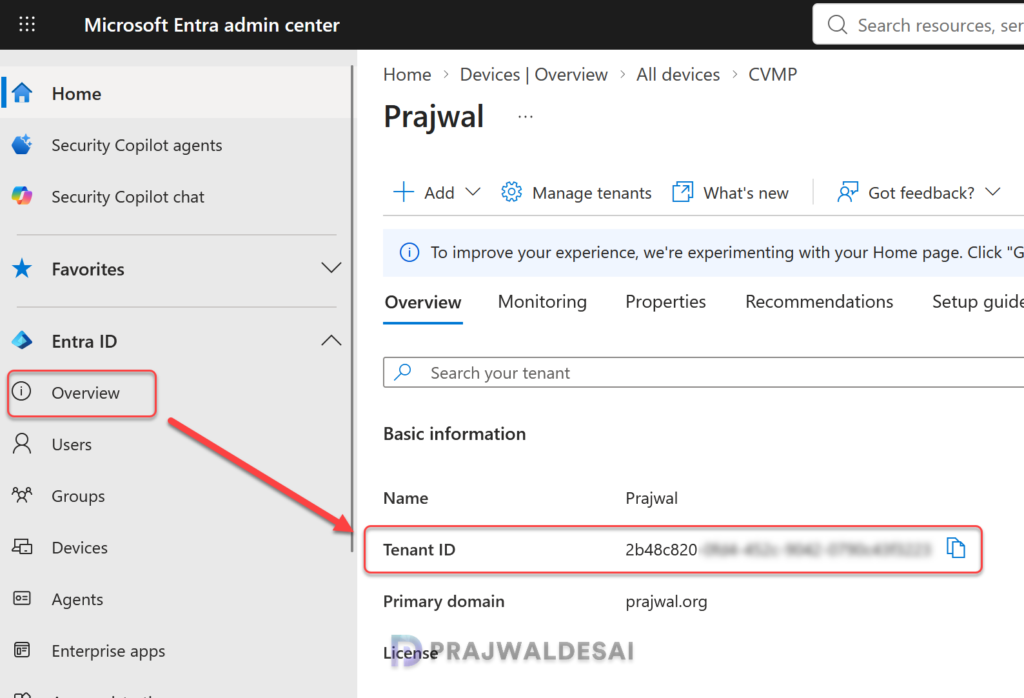
There are several ways to find your Microsoft Entra tenant ID, and the easiest way is to get it from Entra ID admin center.
- Sign in to the Microsoft Entra admin center.
- Browse to Entra ID > Overview.
- Under the Basic information section, you can find your tenant ID.
- Copy the Tenant ID to Notepad or any text editor, and we will use it while configuring the policy.
Customize OneDrive Sync Root Folder Name using Intune
Here is how you create an Intune policy to set a custom name for the OneDrive root folder for users in your organization.
- Sign in to Intune admin center and go to Devices > Windows > Configuration and create a new policy.
- Choose Windows 10 and later as Platform and Settings Catalog as Profile Type. Click Next.
- On the Basics tab, specify the name profile name and description. Click Next to continue.
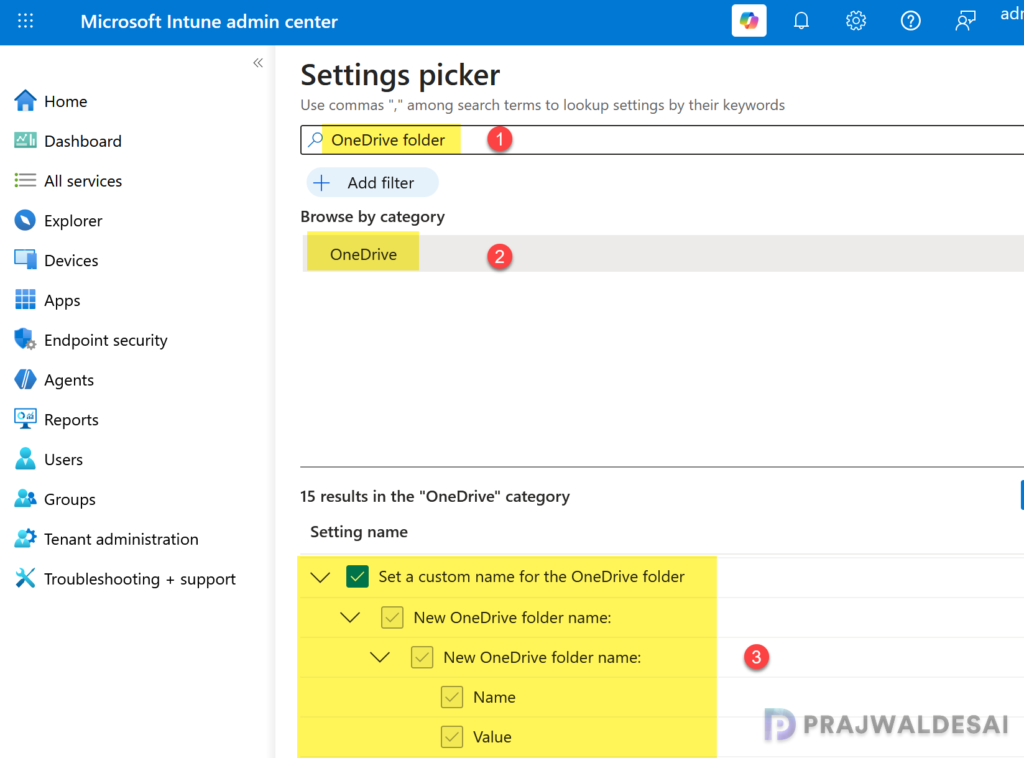
- In the Settings Picker, search for the term “OneDrive Folder“. From the results, select the OneDrive category.
- Under Setting name, select the setting “Set a custom name for the OneDrive folder” and close the settings picker.
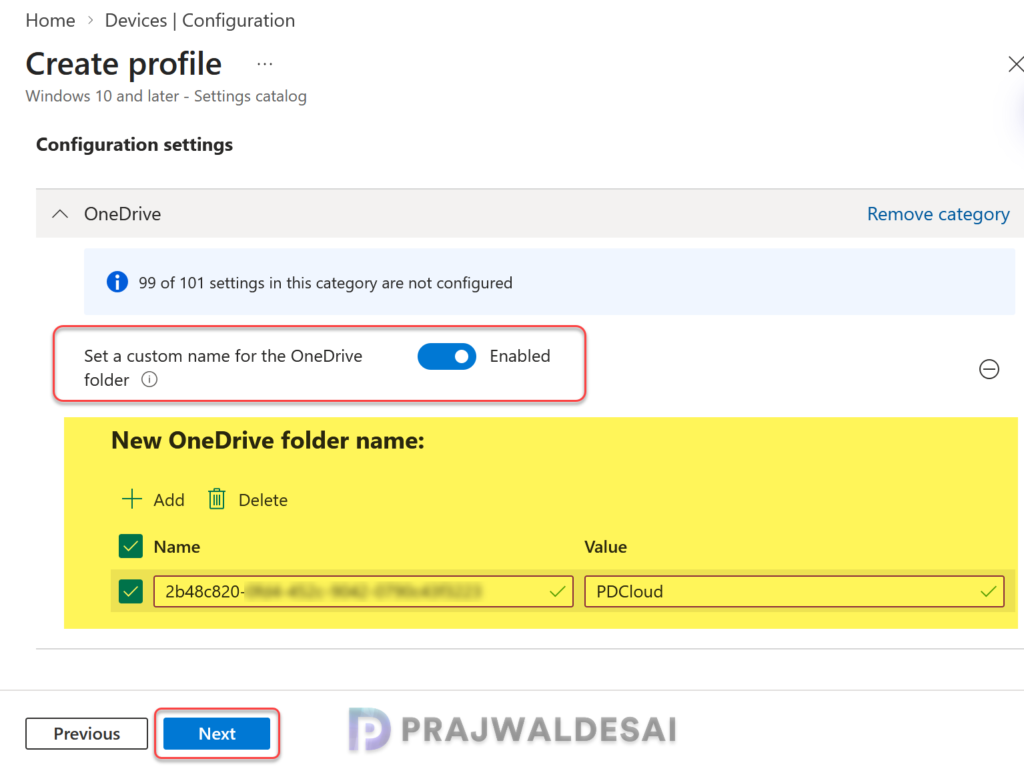
First, enable the policy setting: Set a custom name for the OneDrive folder. Under the New OneDrive folder name section, enter the following details:
- Name: Enter the Microsoft Entra tenant ID.
- Value: Enter the new custom name of the OneDrive sync root folder. I have entered the root name as PDCloud and this will replace the OneDrive – {organization name} on the user’s device.
Once you’ve done that, click Next.
In the scope tags section, add your scope tags. If you haven’t created them, I have published a step-by-step guide on creating Intune scope tags. Note that specifying scope tags is optional, and you may skip this step. Click Next.
In the Assignments window, select the Entra security groups to which you want to assign the policy. Start by deploying the profile to a select group of users. If the testing proves successful, gradually roll it out to a larger user base. Select Next.
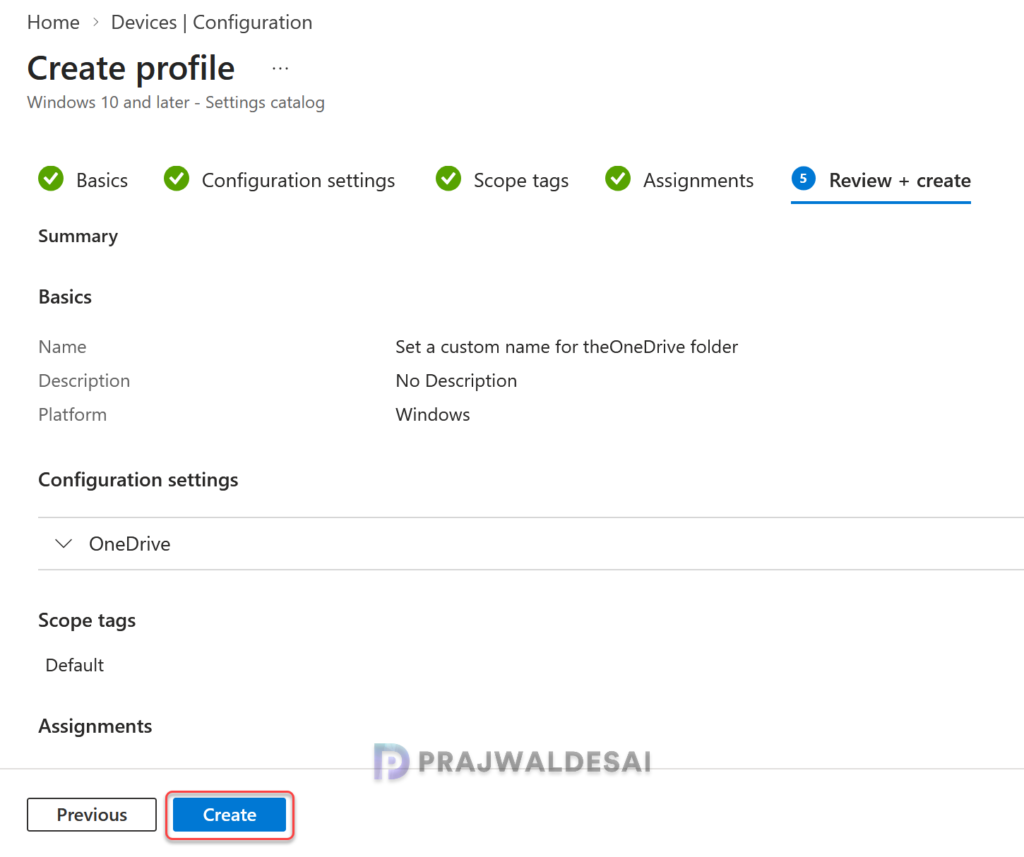
On the Review + Create tab, carefully review all the configured policy settings, then click Create. You should find this new profile in the list of all configuration profiles for Windows devices in Intune admin center.
To speed up the policy assignments, you can manually sync Intune policies using various methods on Windows computers.
Monitoring Policy Assignments
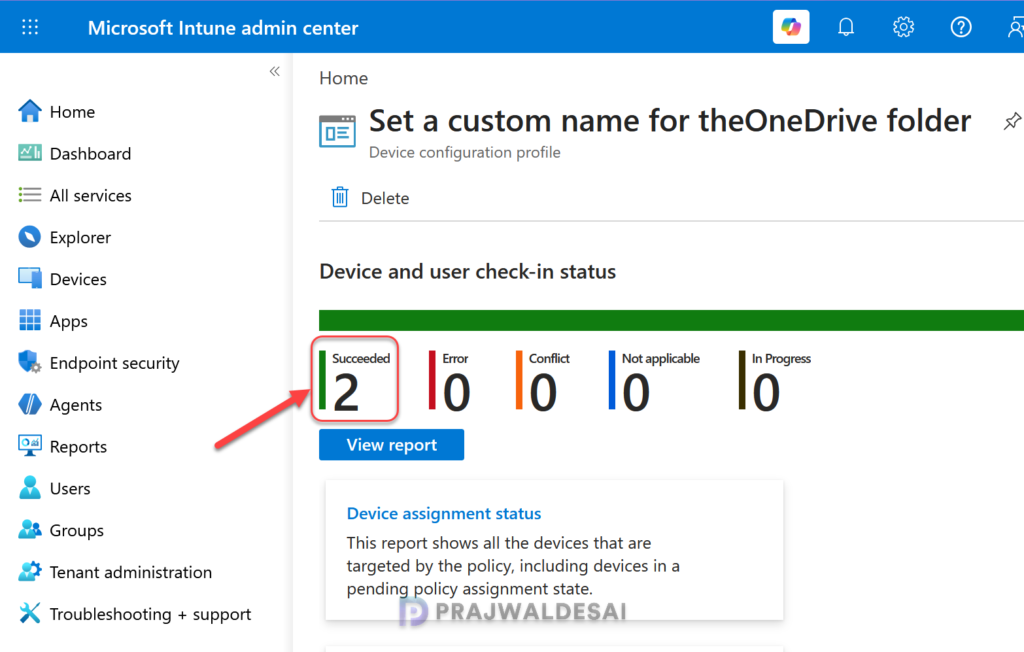
In the Intune admin center, go to Devices > Windows > Configuration and here select the OneDrive custom root name profile. On the Policy overview page, check the device and user check-in status.
Here you will find the number of devices or users on which the policy has been applied successfully. The view report button lets you see the names of devices or users for which the policy deployments have been successful. From the below image, we see that the policy is applied to devices without any errors.
End User Experience
For new users who log in for the first time with a work or school account, they will see the new root folder name during the first launch of the OneDrive sync app. If the device already had OneDrive configured before the policy was applied, the new root folder name may not update immediately and requires unlinking and relinking of the OneDrive account. Let me show you how to do that.
Unlink and Relink OneDrive Account
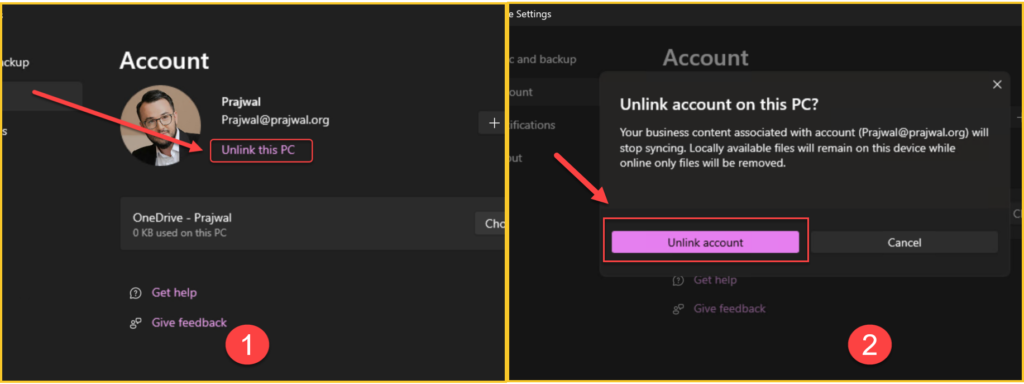
To unlink the OneDrive account, right-click the OneDrive icon in the system tray and select Settings. On the Account page, click on Unlink this PC. When you perform this action, the sync stops on your PC. On the confirmation box, click Unlink account. See the below screenshot for reference.
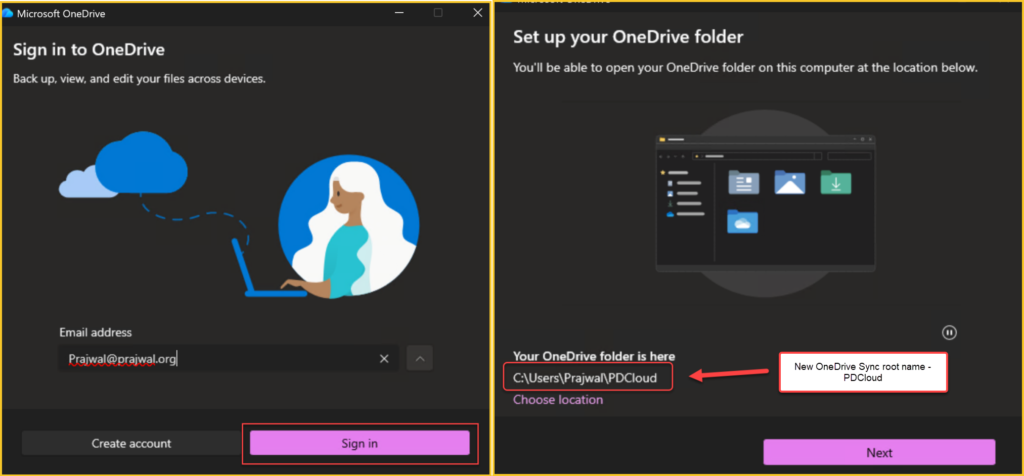
The OneDrive app reappears, and users must sign in with a work or school account to relink their accounts. If you have configured auto-sign for OneDrive using Intune, a device restart should accomplish this for you.
The initial screen is where the user signs in with the work account. On the next screen, you will notice the OneDrive path shows the custom folder name that was configured via Intune policy (ex. PDCloud in the below image). Click Next and configure the other settings and, on the final screen, select Open my OneDrive folder.
Verify OneDrive Root Folder Name
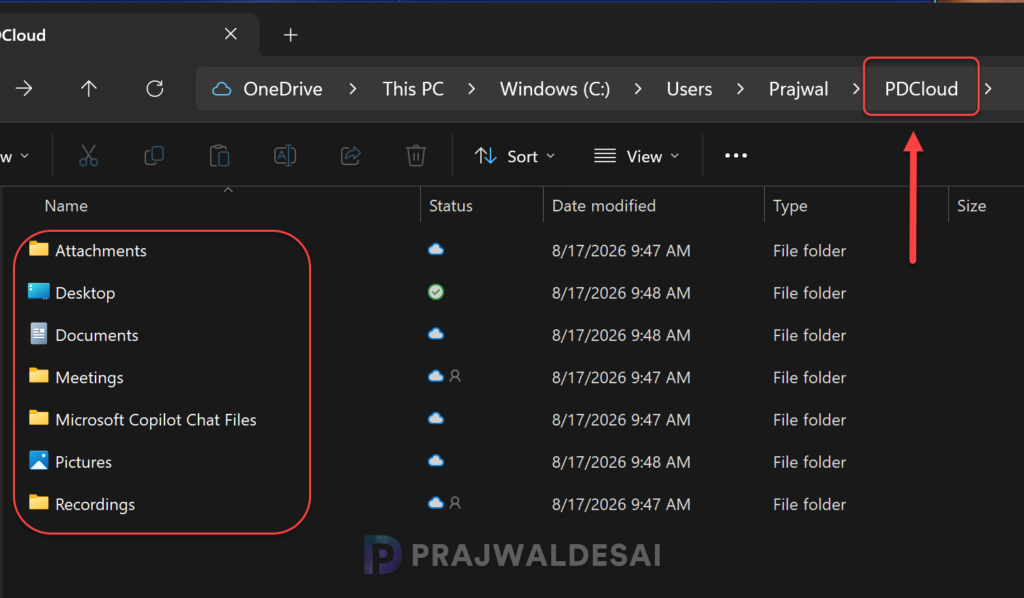
File Explorer and Registry are two manual ways to verify if the OneDrive is using a new name for synced root folder. Once you’ve successfully relinked OneDrive account, you will notice the new local folder name (PDCloud) visible in the file explorer, and it matches with the name that was provided in the Intune policy.
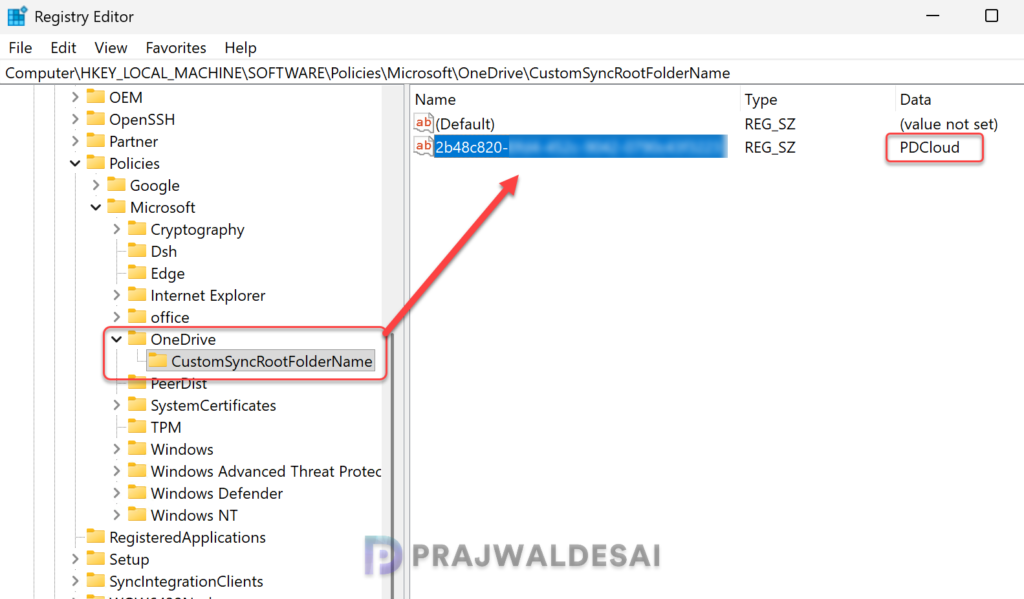
To launch the registry editor, right-click Start, select Run. Type regedit and press the enter key. Navigate to the below registry path, and here you should see your Tenant ID and the CustomSyncRootFolderName (ex. PDCloud) that was configured via Intune policy.
Computer\HKEY_LOCAL_MACHINE\SOFTWARE\Policies\Microsoft\OneDrive\CustomSyncRootFolderNameThat confirms the Intune policy that we applied has customized the local OneDrive sync root folder name on users’ computers successfully.
Final Takeaway
Customizing the OneDrive sync root folder name using Intune is a small configuration change that can make a noticeable difference in user experience and administrative consistency. If your organization’s name is too long, and you want a shorter brand name to be displayed to users, this policy is for you. As a best practice, apply the policy before first-time OneDrive setup whenever possible. Test it on pilot devices, and keep the naming standard short and clear.
That concludes this guide. If you need any clarification before implementing this policy, or if you encounter any problems afterward, please let me know in the comments section below.

Nice article thank you for sharing the step by step process of implementing