

Microsoft has released Windows 11 KB5121003, the August 2026 Patch Tuesday cumulative update for Windows 11 versions 24H2 and 25H2. This mandatory security update brings important vulnerability fixes, Secure Boot improvements, and a range of quality enhancements designed to improve search, File Explorer, accessibility, and overall system reliability.
The primary purpose of the KB5121003 and KB5120240 updates is to address security vulnerabilities across Windows 11. The updates also expand device targeting data, enhancing coverage for devices to receive new Secure Boot certificates automatically. Microsoft in their update documentation stated that the update delivers the latest security improvements and protections for Windows 11 25H2 and 24H2 devices.
Overview
After installing Patch Tuesday updates released in August 2026, devices are updated to the following build numbers:
- Windows 11 24H2: OS Build 26100.9168
- Windows 11 25H2: OS Build 26200.9168
As part of Microsoft’s monthly Patch Tuesday rollout, KB5121003 update includes the latest security improvements and cumulative fixes from previous updates that include:
- July 28, 2026: KB5101684 (OS Builds 26200.8973 and 26100.8973) Preview
- July 18, 2026: KB5121767 (OS Builds 26200.8894 and 26100.8894) Out-of-band
- July 14, 2026: KB5101650 (OS Builds 26200.8875 and 26100.8875)
What’s new in the KB5121003 Update for Windows 11
Here’s a breakdown of the most notable fixes and improvements included with this update.
- File Explorer: File sizes in the Details view are now displayed using appropriate units (KB, MB, GB) instead of KB-only, making them easier to understand at a glance. Quick actions (Open file location, Ask Copilot) on hover; speed and performance improvements; fixes for OneDrive, path compatibility, rename issues, and address bar reliability.
- Widgets: Taskbar notification badges now use your Windows accent color instead of appearing red, helping reduce unnecessary attention-grabbing alerts. Improved experience with no hover interruptions, default dashboard view, customizable settings, reduced distractions, and enhanced performance.
- Windows Hello: Windows Hello Enhanced Sign-in Security (ESS) now supports peripheral fingerprint sensors.
- Touchpad: Includes new touchpad gesture controls that let you adjust scroll and zoom speed, and enable accelerated scrolling for faster navigation through long documents. You can find these options by going to Settings > Bluetooth & devices > Touchpad.
- Voice Access: This update adds Voice Isolation to Voice Access, helping it better recognize your voice by reducing interference from other speakers and background noise. Voice access and typing are supported in French, German, Spanish with real-time corrections for smoother dictation.
- Windows Search: The update enhances app search for typos and partial names and improves Settings search by prioritizing relevant results.
- Start menu: The update enhances Start menu reliability by retaining view preferences and improves keyboard navigation for the apps list.
- Voice Typing & Input: This update improves the persistence of mouse cursor size. Fluid dictation is now off by default for new users. New customizable right-click zones in touchpad settings; improved English character recognition in Japanese handwriting.
- Account Control: The update redesigns the Start menu account control and adds a badge showing your subscription status, accessible by clicking your account picture in the Start menu’s lower-left corner for Microsoft account users.
- AI Component: You can now uninstall the Image Generation AI from compatible Copilot+ PCs.
- Mobile device management (MDM): This update resolves an issue where Windows devices (versions released on/after July 14, 2026) remain noncompliant after MDM enrollment, affecting access to corporate resources.
- Storage: This update resolves an issue with File History backups to network shares via SMB, where backups failed due to a false “invalid credentials” error.
- Power and Battery: This update enhances power settings reliability by ensuring changes apply to all plans, including display, sleep, and button settings. It also restores setting a threshold for energy saver activation in Settings > System > Power & Battery.
- Windows Update: The update enhances Windows Update progress calculations and optimizes clean-up logic for better system performance post-update. The new calendar in Settings > Windows Update allows pausing updates up to 35 days with customizable end dates.
- Network: This update enhances DHCP renewal reliability, especially for NACKs from the server and on devices using Modern Standby. SR-IOV default for CVMs, improved Wi-Fi, cellular connectivity, and VPN compatibility; settings preserved during OS upgrades.
- Print and Clipboard: This update improves print time performance (page per minute) for IPPS (Internet Printing Protocol Secure) printers. It also enhances clipboard reliability in Remote Desktop and Azure Virtual Desktop scenarios.
- Date and Time: This update enhances time zone change notifications and improves daylight saving time data accuracy for Beirut, Casablanca, Jerusalem, and Nuuk.
- Point-in-time Restore for Windows: The new restore feature enables quick PC rollback (apps, settings, files) to recent points, reducing downtime and simplifying troubleshooting.
- Accessibility: Screen tint for eye strain, enhanced magnifier with zoom precision, and setting changes directly from the magnifier bar.
- Bluetooth: Improved connection reliability, faster AirPods pairing, voice call stability, enhanced LE Audio performance, synced mute state, and error resolution. Improved audio routing for calls and integration with Do Not Disturb mode.
- Audio: Improved HD Audio driver reliability.
- Taskbar: Enhanced Start menu opening reliability for left-aligned taskbar icons.
- Printing: Default to IPP for new printer installs; modernized printer driver selection; toggle in Settings added.
- WSL: Enhanced WSL usage with mirrored networking for VPNs.
- Display/Graphics: Improved rendering across multiple monitors and persistent color profile application.
- Location Services: Greyed-out location settings when services are off for clarity.
- Performance: Faster shutdown of Background Intelligent Transfer Service (BITS) during PC shutdown. Explorer.exe reliability and navigation improved; fixes for taskbar icons, OneDrive sync, app launches, desktop switching, and visuals.
- Windows Apps: Fix for unexpected elevation (UAC) prompts after installing KB5089549.
- Remote Desktop: Refreshed dialog design in Settings > System > Remote Desktop.
- Graphics Kernel: Better memory management for large local AI models on high-memory PCs.
Download offline installers for KB5121003 and KB5120240
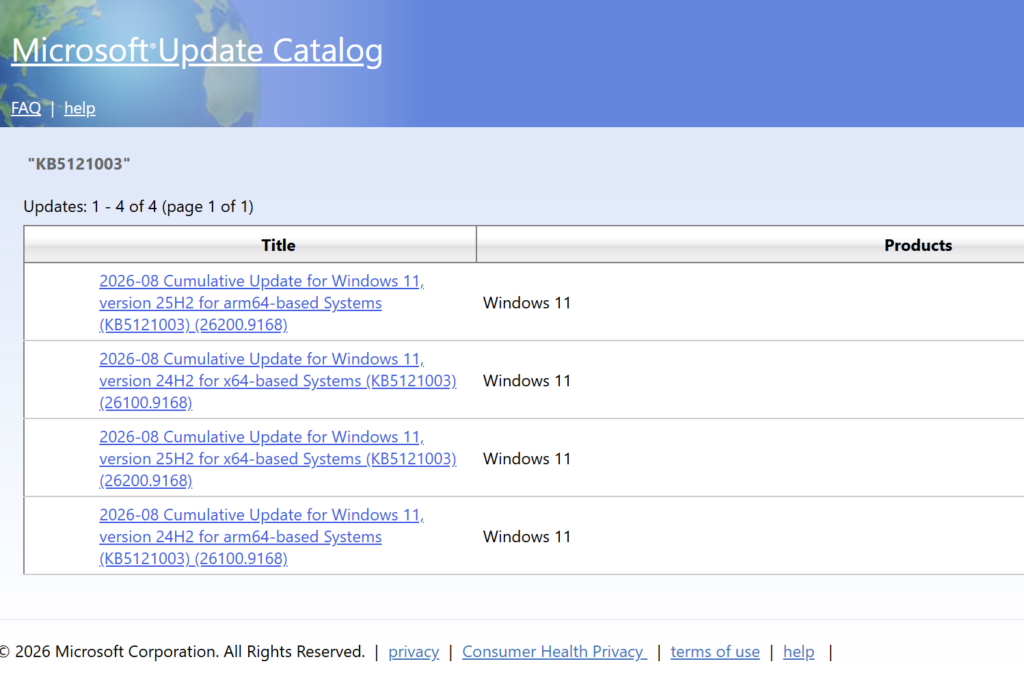
To manually download the August 2026 Patch Tuesday standalone package(s), visit the Microsoft Update Catalog website and select your Windows 11 version. This should only be done if the update isn’t listed in Windows Update.
Installing the Update
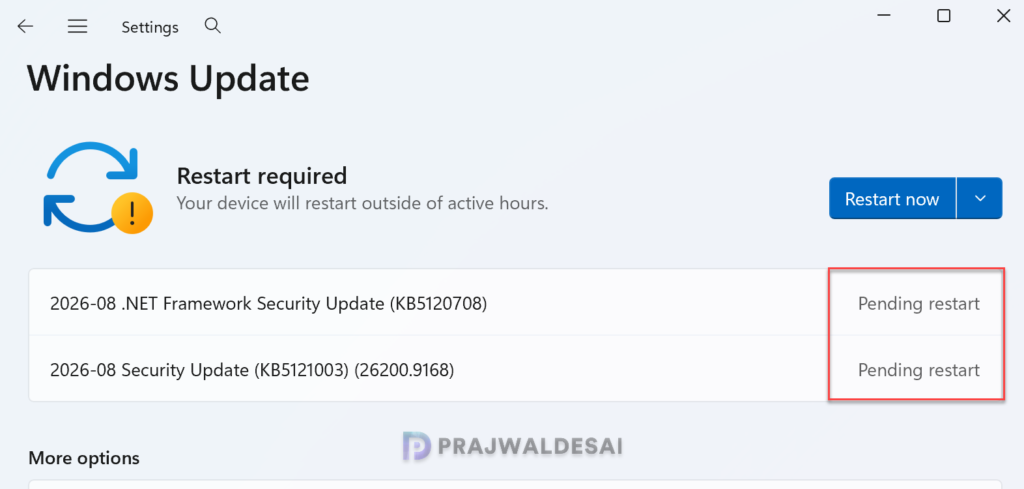
The KB5121003 cumulative update is offered through Windows Update for devices running Windows 11 25H2 and 24H2. To check for the latest update, enter Windows Update settings (Settings > Windows Update) and select Check for updates. The 2026-08 Security Update (KB5121003) (26200.9168) begins to install now.
The update requires a system reboot to complete the installation. Simply click the “Restart Now” button to restart your computer.
Uninstalling the Update
If you haven’t installed the August 2026 security yet, you may pause updates in Settings. If you’ve already installed the update, and you are encountering some known issues, go to Settings > Windows Update > Update history > Uninstall updates. Alternatively, you may also use PowerShell to list the updates and uninstall them.
Known Issues
With no known issues currently reported, installing KB5121003 is recommended for all eligible Windows 11 24H2 and 25H2 devices. However, if you intend to deploy it to Windows 11 devices using SCCM or Intune in your organization, it’s advisable to first install it on a pilot group of devices. After thorough testing, you can proceed to roll it out to a broader group of devices.
Lastly, here’s a comprehensive guide detailing the updates released for each version of Windows 11, including their respective KB numbers and build numbers.
