

Microsoft has released the KB5089549 security update for Windows 11 25H2 and 24H2, introducing over 40 enhancements and addressing Bitlocker recovery key issues. The key highlights include a new Xbox mode designed for Windows PCs, improved haptic feedback effects, updates to Windows driver policy, startup reliability after boot file updates, and optimized performance for launching startup applications.
Most importantly, the May 2026 Patch Tuesday update (KB5089549) resolves an issue where some devices might enter BitLocker Recovery after updating boot files on systems with certain Trusted Platform Module (TPM) validation settings, including invalid PCR7 (Platform Configuration Register 7) configurations. This might occur after installing the April 2026 security update (KB5083769).
The security update KB5089549 includes new features and quality improvements that were part of the following update:
- April 14, 2026—KB5083769 (OS Builds 26200.8246 and 26100.8246)
- April 30, 2026—KB5083631 (OS Builds 26200.8328 and 26100.8328) Preview
Issues Addressed in KB5089549 Security Update
The KB5089549 update introduces more than 40 changes and fixes across various Windows components. Here are some of the most exciting updates.
- Bitlocker Recovery Issues: This update improves startup reliability after boot file updates, so devices start normally without entering BitLocker recovery.
- Connectivity: This update improves the reliability of Simple Service Discovery Protocol (SSDP) notifications to help prevent the service from becoming unresponsive.
- File Explorer: This update expands the list of archive formats that can be used in File Explorer to include uu, cpio, xar, and NuGet Packages (nupkg). The view and sort preferences are preserved in folders such as Downloads and Documents when apps launch File Explorer directly to those locations. The update eliminates a white flash that might occur when opening “This PC” or resizing the Details pane in dark mode. Additionally, it enhances the reliability of explorer.exe processes, ensuring they terminate properly after closing File Explorer windows.
- Secure Boot: The status of Secure Boot certificate updates on your device may be displayed in the Windows Security app (Settings > Privacy & security > Windows Security). This update addresses an issue where the device might enter BitLocker Recovery after the Secure Boot updates. With this update, Windows quality updates include additional high confidence device targeting data, increasing coverage of devices eligible to automatically receive new Secure Boot certificates. Devices receive the new certificates only after demonstrating sufficient successful update signals, maintaining a controlled and phased rollout.
- Networking: This update improves reliability when Windows uses SMB compression over QUIC. After you install this update, SMB compression requests over QUIC complete more consistently, reducing the likelihood of timeouts and supporting smoother, more dependable performance.
- Remote Desktop: This update enhances protection against phishing attacks involving Remote Desktop (.rdp) files. Upon opening an .rdp file, Remote Desktop displays all requested connection settings before establishing a connection, with each setting disabled by default. Additionally, a one-time security warning is shown the first time an .rdp file is opened on a device.
- Reset this PC: This update addresses an issue that might cause device reset to fail when using the “Keep my files” or “Remove everything” options. This might occur after installing the March 2026 (KB5079420) Hotpatch security update.
- Gaming Mode: The new Xbox Mode is now available on Windows 11 PCs, including laptops, desktops, and tablets. Drawing inspiration from the Xbox console experience, this mode delivers a sleek, full-screen interface that prioritizes your games and reduces background distractions.
- Haptic Feedback Effects: Haptic feedback effects are available on compatible input devices during specific actions, like aligning objects in PowerPoint or snapping and resizing windows. These haptic signals can be turned on or off in Settings > Bluetooth & devices > Mouse, Touchpad, or Pen > Haptic signals.
- Sharing: Drag Tray has been renamed to Drop Tray. Its settings are now under Settings > System > Multitasking (previously Nearby sharing).
- New Agents on Taskbar: Windows is adding a new way to monitor your agents from the taskbar. This feature enhances support for agents across both first- and third-party applications, with the Microsoft 365 Copilot app’s Researcher tool leading the way as the initial adopter.
- Enterprise State Roaming (ESR): ESR can now be managed through Windows Backup for Organizations policies.
- Policy-Based Removal of Preinstalled Microsoft Apps: KB5083631 update adds support for a dynamic app removal list to the “Remove Default Microsoft Store packages” policy for Windows Enterprise and Education. Administrators can remove additional MSIX/APPX-packaged apps by specifying their app package family names using Group Policy.
- Update for Windows Driver Policy: This update improves Windows security by changing how the Windows kernel trusts third‑party drivers. Default trust for cross‑signed drivers is removed, while drivers from the Windows Hardware Compatibility Program (WHCP) and an allowed list of trusted legacy drivers remain allowed.
- Enhanced security and performance for batch files: Administrators and Application Control for Business policy authors now have additional control over how the system processes batch files and Command Prompt (CMD) scripts.
- Improved Voice Typing: The voice typing on the touch keyboard now looks simpler and more intuitive. The update also adds Arabic 101 Legacy keyboard layout to the list.
Updates to AI Components
The KB5089549 security update for Windows 11 includes the updates for the following AI components.
| AI Component | Version |
|---|---|
| Image Search | 1.2604.515.0 |
| Content Extraction | 1.2604.515.0 |
| Semantic Analysis | 1.2604.515.0 |
| Settings Model | 1.2604.515.0 |
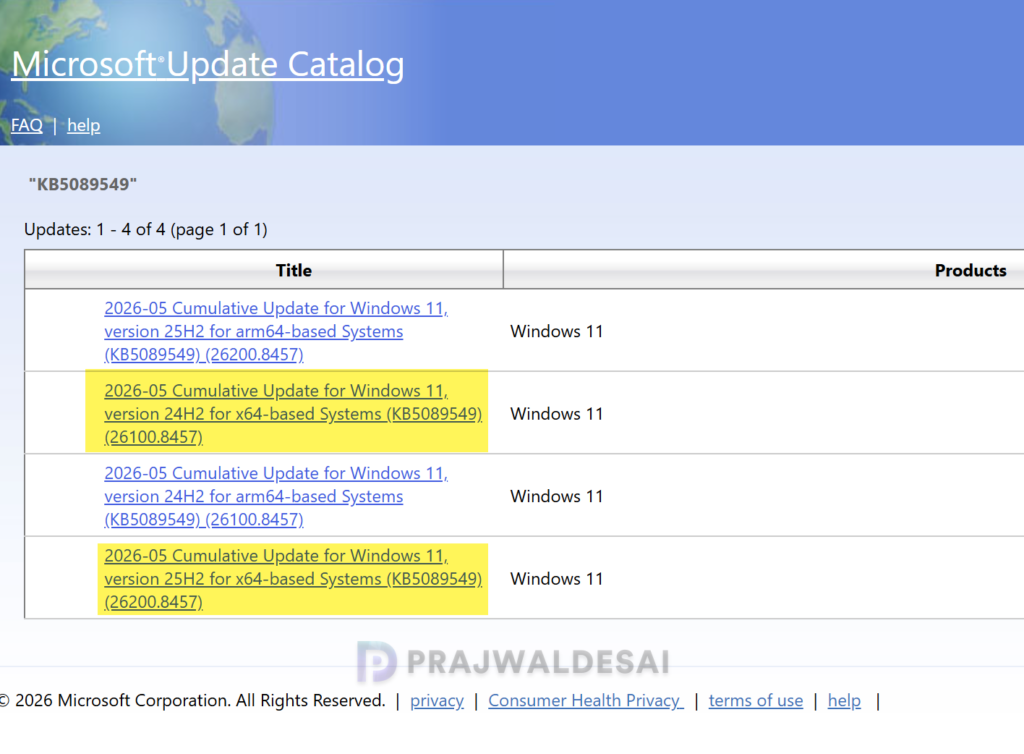
Download 2026-05 Security Update from Microsoft Update Catalog
The KB5089549 update should be downloaded and installed automatically from Windows Update. However, if you wish to get the standalone package(s) for this update, go to the Microsoft Update Catalog website and download it.
Installing KB5089549 via Windows Update
The KB5089549 update is offered through Windows Update for devices running Windows 11 25H2 and 24H2. If you don’t see the update listed, open the “Windows Update” settings, turn on the “Get the latest updates as soon as they’re available” option, and click the “Check for Updates” button.
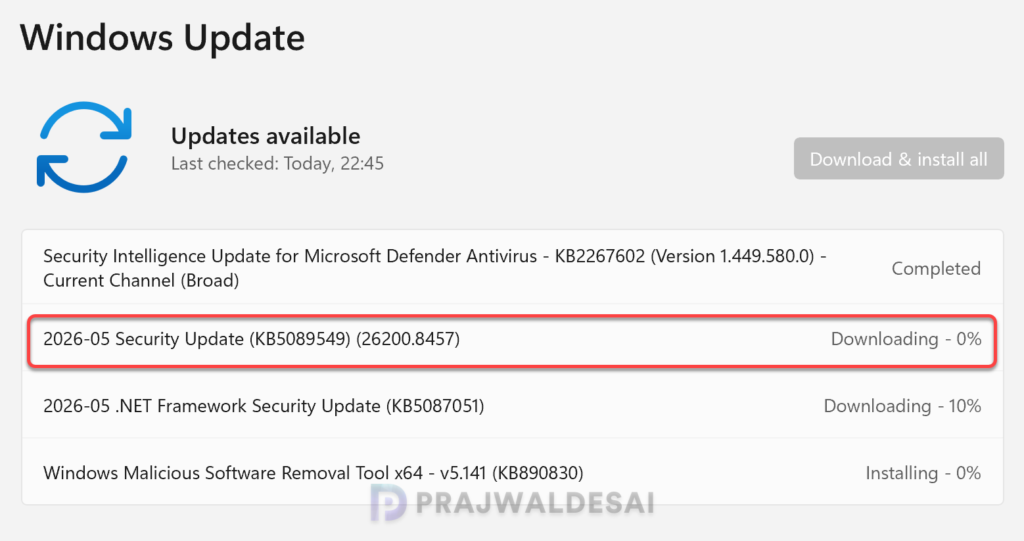
On my Windows 11 PC, I received the following updates via Windows Update.
- 2026-05 Security Update (KB5089549) (26200.8457)
- 2026-05 .NET Framework Security Update (KB5087051)
- Windows Malicious Software Removal Tool x64 v5.141 (KB890830)
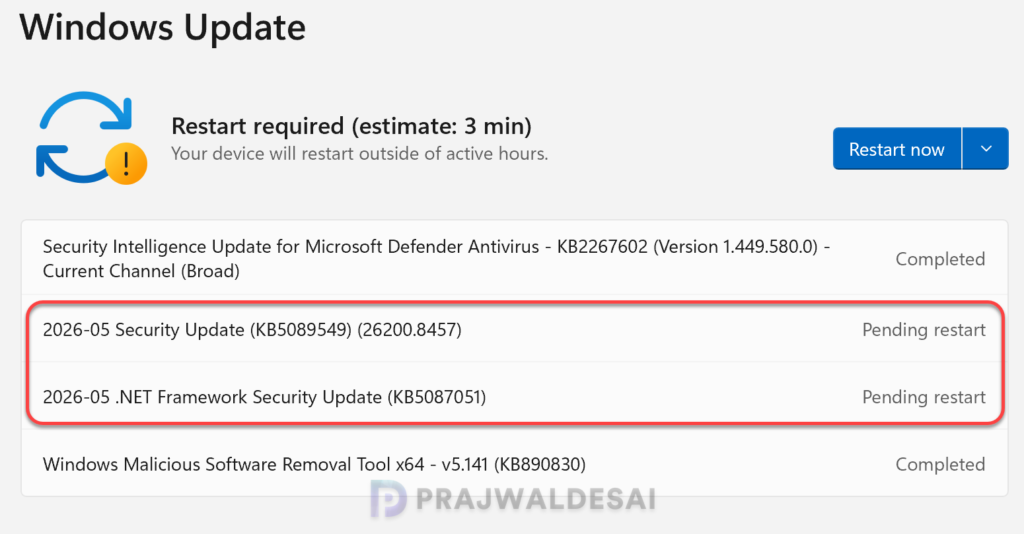
The update requires a system reboot to complete the installation. Simply click the “Restart Now” button to restart your computer. Once your system restarts, your Windows 11 25H2 build will be updated to version 26200.8457, and the Windows 11 24H2 build will be updated to version 26100.8457.
Deploy KB5089549 Update via Microsoft Intune
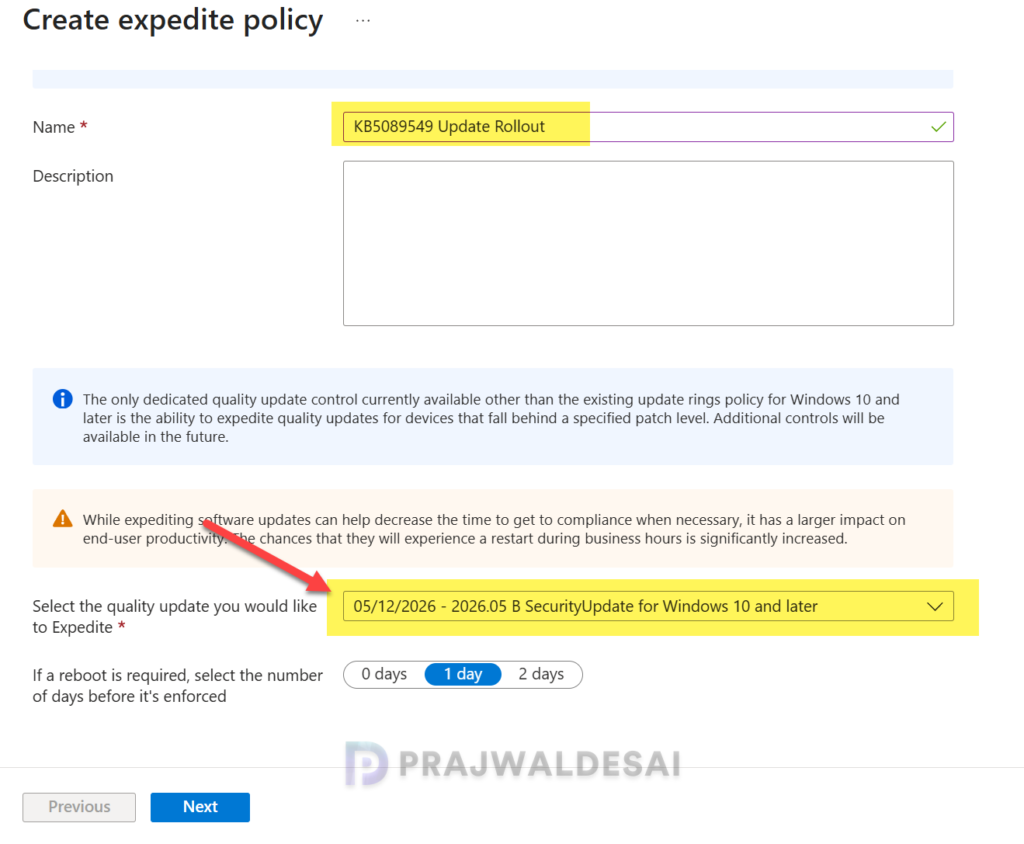
The 2026-05 Security Update can be deployed by configuring an expedite policy in Intune and assigning it to the appropriate groups containing Windows 11 24H2 and 25H2 devices. For more information, see how to expedite Windows quality updates in Intune.
- Sign in to the Intune admin center. Go to Devices > Windows > Windows Updates > Quality Updates.
- Create a new Expedite policy and enter a descriptive name for the profile.
- Select the Windows quality update “05/12/2026 – 2026.05 B Security Update for Windows 10 and later” to expedite from the drop-down list.
- Specify the number of days to wait before restart is enforced.
Click Next.
On the Assignments tab, select Add groups and then select device or user groups to assign the policy. Click Next. On the Review+Create page, have a look at the expedite policy settings. If it’s all good, click Create. After the policy is created, it is deployed to assigned groups.
Patching KB5089549 update via WSUS/SCCM
Organizations that rely on WSUS or Configuration Manager to distribute software updates to on-premise devices can deploy the KB5089549 update efficiently. If you don’t see the update either in WSUS or SCCM, you must manually import the update into WSUS.
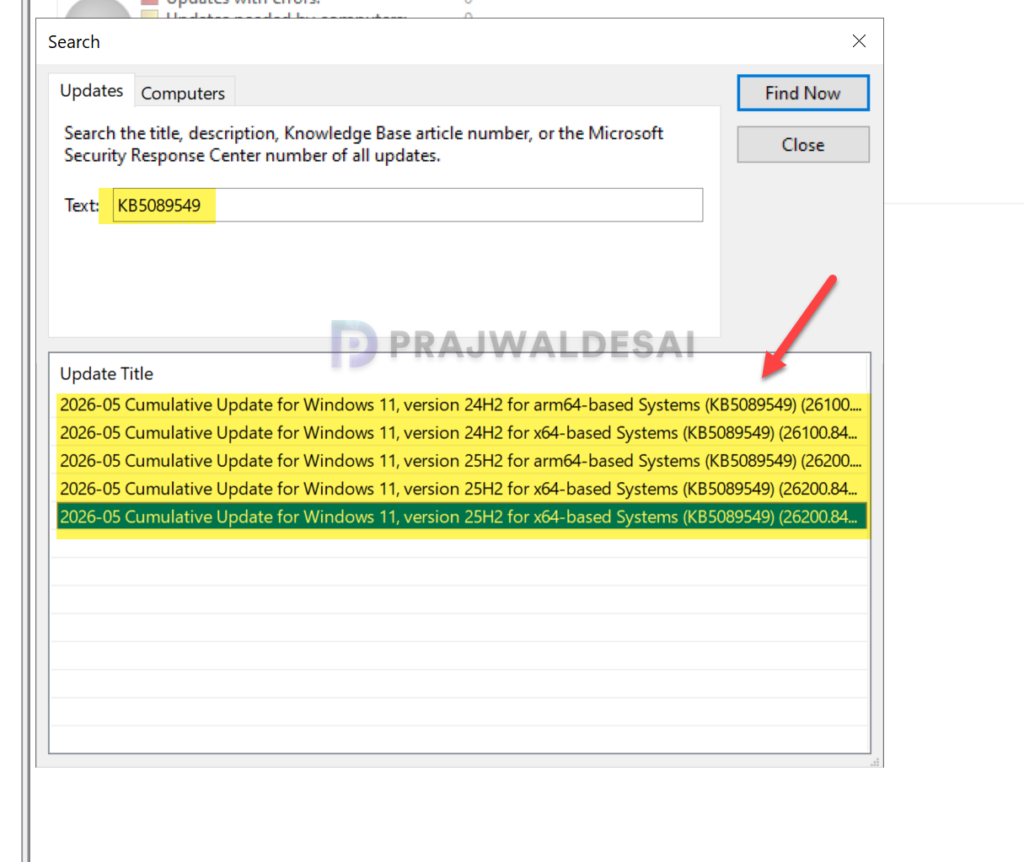
In the below image, I have successfully imported the KB5089549 update into WSUS. If you’re using WSUS standalone in your setup, right-click the update and approve it. I suggest rolling out the update to a group of pilot devices initially, and once confirmed that the update causes no issues, proceed to deploy it across all Windows 11 devices. The deployment occurs based on the schedule you’ve configured.
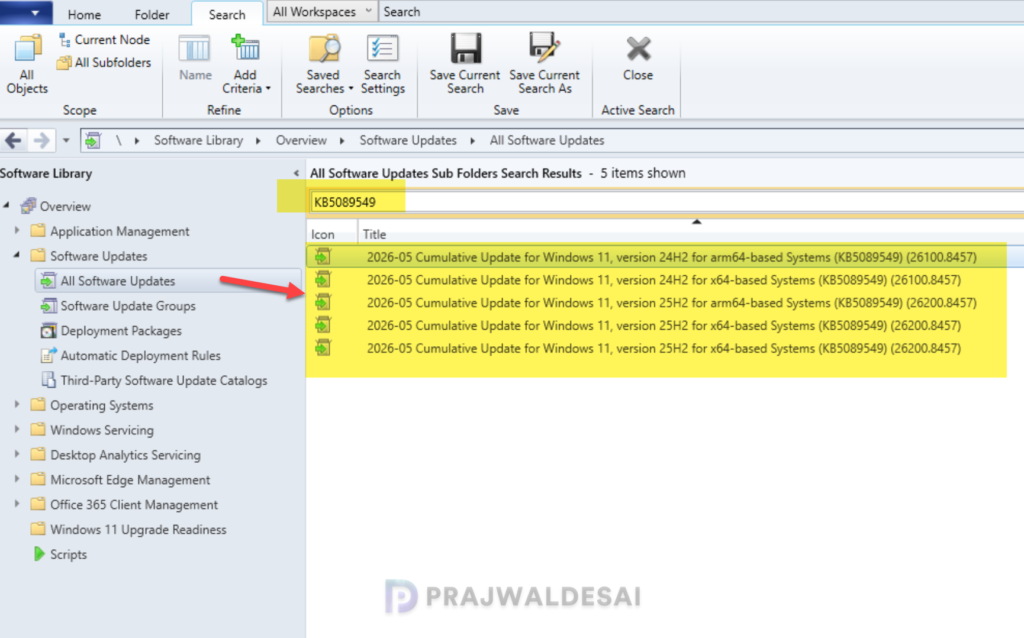
To deploy the update using Configuration Manager, ensure you open the console and synchronize the software updates. This will display all the latest updates from WSUS, including those you manually imported into the console.
Once the sync is complete, go to Software Library > Software Updates > All Software Updates. In the search bar, type “KB5083769” and click search. You should now see the update 2026-05 Cumulative Update for Windows 11, version 25H2 for x64-based Systems (KB5089549) (26200.8457) listed in the console. From here, you can refer to the SCCM patching guide to deploy it to your Windows devices.
Known Issues
KB5089549 is a stable update with no known issues reported so far. Should any problems arise, this section will be updated accordingly. Meanwhile, here’s a comprehensive guide detailing the updates released for each version of Windows 11, including their respective KB numbers and build numbers.
Uninstall May 2026 Security Update
If you haven’t patched your devices with the 2026-05 Security Update yet, you may pause updates in Settings. If you’ve already installed the update, and you are encountering some known issues, go to Settings > Windows Update > Update history > Uninstall updates. Alternatively, you may also use PowerShell to list the updates and uninstall them.
