

Microsoft has released KB38982839 security update addressing the issues with SMS Provider and administration service. This hotfix is applicable for Configuration Manager versions 2603, 2509, and 2503. Let’s see what fixes are included with this update and procedure for installing it.
This marks the fourth hotfix released for version 2603 and the next release will be version 2609. Microsoft has shifted its release cycle for current branch versions to just one update per year. However, it’s evident that Microsoft is actively rolling out hotfixes to resolve existing issues in these CB versions.
I recommend installing the KB38982839 security update as it resolves critical issues with SMS provider and admin service. The hotfix includes updates only to the site server. No client upgrade or console upgrade is required after installing this update. This update doesn’t require a computer restart, but does require a site reset after installation.
Issues fixed in KB38982839 Hotfix
The security update fixes the following security issues in Configuration Manager:
- An issue with the SMS Provider.
- An issue with the administration service. This is a defense-in-depth fix related to a Windows SMB Server issue, addressed separately by CVE-2026-26128. Microsoft strongly recommends that you also install the applicable Windows security update.
Availability of the Hotfix
The availability of the hotfix depends on the version of ConfigMgr you are using.
- For version 2603, the KB 38982839 update is directly available in the Updates and Servicing node of the Configuration Manager console.
- For versions 2509 and 2503, the hotfix KB 38982839 will be available only when the following update rollups are installed:
- KB37864969: Second update rollup for Configuration Manager version 2509.
- KB32851084: Update rollup for Configuration Manager version 2503.
- For Configuration Manager version 2503, KB38982839 includes the previously released update KB 37447175.
Installing Configuration Manager Hotfix KB38982839
- Launch the Configuration Manager console on the server.
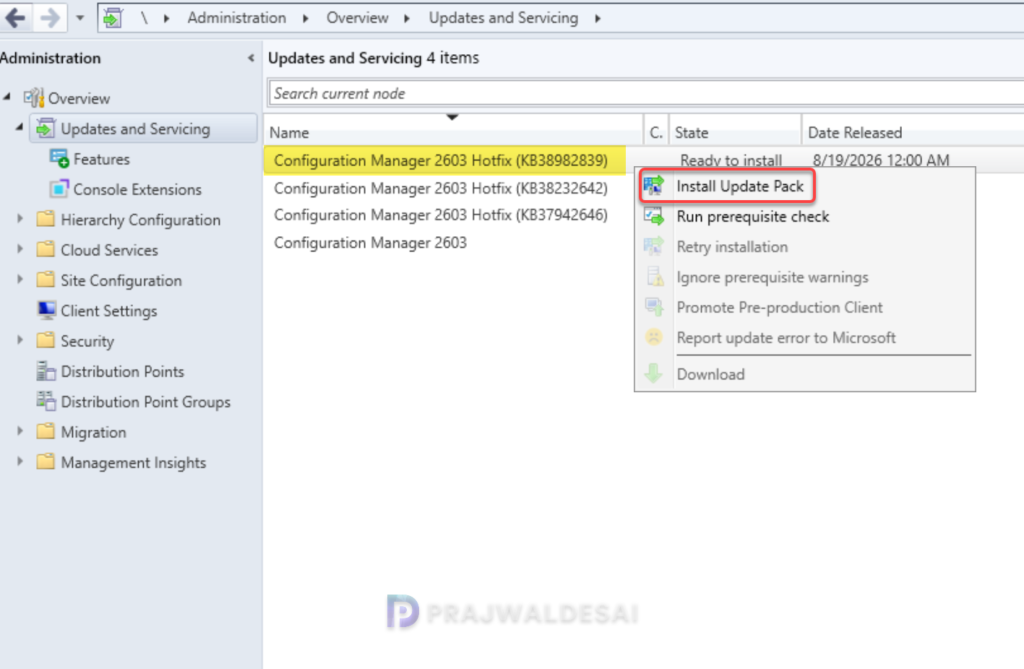
- Navigate to Administration\Overview\Updates and Servicing.
- Right-click Configuration Manager Hotfix (KB38982839) and select Install Update Pack.
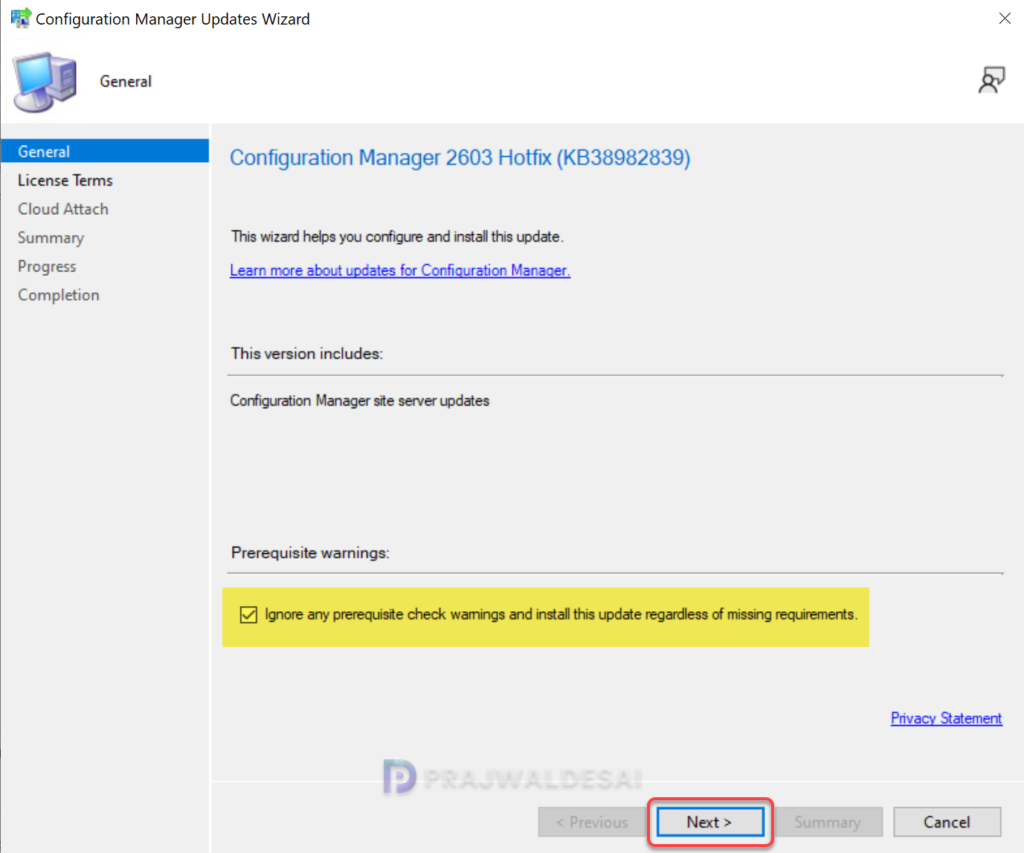
It is highly recommended that you run a prerequisite check for this update on your production server before installing it. For lab environments, you can enable the option “Ignore any prerequisite check warnings and install the update.” Click Next.
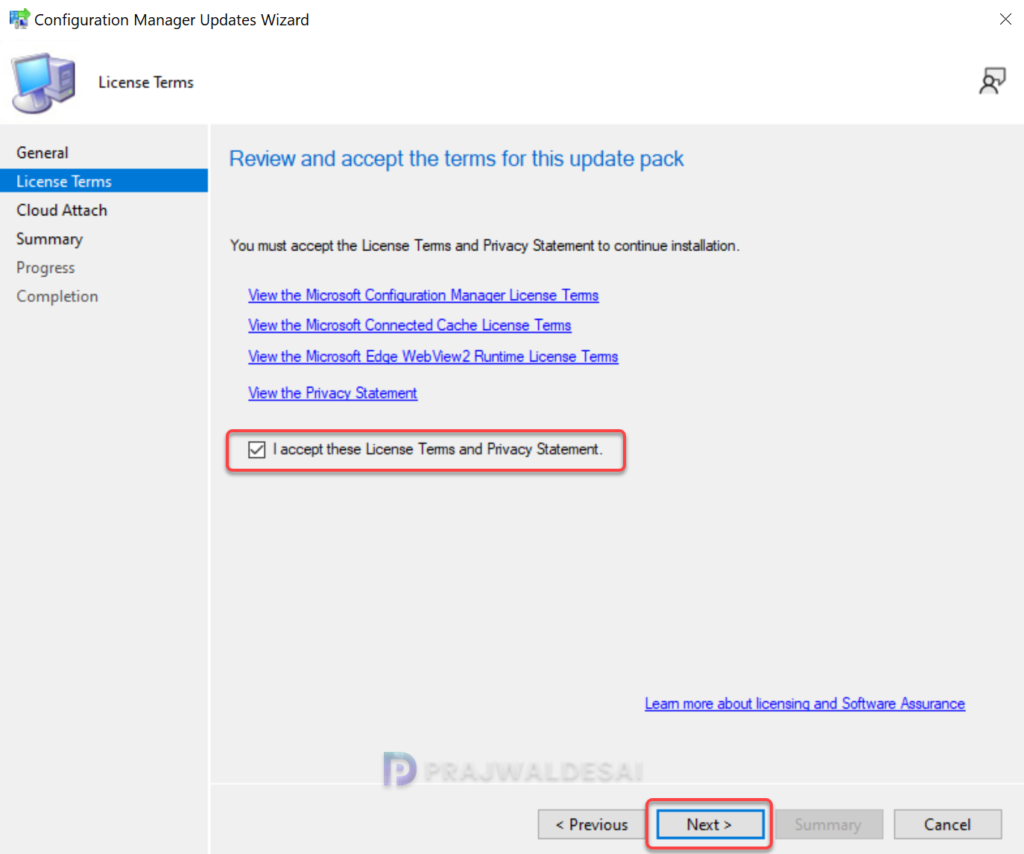
Accept the license terms required for installing the hotfix. Click Next.
Complete the steps included in the hotfix installation wizard and close the update installation wizard. The hotfix installation begins now.
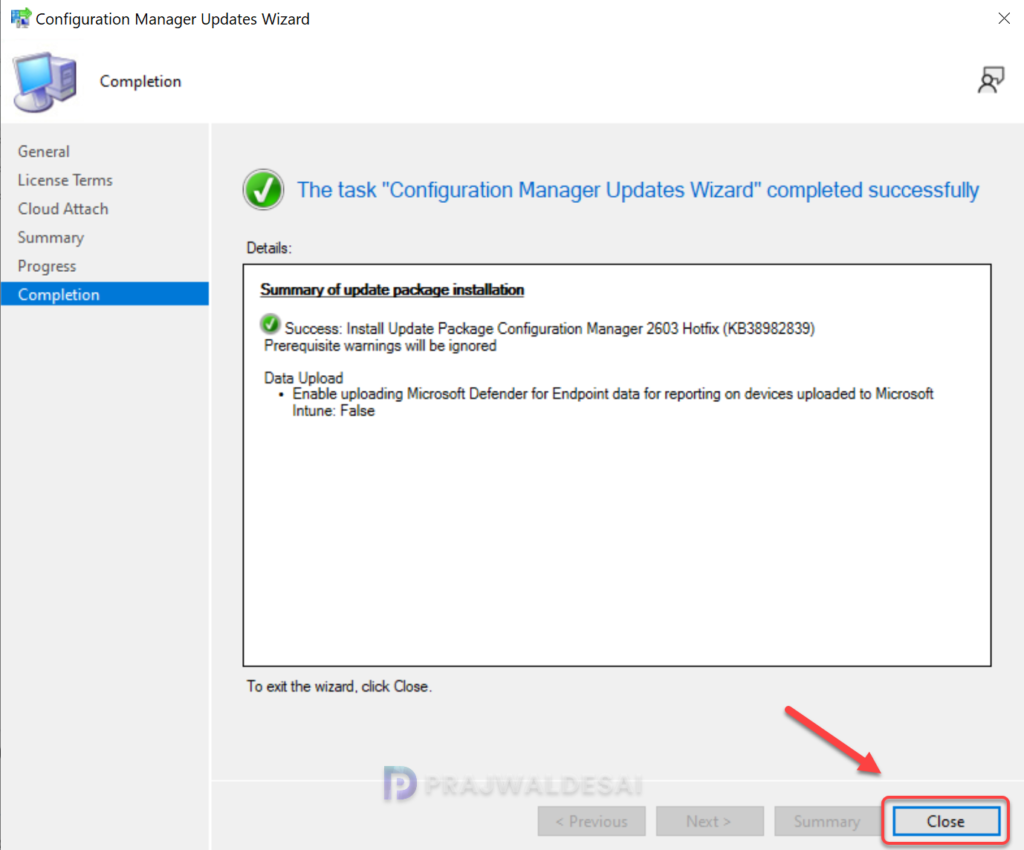
Monitoring the hotfix installation
To track the progress of hotfix installation, navigate to Monitoring\Overview\Updates and Servicing Status. If the hotfix fails to install, this section will show you the exact step where the update failed. Another way to monitor the hotfix installation progress is by reviewing the cmupdate.log file.
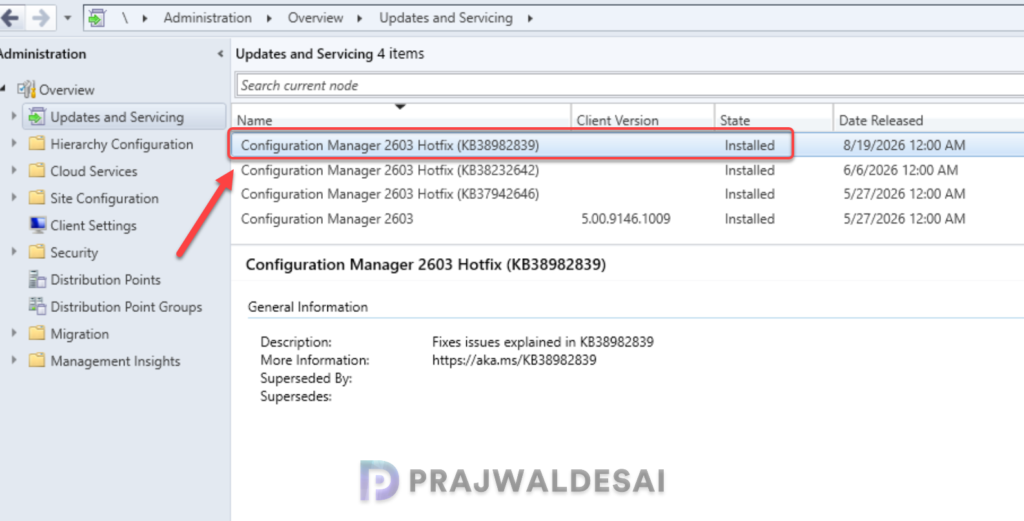
To verify if the KB 38982839 hotfix is installed, open the console and go to Administration > Updates and Servicing. If the State column for the hotfix shows ‘Installed‘, it means the update installation is completed.
Secondary Sites
After installing the hotfix update on a primary site, pre-existing secondary sites must be manually updated. This must be done on all the secondary sites present in your setup.
On the Secondary site server, open the Configuration Manager console. Go to Administration > Site Configuration > Sites > Recover Secondary Site, and then select the secondary site. Run the following SQL Server command on the site database to check whether the updated version of a secondary site matches that of its parent primary site.
select dbo.fnGetSecondarySiteCMUpdateStatus ('SiteCode_of_secondary_site')If the above command returns value 1, it means the site is up-to-date, with all the hotfixes applied on its parent primary site. If the value 0 is returned, the site has not installed all the fixes that are applied to the primary site. You should use the Recover Secondary Site option to update the secondary site.

Hello Prajwal,
We have a custom service that runs on a Linux machine and leverages AdminService/API to do all sorts of queries against ConfigMgr. Since this security update was installed I can no longer connect from Linux. Response is HTTP/1.1 401 Unauthorized, despite the TLS handshake and Kerberos or NTLM tokens being used.
Have you come across this?
I haven’t come across this issue. Since its a security update, its possible that this hotfix would have caused the problem.
Hi Prajwal, Its mentioned as ‘This update doesn’t require a computer restart , but does require a site reset after installation ‘ – My environment is only having a one primary site and no other sites or secondary apart from this. So Do we need to perform a manual reset post the hotfix installation or sccm will take care of it automatically? Please clarify
SCCM should automatically take care of that.
Hi,
what about the MS Info about this Hotfix:
“Restart information
This update doesn’t require a computer restart, but does require a site reset after installation.”
Not needed or ?
You don’t have to manually do a site reset.