

In this guide, you will learn different methods to manually sync Intune policies on Windows 10 and Windows 11 devices. Syncing the policy forces your work device to connect with Microsoft Intune to get the latest updates, policies, requirements, and communications from your organization.
According to Microsoft, the Company Portal app regularly syncs devices with Intune as long as you have a Wi-Fi connection. However, if you ever need to disconnect for an extended period of time, you can manually sync to get any updates you miss when you return.
Synchronizing policies between devices and Microsoft Intune is one of the most common tasks performed by Intune administrators following application deployments, PowerShell script deployments, custom OMA-URI policy deployments, and various other scenarios. Even after you provision a Windows 11 device with Autopilot, the Intune sync is essential.
What happens when you perform Windows Device Sync in Intune
When you start a sync on a Windows device, Intune prompts the device to check in and retrieve the latest updates and policies. If the process is successful, Intune syncs the current actions and policies to the device.
Performing Intune sync is very similar to running gpupdate on Windows devices managed in AD environment. The only difference here is that policy sync can be performed on devices that are enrolled in Intune.
For example, if you have deployed a Win32 app to a Windows device group, running a sync will force devices to check with Intune to see if there are any new deployments. In a nutshell, the sync action forces the devices to connect to the Intune service and get the most recent policies and deployments.
Requirements
The requirements for initiating a policy sync on Windows devices are as follows.
- The Windows devices must be enrolled in Intune. See Intune Windows enrollment guide.
- The devices should be online to communicate with Intune MDM service.
- If the Intune company portal app is installed on devices, it makes it even easier to synchronize the policies via the app itself.
When should you manually sync policies on devices?
There are primarily four situations when you should consider manually synchronizing the Intune policies on enrolled Windows devices:
- To quickly test Intune policies on a user’s device, you can manually trigger a policy update.
- Manually synchronizing policies is a standard troubleshooting step for resolving issues on an Intune-managed device.
- If your work app is running slowly or behaving unusually during installation or use, try syncing your device to check for any missing updates or requirements.
- Syncing can also help resolve work-related downloads or other processes that are in progress or stalled.
Different Methods for Manually Triggering Intune Sync
In this guide, I’ll walk you through the following methods to sync Intune policies on Windows devices.
- Company Portal app
- Desktop taskbar or Start menu
- Settings app on Windows devices
- Sync Action in Intune Admin Center
- Task Scheduler (omadmclient) to trigger MDM sync.
- Using Bulk Device Actions to initiate policy refresh on multiple devices
- Use PowerShell to trigger Intune Policy Sync on a single Windows device and all Windows devices
- Sync from the Settings app (Microsoft HoloLens)
- Restarting Intune Management Extension Service
- Run Remediation in Intune
- Using intunemanagementextension://syncapp command
Intune Default Policy Sync Interval
Do you know how long it takes for devices to receive an Intune policy, profile, or app after they are assigned? The answer is 8 hours. This is known as the Intune Policy refresh cycle. Microsoft has already specified the default Intune policy time intervals for various device types.
The policy sync intervals for various devices, including Windows, macOS, Android, and others, are listed in the table below.
| Device Type | Default Intune Policy Refresh Intervals |
|---|---|
| Windows 10/11 PCs enrolled as devices | Every 8 Hours |
| Android | Every 8 Hours |
| macOS | Every 8 Hours |
| Windows 8.1 | Every 8 Hours |
| iOS/iPadOS | Every 8 Hours |
The Intune management extension (IME) policy cycle is set to run every 60 minutes. If devices are recently enrolled in Intune, then the compliance, non-compliance, and configuration check-in runs more frequently.
Intune Policy Refresh Intervals for Recently Enrolled Devices
The table below shows the frequency of Intune device check-ins based on device type.
| Platform | Device Check-In Frequency |
|---|---|
| Windows 10/11 PCs enrolled as devices | Every 3 minutes for 15 minutes, then every 15 minutes for 2 hours, and then around every 8 hours |
| Android | Every 3 minutes for 15 minutes, then every 15 minutes for 2 hours, and then around every 8 hours |
| macOS | Every 15 minutes for 1 hour, and then around every 8 hours |
| iOS/iPadOS | Every 15 minutes for 1 hour, and then around every 8 hours |
| Windows 8.1 | Every 5 minutes for 15 minutes, then every 15 minutes for 2 hours, and then around every 8 hours |
Method 1. Manually Sync Intune Policies from Windows Taskbar or Start menu
On a Windows device, you can manually sync Intune policies from the Taskbar or Start Menu. Click Start and type “Company Portal” in the search box. Right-click the Company Portal app and select “Sync this device“.

The Company Portal app opens the Settings page and initiates the policy sync with Microsoft Intune. If the Intune Policy sync is successful, you should see the message “Sync Successful” on the same screen.

Method 2: Sync Intune Policies via Company Portal App
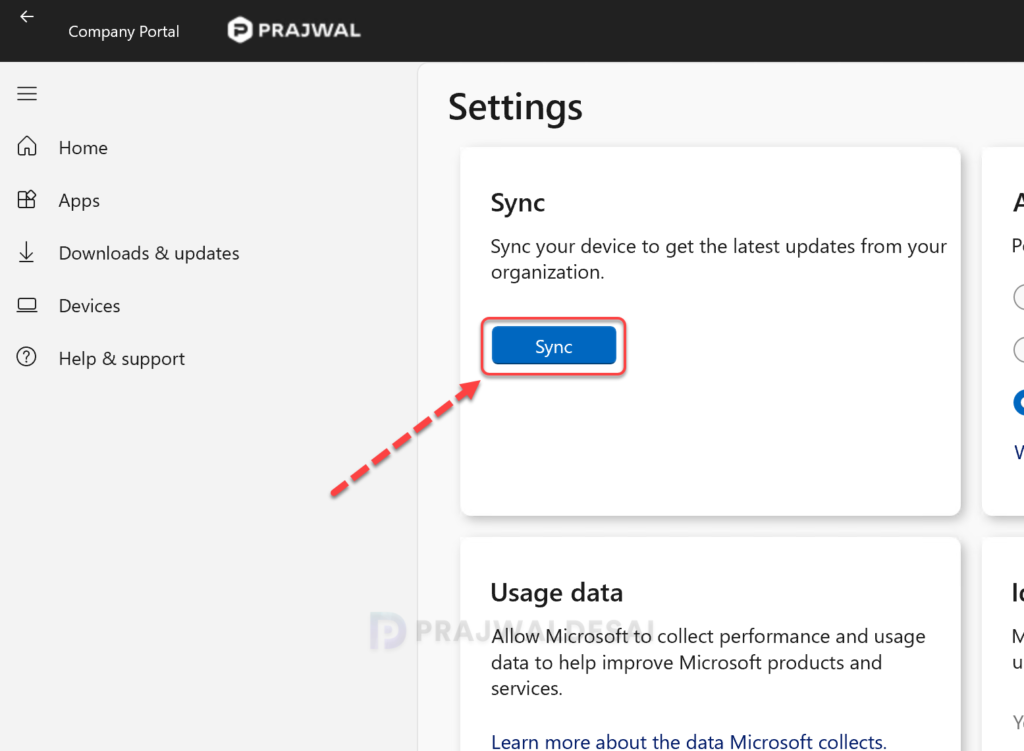
End users can quickly initiate the sync via the Company Portal app on Windows PC. To accomplish that, click on your Start Menu (or press the button on your keyboard) and then open the Company Portal app. Once the Company Portal has loaded, select the Settings icon from the left-hand navigation bar, and then click the Sync button.
Method 3. Use Sync Action in Intune Admin Center
In the Intune admin center, the Sync action forces the selected Windows device to immediately check in with Intune. When a device checks in, it immediately receives any pending actions or policies that have been assigned to it.
Tip: The Sync device action is also available for cloud PCs. With Cloud PC Remote Actions, you can remotely manage Cloud PCs in Intune just like any other managed device.
Here’s how you can sync a Windows device from Intune admin center:
- First, sign in to the Microsoft Intune admin center.
- Select Devices > Windows > All Devices.
- From the list of devices, select a Windows device and in the Overview pane, select Sync action. To confirm Sync, select Yes.

A message box appears when you initiate a device sync from the Intune admin center. Intune will attempt to check in with this device. If successful, it will sync current actions or policies to the device. Would like to continue. Select Yes.
Method 4: Perform Intune Sync using Settings App
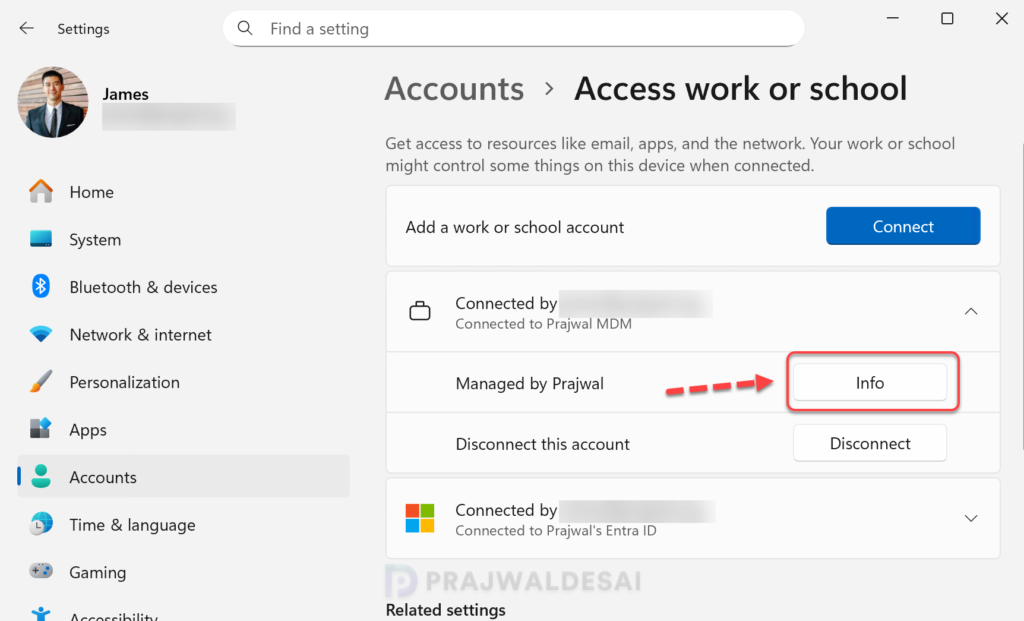
You can manually sync to refresh Intune policies on Windows devices using the Settings App. On your device, select Start > Settings. Select Accounts. Under Accounts, select Access Work or School. Select the account that has a briefcase icon next to it. Click Info.
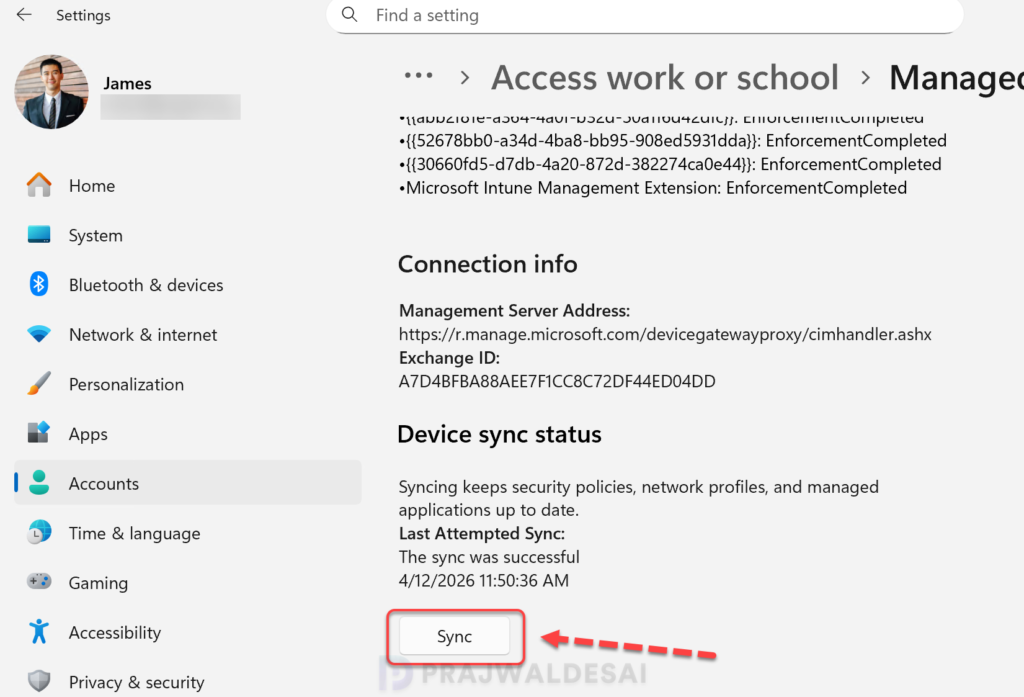
Under Device Action Status, select Sync. This will sync the latest security policies, network profiles and managed applications from Intune. In the same window, you should find the last attempted sync date and time.
Method 5: Force Intune Policy Sync using PowerShell
You can use Microsoft Graph and PowerShell to force Intune policy sync on Windows devices. With PowerShell, you can choose to refresh Intune policies on a single Windows device or on all Windows devices. We will look at both examples in this article. The below commands are taken from the Microsoft Graph PowerShell SDK documentation.
Step 1: Install Microsoft Graph Intune Module
In this step, we will install Microsoft.Graph.Intune PowerShell module. Launch PowerShell as an administrator and enter the below PS command.
Install-Module -Name Microsoft.Graph.Intune
Step 2: Connect to Microsoft Graph
Once you have installed the Intune PowerShell SDK, we will use it to perform some basic tasks. The Connect-MgGraph cmdlet is used to connect to Microsoft Graph via PowerShell.
Connect-MgGraphYou’ll need to sign in with an admin account to consent to the required scopes. On the resulting web page, sign in to your tenant with a user account that has the appropriate read and write permissions. We are using a global administrator account in this example.

Step 3: Connect to Device Management scopes
Run the below PowerShell command to connect to the required device management scopes. This is required to read the properties of the objects managed by Intune. You’ll need to sign in with an admin account to consent to the required scopes.
Connect-MgGraph -scope DeviceManagementManagedDevices.PrivilegedOperations.All, DeviceManagementManagedDevices.ReadWrite.All,DeviceManagementManagedDevices.Read.All
Step 4: Check Last Sync Date and Time of Windows Device
Before invoking an Intune policy on a Windows device, run the following command to determine when the device was last synced.
Get-MgDeviceManagementManagedDevice -Filter "contains(deviceName,'CLOUDVM1')" | fl lastsyncdatetime
Step 5: Invoke Intune Sync on a single Windows Device
The Get-MgDeviceManagementManagedDevice cmdlet lets you read properties and relationships of the managed device object in Microsoft Intune. In this step, we will run the following PowerShell command to invoke Intune sync on a given Windows device.
Sync-MgDeviceManagementManagedDevice -ManagedDeviceId deviceIDStep 6: Invoke Intune Policy Sync on all Windows Devices
This PowerShell script initiates policy synchronization across all Windows devices. It is specifically designed for scenarios where bulk synchronization is required. Simply copy the script into Notepad or any preferred text editor to proceed. Save the file as IntuneSyncWindowsdevices.ps1. Execute the script on Windows devices to retrieve and apply the latest Intune policies.
$Windowsdevices = get-MgDeviceManagementManagedDevice | Where-Object {$_.OperatingSystem -eq "Windows"}

Foreach ($device in $Windowsdevices) {
    Sync-MgDeviceManagementManagedDevice -ManagedDeviceId $device.id
    write-host "Sending device sync request to" $device.DeviceName -ForegroundColor red
}
Step 7: Run Intune Policy Sync on Windows, Mac, iOS, Android devices using PowerShell
To sync Intune policies across all devices enrolled in Intune, including Windows, Android, Mac, and iOS, you can execute the following PowerShell script.
$Alldevices = get-MgDeviceManagementManagedDevice -All

Foreach ($device in $Alldevices) {
    Sync-MgDeviceManagementManagedDevice -ManagedDeviceId $device.id
    write-host "Sending device sync request to" $device.DeviceName -ForegroundColor yellow
}
Method 6. Use Bulk Device Actions to Force Intune Policy Sync
This method uses the bulk device action to sync Intune policies on multiple Windows devices. If you want to trigger policy sync on multiple Windows PCs in your organization, bulk device actions should be used. You can initiate the policy sync on numerous physical Windows devices, including Windows 365 cloud PCs.
In the Intune Admin Center, go to Devices > Windows > Windows Devices. Select Bulk Device Actions.

On the Basics tab, select the following:
- OS: Windows
- Device type: Physical devices or Cloud PCs
- Device action: Sync.
Click Next.

On the Devices tab, click on the option “Select devices to include” and choose the Windows devices on which you want to manually sync Intune policies. Click Next.

On the Review + Create tab, select Create. On selected Windows devices, the latest policies are now synchronized with Intune.

Method 7: Sync Policy on Microsoft HoloLens with Intune
Sync HoloLens running the Windows 10 Anniversary Update or later from the system settings app.
- Open the Settings app on your device.
- Select Accounts and then select Work Access.
- Find your connected account, and then select Sync.
For more information, see enrolling holo lens 2 devices for Autopilot deployment.
Method 8: Trigger Sync via Intune Management Extension SyncApp
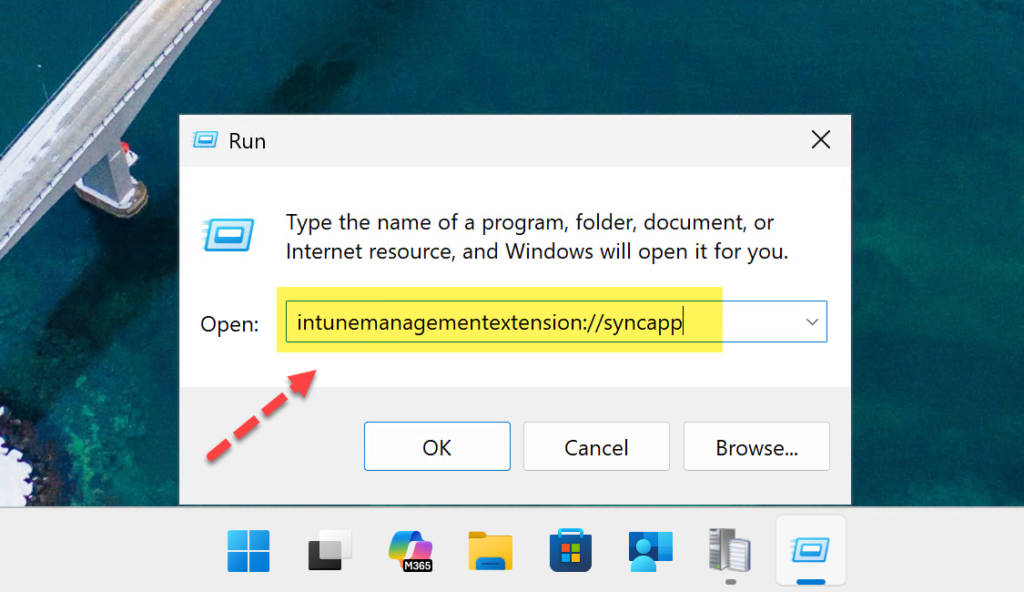
My MVP friend, Oliver kieselbach, discovered that when you trigger a sync via the Company Portal app, it also triggers IME to start a Sync process. Upon reviewing the IME logs, it is evident that the IME receives a signal to initiate a sync process and proceeds to execute the synchronization with the intunemanagementextension://syncapp command.
To manually trigger the Intune sync on a Windows device with the above command, right-click Start, select Run. Type intunemanagementextension://syncapp and press the enter key.
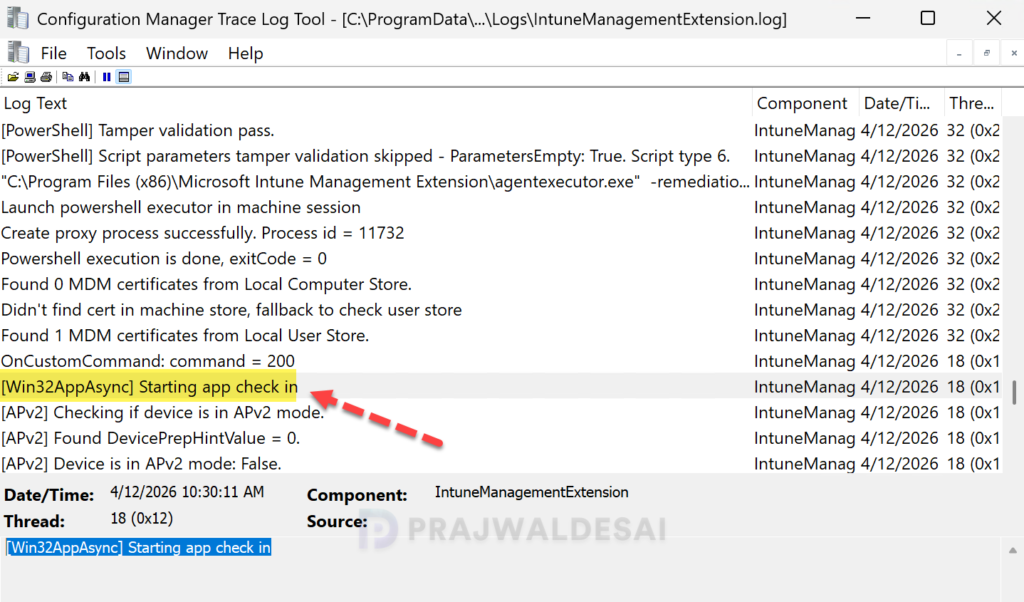
After you run the above command, open the IntuneManagementExtension.log located in C:\ProgramData\Microsoft\IntuneManagementExtension\Logs folder. Here, look for the line “[Win32AppAsync] Starting app check in” which confirms that synchronization of policies has been initiated.
Method 9: Restart Intune Management Extension Service to Trigger Sync
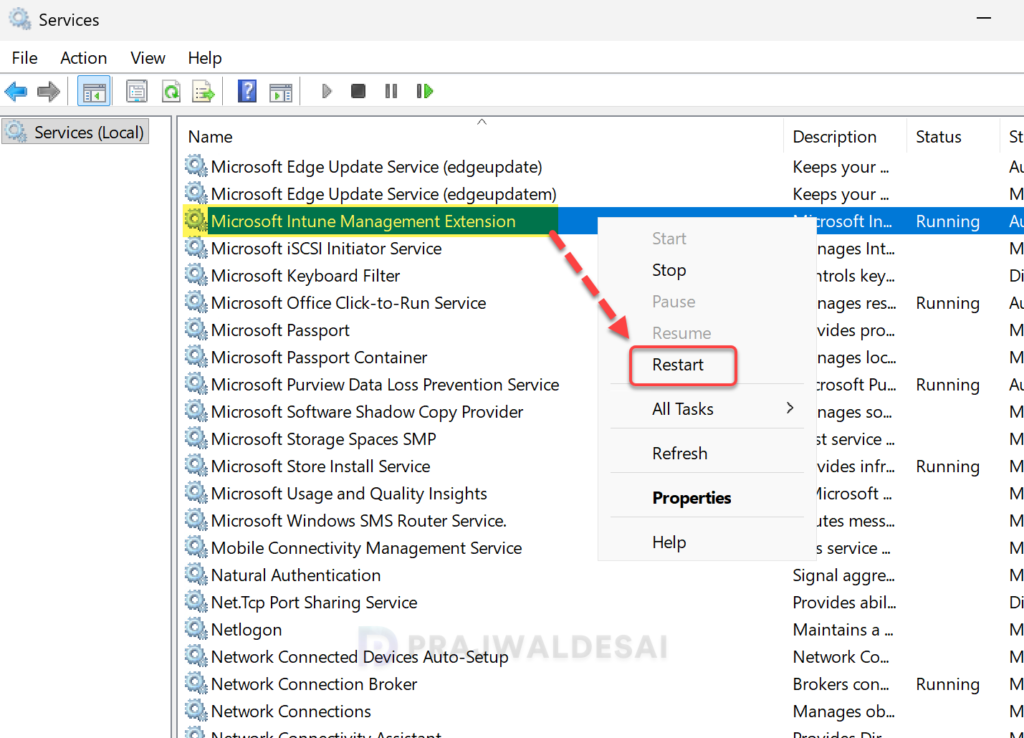
If you’re in the mid of troubleshooting Win32 app installation issues or unable to see the PowerShell scripts applied via Intune, the solution is to manually restart the Intune Management Extension service. This action initiates IME to start a Sync process and the recent settings are applied to the device. To perform that, type services.msc in the Run dialog box and press the Enter key. In the Services console, right-click Microsoft Intune Management Extension and select Restart.
If you wish to restart the IME service using PowerShell, use the below command.
Restart-Service -DisplayName "Microsoft Intune Management Extension"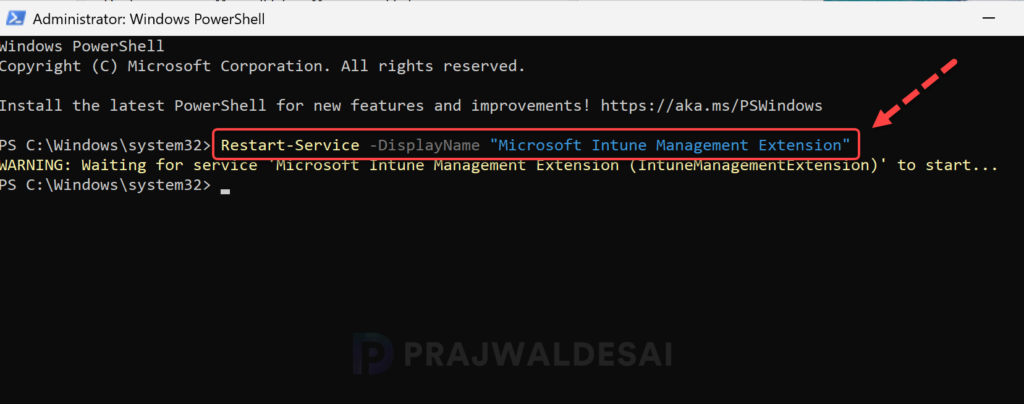
Method 10: Trigger Windows Device Sync via Task Scheduler
Task Scheduler is one of the interesting methods to trigger a sync on Windows device. If you go into the Intune admin center and select Sync action for a device or use any other methods to perform policy sync, the OMADMClient is utilized by Microsoft Intune to sync policies, settings, and updates.
To locate the Schedule task created for OMADMClient, launch the Task Scheduler and navigate to Microsoft > Windows > EnterpriseMgmt. Here expand the GUID folder and within this folder you’ll find the scheduled task “Schedule to run OMADMClient by client“.
To manually trigger the Windows device sync, right-click Schedule to run OMADMClient by client task and select Run. The task status changes to running and in the background the latest policies and settings are updated on the device.
Task Scheduler successfully finished "{7ee999bd-4fc2-44bd-b878-51ce9ac61ece}" instance of the "\Microsoft\Windows\EnterpriseMgmt\Device Enrollment GUID\Schedule to run OMADMClient by client" task for user "NT AUTHORITY\SYSTEM".
The Event ID 102 indicates the sync task scheduler job has been completed successfully. Return code 0 indicates that the Intune policy sync is successful on the given device.
Task Scheduler successfully completed task "\Microsoft\Windows\EnterpriseMgmt\DCFDC03B-8C5F-45D5-B329-A1224C178DD8\Schedule to run OMADMClient by client" , instance "{7ee999bd-4fc2-44bd-b878-51ce9ac61ece}" , action "%windir%\system32\omadmclient.exe" with return code 0.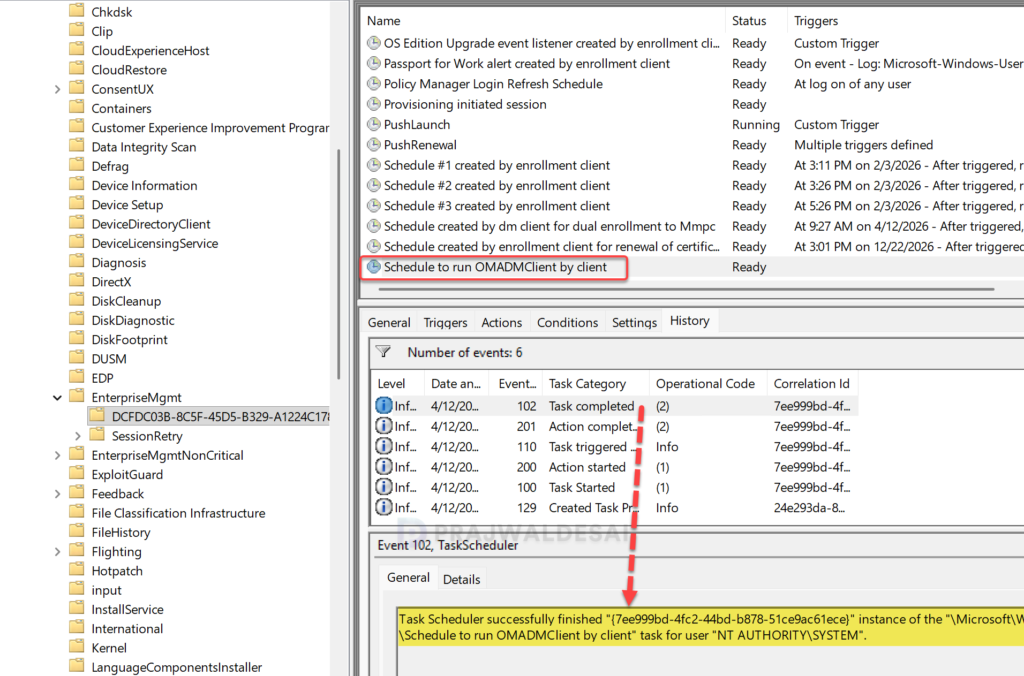
Method 11: Run Remediation to Sync Windows Device
The run remediation remote action in Microsoft Intune allows IT administrators to proactively detect and resolve support issues on managed devices. You can also use this feature to update the Intune policies on managed Windows devices.
- In the Microsoft Intune admin center, select Devices > All devices.
- From the device list, select a Windows device.
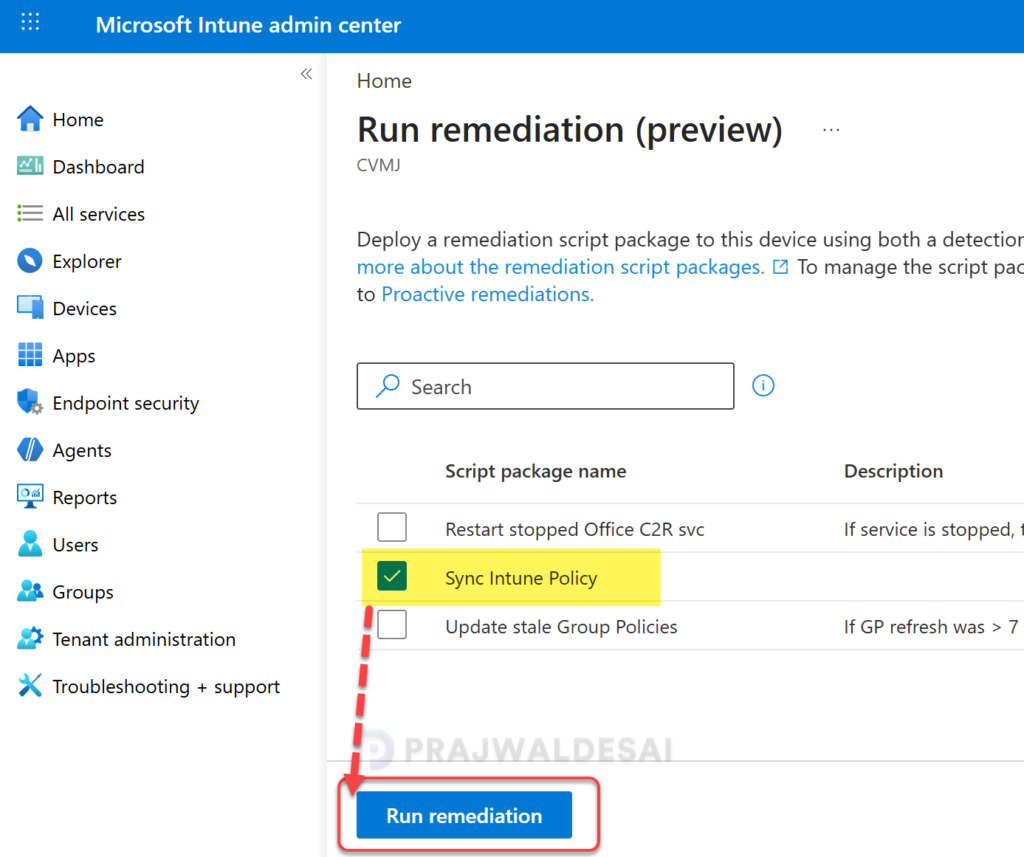
- At the top of the device overview pane, find the row of remote action icons. Select Run remediation (preview).
- In the Run remediation (preview) pane, select the Sync Intune Policy script package and click Run remediation.
Monitor Intune Policy Sync Progress in Event Viewer
Either of these things can happen when you perform an Intune policy sync on a Windows device. The policy sync is either successful or unsuccessful.
The deployment of a configuration profile, a Win32 app, or a script to your Windows devices may fail. The Event Viewer lets you troubleshoot issues related to company portal sync.
Launch the Event Viewer and go to Application and Services Logs. Select Microsoft > Windows > DeviceManagement-Enterprise-Diagnostics-Provider > Admin. Review each event to identify the cause of Intune policy sync failures.

Troubleshooting
Intune also allows you to collect diagnostic logs from Windows devices for troubleshooting common issues. The log collection procedure varies for macOS devices, and you can read the guide on how to collect Intune logs from macOS devices for more information.

I’d like to understand the mechanism of the sync and I am not getting any information from anywhere….
At its simplest, a sync can be pushed via Intune (Portal, Powershell / Intune Graph etc.), or requested from the client.
In the push scenario – what happens? For instance, is a notification sent to the device on a specific port. I m assuming on th ecorporate network this port needs to be allowed, and how do we check on the device whether a sync request was successfully ‘pushed’…alternatively does it simply set a flag in Intune against the device and the device is regularly polling to see if a sync is requested….
I am not getting any answers to the mechanisma nd what we need to allow when devices are using corporate WIFI behind strict firewalls…we’ve allowed the various ports for the actual policy/app sync – this question is specifically about sync notifications!
Similarly what happens when the sync is intiated from the device – what gets updated and what can be monitored etc., to verify a successful sync request has been made?
Great article, I believe a restart of the Intune Management Service is also another way.
Dear Prawaj, Thanks for very valuable blog. Keep up the good work no matter if anyone likes or not. Helps many who can only wish you all the best.
to bad MS is so pathetic with allowing people to change how often PCs sync. I’ve found it very painful to deploy and make FW changes. I feel horrible how bad this product is for our company, but we got suckered into buying E5. If they don’t let you test drive – there is a reason.
I’d be interested in hear about some of your challenge, if you care to share. The long sync time has been in issue I think can solve with this post.